How to copy text from a video on iPhone? Thanks to the feature Live Text, Which Apple introduced with the advent of the operating system iOS 15, it was possible to identify and copy text in a photo or when using the camera. Thanks to the function Live Text you can even search for text in Photos when using Spotlight. With the arrival of iOS 16 also added the ability to detect and copy text from a video. How to do that?
You might be interested in

Selecting and copying text from a video can be useful when you want to copy a large amount of text from a video. You don't have to screenshoty different frames of footage to capture text. Whether you need to select and copy various inscriptions or perhaps code, iPhone will accommodate you.
How to copy text from a video on iPhone
If you want to copy text from a video to iPhone, follow the instructions below.
- Go to the app that contains the video you want to copy text from.
- Go to the part of the video where the text is located and pause the playback.
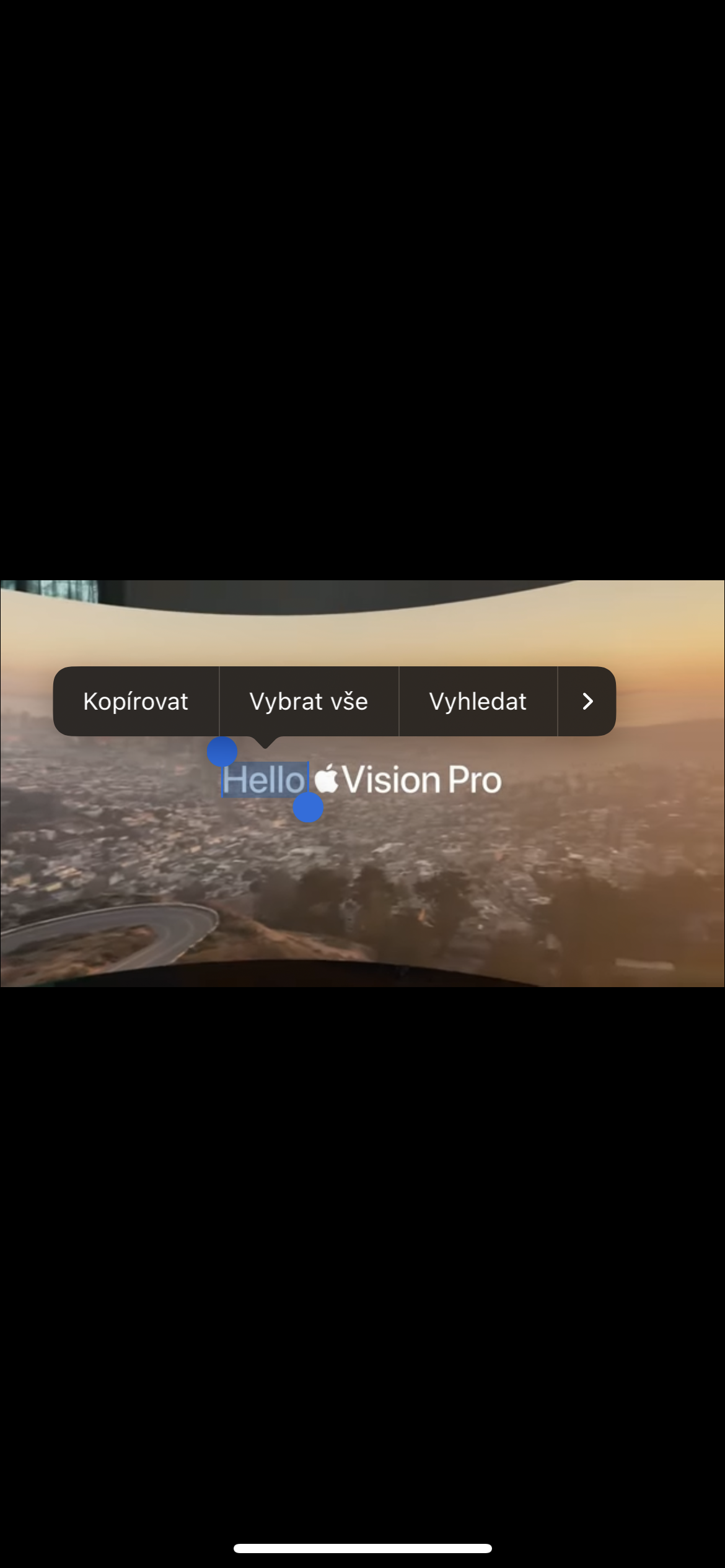
- Tap the screen and select the text you want to work with.
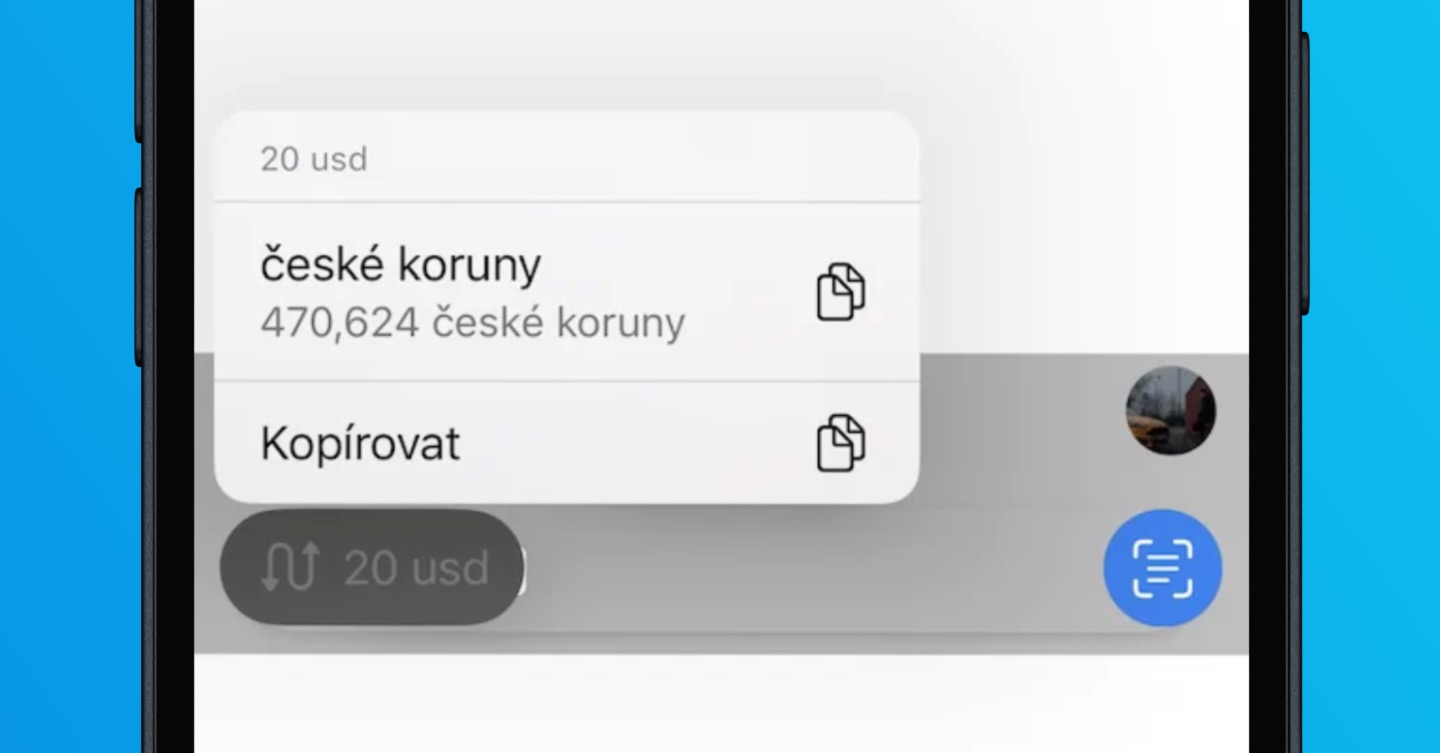
- Click on the selected text. In the menu that appears above it, you can choose to select, insert, or even translate the text.
Gallery
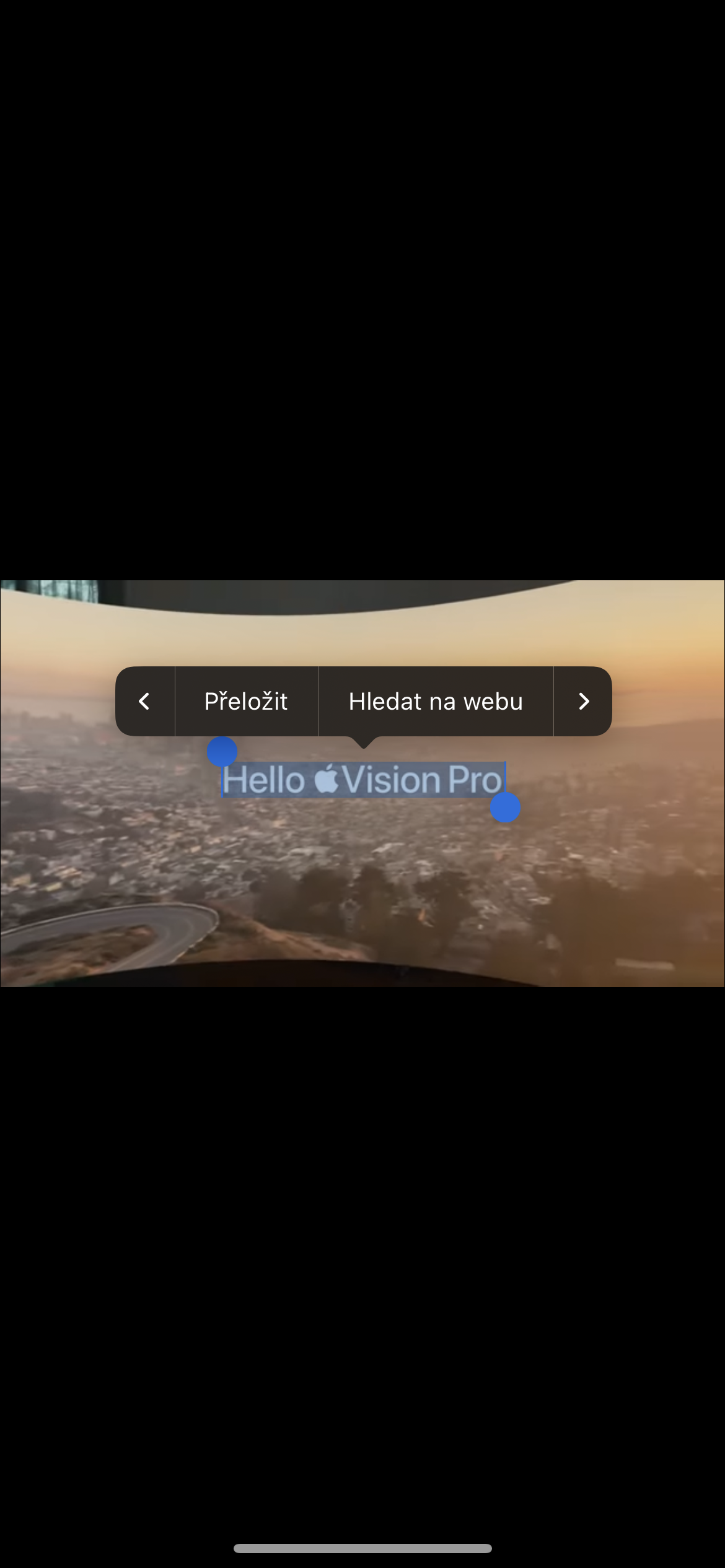
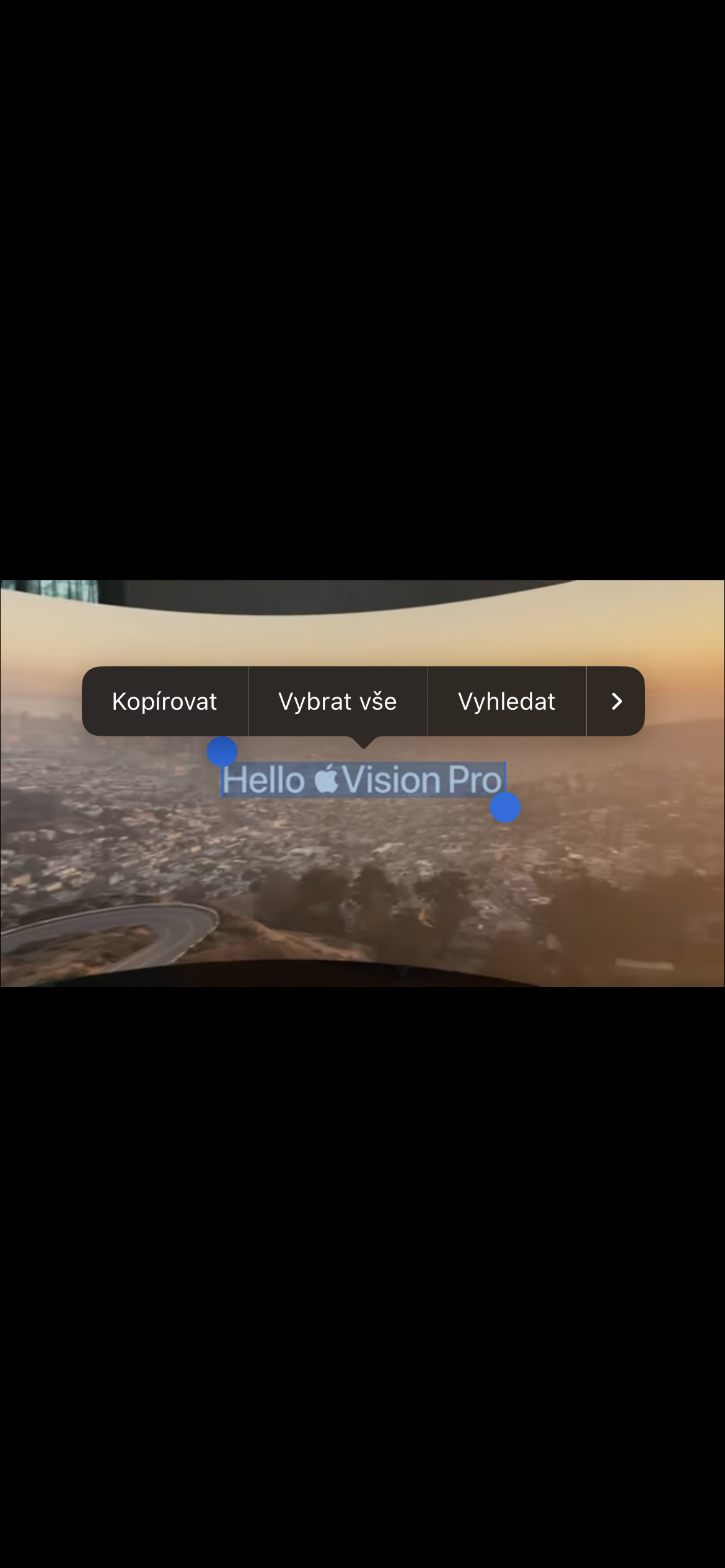

The next time you come across multiple lines of code that you want to try out, or you want to quickly grab a few notes from a video your teacher shared with you, you don't need to manually copy them or even take a screenshot of each frame. You can easily copy text with a few taps.