
Be patient
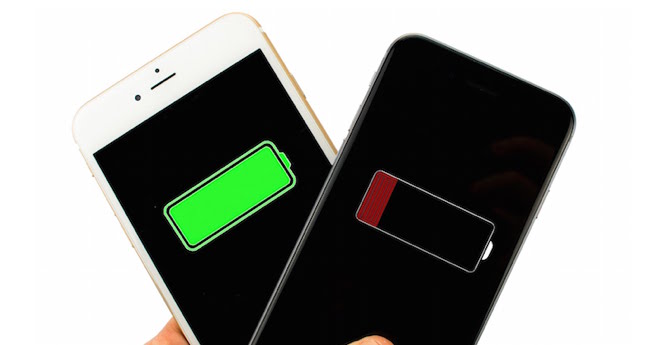
It is normal for a system update to iOS there will be a decrease – and even a fairly significant decrease – in battery life. After the update, you must iPhone perform a number of tasks in the background. This uses more power than usual, and once all these additional tasks are completed, battery life returns to normal.
You might be interested in
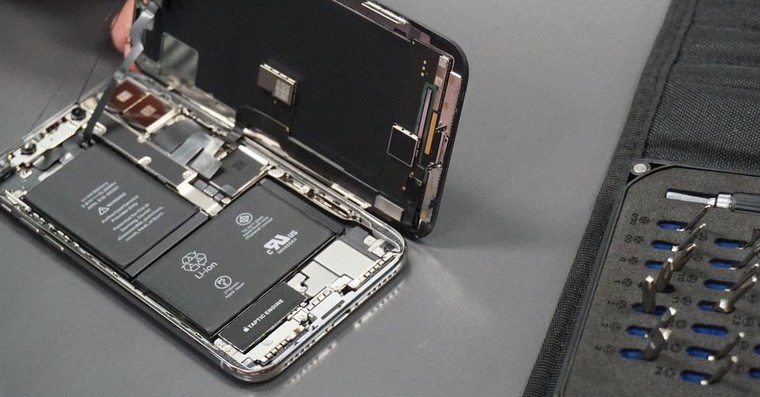
The usual tricks
You can also try a few things that other users have found to help slow down the rate at which your iPhone's battery drains.
- Decrease display brightness
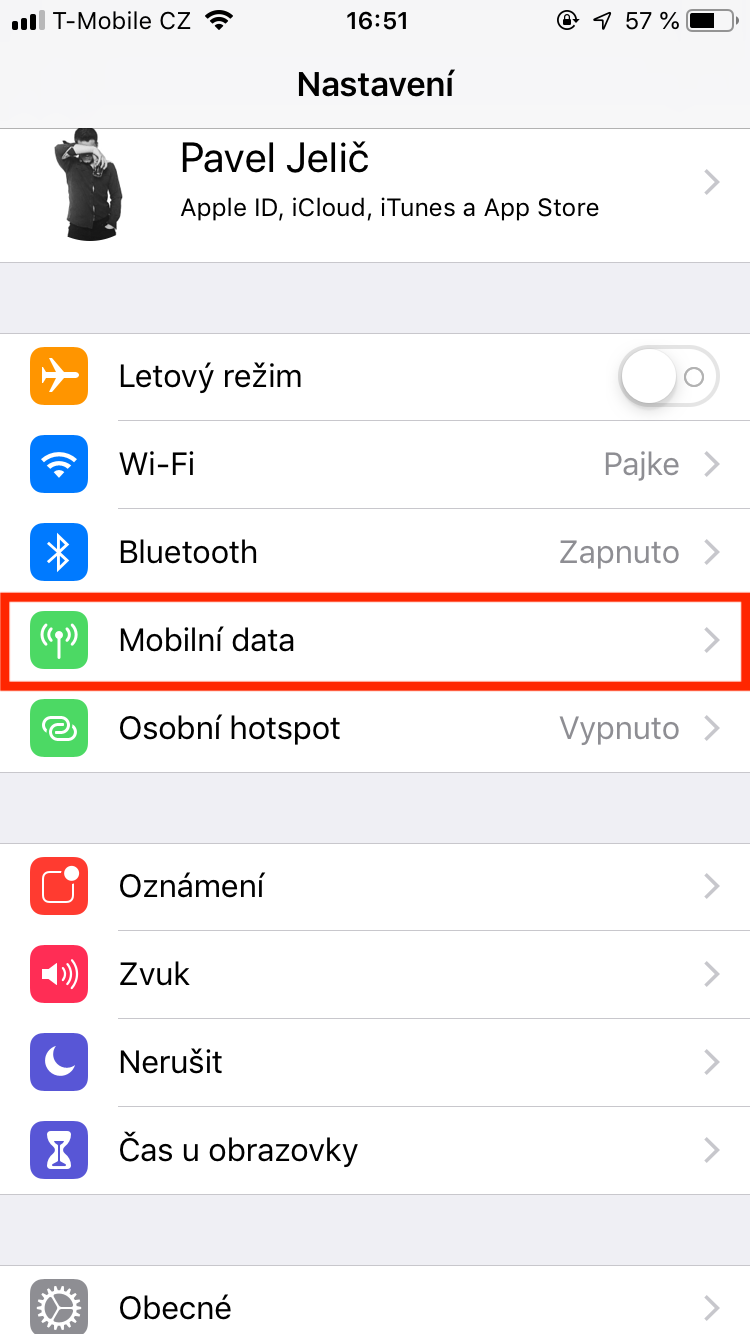
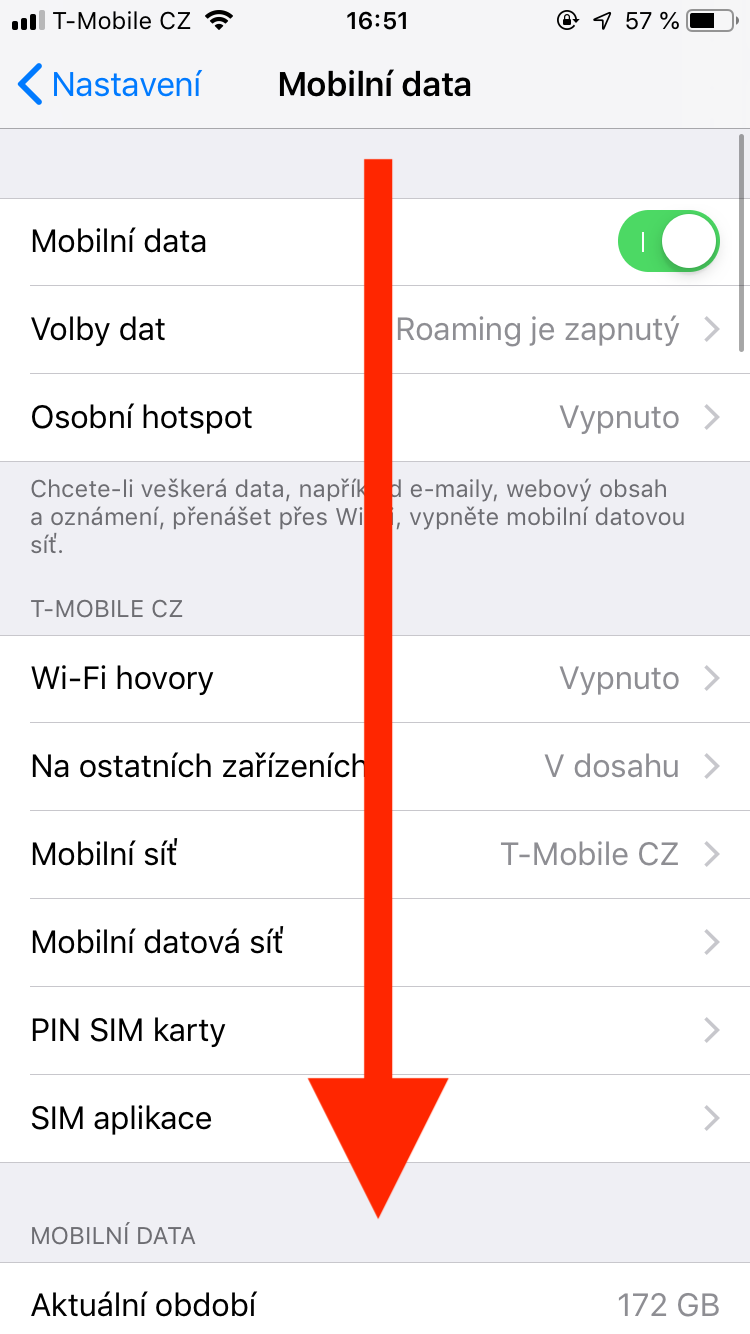
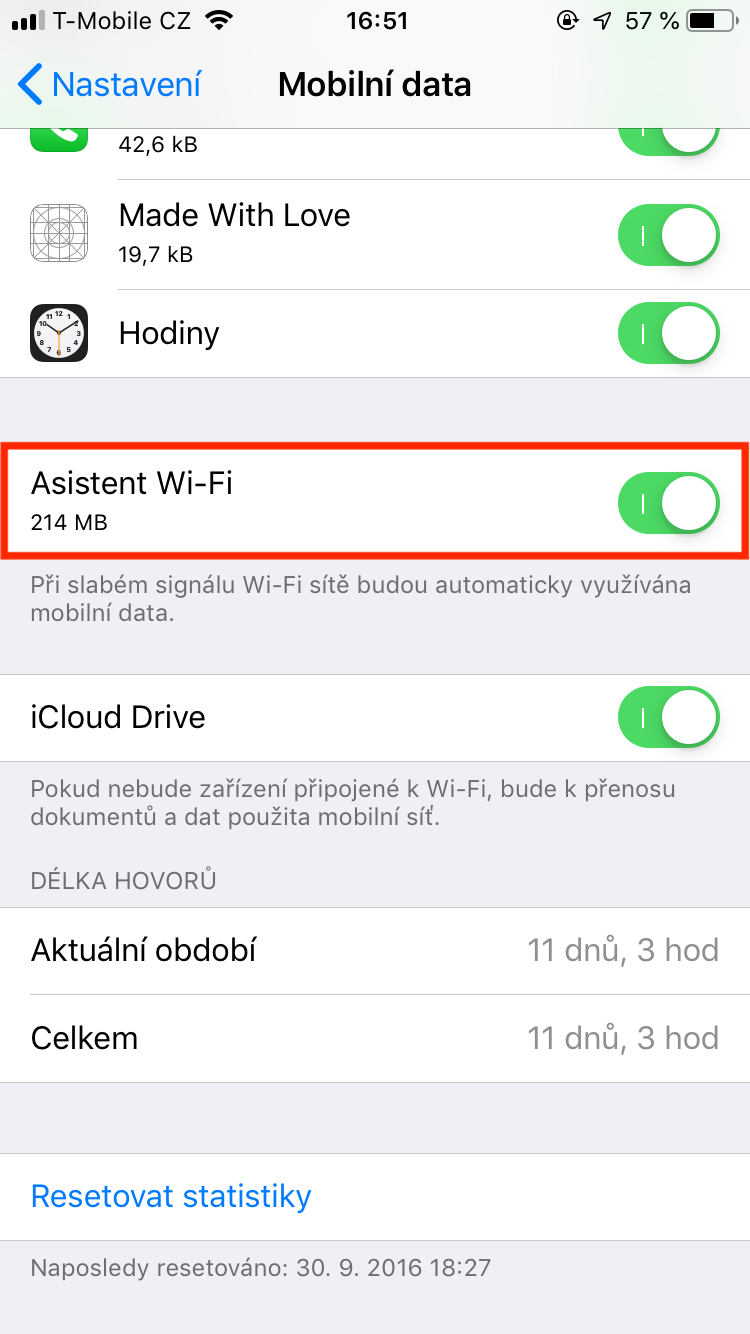
- V Settings -> Mobile data deactivate the function at the very bottom Wi-Fi Assistant.
- V Settings > General > Transfer or reset iPhone reset network settings.
- Use dark mode.
Update your apps
ProThe problem may not be in the operating system update. iOS, but sometimes more so in applications that have not been updated, especially when new versions of the system have been released iOS. ProIt's a good idea to make sure all your apps are up to date before you spend a lot of time diagnosing what's going on. Launch the app App Store and tap on your profile icon in the upper right corner. Then head down a bit and check if any of the apps require an update.
Gallery
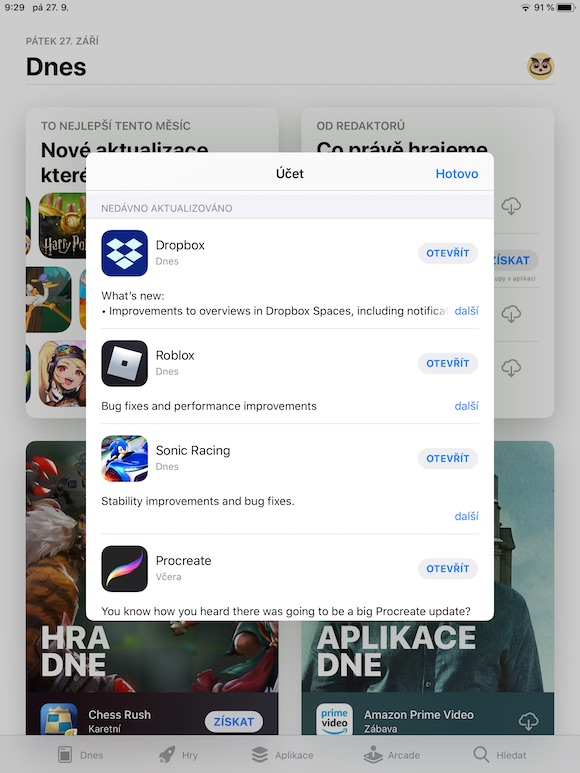
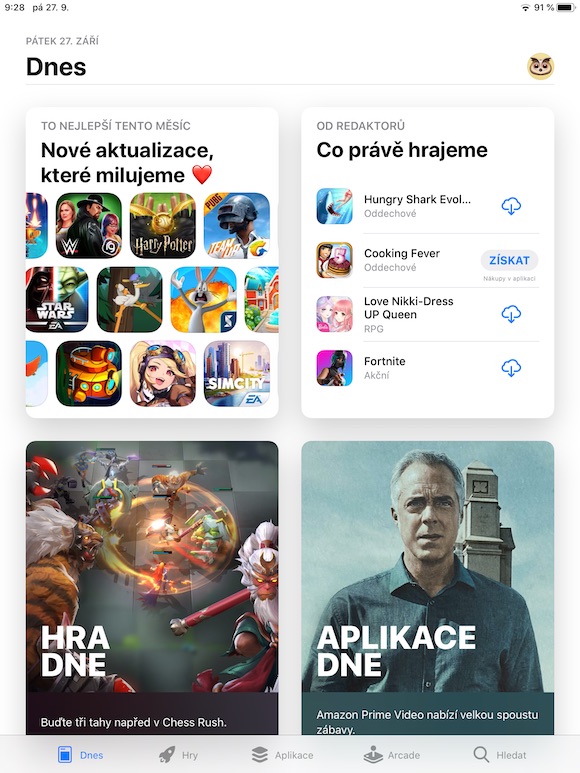
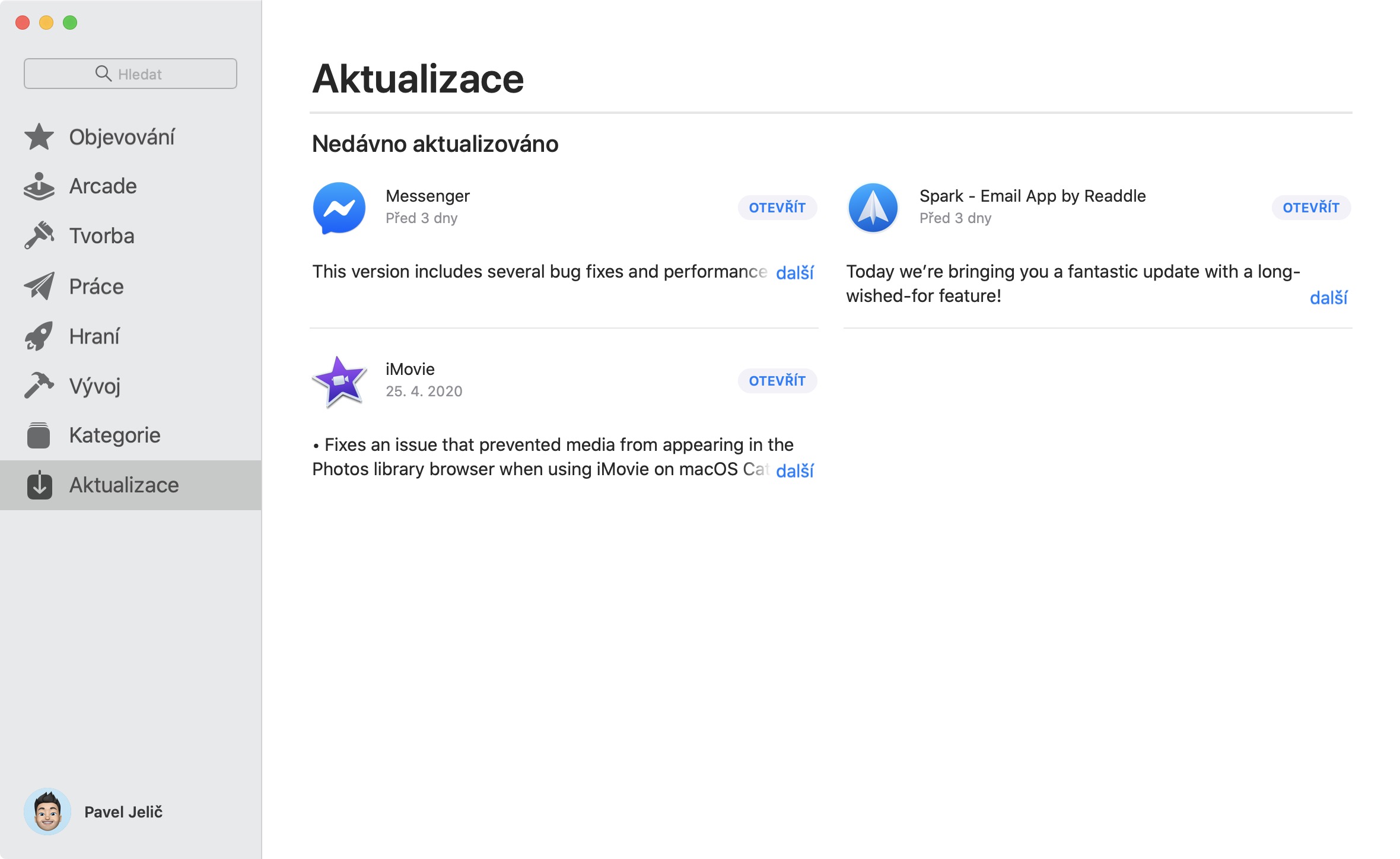
Find out what's eating up your battery
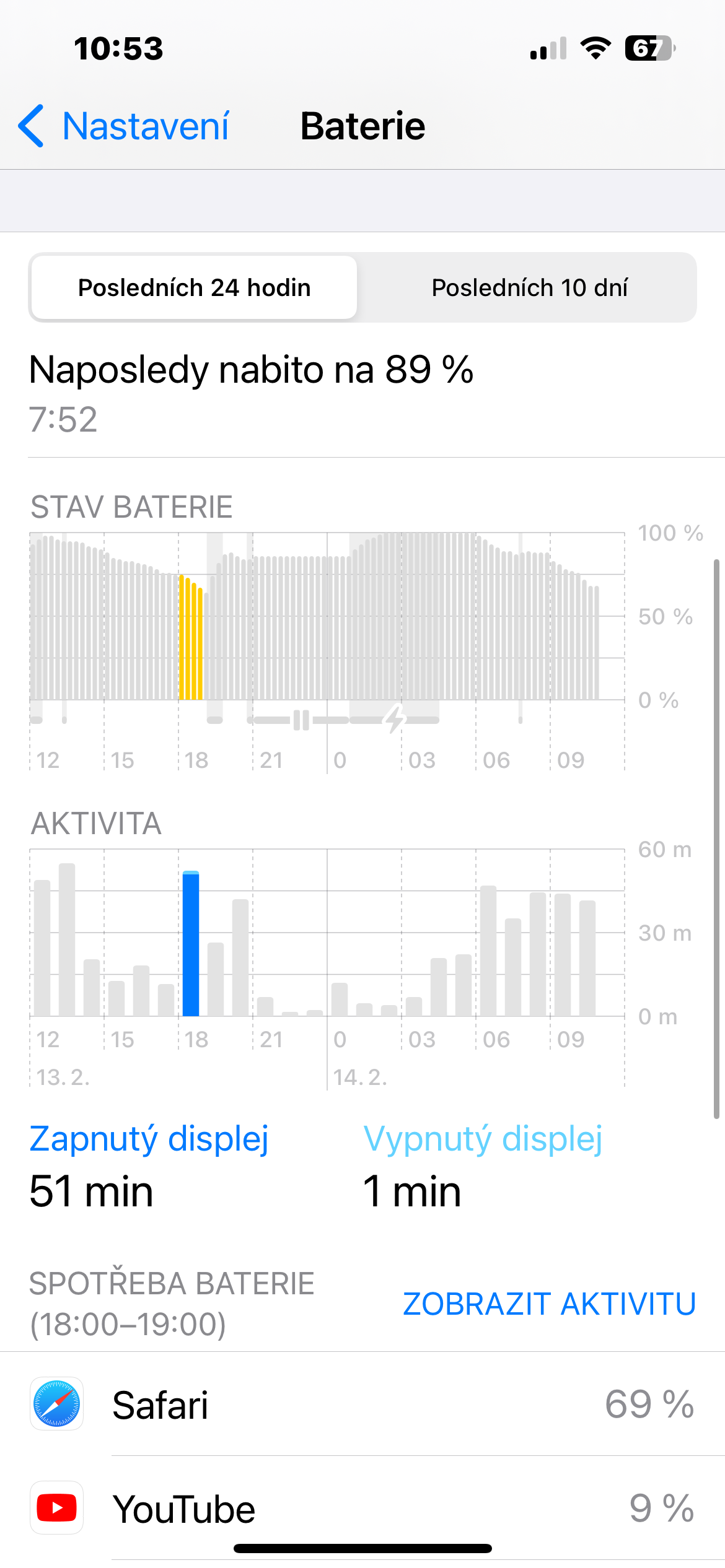
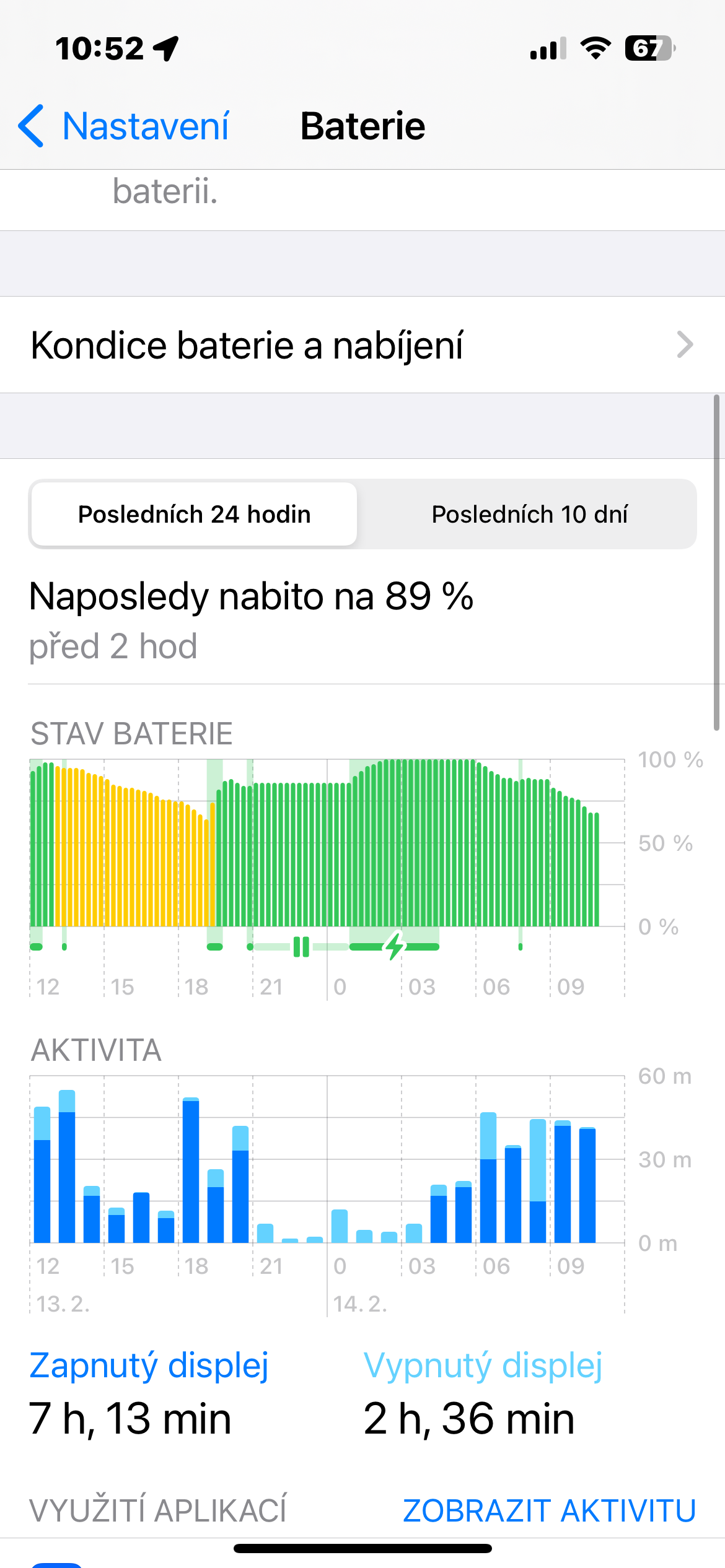
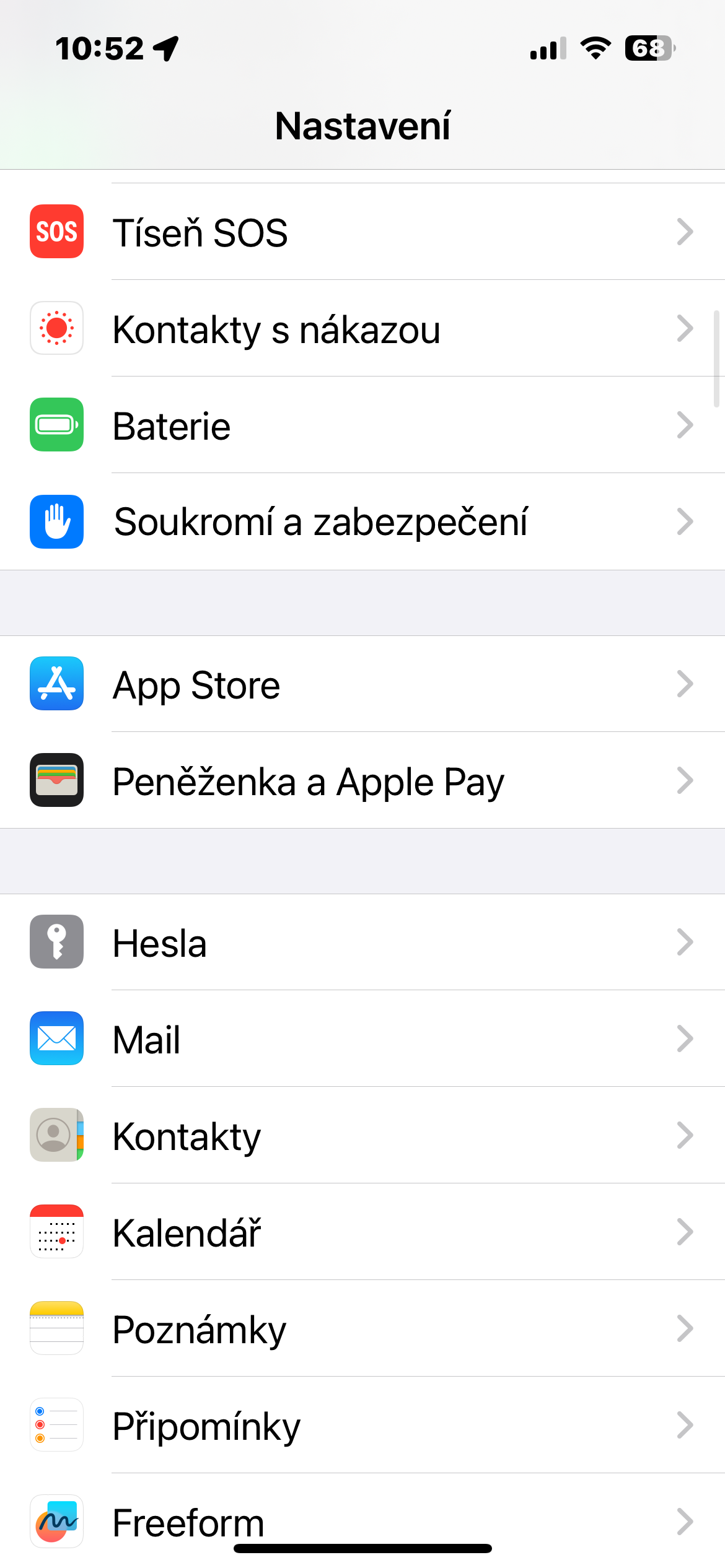
If none of the previous steps helped, what else could it be? It could simply be an app that is draining your battery. Operating System iOS fortunately, it offers the tools you need to track down misbehaving applications. Run Settings -> Battery. Head a little further down and you can easily see which of the running apps it has. the biggest impact on your iPhone's battery life.
Gallery
Battery replacement
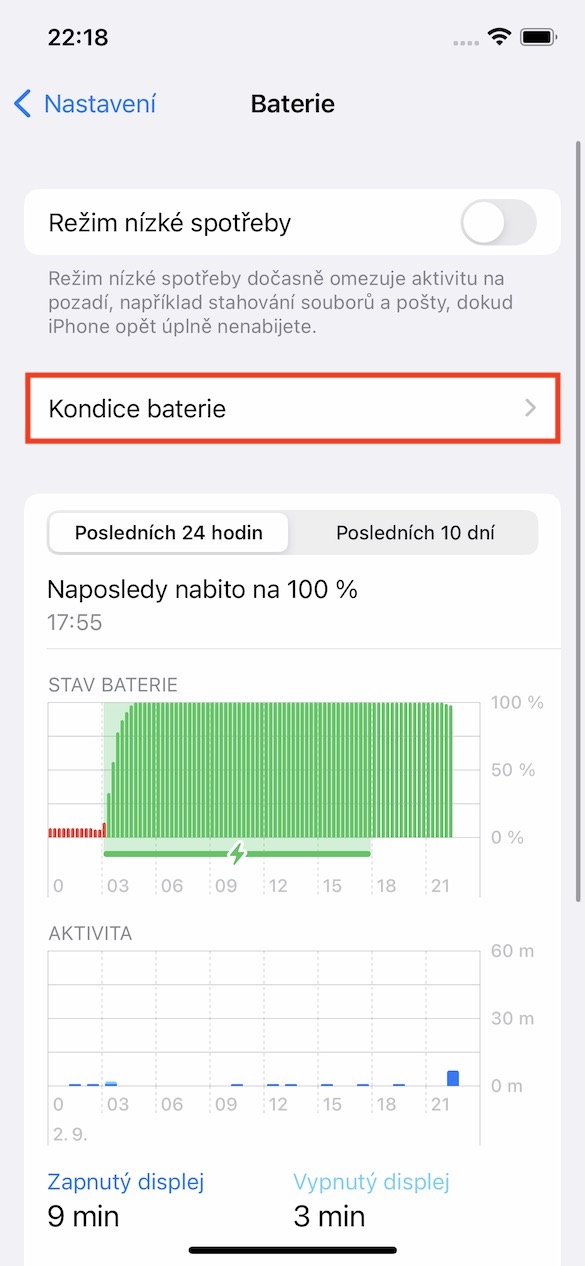
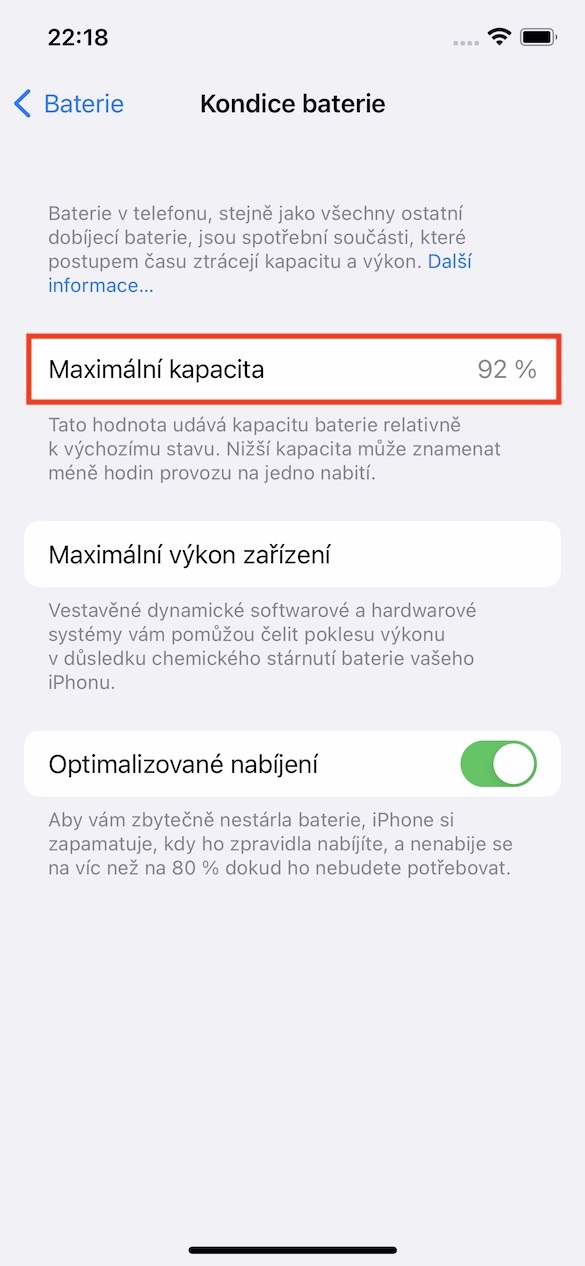
If it's yours iPhone older than four years, the battery may need to be replaced. Start Settings and tap on Battery. Choose Battery health and charging and look at the section Maximal capacity. A level below 80% means the battery is worn out and it's time to replace it.
Gallery




Yes the forums are now full of 17.4 draining the battery extremely. And it doesn't just cause the aforementioned.
iP 14 pro can only last about 4,5 hours of use..
Are you sure you have Iphone??
I'm definitely sure 😁😁😁
I have iPhone 13 basic condition after two years I have 92 percent and also the durability is terrible, every update it gets worse and worse. After this iPhone 13 basic I will go to the Samsung of Esko
Go to A's Samsung, Iphone not for you
How do you measure time??
An article about nothing
How to do it? Don't spout such nonsense