Google web browser operation Chrome on your Mac can sometimes get uncomfortably slow. There are a number of different factors that can be to blame. Fortunately, there are also a handful of tips that can help you not only speed up Chrome, but also to reduce its consumption. Google itself is now starting to provide users with two of these tools.
You might be interested in
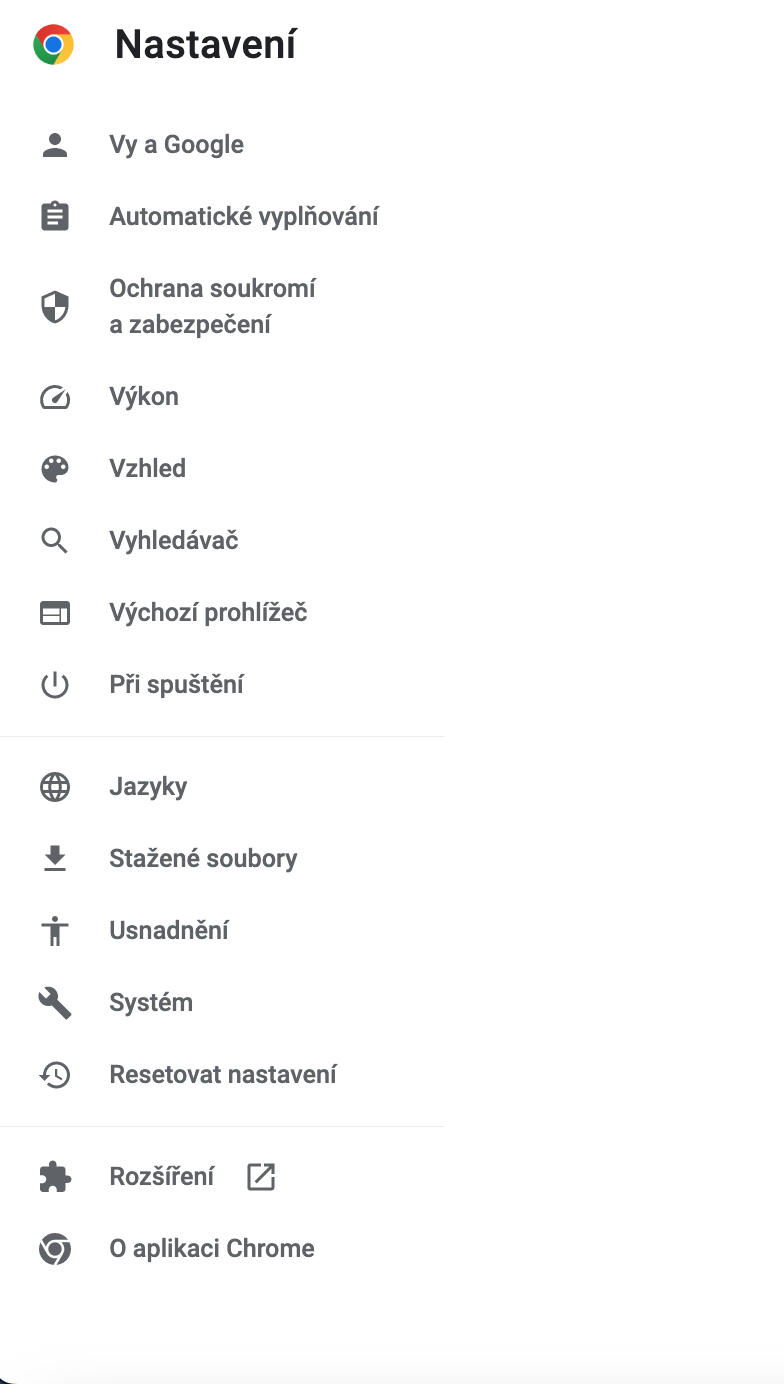
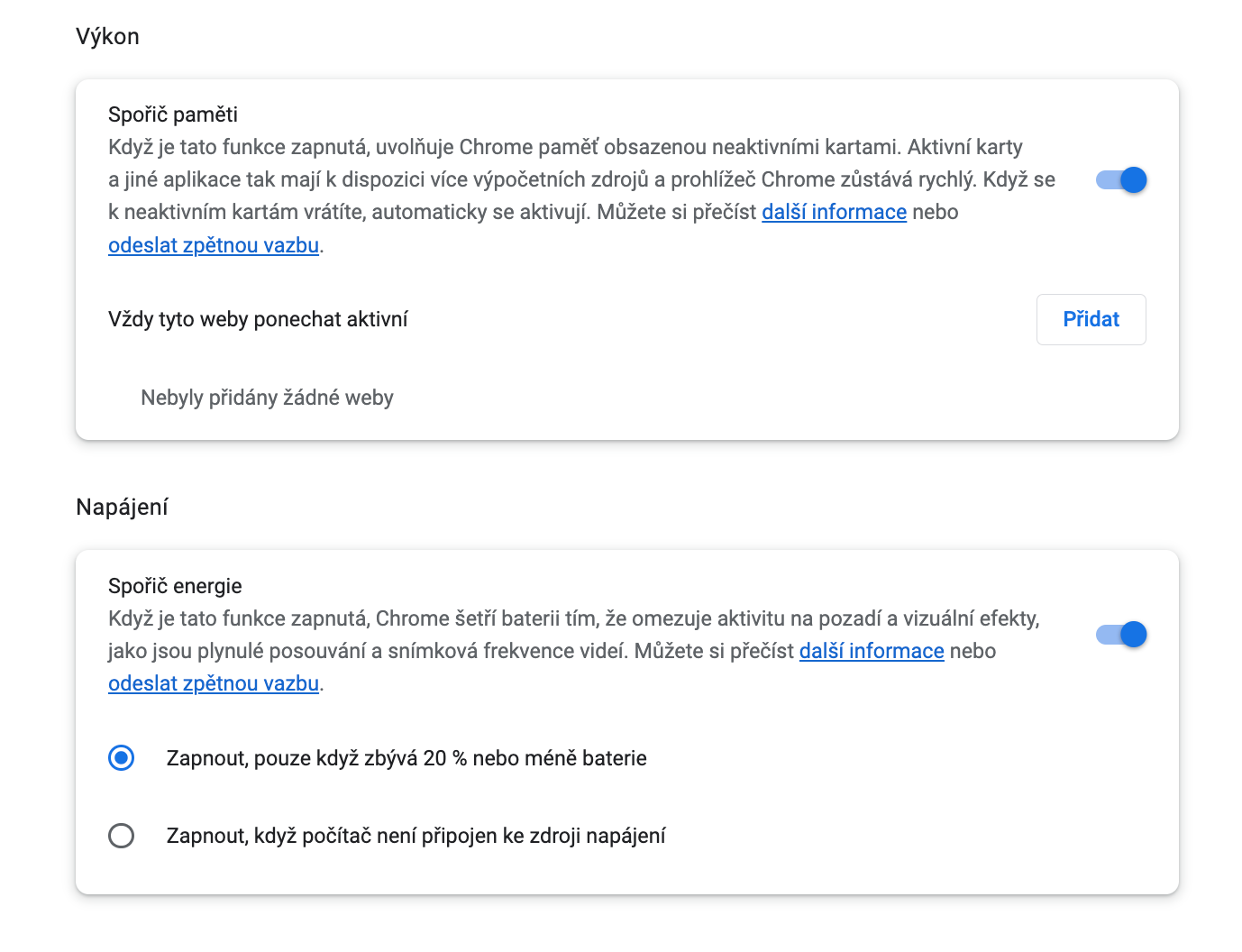
Google announced this week that it is releasing two new features to the world. They are called Chrome Memory Saver and Chrome Energy Saver, and are available to owners of computers with operating systems Windows, macOS, and Linux distributions. Both features should be available automatically by default, you can check them by clicking in the upper right corner of the browser window three dots icon -> Settings -> Performance. Here, make sure the items are activated Performance a Power supply.
Gallery

Chrome memory saver
Function Chrome Memory Saver automatically frees up memory from inactive tabs to give other pages and applications on your computer more resources. Inactive pages remain visible in the ribbon and reload immediately when you navigate to them. The address bar will show Chrome via the icon with the tac symbolhomeindicate that the card has been “frozen” and is active again. During the inactivity of the given card, it can Chrome Memory Saver frees up the necessary MB of memory for other tasks. In Chrome settings, you can add sites that you want to ponechat always active. Google states that with the help of Chrome With Memory Saver you can save up to 30% of memory.

Chrome Energy Saver
The second feature that can help you significantly is Chrome Energy Saver. This saves your computer's battery power by limiting background activities and visual effects. These effects include animations and smooth scrolling, as well as reduced video frame rates. In addition to the on/off option, there are other customization options available: turn on Chrome Energy Saver only when the battery is at 20% or less, or when your MacBook disconnected from the power source.