
If you're working in the Google web browser on your Mac Chrome, you have probably experienced browser traffic putting excessive strain on your computer's CPU. Pro For many users, this problem was the reason for them to definitively switch to an alternative browser. But what to do if Chrome Don't you want to leave?
I am a long-time user of Google browser myself. Chrome. Sometimes I use a different browser for various reasons, Chrome but it is a daily fixture. Over the years of using it, I have gotten used to its interface, which only changes with updates. mini, as well as the number of extensions and other features. However, I admit that the force of habit is stronger for me than the occasional dissatisfaction, so instead of looking for an alternative browser, I decided to try various steps to prevent Chrome from excessively using my system resources. MacBooku.
Turn off, turn on, and so on
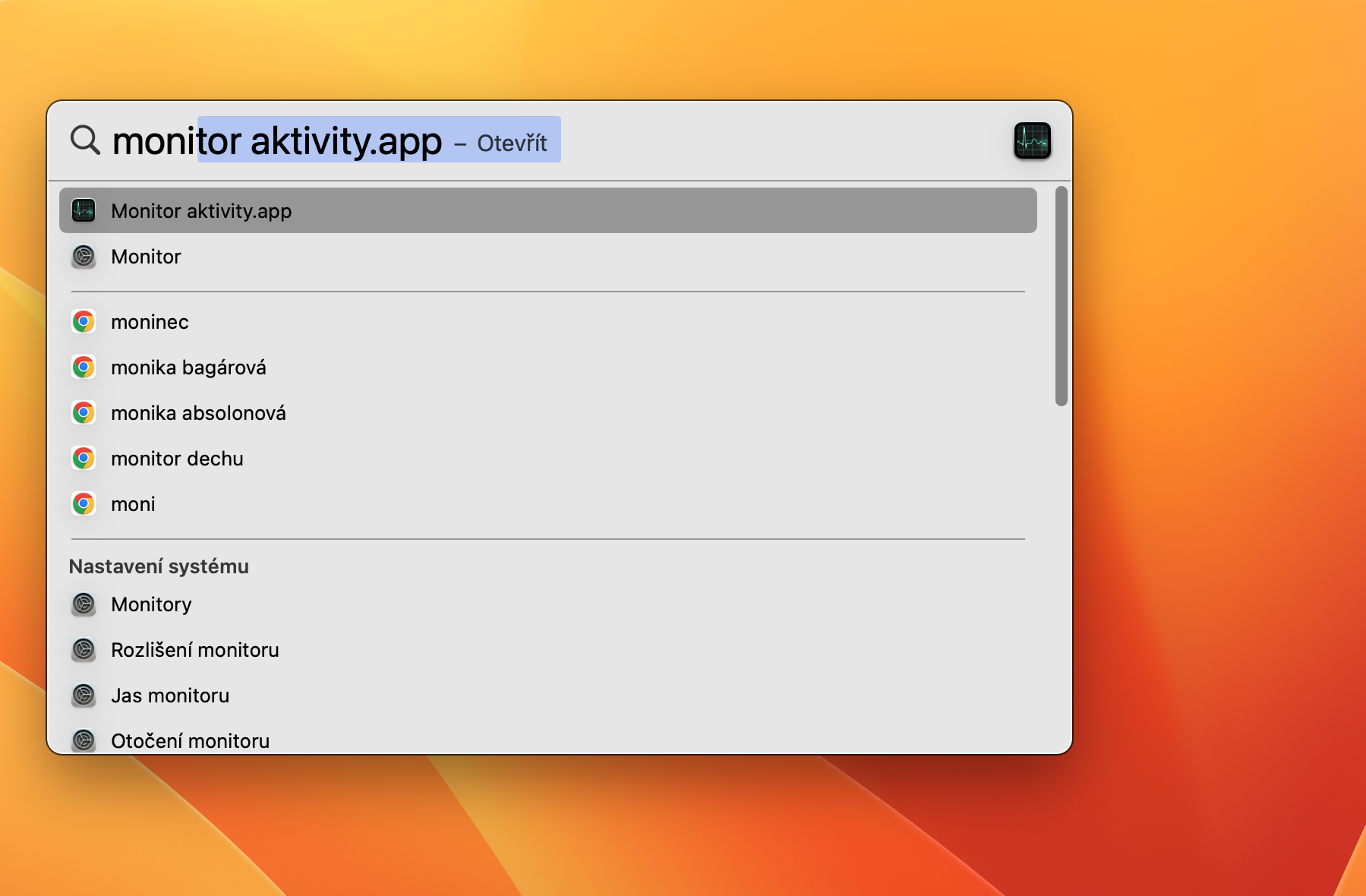
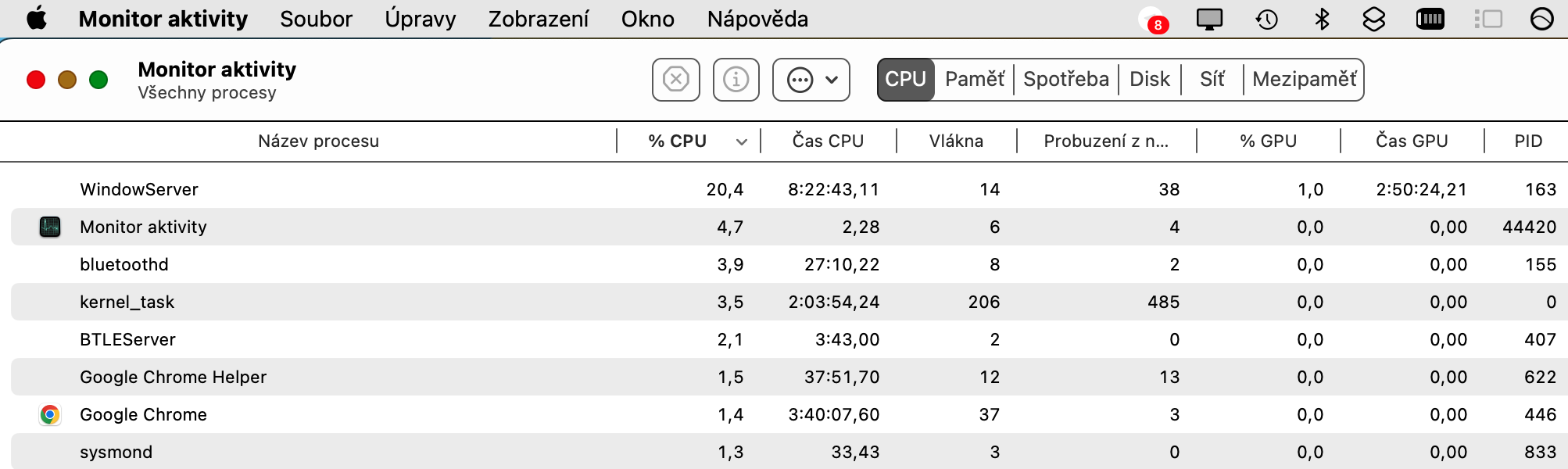
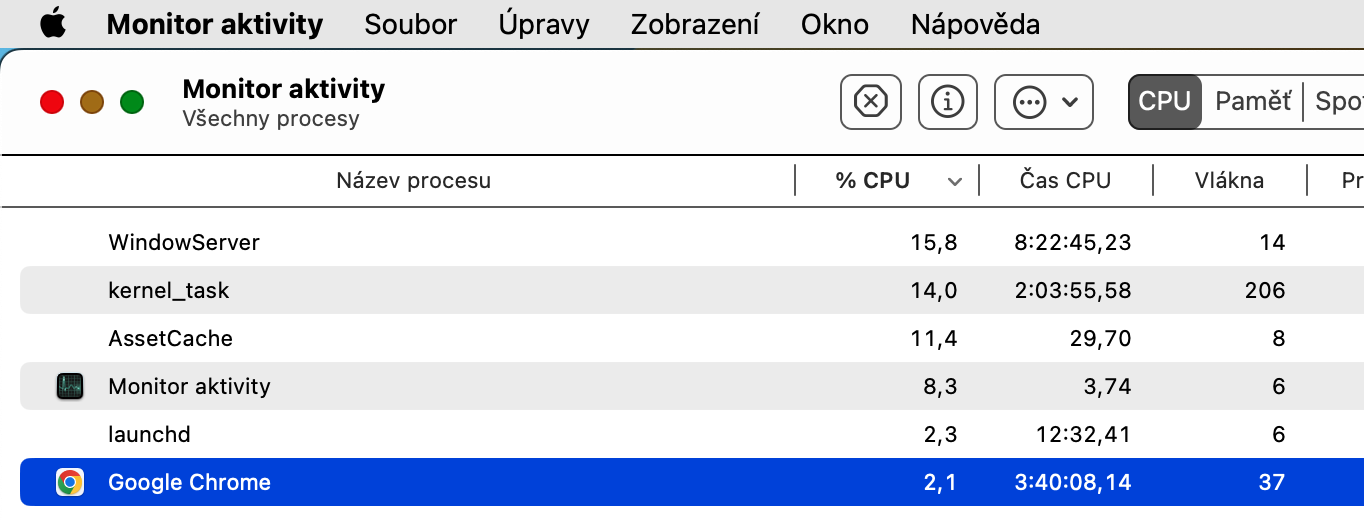
No article that deals with solving technological problems can be without the basic procedures of the so-called first choice - i.e. restarting the browser, the computer, or updating the software. I firmly believe that I certainly do not need to describe the procedure for restarting a Mac here, as well as how to shut down and start it again. ChromeIt is also a good idea to find out if Chrome actually the reason your Mac started humming, slowing down, and crashing. ProWhile the viewer is the usual suspect in this regard, he is not necessarily the culprit. Pro To find out how much Chrome is using your Mac's CPU, run the tool on your Mac. Activity monitor – for example, by pressing Cmd + Spacebar to launch Spotlight, enter an expression into it "Activity Monitor" and run the given utility. At the top of the application window, then click on CPU card, search for Google in the list of apps Chrome (it may be right at the top), and find out the percentage of CPU usage.
Gallery
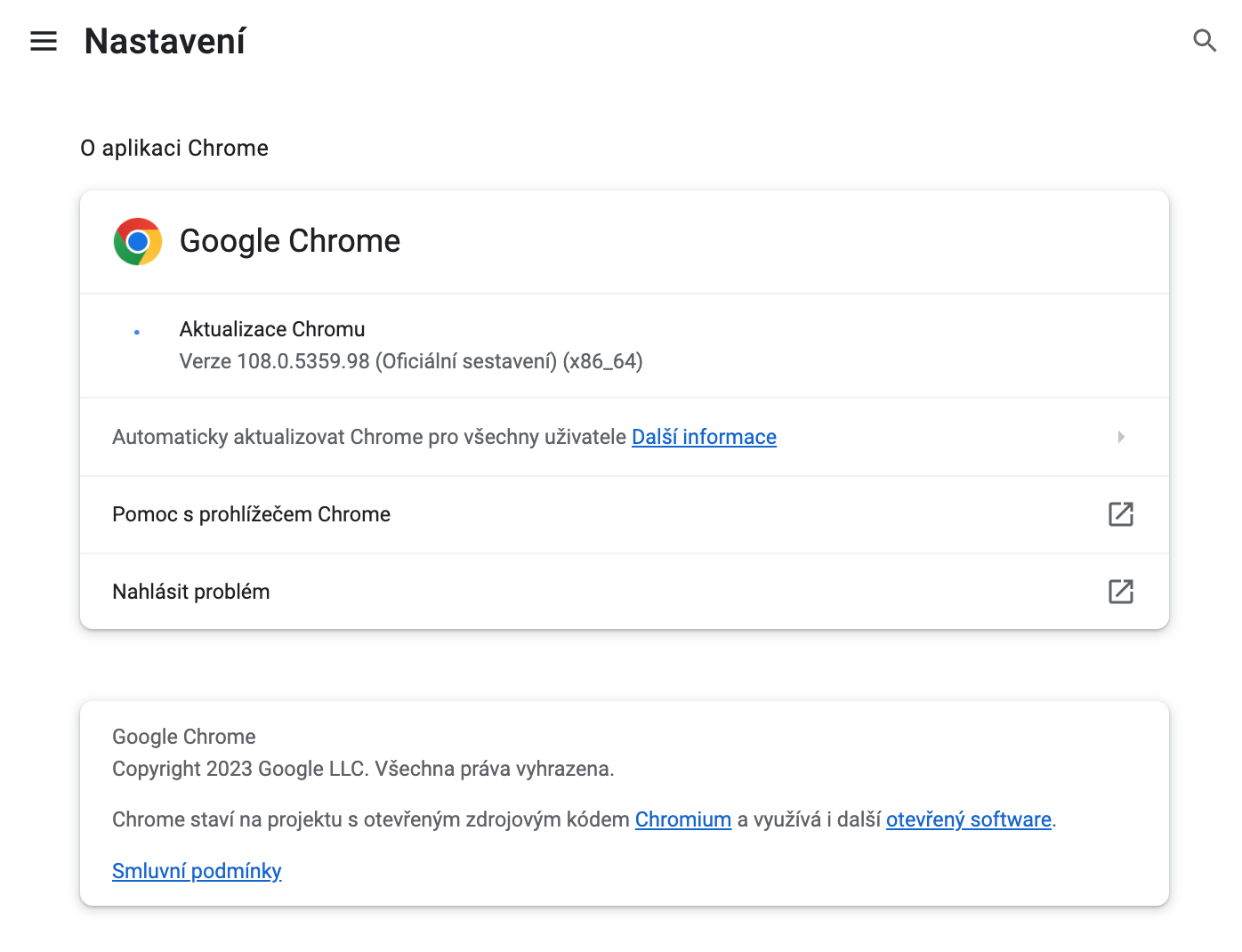
An outdated version of Chrome may also be to blame. ProThe browser will usually notify you of an available update via a button in the top bar, but if you want to check for updates yourself, run Chrome and in in the upper right corner of the window, click on the three dots. Select in the menu that appears Help -> About Google Chrome, and wait for the update check to complete.


Challenging cards
Sometimes, individual Chrome tabs that you have open can affect your Mac's CPU usage. To find out which ones are running, click the three-dot icon in the upper-right corner again . In the menu that appears, click More Tools -> Task Manager . In the following window, you can easily see which tabs are using the most CPU on your Mac and close them if necessary. Tabs with various media streams are often demanding, but so are download processes. So if playback or downloads are not a priority for you, you can stop playback or temporarily pause downloads to keep your Mac running smoothly.
Gallery



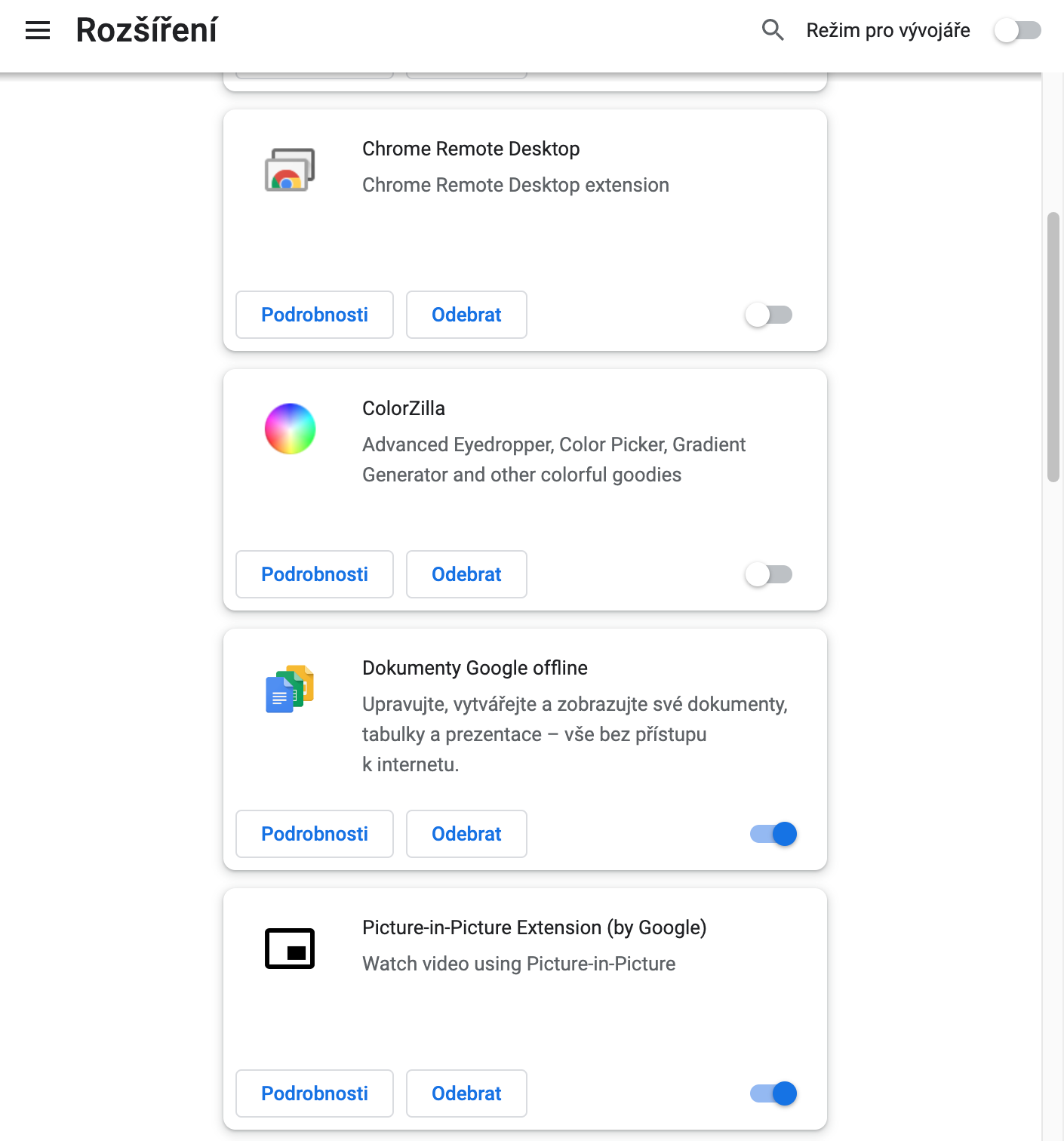
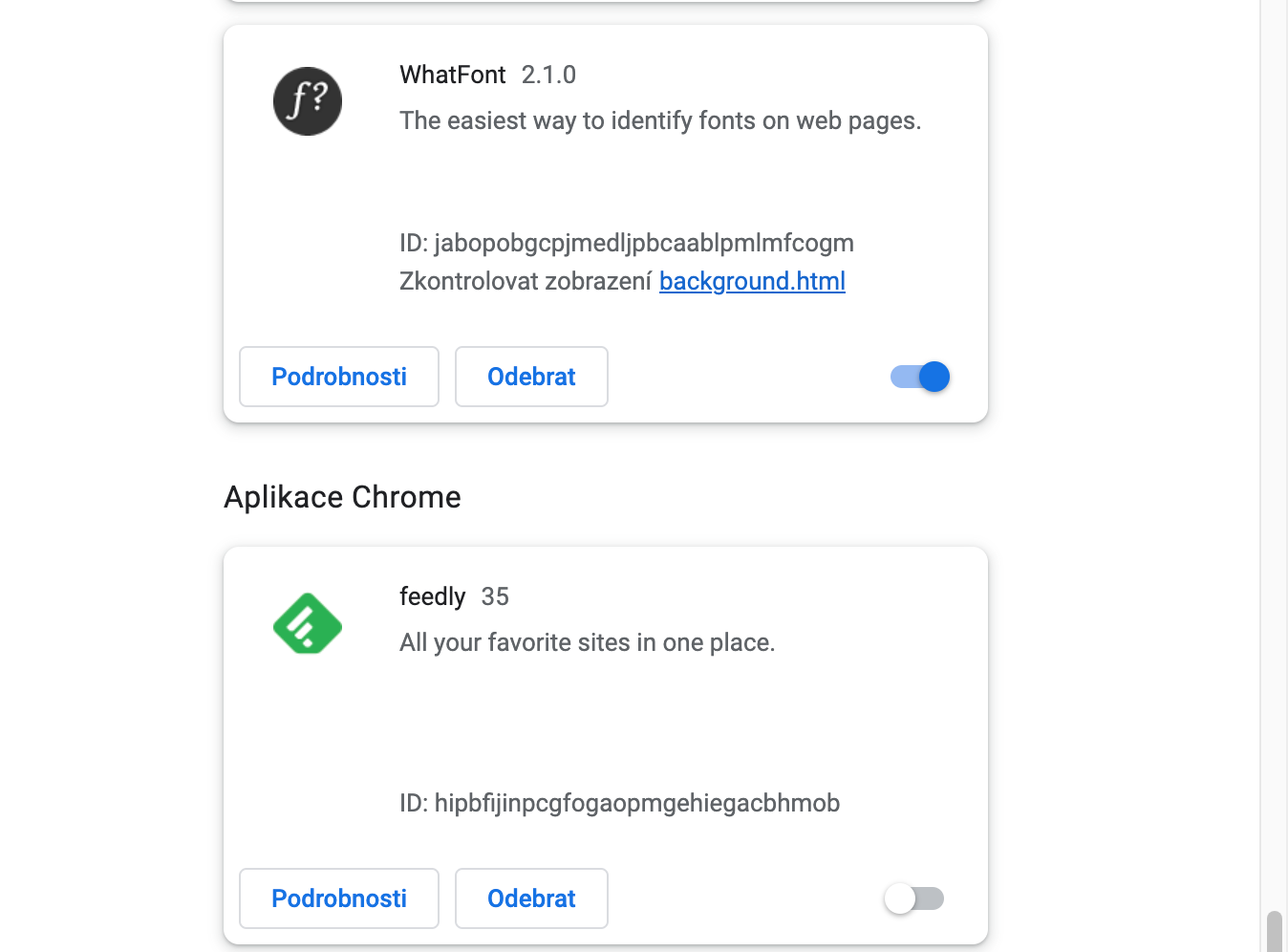
One of the advantages of Chrome is the countless extensions that you can install in the browser. I myself really like extensions and use many of them. However, some of them can be very demanding in terms of using system resources. The solution may be to temporarily deactivate them. To do this, click on the three dots icon in the top bar of the Chrome window and select More tools -> Extensions . You can then disable individual extensions.
Gallery










uninstall you're welcome bye
Uninstall – amen…