Apple is constantly trying to advance the iPad and its iPadOS so that users can use it for regular work instead of Macs or classic computers. The truth is that it has been doing really well lately and the iPad can really be used as a desktop alternative in many cases. One of the applications that you will actively use when using the iPad is Files, where all data is managed. In the new iPadOS 16, we saw improvements to this application, and together we will look at 5 tips that you should know about.
You might be interested in
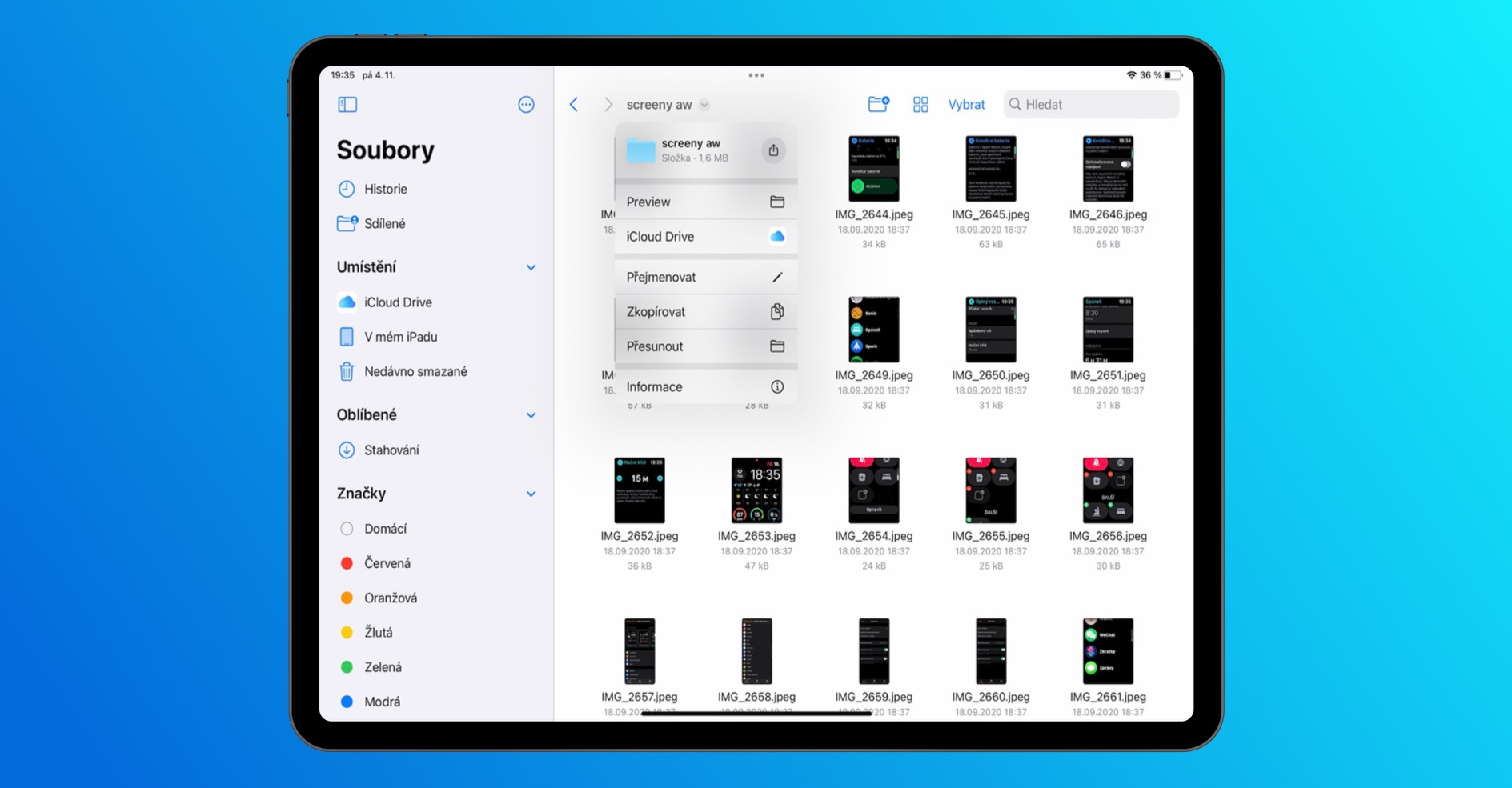
Navigation menu
The Files application now includes a navigation menu, which primarily allows us to move around (sub)folders faster and easier, use quick actions, etc. If you would like to display the navigation menu, simply tap the current name of the location you are in at the top of the screen, with a small arrow on the right. The menu in which you can perform actions will then be displayed.
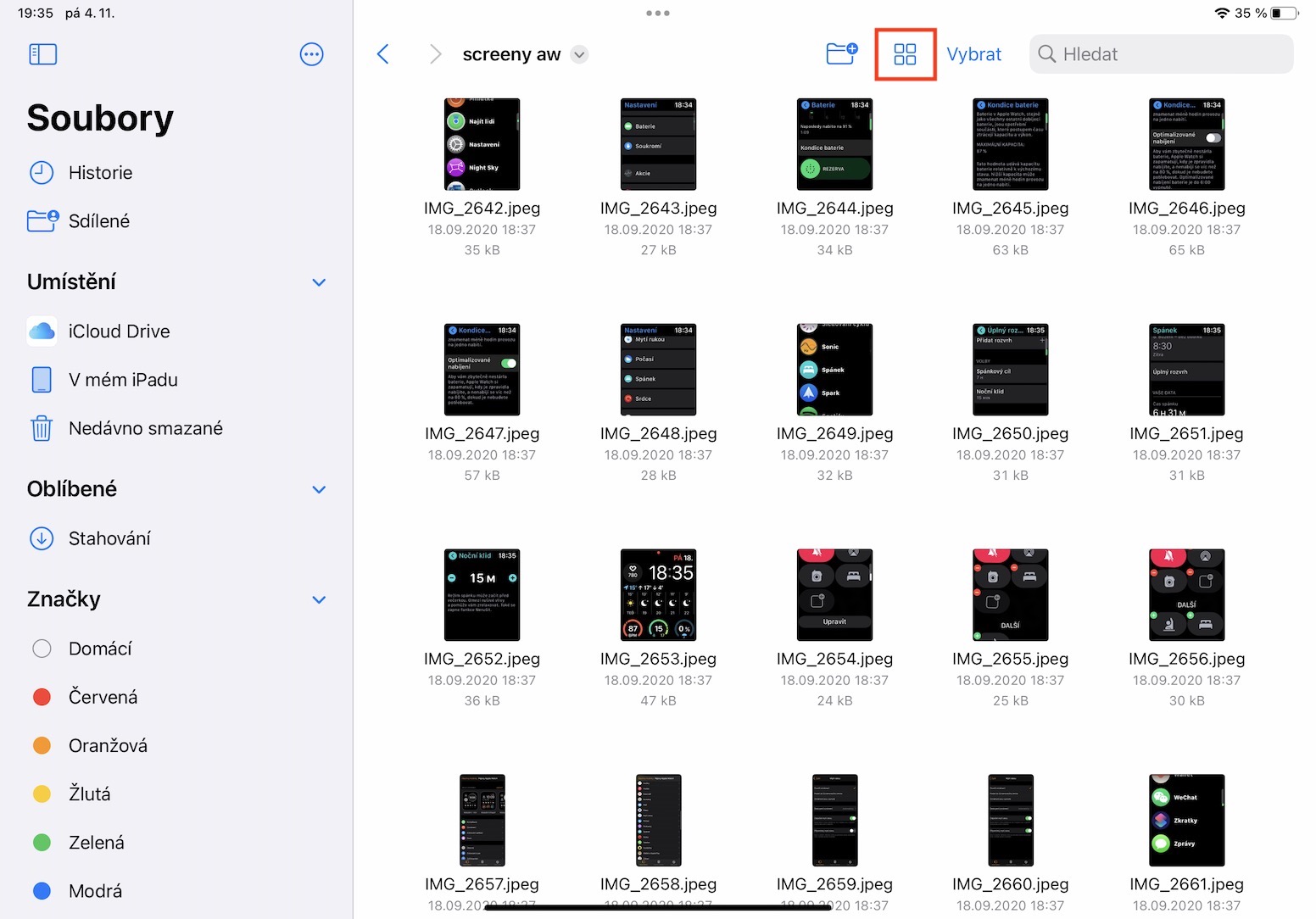
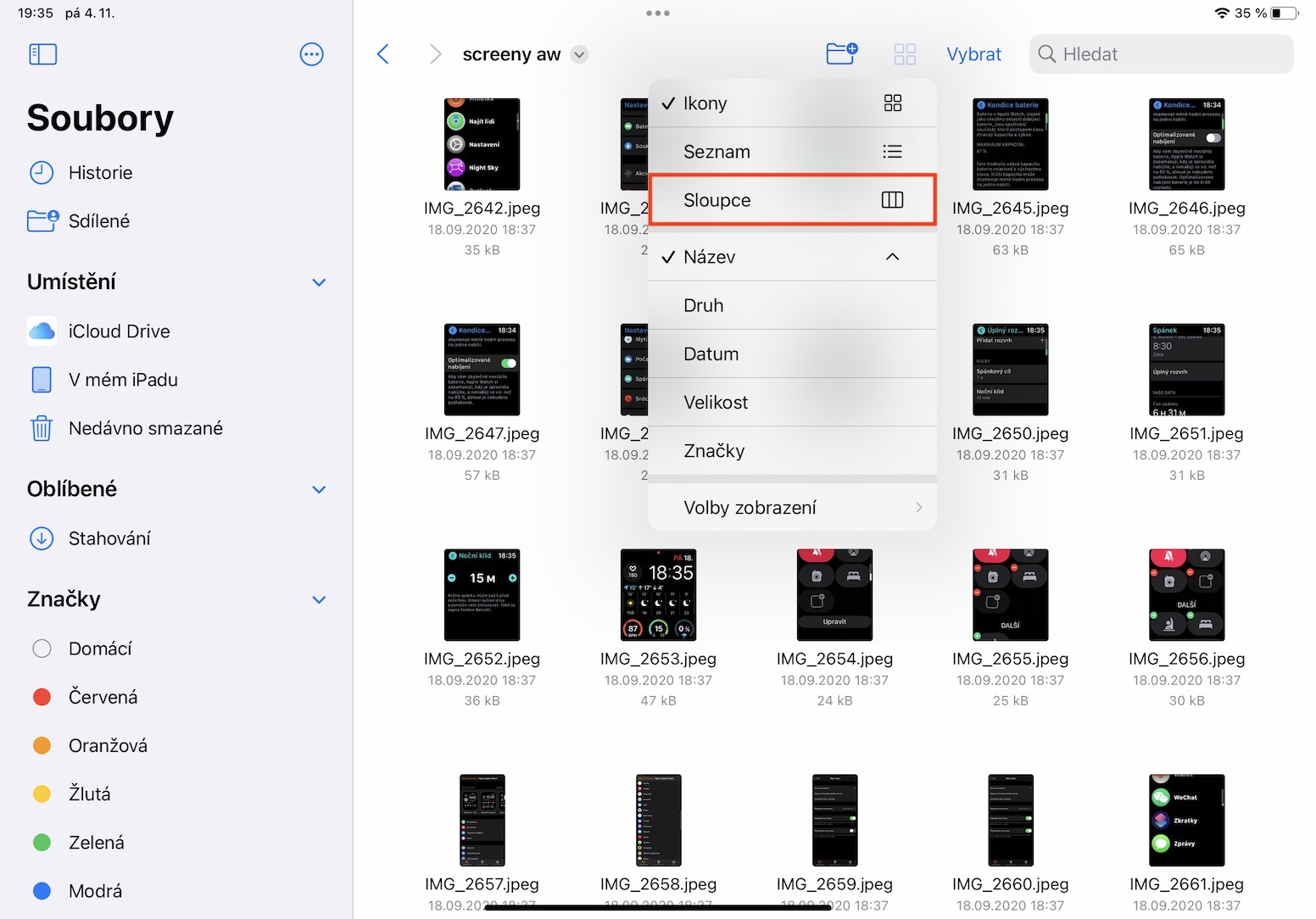
Column view
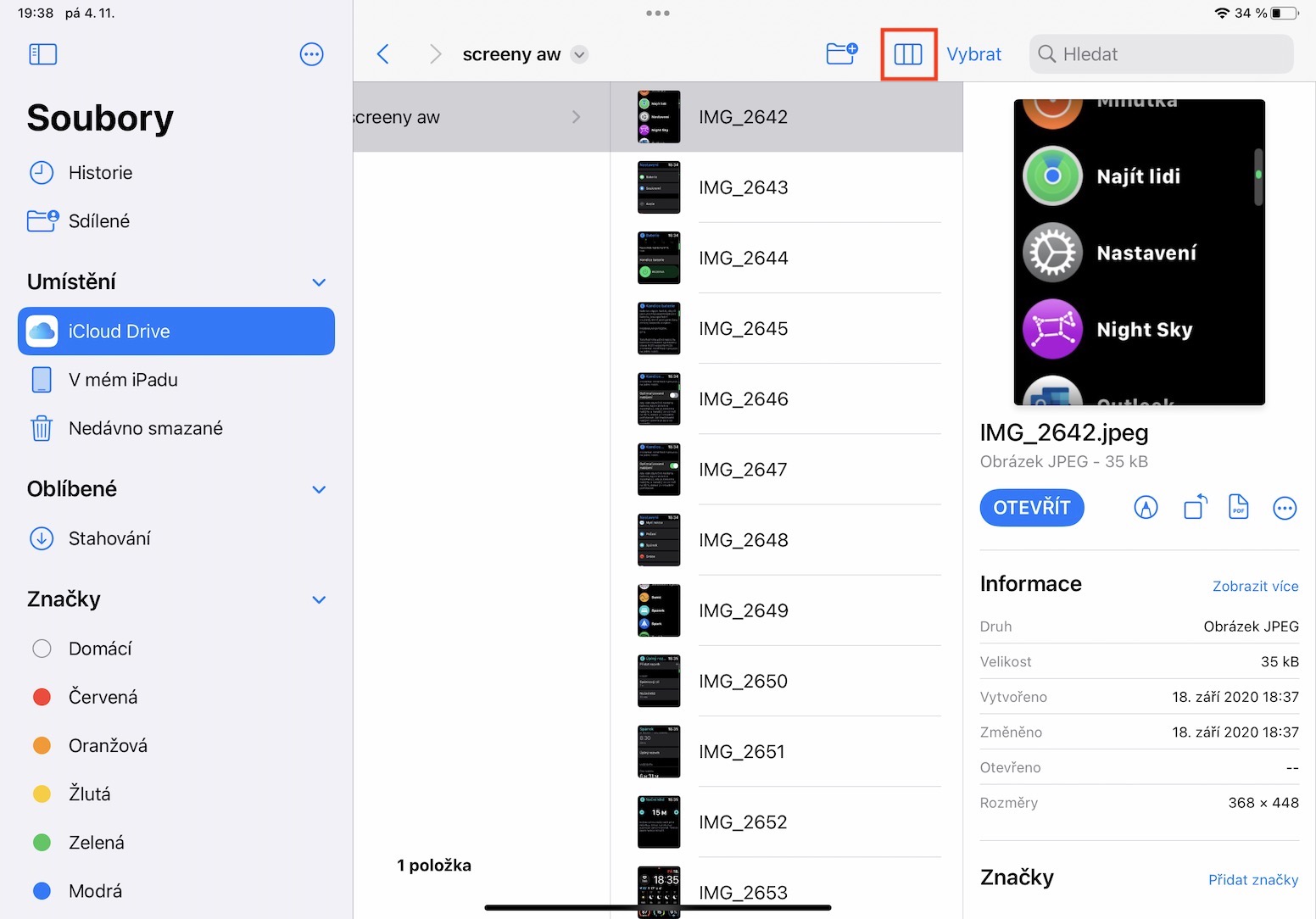
If you've ever used a Mac, you know that you can set up different views when viewing files and folders. Different views can be useful in different situations, so it's nice to have a choice. The Files app in the new iPadOS 16 has added Columns view, which makes it even faster to work with data. To set up this new view, just tap the current view icon in the upper right, then tap Columns.
Gallery
Change extensions
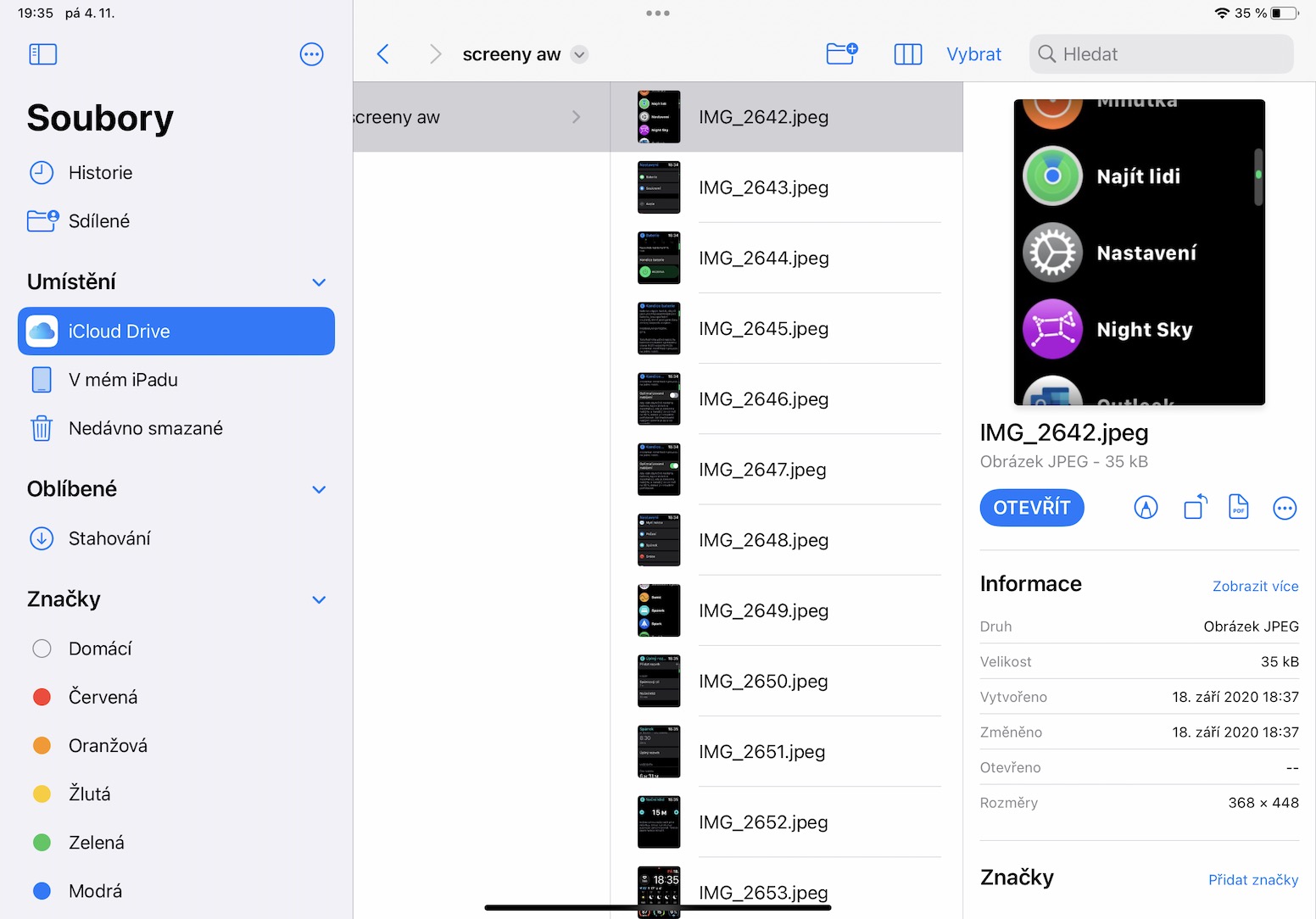
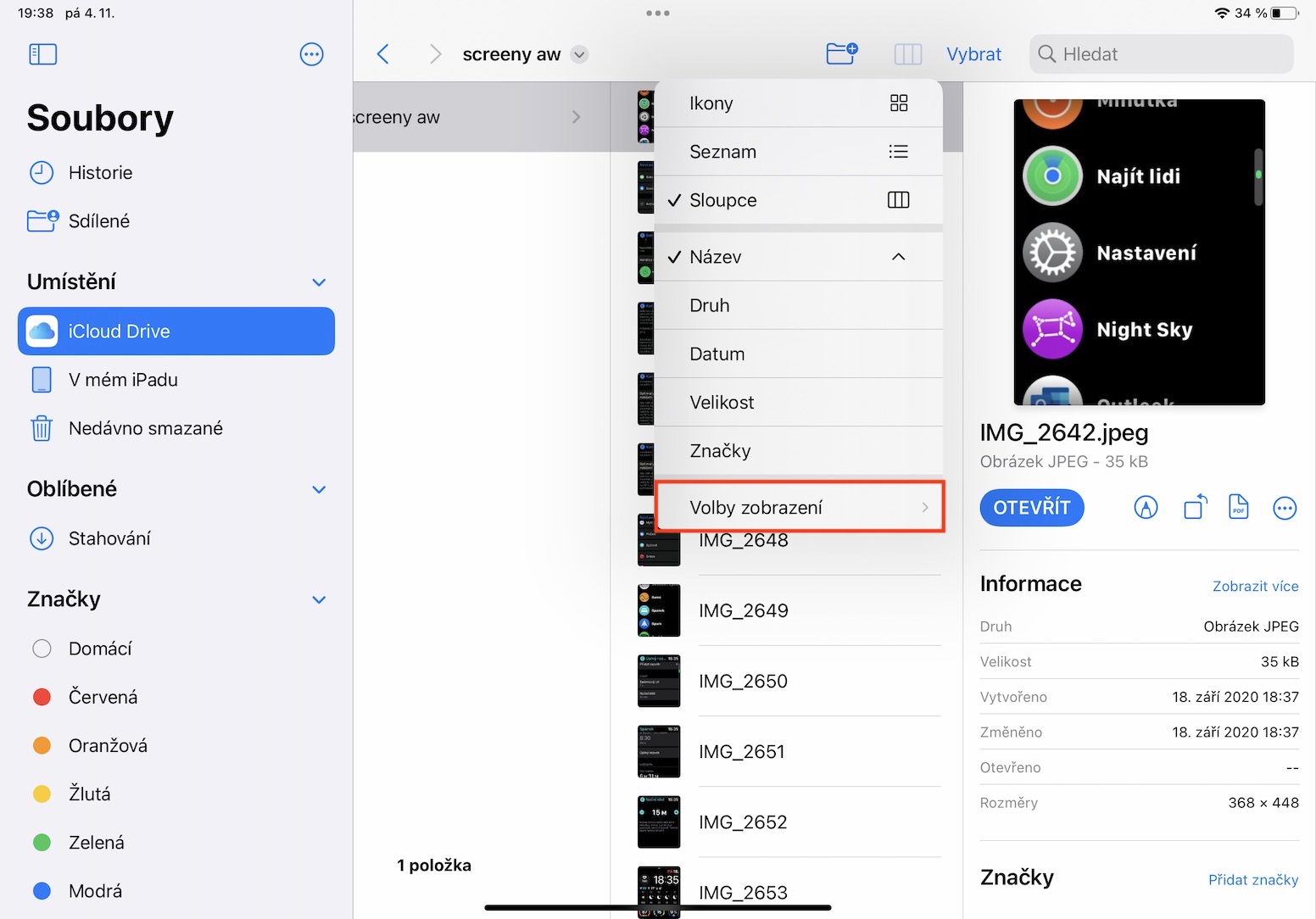
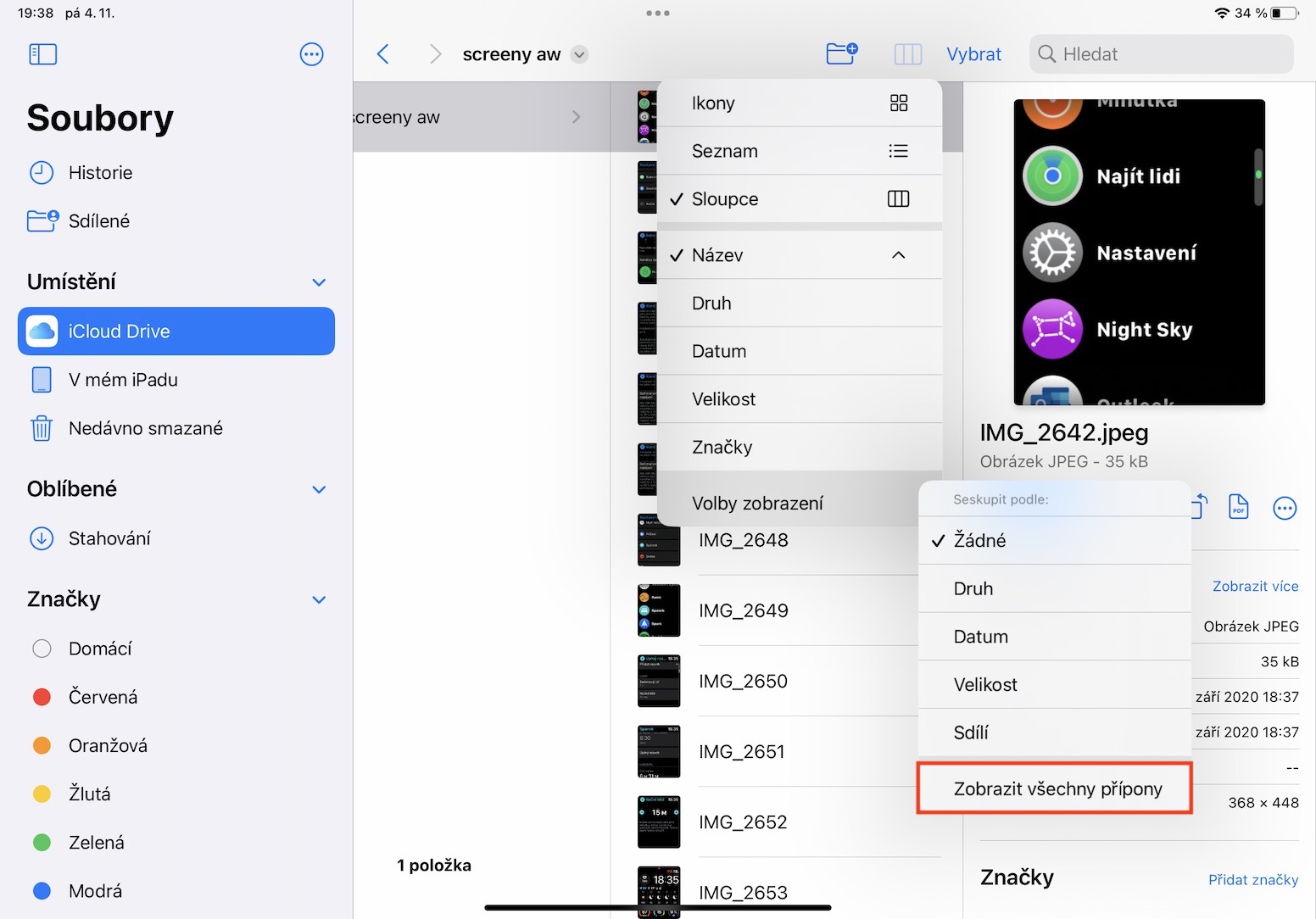
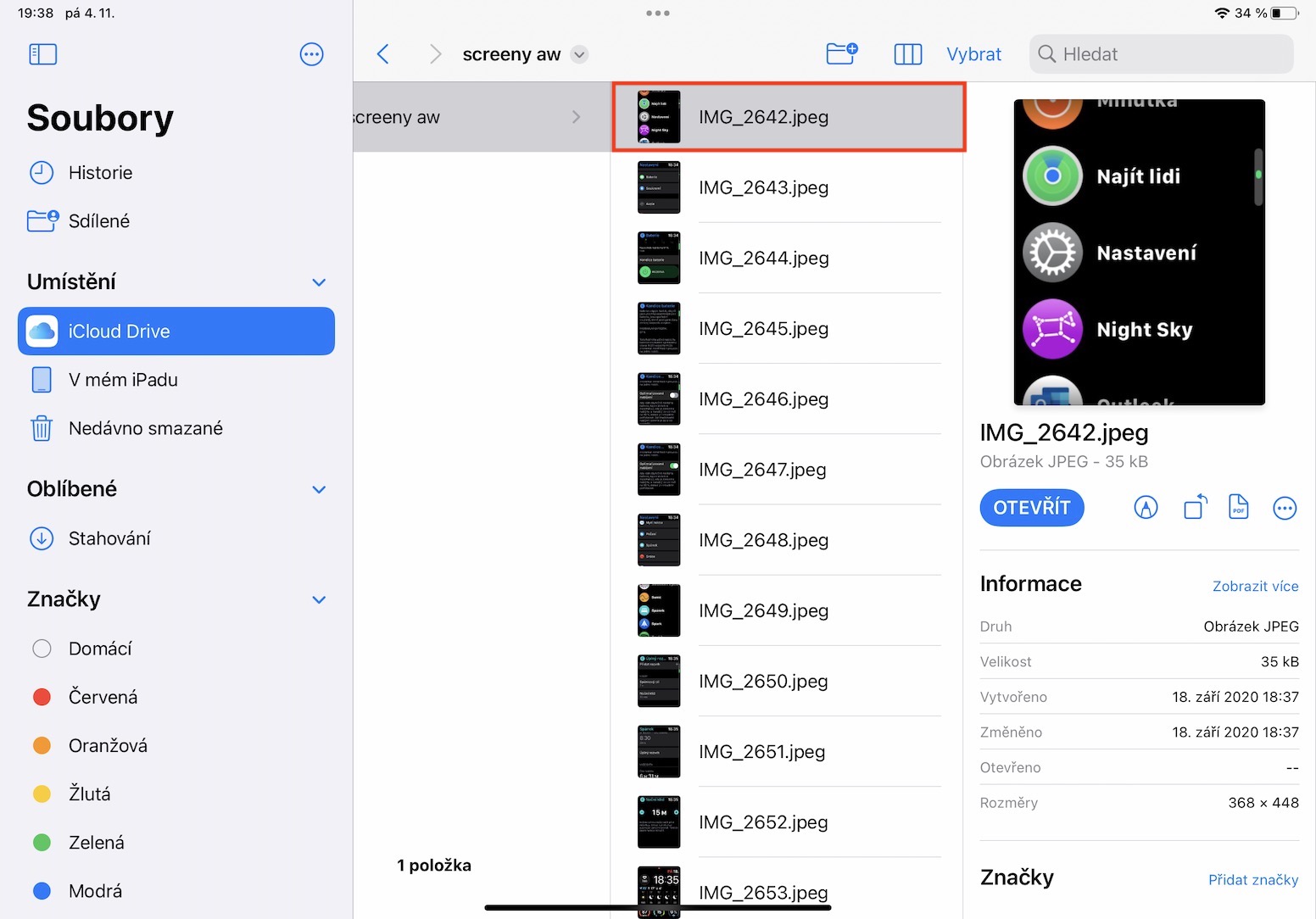
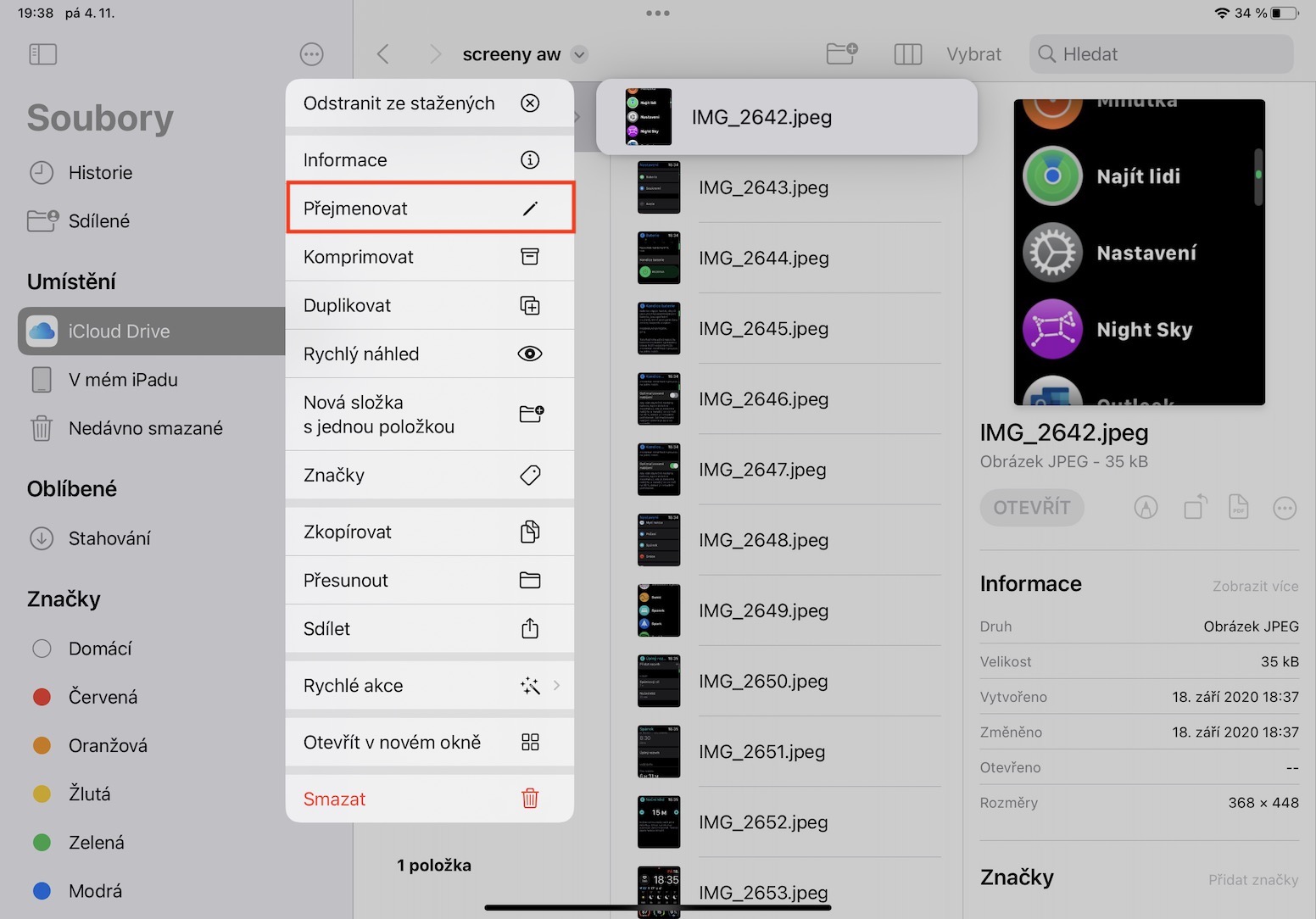
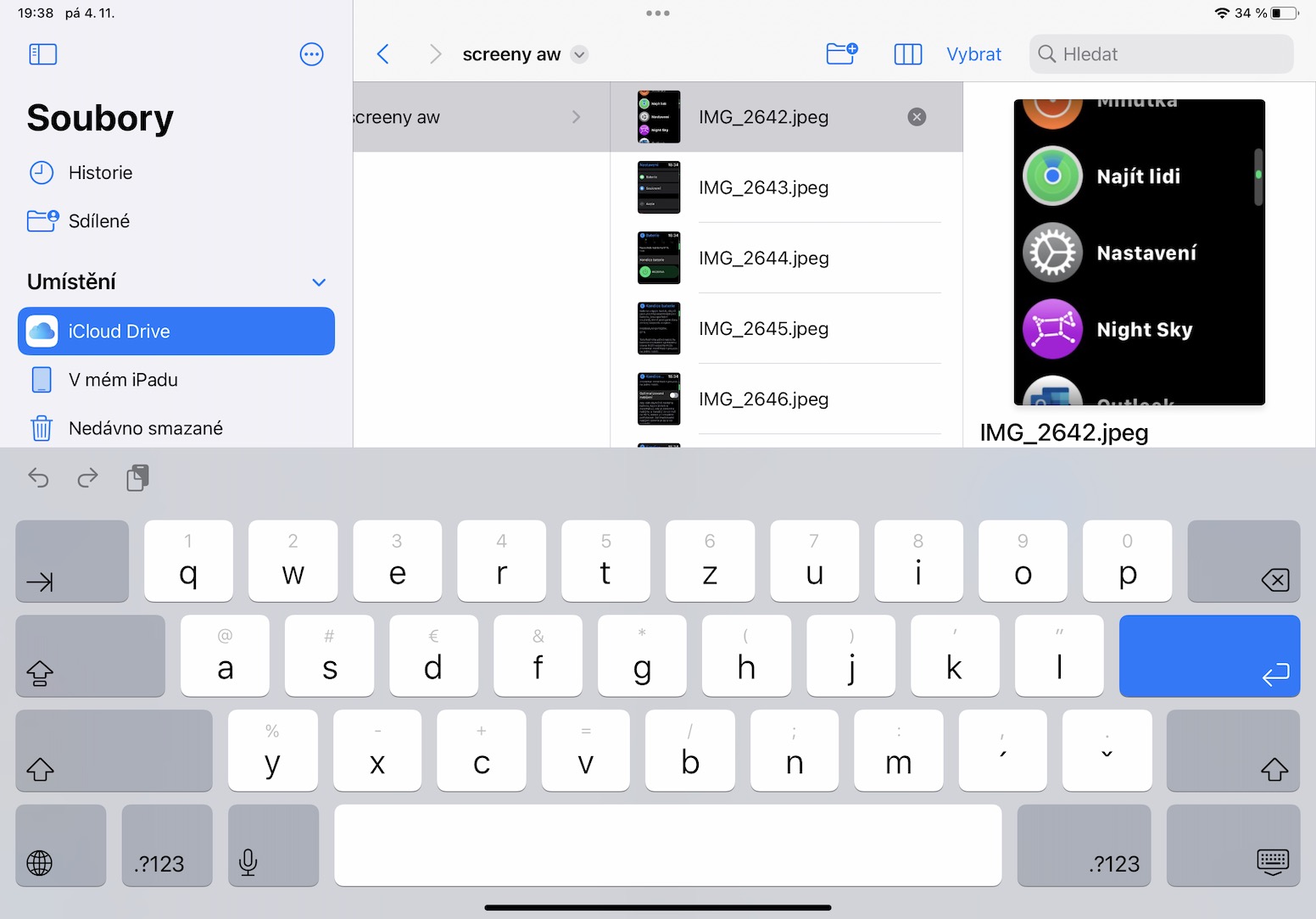
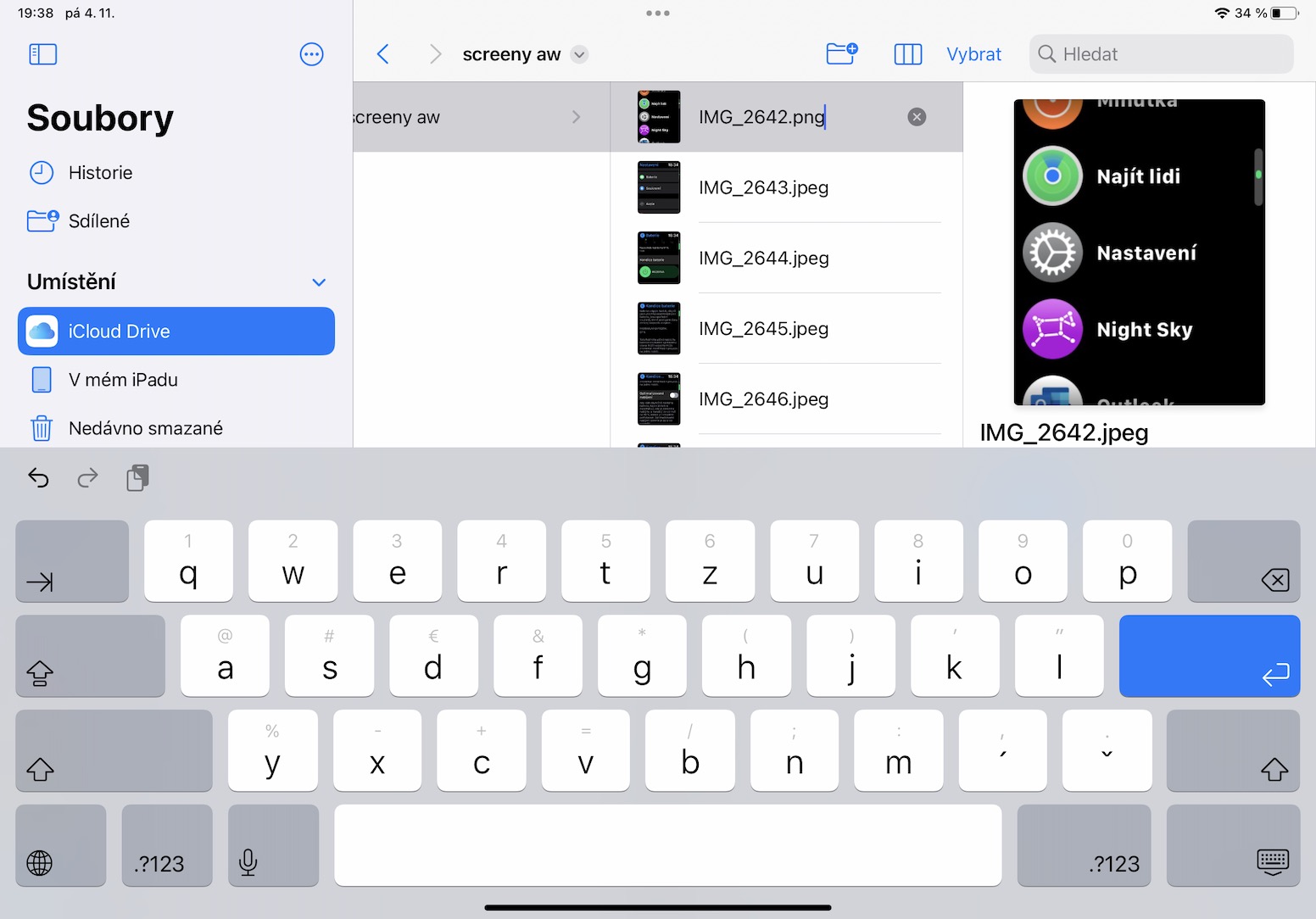
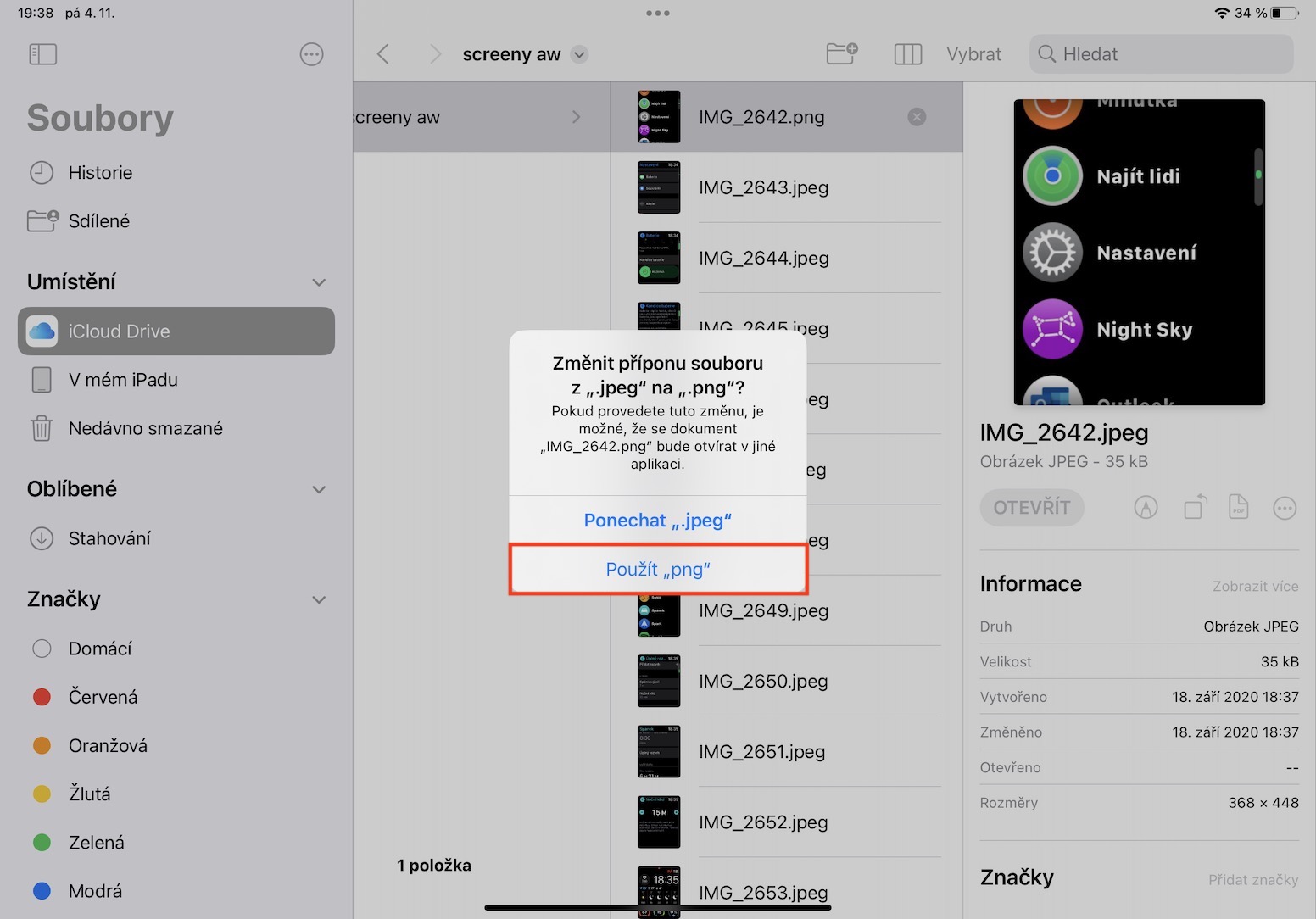
Every file has an extension that identifies it. From time to time, we may find ourselves in a situation where we need to change this extension. Unfortunately, until now, this option simply wasn't available in Files on iPad, which was very limiting. Fortunately, in the new iPadOS 16, we've seen this feature added. Pro The option to change extensions is available, but you must firstchat display. To do this, click current view icon in the upper right part of the screen, where then select from the menu Display options and tap enable Show all extensions. Then all you have to do is file hold finger choose Rename, pal change the extension a confirm the action.
Gallery
Back and forth
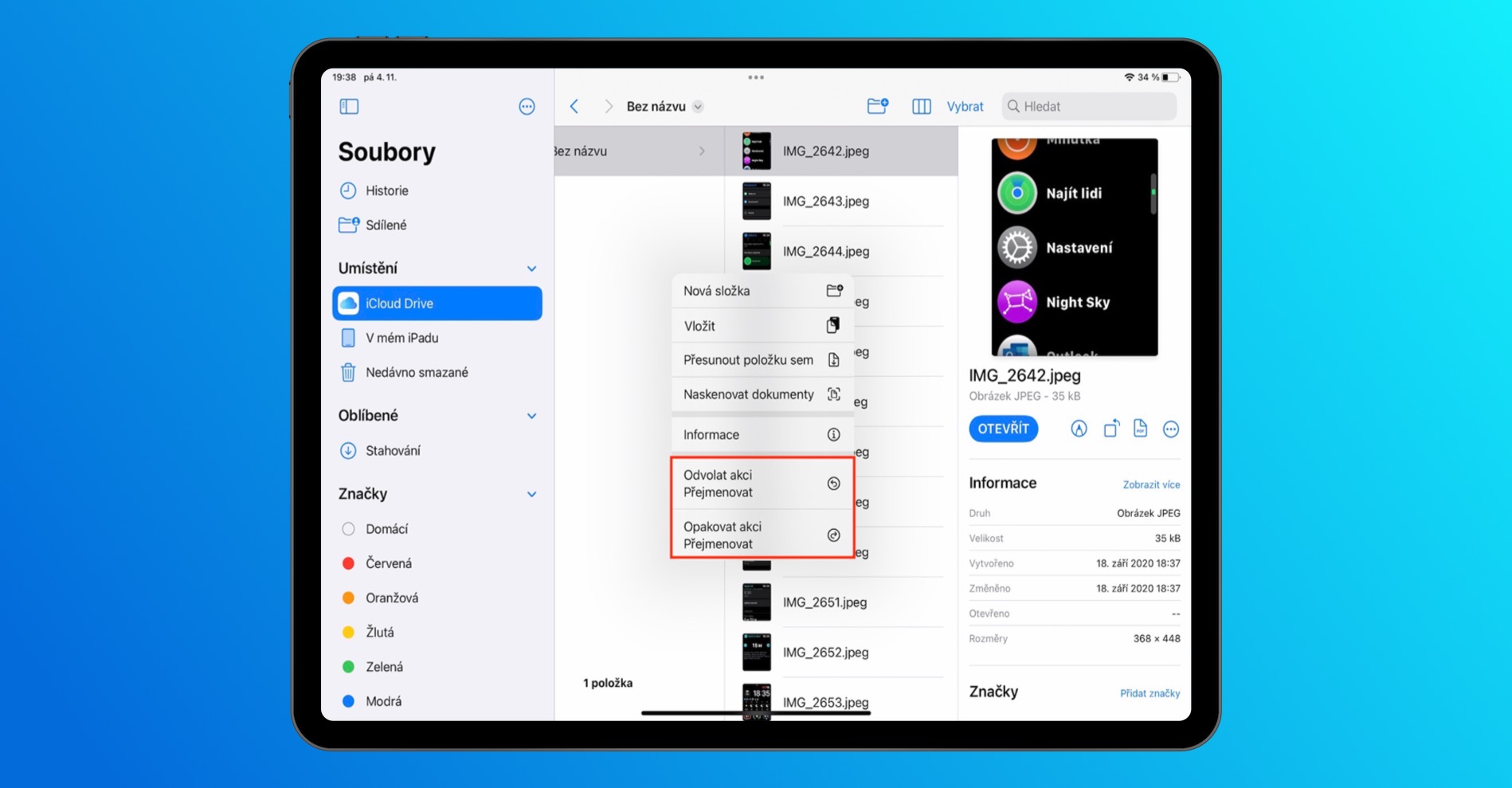
If you want to undo any action on your Mac, such as copying files, renaming, etc., you can of course. The good news is that this option is available foroneIt was also added to Files in iPadOS 16. Pro to undo or redo an action, i.e. to move back and forward, just hold anywhere finger, and then tap on in the menu Cancel action or Repeat the action.
View folder sizes
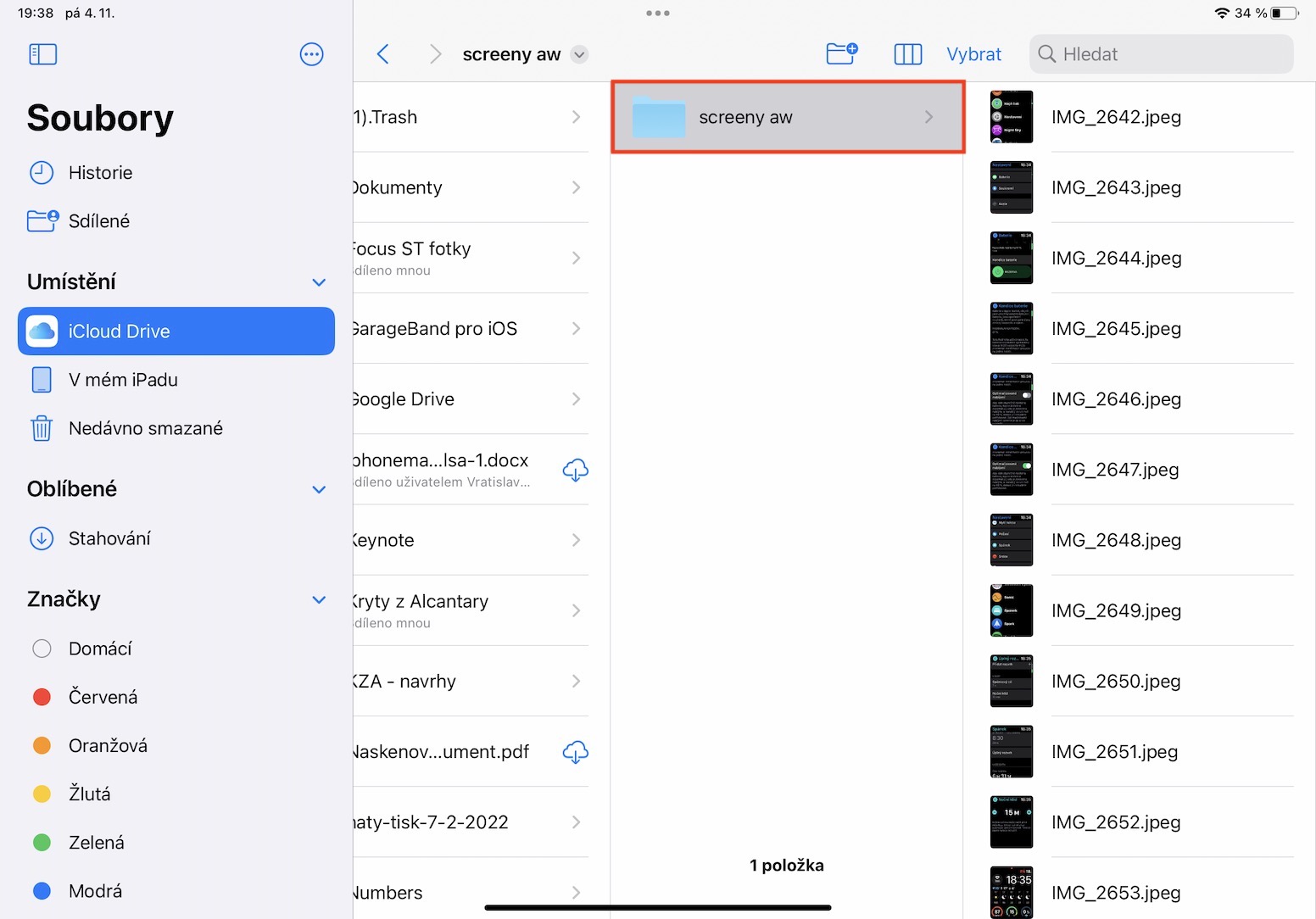
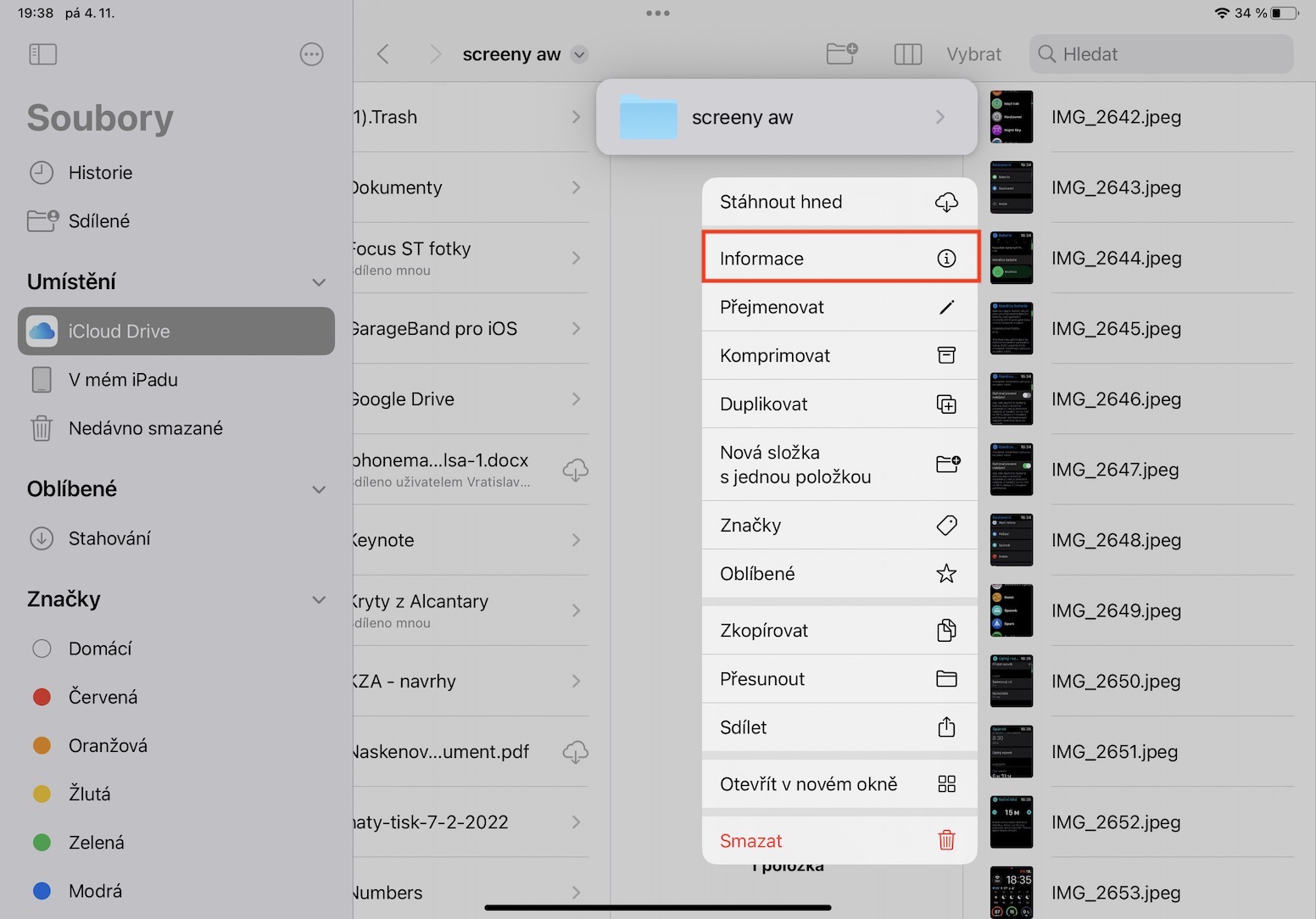
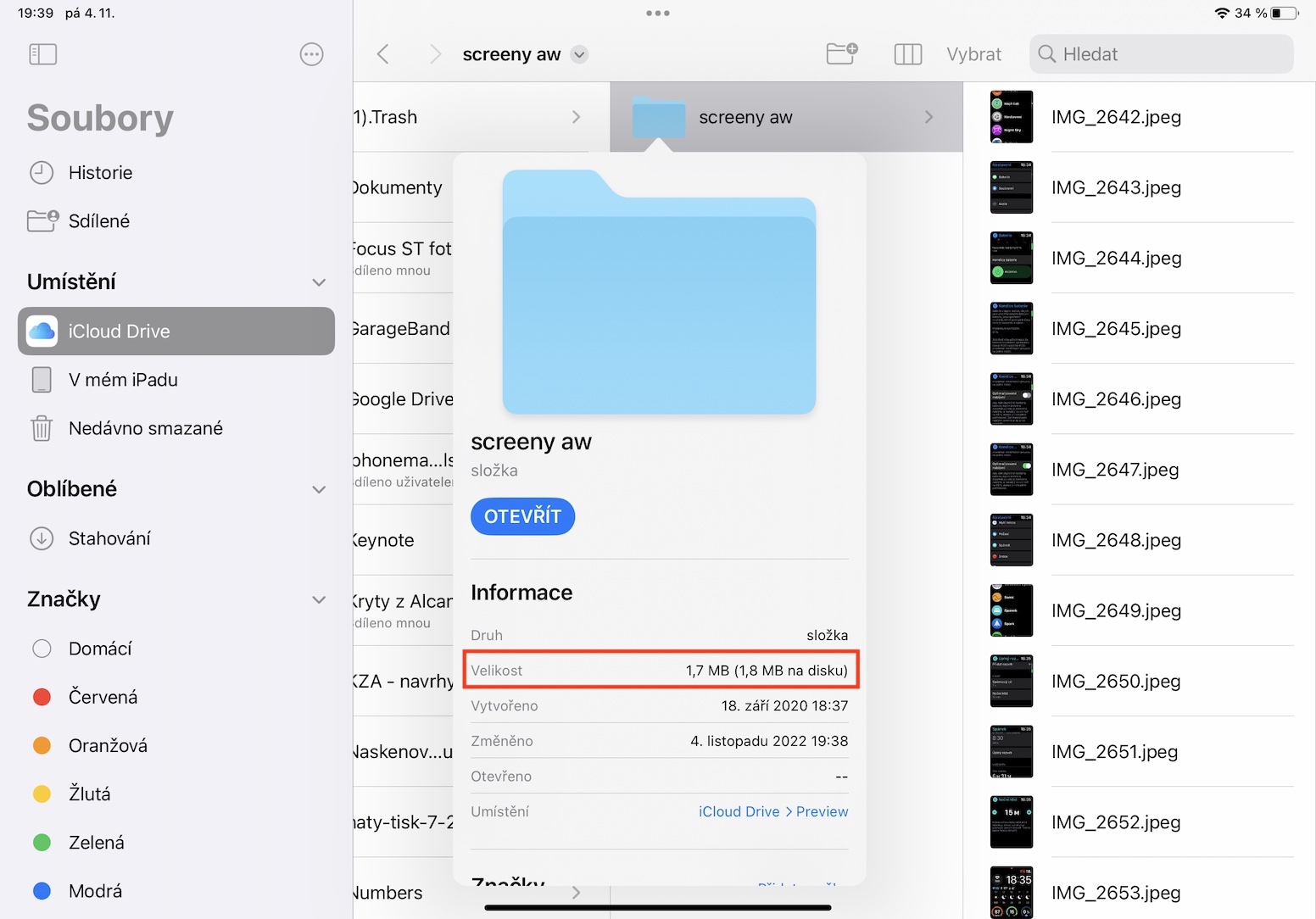
If you've ever wanted to use your iPad in the past,chat view the size of a folder, you were out of luck. Until now, users could only view the size of individual files. However, even thatoneIt's changing and Files from iPadOS 16 is availableoneIt is possible to display the size of folders. It is not complicated, just click on hold your finger on a specific folder and then tap on in the menu Information, which will bring up a small information window. Here then you will find the size of the folder pictured.
Gallery