Apple practically every update of its operating systems comes with new security functions - whether it is corrections of discovered bugs or brand new options and functions. In this case, the latest operating system iPadOS 16 is no exception, in which several new security functions have also been added to protect our privacy. Let's take a look at 5 of them together in this article.
You might be interested in
Locking the Hidden in Photos album
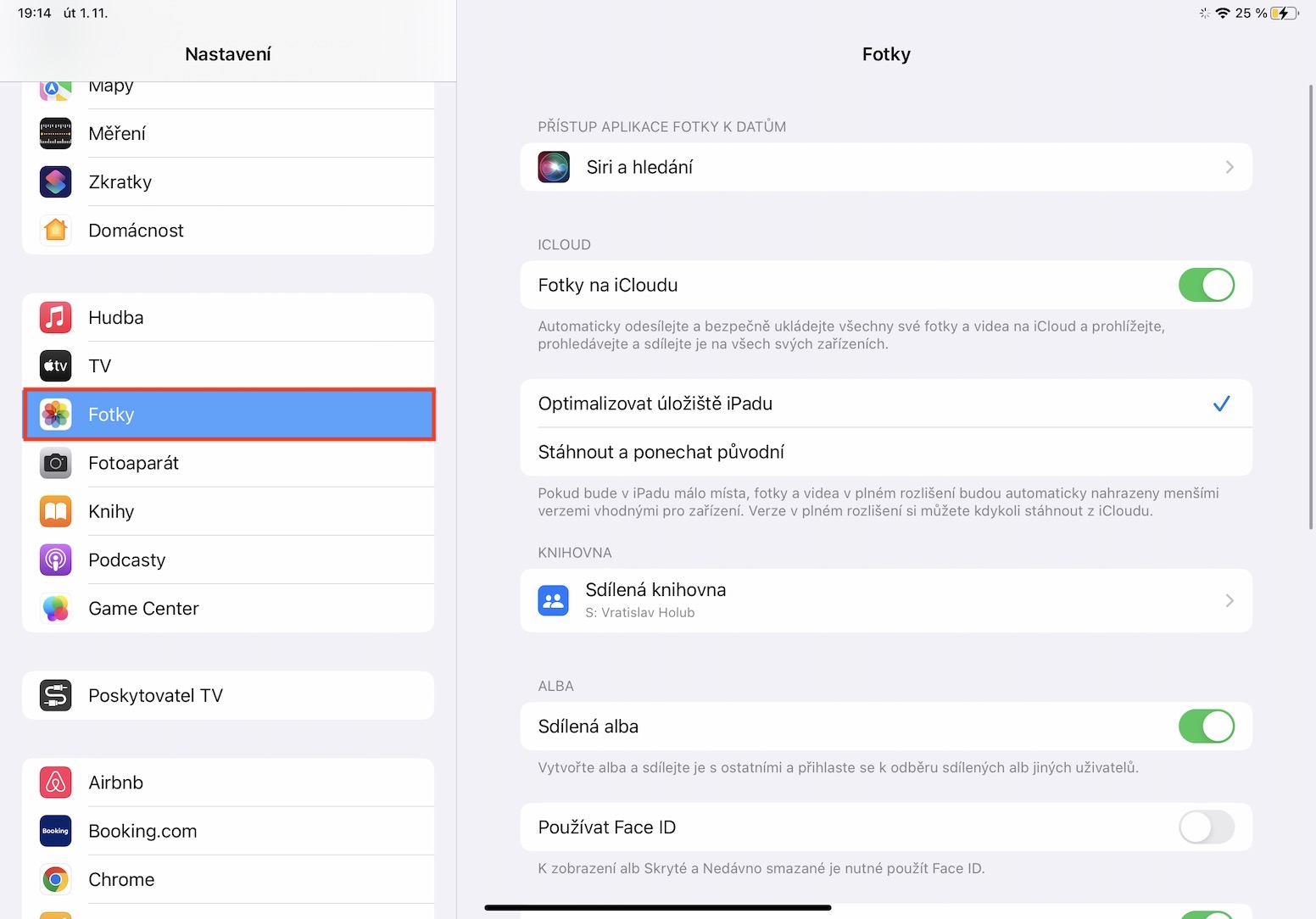
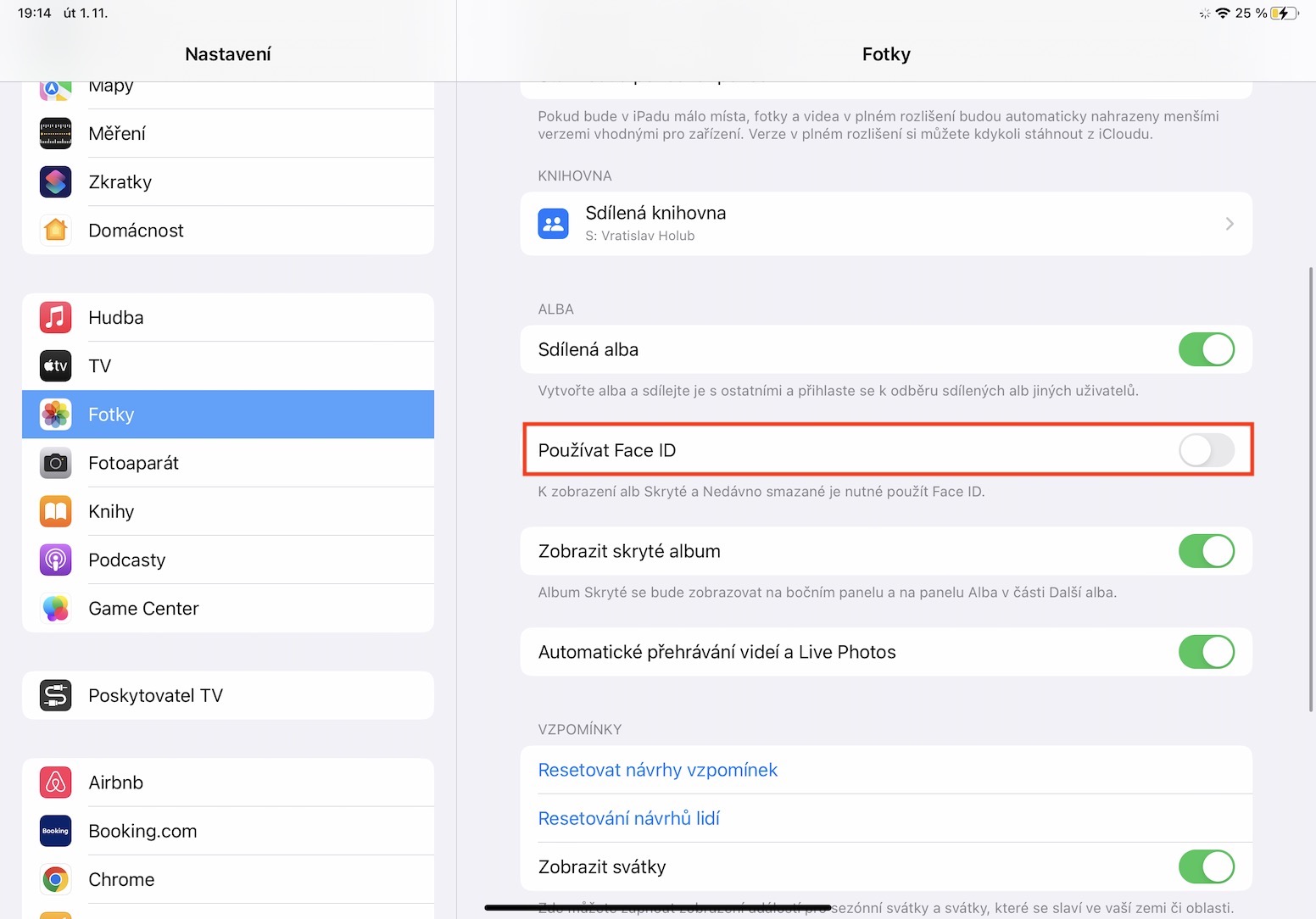
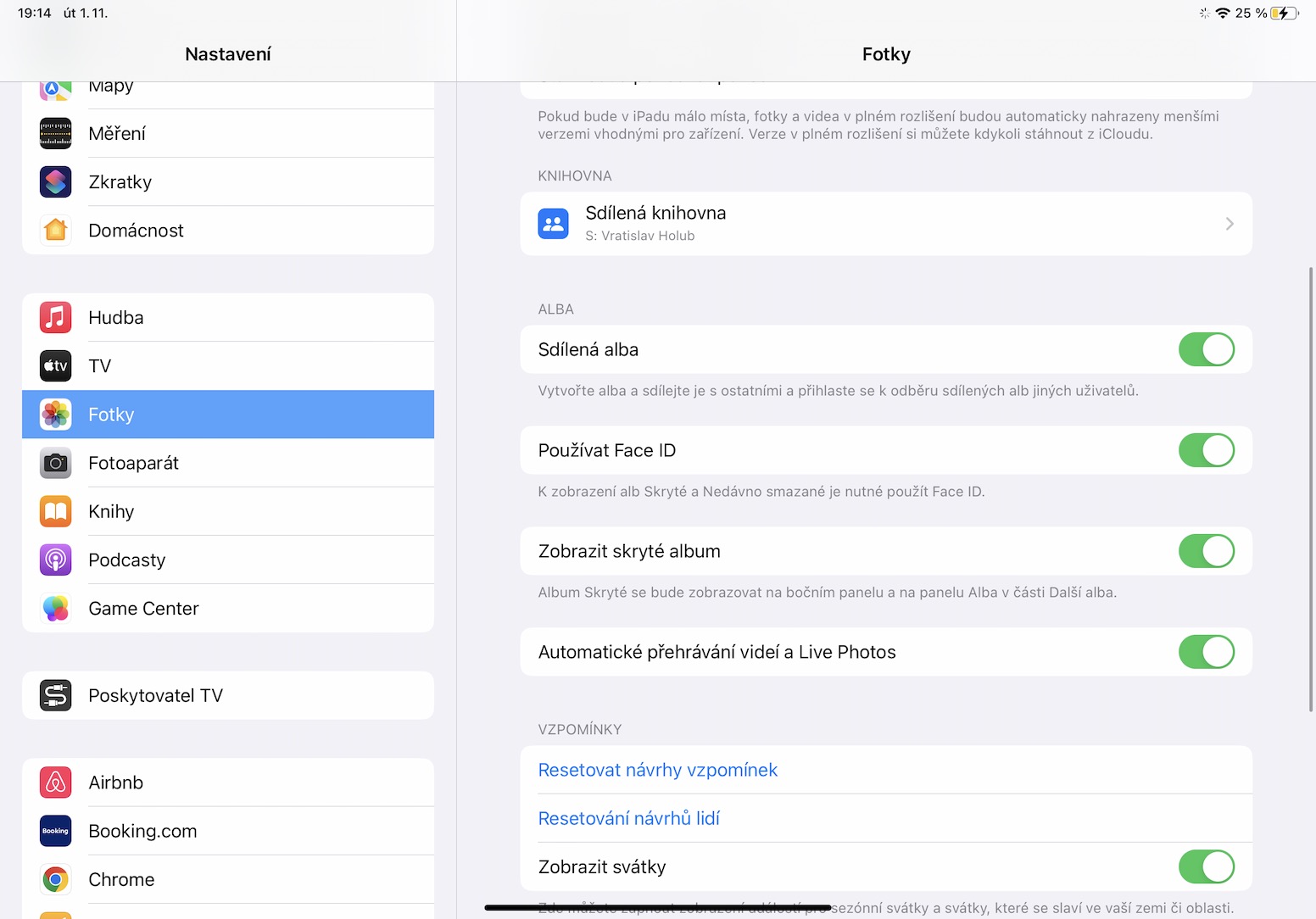
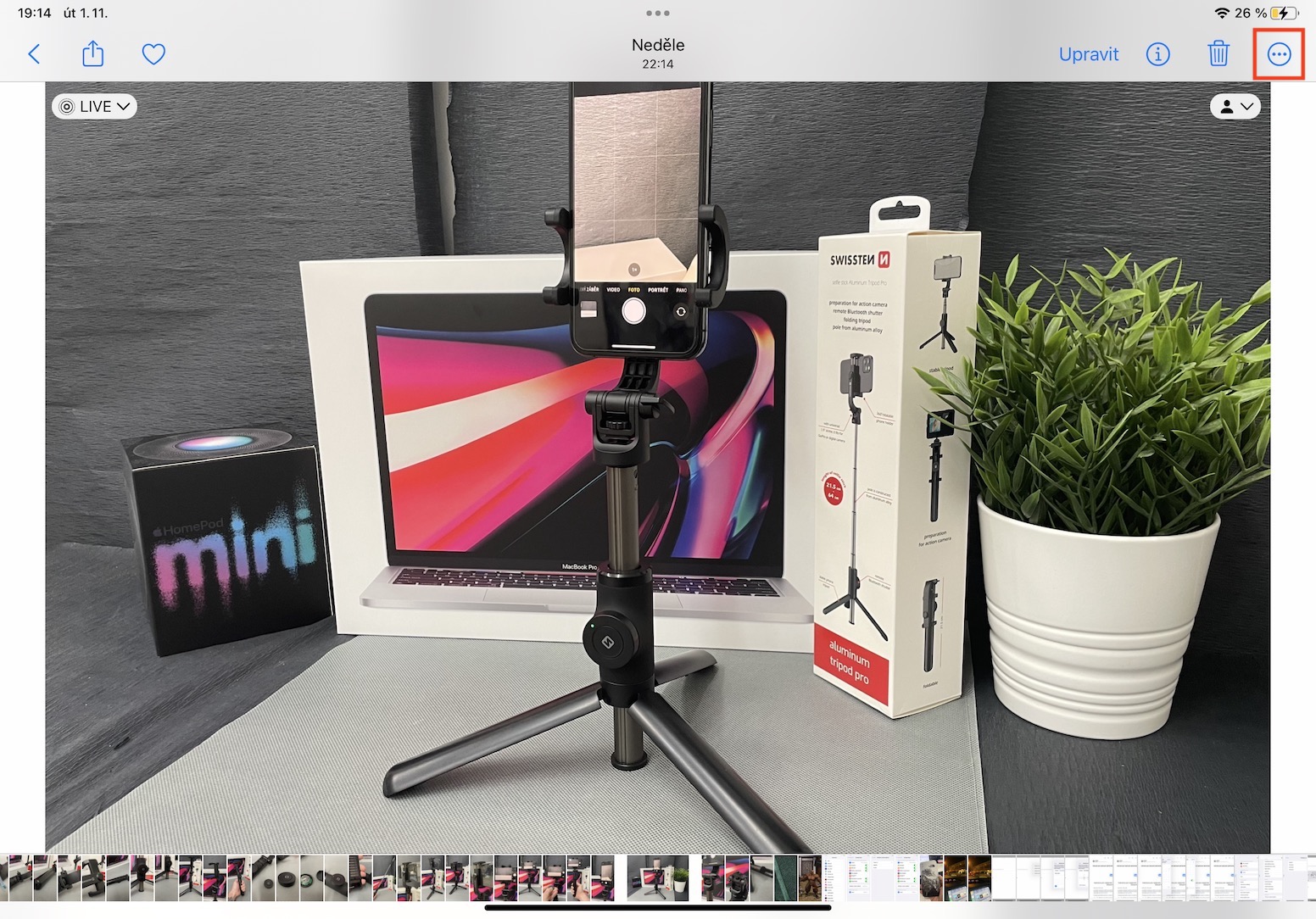
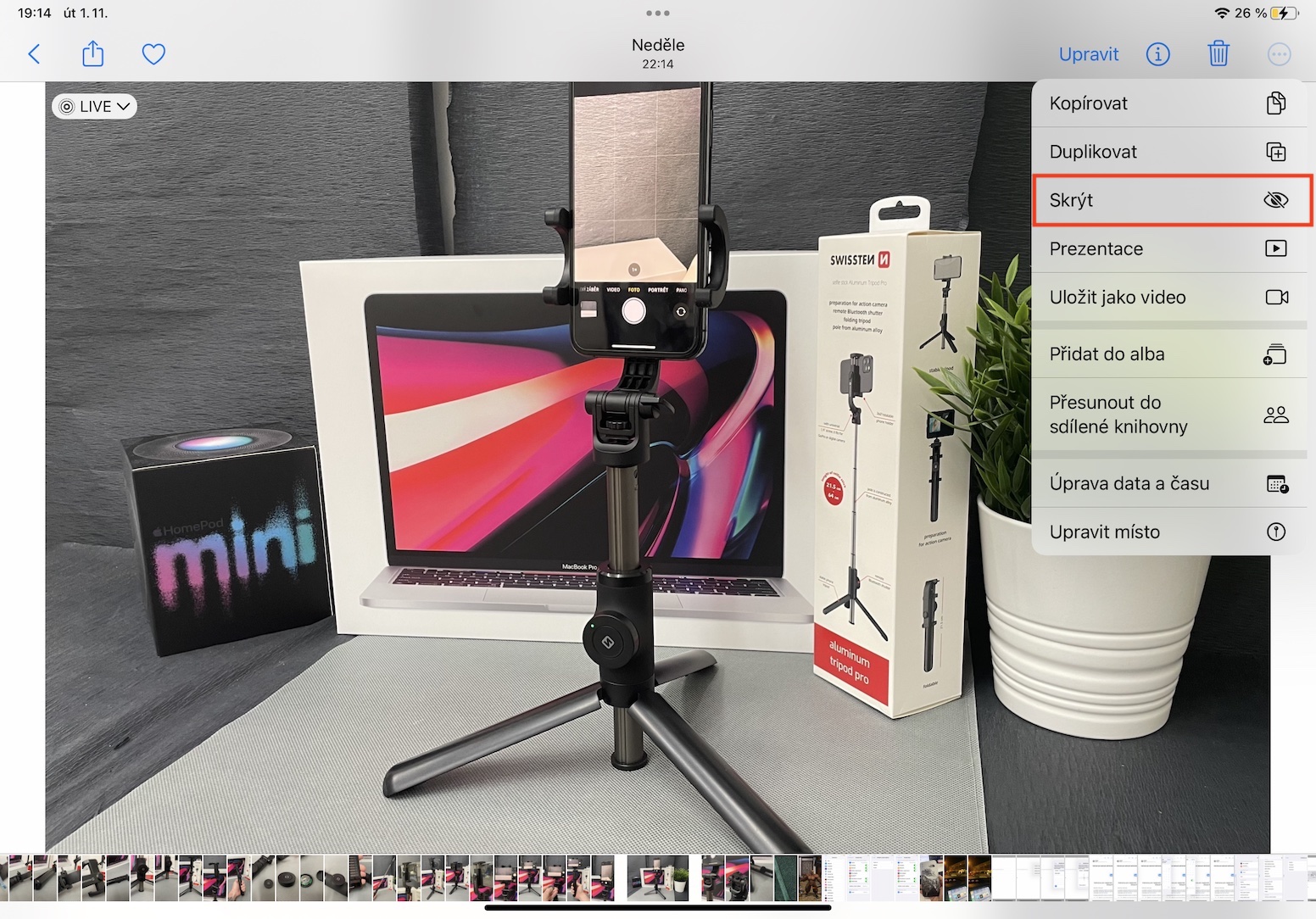
If you wanted to lock some photos or videos, you had to use a third-party app, which is not entirely ideal from a security perspective. Specifically, it was only possible to hide the content in Photos, which practically did not solve anything. However, in the new iPadOS 16, you can no longer hide hidden photos and videos.chat lock via Touch ID or Face IDso no one can get to them. Pro To activate this feature, simply open Settings → Photos, where activate Use Touch ID whether Use Face ID. Pro hiding and locking photos is then enough open or mark, tap on three dots icon and tap on Hide.
Gallery
Automatic security updates
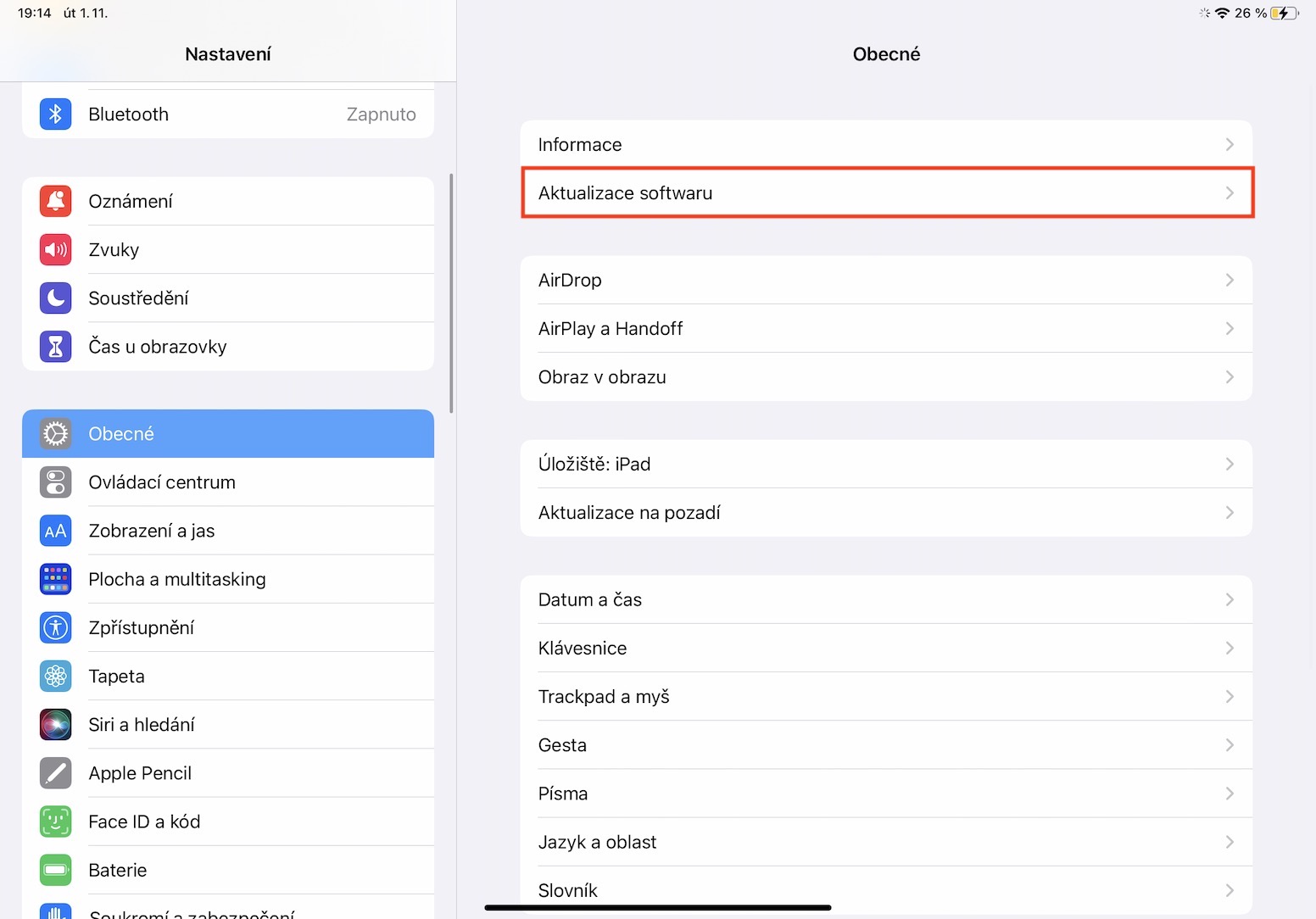
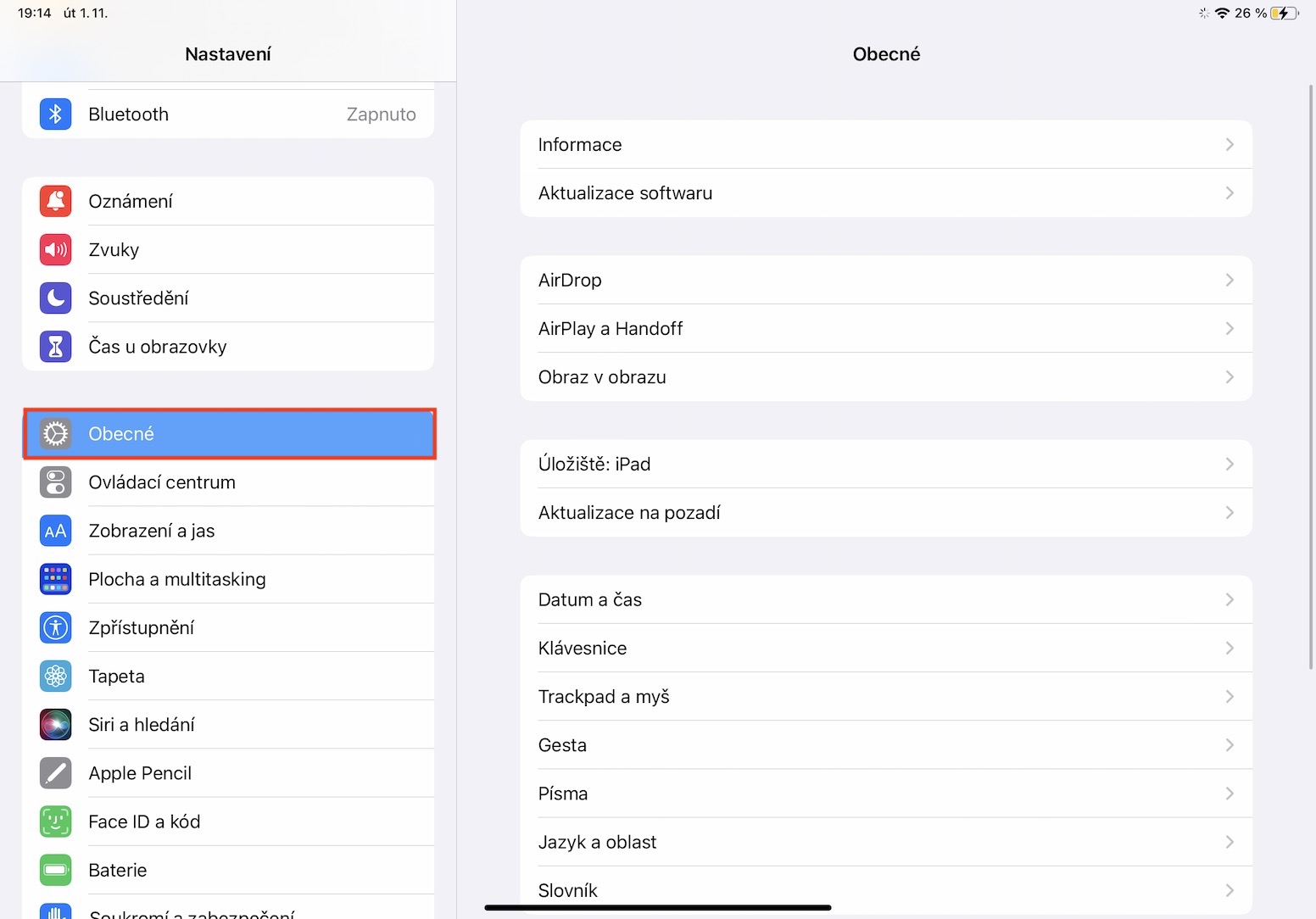
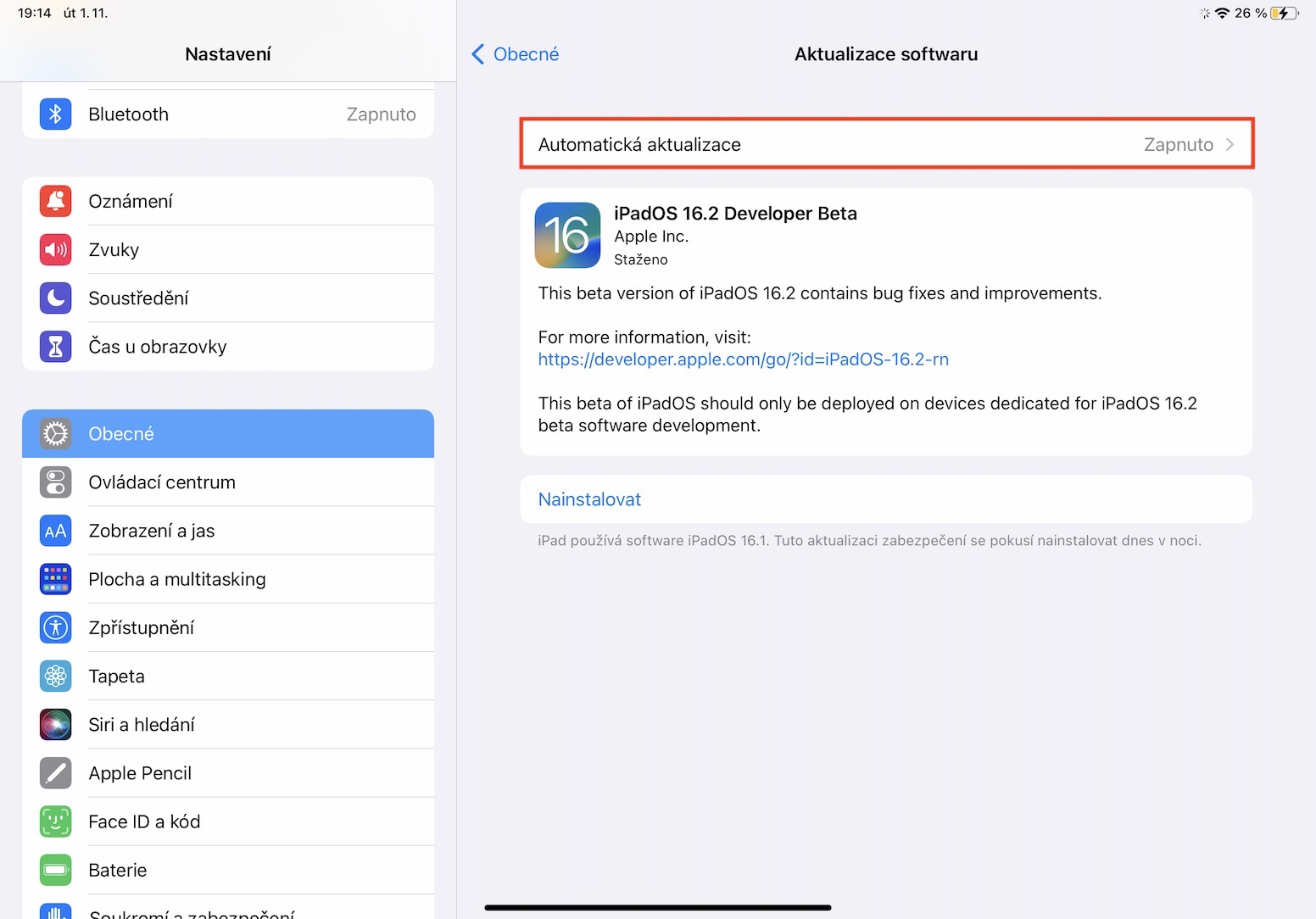
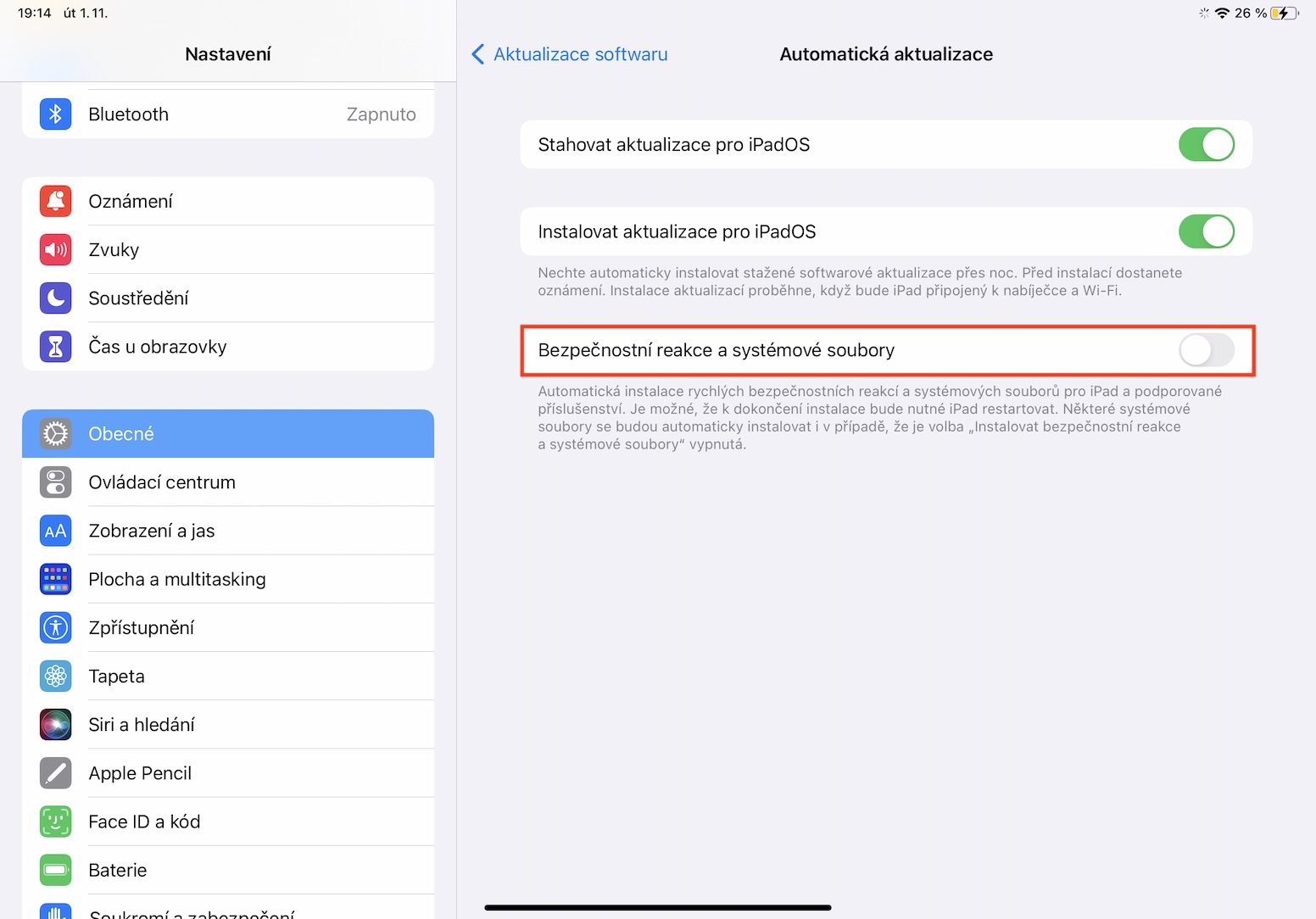
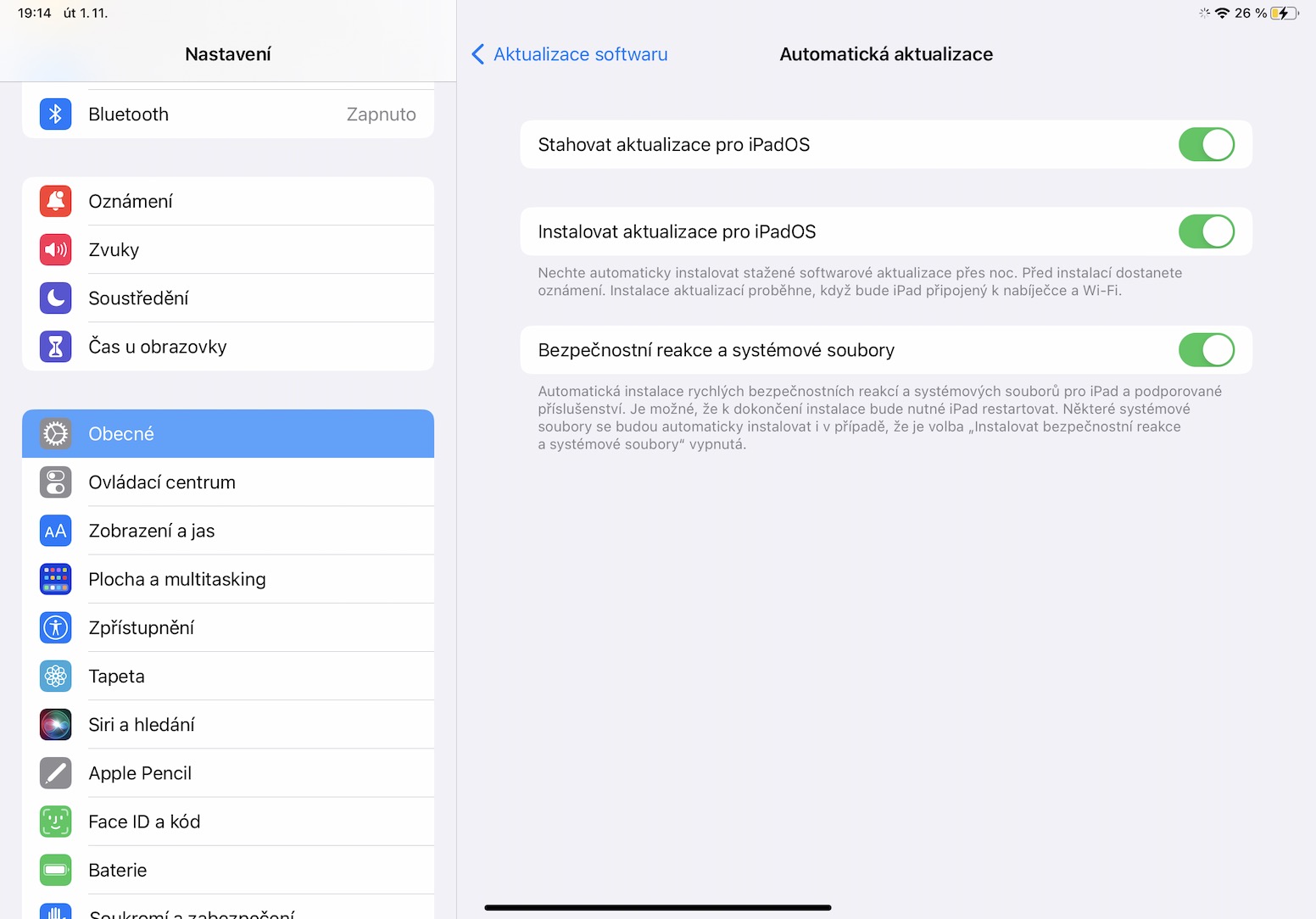
In case that Apple discovered a serious security flaw in one of its operating systems, so it couldn't fix it right away. Until now, all these security fixes were part of complete system updates, which had to be waited for. The fact that this is not an ideal solution, si Apple konehas been made aware of this and in iPadOS 16 offers the option of automatic security updates in the background. You can activate it in Settings → General → Software Update → Automatic Update, where activate with the switch Security response and system files. After that, you don't have to worry about anything.
Gallery
App access to clipboard
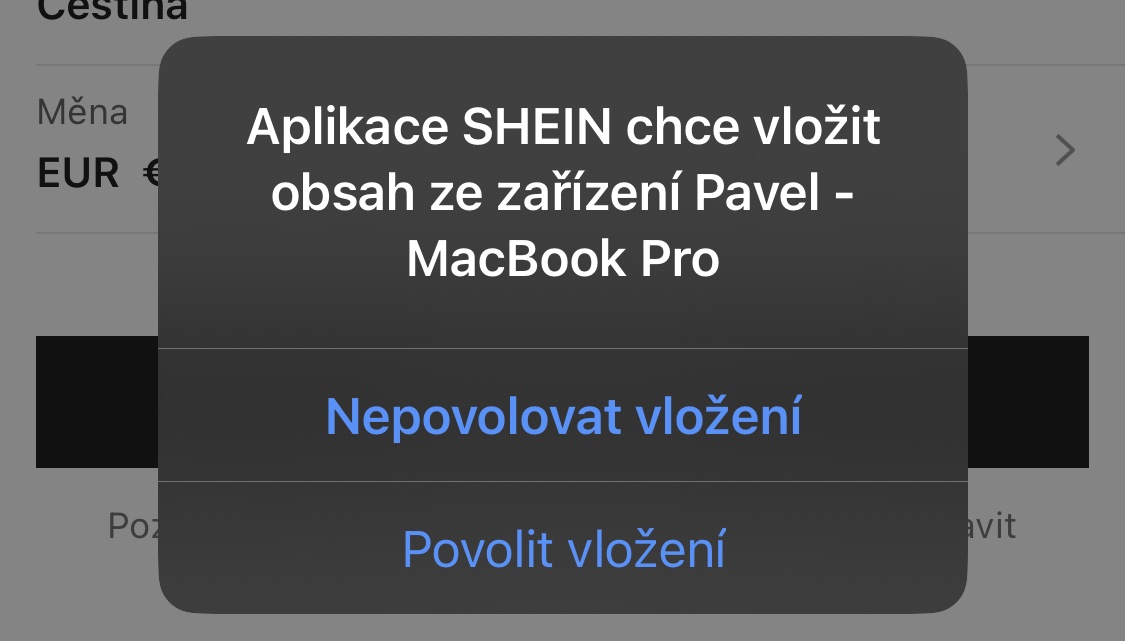
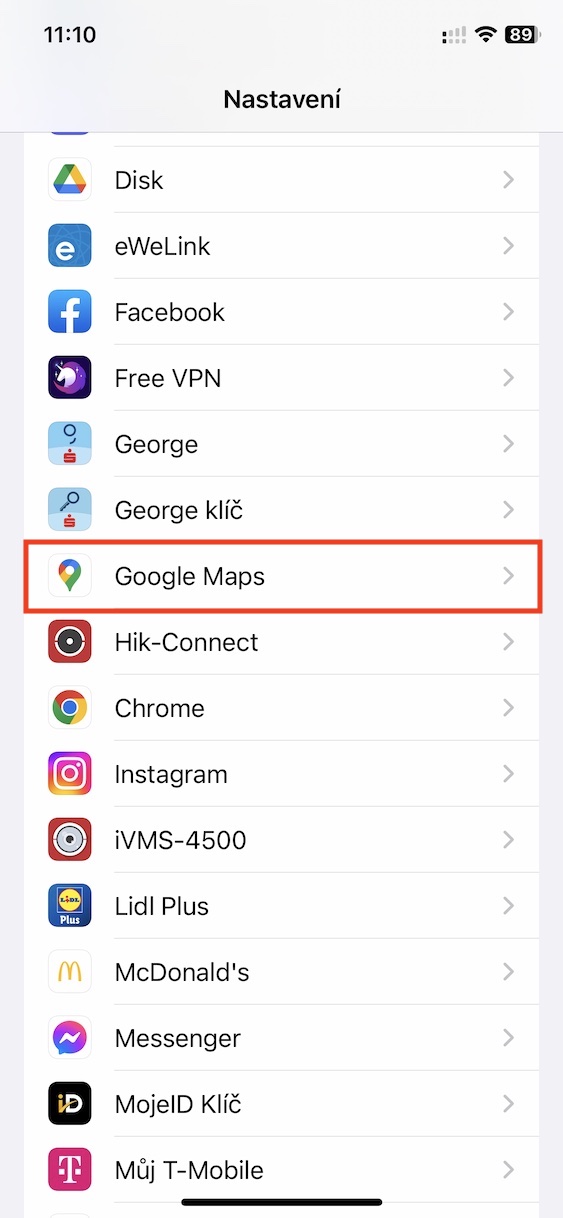
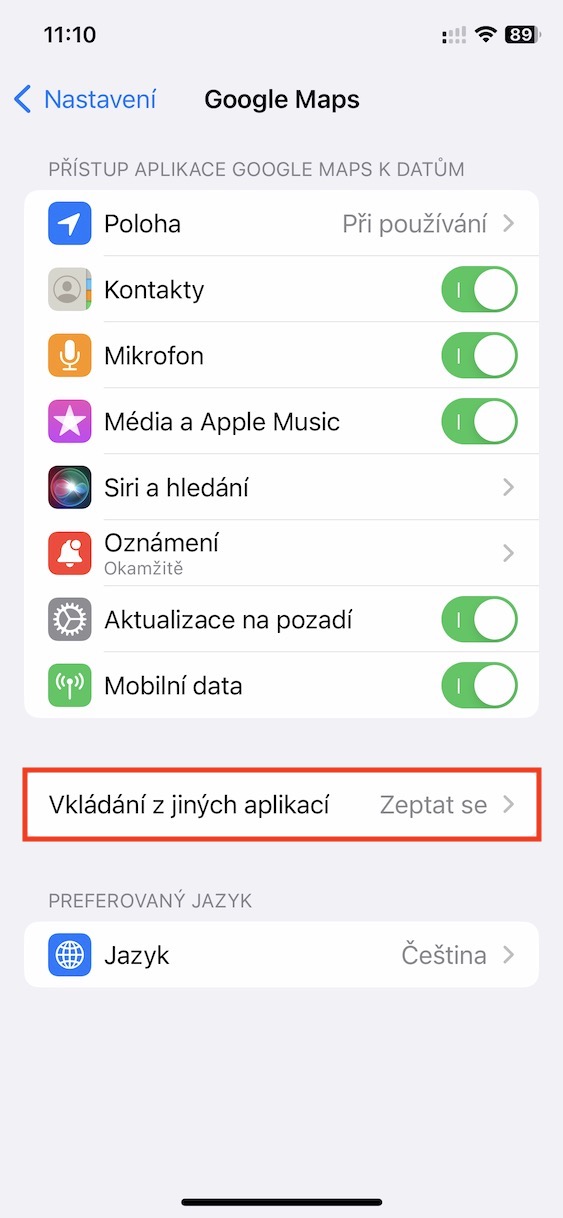
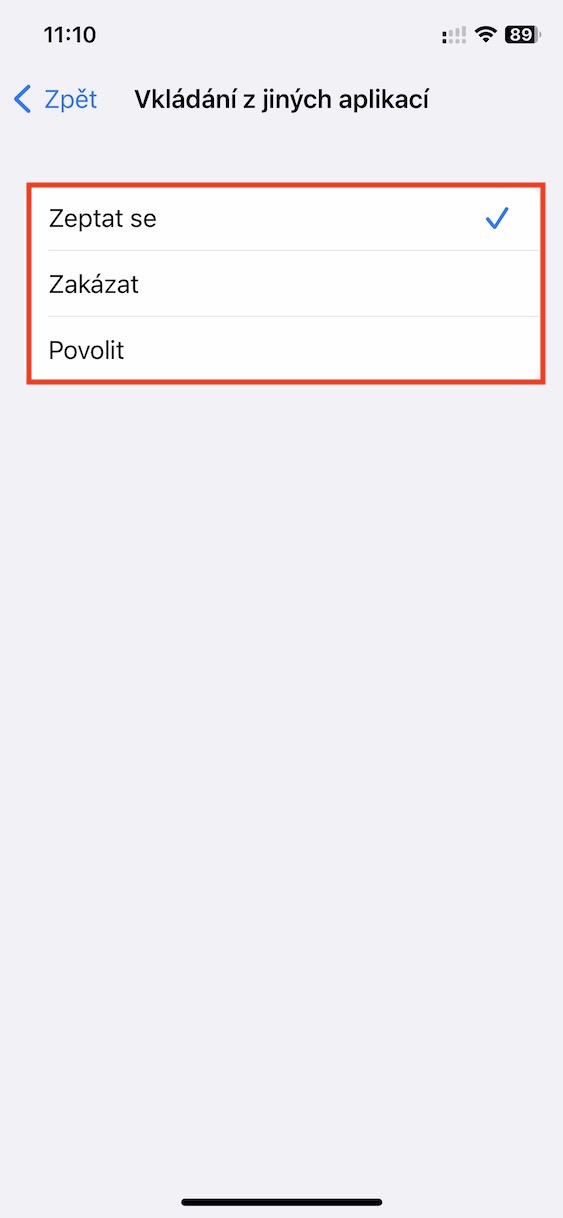
In older versions of iPadOS, all apps could access content stored in the clipboard without restrictions. This was all the data that you copied, so in addition to the text, you can easily images and photos, documents and much more. Again, this was not an ideal thing from the point of view of privacy protection, and in iPadOS 16, that's it Apple konedecided to do something. Newly you so the application must first request access to the clipboard, and if you don't enable it, the application is simply out of luck. Alternatively, it is then possible to manage the mailbox access settings for each application in Settings → app name → Embed from other apps.
Gallery
How to lock notes
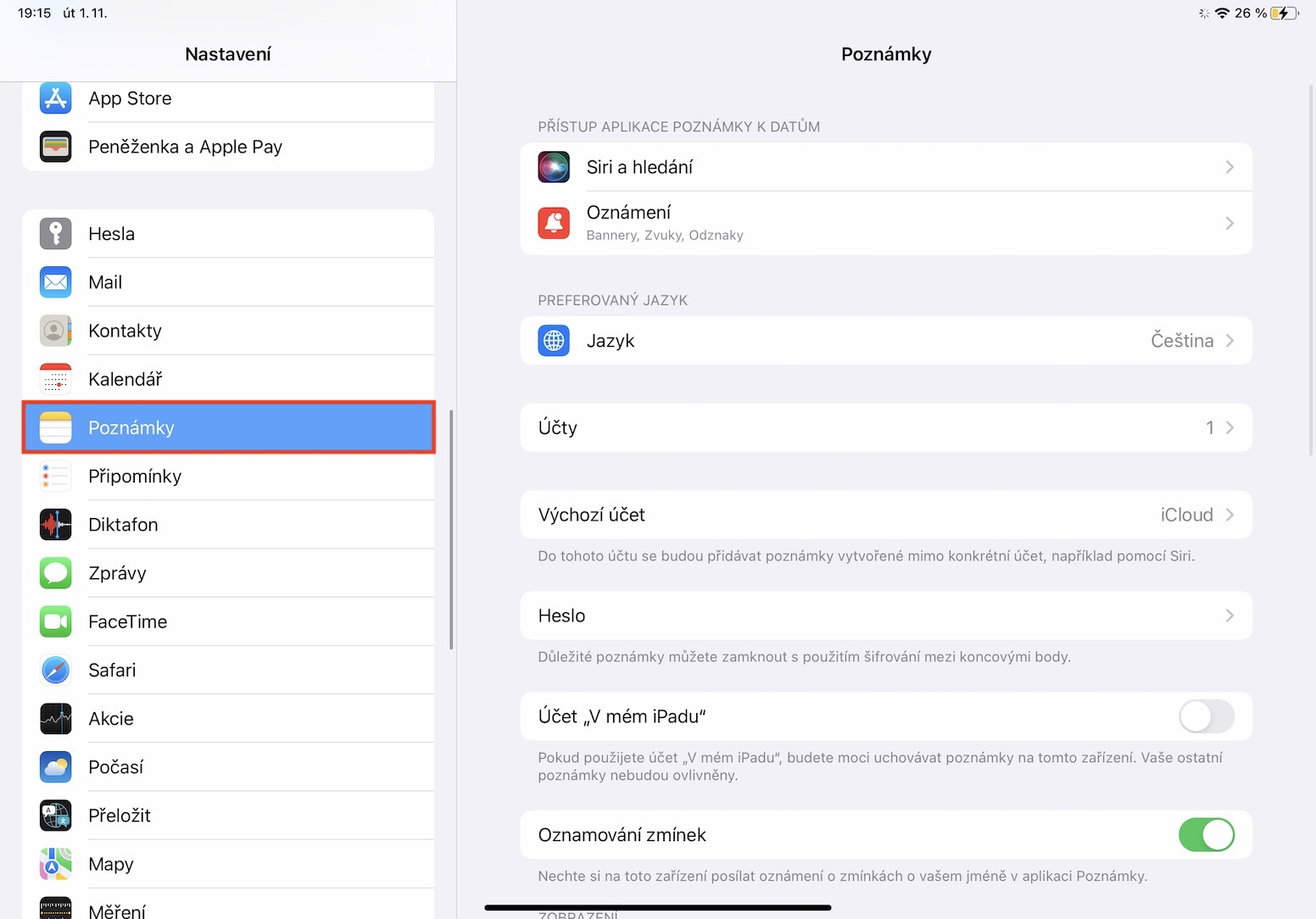
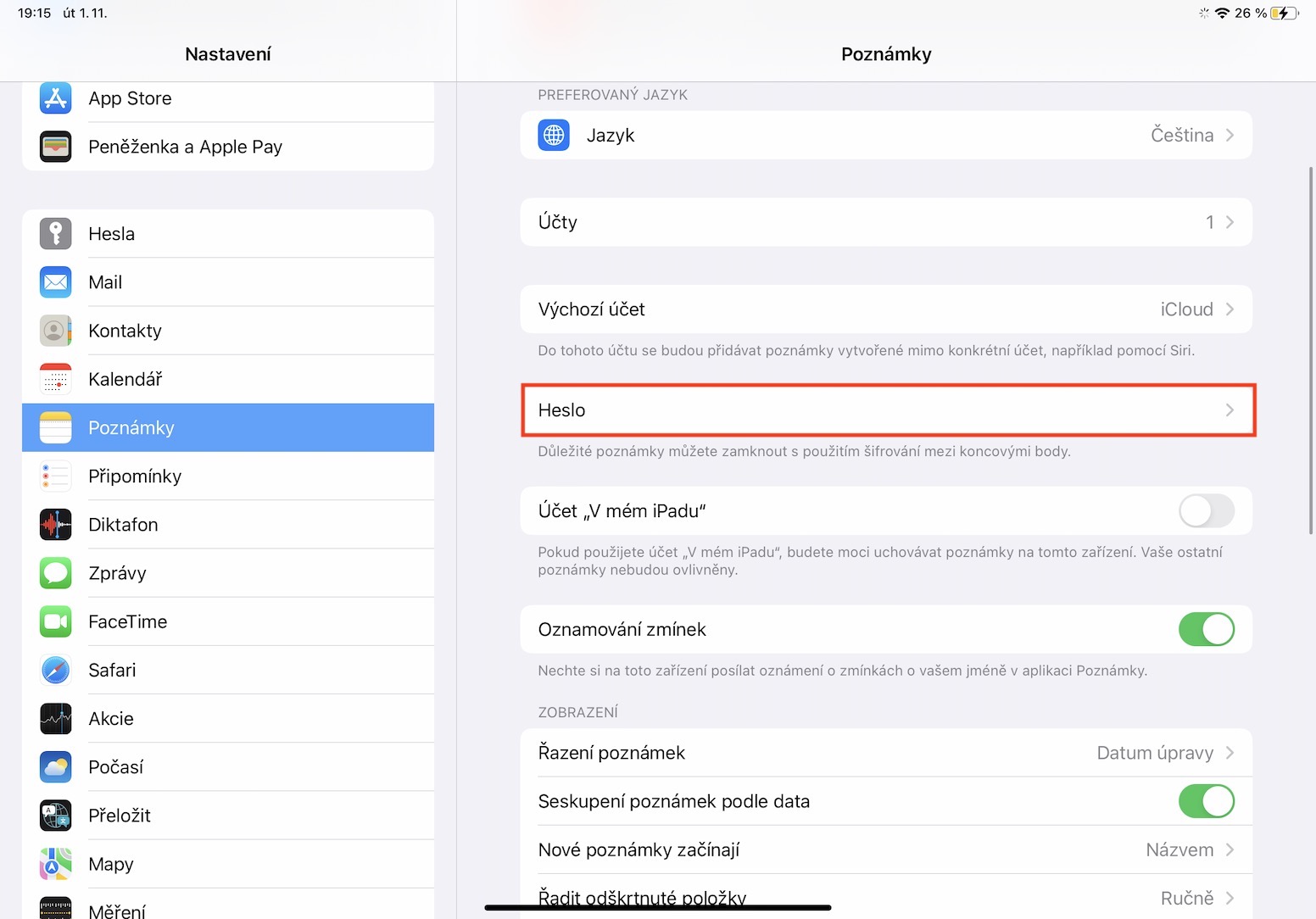
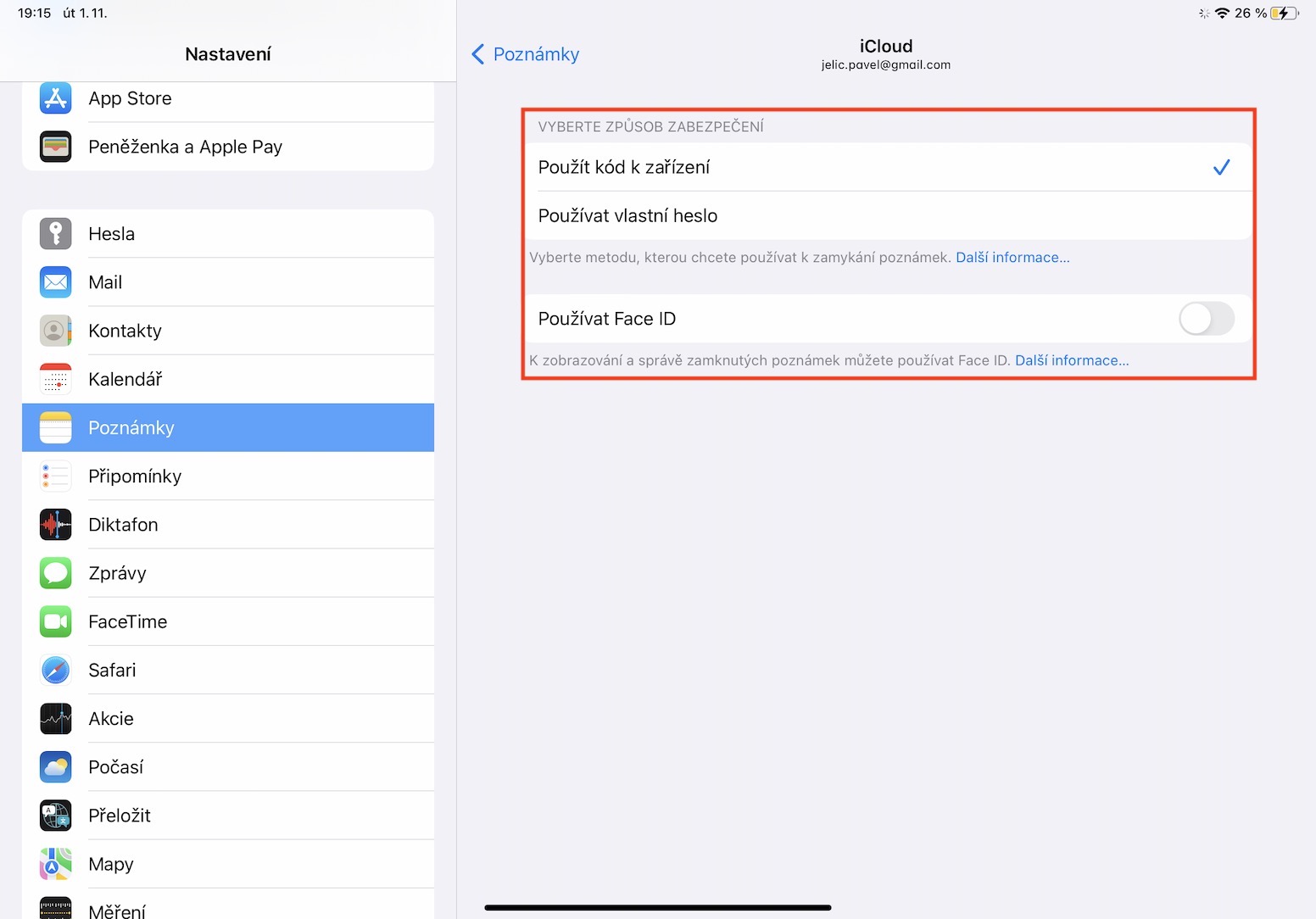
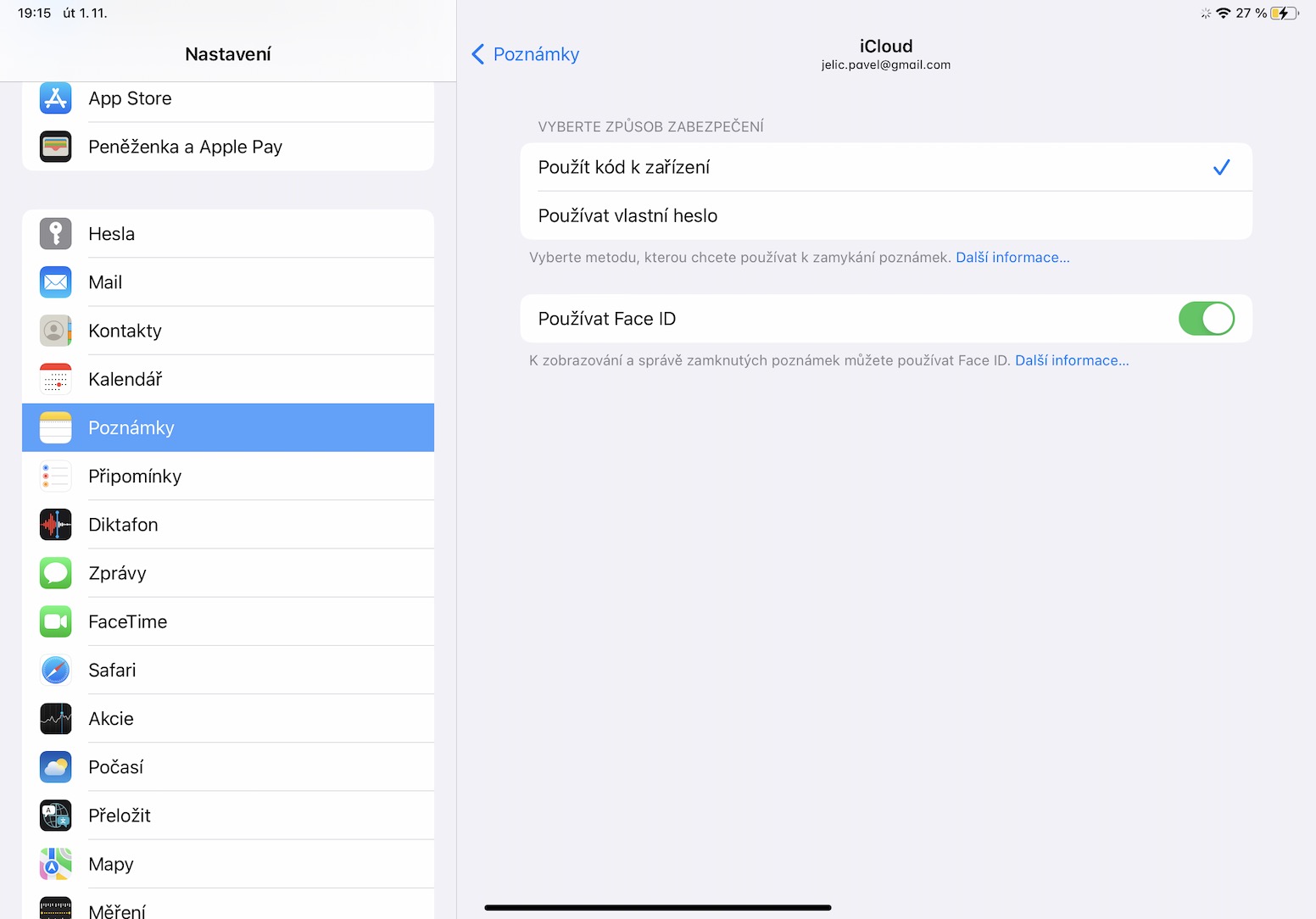
The note locking feature has been available in the native Notes app for several years. Until now, however, we had to use a special Notes password, which was often forgotten and users could then lose access to locked notes due to the inability to recover the password. However, in the new iPadOS 16, it is now possible to lock notes with a classic iPad passcode and, of course, there is also verification via Touch ID or Face ID. The locking method is possible set after initially locking the note in iPadOS 16, or just go to Settings → Notes → Password, where you open specific account a choose the type of password you want to use.
Gallery
Block mode
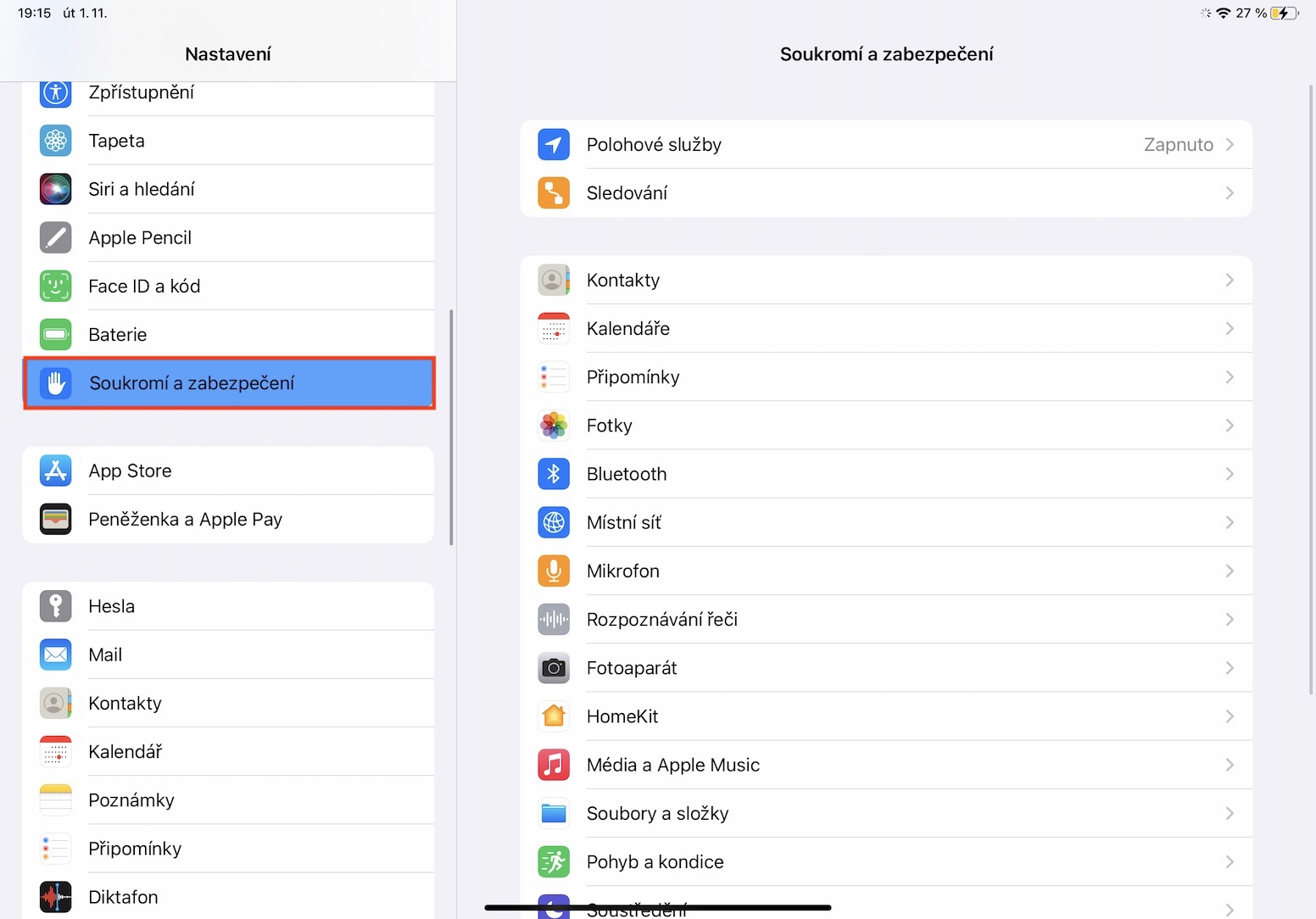
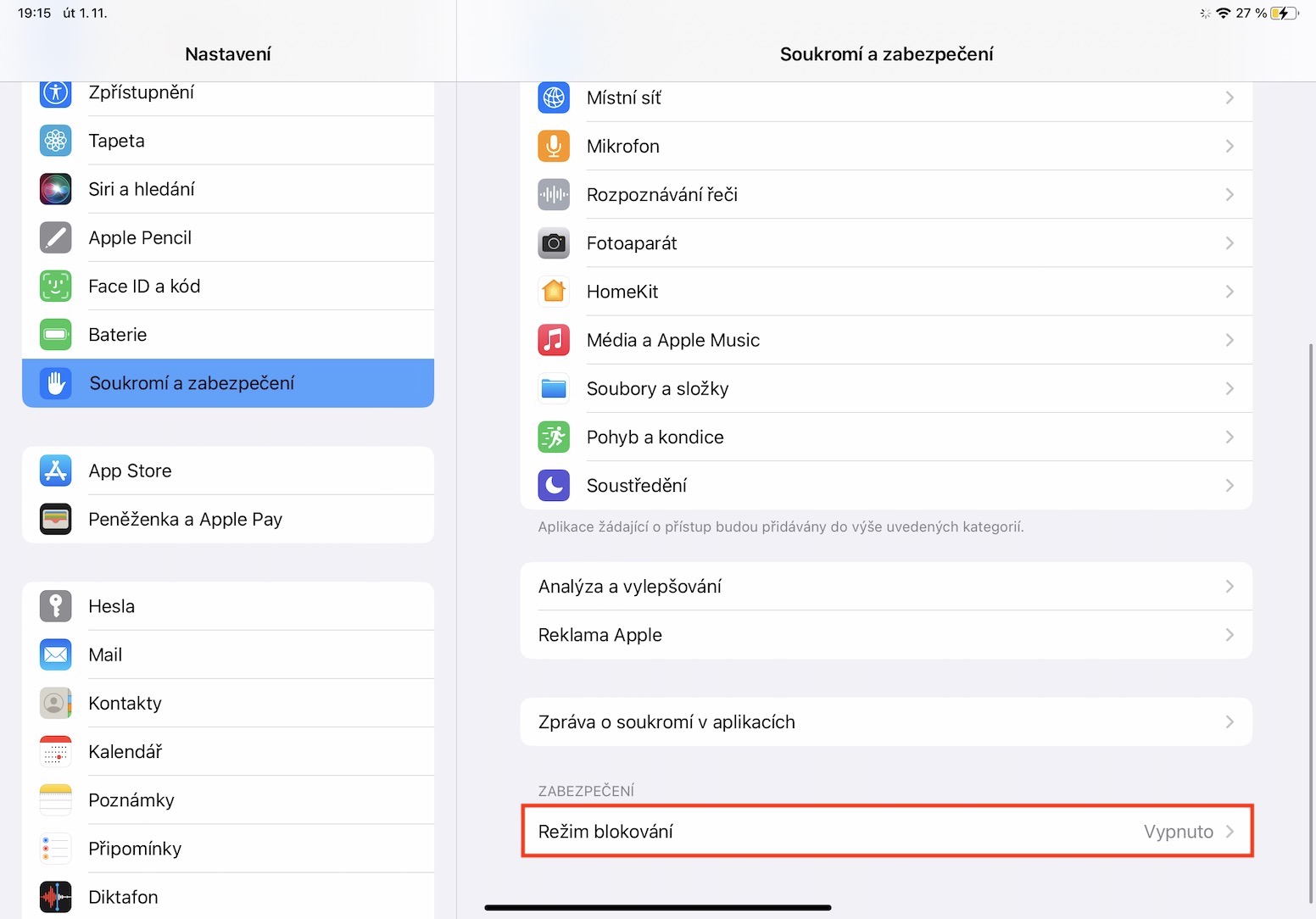
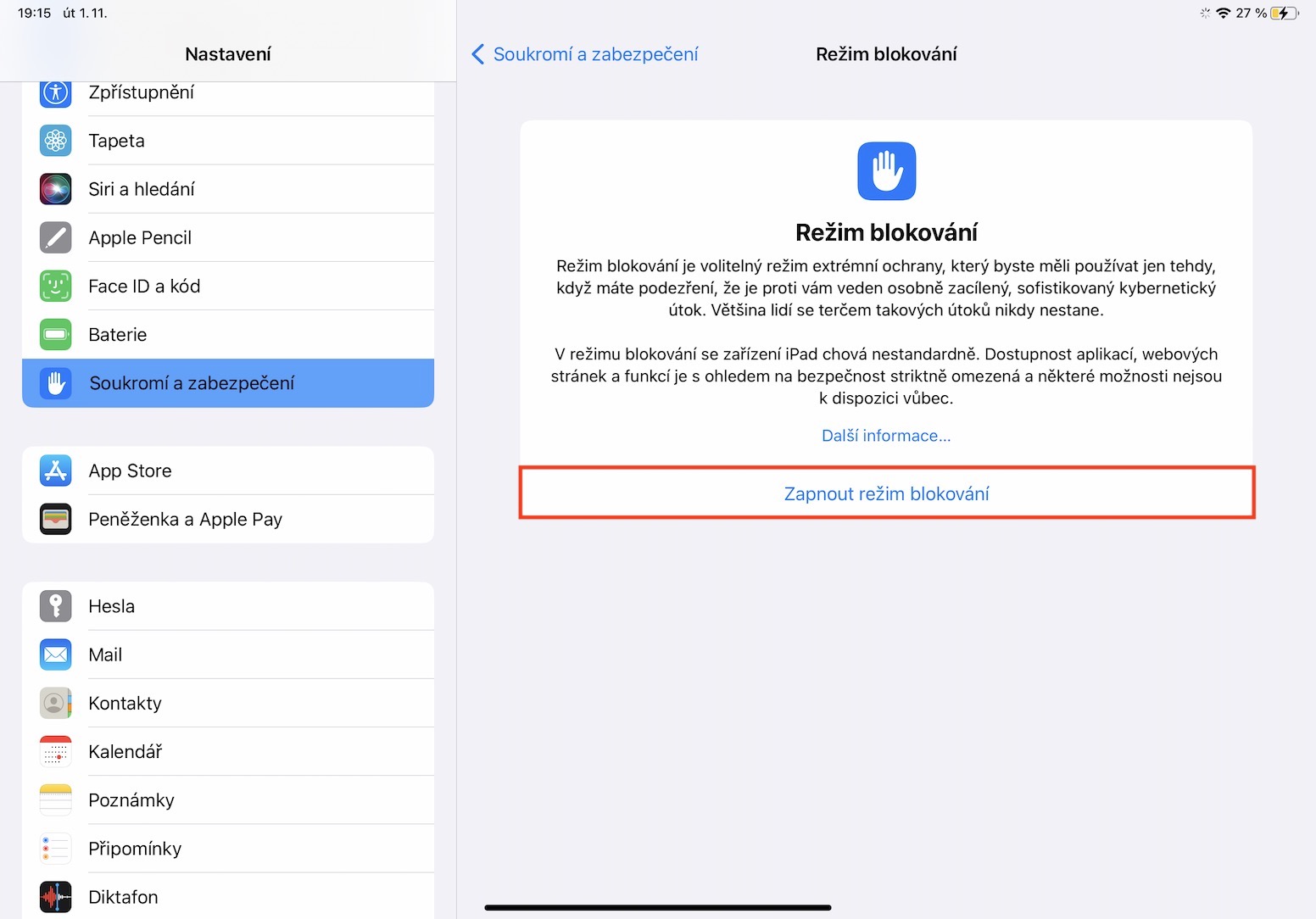
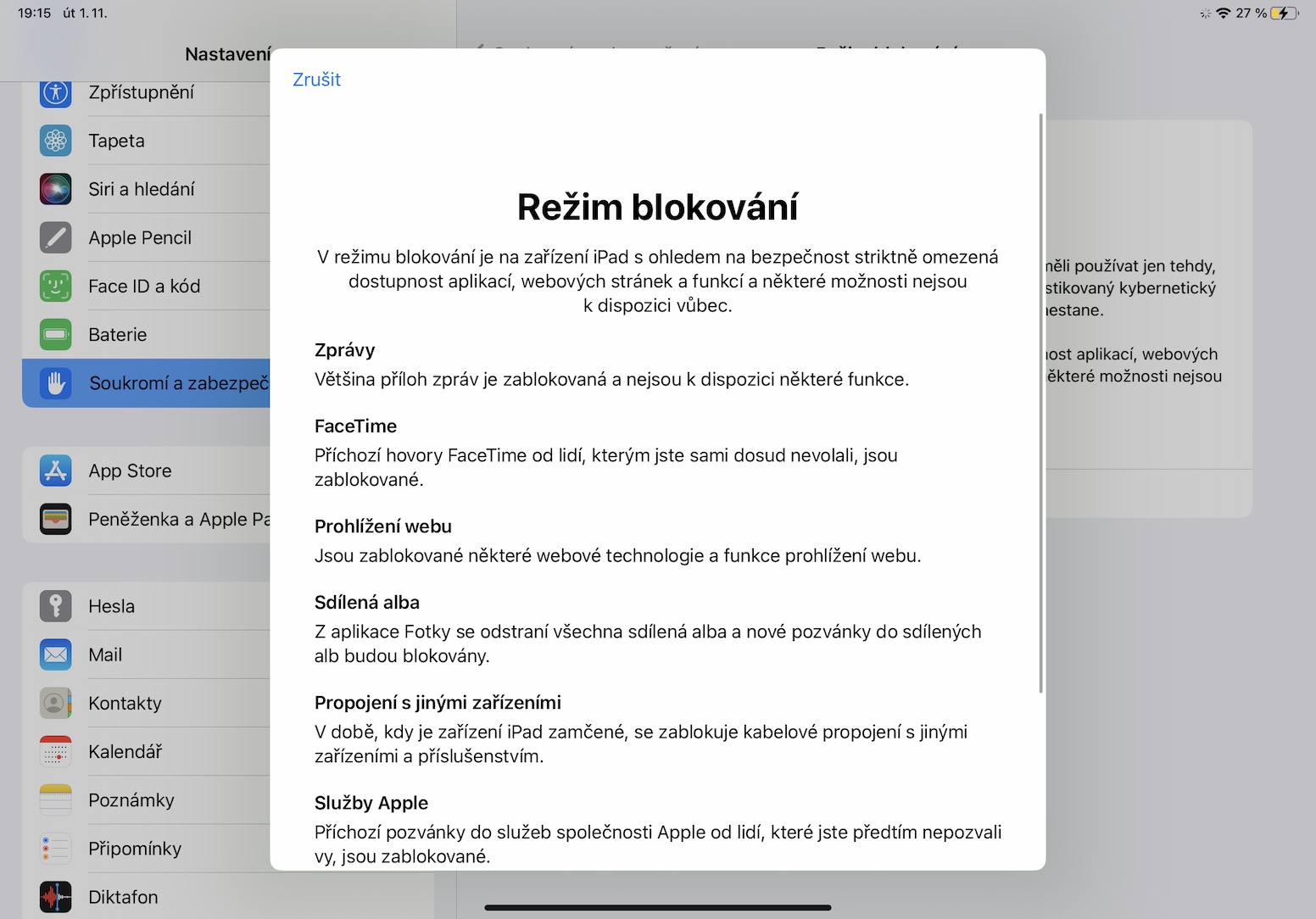
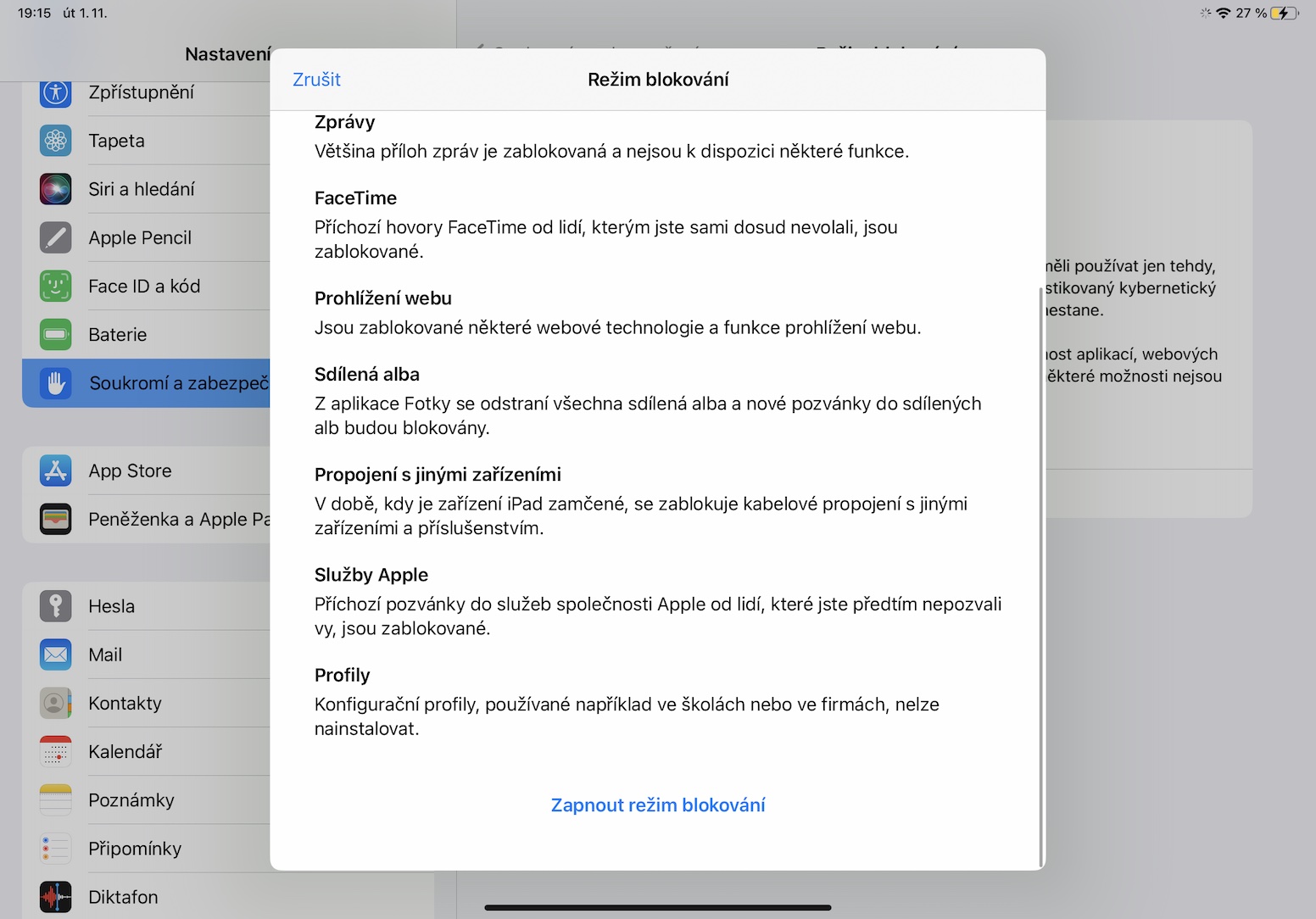
Same as in iOS 16, and in iPadOS 16, there is a brand new Blocking Mode. If you activate this mode, your iPad will become an impregnable castle that should be resistant to all attacks, government snooping, etc. But it's not just that - you will lose many of the basic functions that the iPad offers. That's exactly why Blocking Mode is intended primarily for socially significant users in the form of politicians, celebrities, journalists, etc., not for ordinary users. Pro To turn on Blocking Mode, simply go to Settings → Privacy and security → Lock mode.
Gallery