Slow Wi-Fi iPhone is a problem that every Apple phone user may encounter from time to time. What are we going to lie to ourselves, when Wi-Fi is slow, it is definitely not ideal and can often cause quite a bit of frustration. If you are currently struggling with slow Wi-Fi on your iPhone and don't know what to do about it, then you are absolutely right here. We will look at 5 tips that can help you fix this problem. Let's get straight to the point.
You might be interested in
Reconnect
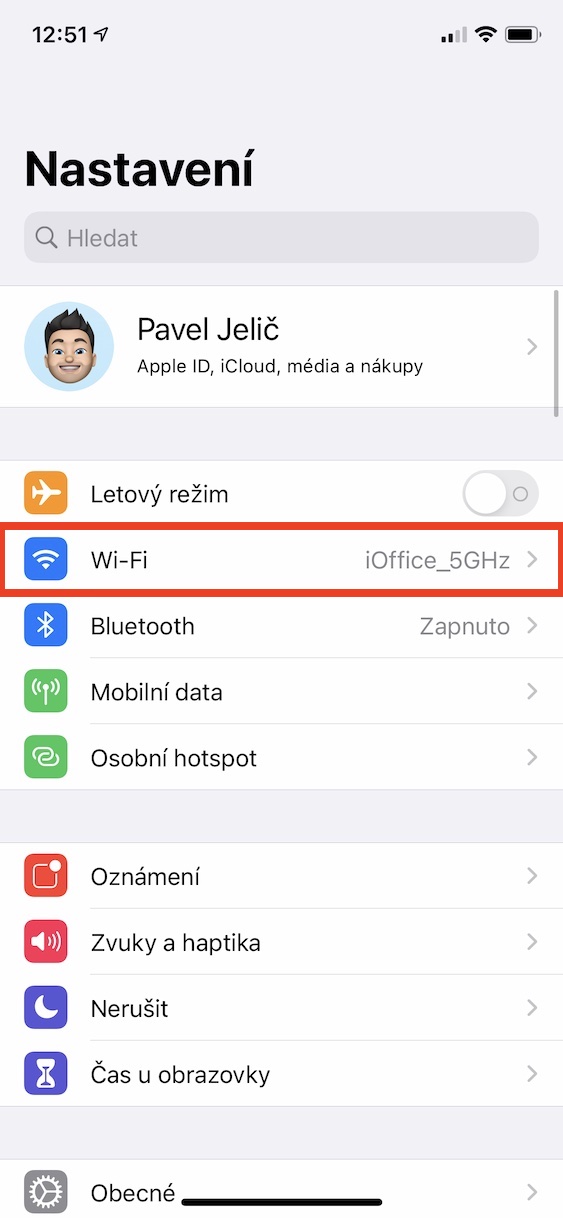
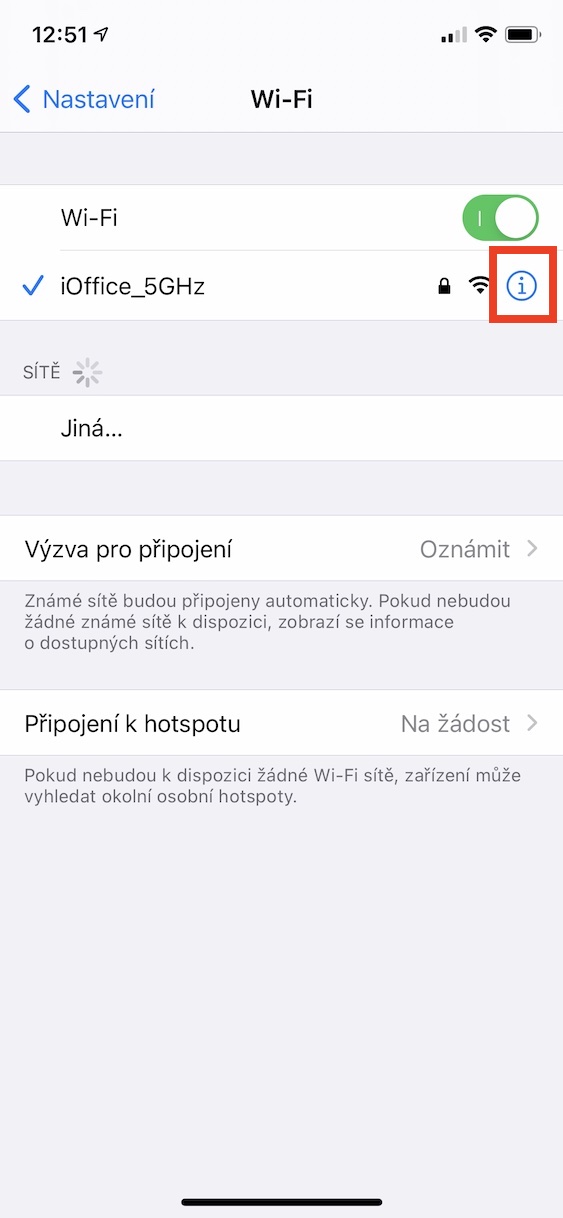
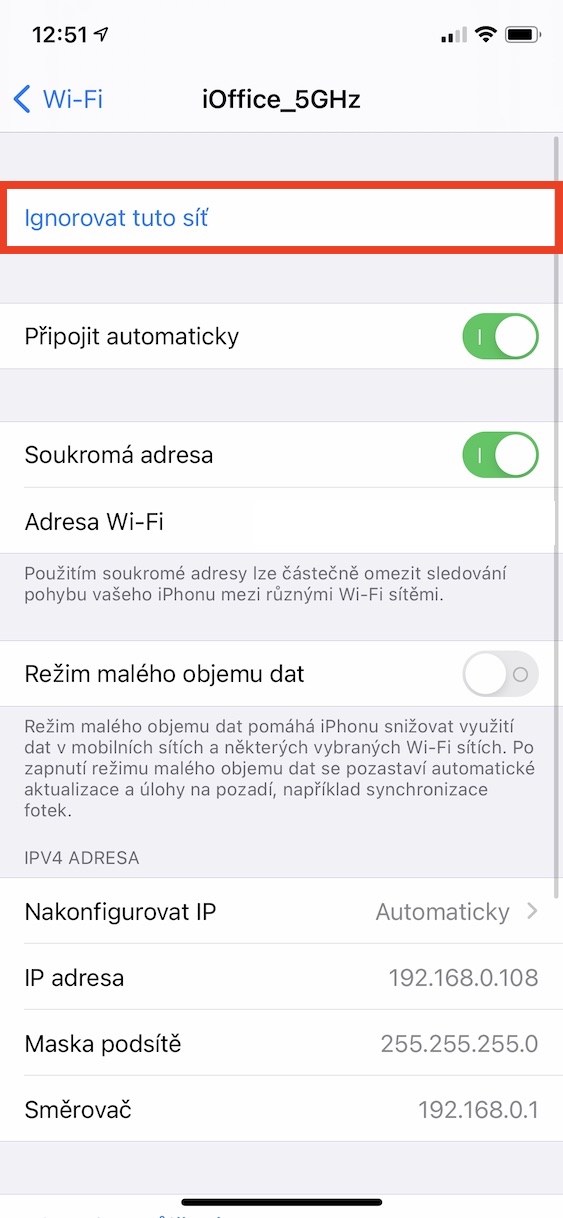
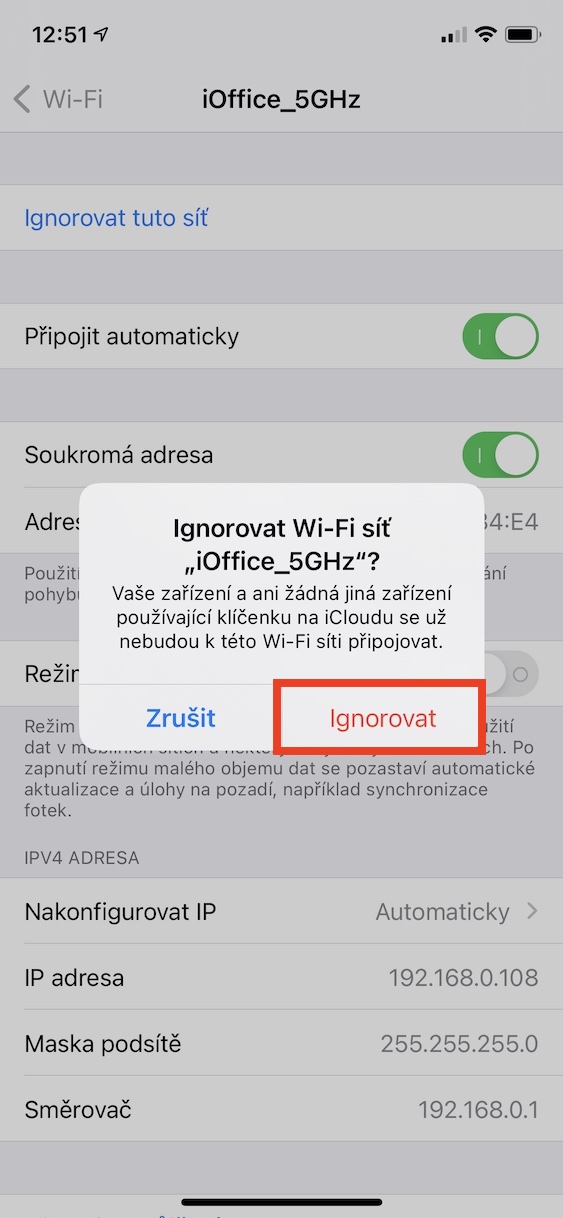
Before you dive into more complicated procedures, try simply disconnecting from the slow Wi-Fi network on your iPhone and then reconnecting. It's not that difficult - just go to Settings → Wi-Fi , where you tap the ⓘ icon on the right of the network you're connected to. Once you've done that, tap Ignore this network at the top of the screen . Then tap Ignore to confirm. Then all you have to do is tap it again, enter the password, and connect.
Gallery
Removing the iPhone cover
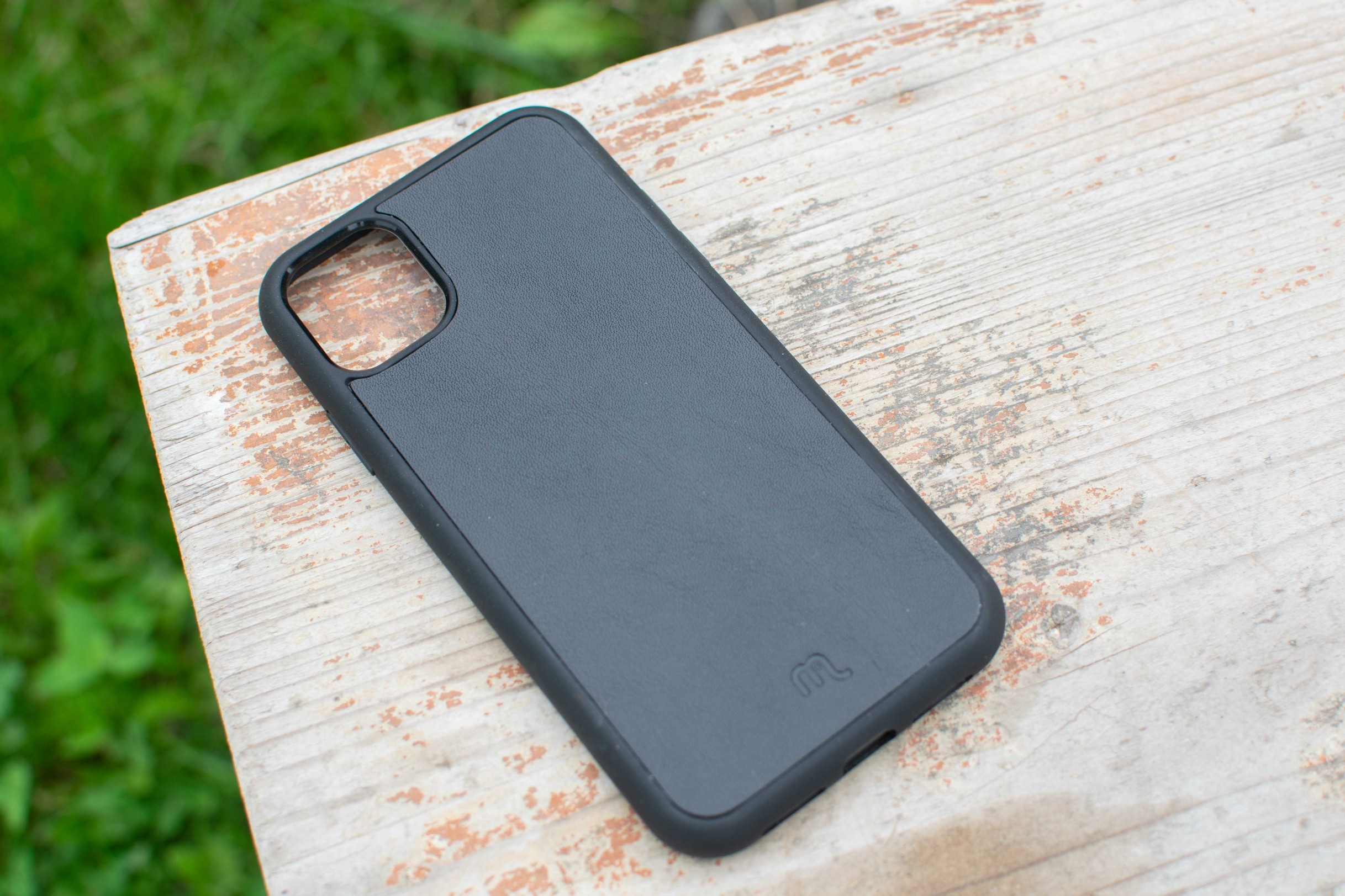
Many of us use a case, along with tempered glass, to protect our iPhone. Of course, in most cases this is not a problem, but it is important to mention that there are protective covers that can cause signal degradation and slow Wi-Fi. The covers that cause this are made of some metal, such as aluminum, and degrade the signal transmission. If you have such a cover on your iPhone and you have slow Wi-Fi or often no signal, be sure to replace this cover with a normal one, for example plastic or silicone. This is definitely where the problem lies.
Restart the modem and router
The fact that Wi-Fi is slow on your iPhone may not be a problem with your Apple phone. It could easily be a problem caused by your modem and router. In the vast majority of cases, all you need to do is restart your modem and router. You can do this in two different ways. If you know how to do it, go to the web interface for control, where you can restart it. Otherwise, just find the power button on the back of your modem and router. Then turn off your modem and router and wait about 30 seconds . Then first turn on the modem with the button, wait another half a minute, and only then will the router start up with the button.

updates iOS
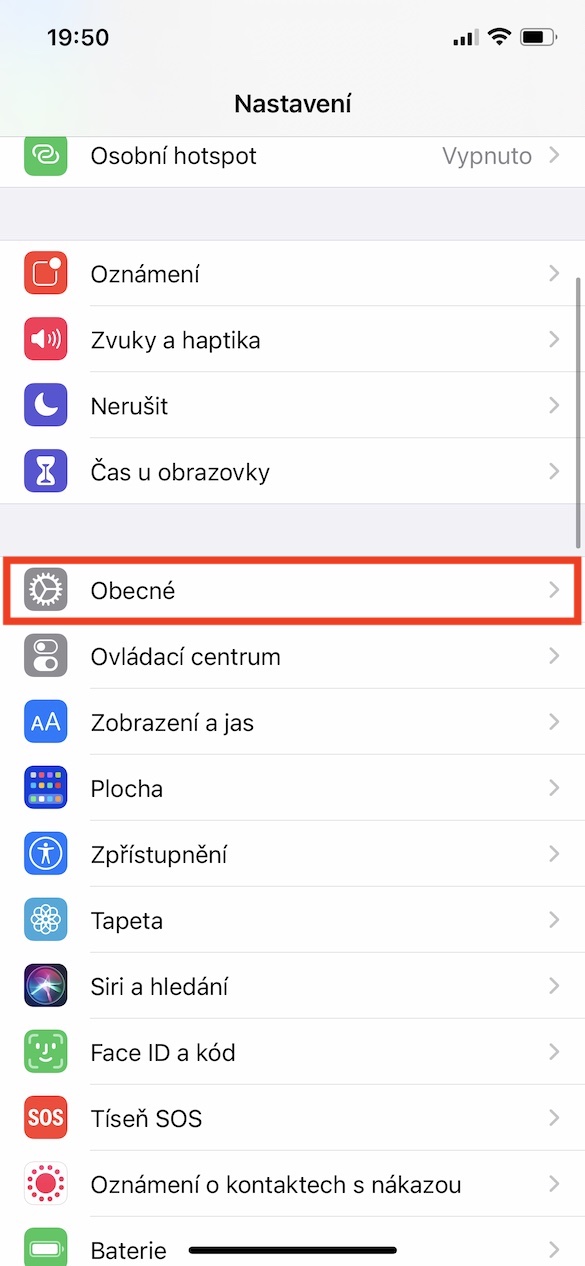
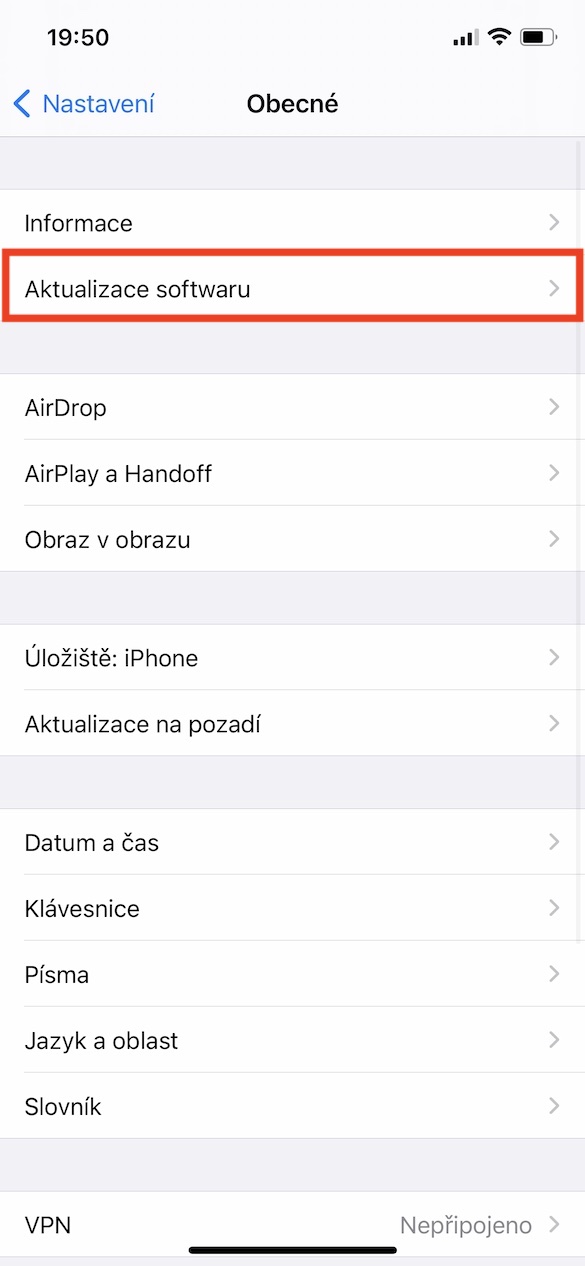
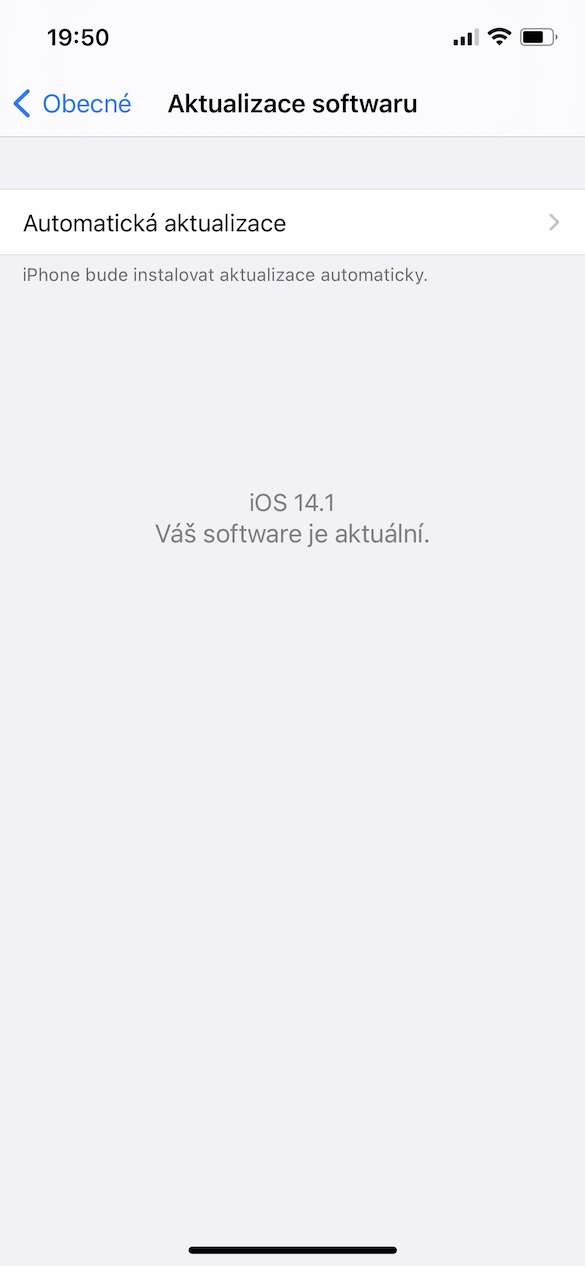
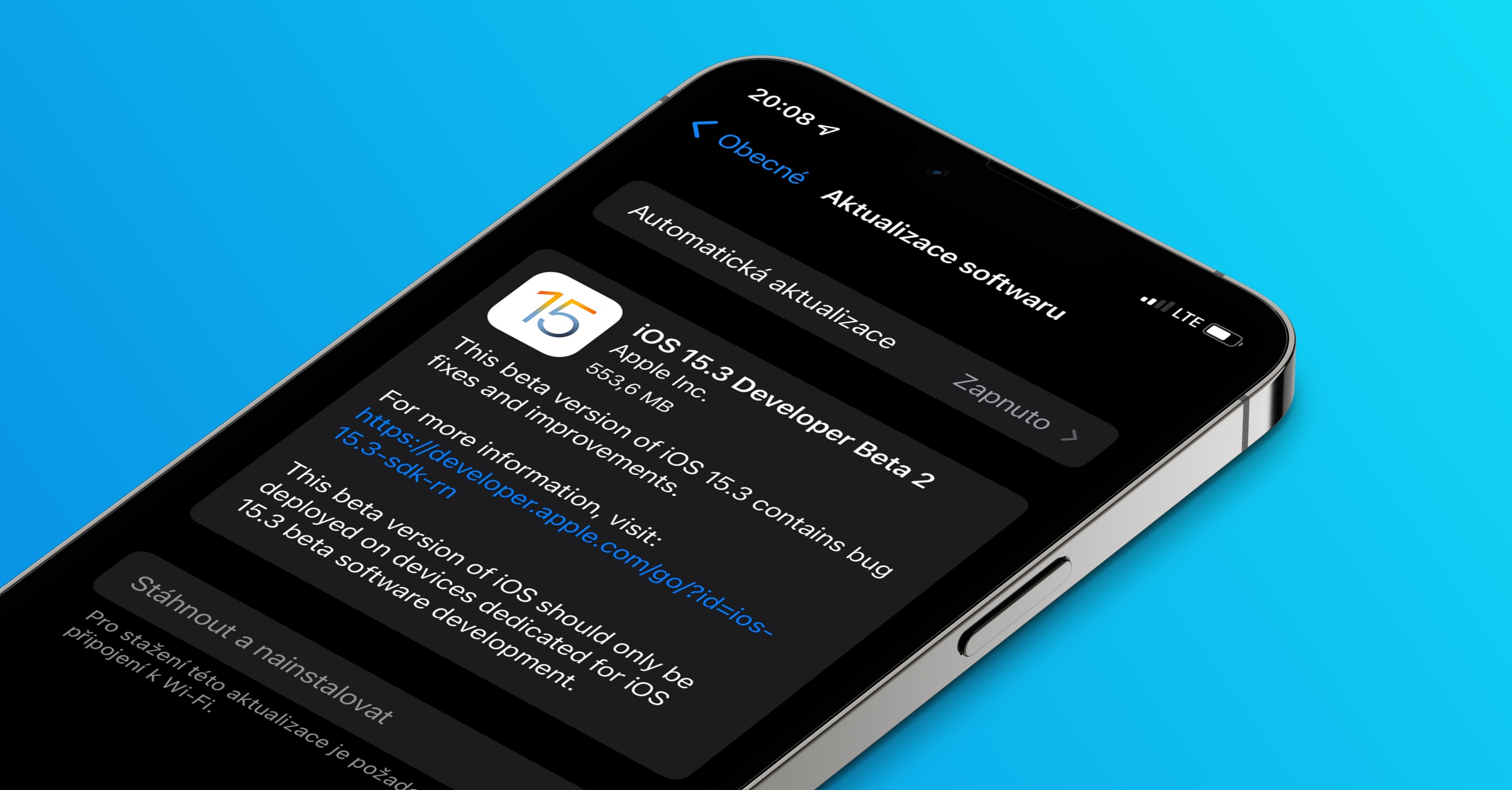
From time to time, within the framework iOS There may be a bug that causes various problems - and it may well be the problem that is causing the Wi-Fi network to slow down. This is not the only reason why it is necessary to always have the latest version of the system installed on your iPhone and all other devices. Apple In most cases, we try to fix reported problems as soon as possible. Update iOS To do this, on your iPhone, go to Settings → General → Software Update, where updates can be found, downloaded, and installed.
Gallery
Reset network settings
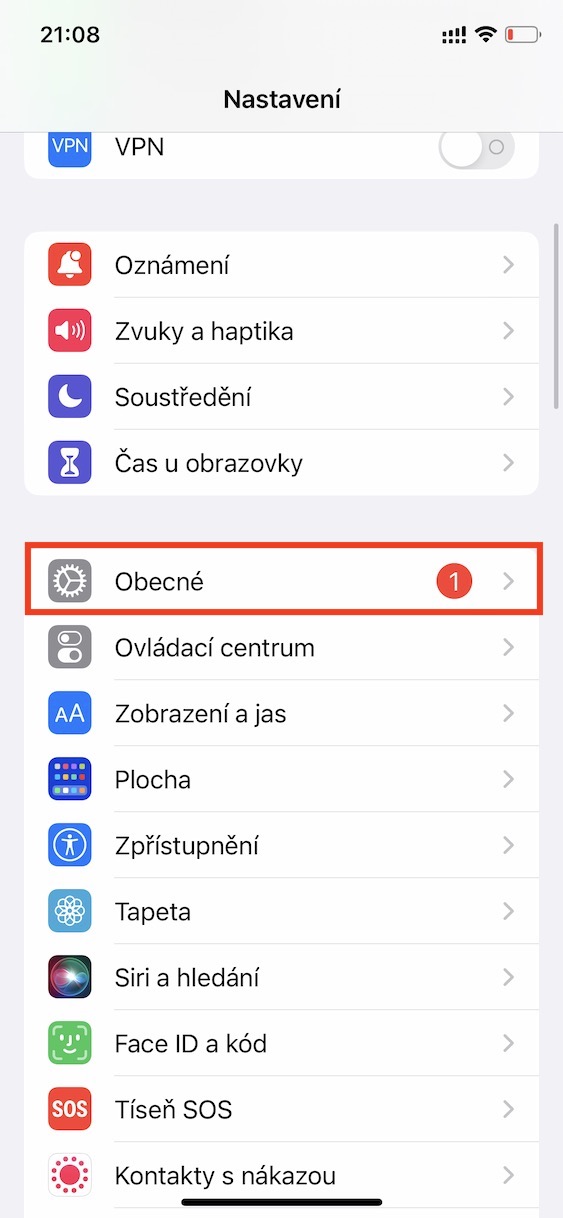
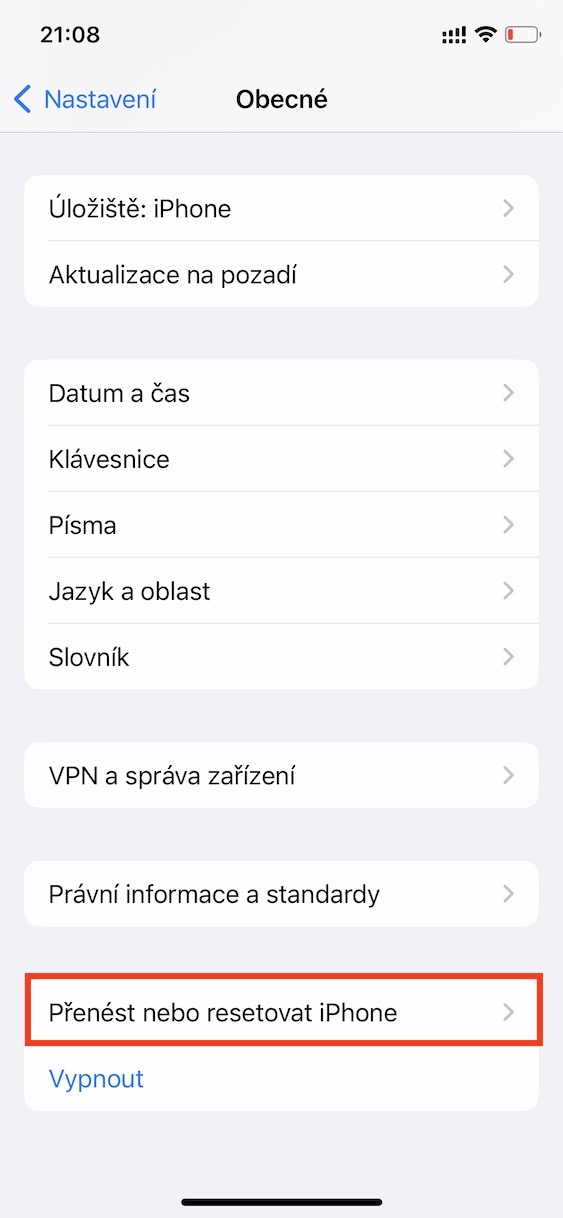
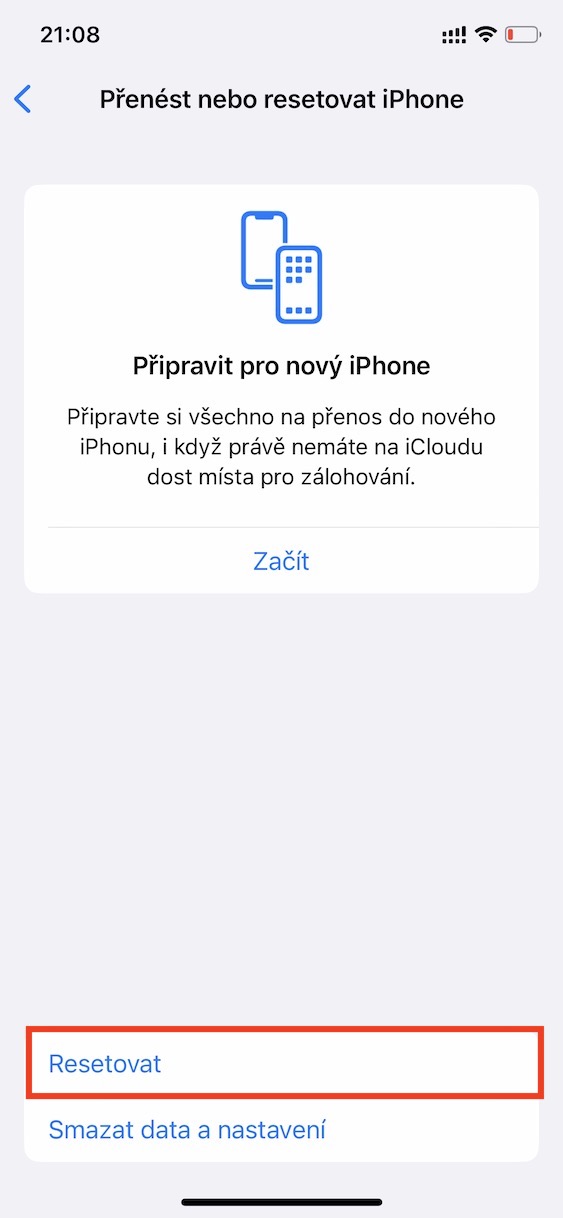
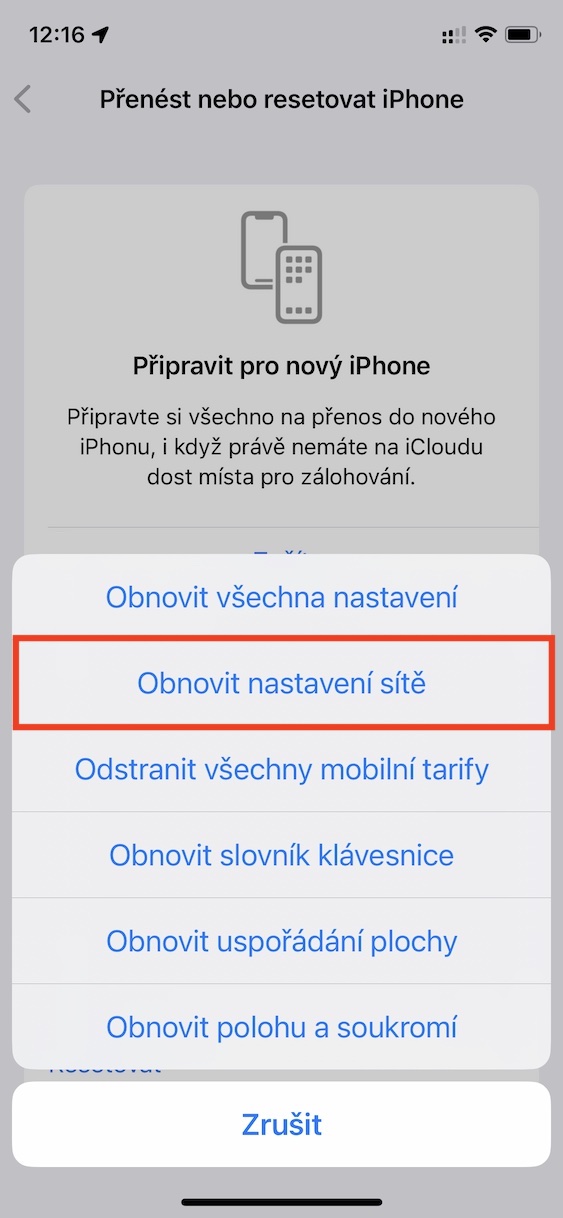
If none of the above tips helped you and your iPhone's Wi-Fi is still acting up, here's one last tip that's drastic but definitely helps. It's a complete reset of network settings, which helps in almost all cases where you have problems with Wi-Fi or cellular connectivity. However, it's important to note that resetting network settings will remove all known Wi-Fi networks and Bluetooth devices. You'll have to reconnect to Wi-Fi networks and enter the password, and you'll need to pair your Bluetooth devices again. You can do this reset in Settings → General → Transfer or reset iPhone → Reset → Reset network settings.
Gallery