iPhones from Applu can also boast, among other things, that it offers quite a lot of customization options in a number of different areas. This also applies to the display settings, where you can play around with, for example, adjusting the brightness, the conditions for waking up, or how the display behaves in different lighting conditions. In today's article, we will introduce you to five useful tips and tricks that you can use to completely customize the display on your iPhone to your needs.
You might be interested in
Dark mode layout
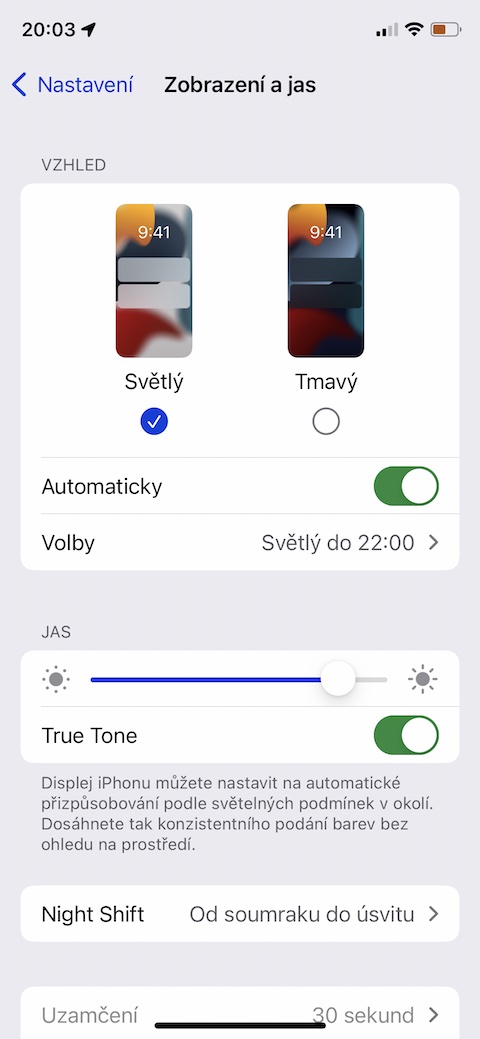
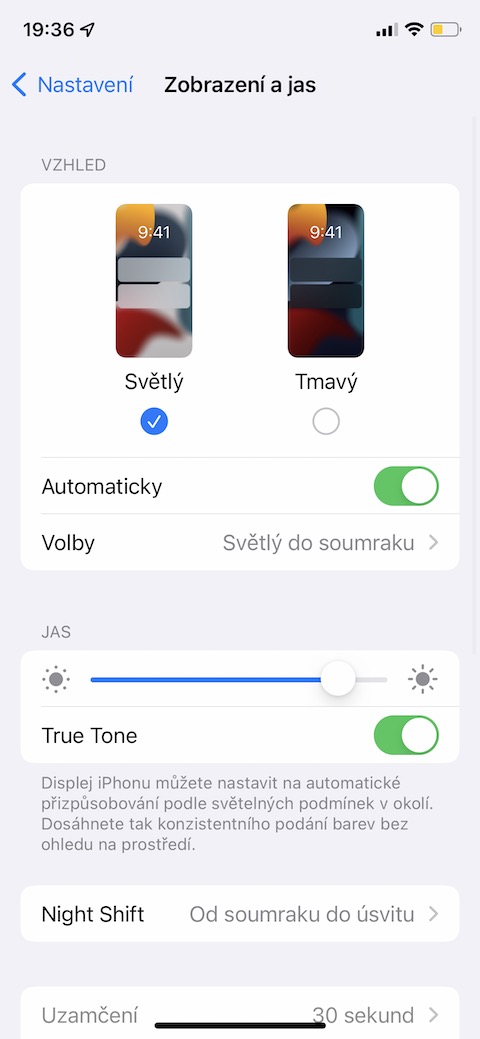
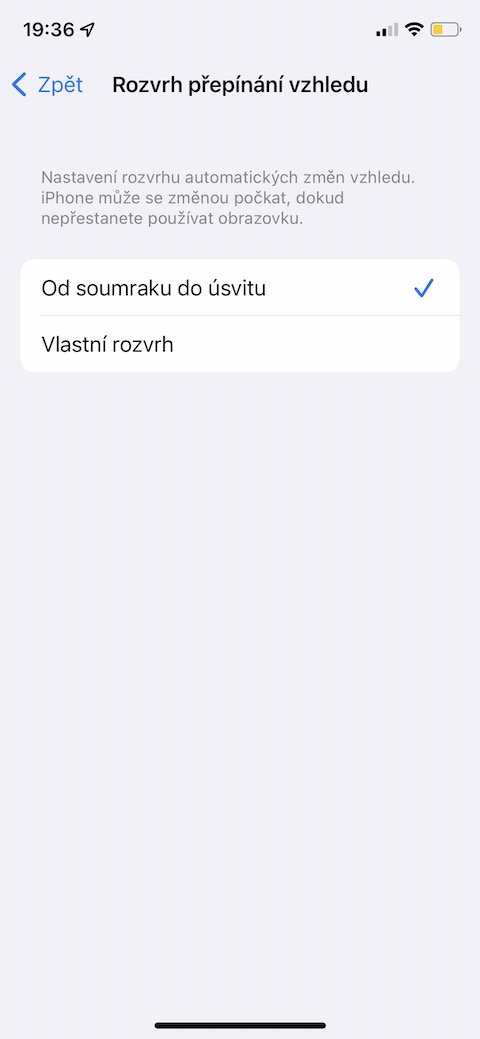
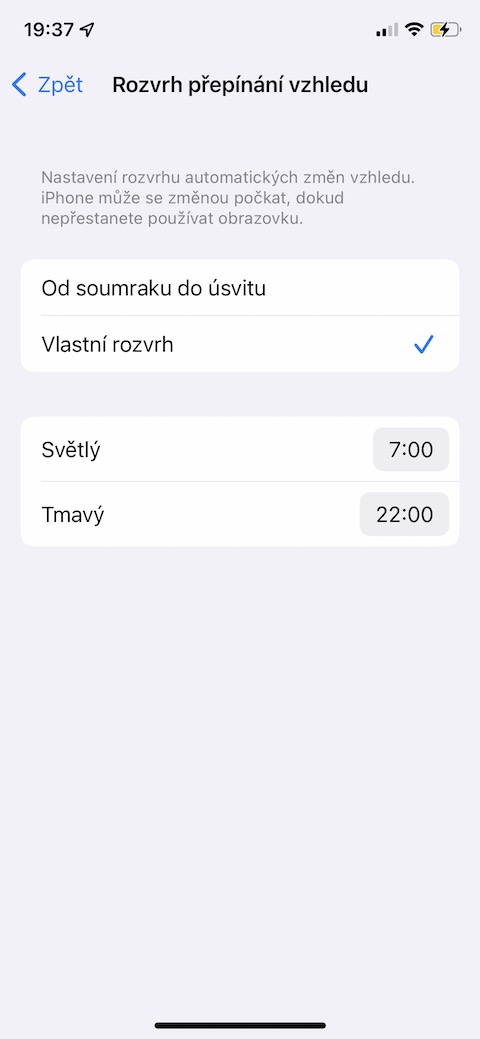
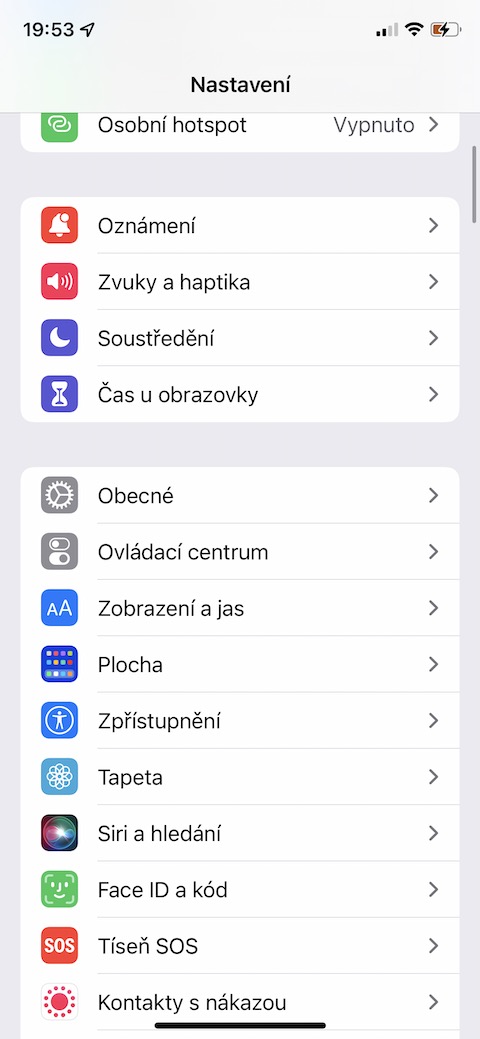
Operating system iOS has been offering the option to activate a system-wide dark mode for a long time. However, not everyone is comfortable with the automatic mode change depending on dusk and dawn. These are the users who iPhoneUsers can set their own individual dark mode schedule. Just go to Settings -> Display & Brightness, where in the Appearance section, tap Options. Select Custom schedule and set the times you want.
Gallery
Even better privacy
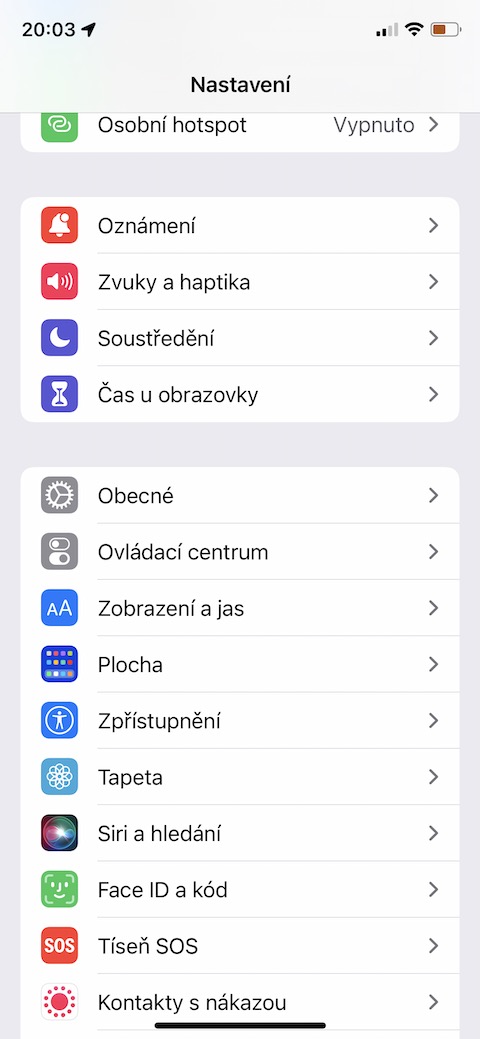
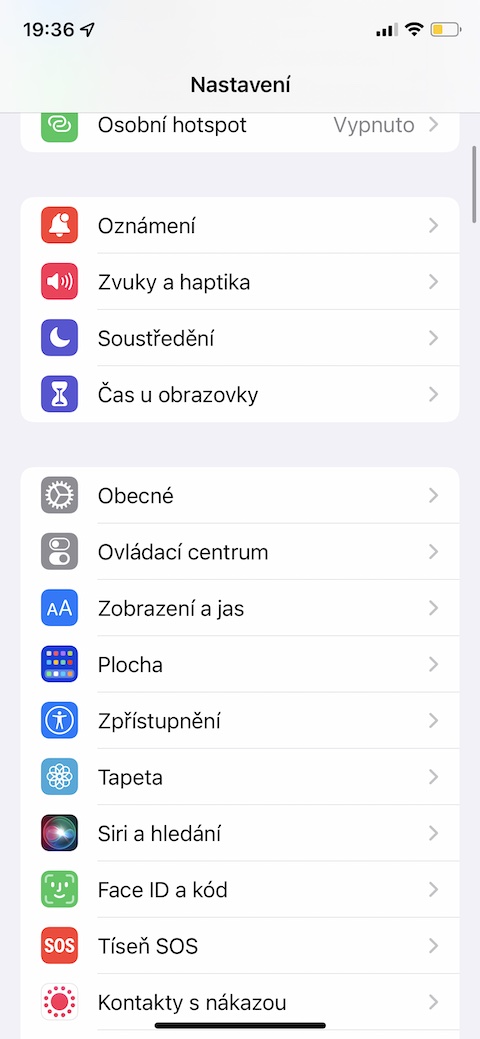
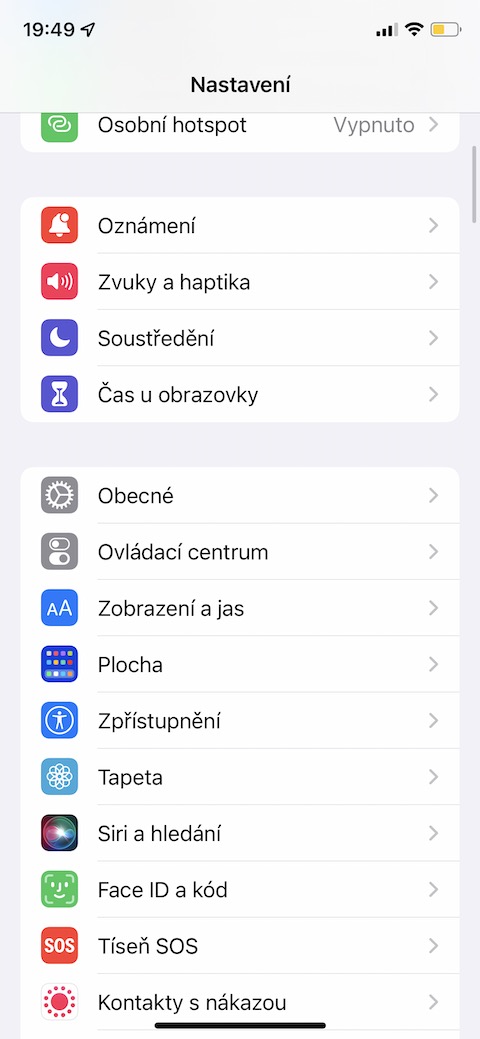
Most of us have notifications enabled on our iPhone. They can also appear on the lock screen under certain circumstances – for example, when iPhone If you want to avoid this, one option is to disable the display from waking up when you lift it. On your iPhone, go to Settings -> Display & Brightness. Head to about halfway down the screen and disable the item Proto wake up by lifting. Pro However, we would like to point out that even with this setting, it will still be possible to read the contents of the locked screen, which can be woken up by pressing the side button, for example. You can find more tips for improving privacy on your iPhone in one of our older articles.
You might be interested in
Contrast enhancement
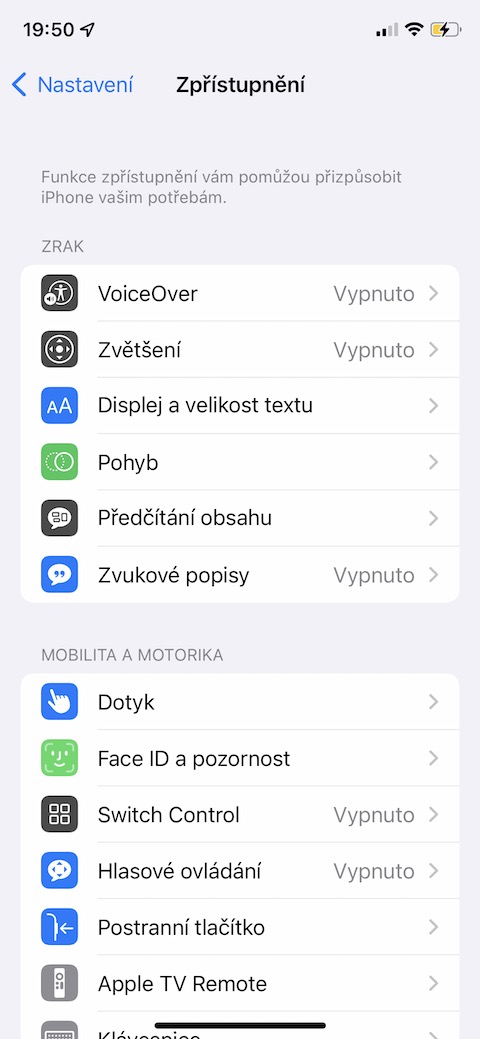
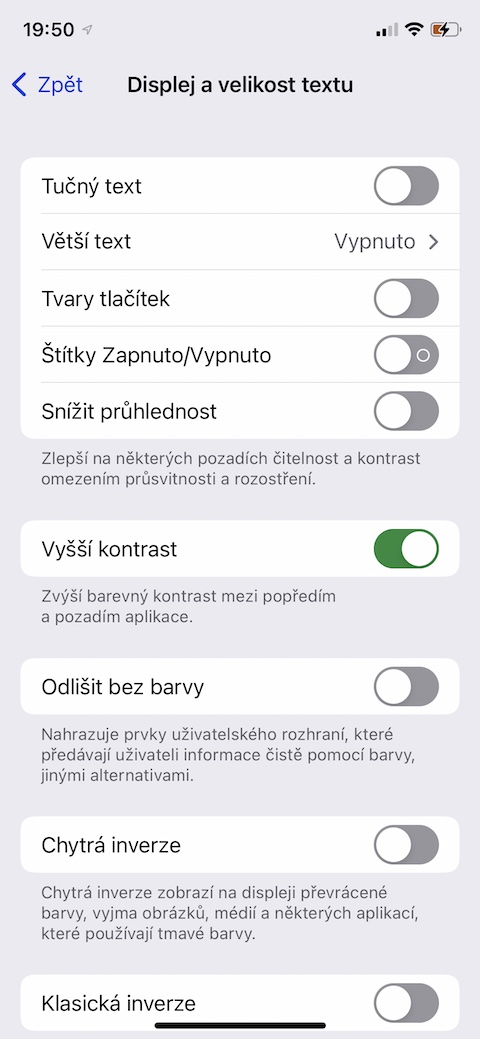
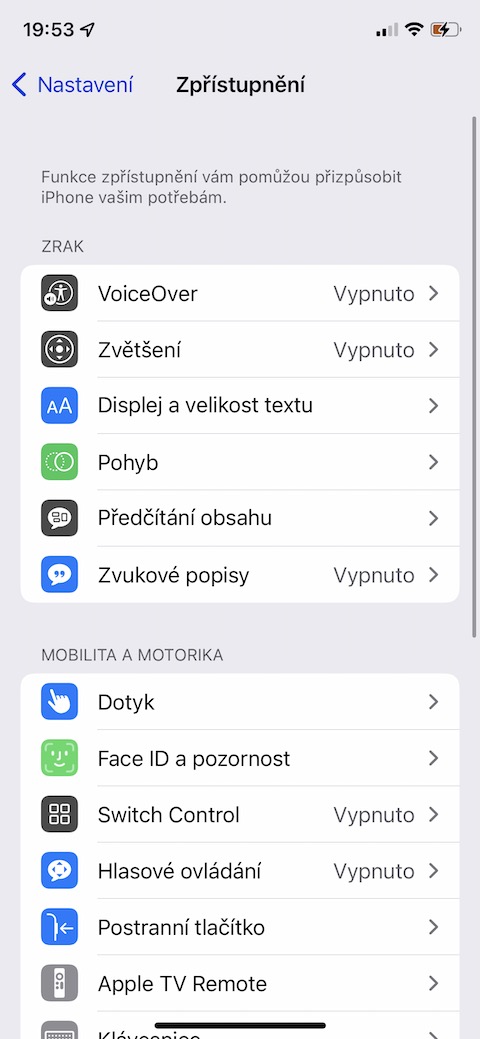
Does your iPhone's user interface seem a bit lacking? Operating system iOS offers a quick and easy way to increase contrast, making it easier to see things. On your iPhone, go to Settings -> Accessibility. Under Vision, tap Display & Text Size and turn on Higher Contrast.
Reduce white point
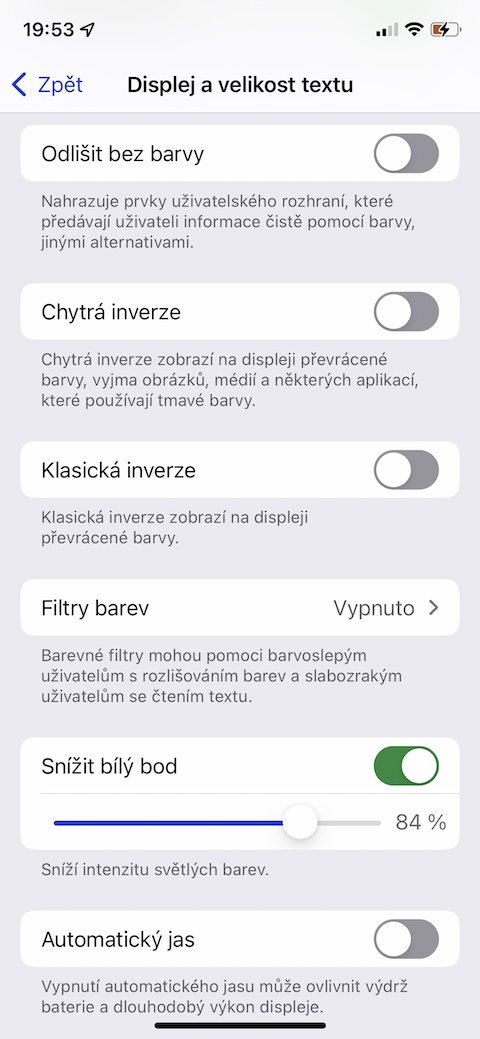
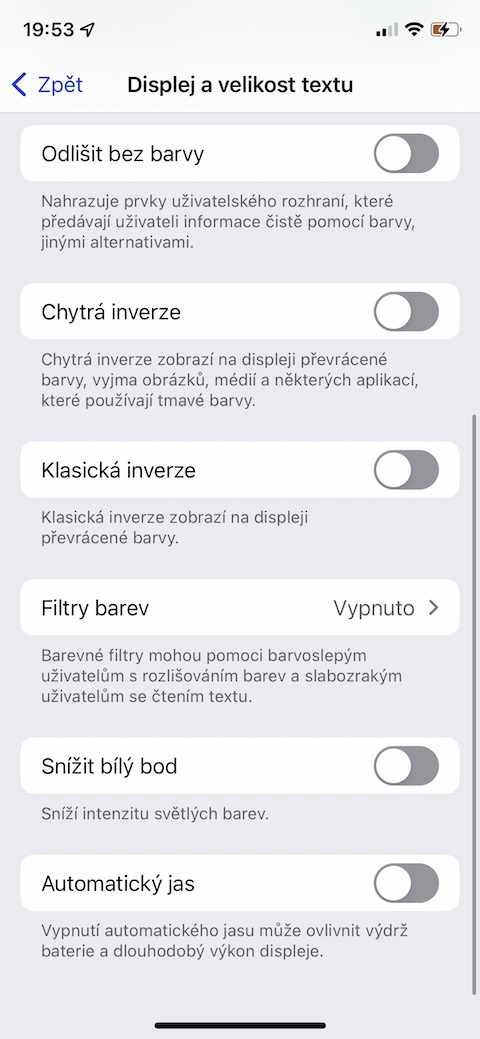
Do you feel like the bright colors on your iPhone's display are too intense, and activating Night Shift doesn't help? Then head back to Settings -> Accessibility -> Display & Text Size. Scroll down a bit and activate the item called Reduce White Point. Nakonec you just need to adjust the intensity on the slider.
Gallery
True Tone
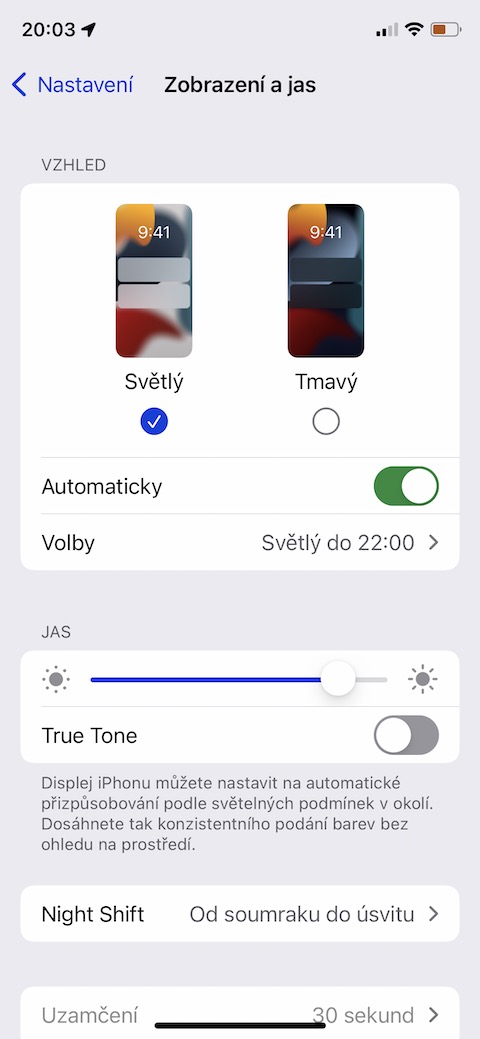
With our smartphones, we usually don't spend all the time in an environment with unchanging lighting conditions. In a brightly lit room, you understandably have different demands on the brightness of the display than in a dark room. Apple fortunately, it remembers these situations, so it offers the option to activate True Tone, when the display brightness automatically adapts to the ambient light conditions. Pro activation True Tone launch Settings -> Display & Brightness on your iPhone, where you just need to activate the item True Tone.