If you are on your iPhone When you install an application, various dialog boxes may appear after the first launch, in which you must allow access to certain data and sensors. Most often, applications may want to access, for example, location, photos, contacts, camera, etc. If you do not allow the application access, it will simply not be able to use it under any circumstances. This is a security feature that is also available on phones, for exampleonech with Android, and is used to prevent applications from working with any data or sensors immediately after installation, which is of course unwanted.
You might be interested in
As iPhone Find out which applications have recently accessed data and sensors
For a long time now, you have been iOS you can view a special section dedicated to privacy. Within this section there are individual categories with data and sensors, which when you click on, you can see which applications have access to them. All applications that you have manually granted access to have access here, and if you want, you can also remove it here. However, relatively recently, a new interface appeared in this section, in which you can easily check which applications have recently accessed certain data or sensors. This way, you can easily find out that an application is accessing something you do not want. The procedure is as follows:
- First, you need to go to the native app on your iPhone Settings.
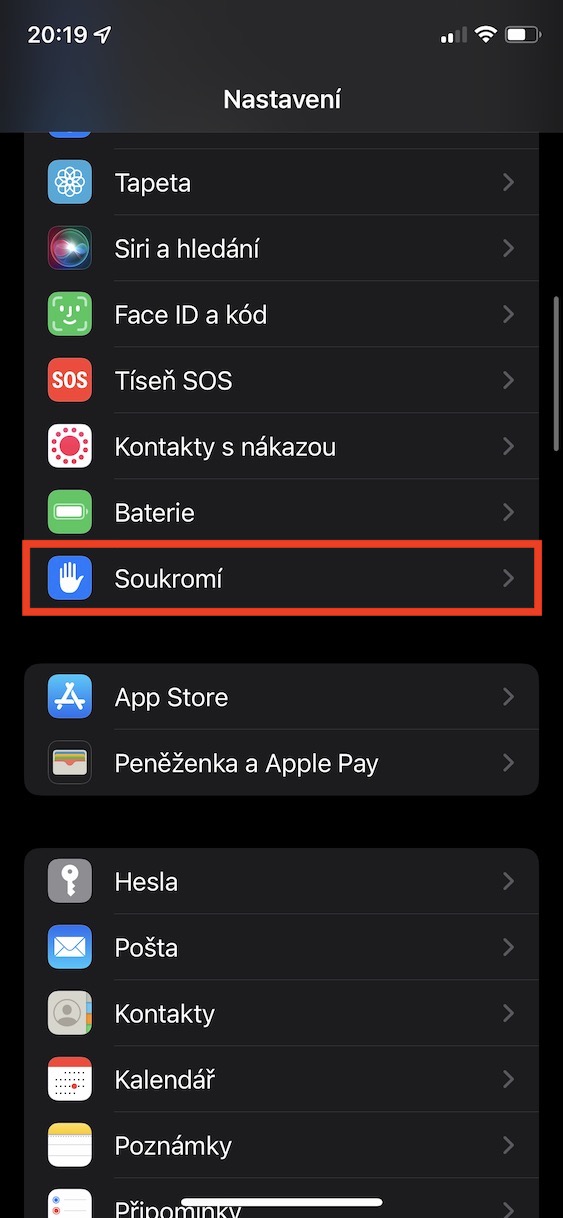
- Once you've done that, scroll down a bit to find and open the section Privacy.
- Then move all the way down and unclick the box In-App Privacy Report.
- Here you just need to pay attention to the category Access to data and sensors.
- In this category, descending by time will discover applications that have used some data or sensors.
Gallery
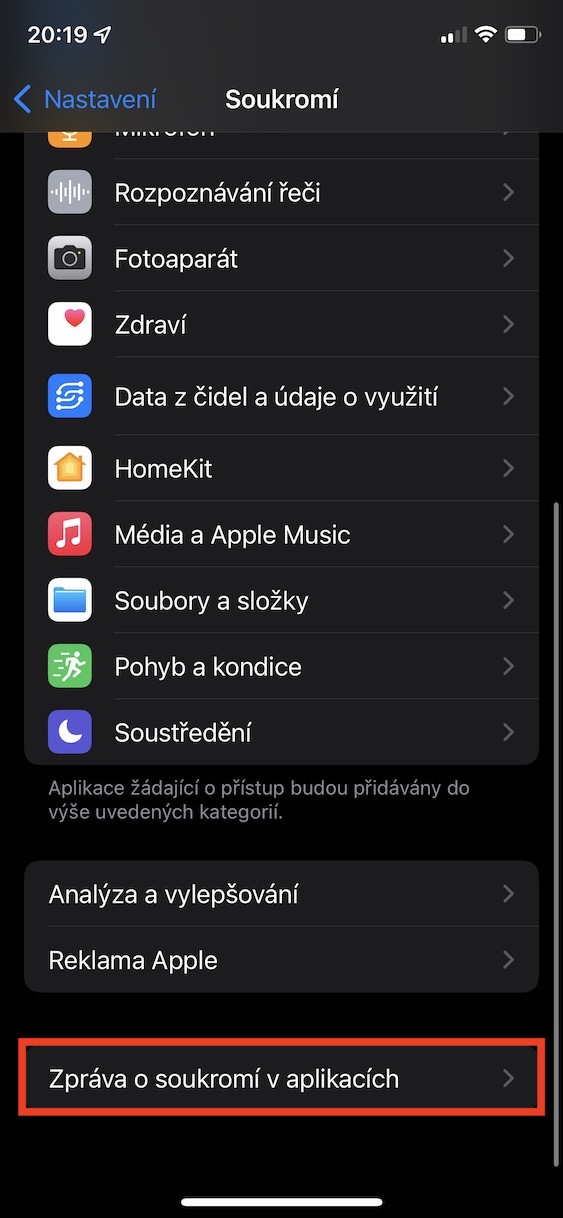
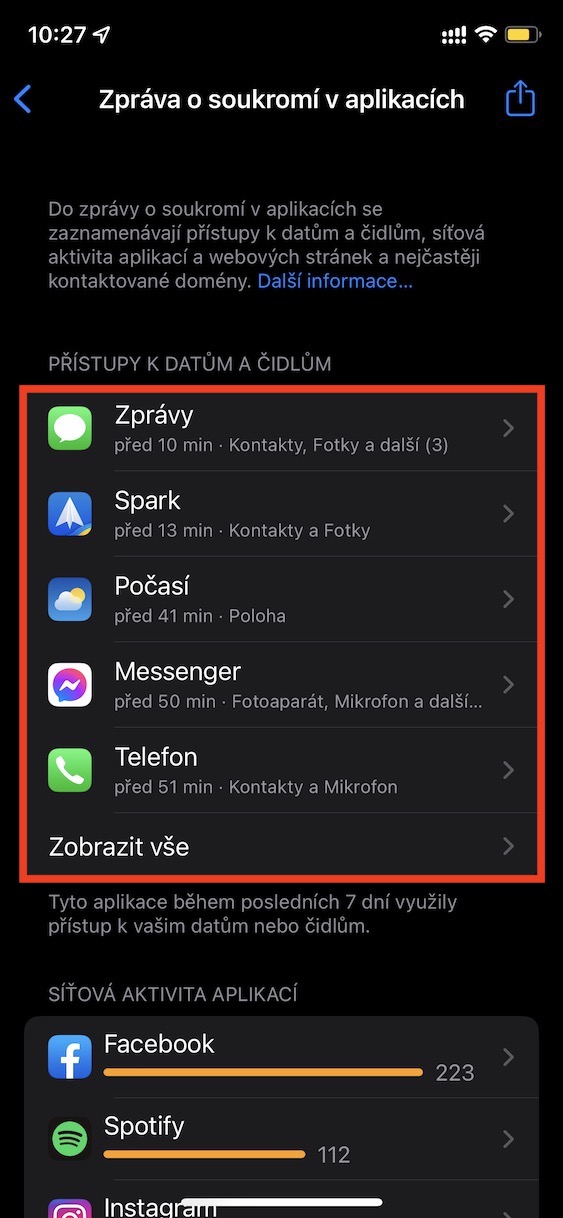
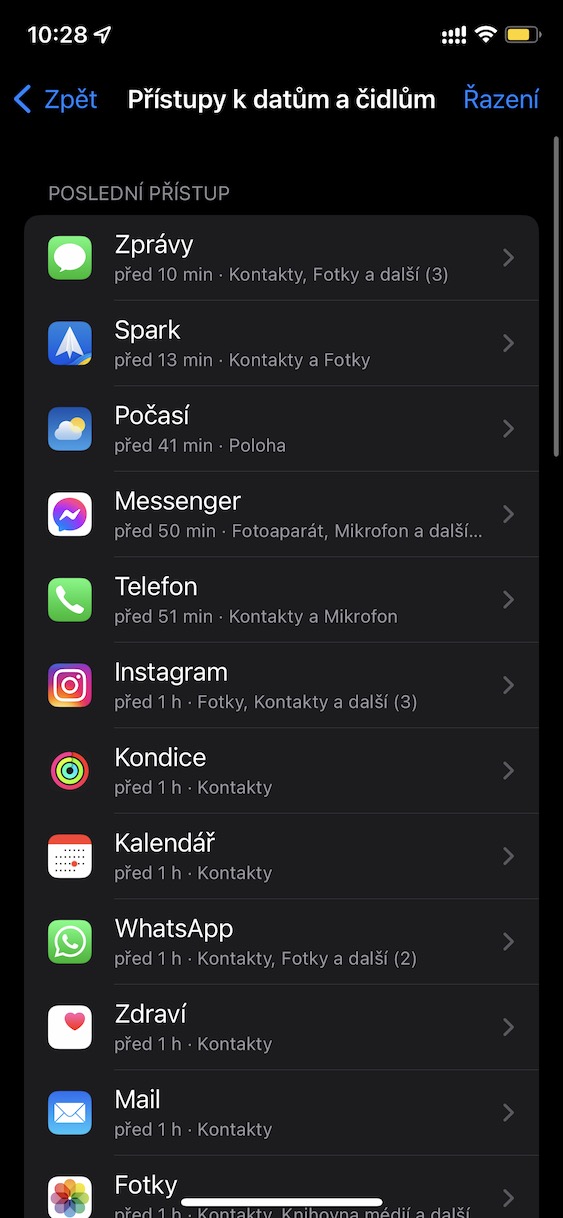
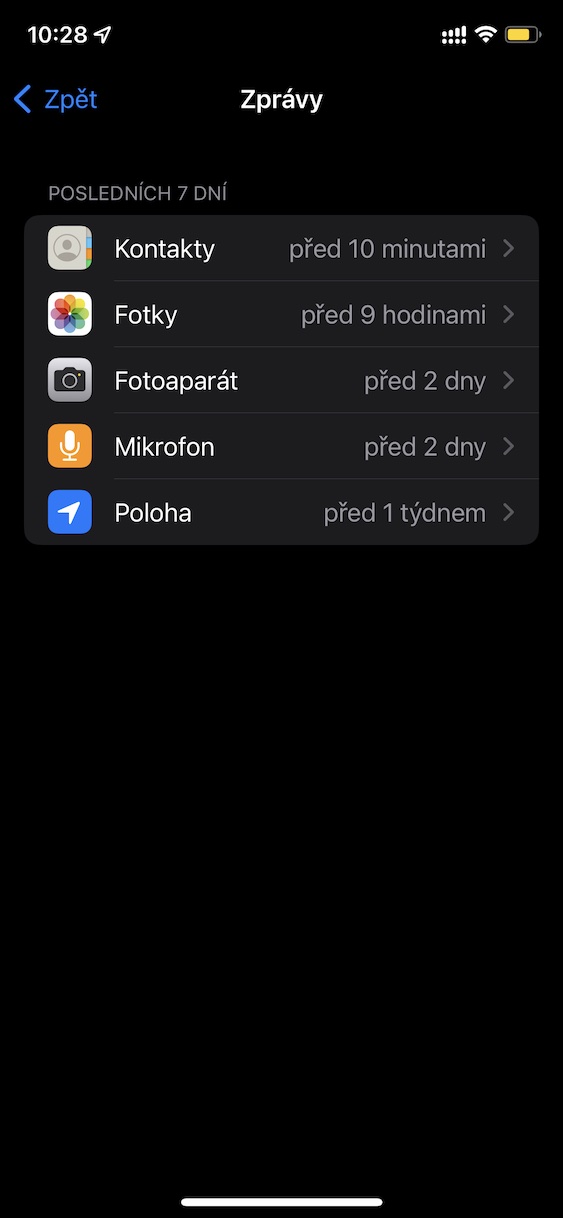
Using the method above, you can display a special section on your iPhone where you can check which apps have recently accessed data or sensors. If you would like to view the complete history of data and sensor usage , just tap Show All. If you don't see the usage of an app, just tap it to see the usage details , along with the time it was last accessed. Alternatively, you can deny an app access to certain data or sensors here . In addition, you can view the network activity of apps and sites in this section, along with the most frequently contacted domains.