
In the macOS operating system, as in any other system, you can easily copy and paste various files or folders, which can be useful on a daily basis. Just right-click on the file or folder, select Copy, and then right-click again at the destination and select Paste. Alternatively, you can of course use the legendary keyboard shortcuts Command + C and Command + V. With the arrival of macOS Monterey, we have seen an interesting improvement that you can use especially when copying large files or folders. Specifically, we are talking about pausing and then resuming copying.
You might be interested in

How to pause and then resume copying on Mac
In older versions of macOS, if you started copying a larger file or folder and then changed your mind, you could perform a complete undo. If you subsequently wanted to copy the data again, it was necessary to carry out the entire process from the beginning. However, with the arrival of macOS Monterey, there is already an option, thanks to which you can stop the copying at any time and then start it again, with the process continuing where you stopped it. The procedure to stop and then resume copying is as follows:
- First, of course, you need to get into a situation where you will be copying a larger volume of data.
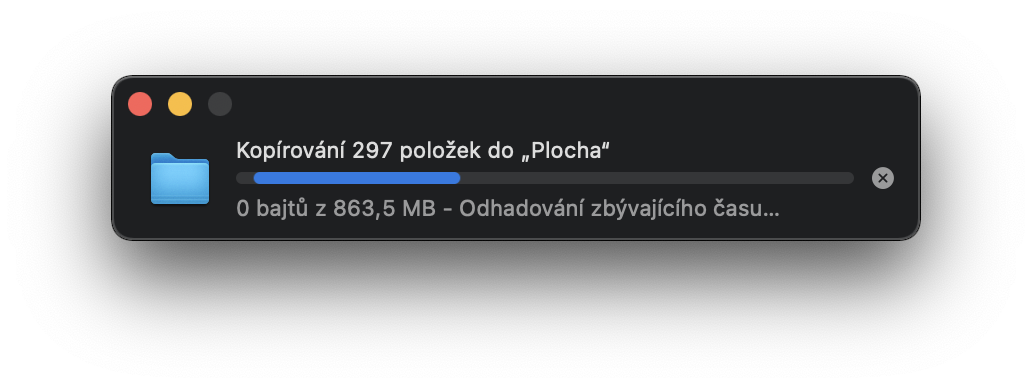
- Subsequently, after starting the copying, a small window will appear with information about the copying process.
- On the right side of this window, near the progress bar, click the small the X button.
- This will stop copying and the copied file/folder will appear with more transparent icon a small spinning arrow in the title.
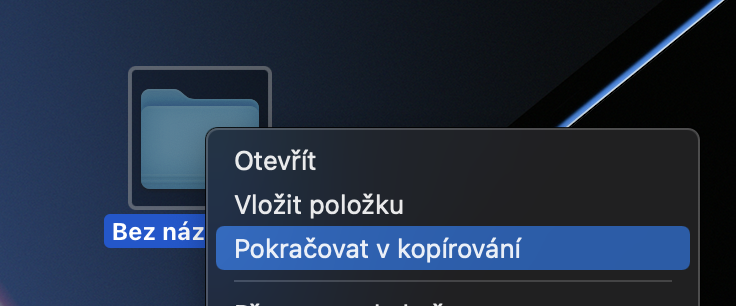
- Pro To restart copying, just click on the file/folder right-clicked.
- nakonec select the option from the menu that appears Continue copying.
Gallery

Using the above procedure, it is therefore possible to pause and then resume copying a large file or folder on your Mac. This can come in handy in several different situations. You will primarily use the new function if copying takes a long time and halfway through you find out that you need to use the disk for another activity. Thanks to the new function, you can simply pause the copying, which will lighten the disk, then perform another action you want, and then resume the copying again. If you are copying a larger volume of data and the whole process already takes a few minutes, you no longer have to worry about having to go through the whole process again. You will simply pick up where you left off.











there couldn't be a pause icon right next to the X