How to clean up MacOS? A few years ago, I would probably have recommended a few applications here that would help you with this, and I would definitely tell you that you would really feel the cleaning. Today, with the fastest processors in history, with all newer Macs using SSDs or flash memory, and with the performanceonem, which the vast majority of us do not know how to use even a tenth of, the situation is a little different. So let's clean the Mac from unnecessary ballast, let's get rid of things we don't need in it and things that can be a potential threat to our security and the security of the system itself. Let's take a few minutes of time and dedicate ourselves at least once a year to a little more detailed cleaning of the machine that many of us sit at day after day.
Disk Management - Delete what you don't need
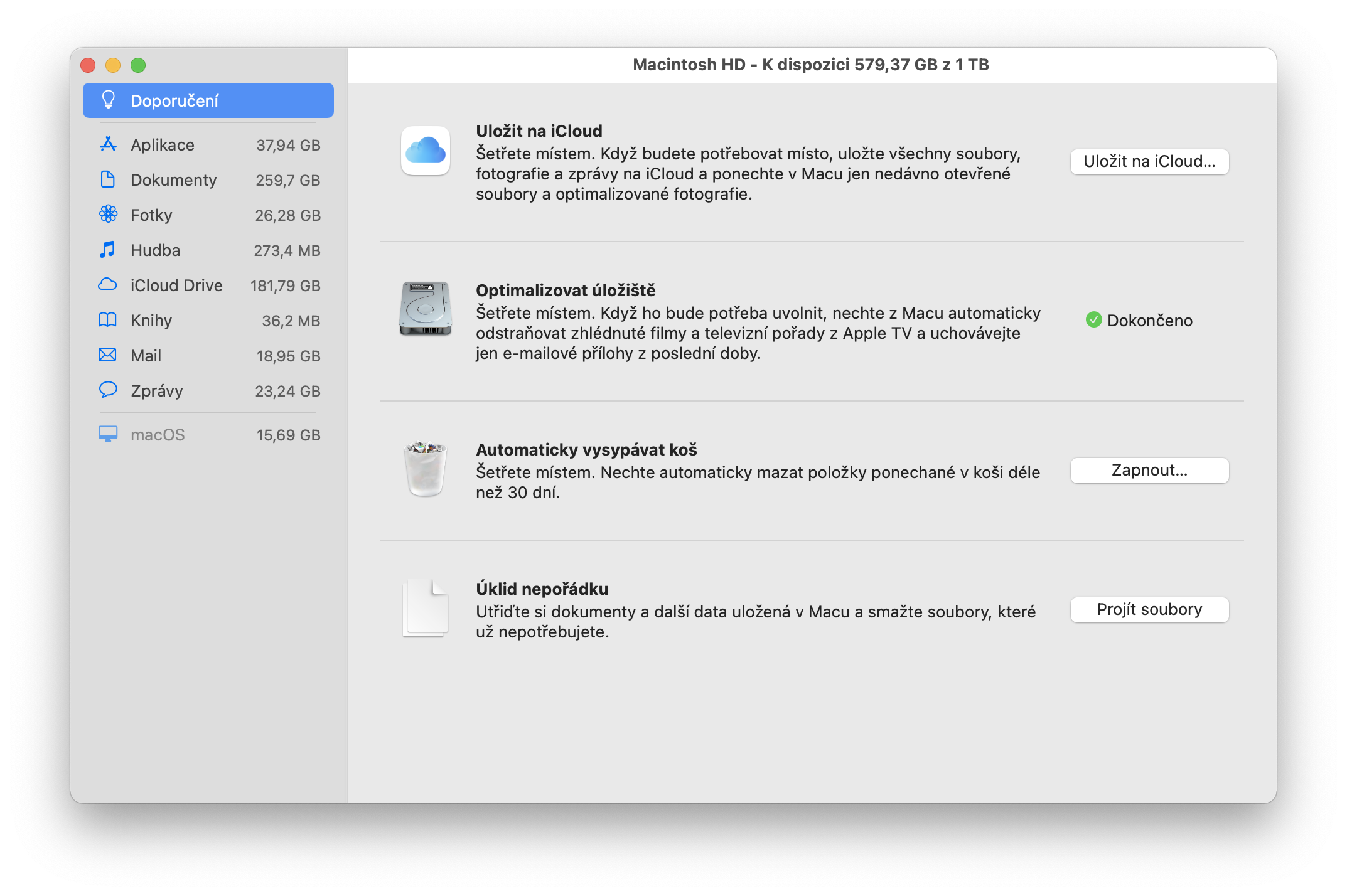
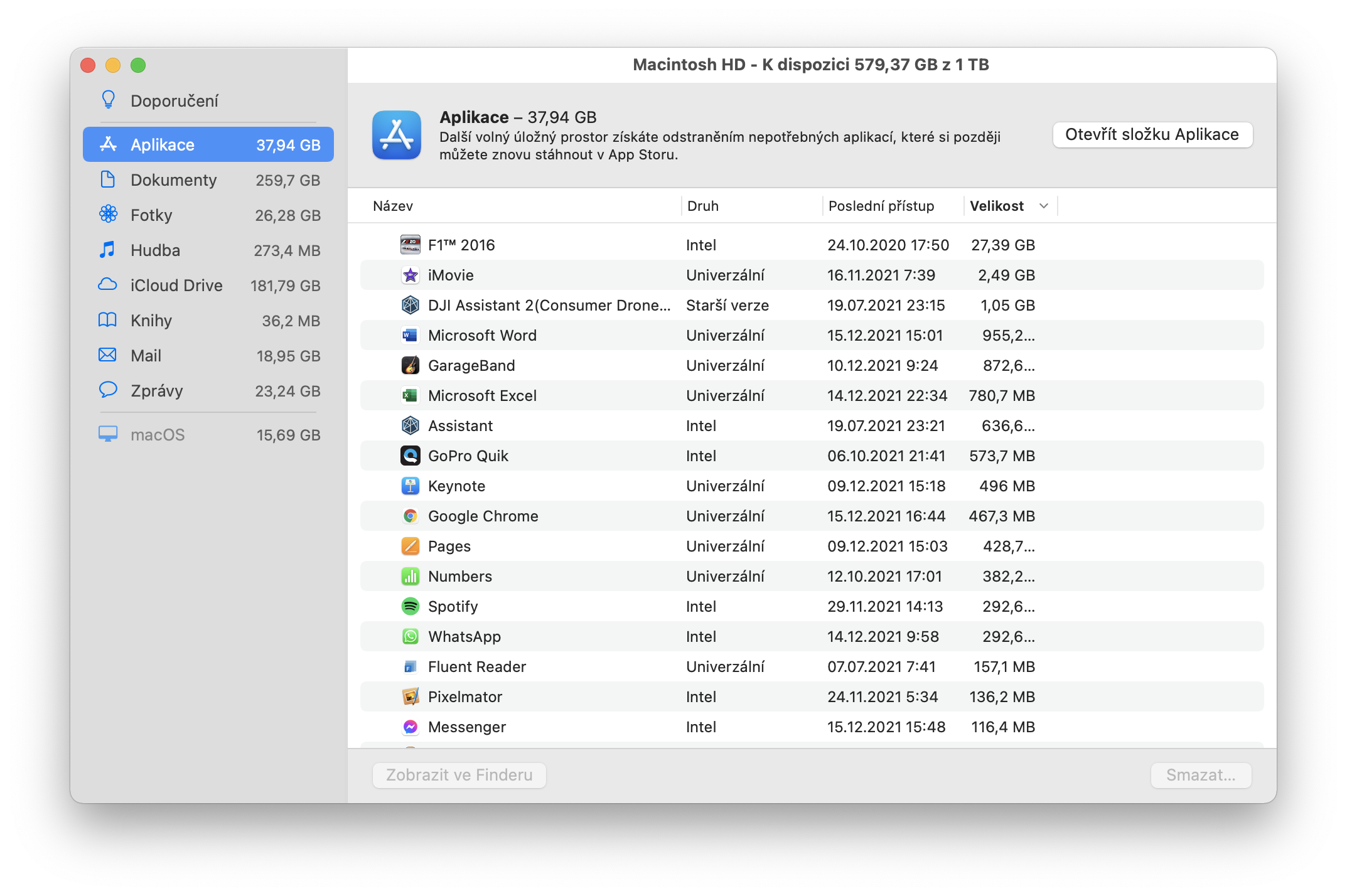
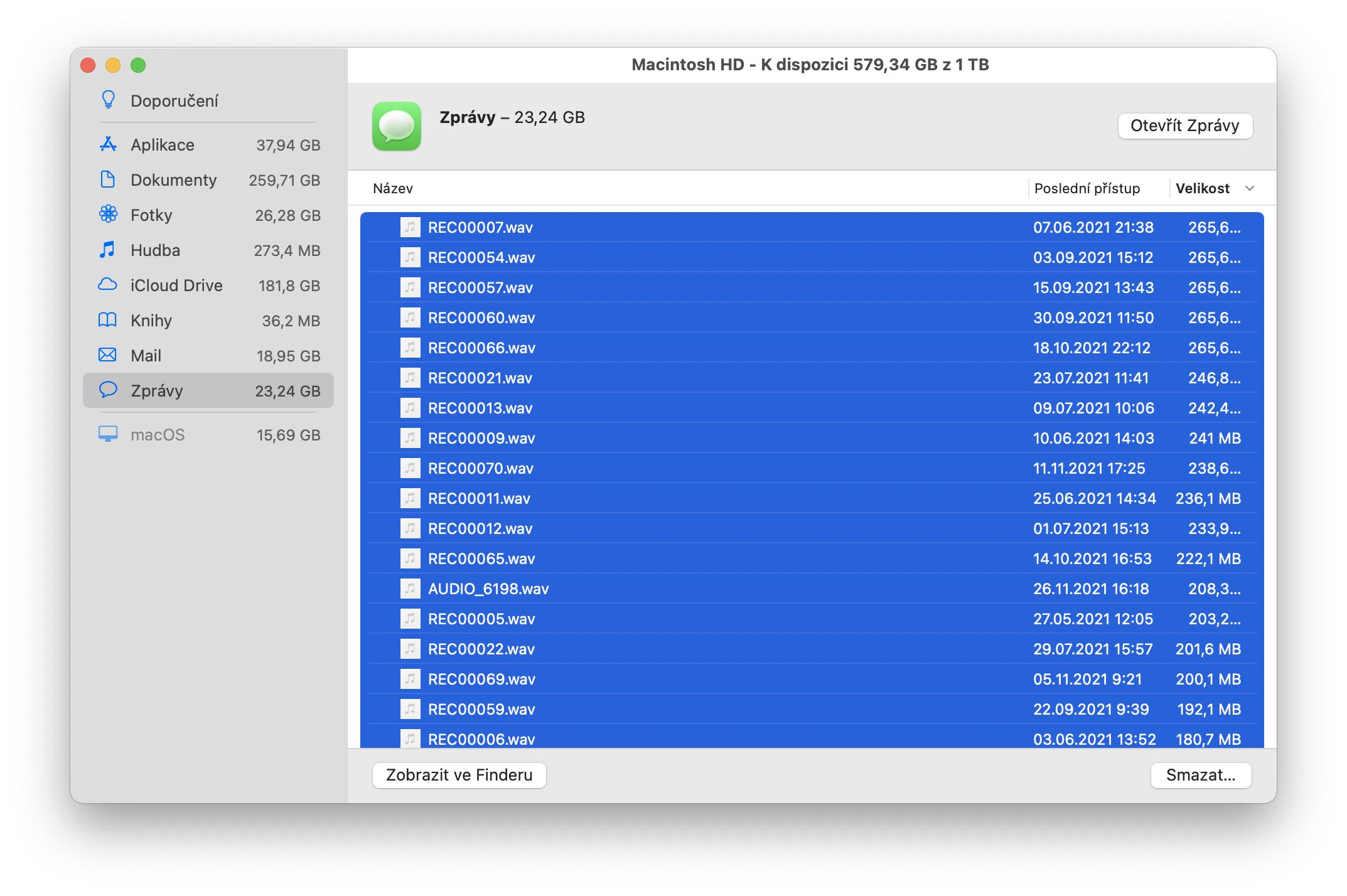
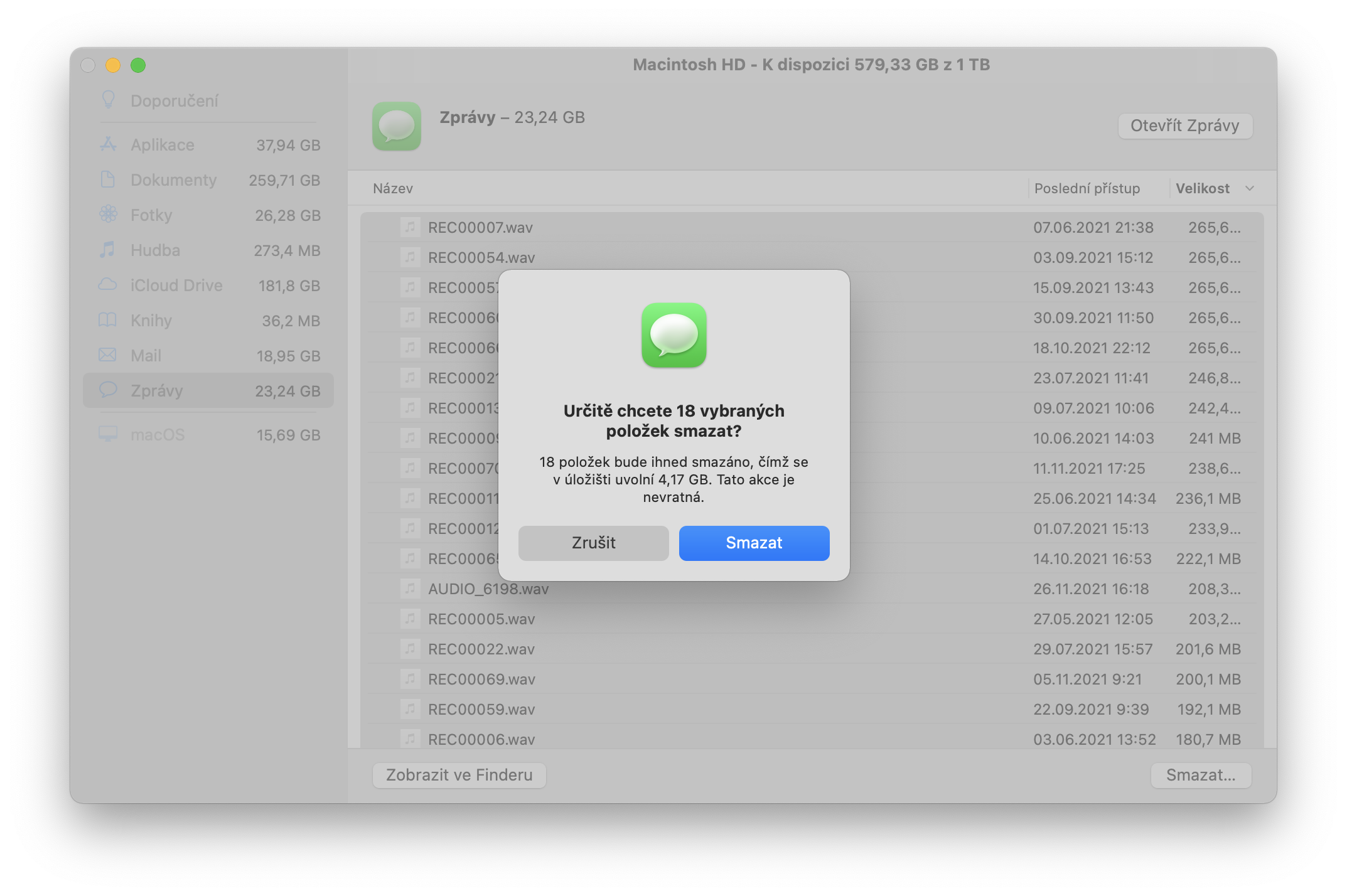
When cleaning, then cleaning, so go to the apple logo in the menu Bar, here select About This Mac – Storage and then select the Manage option for the disk. Here you have several options, how not tochat do the cleaning for you and also how to manually remove what you don't need. First, you can choose options like Save to iCloud, optimize storage or, for example, browse files, but you can also view individual applications, documents, photos or, for example, files in iMessage and manually delete them. For example, just give the option to sort by largest in messages and you will immediately see long and large videos that you sent to someone a few years ago or that someone sent to you and you don't even know about them anymore and they are taking up space unnecessarily.
The same goes for applications or files. Use all the options in the Recommendations section that Mac offers and manually delete large files that you don't need. Also use Disk Management to uninstall applications that you don't use. Thanks to Disk Management, you don't have to manually go through individual folders and files and then delete them. However, it's still a good idea to look in the "Downloads" and "Documents" folders, where you will have a number of smaller files over the past year that you no longer need and you can delete them manually, so that you don't have anything unnecessary on your disk. Be sure to also select Applications in Disk Management and examine them in detail, because you will find all the applications there, and not just the ones you see in LaunchpadYou may find that you have something installed that you didn't even know you had.
Clearing the Cache in MacOS
Let me warn you right at the beginning. If you decide to delete the Cache, then you must first realize what the Cache actually is. It is a so-called temporary or buffer memory in which the system or applications store temporary files that they need quick access to. The same principle works with websites that are stored in the browser's Cache and when you visit the same page again, only the changed content is loaded, not the entire page content. Thanks to this, access to files/data or, for example, web pages is much faster and easier for the system or application. ProThe problem is, however, that some systems, applications, or browsers often store relatively important things in this memory that are not good to delete. ProI really only recommend clearing the Cache for those who know what they are doing. Always back up your computer first and only then start clearing the Cache.
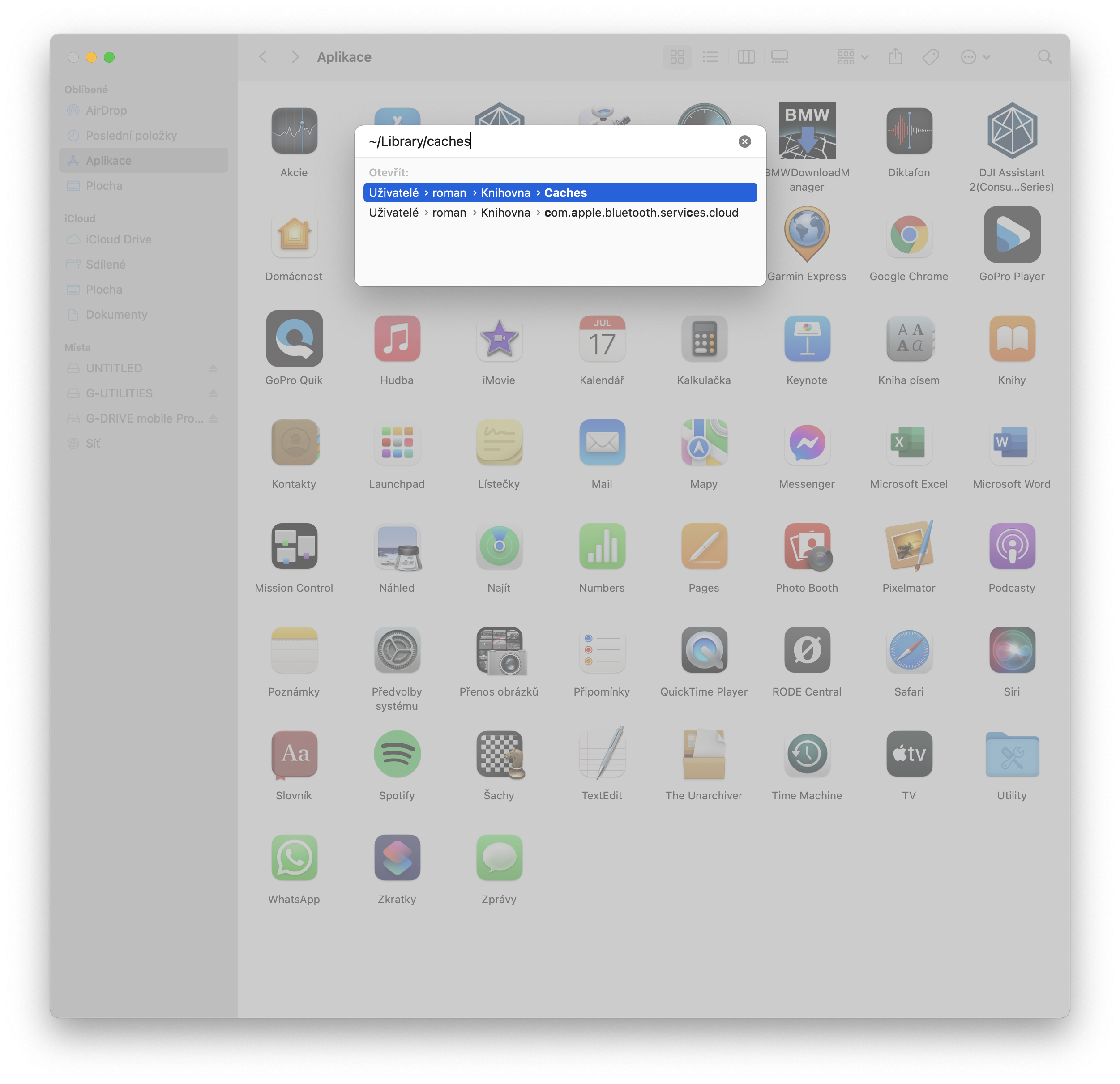
- Open it Finder and in the menuBar select Open – Open folder
- Type Library/Caches/ and press Enter
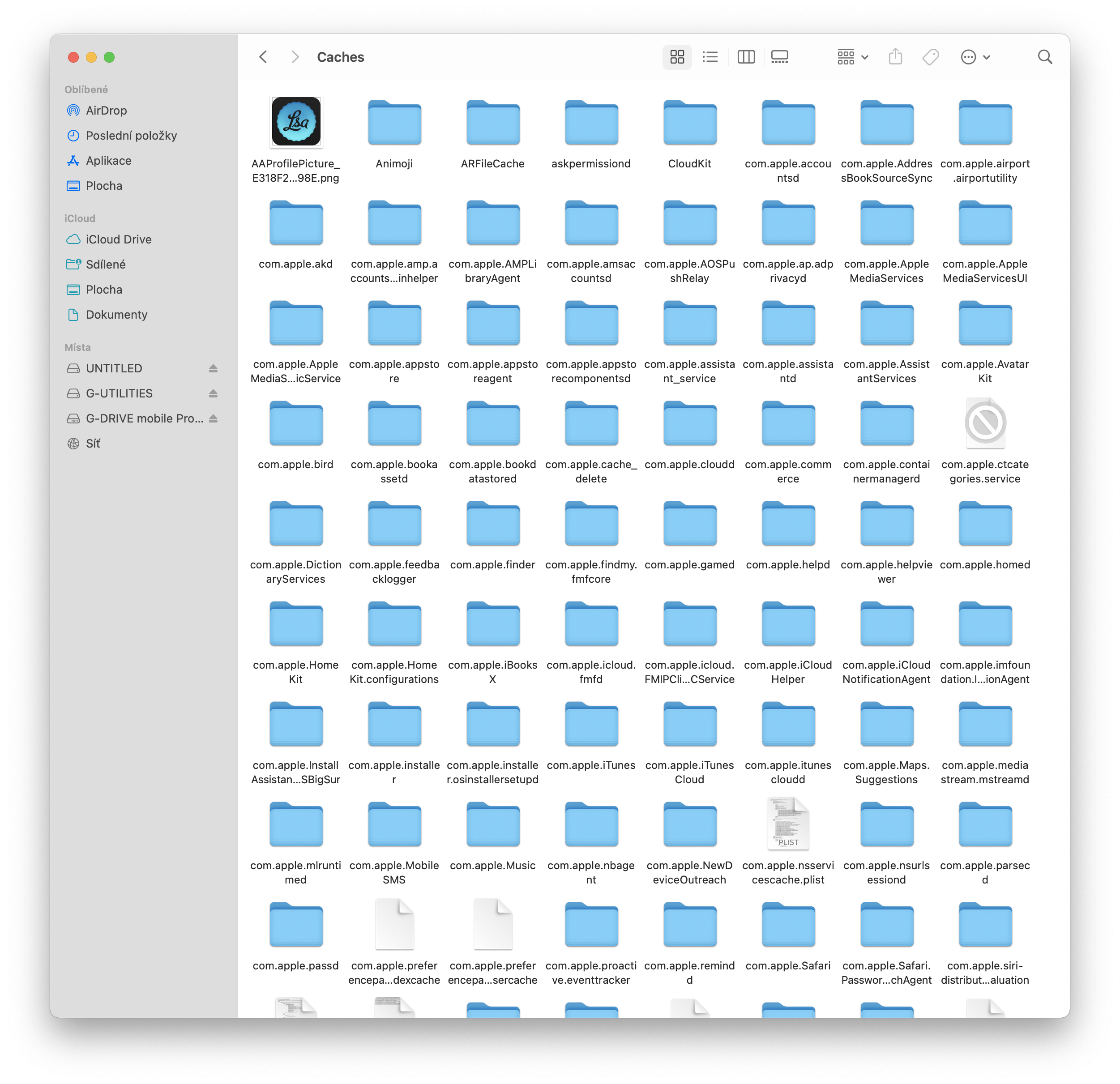
- A folder containing all temporary files will open
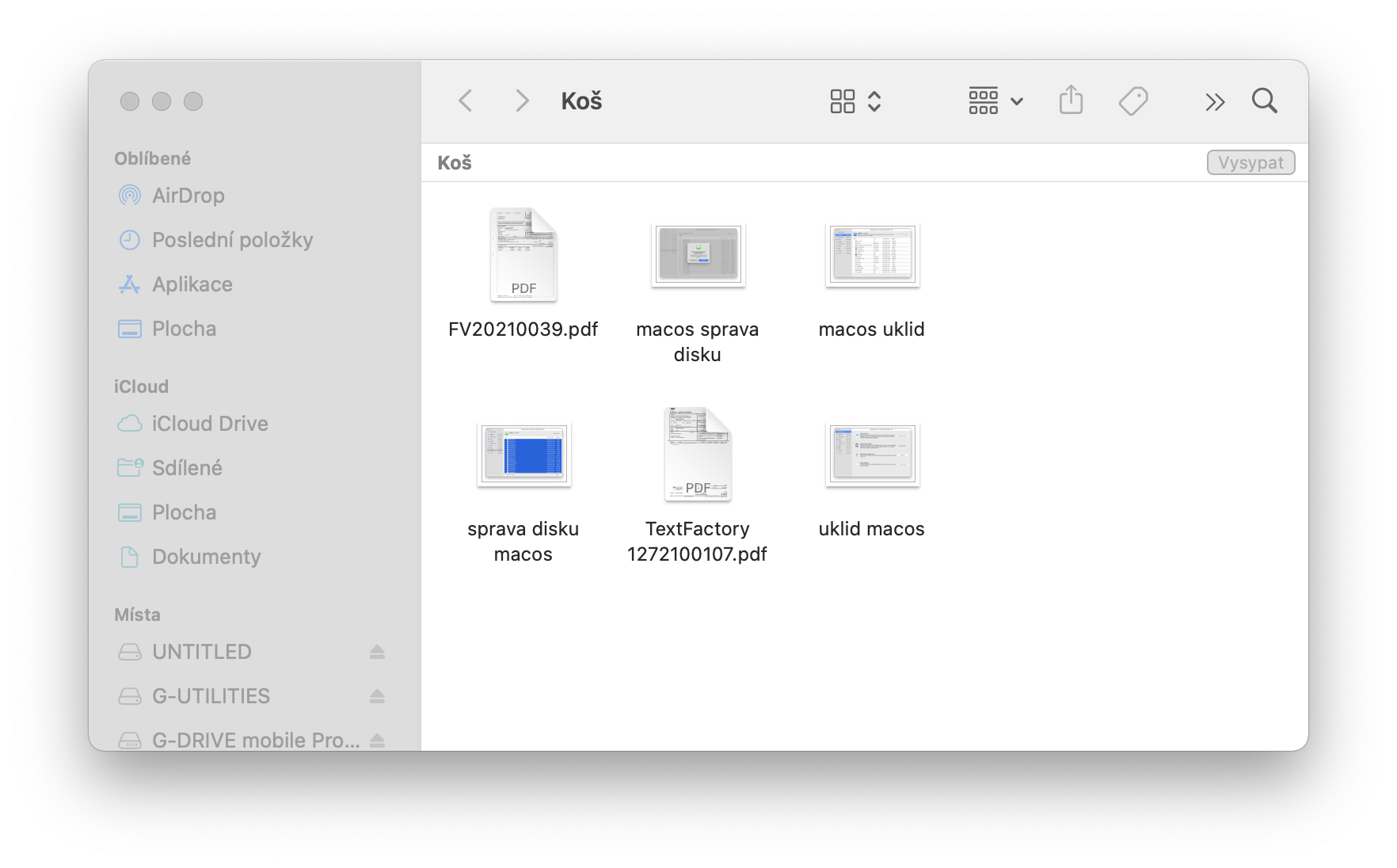
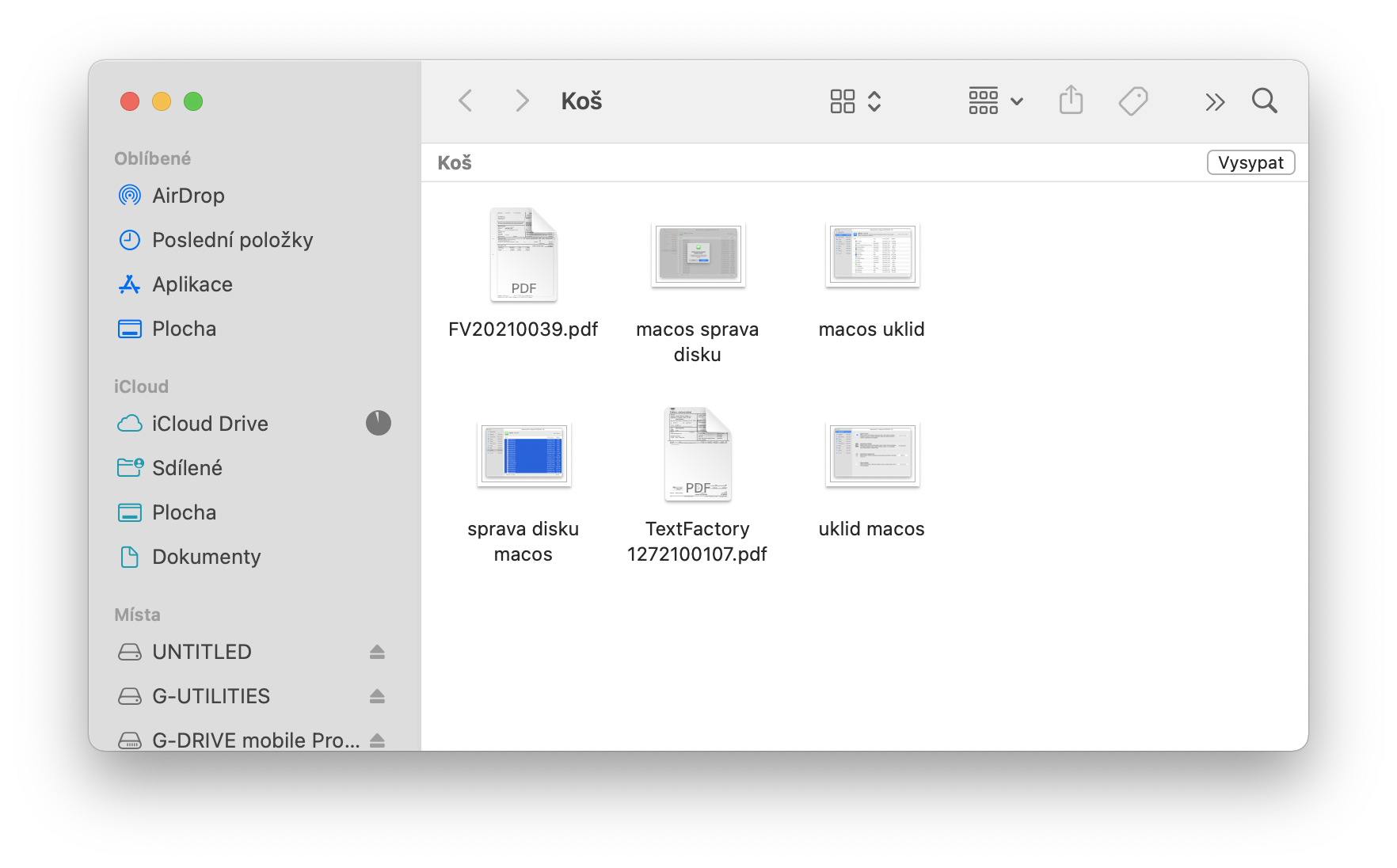
- Select the files you want to delete and move them to the trash, then empty the trash.
Disk Utility
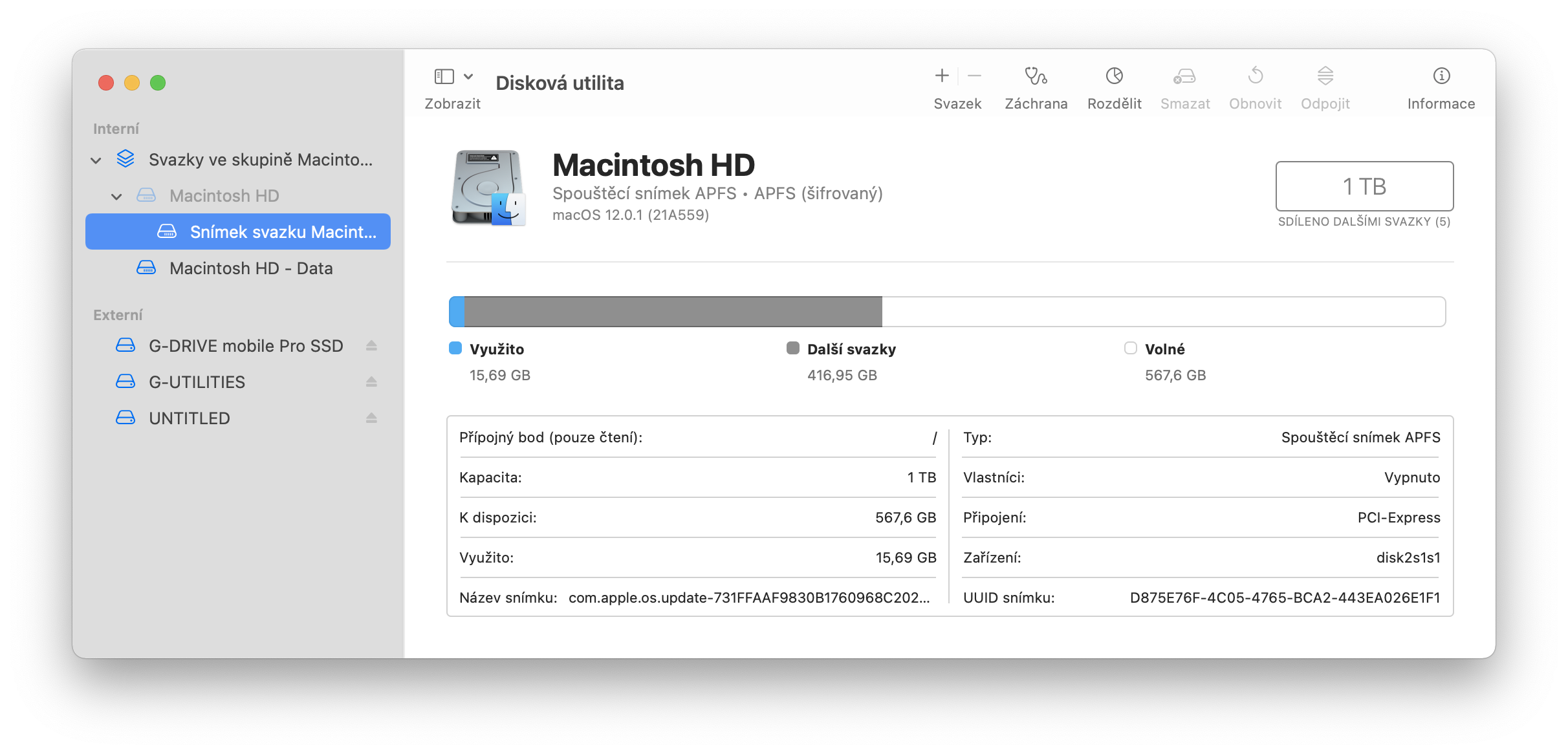
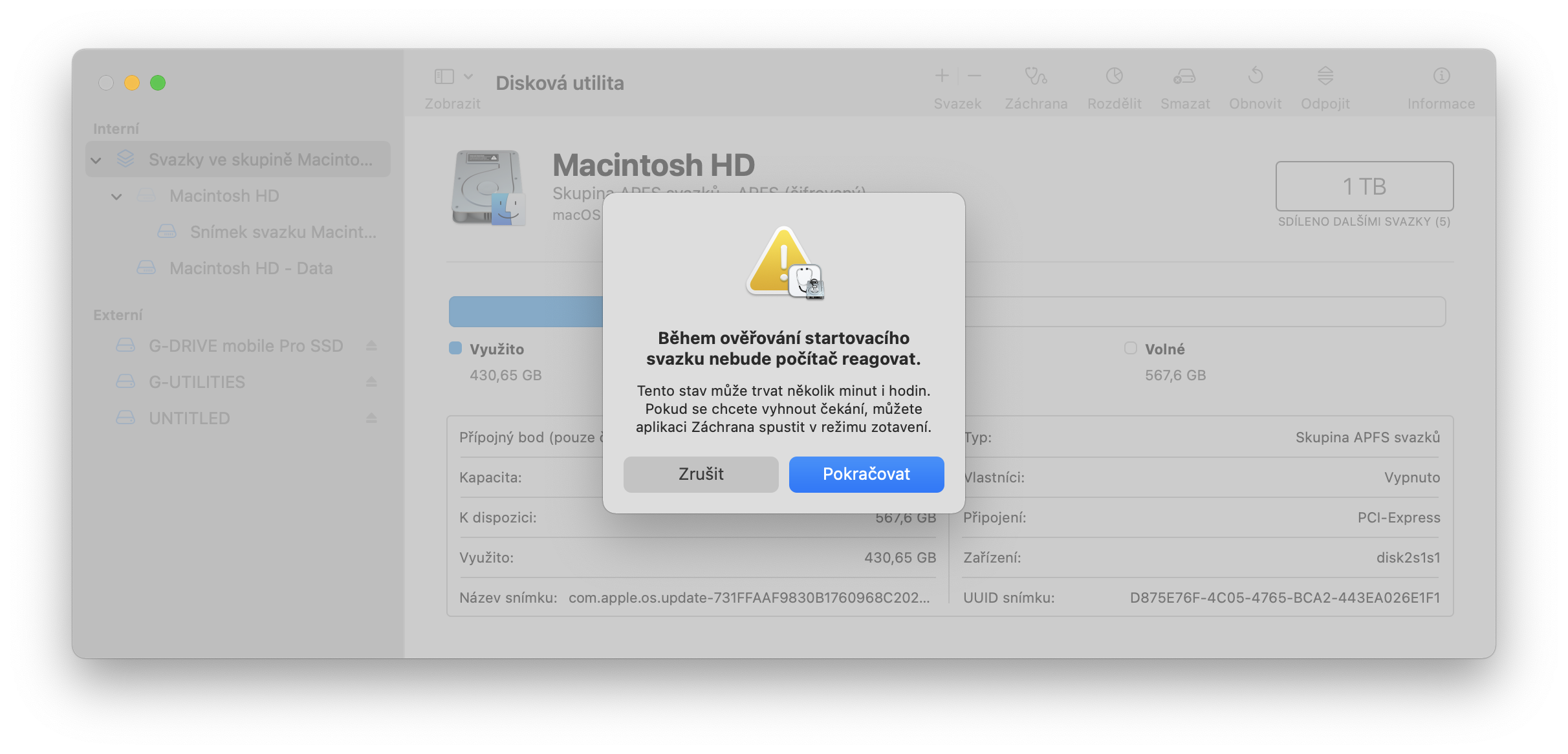
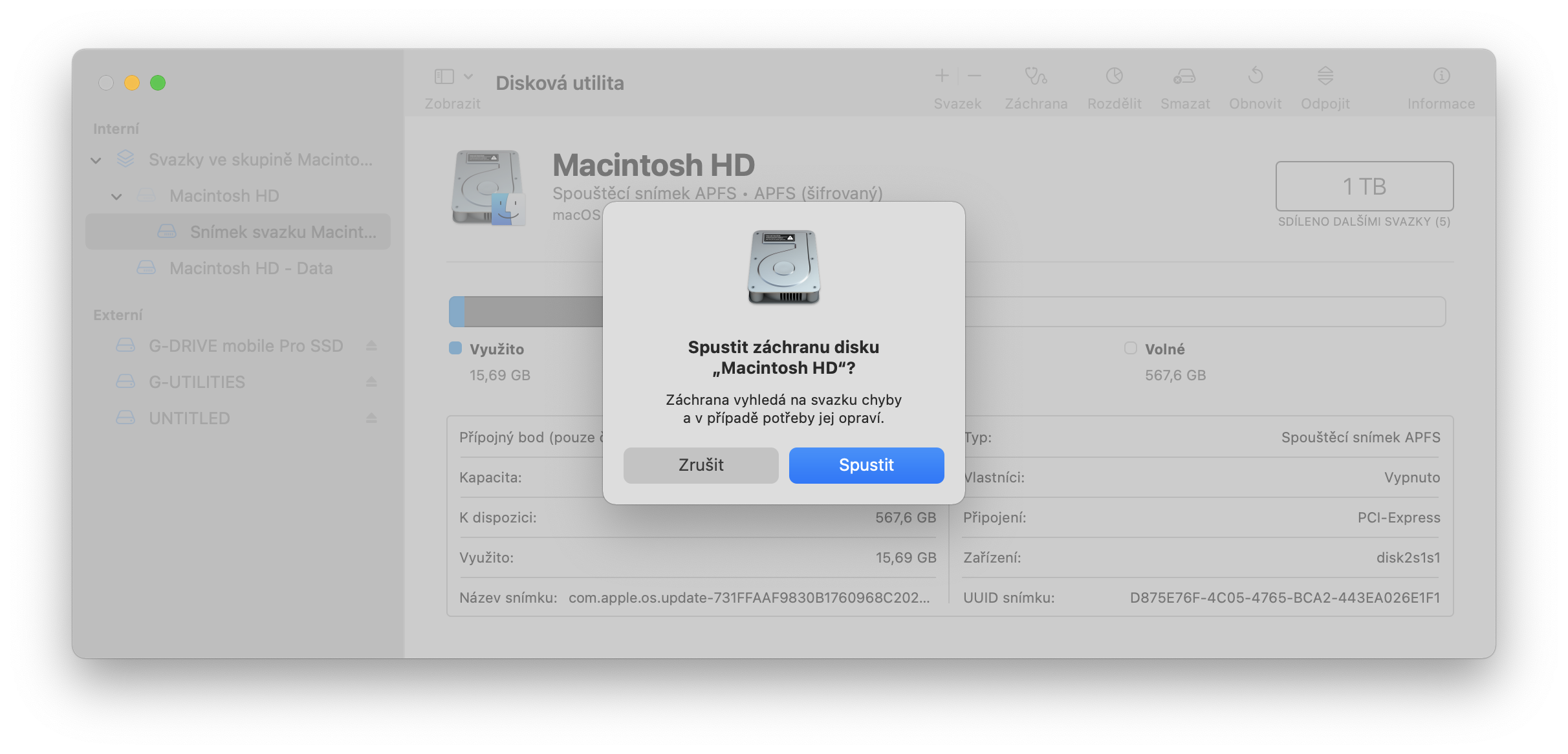
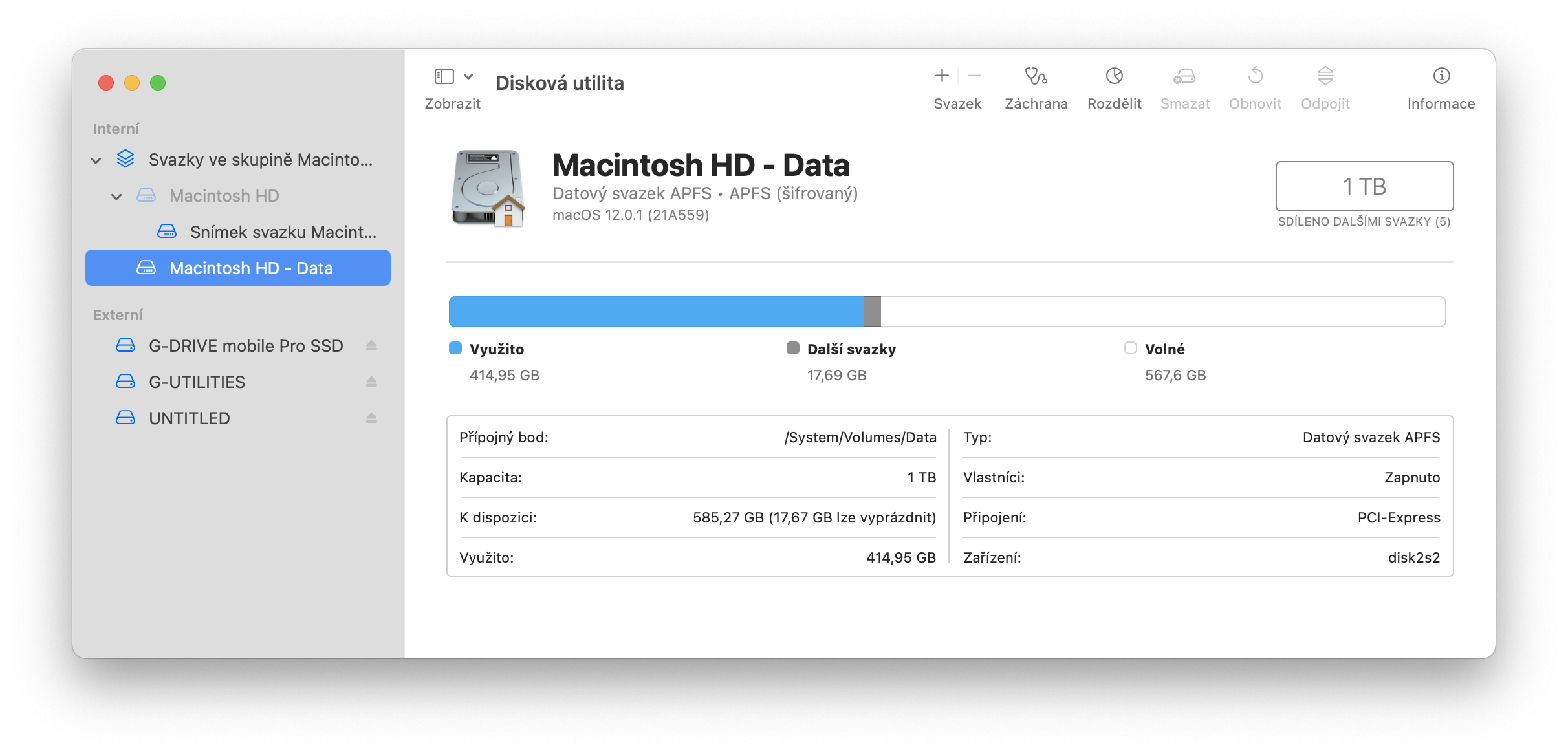
As already mentioned, MacOS handles its own system repair and cleaning at regular intervals and when necessary, without the user having to intervene in any way. However, if you feel that something is wrong with your Mac or if you feel that something is wrong with it, you caneventOf course, you can also trigger this action yourself. Just go to Launchpad – Other – Disk Utility and select your disk here. Here you will find the Rescue item and after starting it, MacOS will automatically scan the disk and fix all the errors it contains and which Disk Utility can fix. This is the safest and best way to solve anything on the disk. Of course, there are also special applications such as CleanMyMac and others, but quite honestly I think that Disk Utility is enough for the average user.
Monolingual
Having already mentioned third-party software, I would like to recommend one. This is Monolinqual which can remove all unused languages from MacOS. I've been using the app for years and we've never had a single problem with it, and it's completely free. MacOS contains a lot of data that you will never use in your life, and at the same time it has to work with it. This data not only takes up space, and not exactly a little, but mainly the Mac constantly calculates with it, which unnecessarily affects its speed. The system itself mainly includes languages that you will never use in your life, as well as compatibility with older architectures from PowerPC to 32-bit Intel. To remove all this ballast there is the Monolingual application that I use every time I get a new Mac. You simply install the application, run it and you can choose whether you want to remove architectures or languages from MacOS. It doesn't matter what you choose first. For example, I select architectures and let the program remove everything except 64-bit Intel and ARM. After that, just run the removal and everything that is not needed to run on the current Mac will be removed from the system. However, I would like to point out that the application currently does not account for that Apple will switch to ARM again and therefore currently I don't recommend removing architectures, only languages!
Within the languages, just select all languages except the ones you use. I recommend keeping English as well. You can delete all languages except Czech and English. As you will see, almost 2 GB of data that you don't need will be deleted. Even though the latest compatible version, according to the description on the official github of the Monolinqual application, is intended for MacOS 10.12, you don't have to worry. Everything works absolutely reliably on all newer versions of MacOS up to and including Big Sur.