
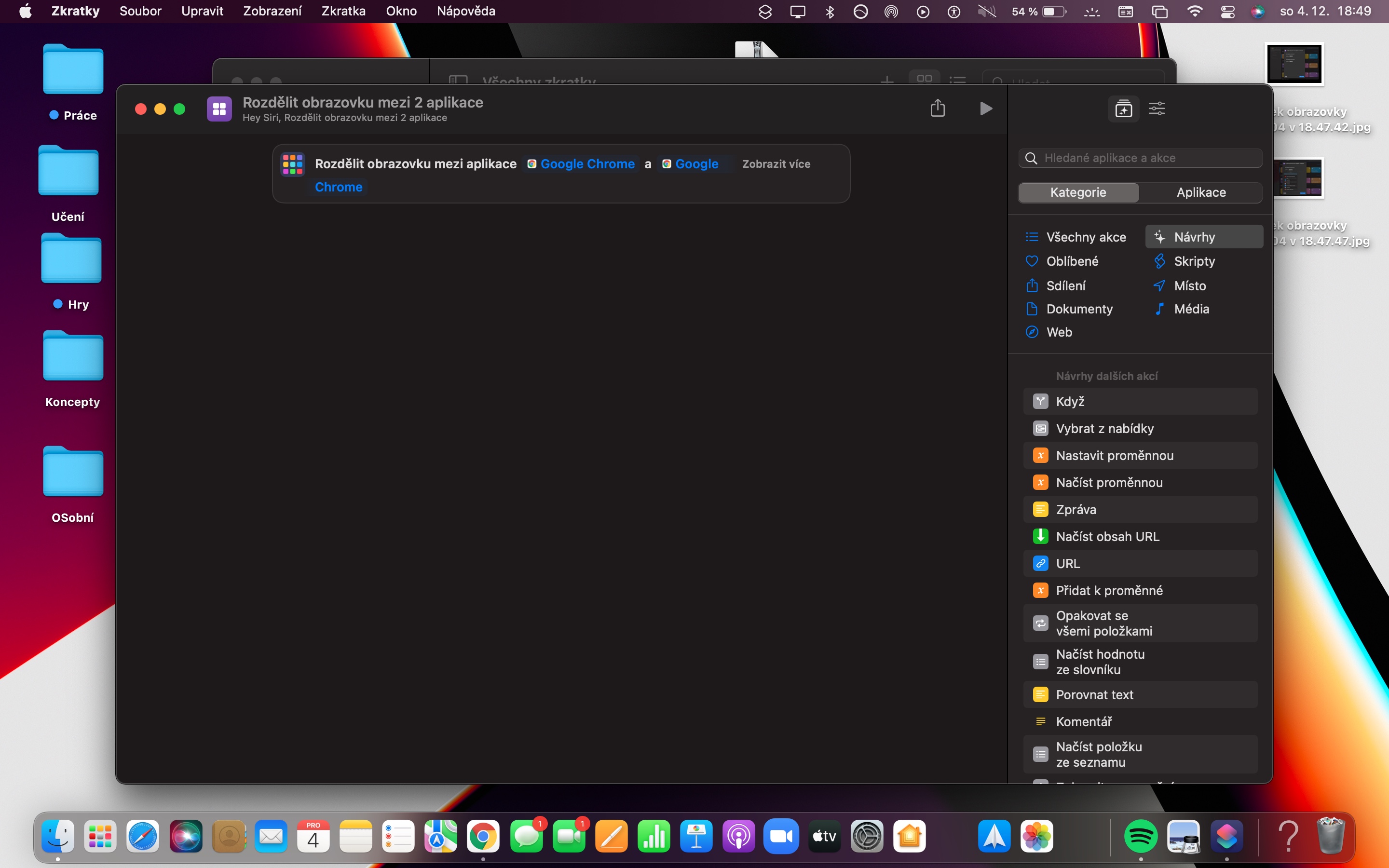
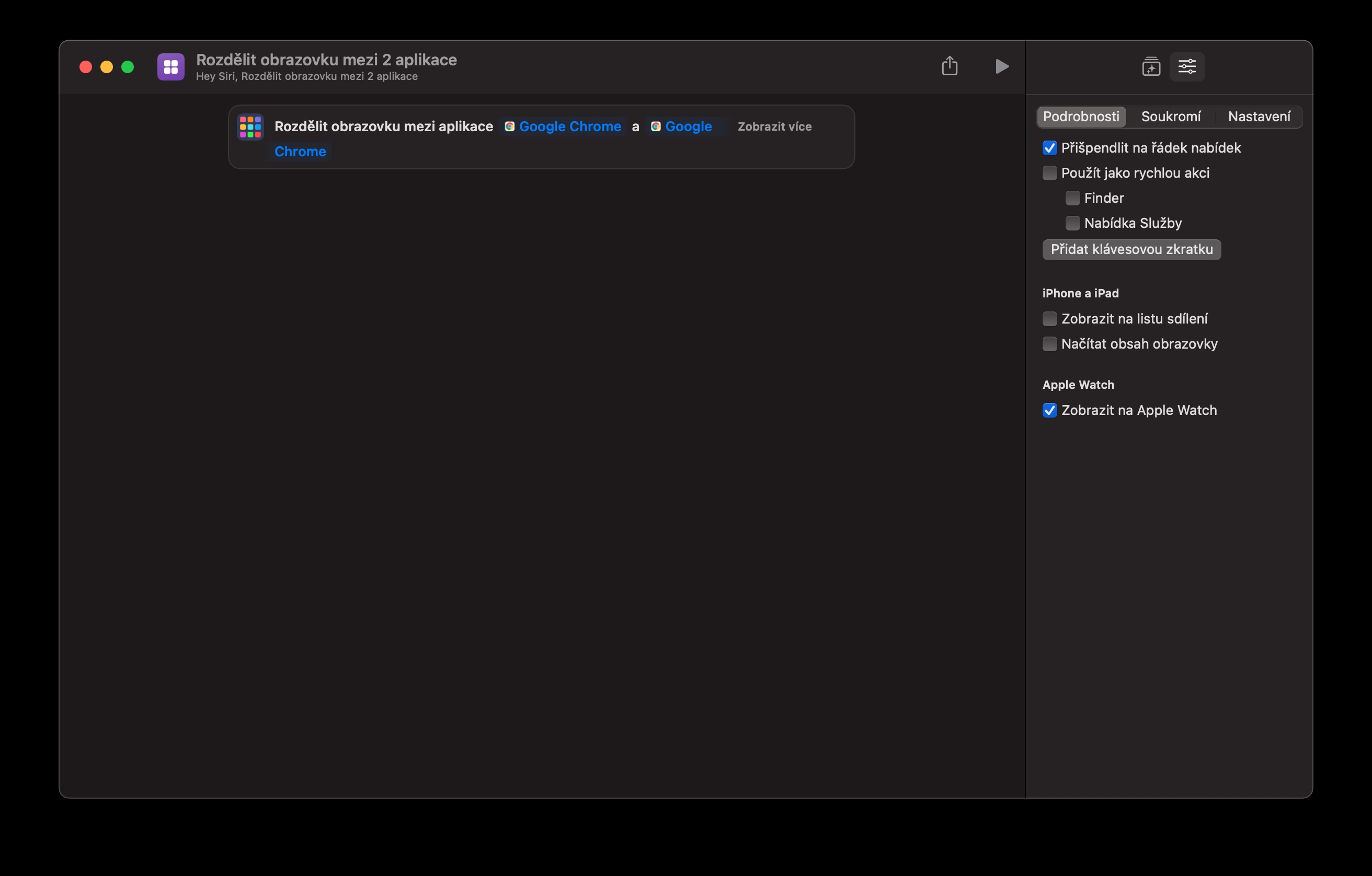
With the release of macOS Monterey, computer owners from AppAmong other things, they also had the opportunity to use abbreviations that they already know intimately from iOS, iPadOS and watchOSIf you're still wondering what shortcuts you could use effectively on your Mac, you might not bechat inspire the tips we present to you in our article today. Pro To make it easier to launch all shortcuts, you can always right-click on each shortcut, select Open, and then check the Pin to menu bar option. You can then launch the shortcut by clicking on the shortcut icon.
You might be interested in

Split the screen into two applications
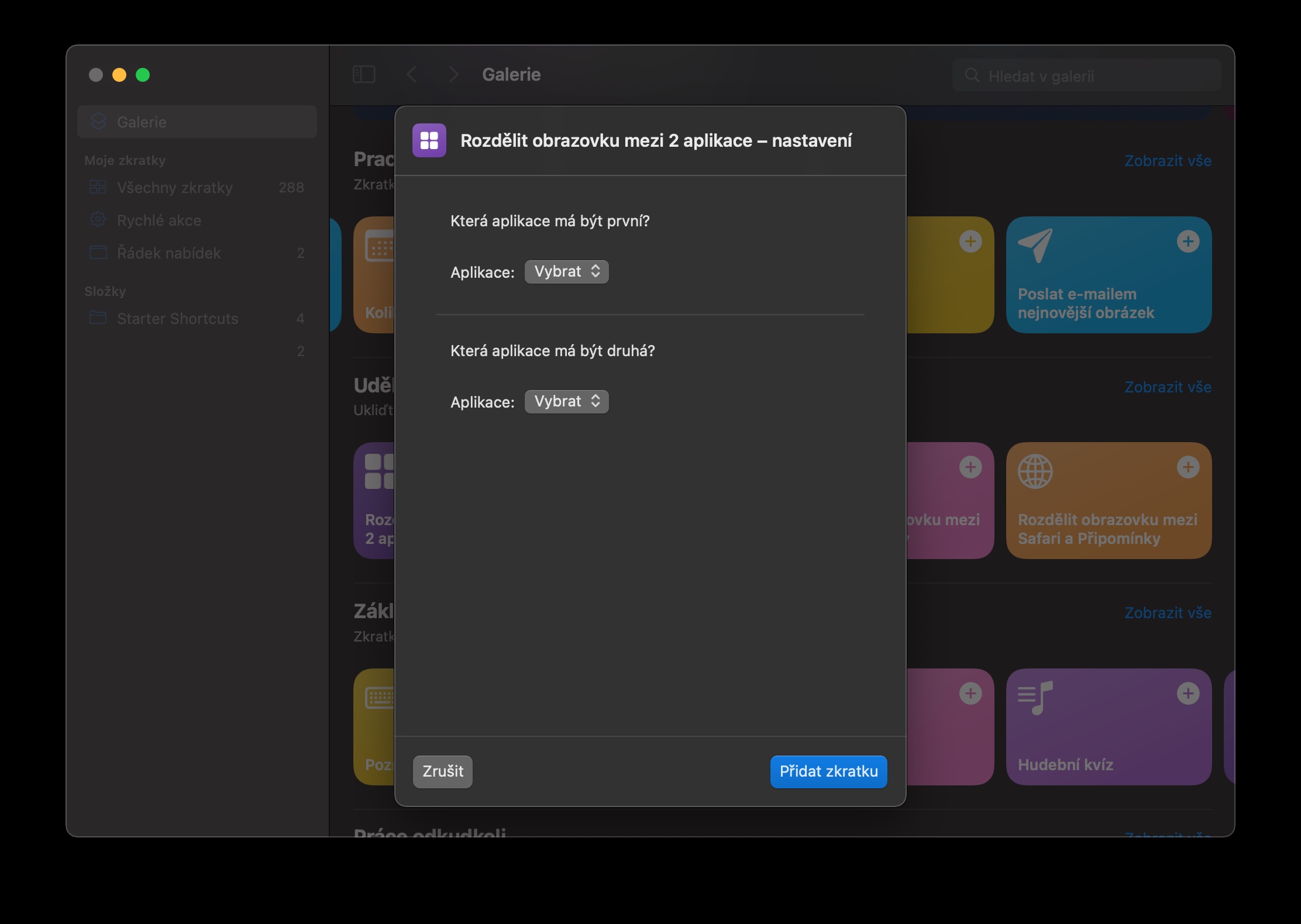
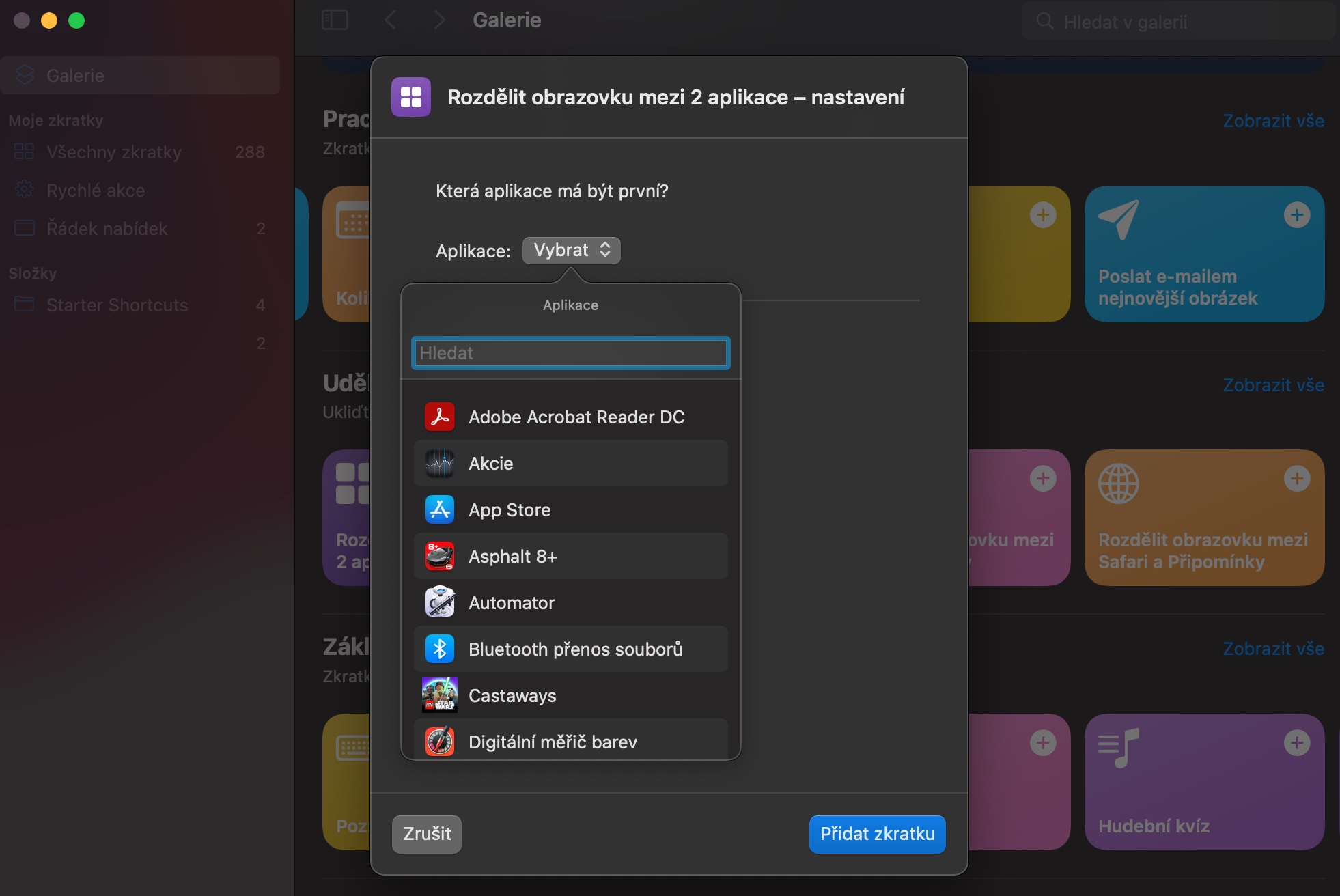
If you often work in Split View mode on your Mac—for example, with a browser window on one side and a Pages Secondly, you'll find this shortcut useful, which lets you split your Mac's screen between two selected applications with a single click. In the shortcut settings, you can specify two different applications, or split one application into two windows.
Adding comments
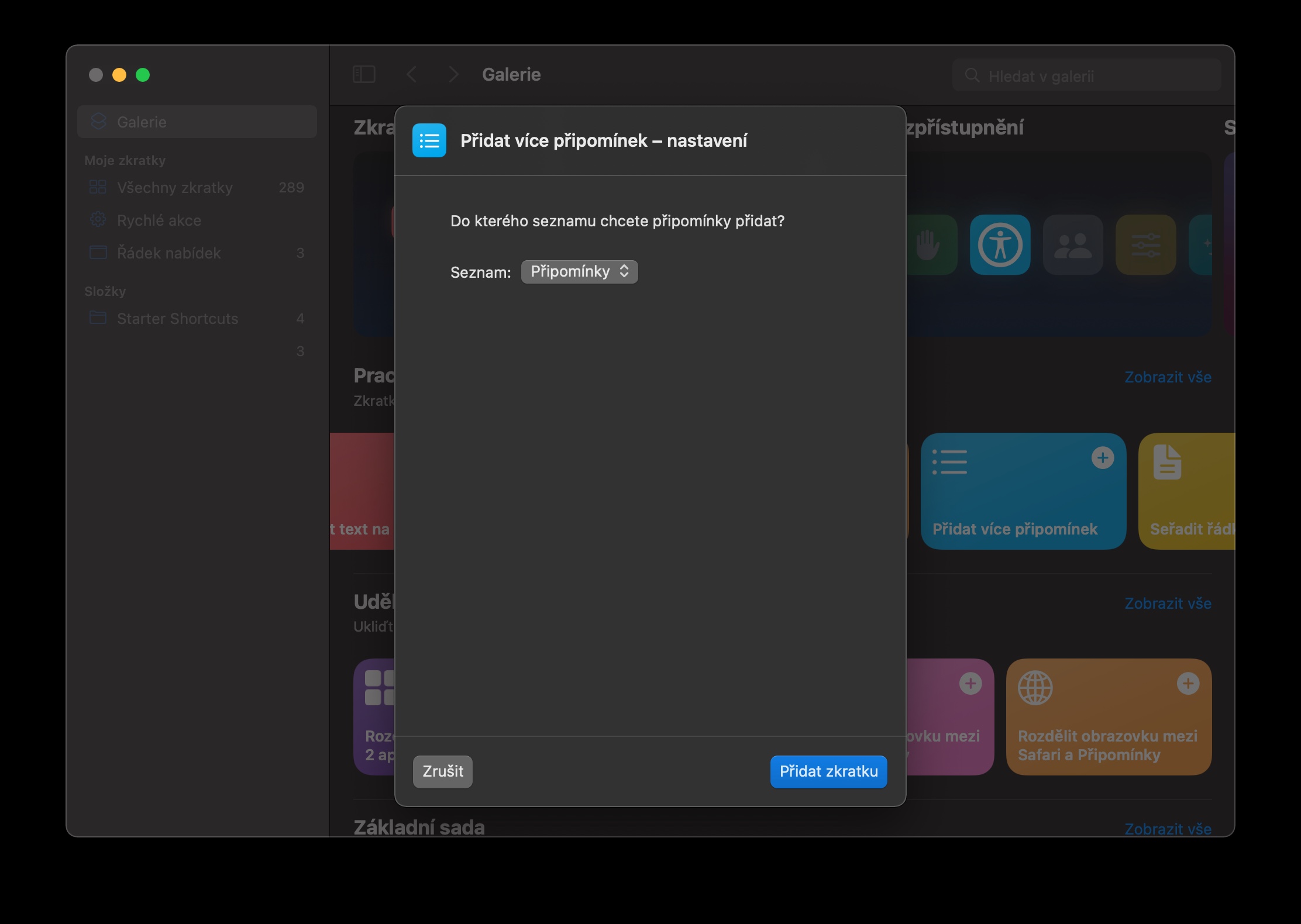
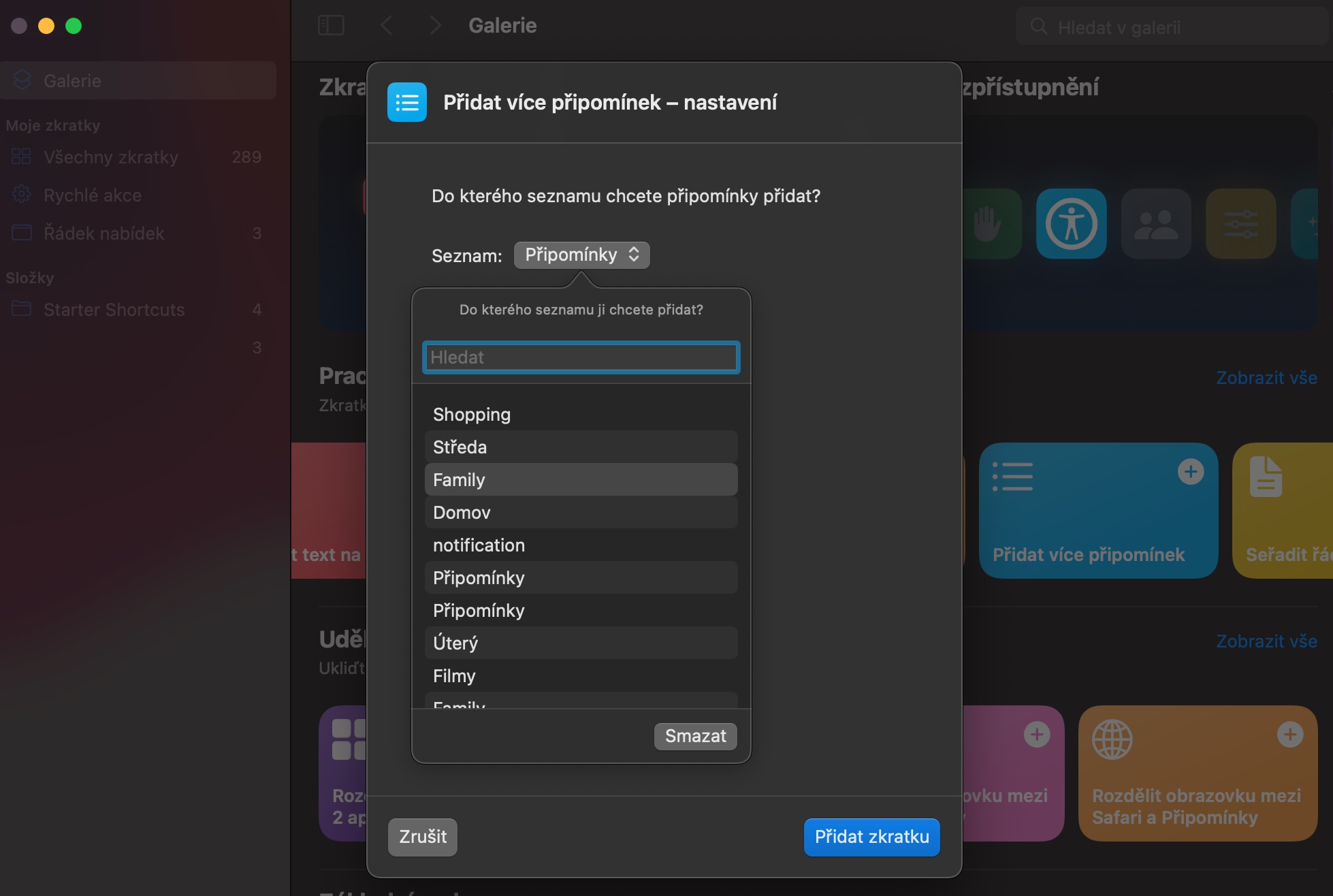
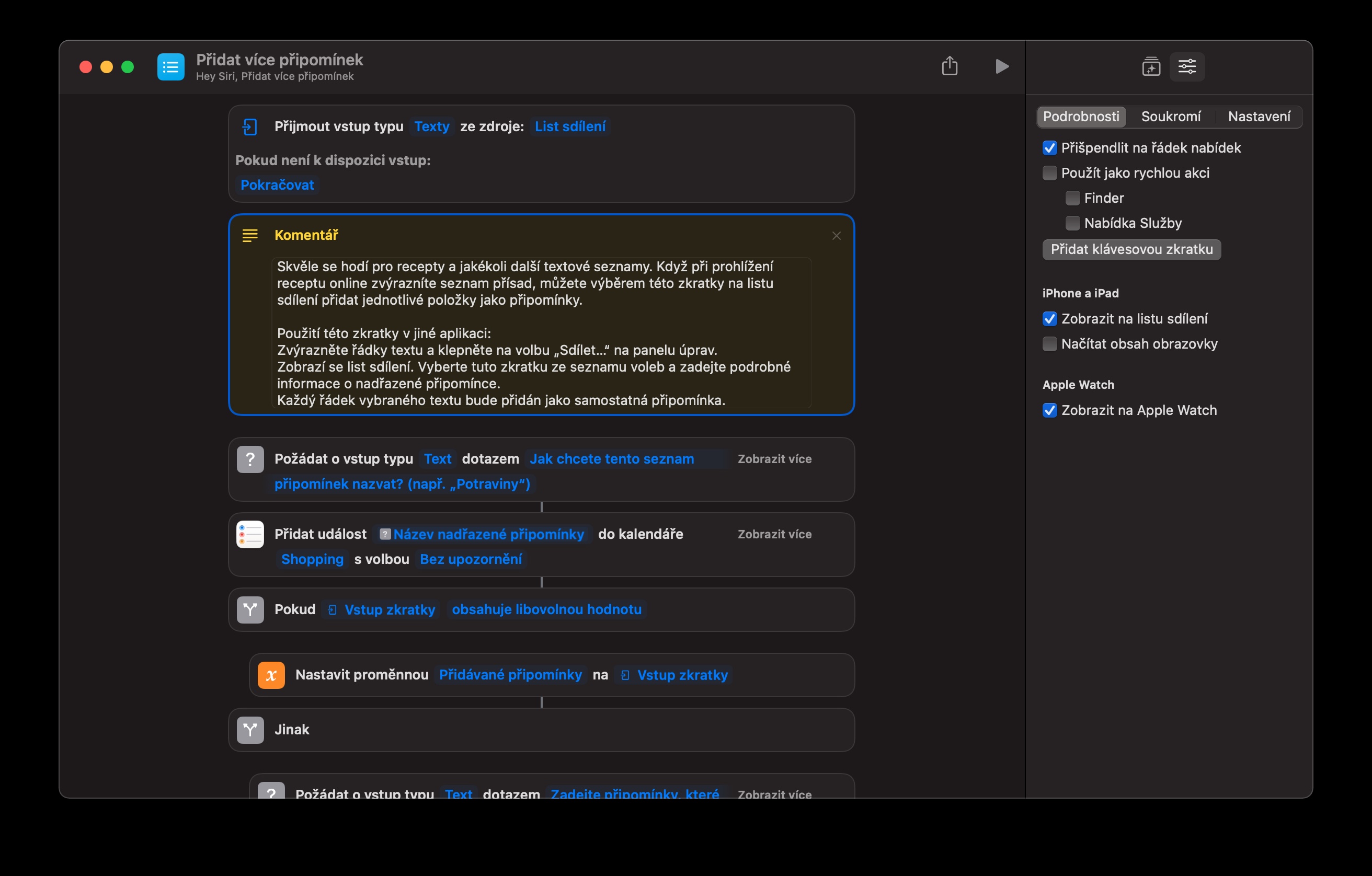
If on your Apple devices - Mac included - you often work with native Reminders, you will certainly appreciate this shortcut, with the help of which you can create several reminders at once. In the shortcut settings, you must first specify which of your lists the reminders will be added to.
Send a photo by email
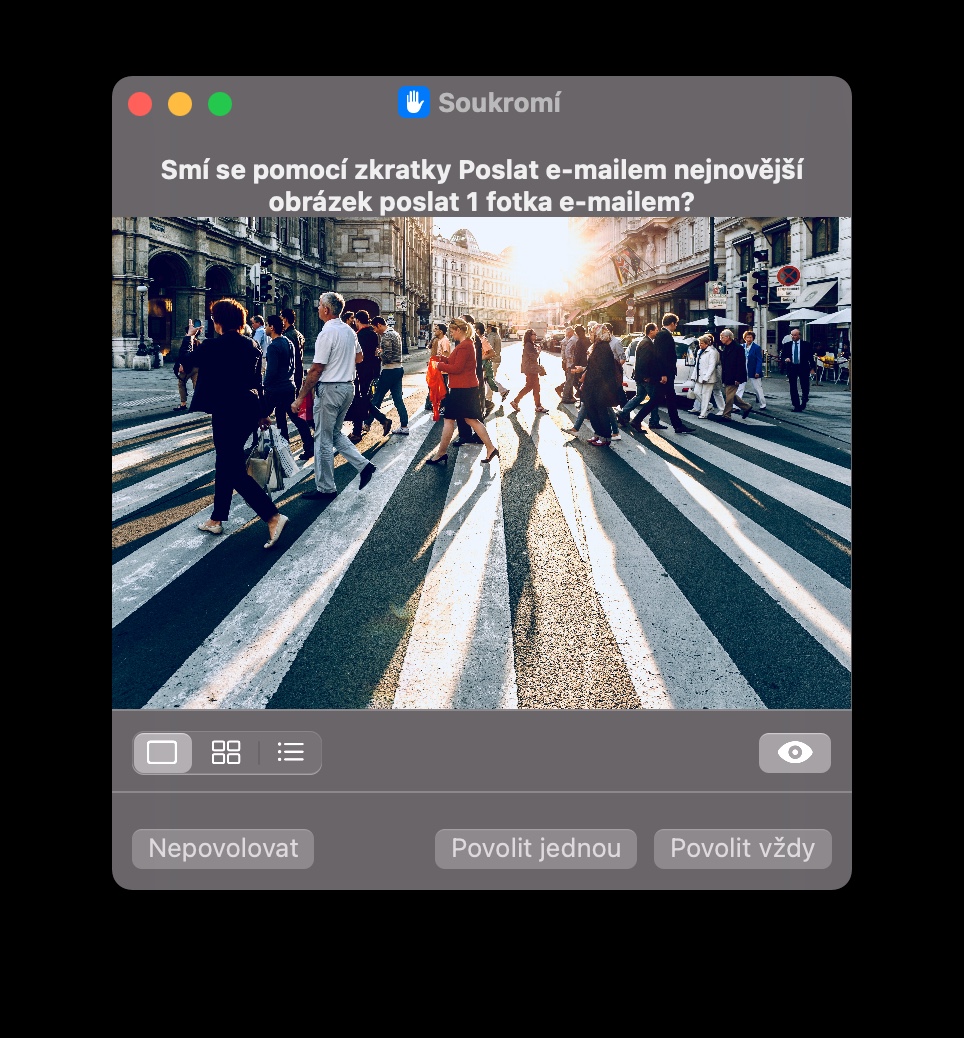
Have you downloaded a photo from the Internet that you want to email to someone right away? This handy shortcut will help you do just that. The shortcut works with native Mail on your Mac and with Finderem, in which it automatically searches for the most recently downloaded photo. After entering the necessary parameters, it sends the photo as an email attachment.
Gallery

Download a file
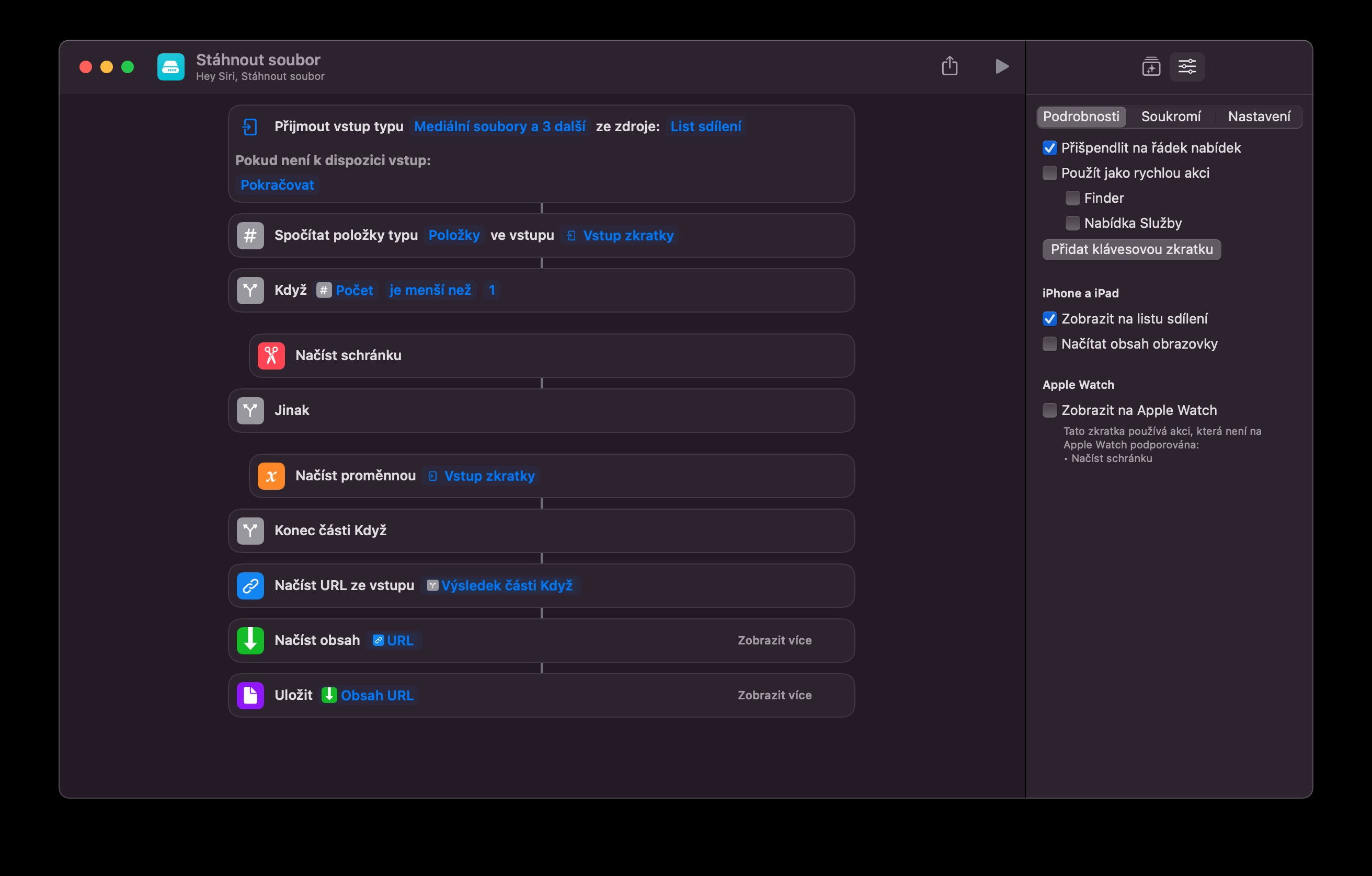
Those who often download various content on their Mac will definitely appreciate this shortcut. After you copy the selected URL to the clipboard, the shortcut will automatically search for downloadable content and, if necessary, download it automatically. Before the actual download, the shortcut will of course ask you if you really want to download the content.

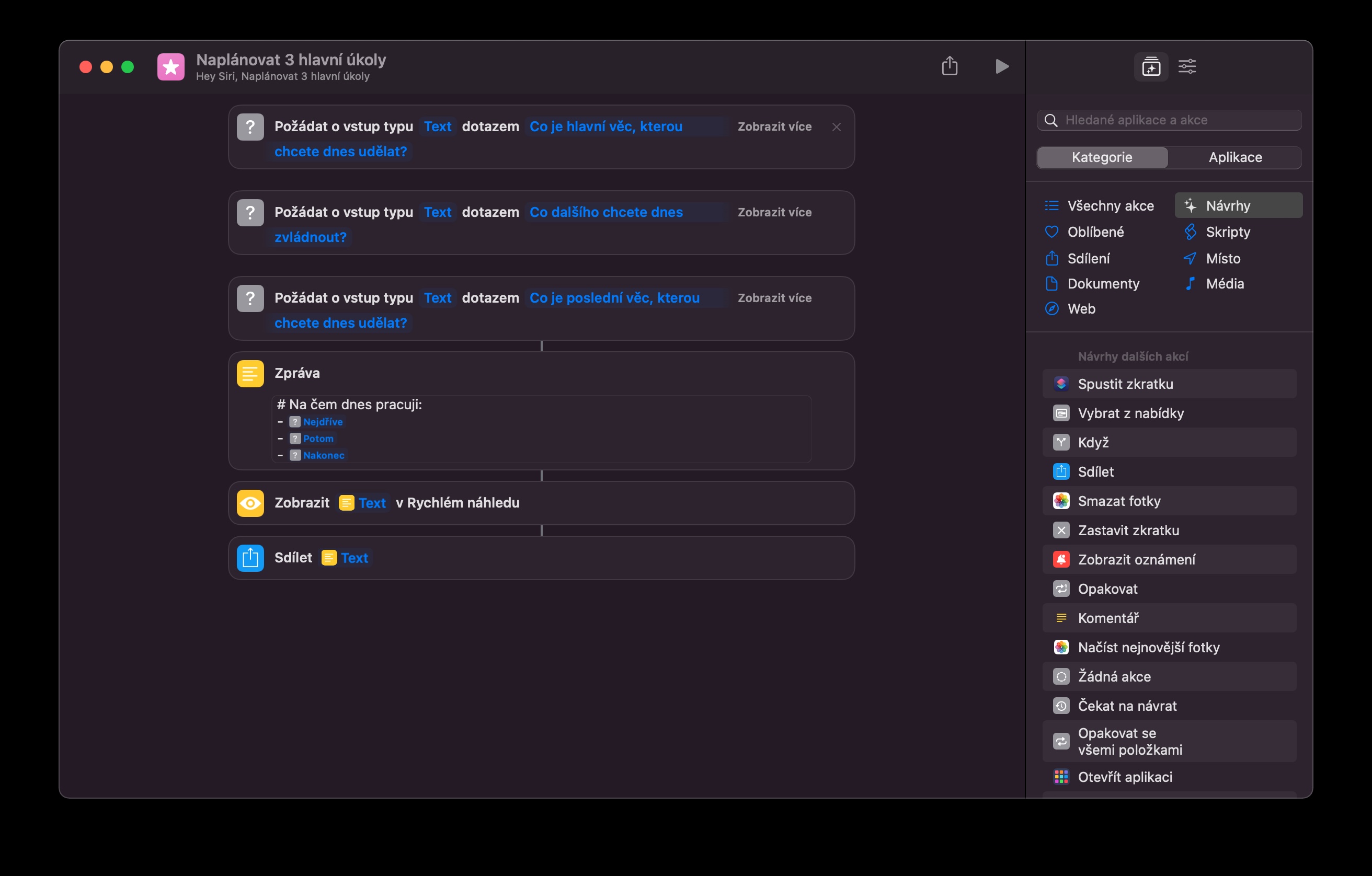
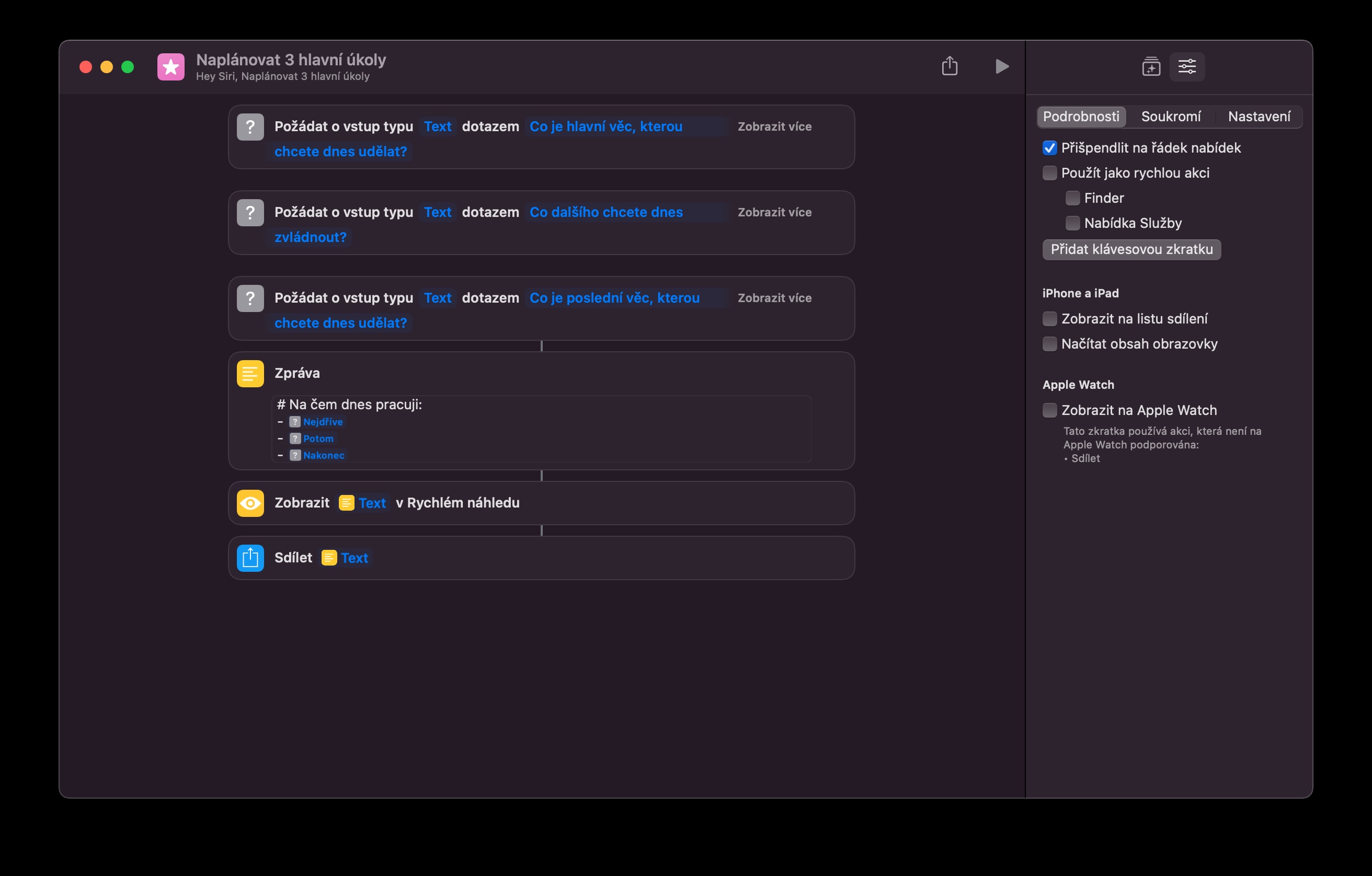
Scheduling major tasks
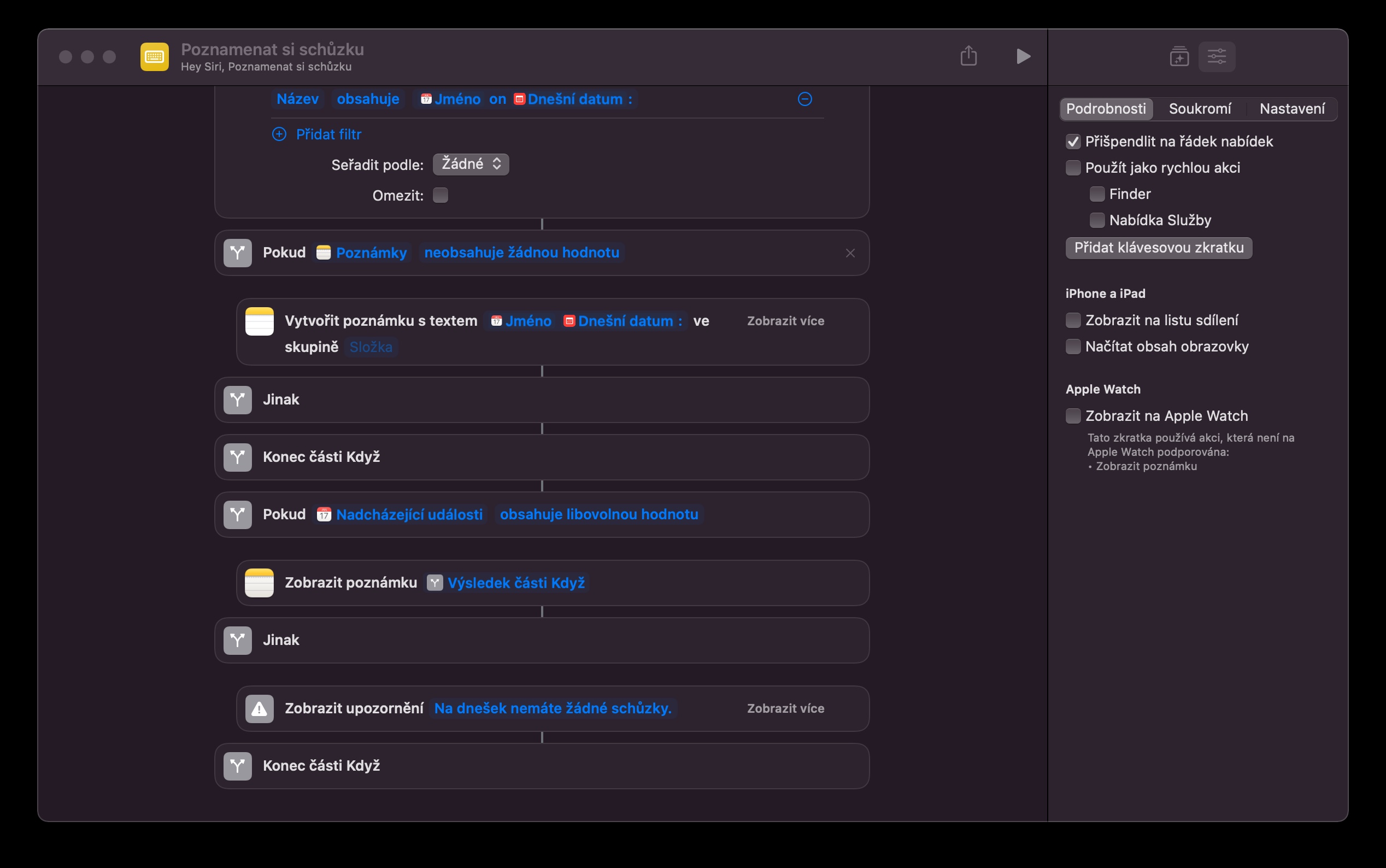
If your workday looks like sitting down at your Mac and starting to schedule tasks, you'll appreciate this shortcut to help you schedule them. Upon launch, this shortcut will ask you what your top three tasks are. After that, all you have to do is enter the relevant tasks - and, of course, complete them.
Gallery




Shortcuts cannot be added to widgetor is it just me who can't figure it out?