
Apple introduced brand new operating systems a few long months ago. Specifically, he did so at a developer conference WWDC, where new major versions of operating systems are traditionally introduced every year. This year we got to see iOS and iPadOS 15, macOS 12 Monterey, watchOS 8 and tvOS 15. All of these systems, except macOS 12 Monterey, have been available to the general public for a long time, so anyone who owns a supported device can install them. In our magazine, we are still focusing on new features from these mentioned systems, and in this article we will specifically focus on Find from iOS 15.
You might be interested in

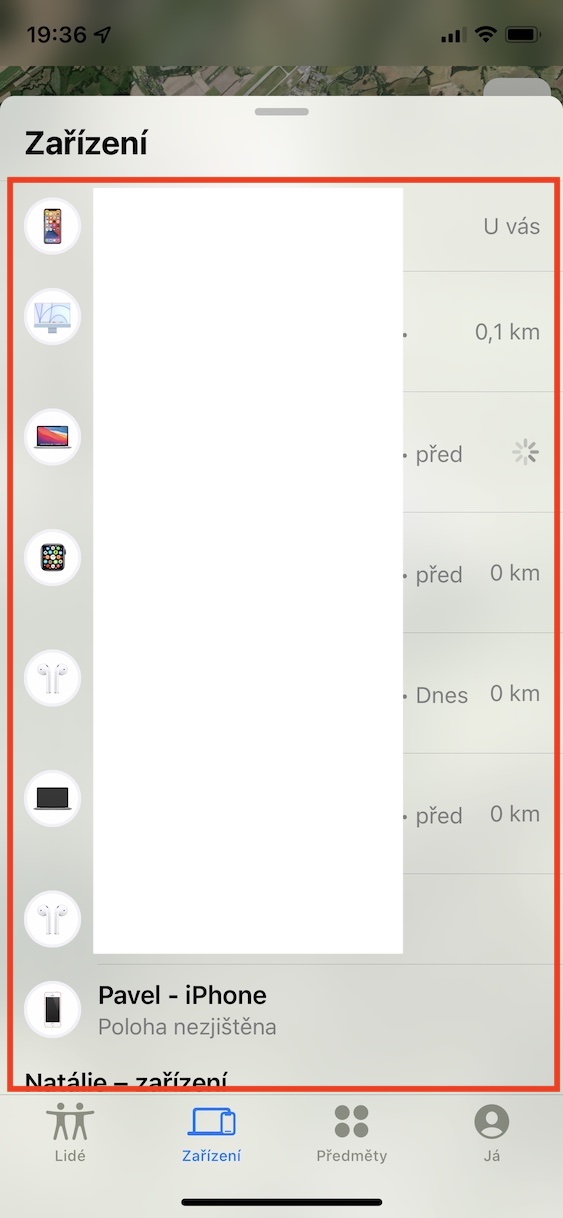
Finding an offline or switched off device
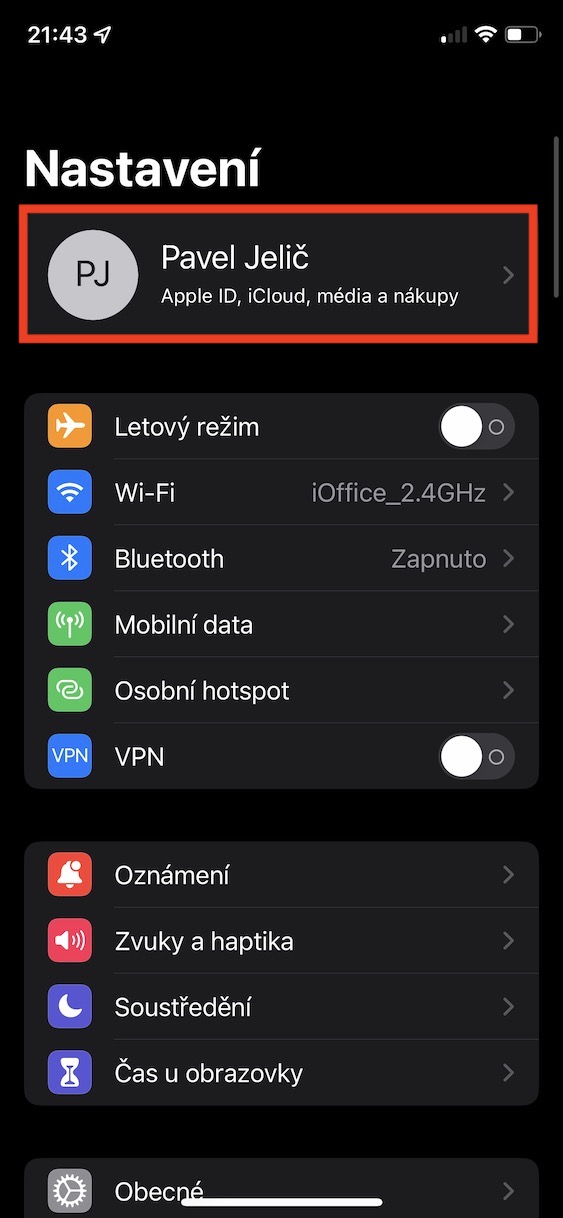
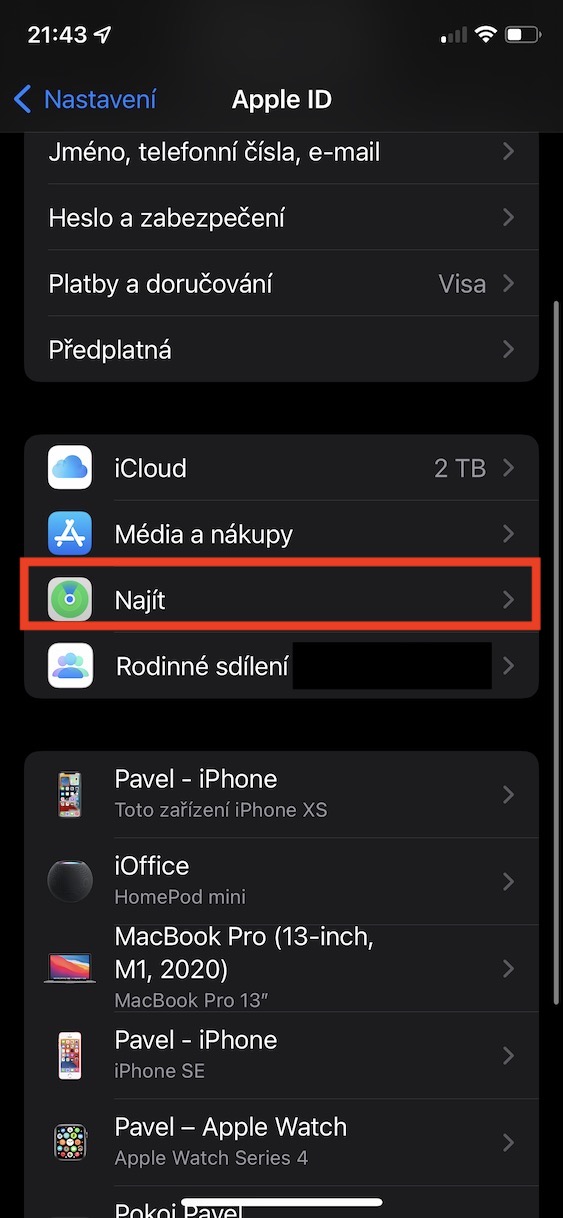
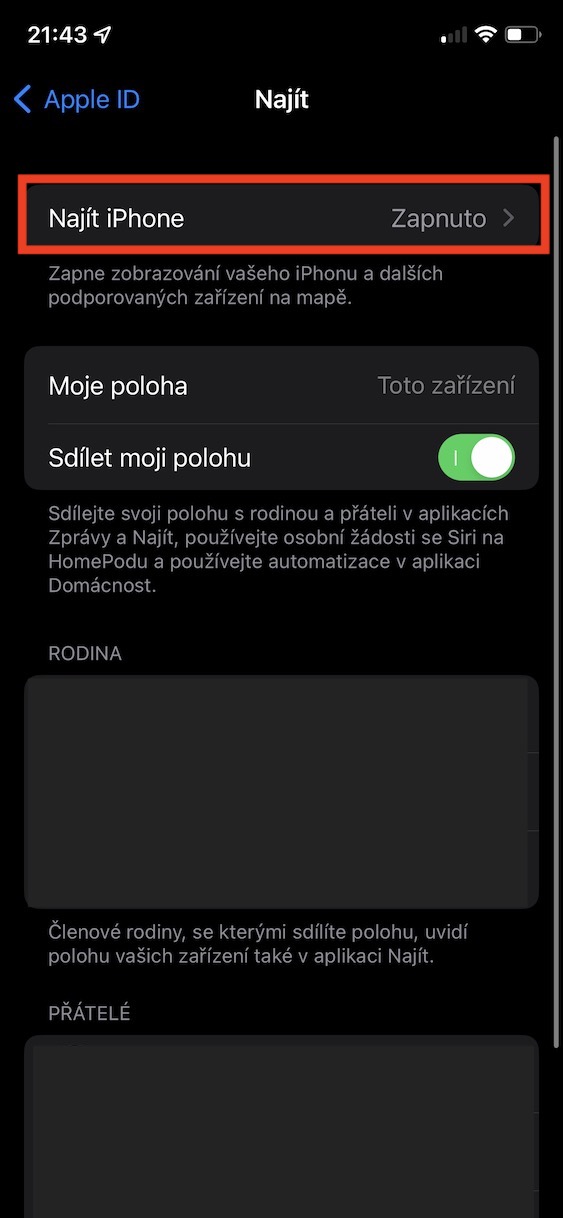
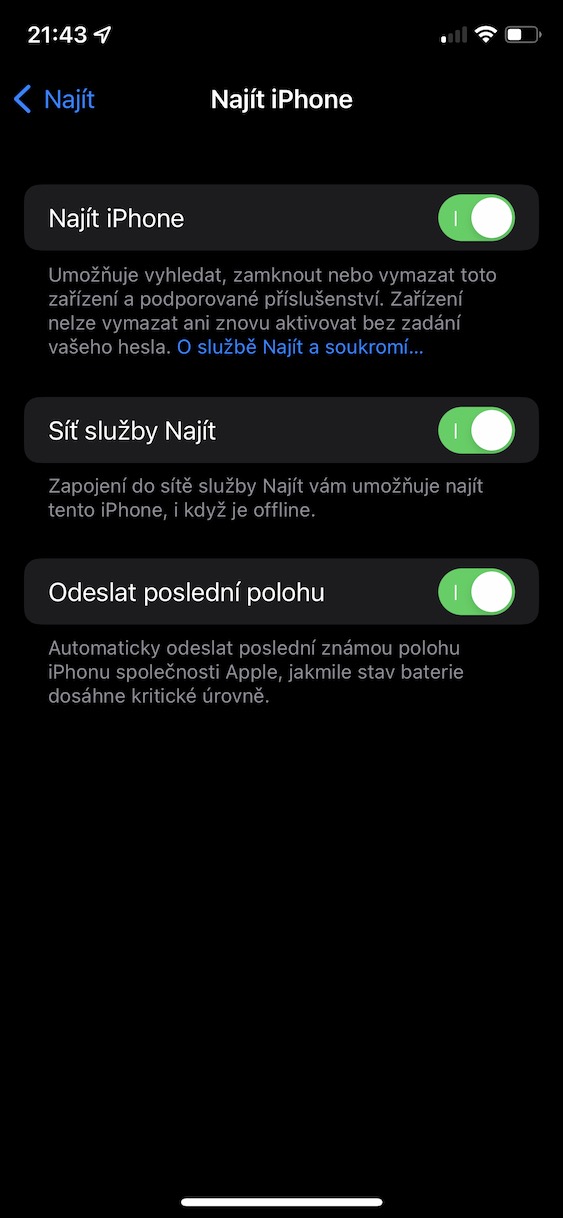
If you manage to lose or forget your device somewhere, Find My can help you. Within the Find My application, which you can run on any device that has access to the Internet, you can view the exact location of a specific device. In addition, you can play a sound on it, lock it, write a message on the screen or completely erase it. However, all of these options are not possible if the device is not connected to the Internet or if it is turned off. In iOS 15 you are yours iPhone but able to track even if it is offline or turned off. However, it is important to mention that the ability to find an Apple phone when turned off is only possible with iPhones 11 and later. You can find the Find My settings on your iPhone in Settings -> your profile -> Find -> Find iPhone.
Gallery
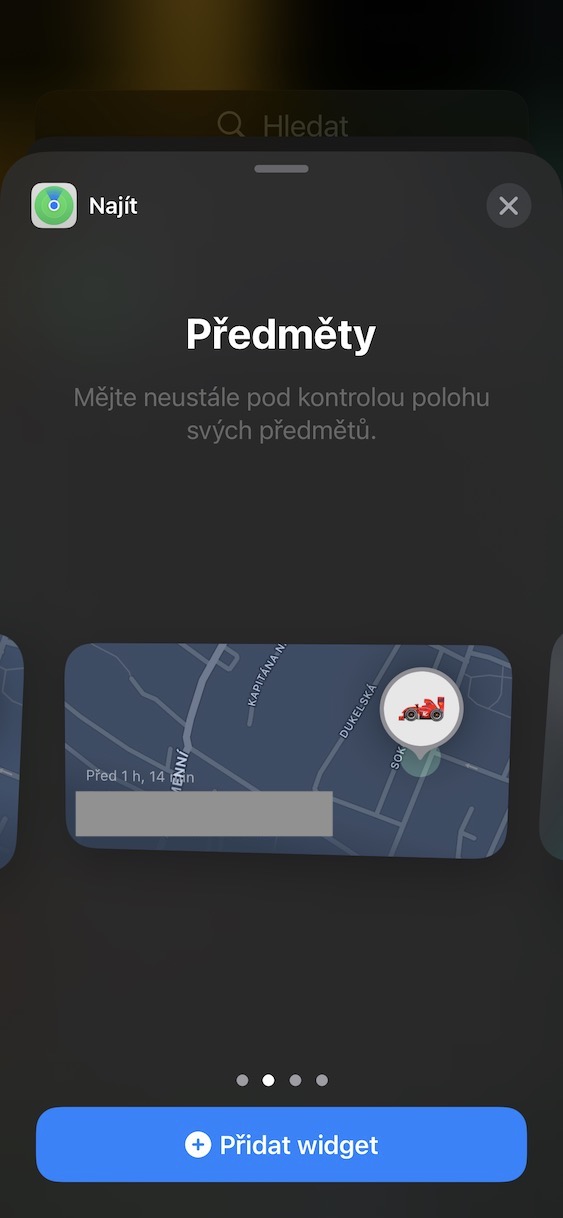
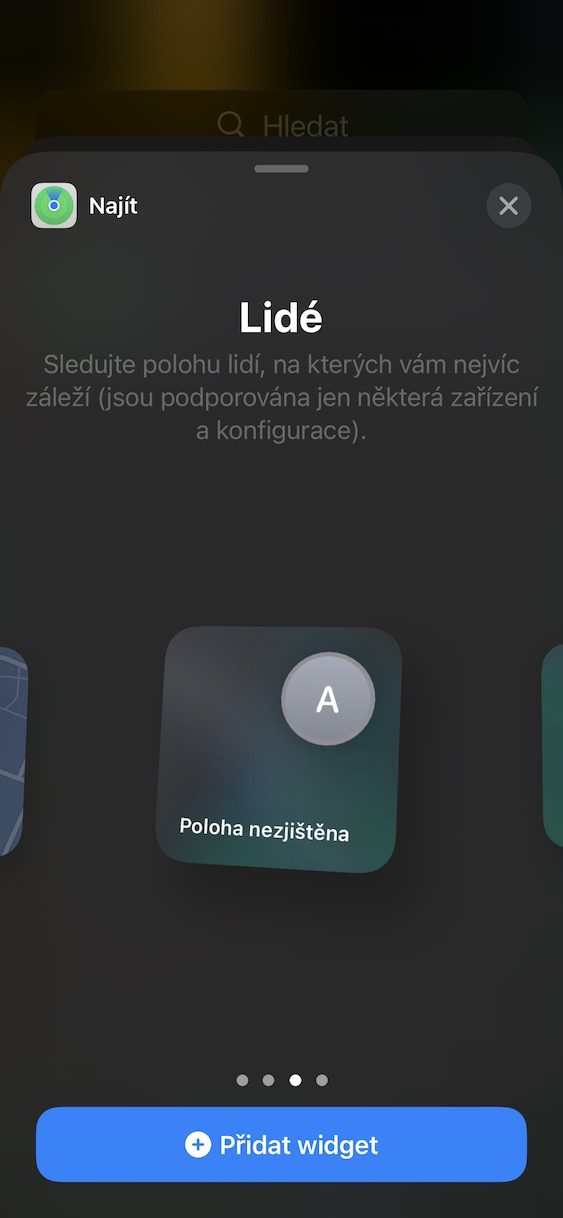
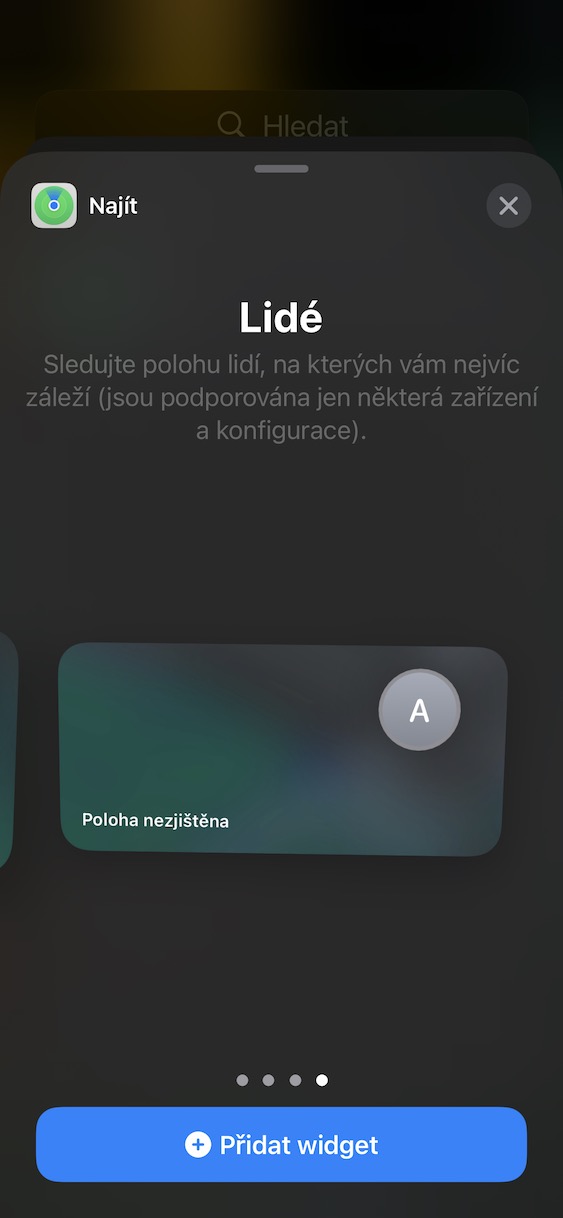
New widget Find
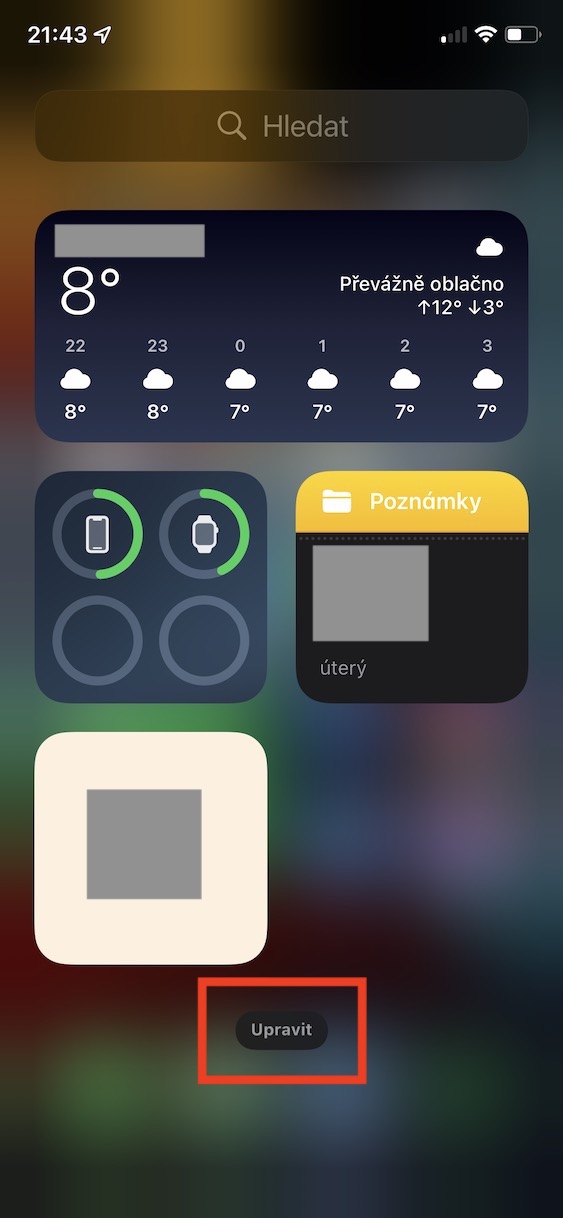
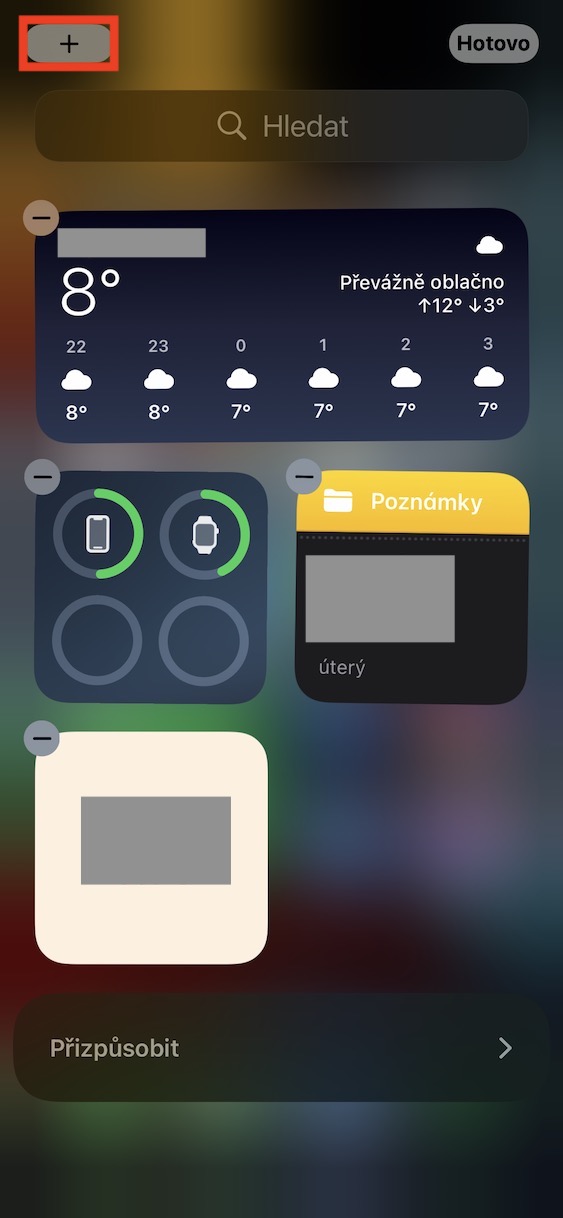
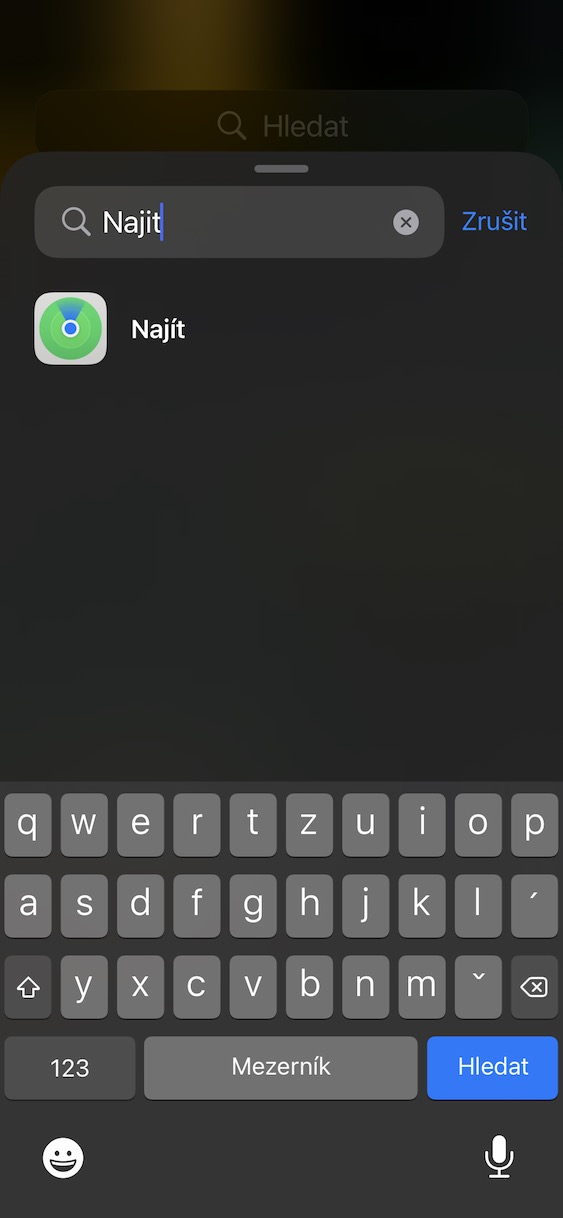
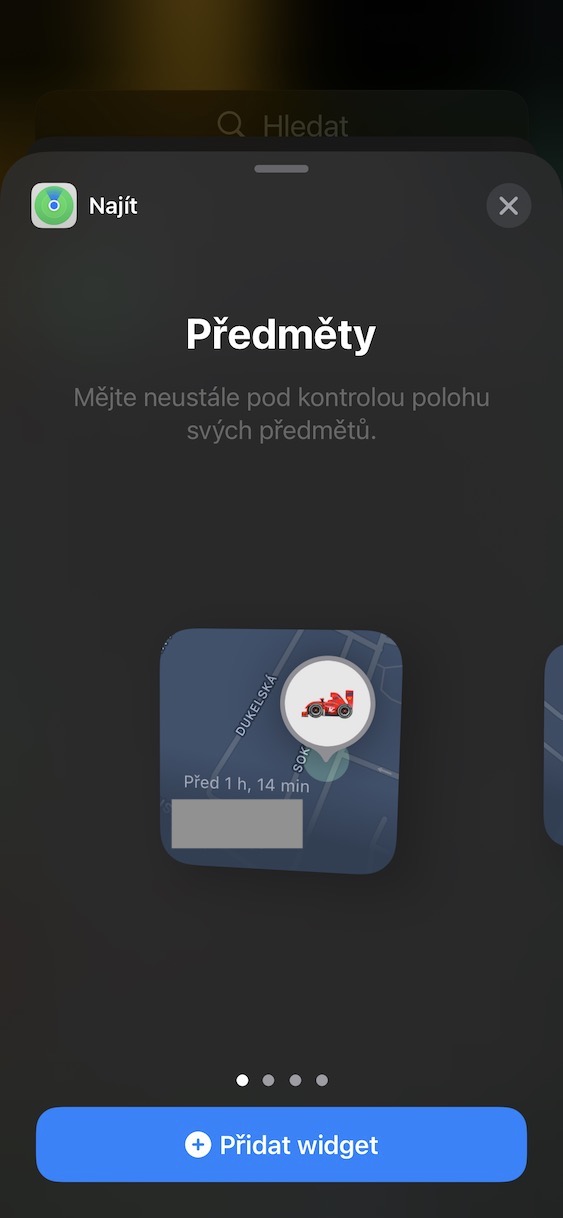
With the arrival iOS 14 last year we got a complete redesign of the home screen. For example, we got the App Library, where you can store unused apps, but in addition Apple konealso came with completely redesigned widgety. We are able to insert these into individual pages with applications between their icons. Within iOS 15 the Californian giant came with a brand new widgetem Find, which could be useful to many of you. If you add it to your desktop, you can display the location of the selected person or your object. There are two sizes available in both cases, small and medium. So if you want to always have an overview of the location of a person, for example a child, or an object, then this is definitely widget take advantage. Widget to add it, go to the home page left, you get off Dolu and tap on Edit. Then just tap on the top left icon +, widget Find search a hold to move it to where you need it.
Gallery
Forgot device alert
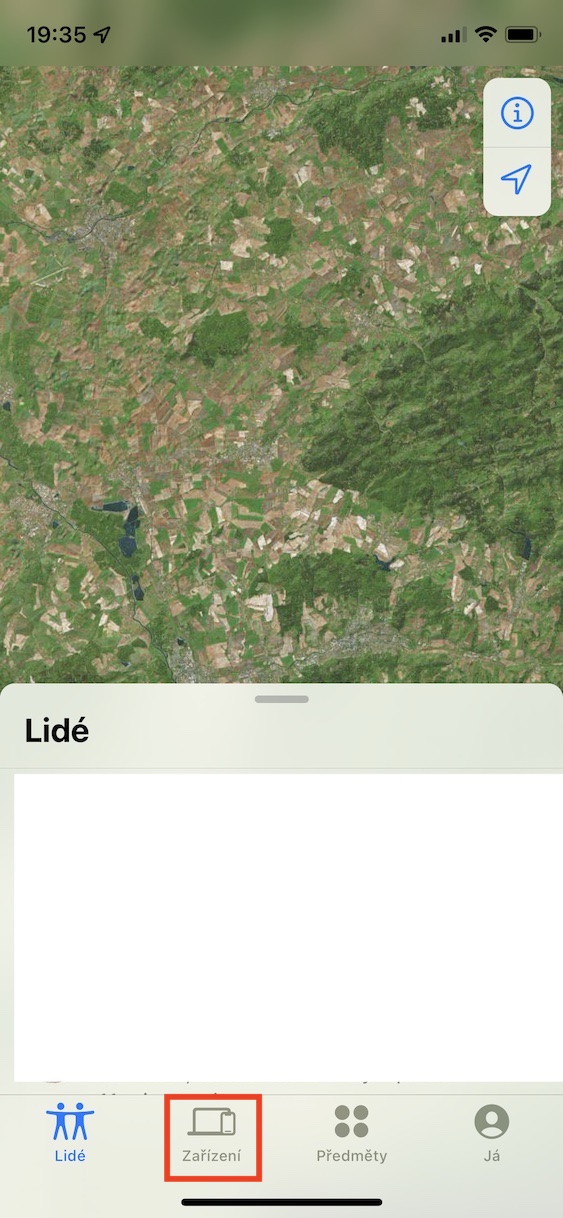
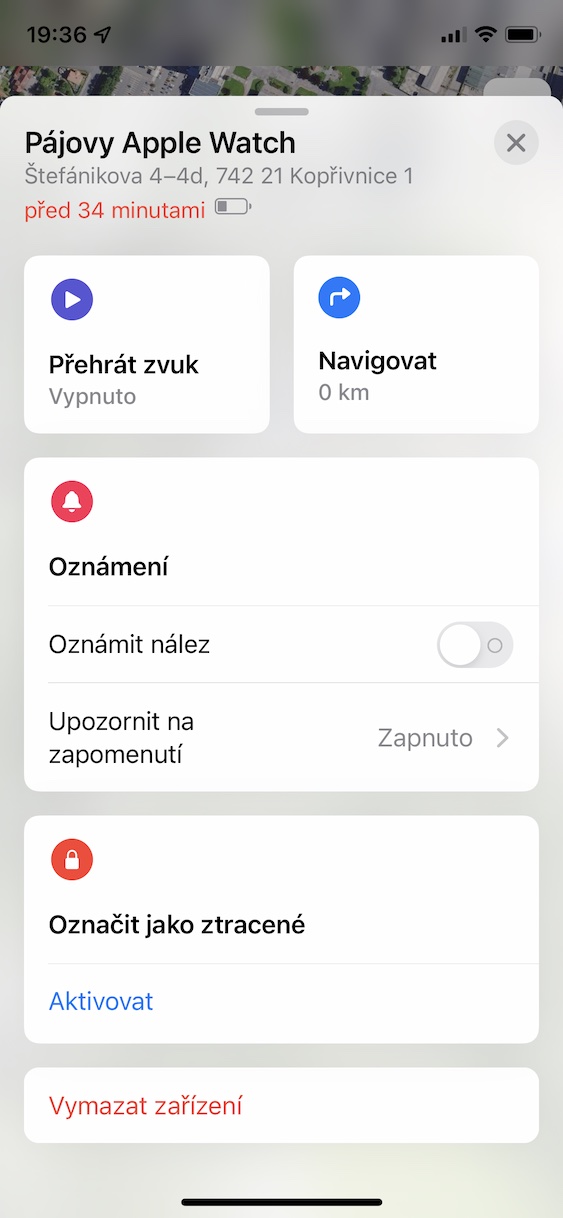
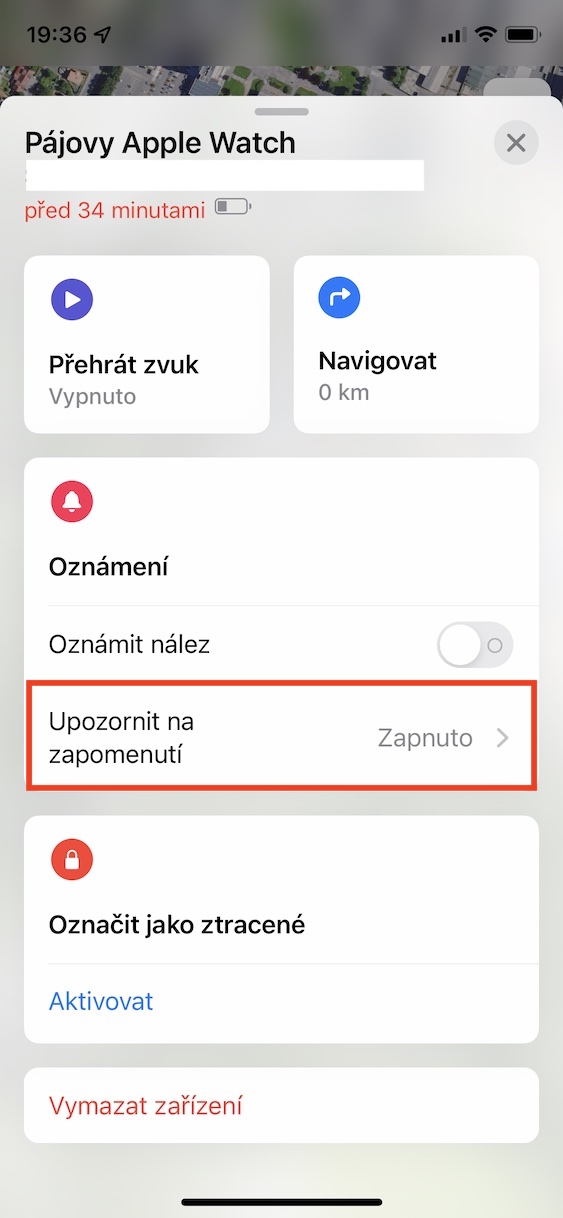
Among one of the most anticipated features in the Find app is iOS 15 is undoubtedly the Forgotten Device Alert. As the name of this feature suggests, if you activate it, you iPhone can inform you that you have left some of your devices or objects that you have treated with a location tag somewhere AirTag. In the case of devices, this function can of course only be activated for machines that you can transport, i.e. for example MacBook whether Apple Watch. This feature can be activated simply by going to Find, where at the bottom click either Equipment whether Subjects. After that you a particular device or object click open go to Notify about forgetting, and then the function activate.
Gallery
AirPods Pro a Max part of Find
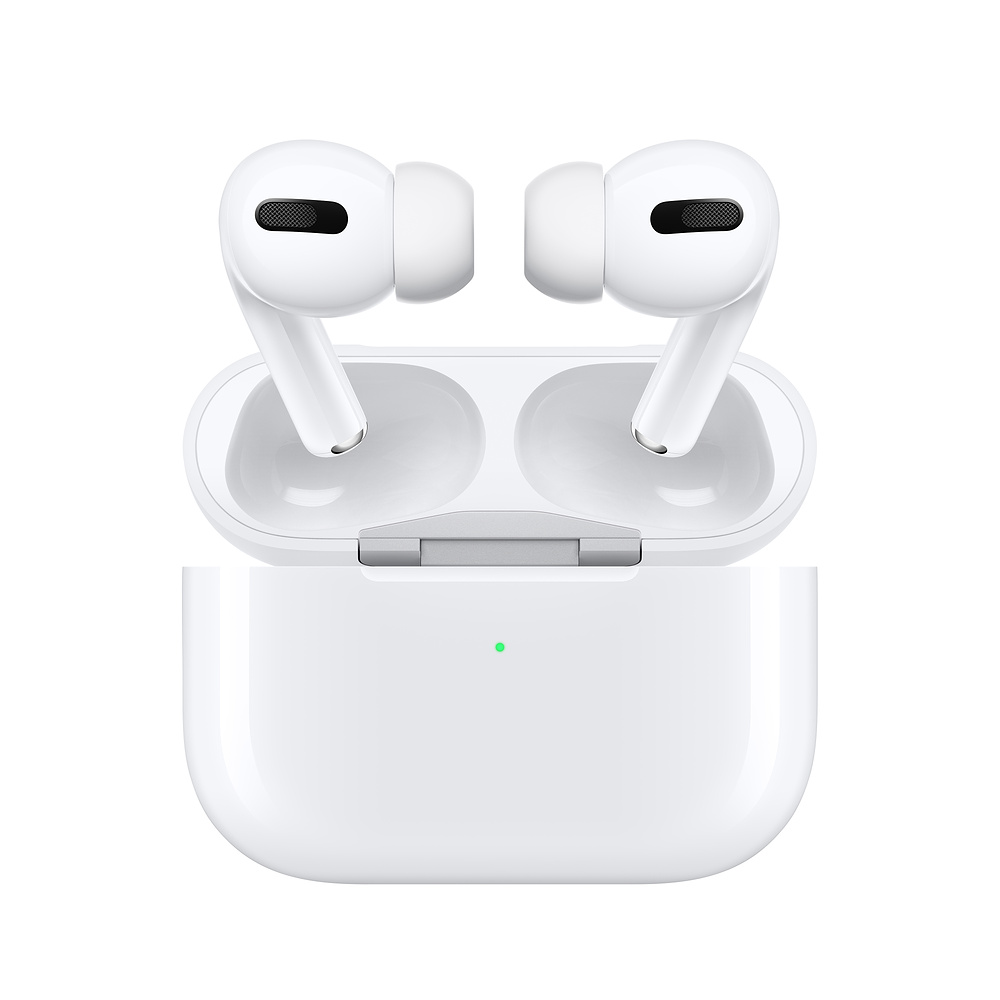
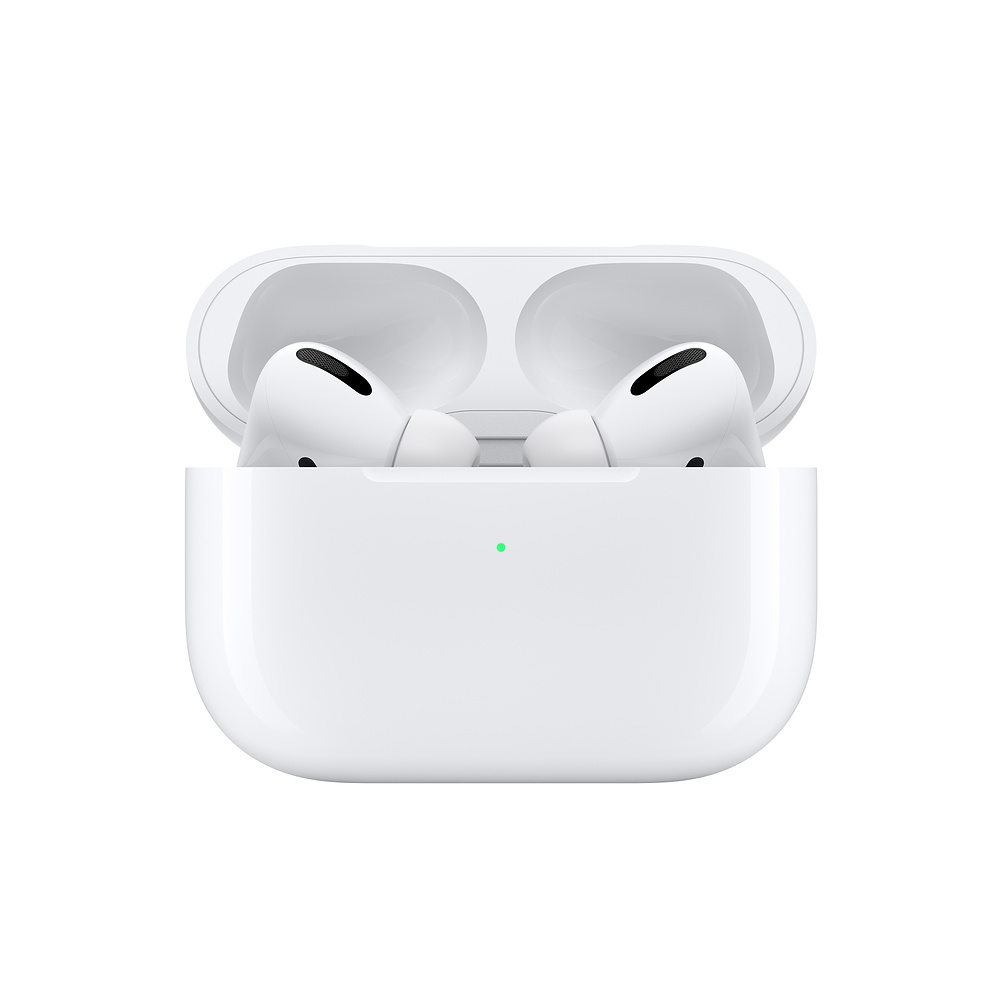
When Apple introduced AirTags, among other things, also introduced the Find Service Network. This network specifically consists of practically all Apple devices available in the world – hundreds of millions of different products from Applu. Until now, it has been, except for AirTags, about iPhones, iPads and Macs. With the arrival of iOS 15, however, this list was expanded, specifically by AirPods Pro a AirPods MaxThis means, among other things, that if you own one of these headphones, you will be able to easily find them if you lose or forget them, even if you are not within their range. In previous versions iOSwhere they were not AirPod Pro a Max part of the Find service network, only their last known location always appeared on the map, which is therefore changing. Šance, that the lost AirPod Pro whether Max you will find, it is now much higher.
Gallery




Find people in Spotlight
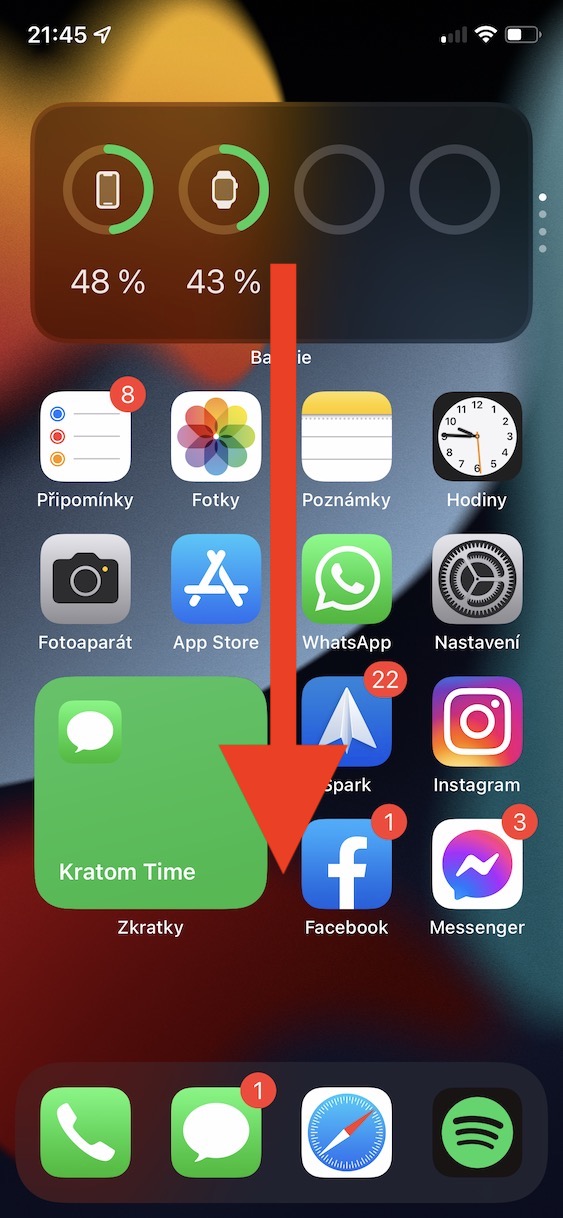
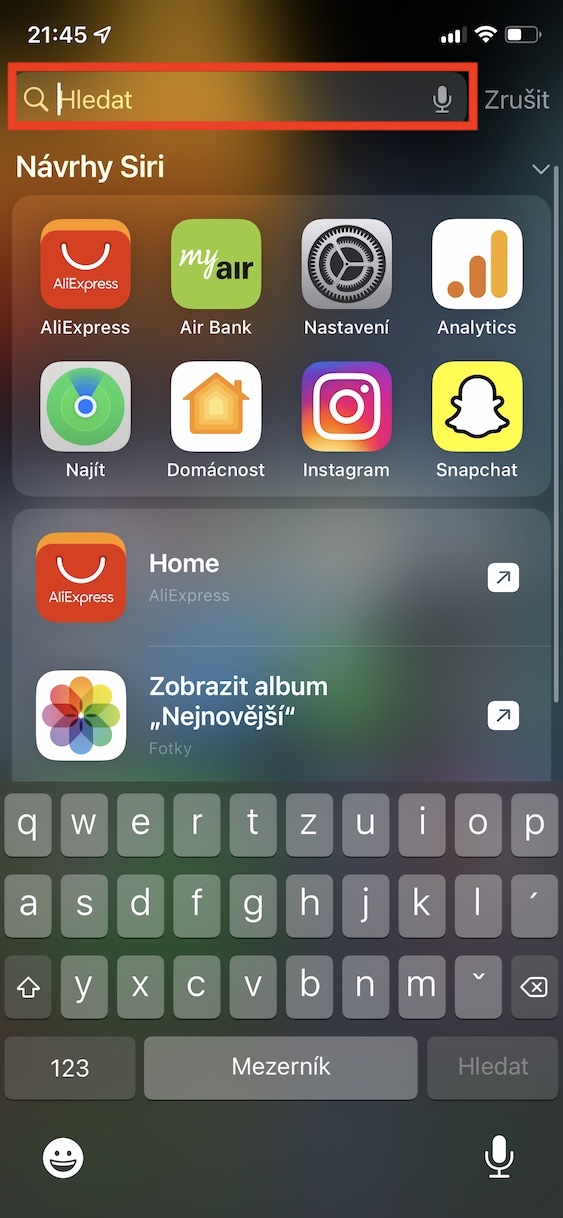
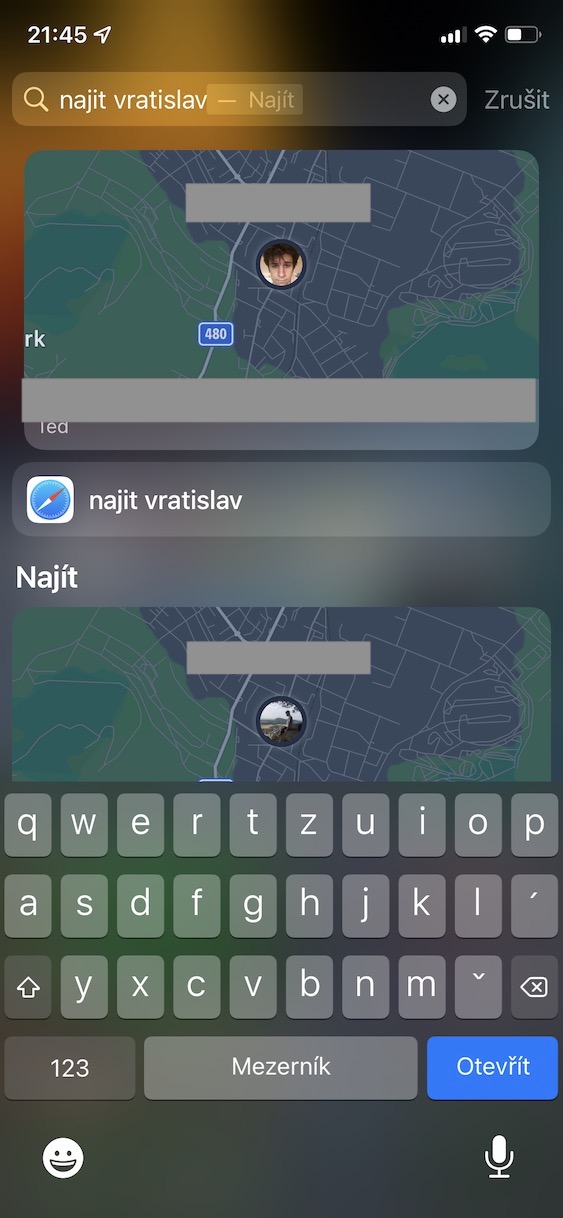
If you are a Mac owner or MacBooku, then you most likely use Spotlight. It can be defined as a kind of “internal Google” for your Apple computer. It can quickly search for files and folders, launch applications, perform calculations or search the web - in short, it is a great helper that can speed up everyday work. However, few users know that Spotlight is also available on iPhonech, or rather in iOS, which is definitely a great pity. In iOS Spotlight works very similarly to macOS and with the arrival of the new version iOS 15 you are also able to view the location of people who share it with you through Find Me. You simply need to They opened Spotlight, and it by swiping your finger from top to bottom on the home screen. Then type in the text field find and for this expression contact name.


Apple watch 5 remind device function unavailable
There is no Spotlight on iPhone by swiping from the top (from the middle of the screen) down?
Je