
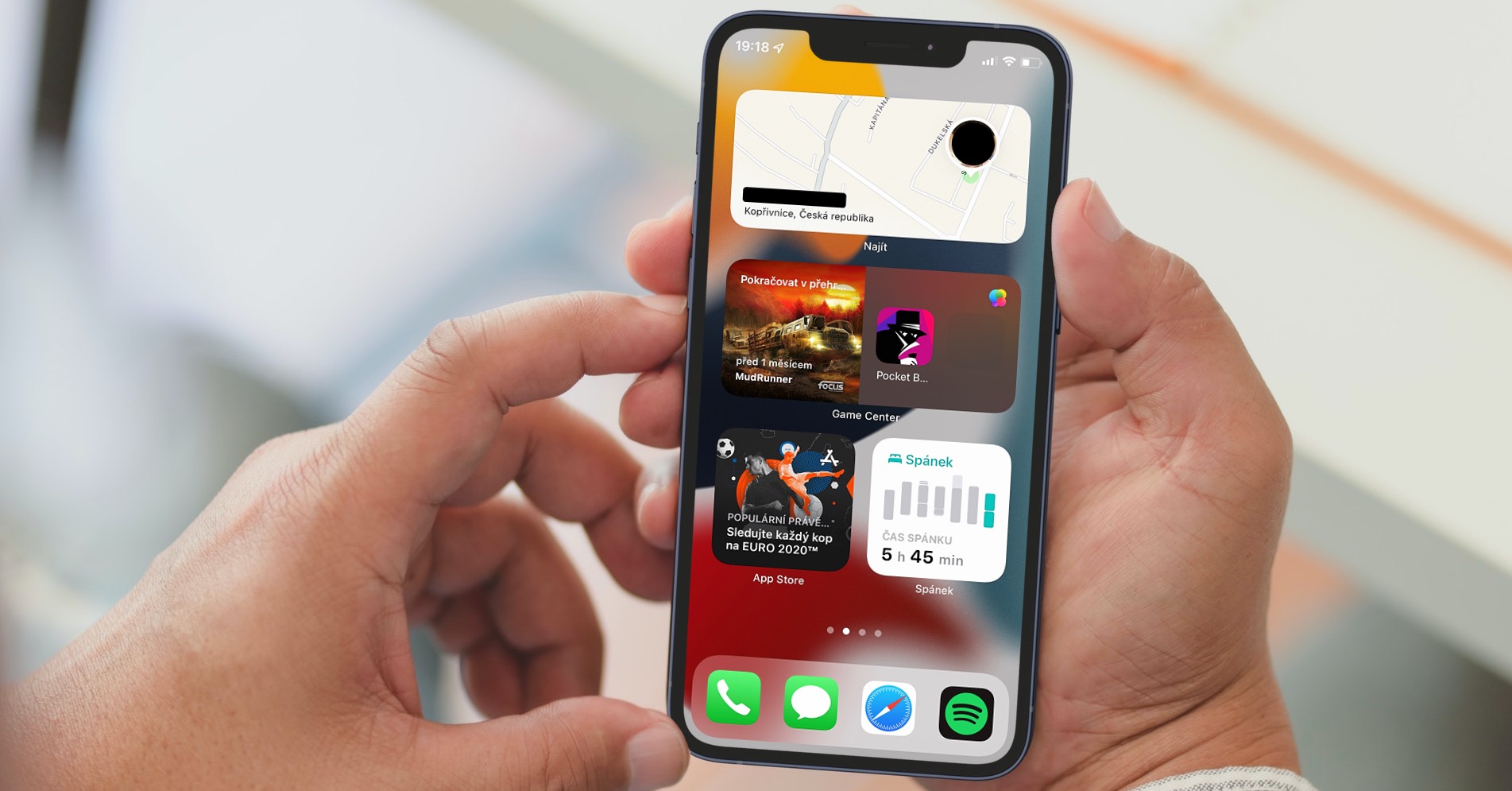
Yesterday evening we went toonefinally got the release iOS 15 for the public. In addition to this system came Apple also in the first public versions of iPadOS 15, watchOS 8 and tvOS 15. There are a lot of new features available in these systems and we will cover them in our magazine. Operating system iOS 15 can be installed even on a six year old iPhone 6s, which only shows that this system is perfectly tuned, and that Apple tries to support as many devices as possible. However, the truth is that some owners of older phones may find themselves in a situation where insufficient performance begins to manifest itself, such as freezing and other problems. So let's take a look at how iPhone s iOS 15 speed up.
You might be interested in
Disable background data refresh
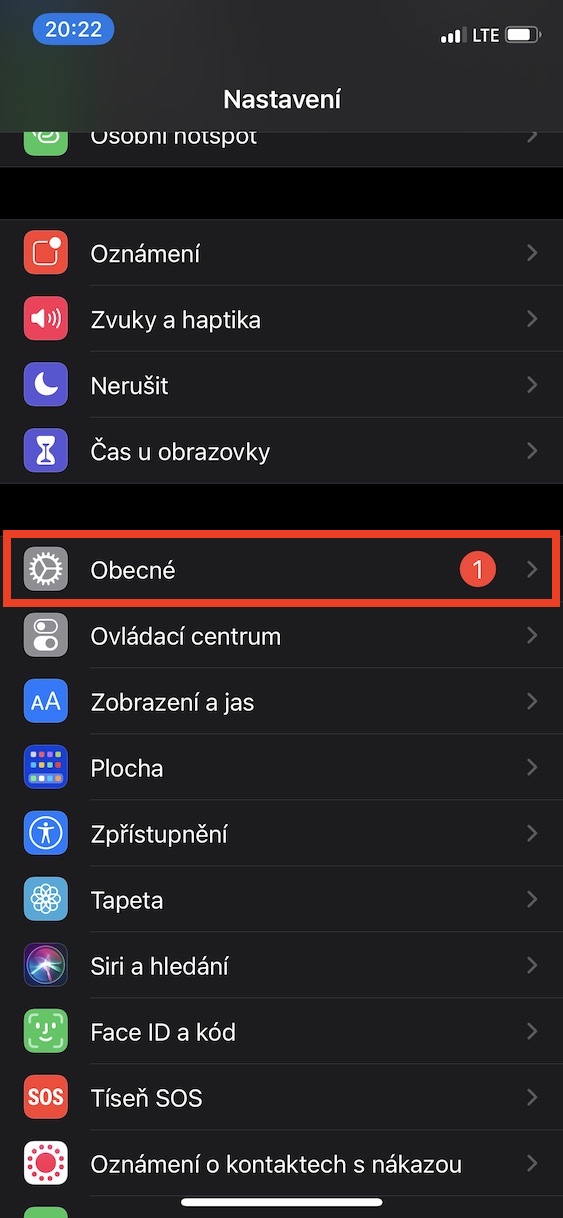
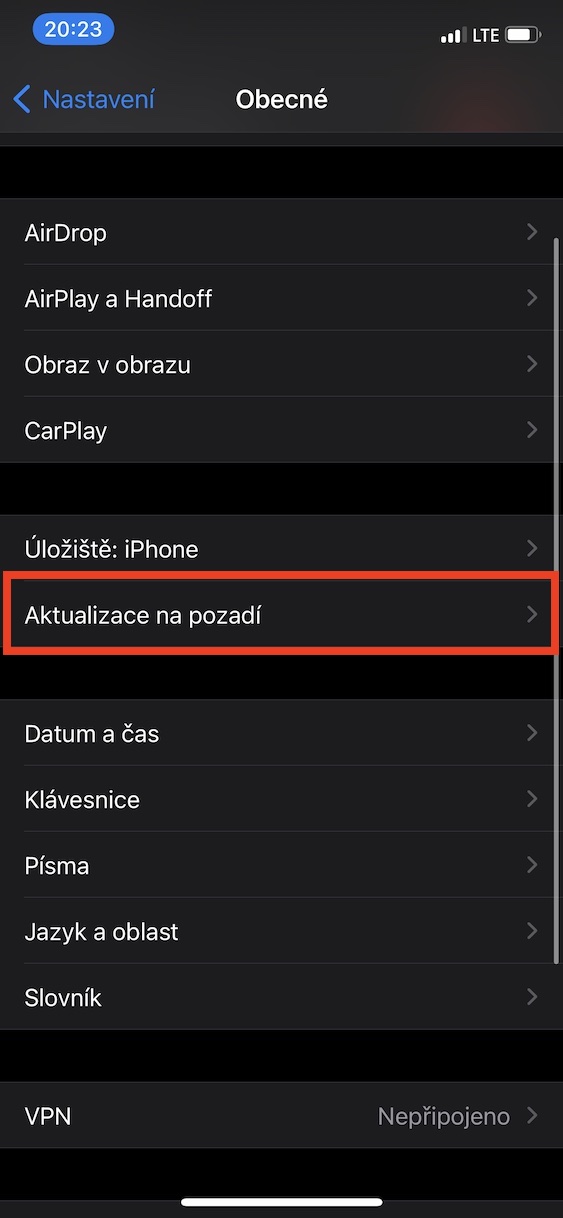
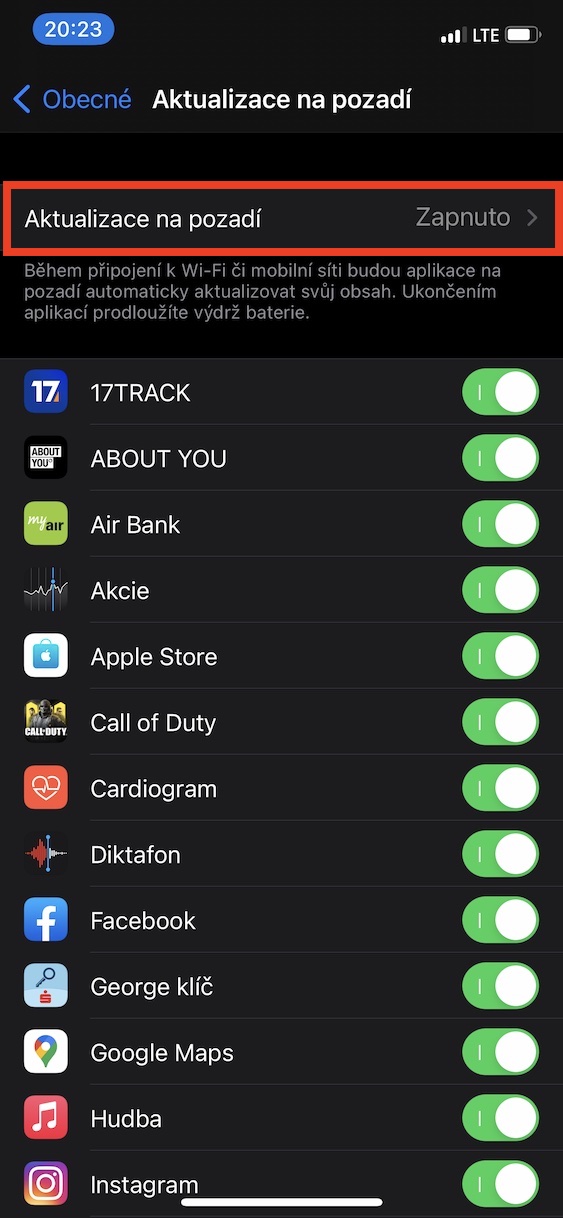
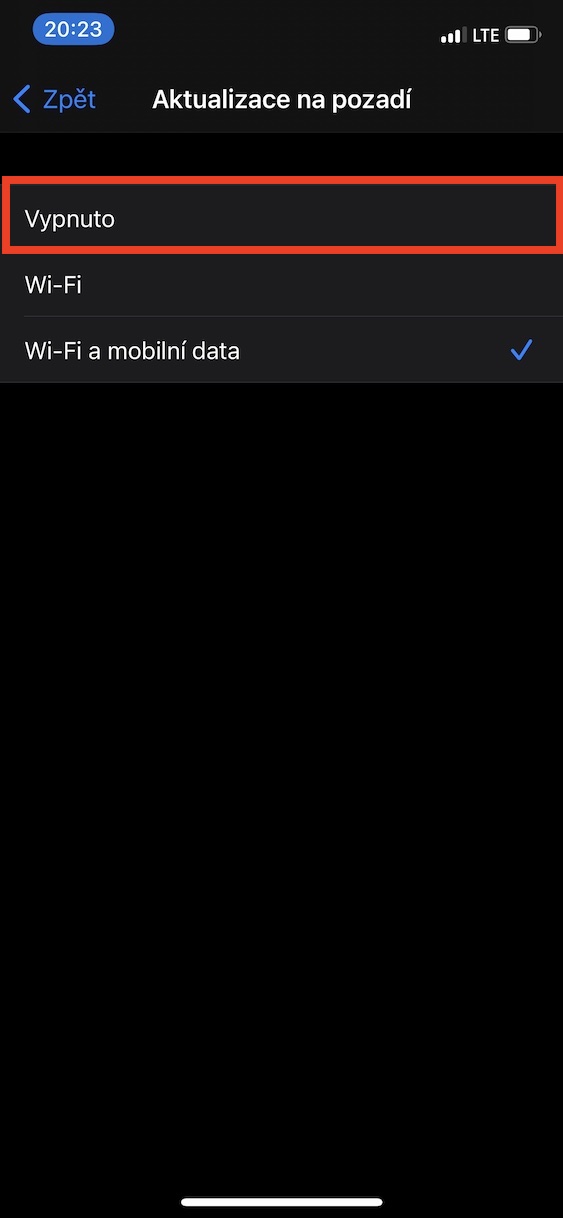
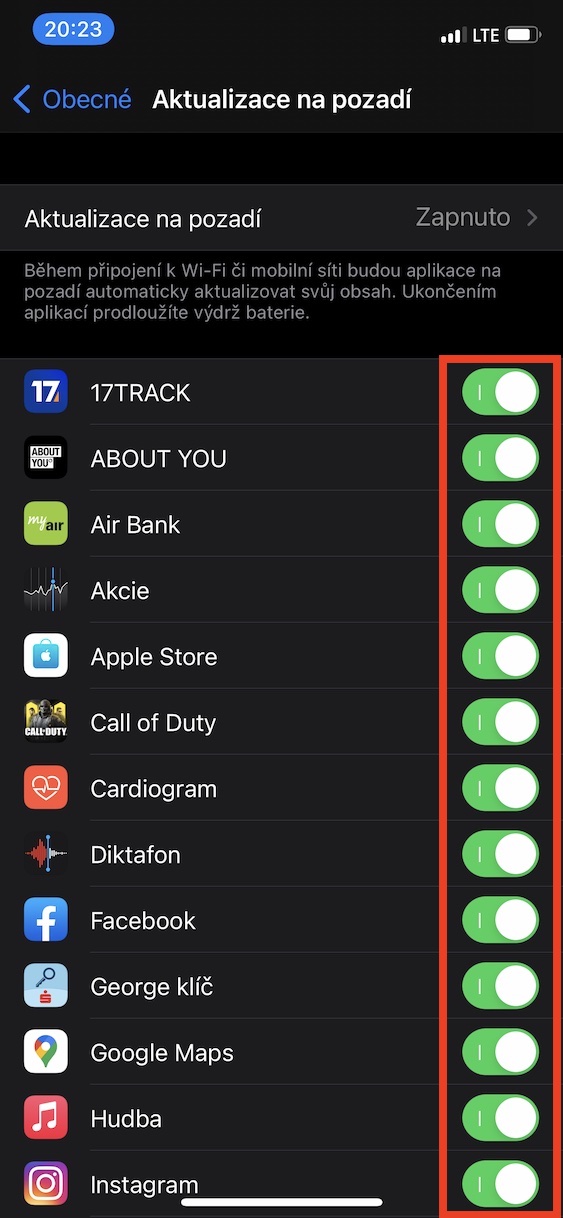
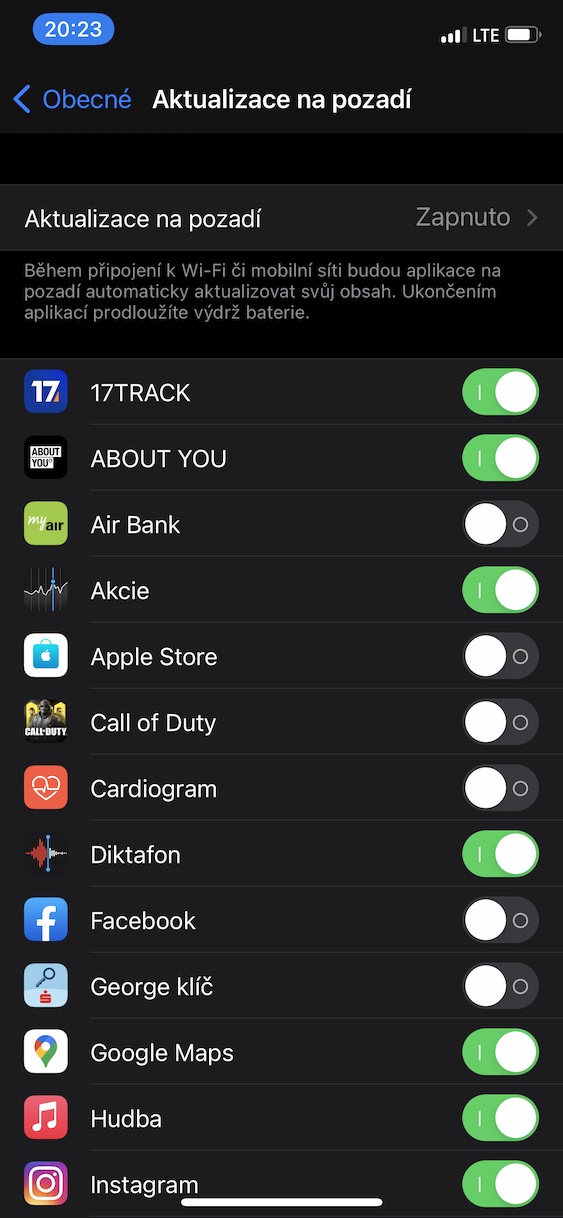
iPhone It performs countless different tasks in the background. Some are system-related, while others have to do with installed applications. Background data refresh can ensure that every time you open an application, the latest data is available in it. For example, if you open Weather, you will see the latest forecast data, all thanks to background data refresh. If you disable this feature, the forecast will only be activated after you open the application, so you have to wait for some time for the latest data. On the other hand, disabling it will also speed up iOS 15, as the system will be able to use hardware resources differently. To disable background data refresh, go to Settings -> General -> Background Updates. Click on the box here Background updates, and then the function disable completely. If possible, you can partly disable this function u individual applications below.
Gallery
Turn off automatic installation of app updates
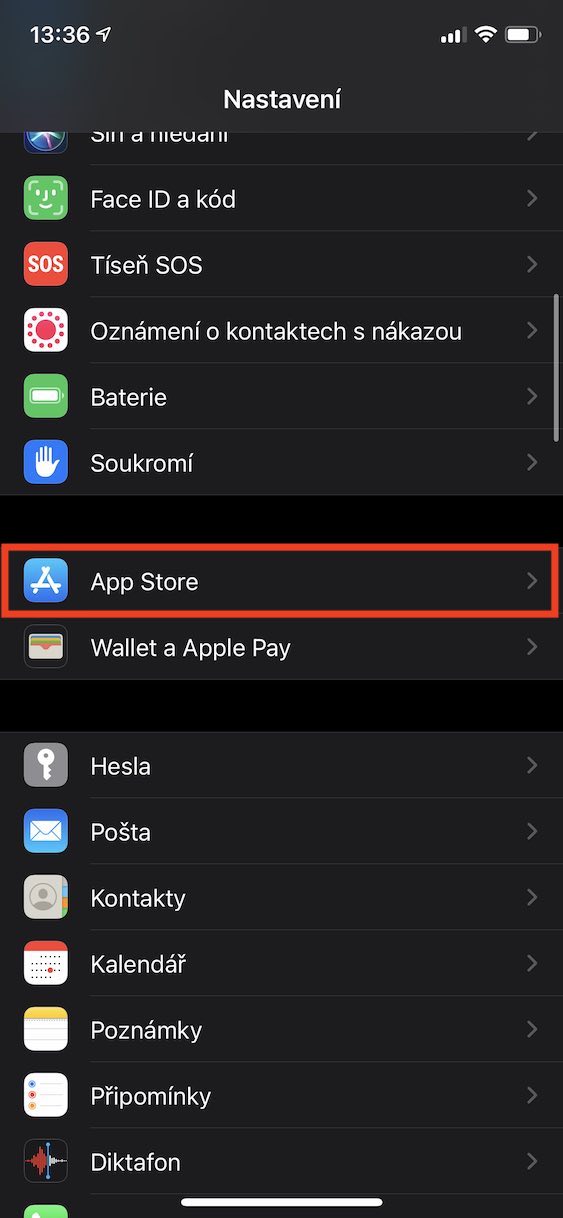
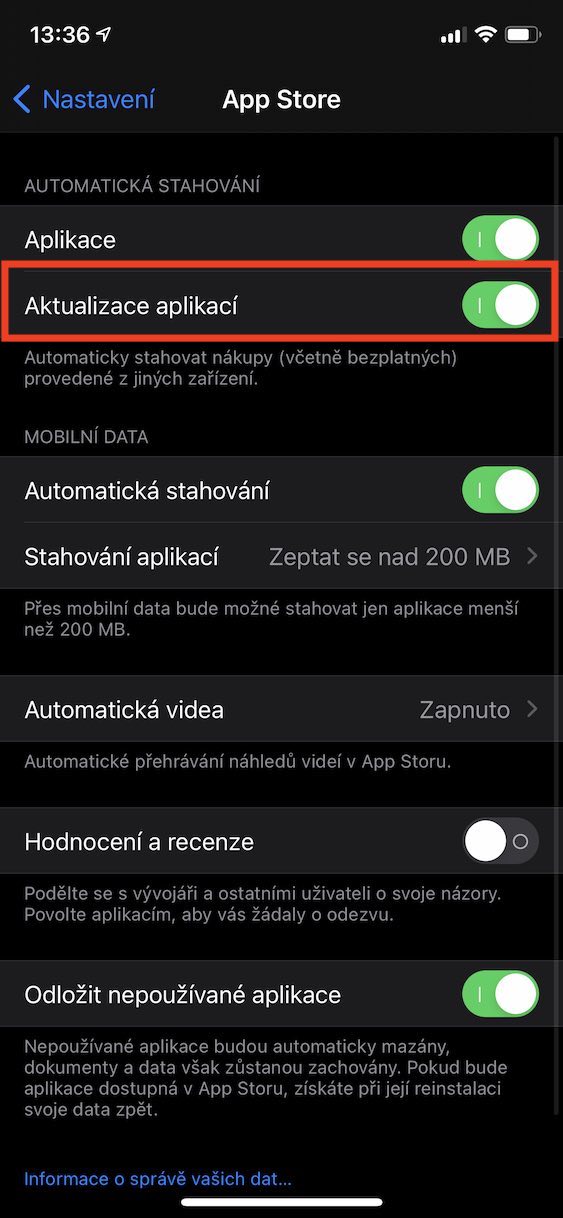
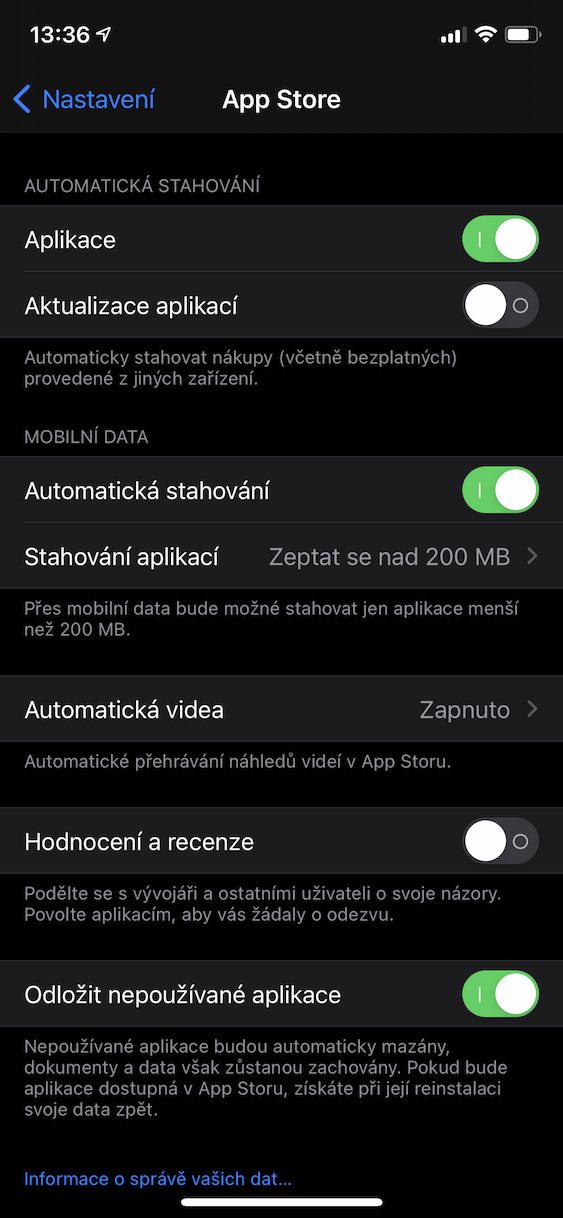
Absolutely every iPhone user (not only) should always update everything they can as quickly as possible. By this we mean primarily the operating system itself. iOS, along with the applications themselves. If you do not update them, you may find yourself in various security problems. In addition to new features, updates also include fixes for various security bugs. On the other hand, if application updates are checked in the background, this can cause a greater load on hardware resources, which can subsequently lead to system freezes. If you want to install all application updates manually, go to Settings -> App Store, where using the toggle in the Automatic Downloads category disable App Updates.
Clear the RAM
If you have ever owned a smartphone with the Android operating system, you probably had a special utility available that allowed you to free up RAM and make your device lighter and faster. iOS you would search in vain for this option to clear RAM in any application or utility. It might seem that it is not possible to clear RAM in this system. However, the opposite is true, although the procedure is a little more complicated and varies depending on whether you have iPhone s Touch ID, or Face ID.
iPhone s Touch ID
Pro cleaning RAM on iPhone with Touch ID Firstly hold the power button. Hold this button until it appears screen with sliders. On this screen subsequently hold down the home button, until it appears home screen with applications. This is how you can easily use your iPhone with Touch ID clear the RAM.
iPhone s Face ID
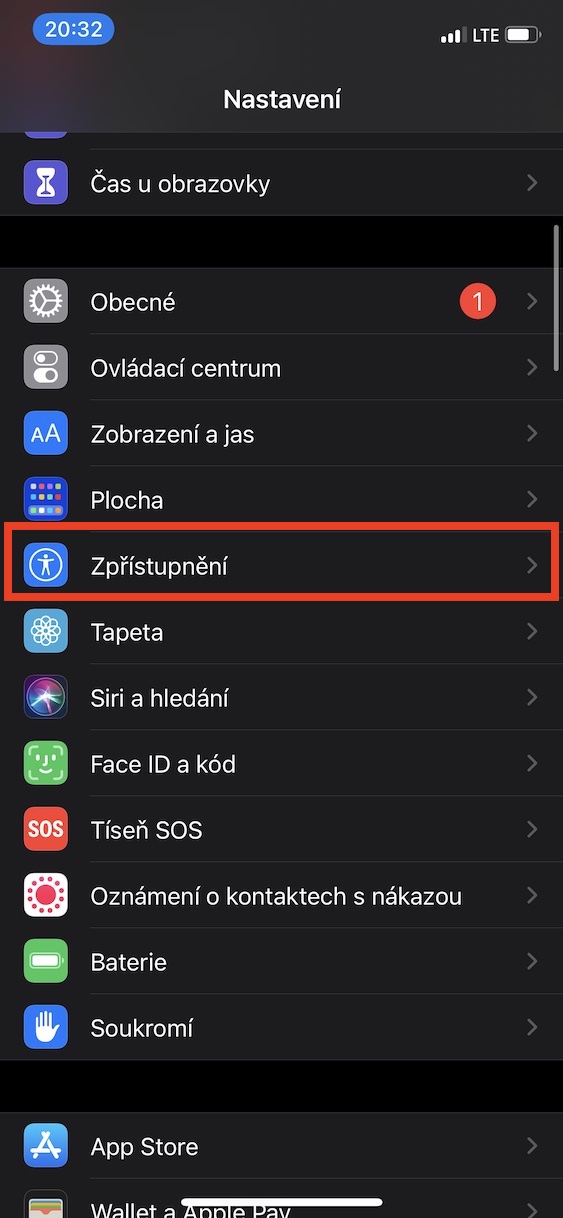
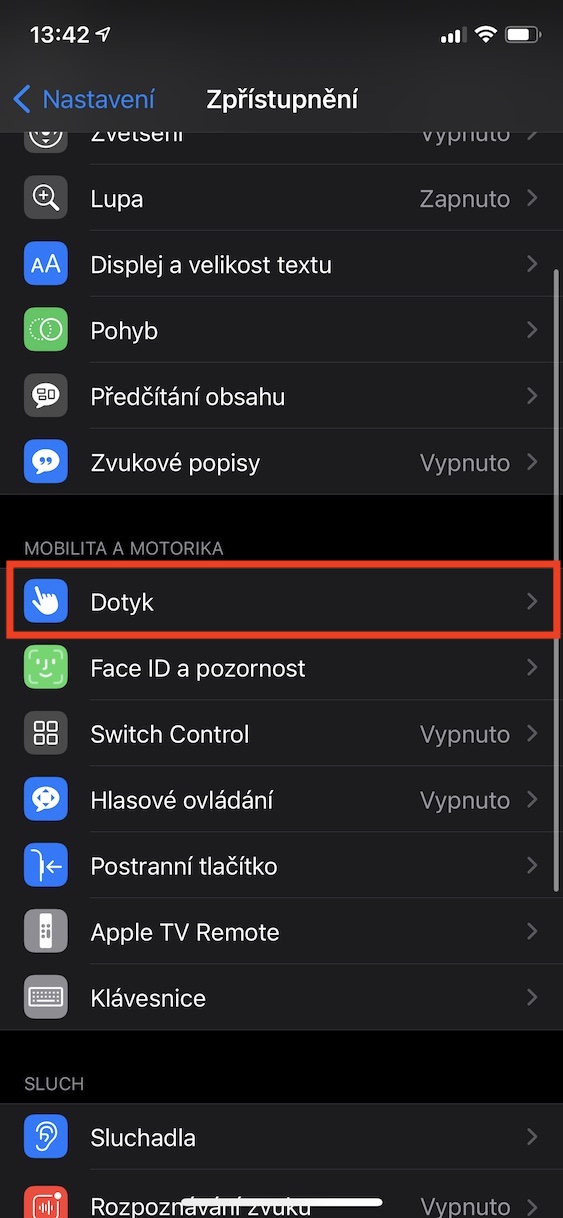
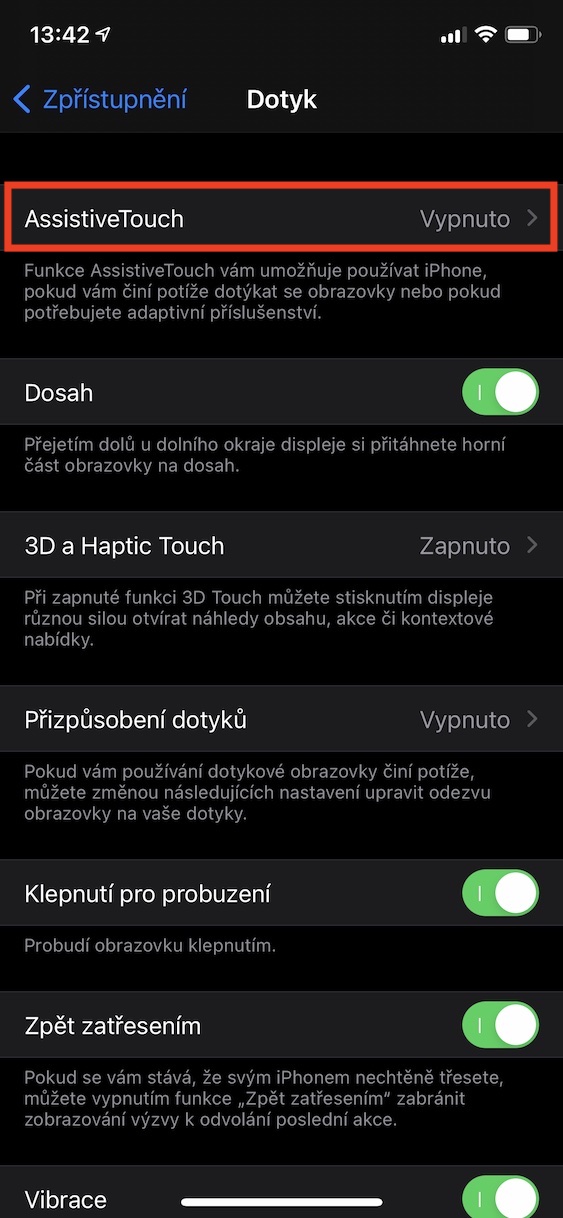
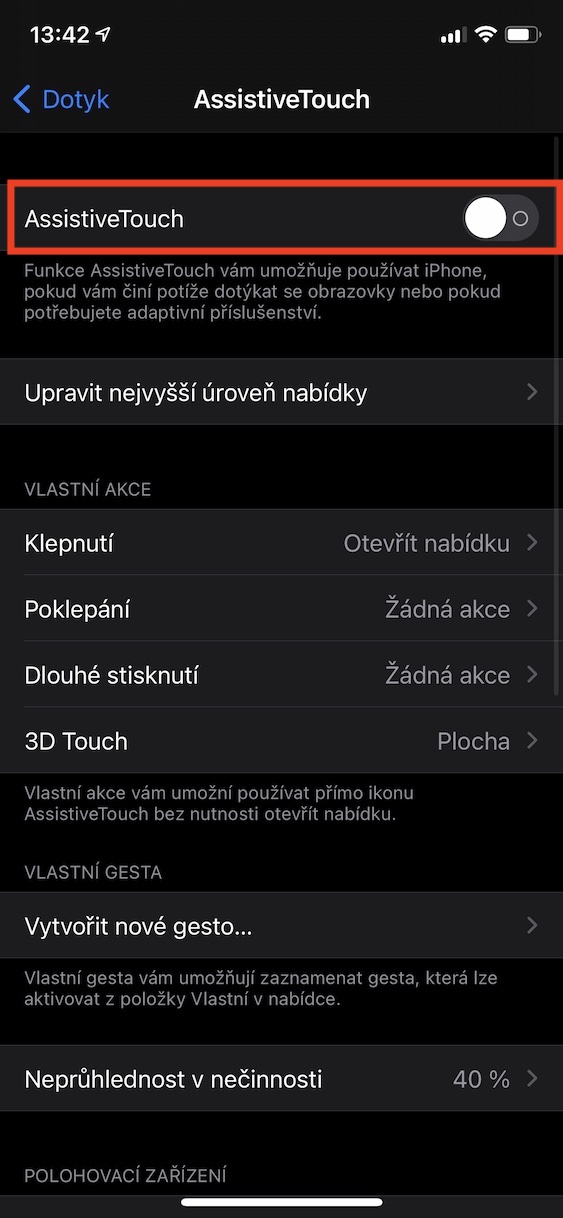
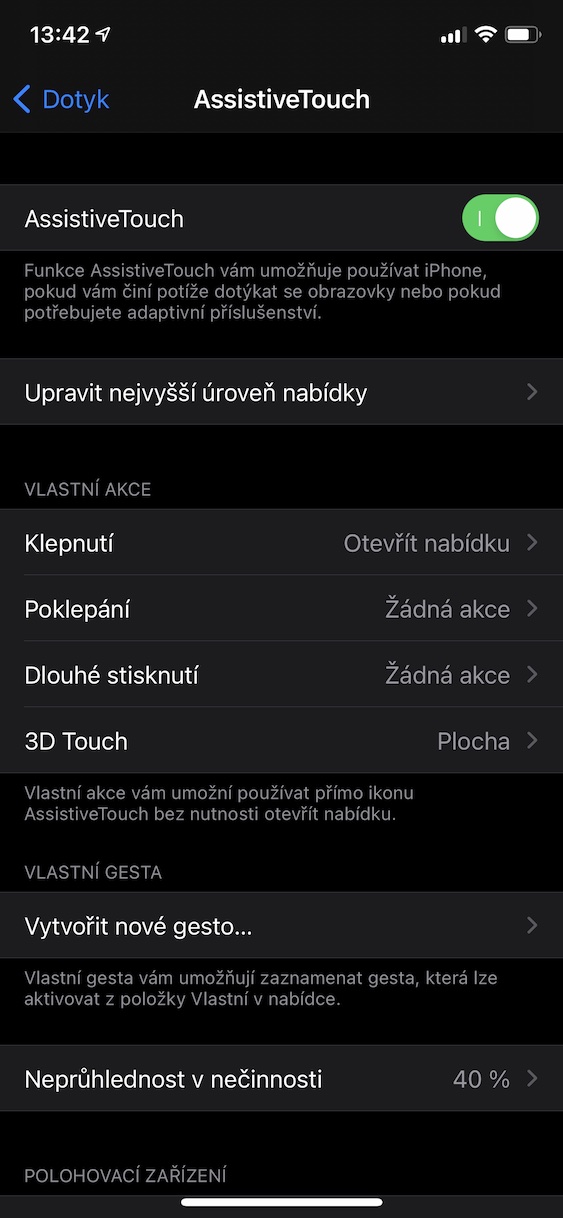
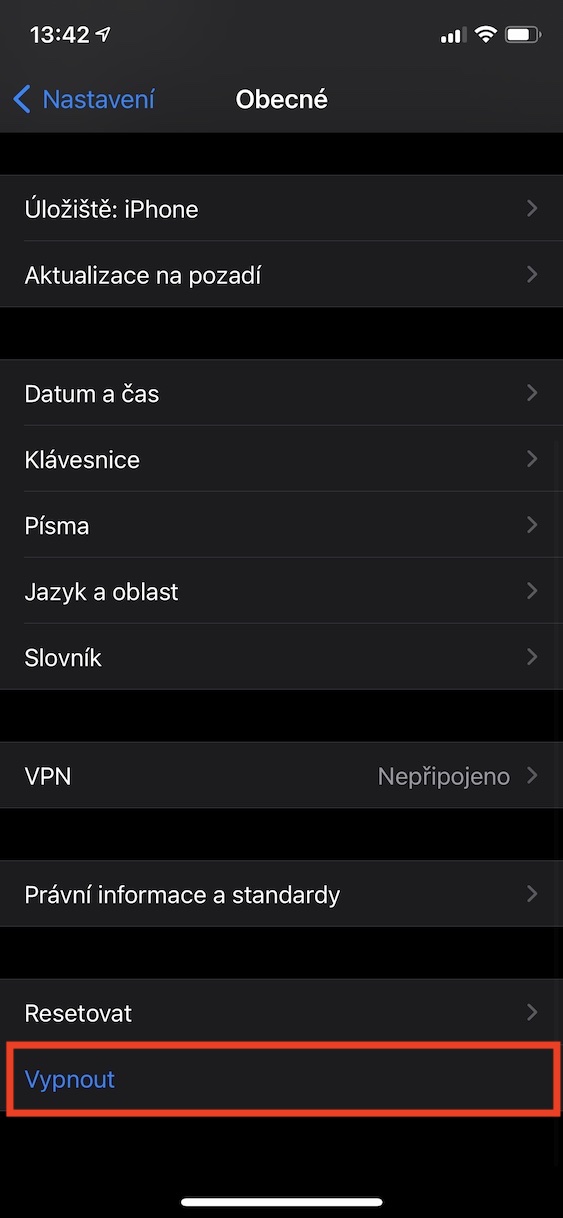
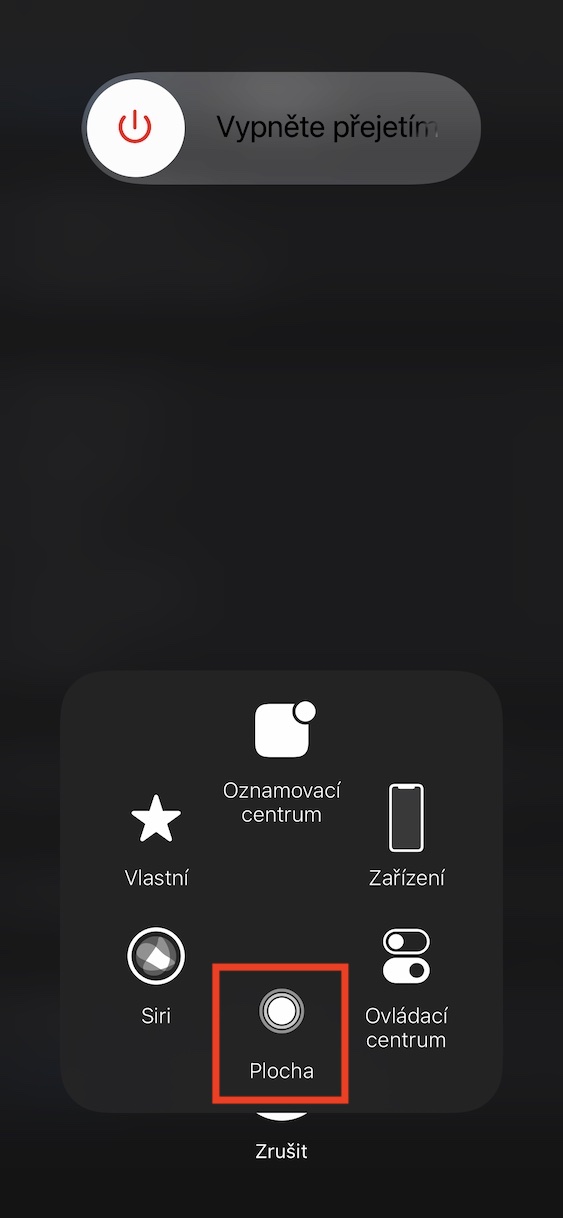
To use on iPhone with Face ID clear the RAM first activate Assistive Touch, by going to Settings -> Accessibility –> Touch -> AssistiveTouch. Then go to Settings -> General, where you tap on Turn off. Now click on the floating button AssistiveTouch and hold in it desktop button, until it appears home screen with applications. You have successfully cleared the RAM.
Gallery
Activate Limit movement
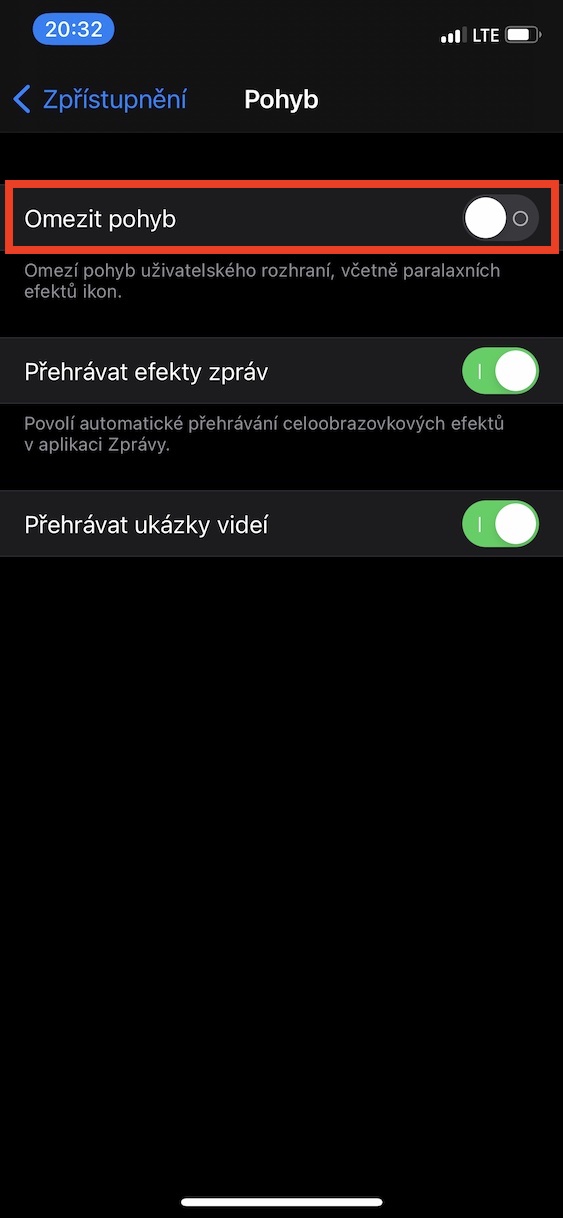
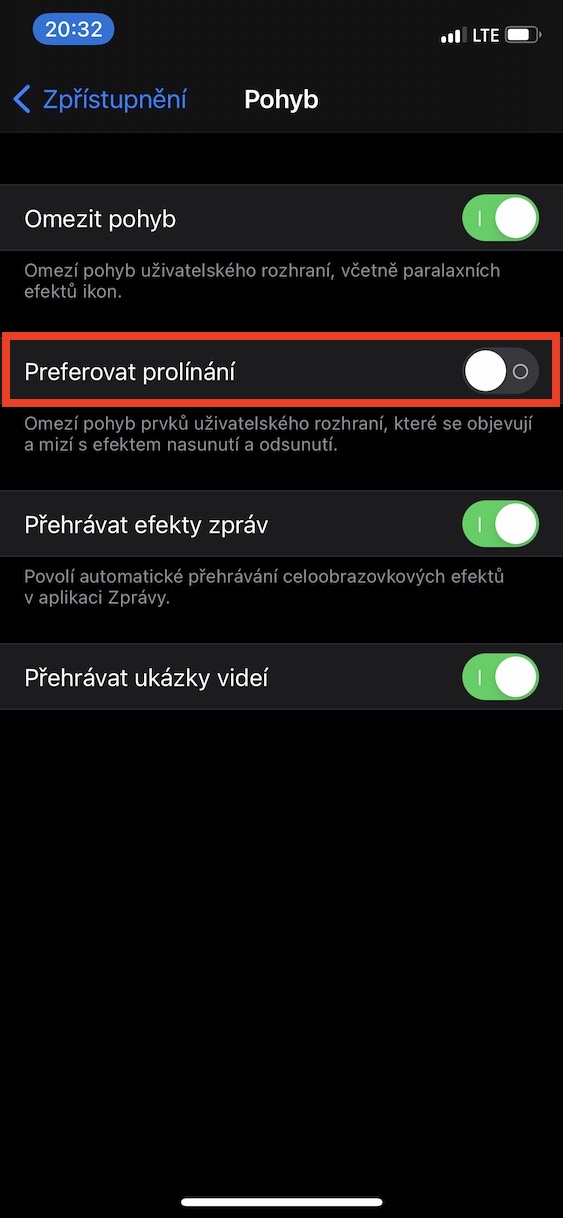
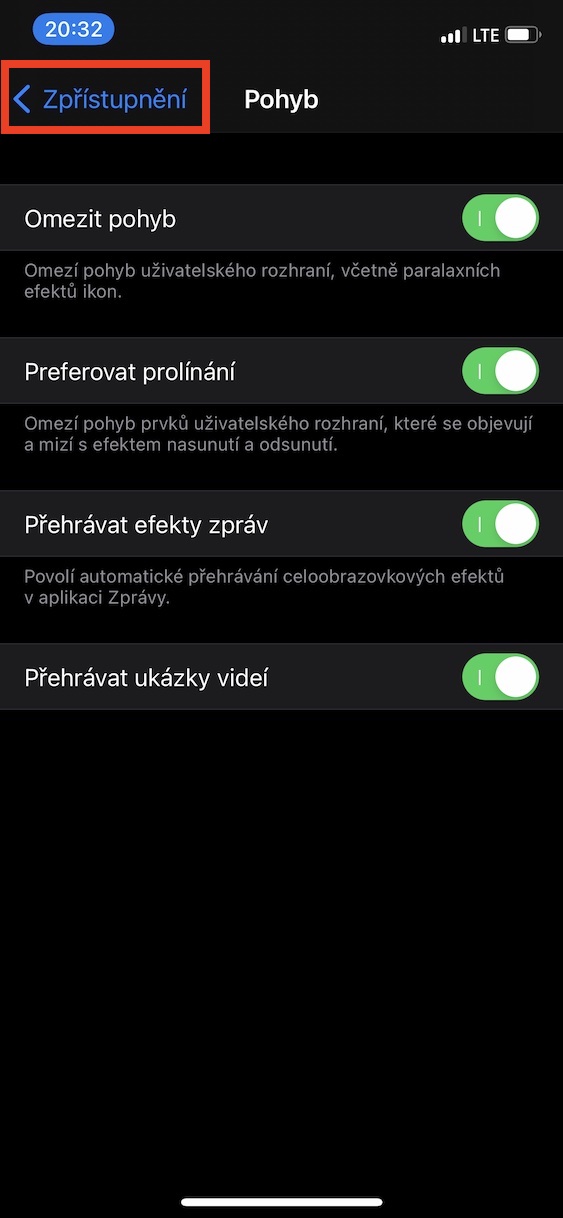
Navigating within the operating system iOS is simply pleasant. Everything is simple, elegant and graceful. Many of these features are also due to various effects and animations, which can be displayed, for example, when leaving the application, moving to the next page of the desktop or going home. However, the truth is that all these animations require a certain amount of performance to render, and they take some time to execute. So if you deactivate the effects and animations, the entire system will be significantly faster, which many users will appreciate. Pro To deactivate effects and animations, go to Settings -> Accessibility -> Motion, where activate Restrict movement, and then too Prefer blending.
Gallery
Turn on reduce transparency
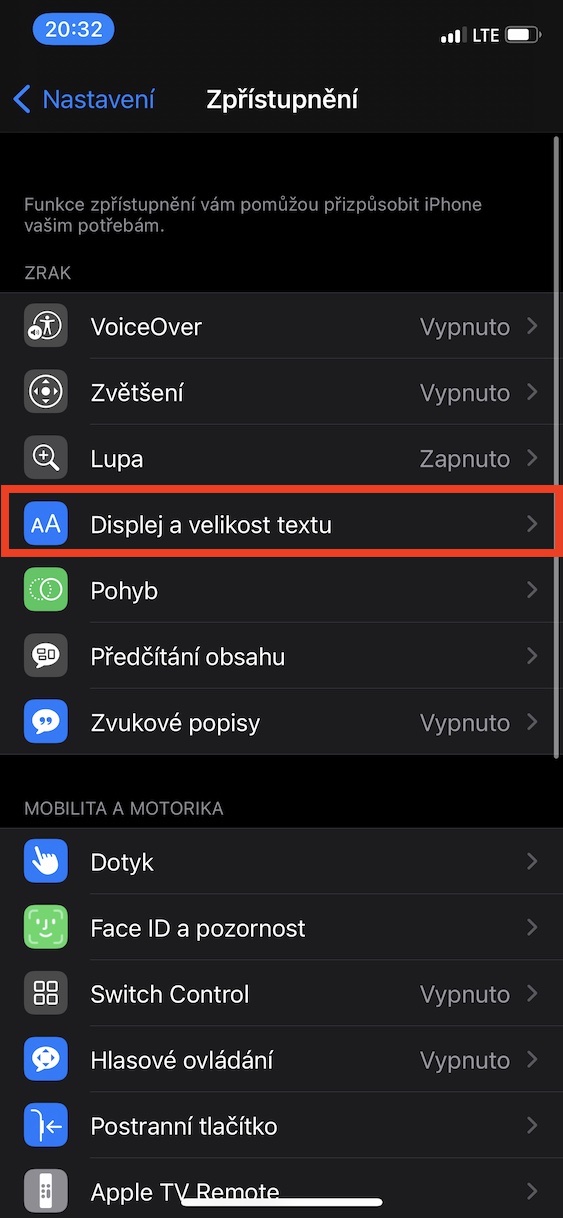
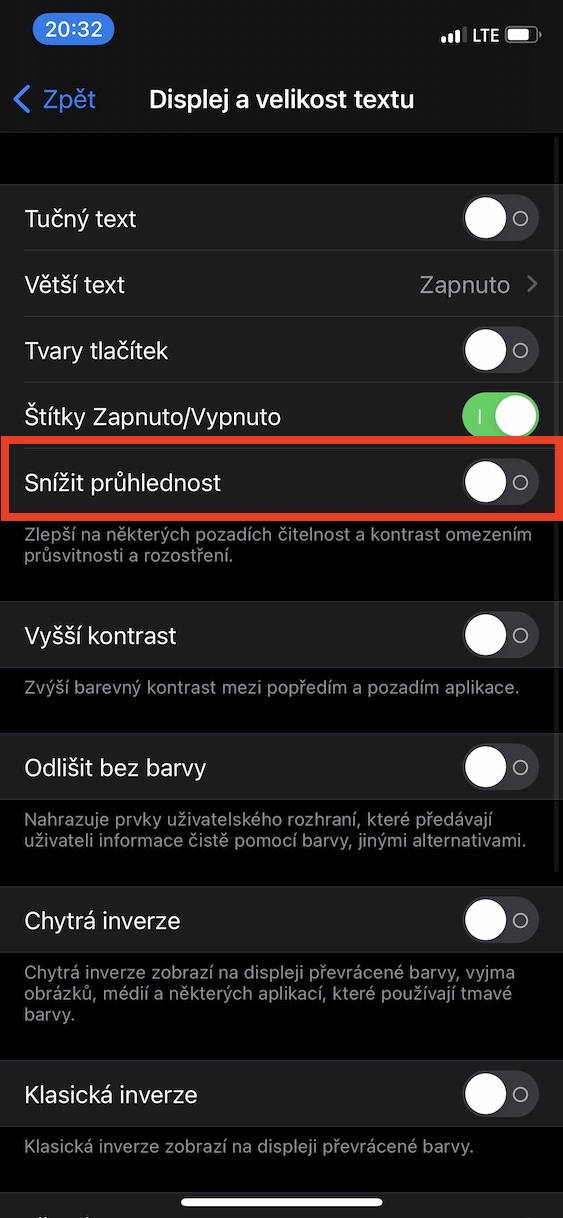
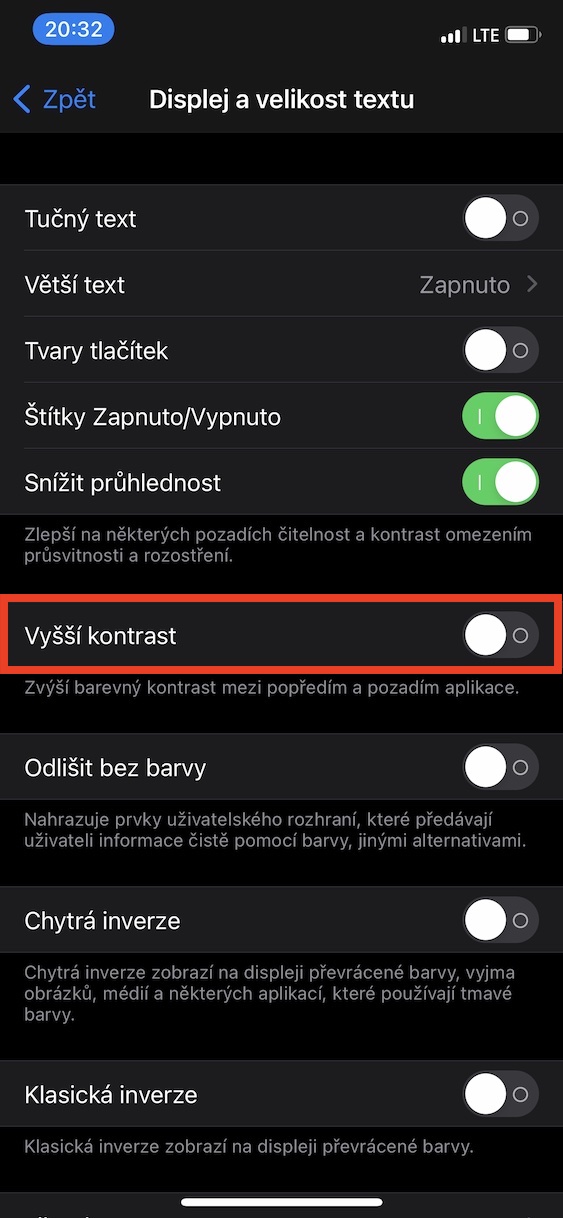
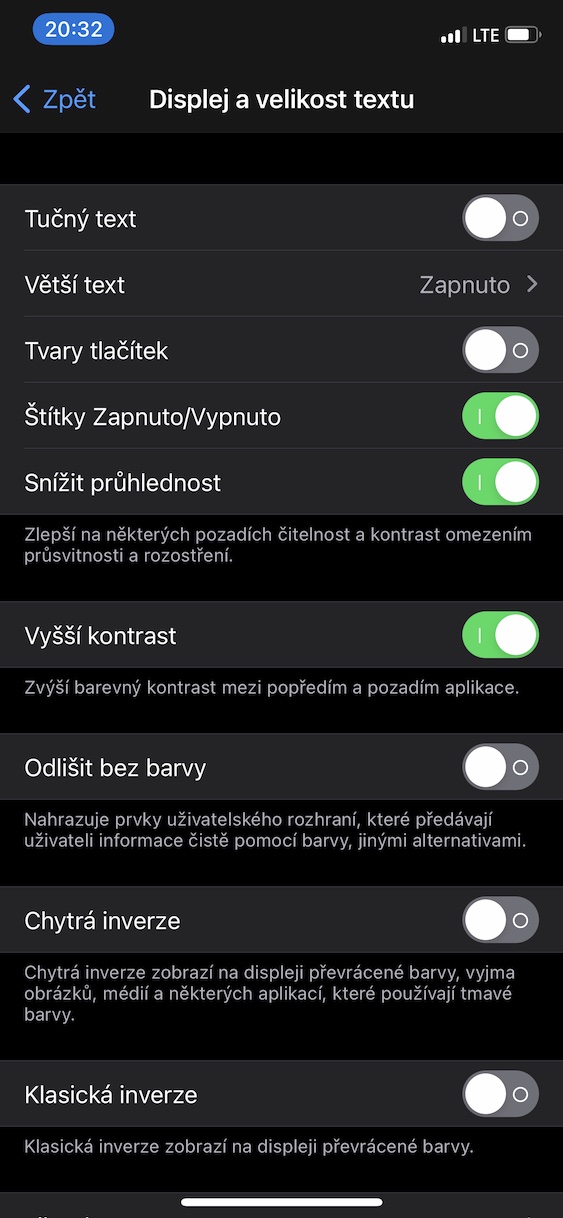
Prothrough the above procedure you were able to activate the Restrict Motion feature, which will disable animations and effects within iOSHowever, these "beautification" effects are iOS much more is available. We can mention, for example, the transparency that can be observed, for example, in the control or notification center and in other parts of the operating system iOS. Even displaying transparency requires a certain amount of power, which can be used for completely different processes. If you would like to disable transparency, just go to Settings -> Accessibility -> Display and text size, where using a switch enable Reduce Transparency.
Gallery


I know everything, but I didn't know how to clear the RAM... Does anyone know how it differs from restarting the phone by holding down the HomeButton+PowerButton (iP-6s)? Thanks
I didn't know about clearing the RAM either, BUT: isn't there a different way to do it? If I follow the described procedure, of course I end up having to enter the unlock code (and then the home screen). And when I complete it, widget What shows me free RAM doesn't see any free memory :(. To iOS I had the luxury of 13 appto, Apple but he cut her…
You can also hold down the power button and then hold down the cross.