How to speed up a Mac might be of particular interest to users of older Apple computers. But the truth is that even the newest machines can become slow in certain cases. There are a number of different ways you can speed up your Mac - some are very simple, while others are quite complex. In this article, we have prepared for you 5 tips and tricks for speeding up your Mac, which both really work and which you can do very easily.
You might be interested in

Disk repair
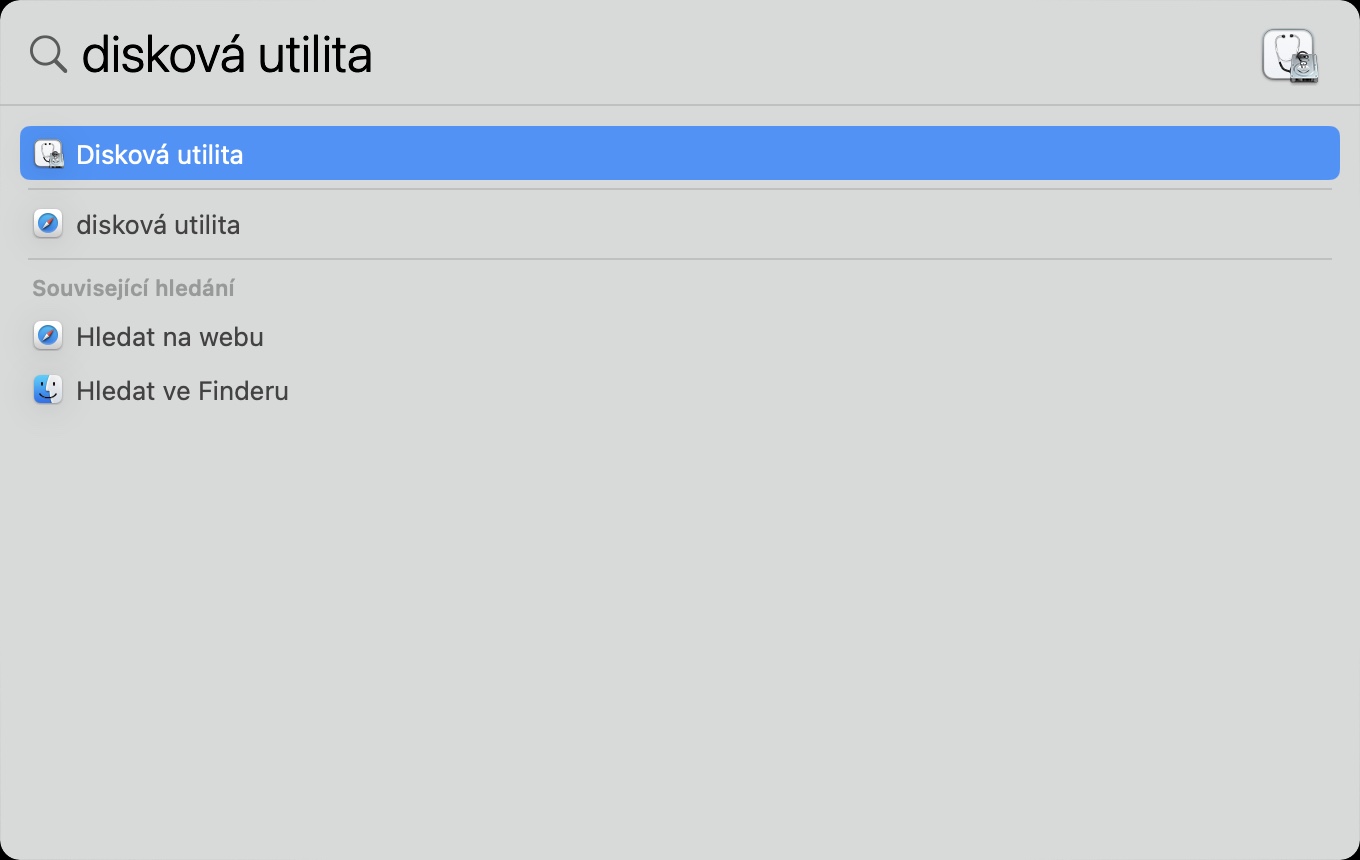
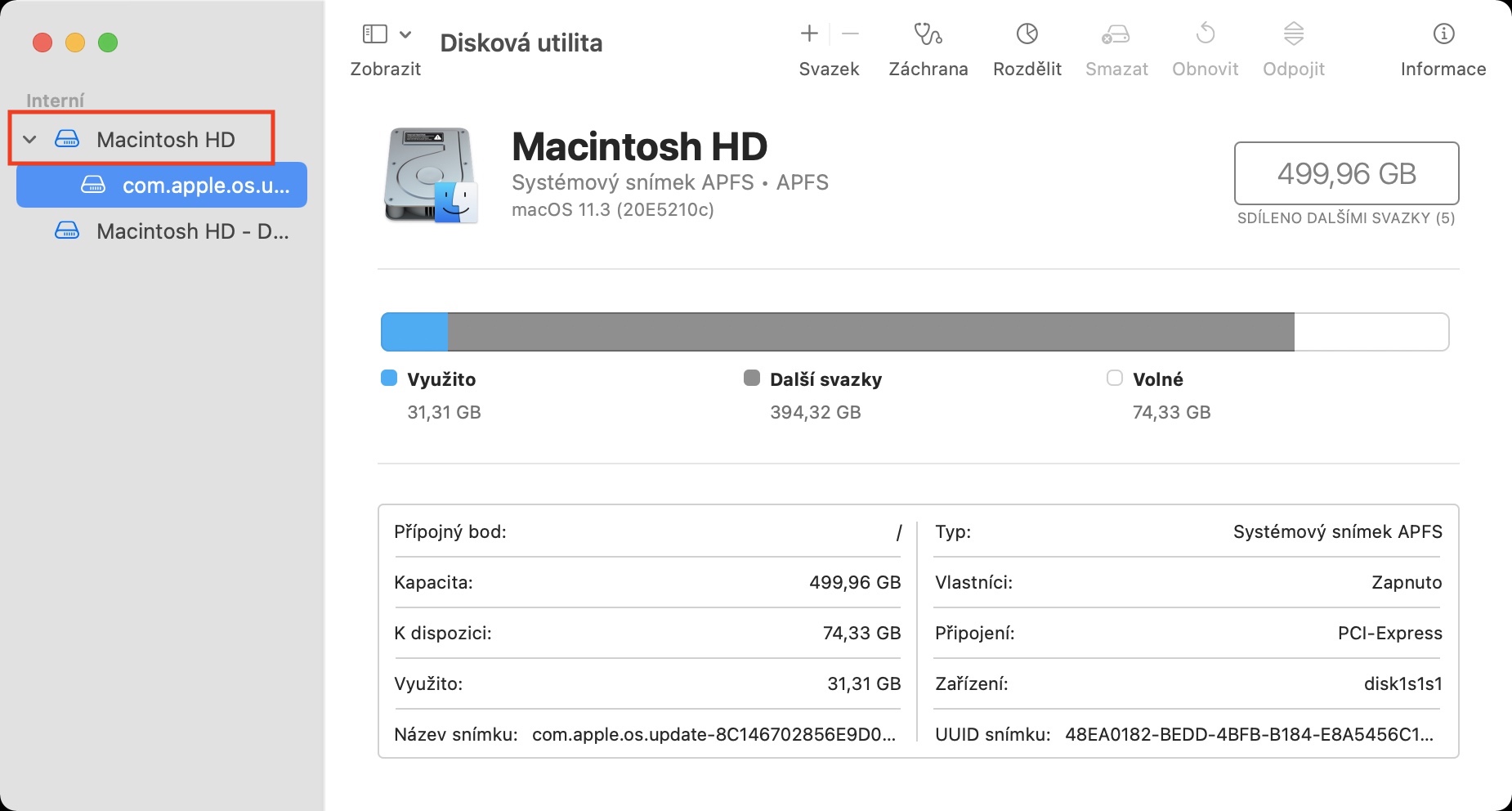
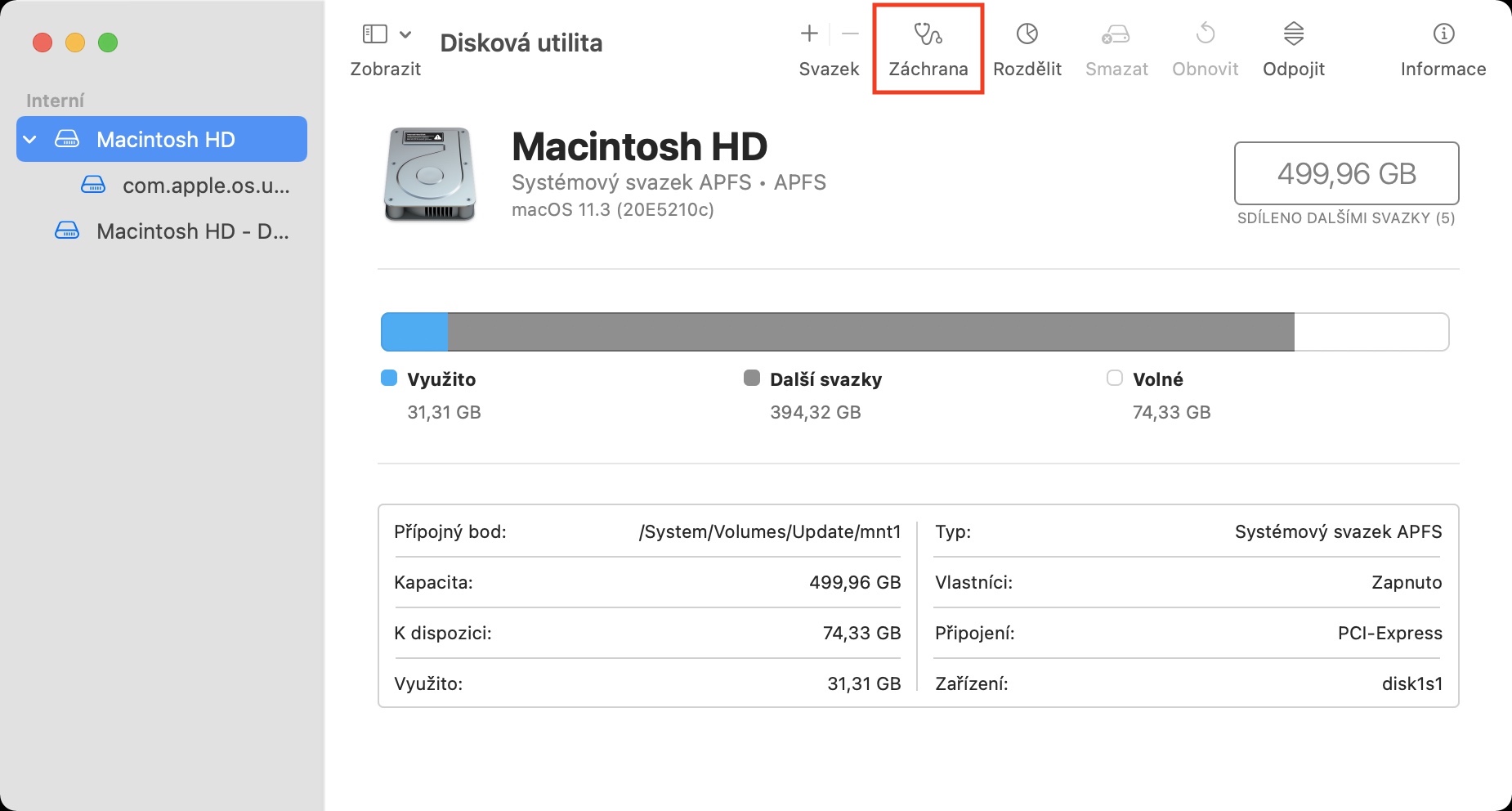
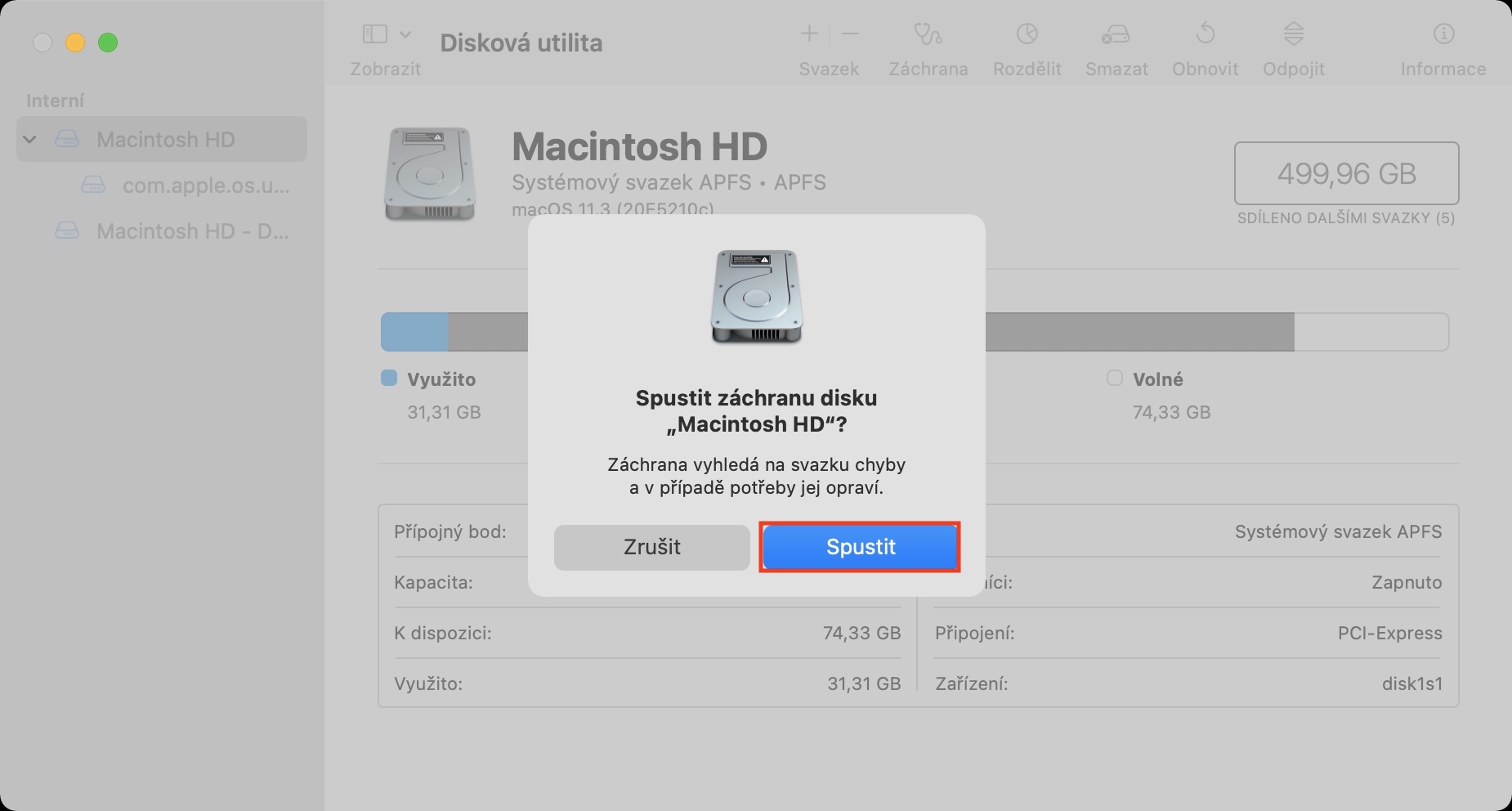
Does your Mac occasionally freeze up for a while or shut down completely? If you answered yes to this question, then disk errors may be to blame. The good news is that you can perform a simple disk repair that will get your Mac running like clockwork again. Repairing a disk doesn't take long and is the least you can do. You can repair a disk by opening the Disk Utility application, then left-clicking on the disk you want to repair - in our case, the internal one. Then select the Rescue option in the toolbar and confirm it in the dialog box. If you can't get into your Mac at all, you can actually boot the disk from macOS Recovery mode.
Gallery
Deleting unnecessary files
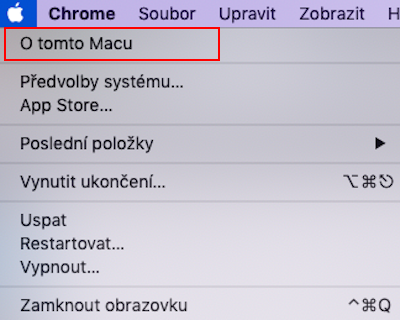
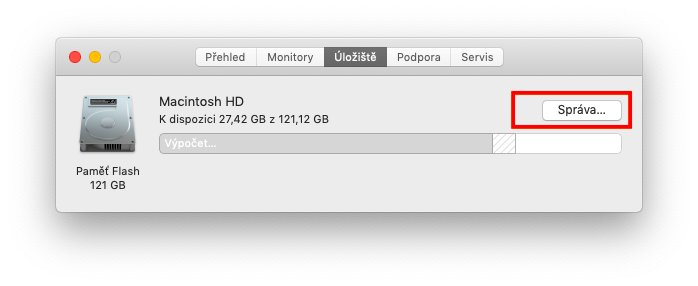
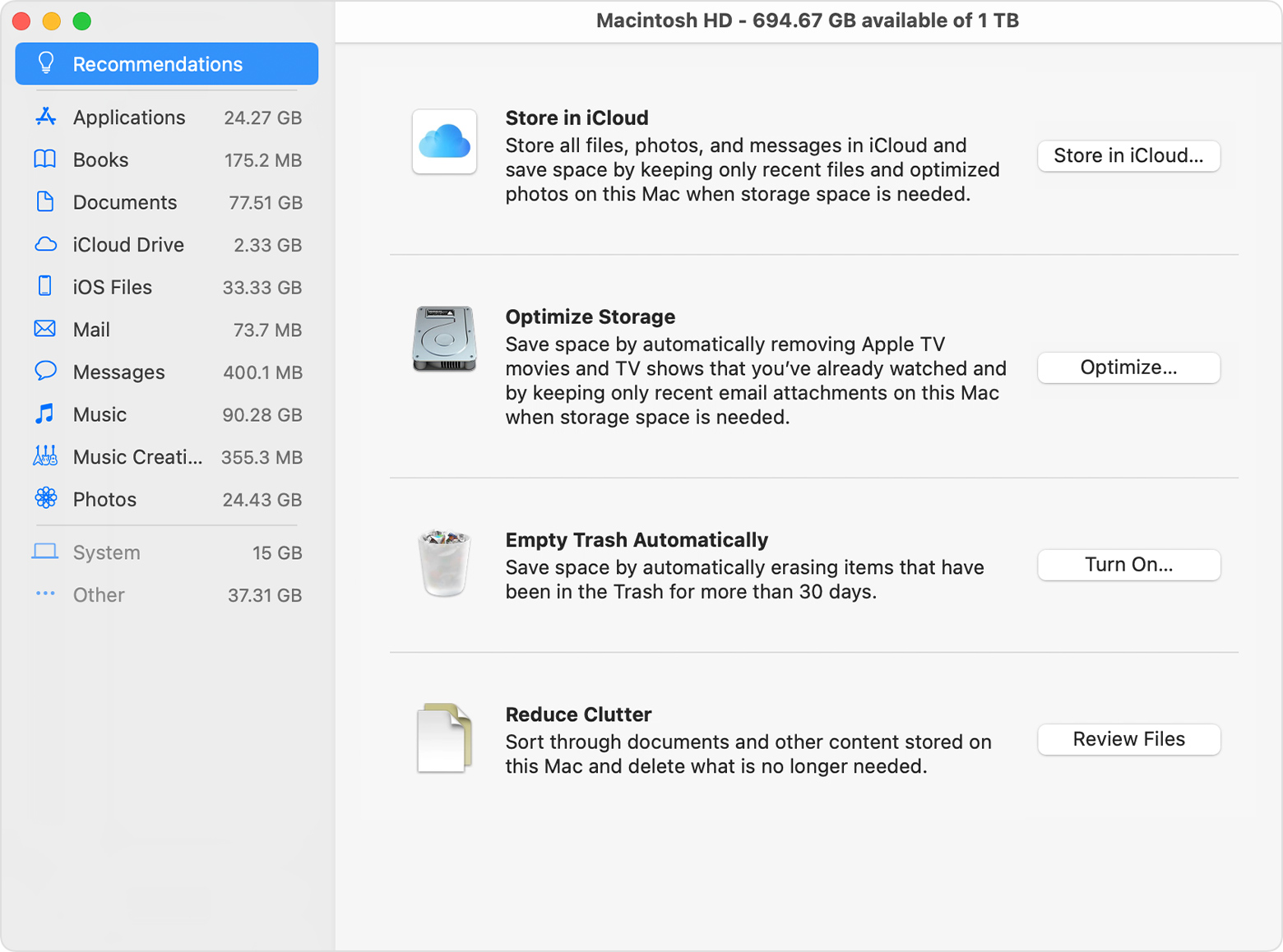
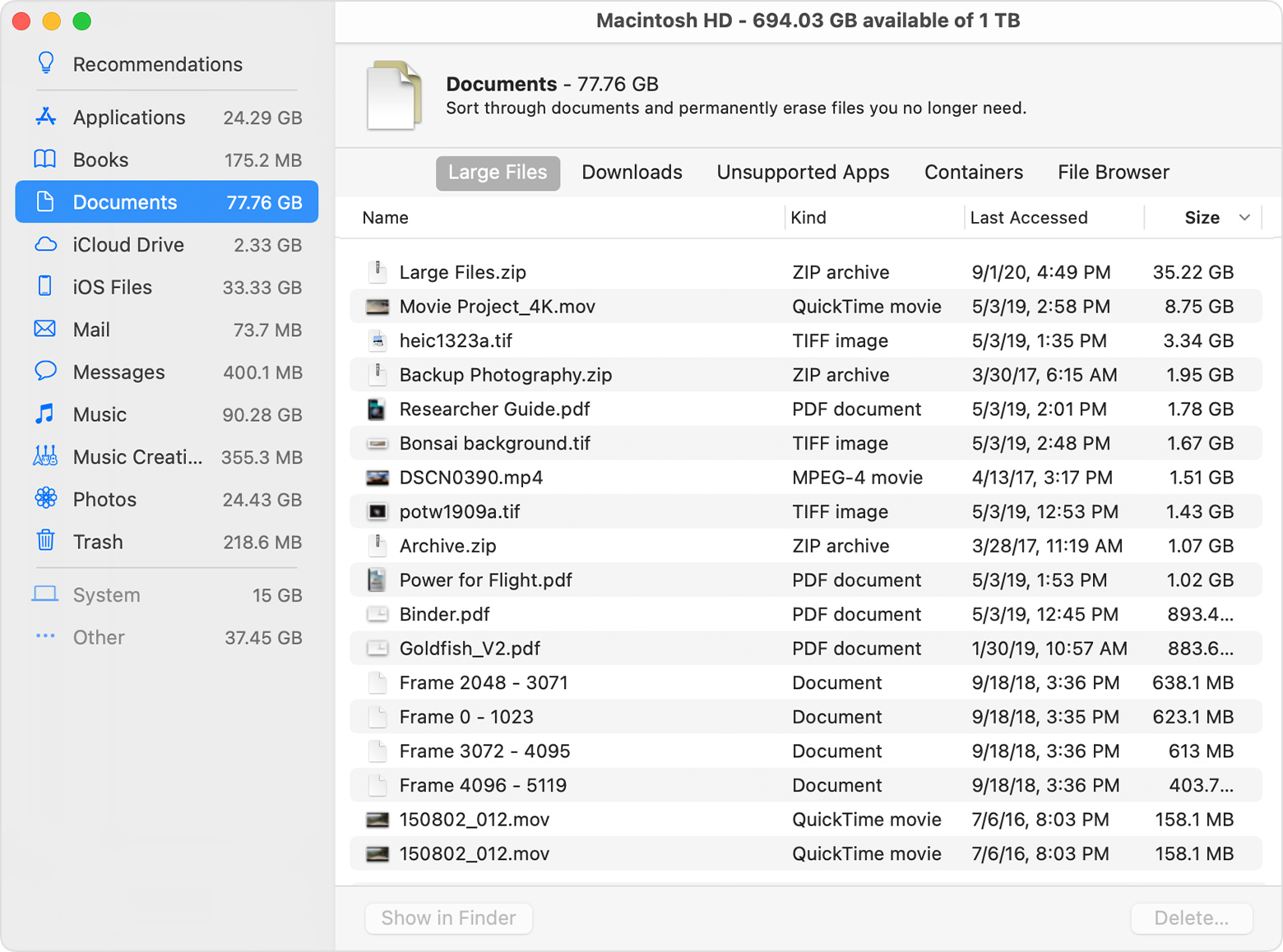
If you decide to buy a new Apple computer now, you will get fast SSD storage with a capacity of 256 or 512 GB. This capacity is enough for most ordinary users, in any case, for moreoneIn the past, the basic configuration had a 128 GB SSD, which is definitely not much – on the contrary, especially nowadays it is very little. If your Mac is crashing for a long time, it may mean that the disk is full, which you will learn about through a notification, among other things. Freeing up the disk can be done using a simple utility – you can find it in -> About This Mac -> Storage -> Manage… This will open a new window where you can delete unnecessary data. You can use it doporucení on the home screen, by tapping on Documents you can then view the largest files on the disk.
Automatic updates
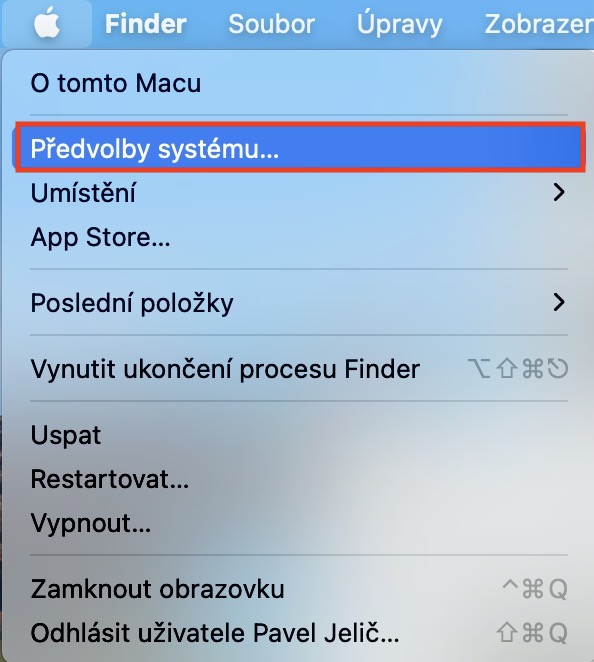
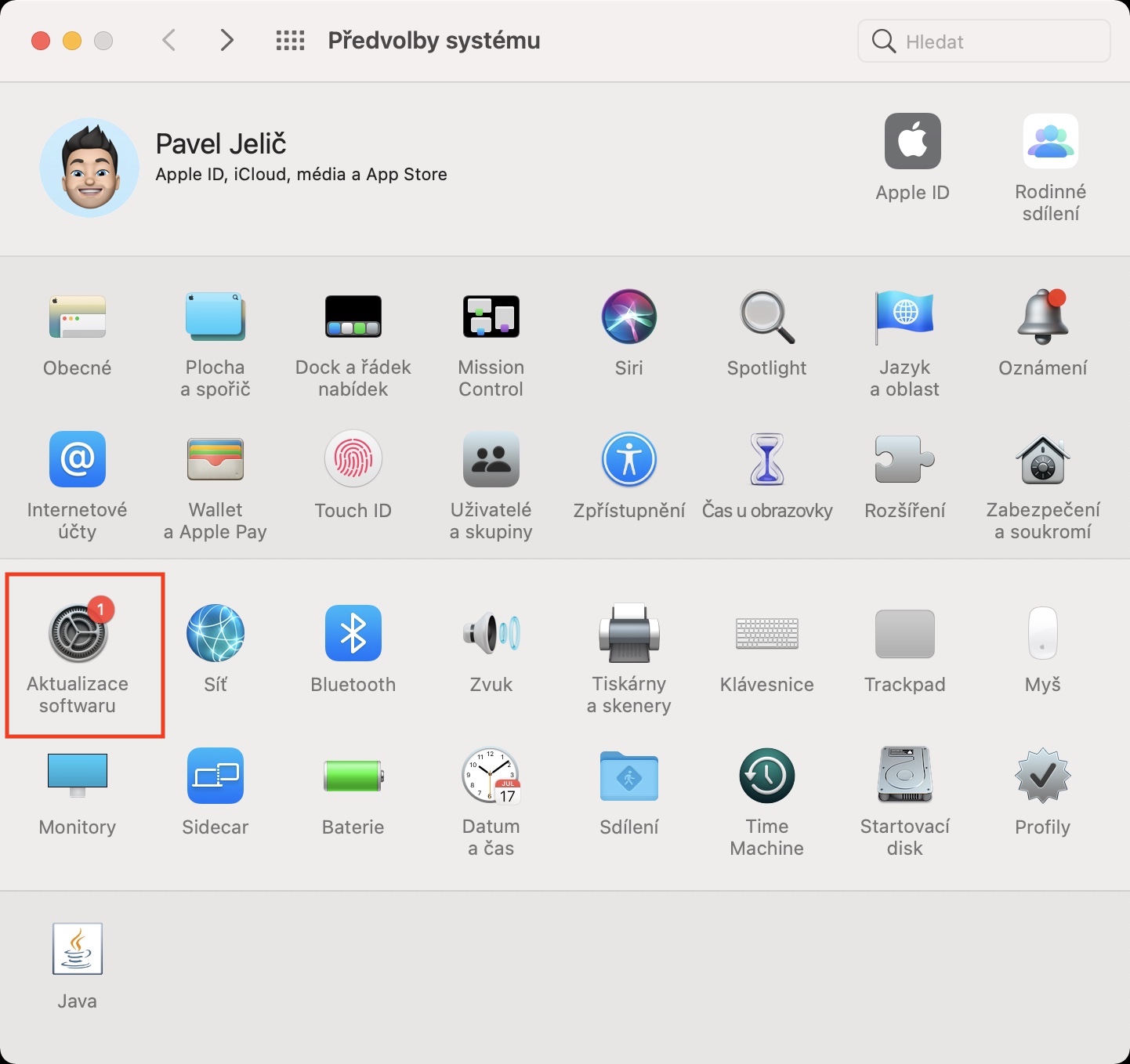
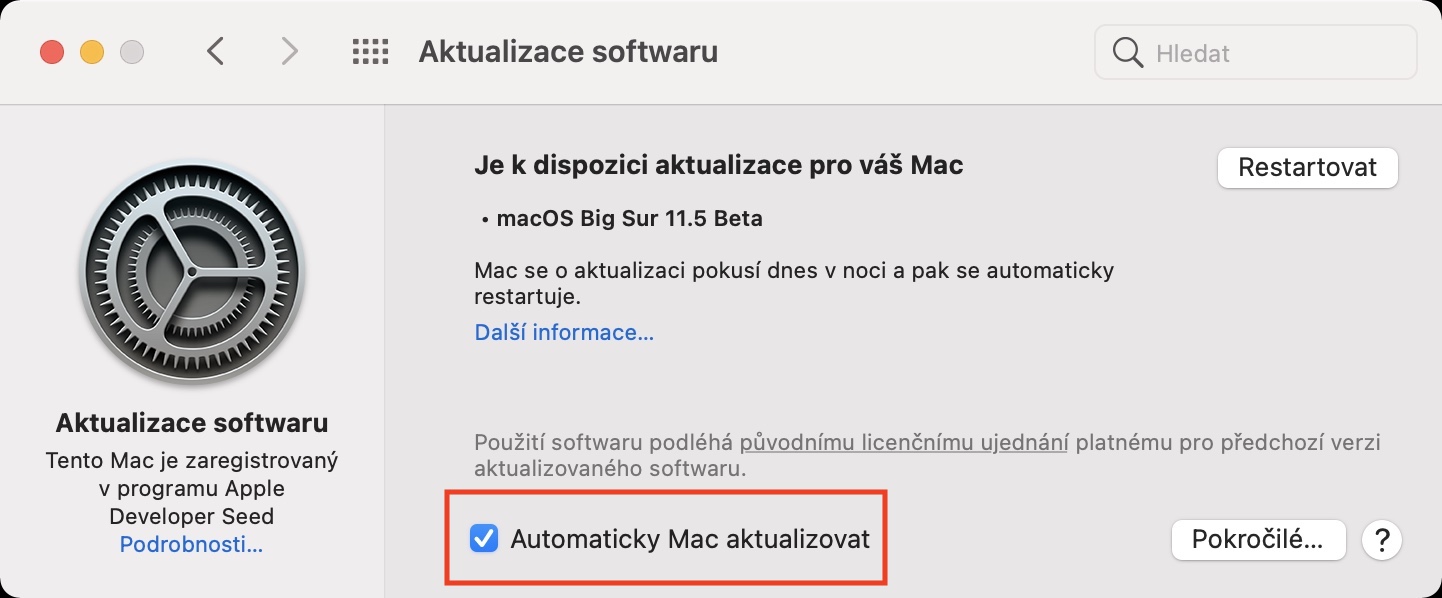
Some users, for incomprehensible reasons, do not update their Apple devices. In the case of Mac, I understand this only for developers who need to work with 32-bit applications that cannot be run since macOS 10.15 Catalina. However, if you are not a developer, there is no single good reason why you should not update. In addition to the fact that new versions of operating systems bring various improvements and new features, various bugs are also fixed. These bugs can, in the best case, slow down the system, in the worst case, you can get hacked because of them. To perform automatic updates, go to -> System Preferences -> Software Update, where you just need to check the option Automatically update Mac.
Re-indexing Spotlight
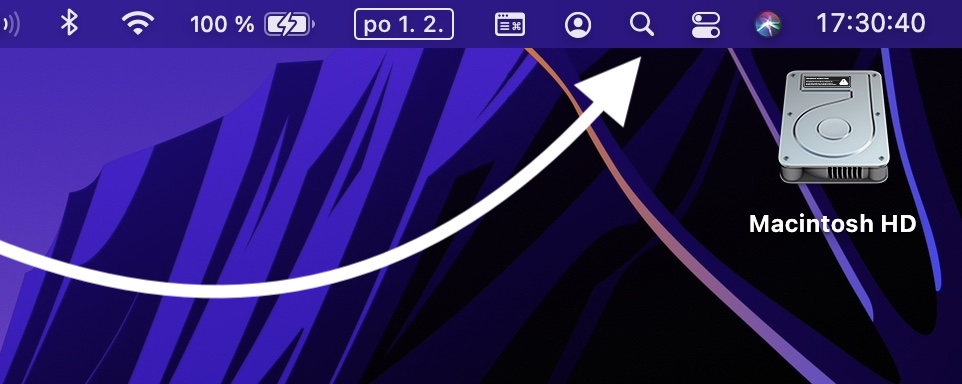
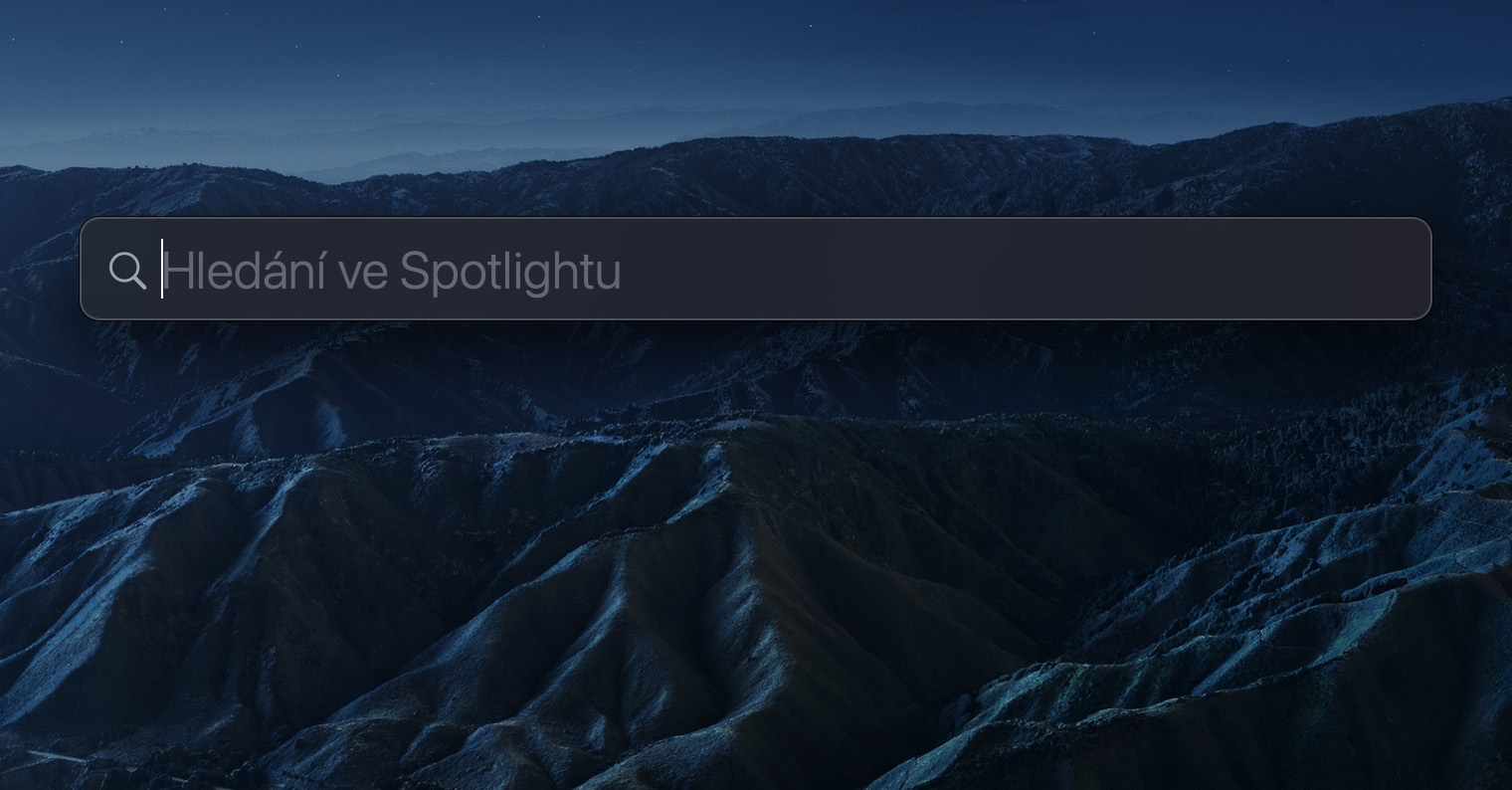
If you use your Mac to the fullest, you most likely use Spotlight as well. It is able to search for applications or files almost immediately, or it can serve as a calculator or converter. In order for Spotlight to display all the data quickly, it needs to know exactly where it is - and that's exactly why it performs indexing. So if your Mac is currently slow, try opening Spotlight and check if Spotlight indexing happens to be happening. In most cases, this process can take several long hours. However, if the indexing has not been completed even after a few days, then a hang could have occurred. In this case, it is necessary to start indexing again. The article I am attaching below will help you with this.
You might be interested in
Check apps after login
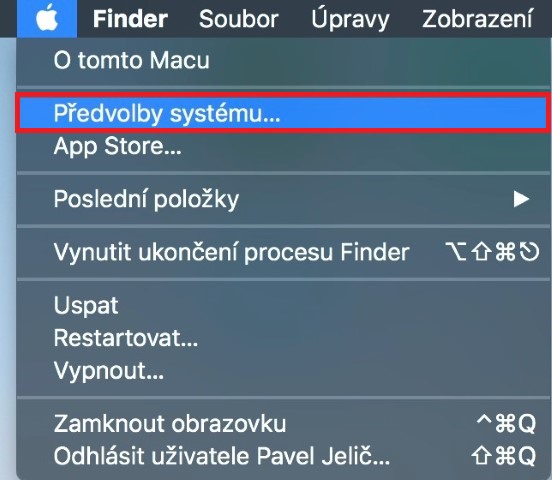
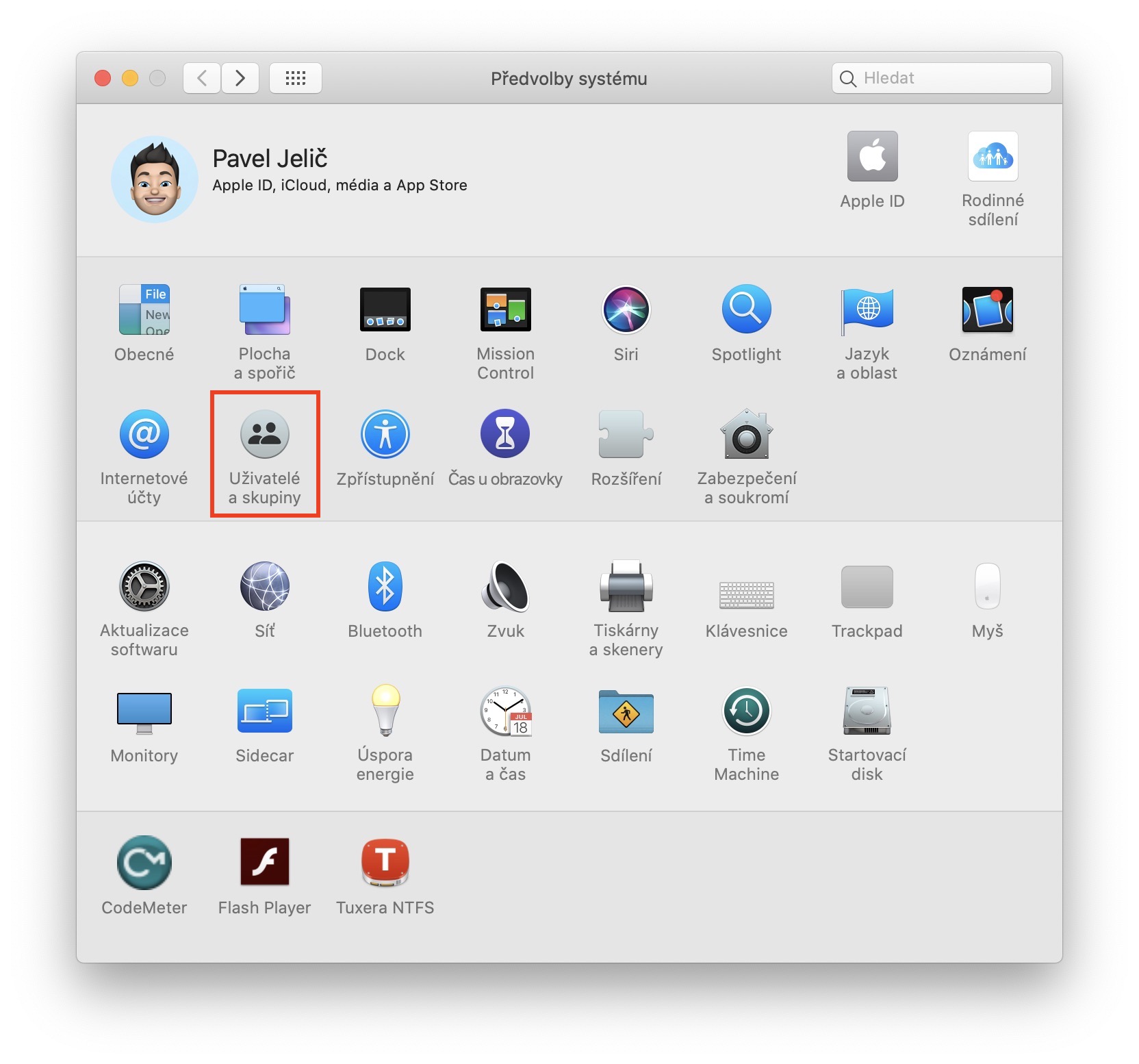
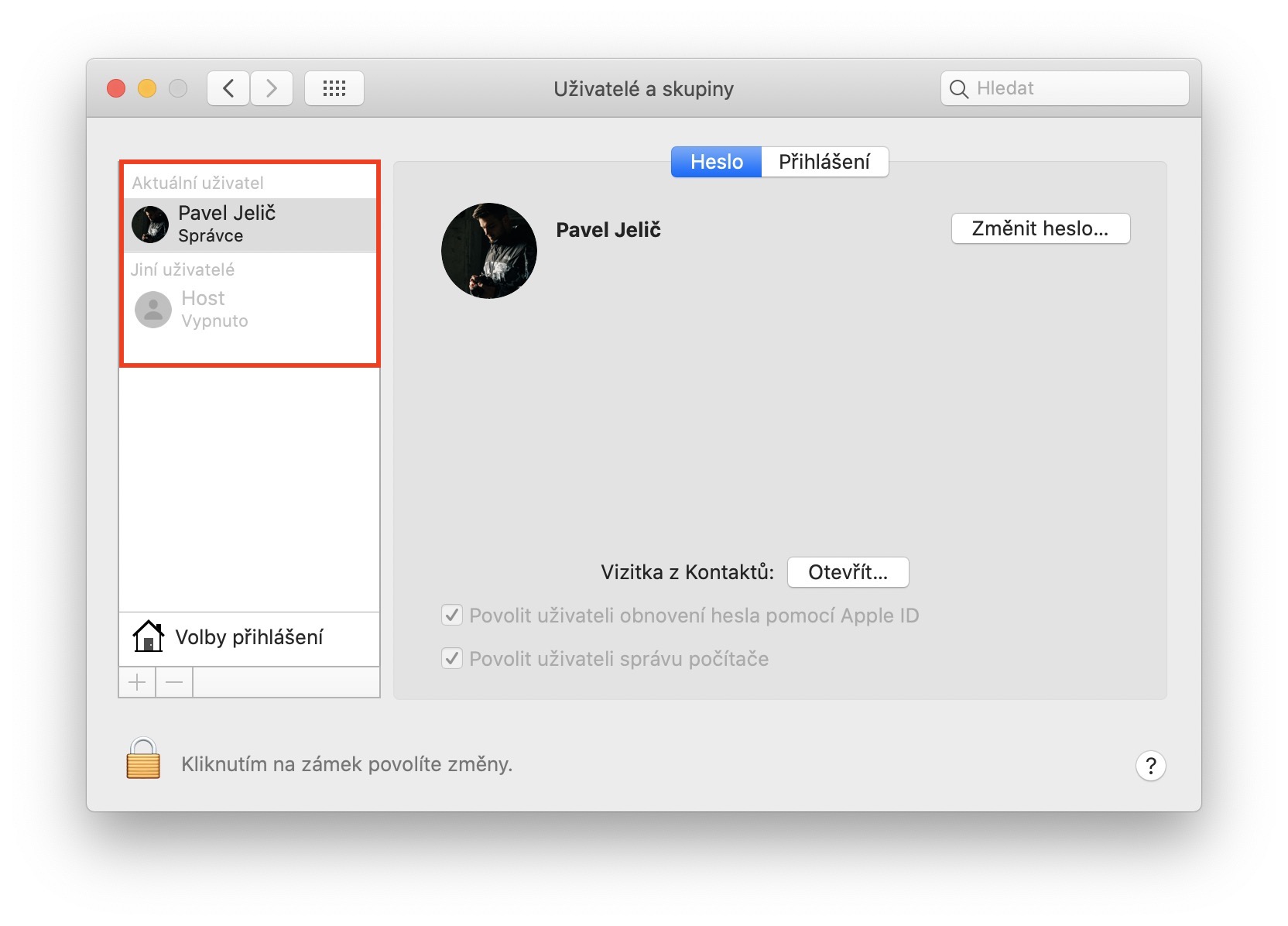
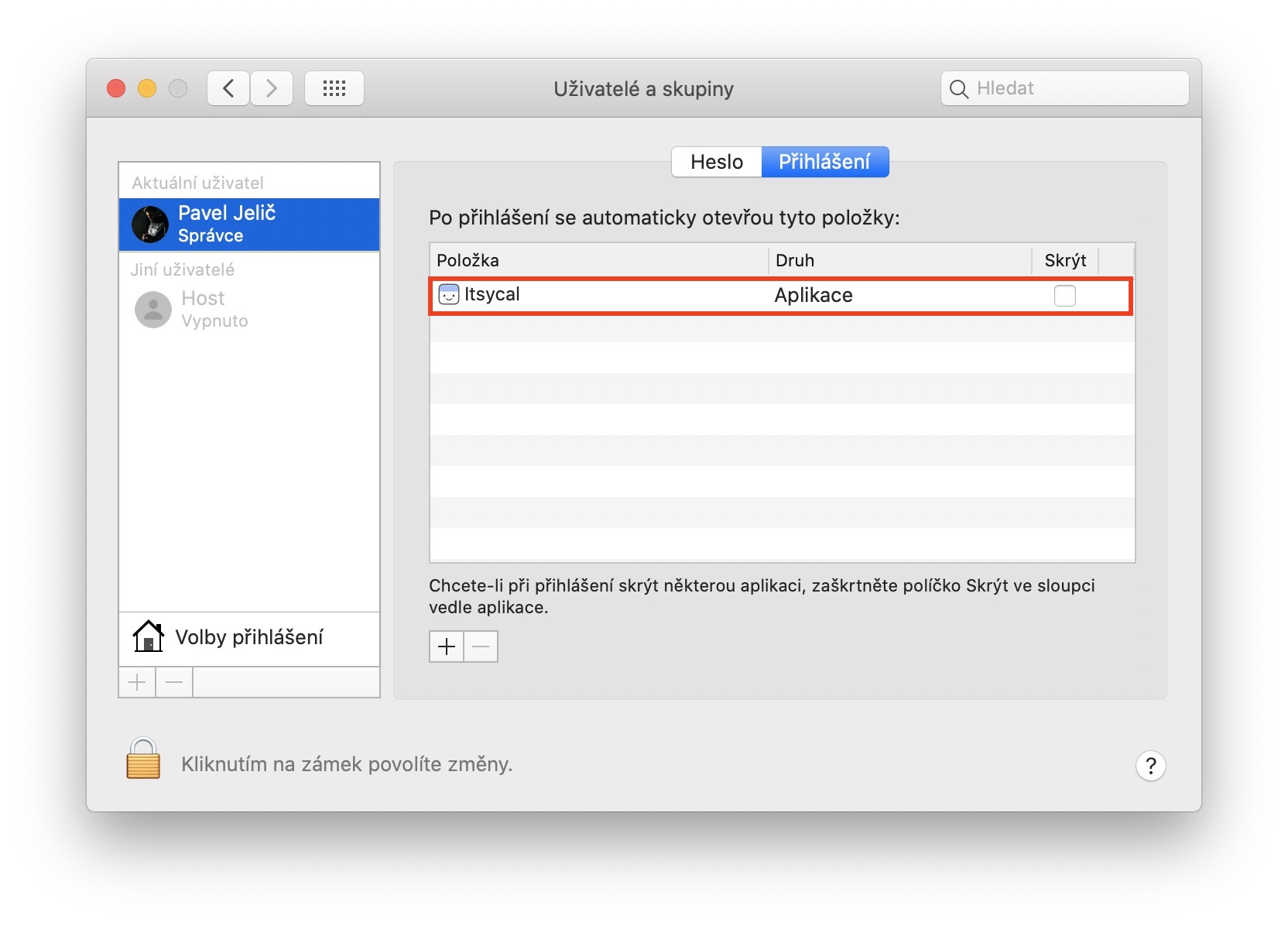
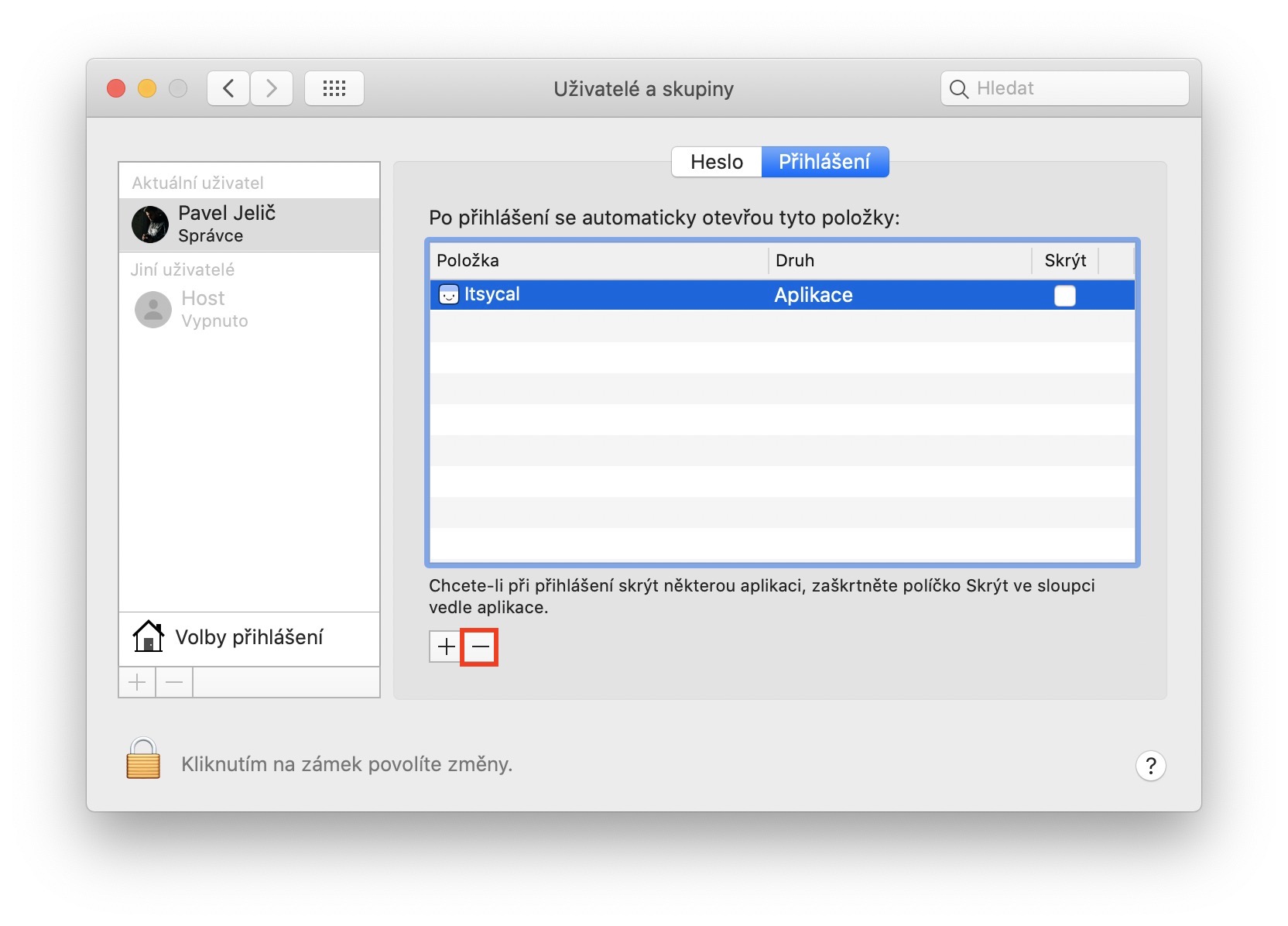
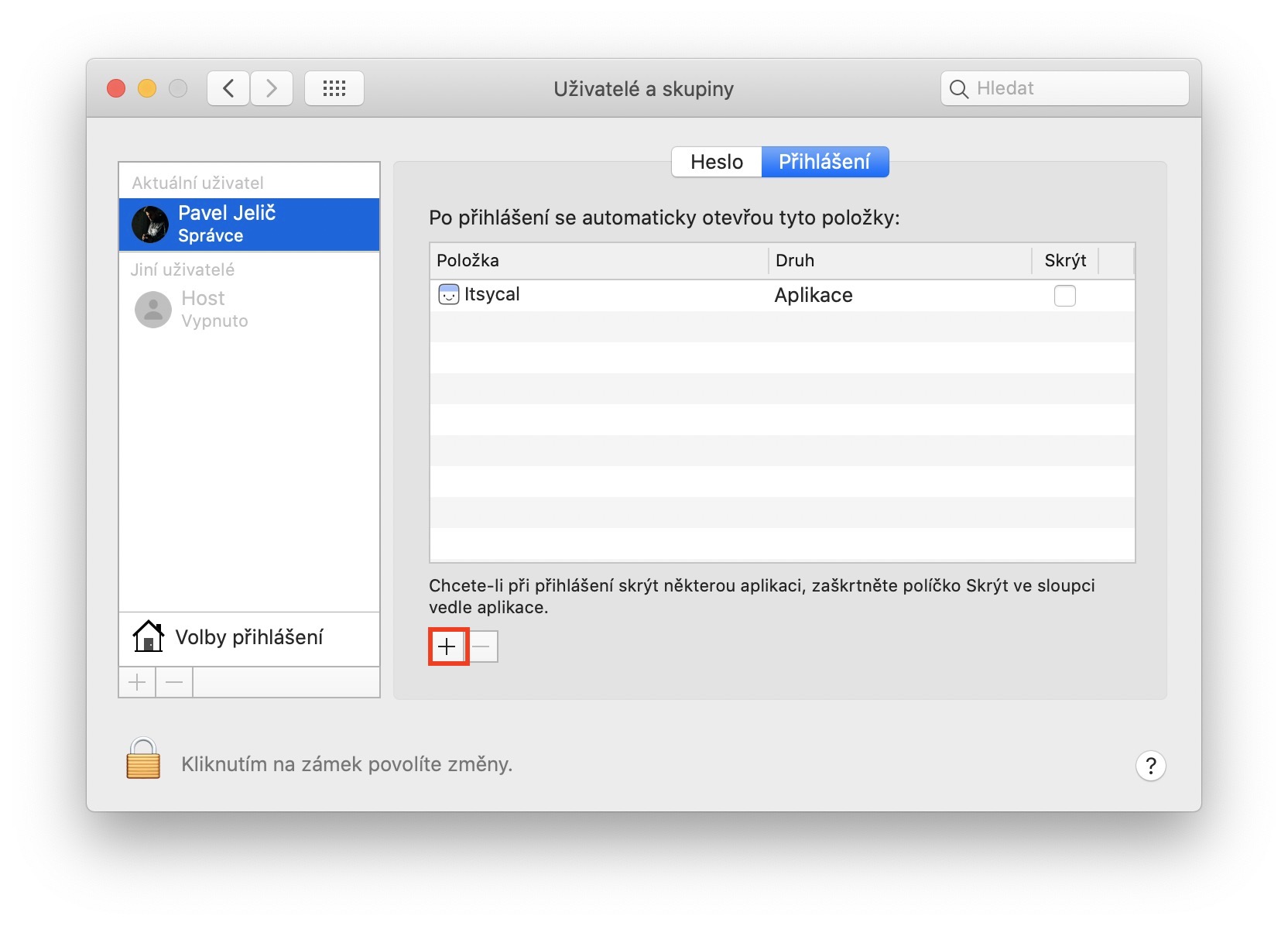
Once you start your Mac, there are countless different processes going on in the background that need to be done in order to start up. If your Mac is slow to start up, you should check whether many applications are running automatically after logging in. In this case, the point is that you tell the already loaded Mac to launch some applications, which can lead to an overall slowdown and an unpleasant user experience. To manage applications that start automatically after login, go to -> System Preferences -> Users and Groups, where on the left click on your profile, and then above on Login. Here you just need to disable the applications you don't want.chat to start, marked and then tapped on icon -.
Gallery