
Part of virtually all operating systems from Applu is the native Voice Memos application – and it is no different in the case of macOS. On a Mac, you can use Voice Memos to record a lecture or class, or simply record a call from your iPhone that you switch to the speaker. If you have made a recording on your Mac and it seems to you that the quality could be better, then believe me, it really can. The default setting of Voice Memos is compressed quality. Such recordings take up less storage space, but they are of lower quality. If you would like to prioritize quality, then read this article to the end.
You might be interested in
How to increase the quality of recordings in Dictaphone on Mac
If you want to set up high quality recording within the native Dictaphone application on your macOS device, it's not complicated. The procedure is as follows:
- First, you need to log in to your Mac or MacBookof course they moved it to a native app Dictaphone.
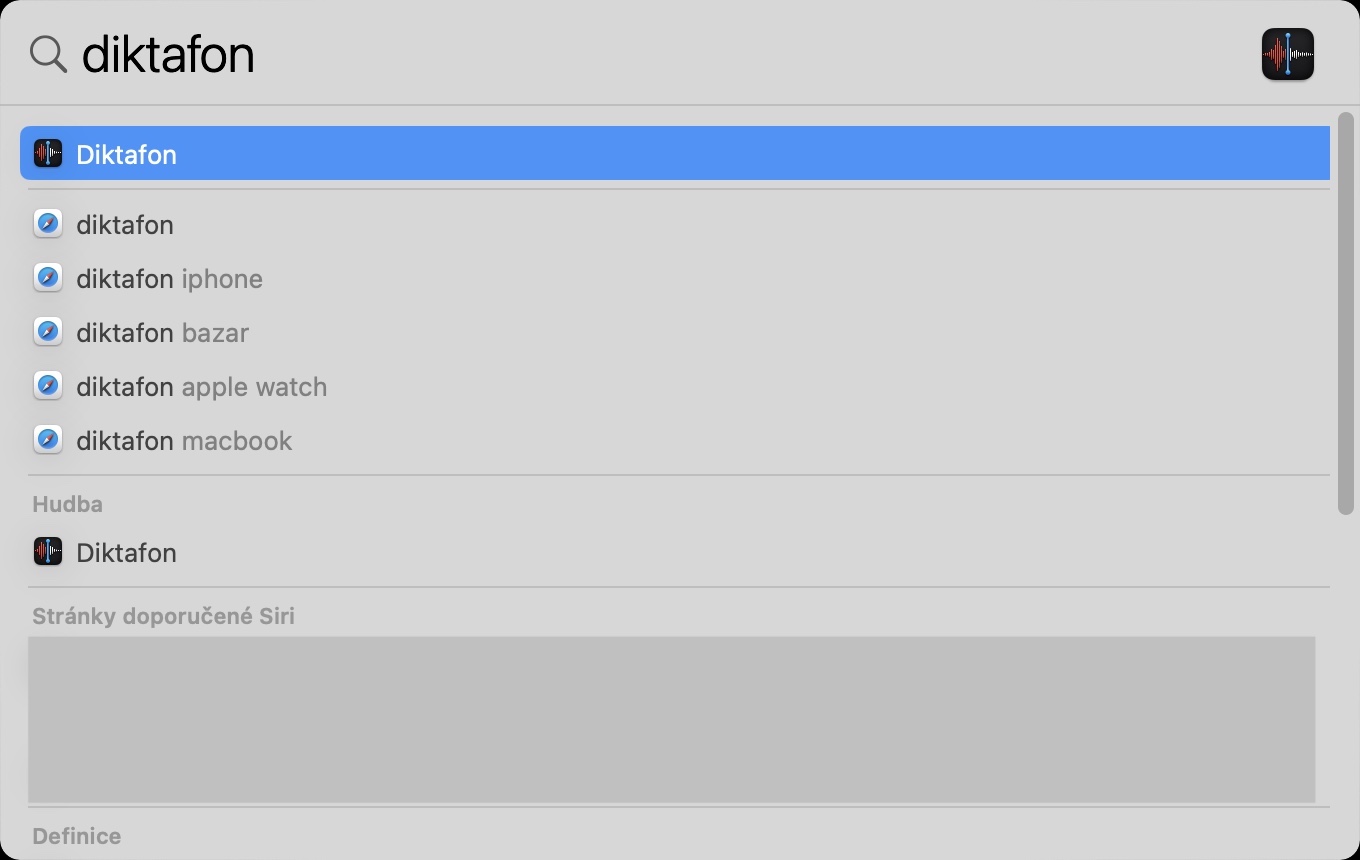
- You can find this application in Finderu in the folder Application, or you can start it classically using Spotlight.
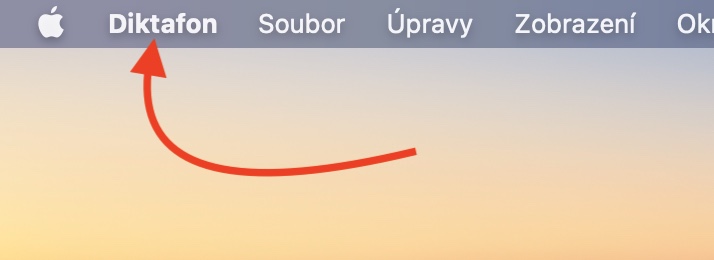
- After starting Dictaphone, pay attention to the bold tab in the top bar Dictaphone, which you tap.
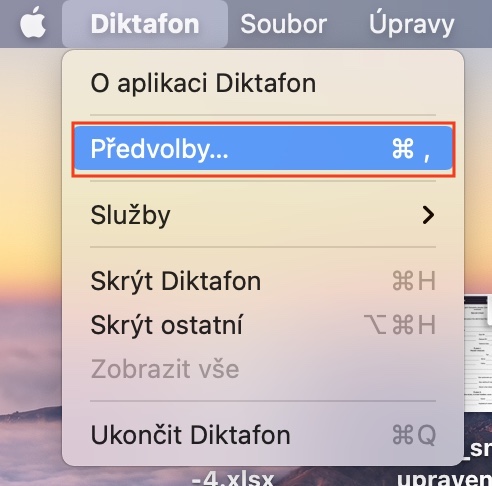
- This will open a drop-down menu in which you can click on an option Preferences…
- Once you do so, a new window will open with all available system preferences.
- All you have to do is click here menu next to the Sound Quality box.
- In the menuonec select option Lossless. Then you can the preferences window close.
Gallery
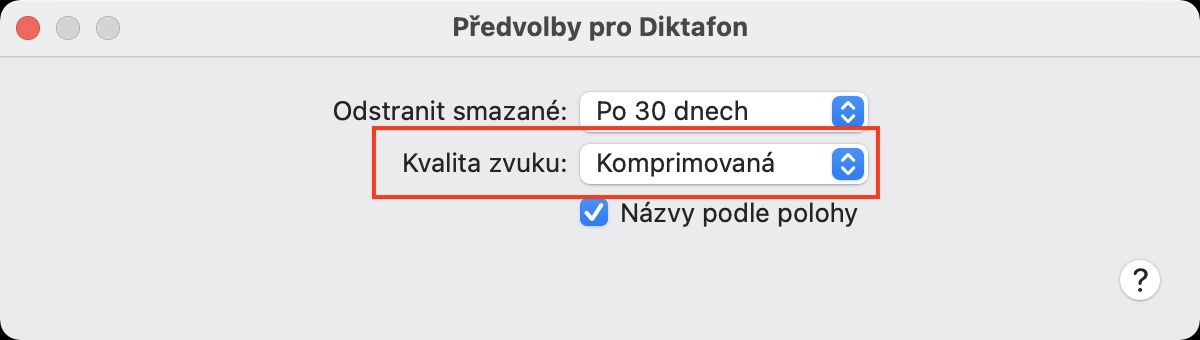
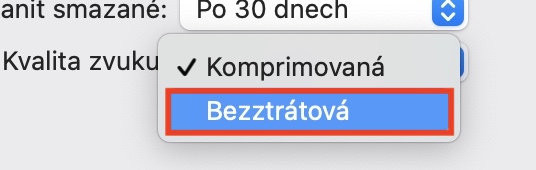
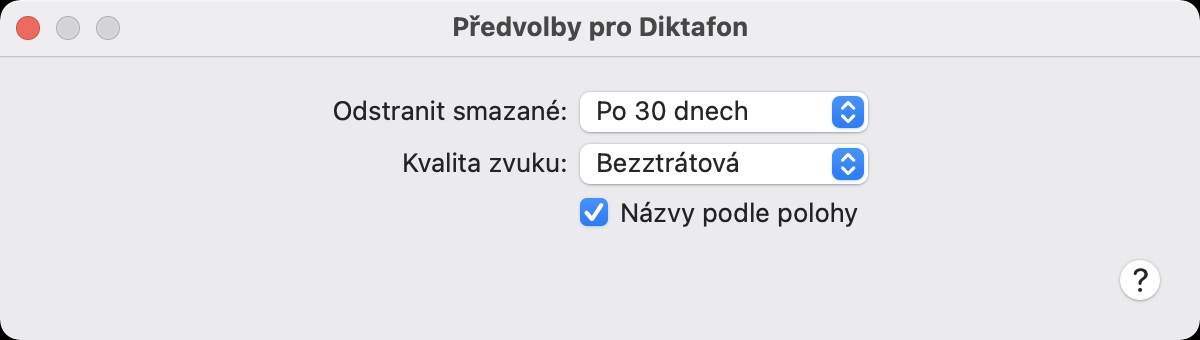
This simple way you can on your Mac or MacBookuin the Dictaphone application, you can set all future recordings to be of higher quality and therefore not compressed. In addition to the quality, in the Dictaphone application preferences you can set the time after which all recordings that you have deleted from the application will be permanently deleted - after a specified time you can easily restore them in case you make a mistake. In addition, you will find an option here that allows you to (de)activate automatic naming of recordings according to the position you are currently in when recording.




well, I couldn't find it because I'm busyvenu English on the computer
for those who also havevenu English, so the application is originally called "Voice memos"