If you are one of those individuals who constantly need to be in touch with someone, you use a communication application to do so. There are countless of them available – from WhatsAppat, via Telegram, to MessengerIn addition to these applications, there is also a service iMessage, which is built right into the Messages app on all Apple devices. With the help of this service, all users can communicate with each other Apple products absolutely free. The Californian giant is constantly trying to improve all of its applications, and native News received a successful face-lift this year in macOS 11 Big Sur. Let's take a look together in this article at 6 new features that can be used in Messages for macOS Big Sur.
You might be interested in

Quick responses and responses
Since 2016, when macOS 10.12 Sierra was released for Apple computers, you can quickly reply to individual messages using reactions, similar to Facebooku. If you want to reply to a message using reactions, just hold the cursor on it and then select one of the available reactions - specifically, there is a heart, thumbs up and down, haha, exclamation marks and a question mark. Now, in addition to reactions, the Reply field is also displayed, making it possible to reply directly to a specific message - especially in group conversations, this will make things more organized. You can also use keyboard shortcuts - if you press Command + T, so you can send quickly response to the last message. Then just press the from number 1-6 according to the order of reactions. If you press Command + R, you can quickly reply directly to the last message.

Use of effects
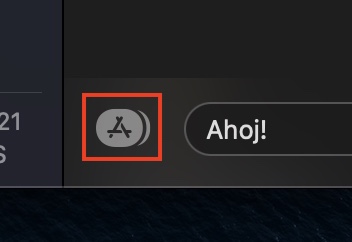
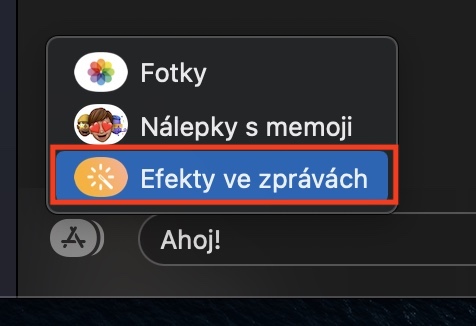
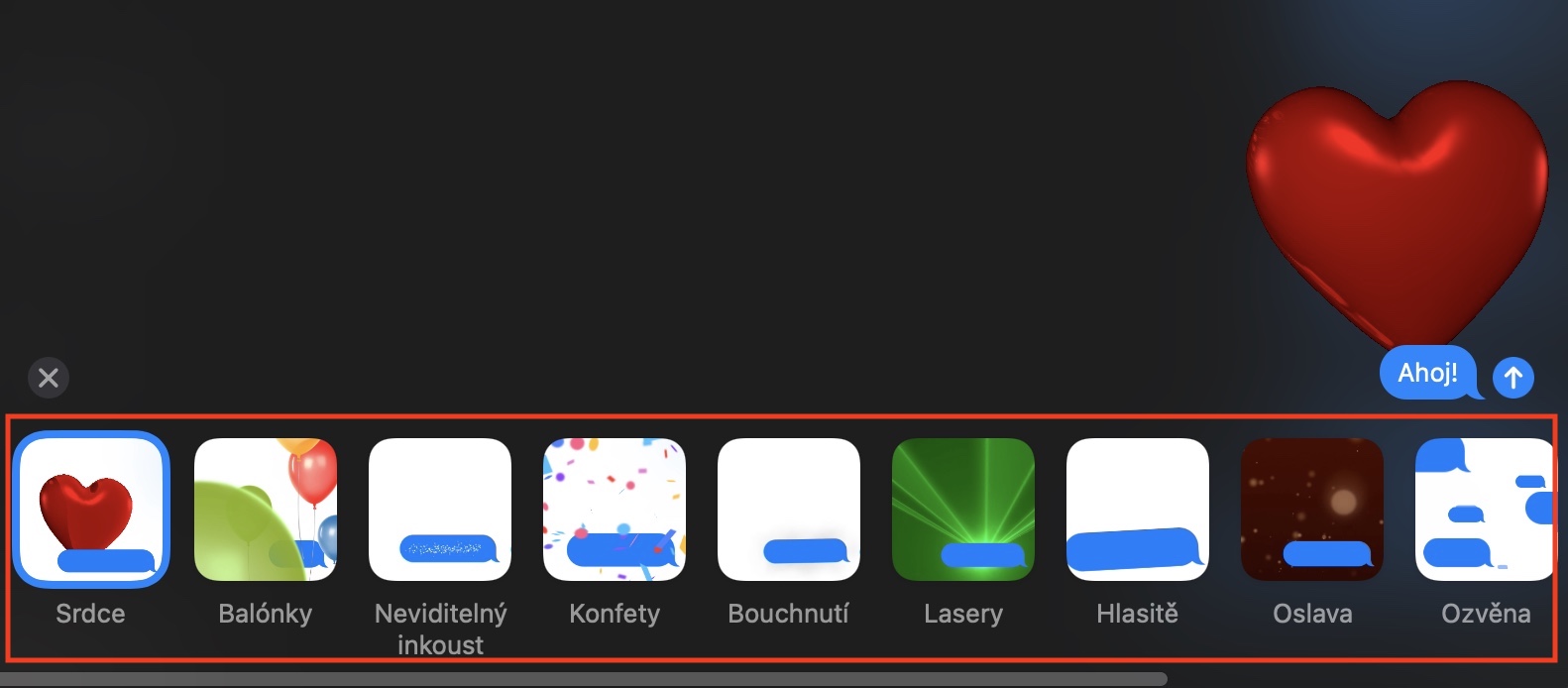
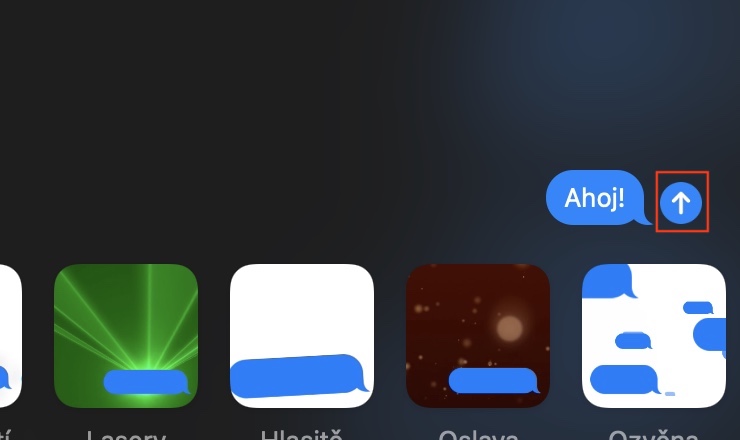
You've been able to send a message with an effect on your iPhone and iPad for a few years now. To be honest, we don't use this feature very often, but it can come in handy in the occasional situation - for example, if you want to draw attention to something. The good news is that with the arrival of macOS 11 Big Sur, effects in the Messages app are now available tooneappeared on Apple computers. If you want to send an effect, all you have to do is type a message in the text field. But don't send the message now - you need to click on the icon App Store, and then selected from the menu Effects in messages. Now that's enough select th effect, which one you need, and howonec tap arrow to submit bottom right.
Gallery
Access pinned conversations
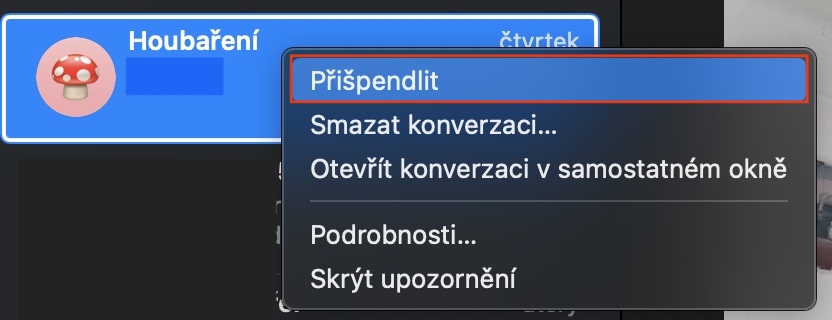
We all have some contacts with whom we correspond almost every day. The order of conversations automatically changes in descending order based on who wrote to you last – this means that you will almost never have one conversation in the same place. For example, if you receive various verification messages or messages from a courier during one day, your favorite conversations are suddenly gone. However, you can now pin conversations – just right-click on the one you want, and then select Pin. This will make the conversation appear at the top of Messages. You can access these pinned conversations by simply tapping them, or you can use the keyboard shortcut Command + 1-9 , with 1 immediately showing you the first conversation and 9 the ninth. This feature is also available on iPad if you have an external keyboard connected.
Create Memoji stickers
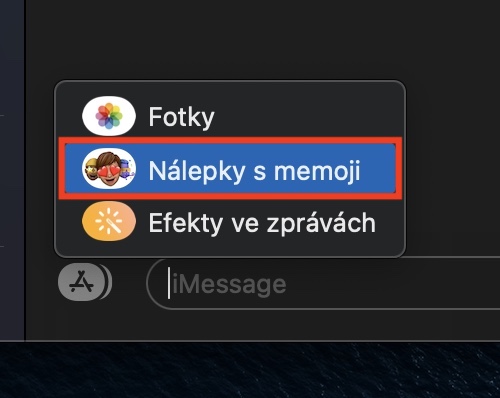
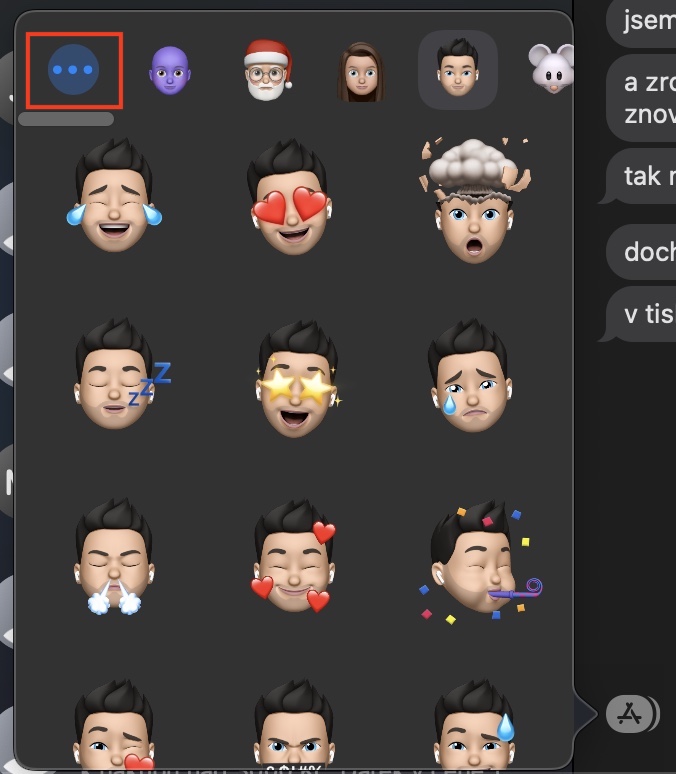
Even before we got to see the introduction of Memoji, that is Apple in 2017 during the performance iPhone X came with Animoji – they were the ones that started it all. Originally, users could only create their own “characters” in the form of animals, human “characters” in the form of Memoji came a year later.oneLong ago, Animoji and Memoji were the dominant features of devices with Face ID, but later Apple figured that at least they would make stickers available to all users of Apple products. You can now also create your own Memoji stickers on a Mac or MacBooku. Just go to any conversation and tap on the left of the text field. icon App Store. This will bring up a drop down menu where you tap on Stickers with memoji. After that, a new window will open where you can already own Create Animoji or Memoji, by tapping on three dots top left.
Adding photos
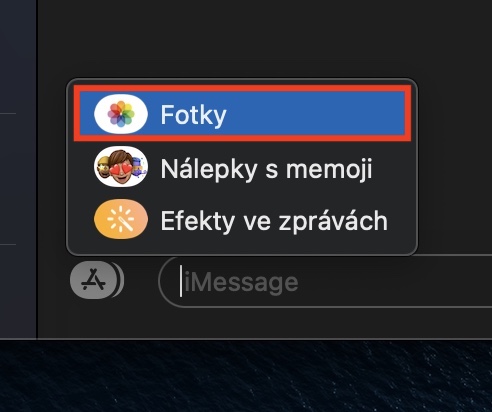
Full-fledged App Store pro iMessage Unfortunately, it is not completely available on Mac, even though there is a button with the icon in Messages. App Store is located – but nothing can be done. Above we have already mentioned two cases in which it is necessary to press this button. The button App Store is then also necessary to press if you want to send someone a photo or video directly from your Photos app. Thanks to this, you don't have to search for a specific image directly in the Photos app and then drag it into the Messages window. To quickly send a photo in Messages, scroll to a specific conversation, then tap on the left icon App Store. Select from the menu that appears Photos. After that, a new small window will appear where you just need to specify find the photo – you can also use search.

Search made easy
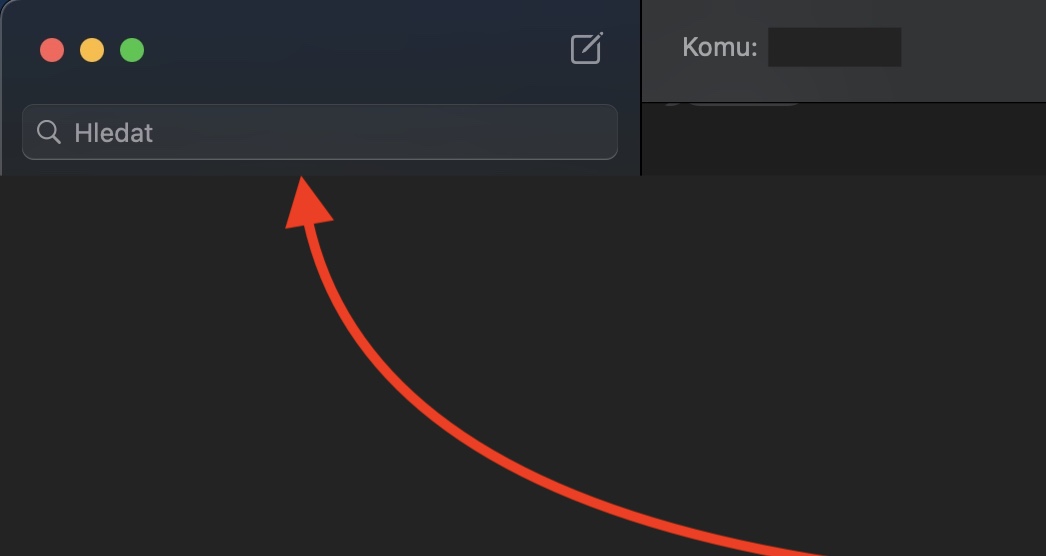
The last great feature that's new in the Messages app from macOS 11 Big Sur is advanced search. Search field you can specifically find v upper left corner of the application, where you just need to type in what you are looking for. In addition to individual messages, you can alsochat also search for photos, documents and other data. If you click on the search field, you will see an overview of conversations and files that might interest you at the moment. When you search for specific text, results from all available conversations will of course appear. Everything works really fast and you practically don't have to wait for anything - so advanced search is definitely more than useful.