There are more streaming music services available, but these are the main ones Apple Music and Spotify. It is the latter service that has been acquired by the company in recent months. Apple even more support. Let's take a look at some tips and tricks together to make using Spotify even better for you.
You might be interested in
Track artists and albums
Gallery
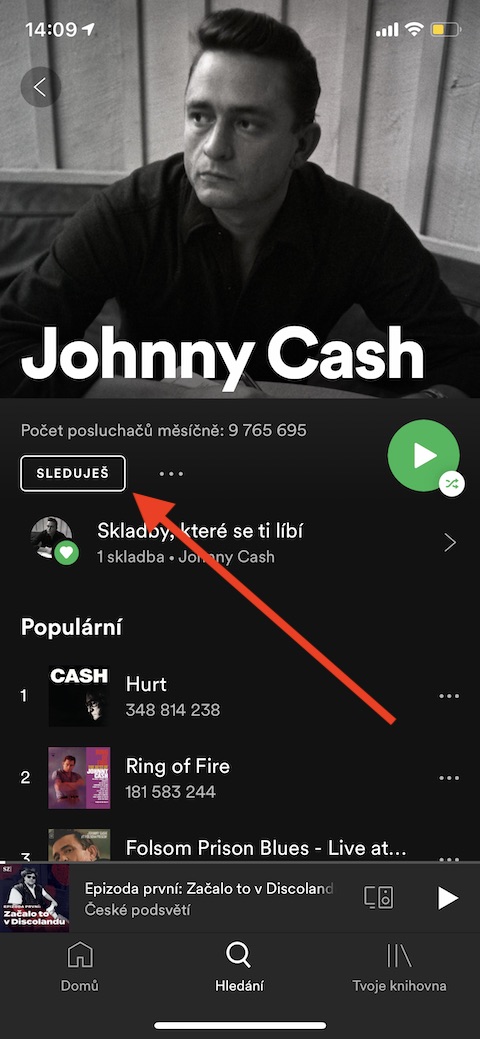
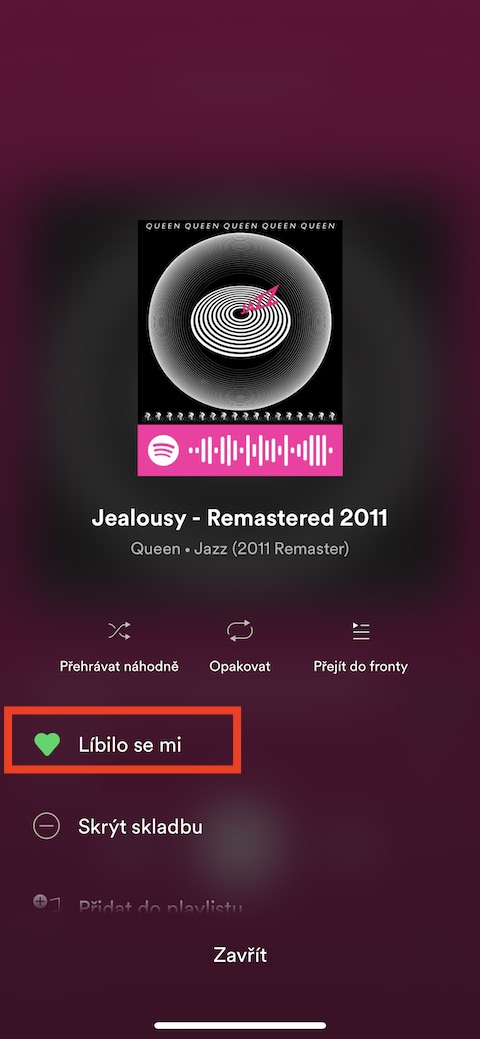
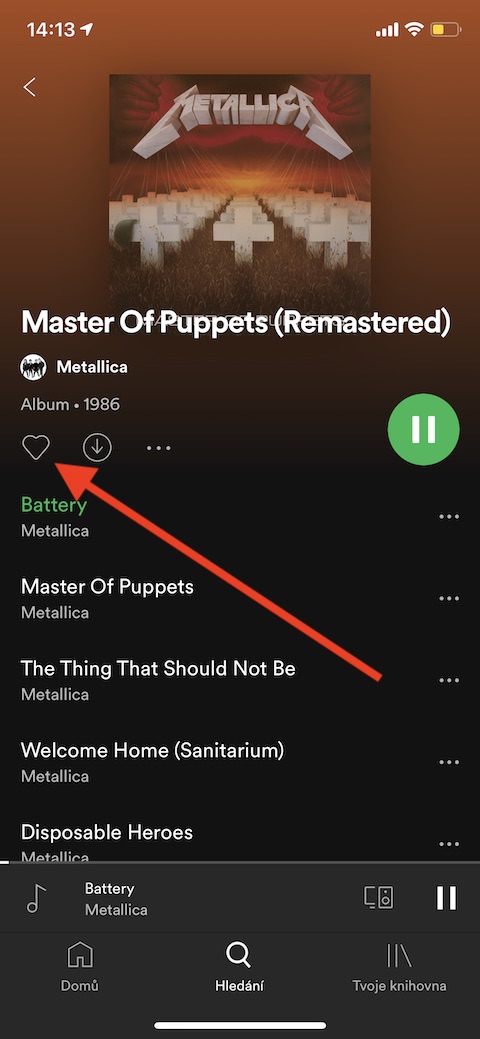
The first thing you should do after installing Spotify is to search for your favorite artists and genres, which will help you gradually build your own Spotify library. Following your favorite artists, genres, or playlists will also tell the app what content to recommend to you in the future. The more often and longer you listen, the more you willchat, making Spotify more personal for you. In the Spotify app, type the name of an artist or genre in the search field, tap it, and then tap Follow on the page. You can also add songs and albums to your favorites by tapping the heart icon.
Building a library

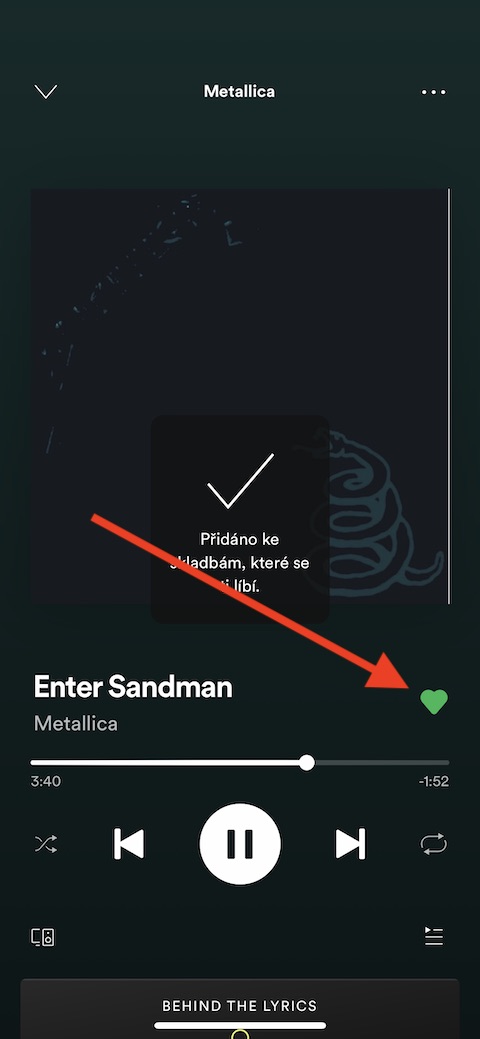

Do you remember the era of vinyl records, classic cassettes or even CDs? Shelves with balanced albums were the pride of many a music lover. In the Spotify app, you can create your own virtual shelf to store your entire music collection. Adding content to your library is a bit more complicated in Spotify than in, say, Apple Music, but it's not difficult. ProAdding a song to your library is done by tapping the heart icon next to a selected song or album. But what if you want to create entire playlists?
Creating and adding playlists

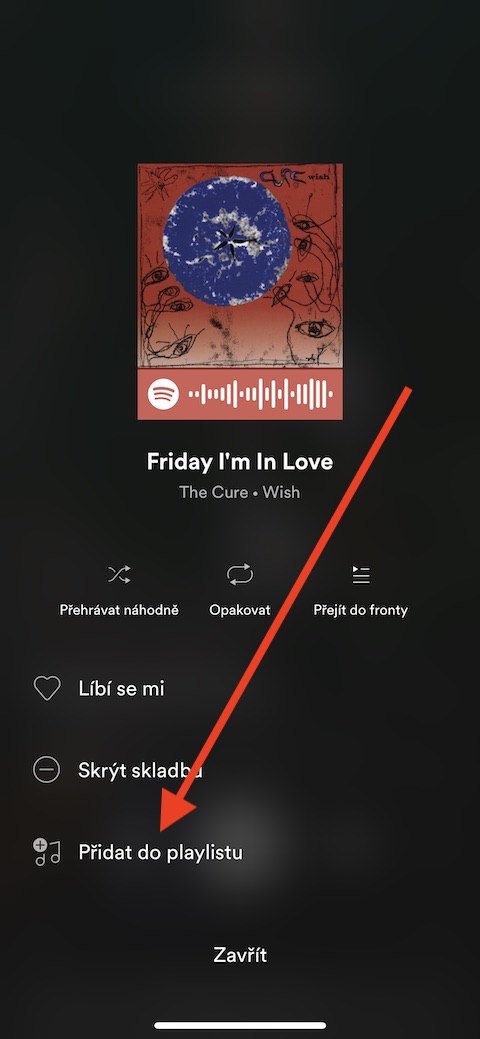
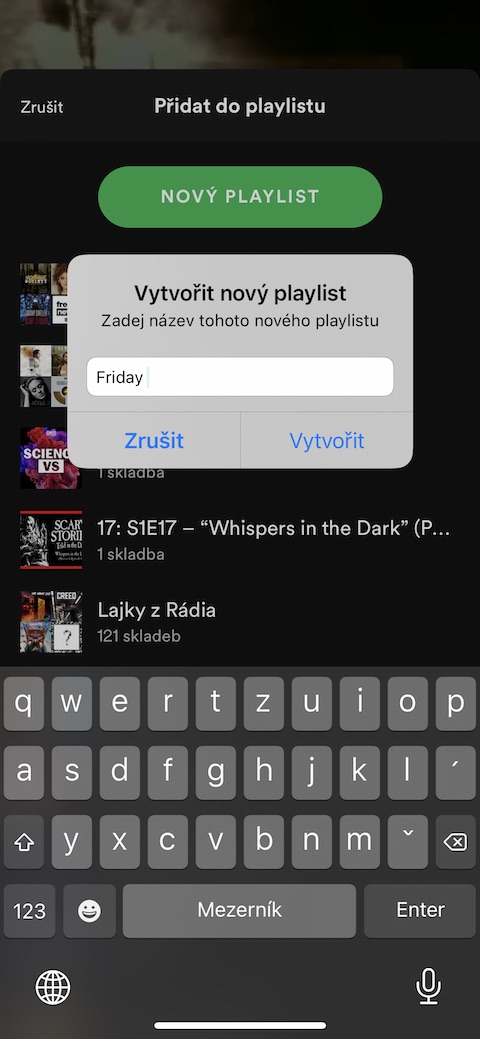
Playlists are one of the best things about Spotify. You'll find public playlists put together by other users, as well as Spotify playlists, covering a certain era, artist, genre, mood, purpose... just about anything. Of course, you can also create your own playlists here. Simply search for the song you want to add to your playlist. In the upper right corner, click on the icon of three dots and choose Add to playlist. After that, all you have to do is choose whether to add the song to an existing playlist or create a new one.
Share and collaborate on playlists
Gallery


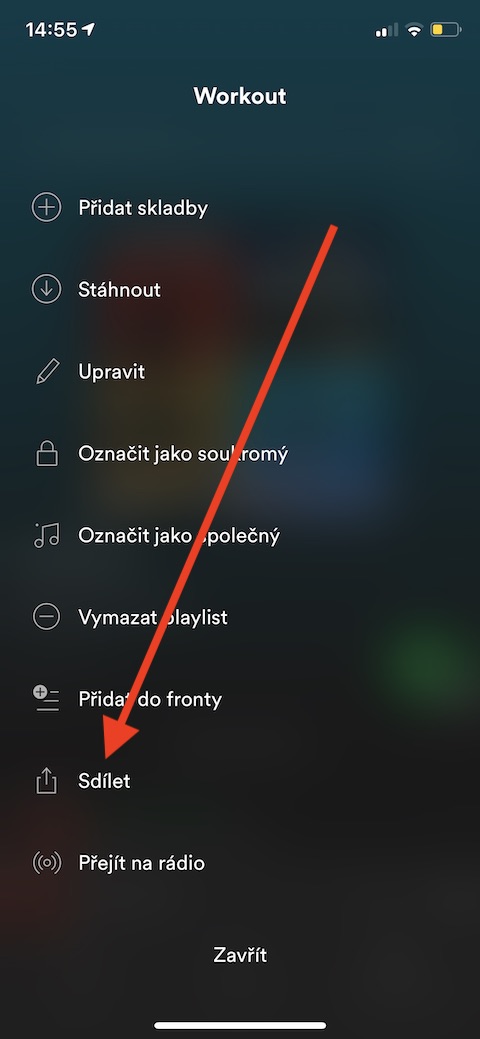

Spotify is also a great place to share or collaborate on your favorite playlists or playlists you've created. If you want to share your own playlist, open it in Spotify, tap the three dots icon and choose Share. In the menu, you can also mark the playlist as shared (anyone can add songs to it) or private. If you want only a certain group of people to add songs to it, tap Share and choose Copy Link.
Spotify radio
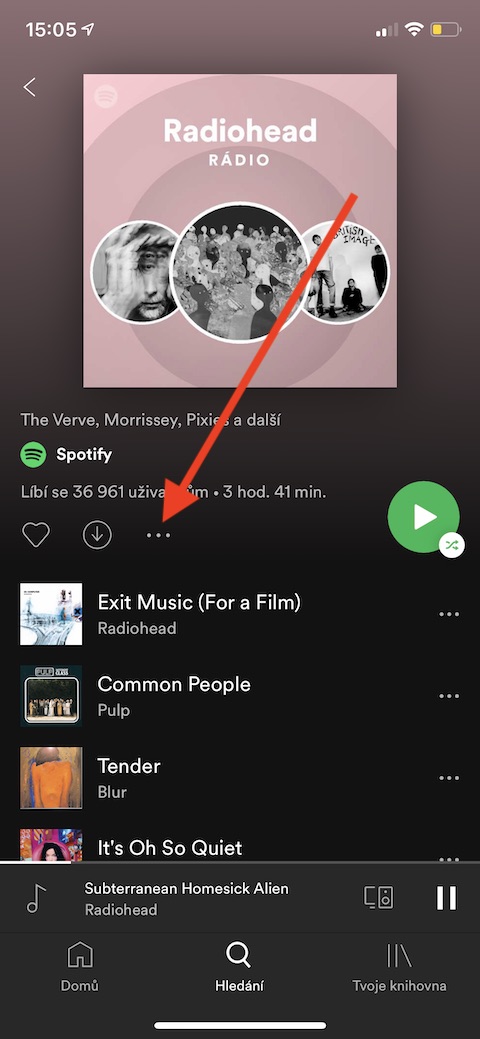
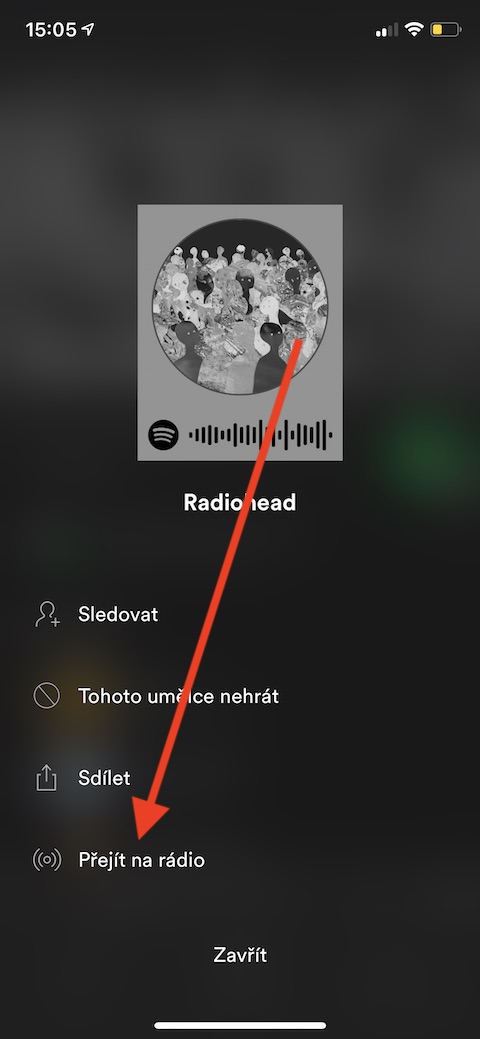
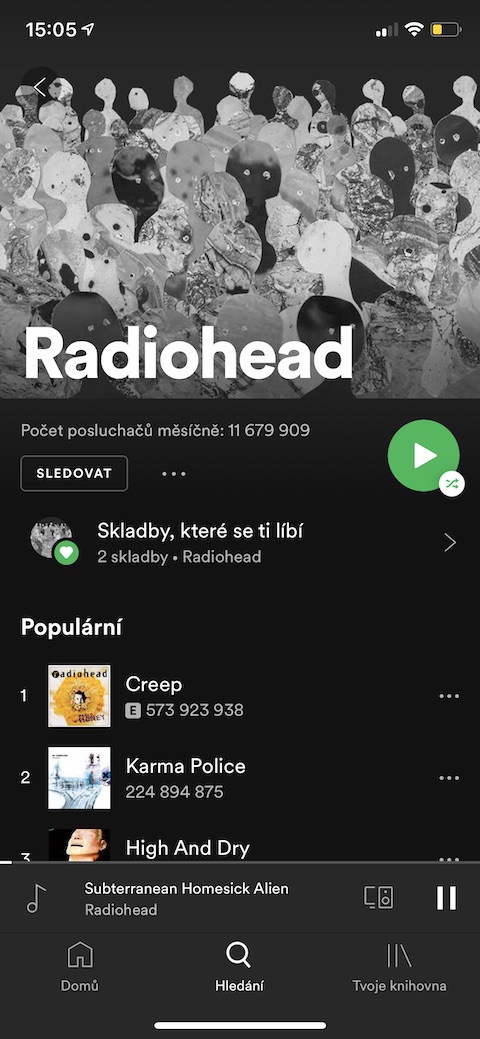
You can listen on Spotifychat also radio. But these are not classic radio stations - Spotify radio consists of continuously playing songs that have a common author, era or genre. You can start Spotify radio easily - just enter the name of the artist whose songs you want to listen to in the search field in the applicationchatOn the artist's page, tap the three-dot icon and select Go to radio from the menu that appears.
Control Spotify from other devices

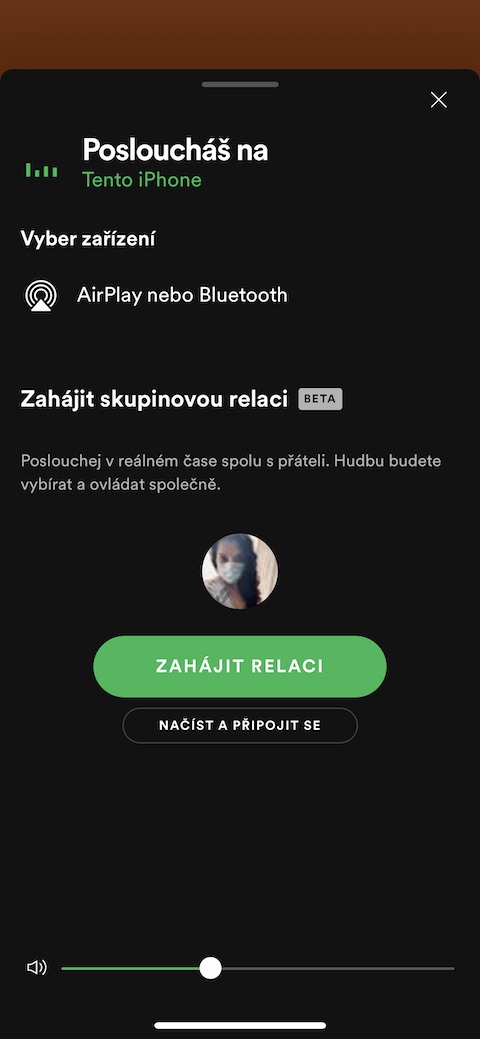
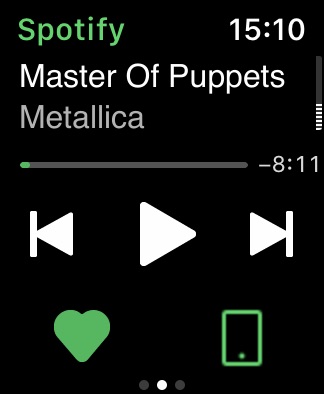
Spotify is a cross-platform application. This means you can use it on all the devices you're signed into the same account on, and even control it from your Apple Watch. Switching to playback on another device is very easy. If such a device is available, you will see a device icon at the bottom of the display.
Using gestures and queue management


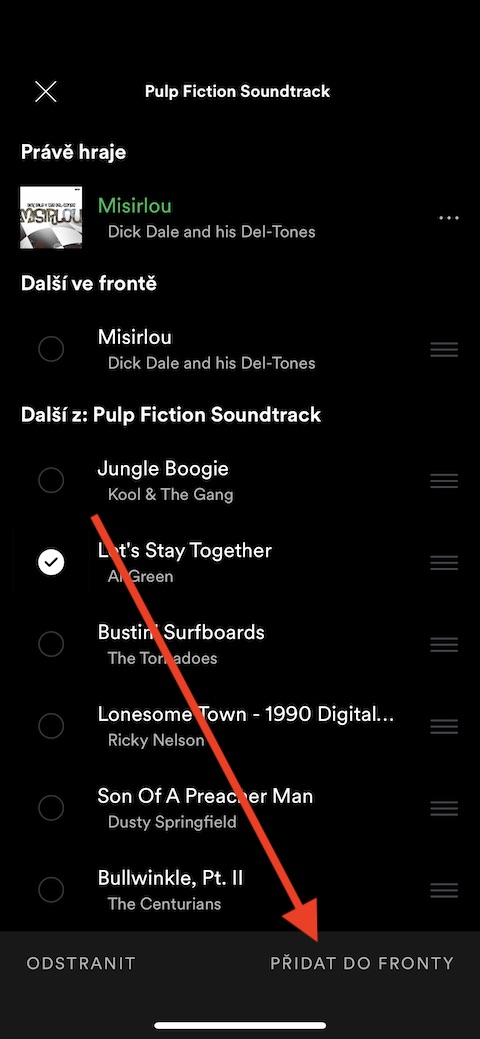

You can also easily use gestures in the Spotify app – swipe right to add a song from the list to your library, swipe left to add it to your queue. You can also easily manage your queue – you can access your queue by tapping the icon in the bottom right corner from the screen with the song currently playing. You will see your queue along with a menu of other songs – you can add them to your queue by highlighting them and selecting Add to Queue, or you can change the order of songs in the queue by long-pressing the row icon and moving it.
Offline listening and quality management
Gallery

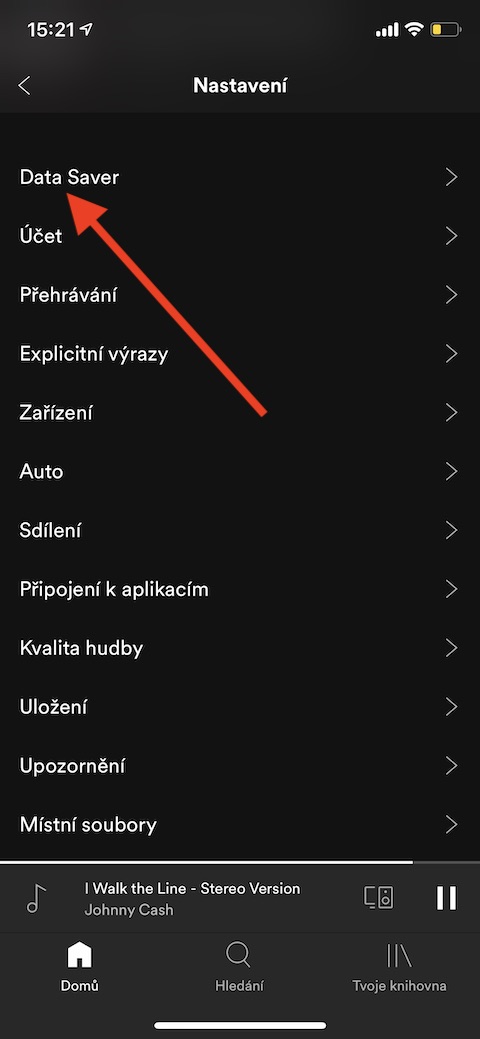


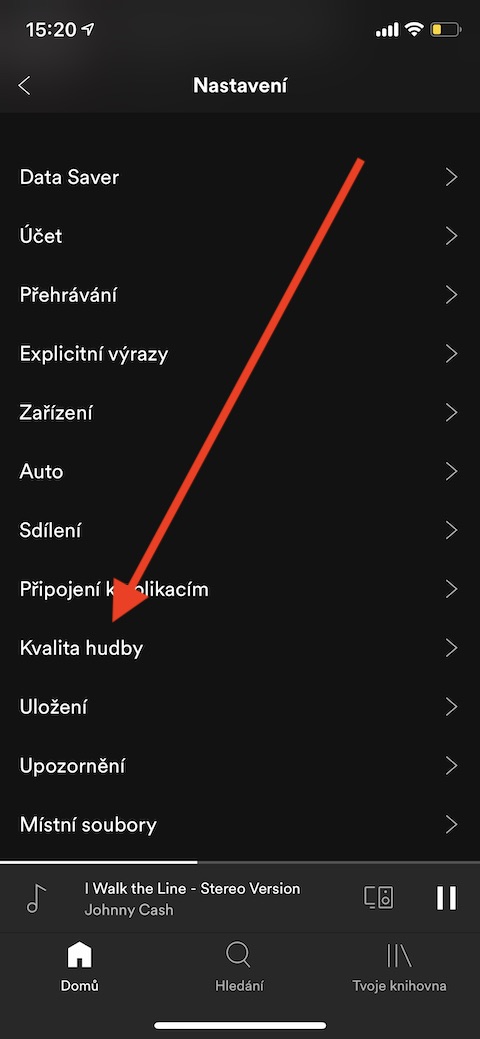
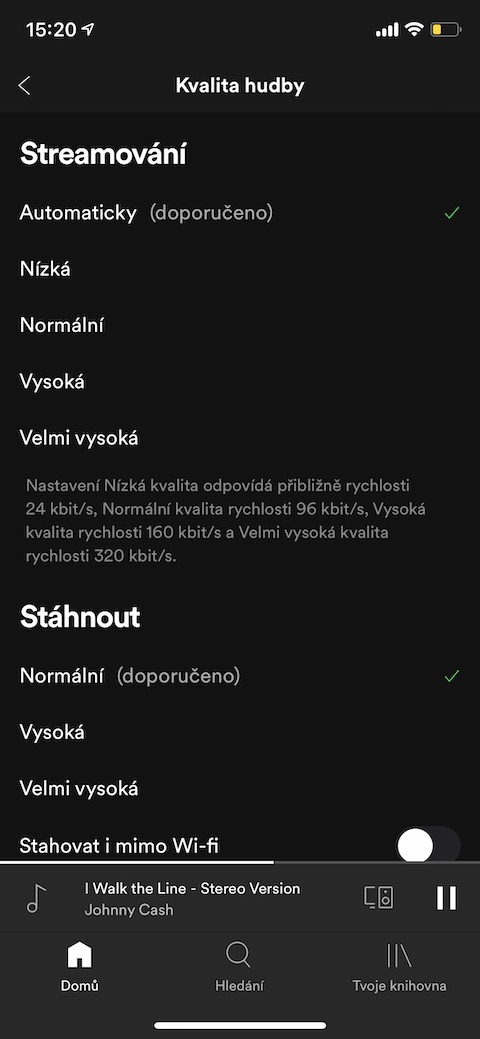
If you like to listen to music and podcasts on the go and at the same time want to save data, you can (if you have a Premium account) download playlists and albums for offline listening - just tap the download icon next to the album or playlist. Likewise, you can also manage the playback quality. On Spotify's main screen, tap the settings icon and choose Music Quality, where you can make all related settings and customizations. Here you can also activate Data Saver features to help you save even more data.
Private listening
Gallery
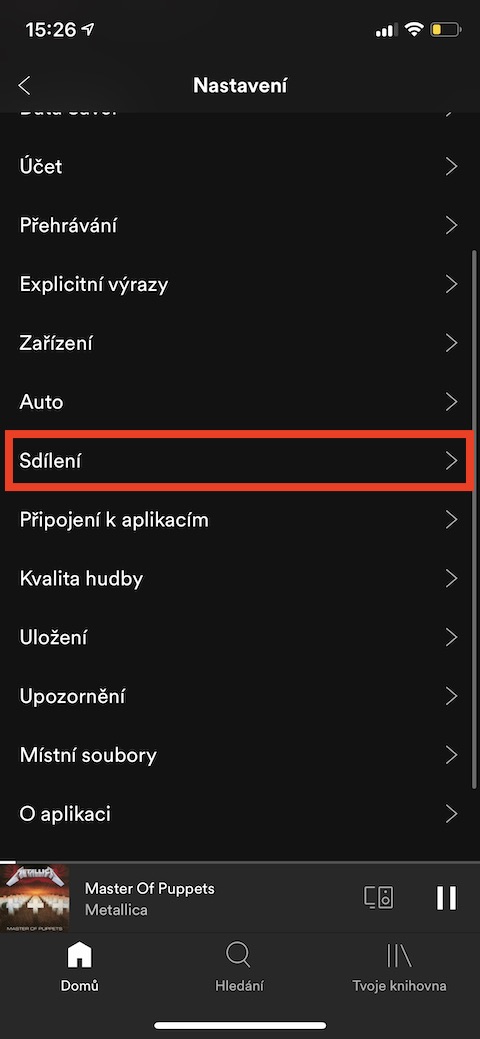
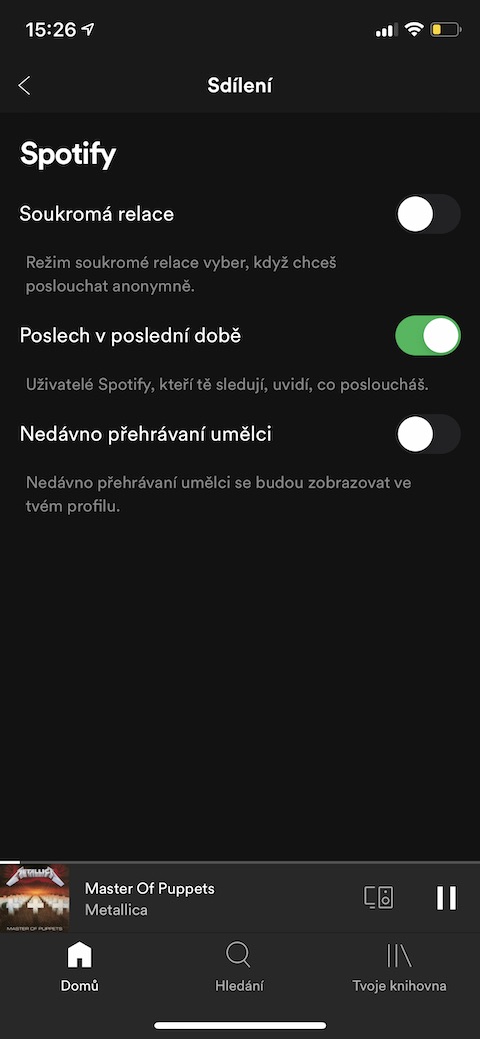
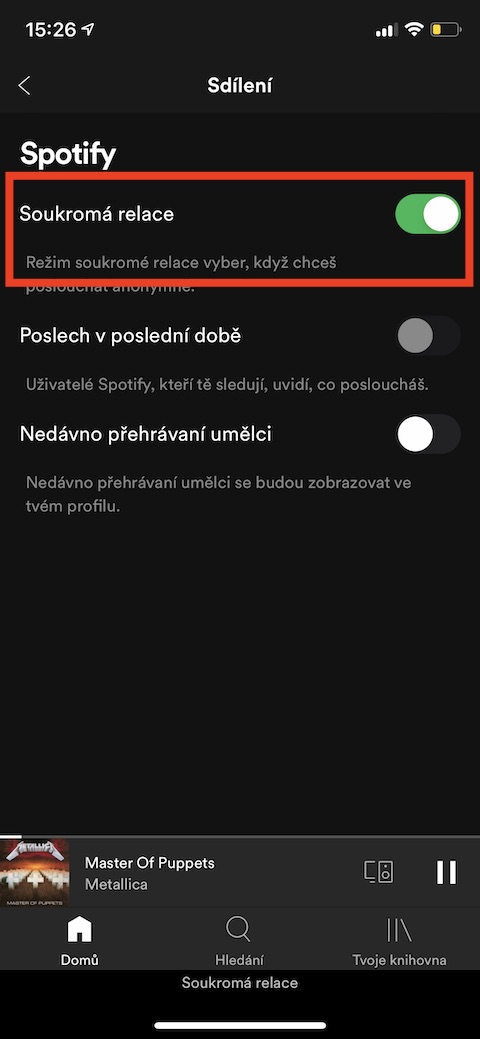
What will we talk about - each of us has our secrets in music, which we are more or less ashamed to listen to. It's perfectly fine to be moved to Celine Dion's My Heart Will Go On once a year, or you can't imagine the holidays without Last Christmas or All I Want For Christmas. It's also perfectly fine to be embarrassed about it in front of your intellectual friends. Fortunately, you can easily hide your listening activity from others on Spotify. Just tap on the settings icon on the main screen, select Sharing in the menu and activate the Private Session item.