
If you regularly update your Mac or MacBook If you've upgraded to the latest version of the operating system, you've probably noticed that the not-so-popular iTunes app has been removed from macOS 10.15 Catalina. After iTunes was removed, many users were happy to no longer have to use it. However, if they had known what was coming, they would probably have been happy to continue working with iTunes. Apple in macOS Catalina, iTunes has decided to "move" to Finderwhere you can manage your Apple devices. However, if you don't have any devices connected, you won't be able to access the device management interface. So how can you find existing backups on your system without a connected device? We'll look at that in this guide.
You might be interested in
Where to find backups of iPhones, iPads or iPods in macOS Catalina
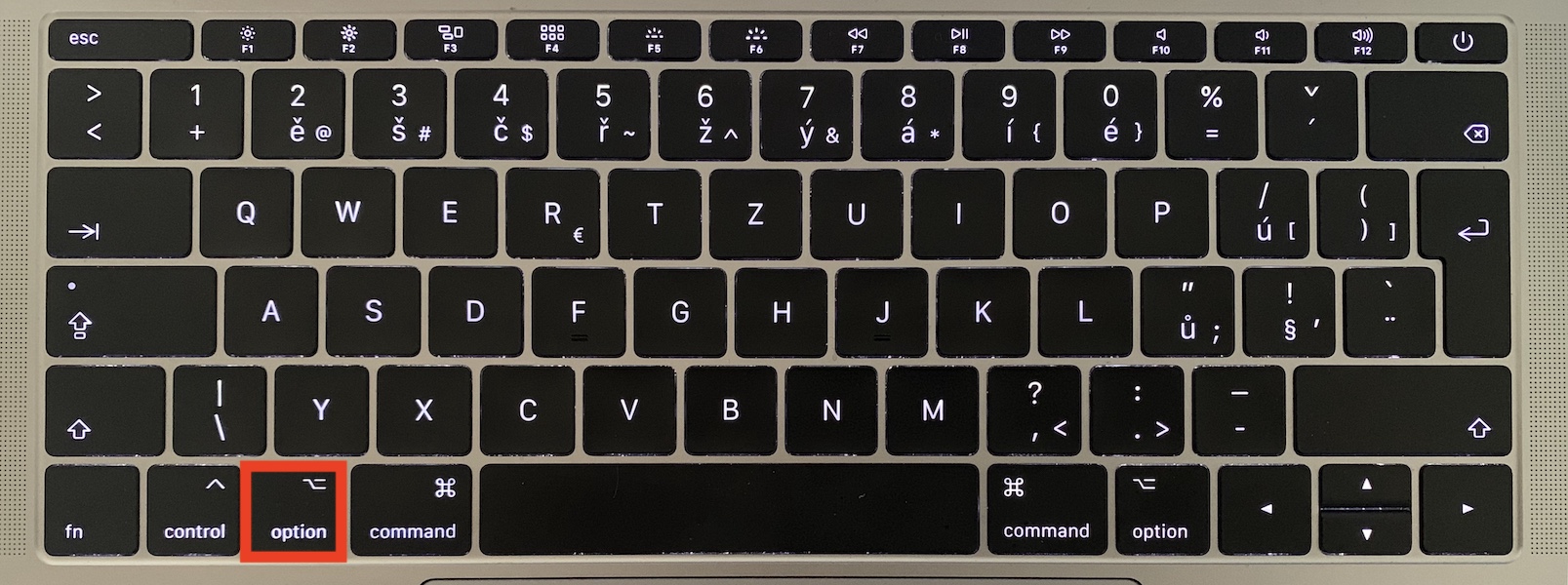
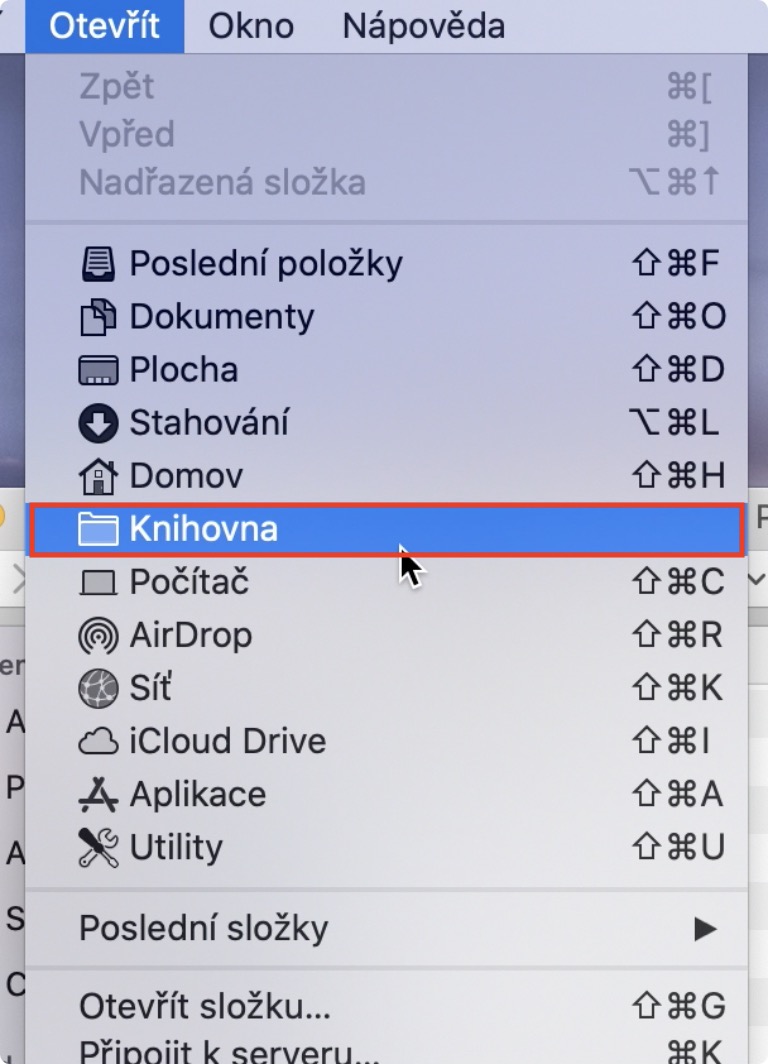
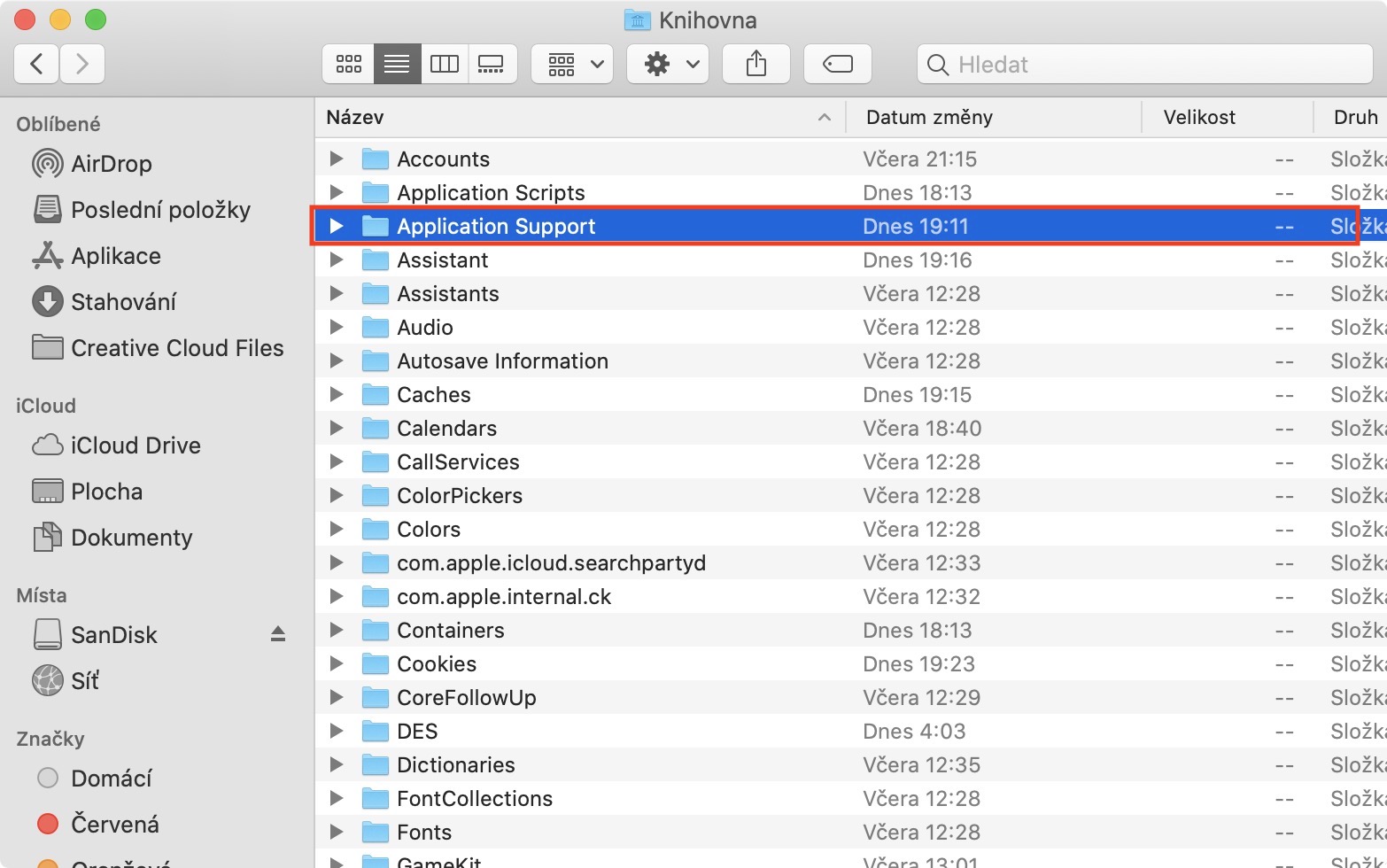
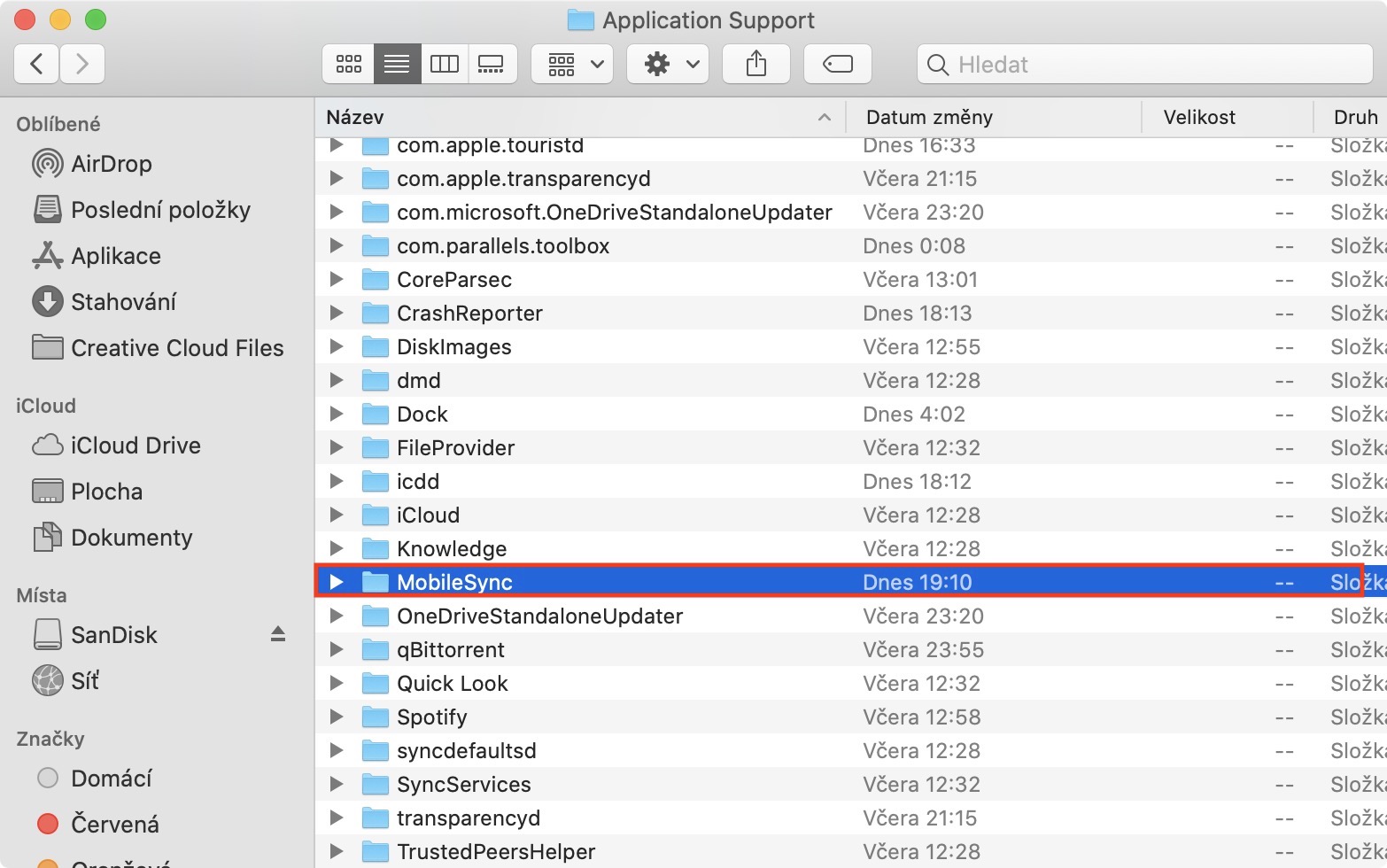
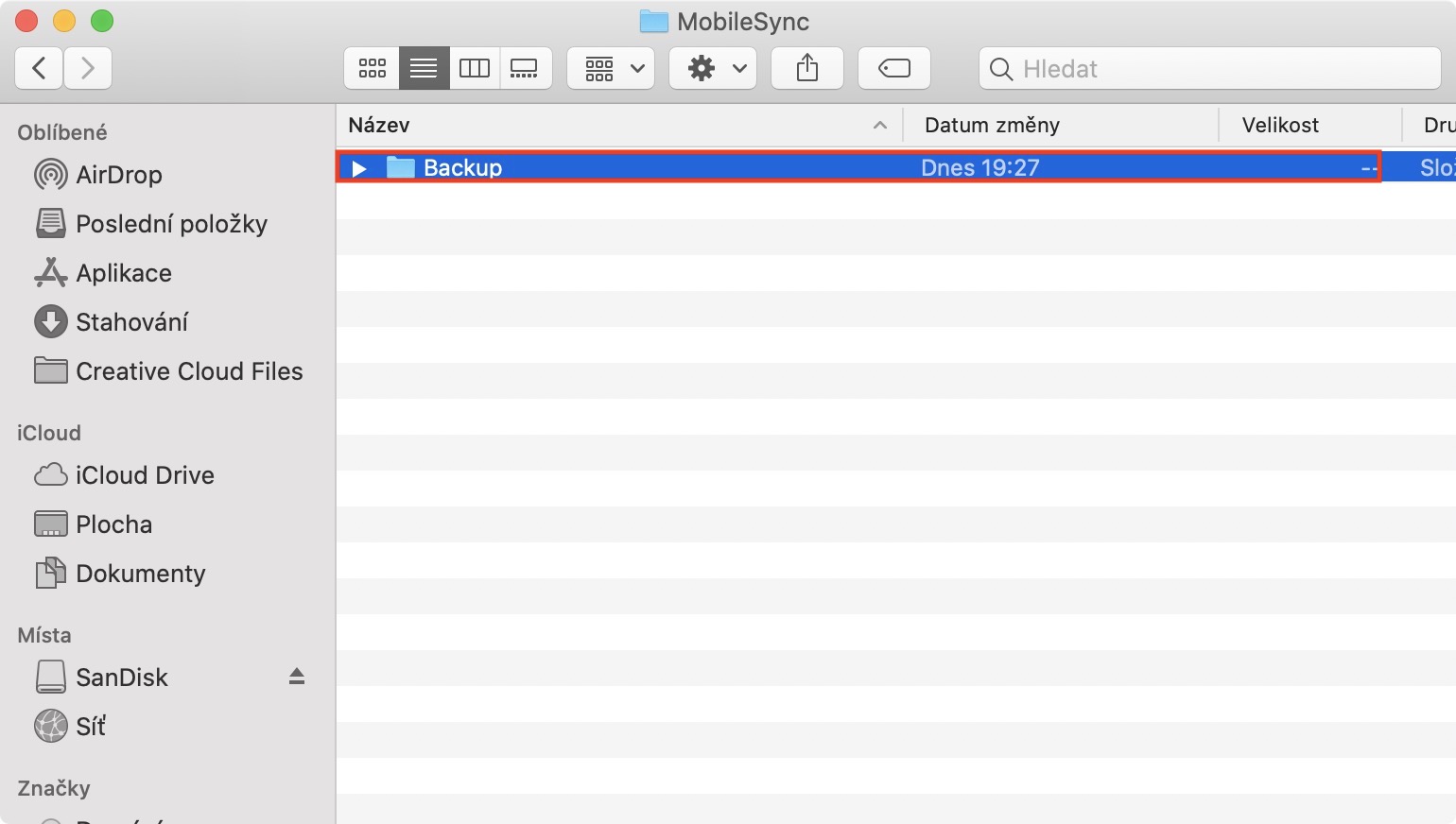
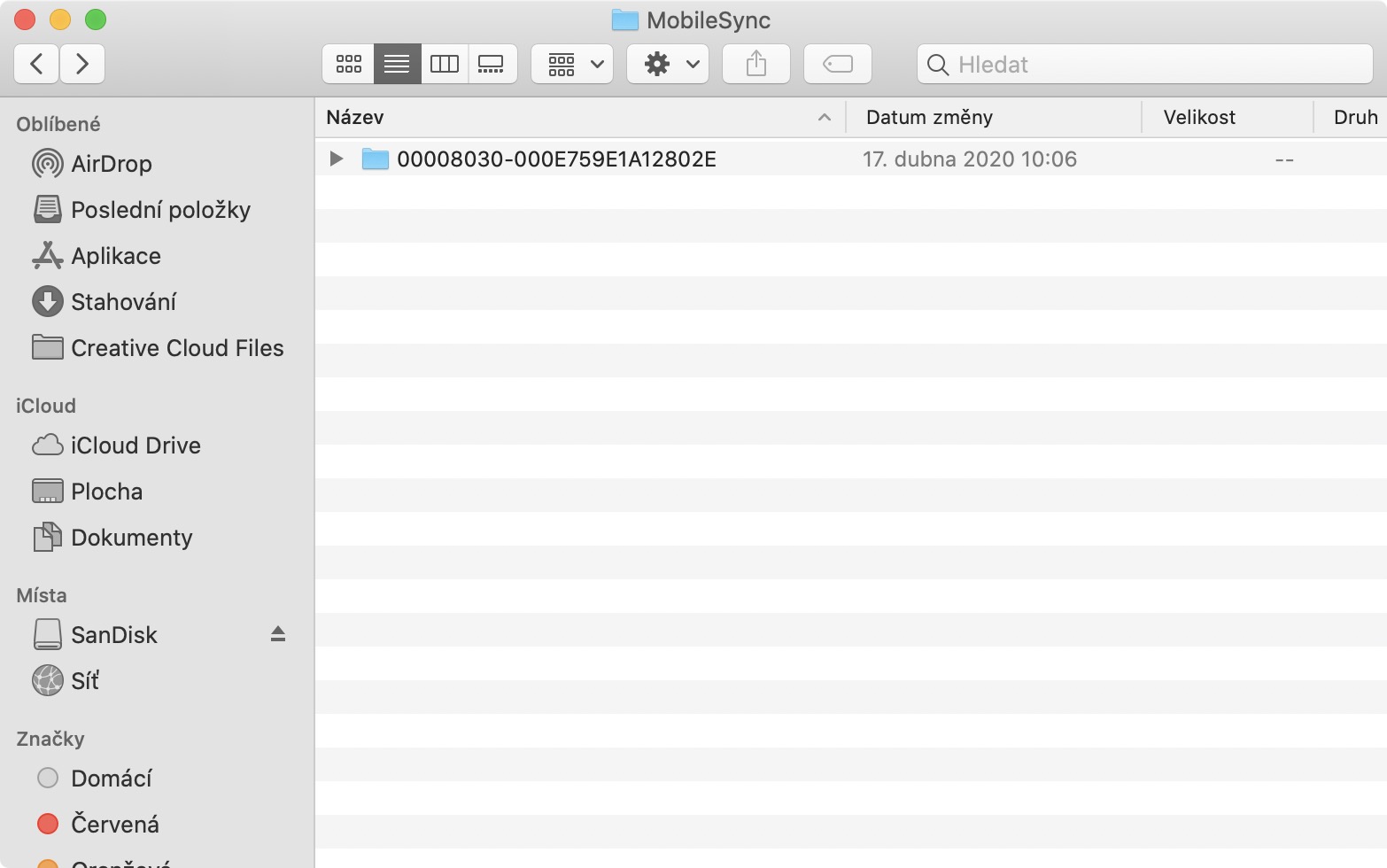
If you want to find existing backups of iPhones, iPads or iPods in macOS Catalina, first move to active window application Finder. Once you do so, on the keyboard press and hold key Option (Alto). With this key pressed, move the cursor upwards to top bars, where click on the option Open. With the key still pressed Option then select an option from the menu Library. Now you can Release option. It will be shown to you when you open the Library new window Finderin which you then move to the folder AppApplication Support and here then to another folder with the name MobileSync. Once you are here, move to the folder Backup. Here you will see other folders that are named with different numbers and letters. It is these components that represent backups of your devices.
Gallery
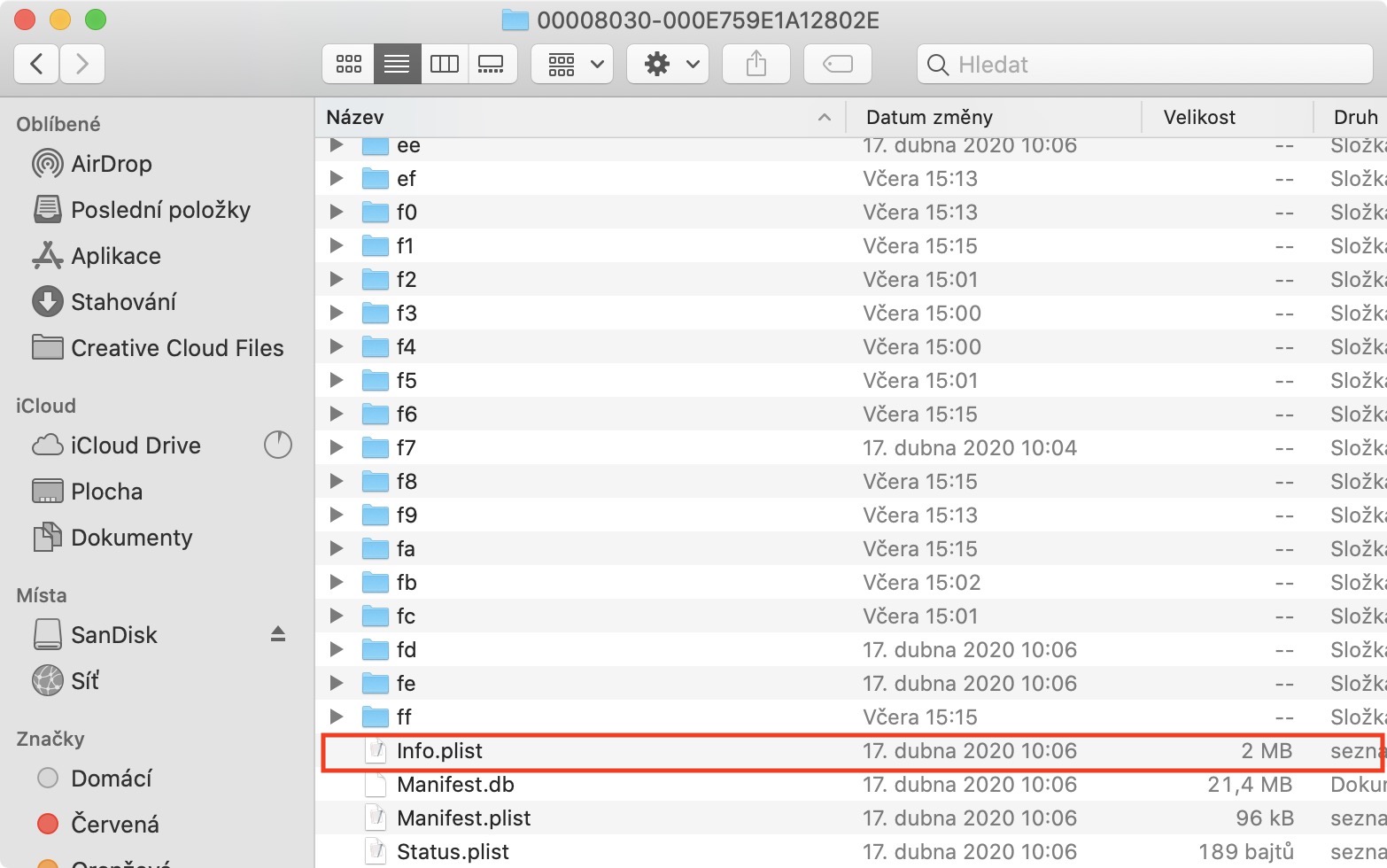
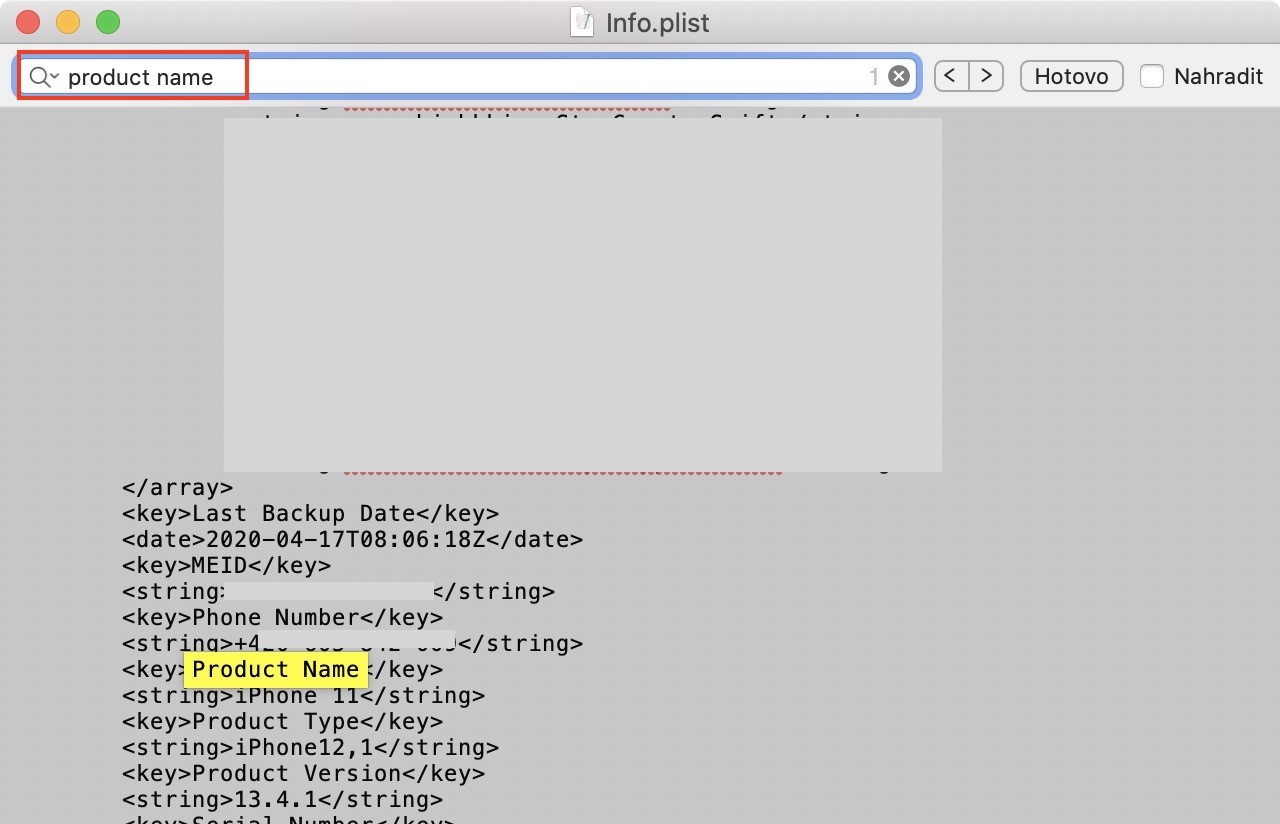
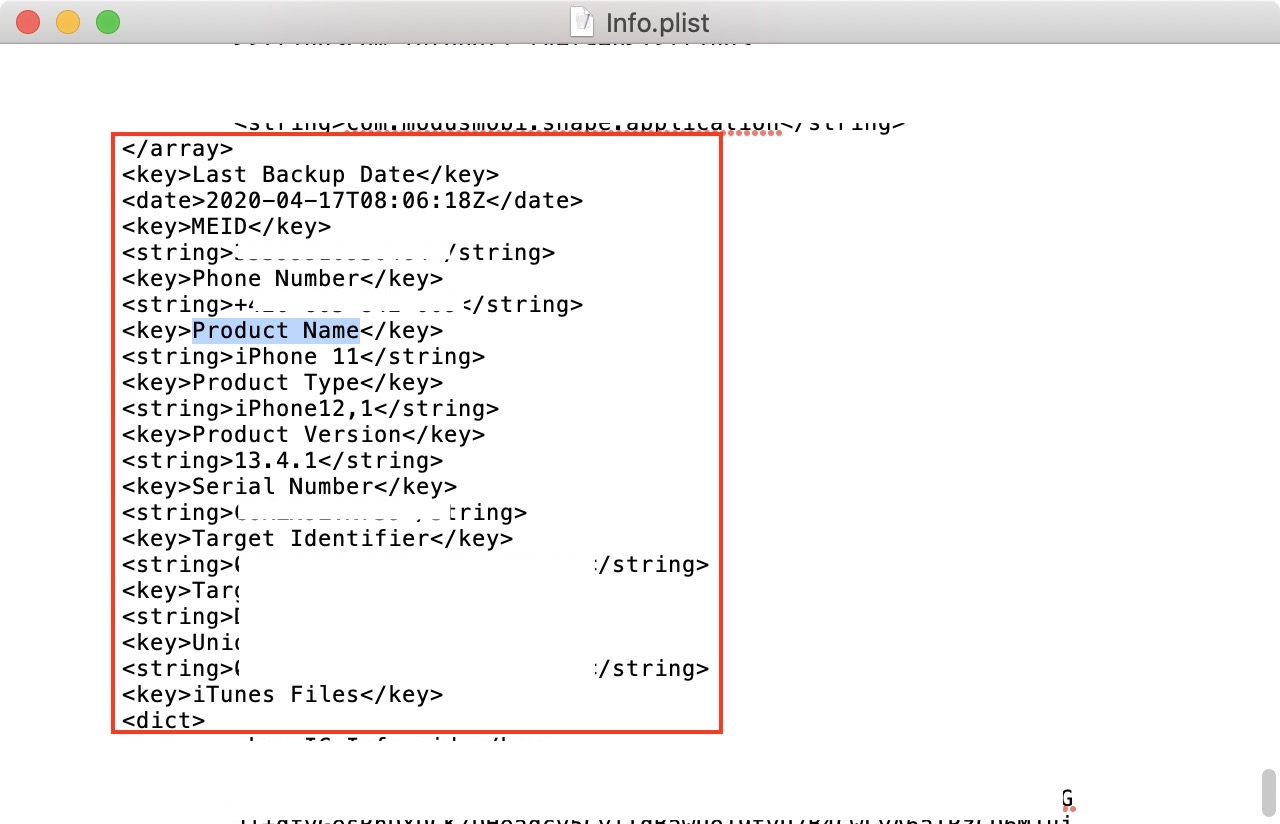
If you want to find out which device the given backup belongs to, then specific unclick the folder, and then open with the app TextEdit file info.plist. Here then using a keyboard shortcut Command + F search for a date Product Name, by which you will find out the backup of which device it is. You will then find below more information, including serial number, thanks to which you can backup assign absolutely exactly. In case you want your backups for example to move to another device, so just take them from here and copy them to a flash drive, for example. This flash drive after connect to another macOS device and copied folders move do same location. In addition, you can easily make your backups using this procedure lubricate. One device backup often has several dozen gigabytes, so if you have a backup on your Mac or MacBookIf you're low on space, the option to delete backups may be useful.
Gallery


Great, that helped.
Hello,
I found the backup. I will attach it. iPhone, I select the backup, click "continue" and it says "cannot restore, backup does not exist". It takes up 46Gb on the disk. It somehow goes through Finder open in folders. I mainly use it for backups of old photos that I already have in the next iPhone I do not have.
Thank you,