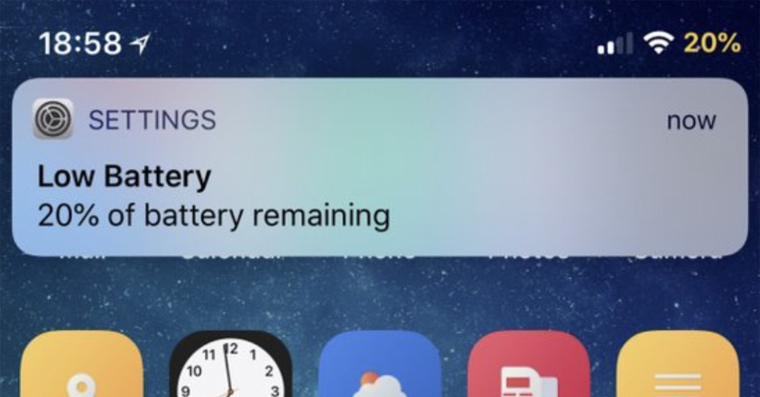
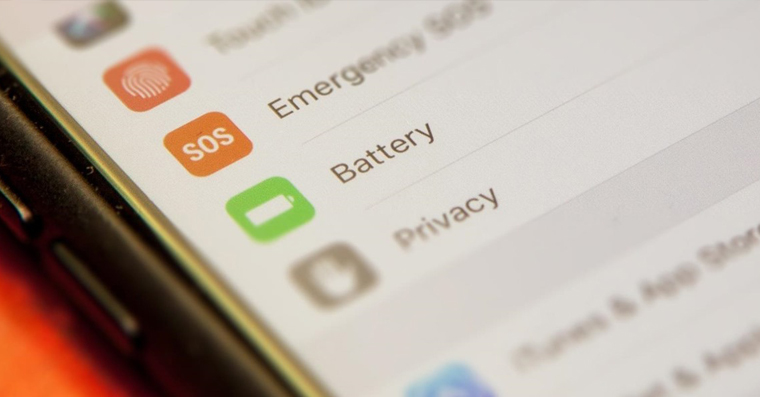
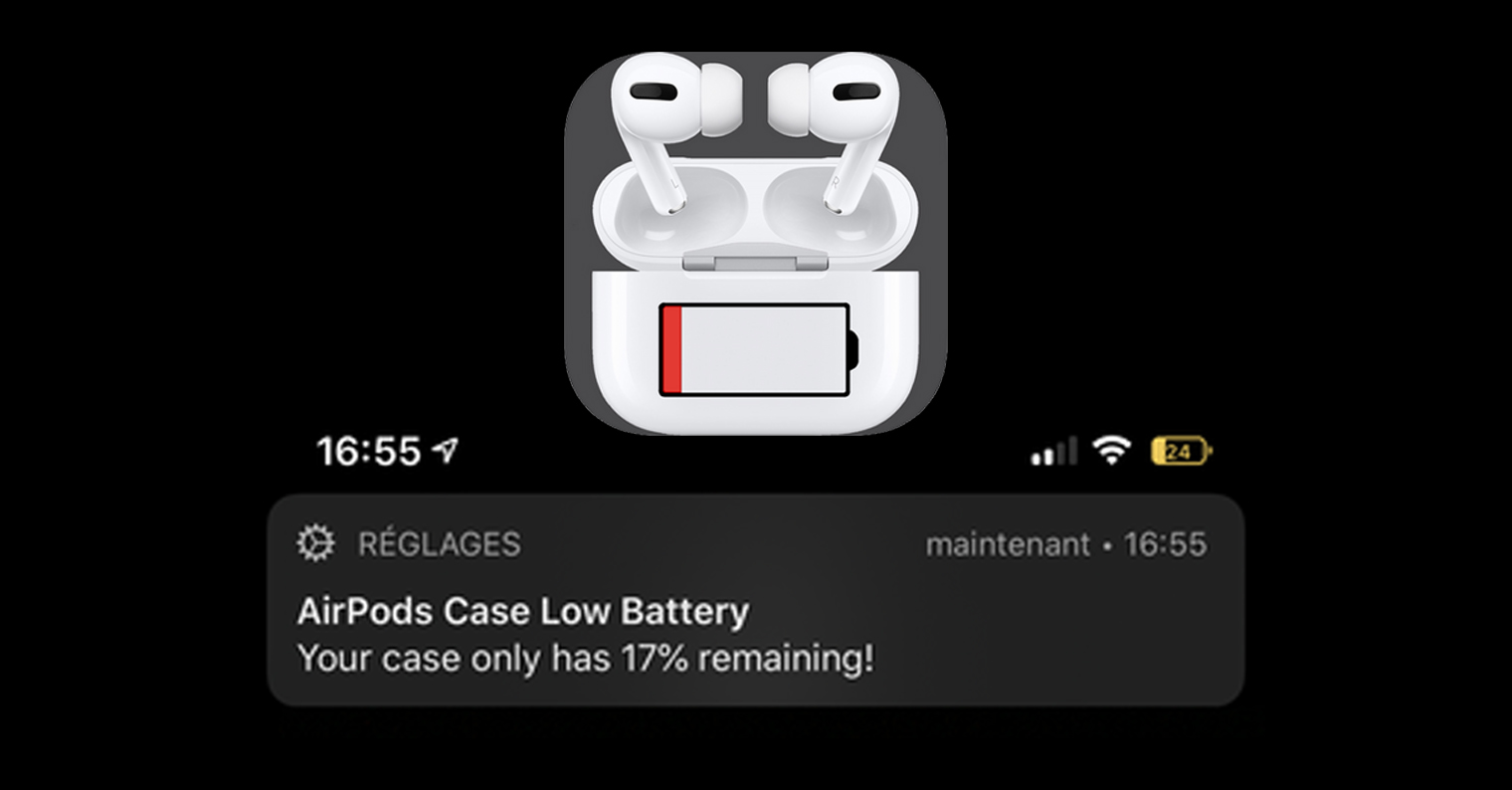
You can easily activate power saving mode in the settings (or in the control center) of your iPhone or iPad. After activating it, the performance of your device will be limited, which will prevent rapid battery drain. Power saving mode can also be easily activated when the battery power of your device "drops" to 20 or 10%. In this case, a notification will appear, which, in addition to displaying information about the low battery charge, will also provide an option to easily activate power saving mode. You may have thought that it would be nice to have advanced power saving mode settings available - and that's exactly what the SmarterLPM tweak does.
You might be interested in
With the help of the SmarterLPM (Smarter Low Power Mode) tweak, you can easily set up several rules for when your device should activate low power mode. For example, you can set it to simply start low power mode when you lock your device, when charging, or after activating Do Not Disturb mode. In addition to these options, you can also set it to automatically start low power mode when the battery level drops below a certain threshold, along with the option to disable low battery notifications. In our magazine, we also they provedthat dark mode added in iOS and iPadOS 13 can also save battery – and in the settings of the SmarterLPM tweak, you can also set the automatic activation of dark mode in certain cases.
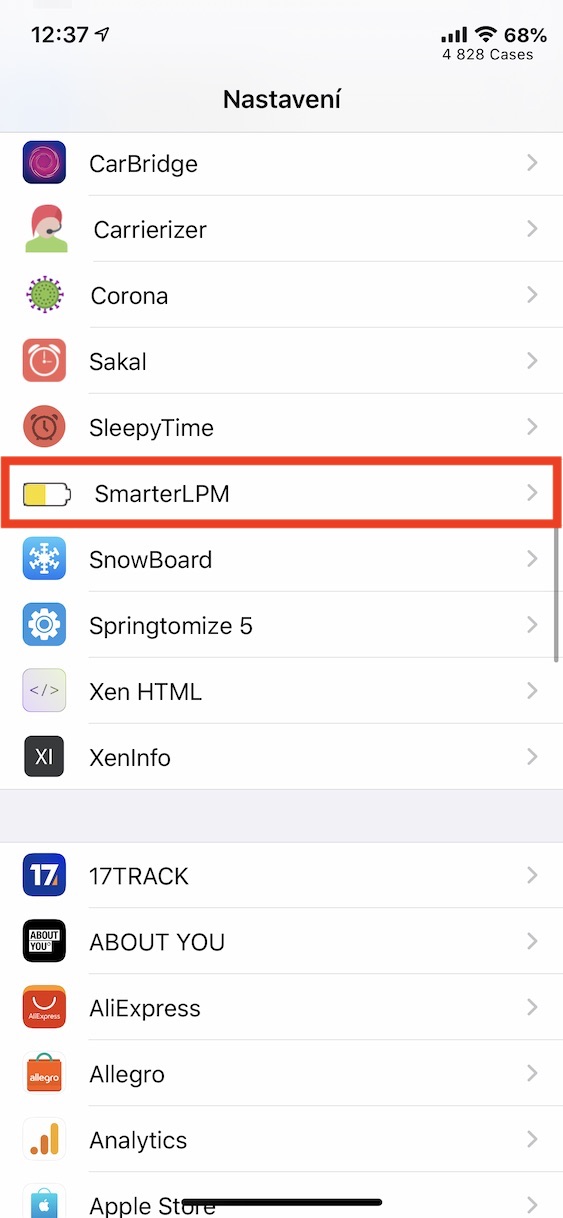
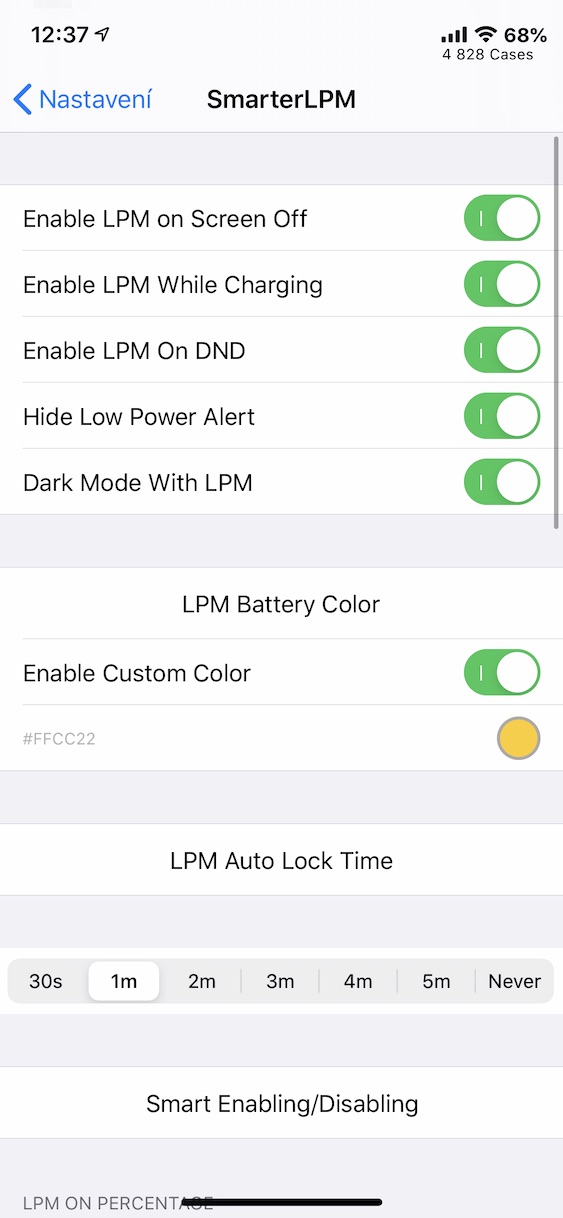
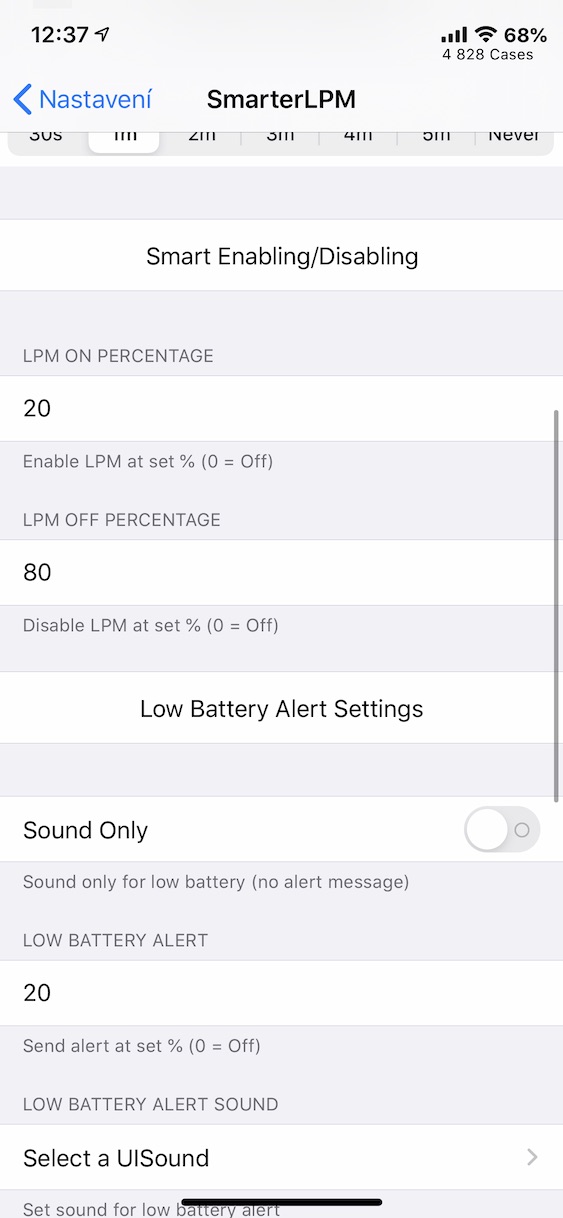
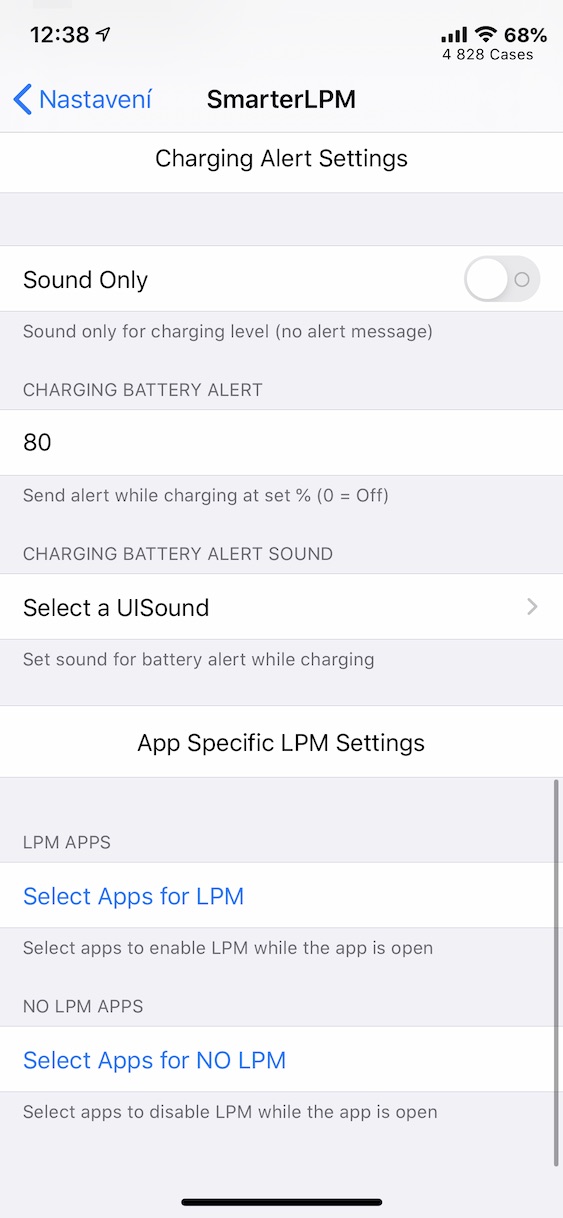
If you are interested in the SmarterLPM tweak, you can download it for free from the repository Packix (https://repo.packix.com/). Do not confuse this tweak with the SmartLPM tweak – it is an old version that is no longer supported (SmarterLPM is the successor to this tweak). After installation, you can configure the SmarterLPM tweak to your liking by going to the native application Settings, where you will get off afterwards below to the section with installed tweaks. Then click on the box here SmarterLPM and then you can dive right into the settings. As I mentioned, there are options to automatically activate power saving mode when the screen is off, when charging, or when Do Not Disturb mode is activated. Below that, you'll find options to disable the display of low battery notifications, along with the option to automatically activate power saving mode after the battery has reached a certain level. In short, there are many settings here that will make your iPhone it stays "alive" longer.