
Tool Apple CarPlay is enjoying increasing popularity around the world, which is opening the door to an increasing number of cars. If you are among the lucky owners of a car with support CarPlay If you are also a ranker, but are still unsure about its usability, you might find these six simple tips on how to use it usefully: maximum.
You might be interested in
Find your parked car
Gallery

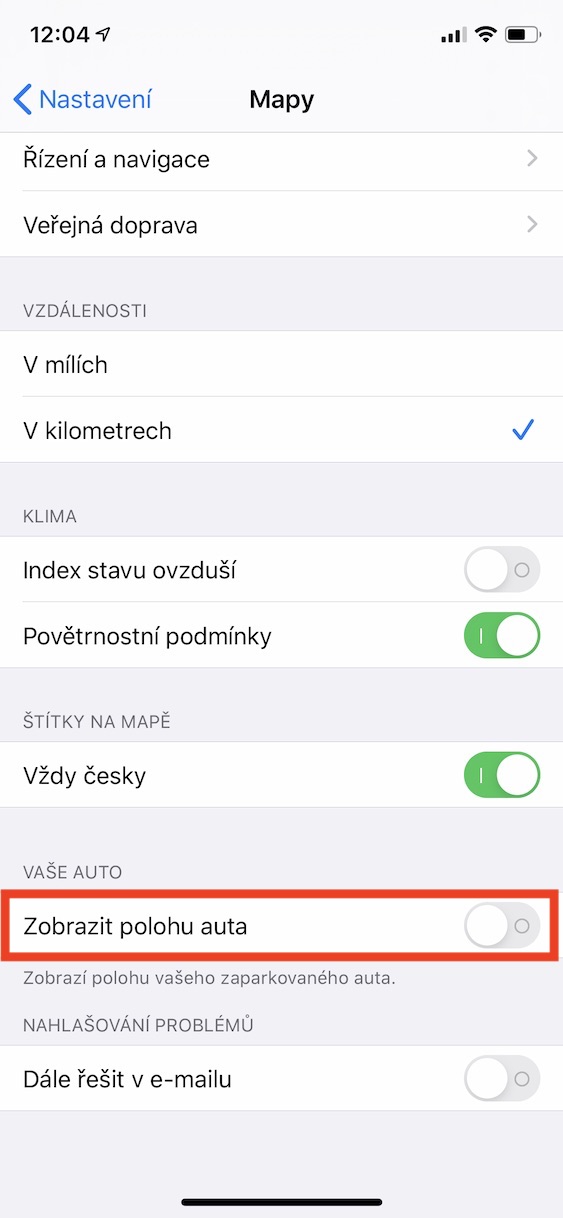
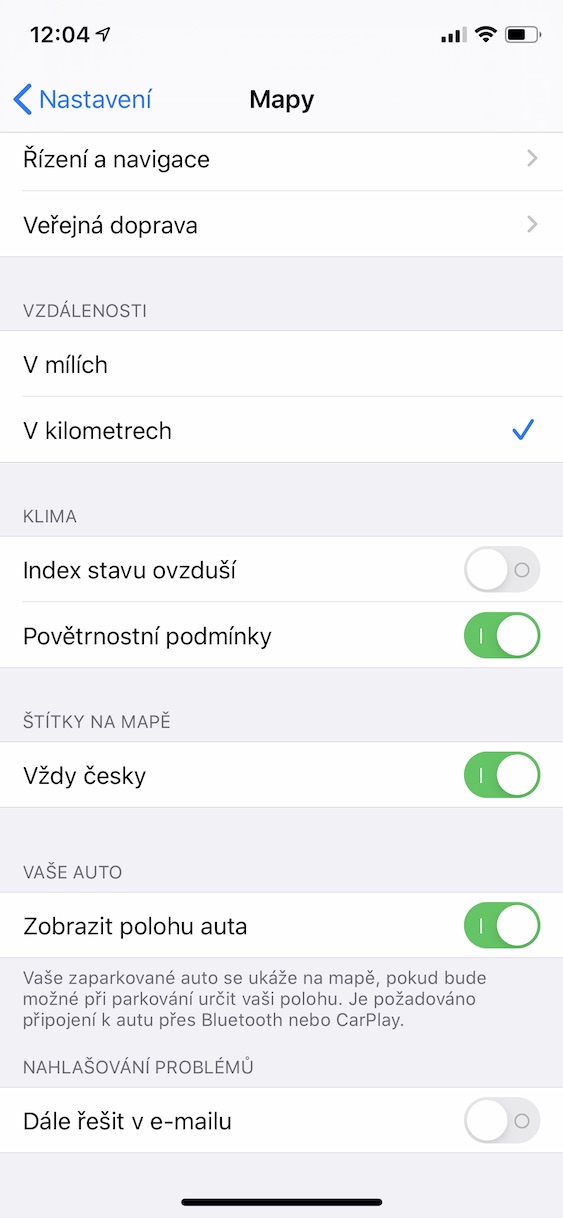
It is not very likely that you would lose your parked car, for example, somewhere in a housing estate or near a supermarket. However, if you go to a foreign business park, you can get lost really easily in underground garages. However, even with this, engineers Applu counted and added to CarPlay a feature that simply shows you in Maps where you parked your car. Pro To activate this function, go to CarPlay do Settings, where you open the option Maps a activate function Show car location.
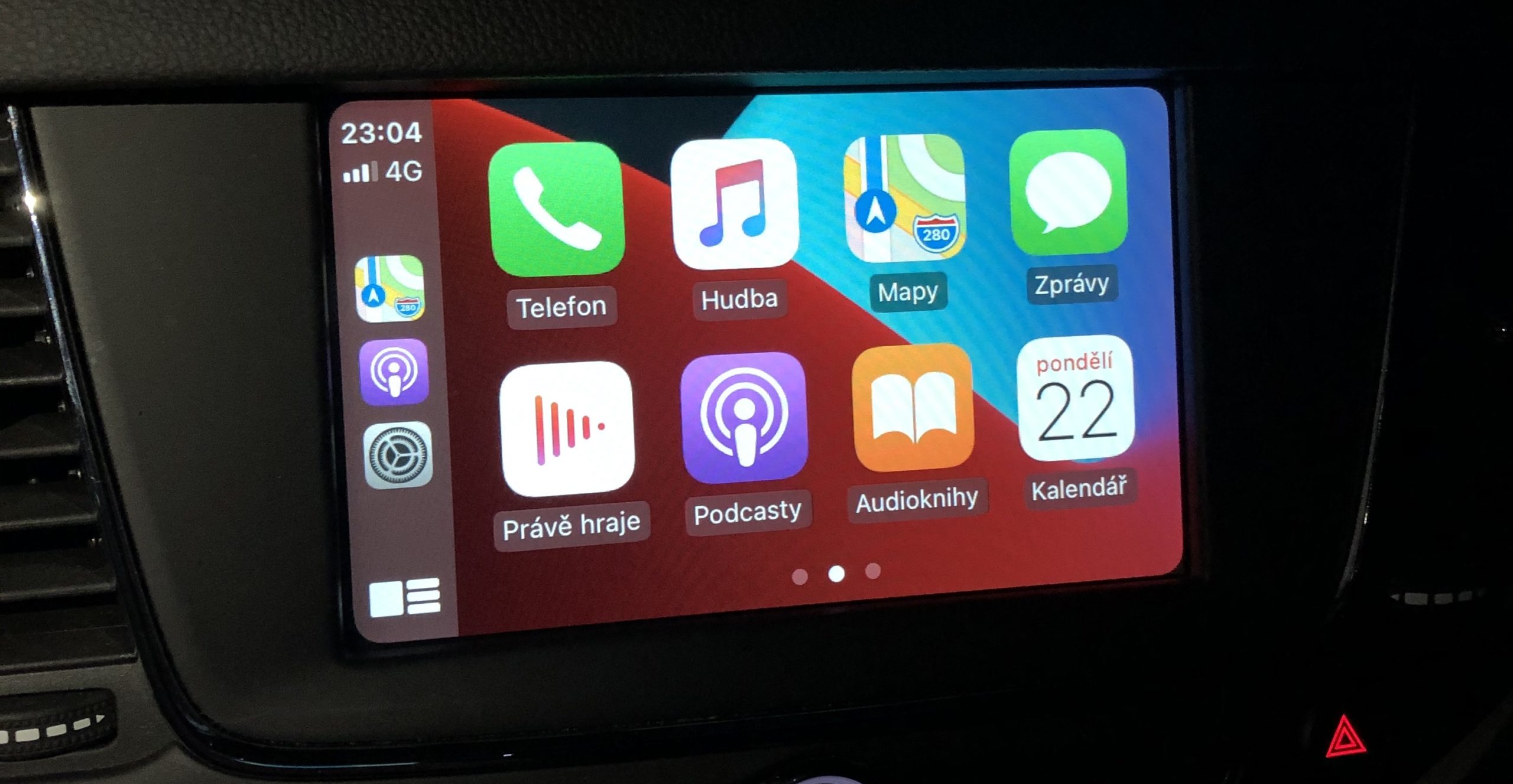
Calendar even in the car
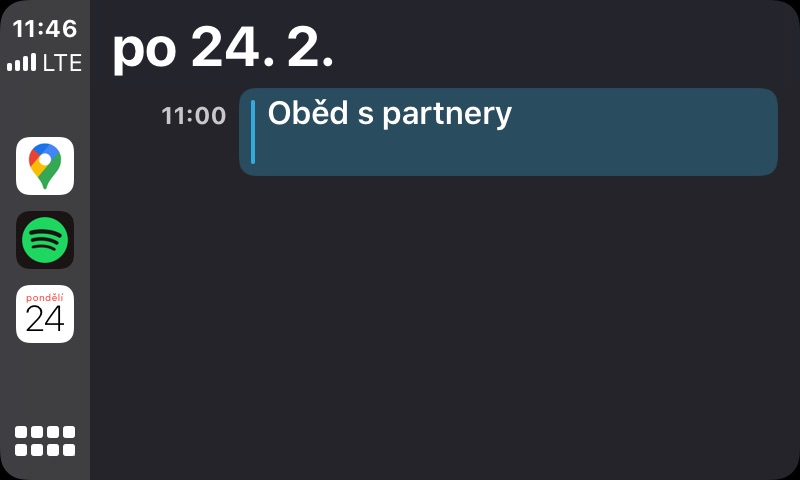

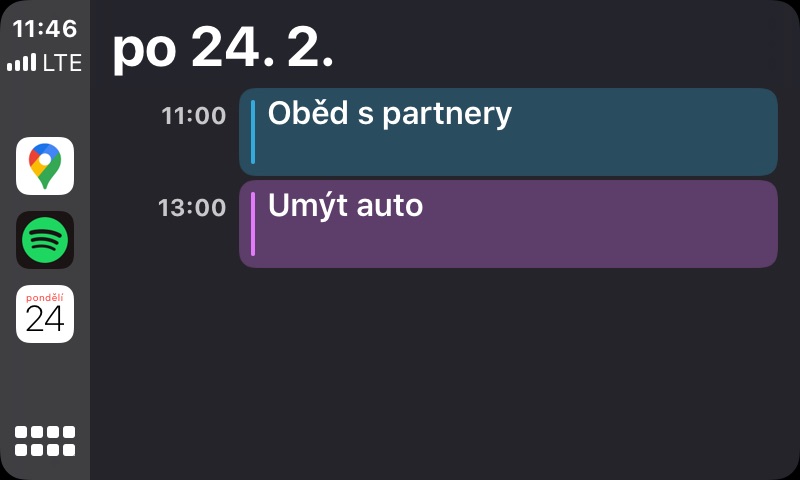
If you want to keep track of all your events, this won't let you down either. CarPlay in a pinch. Within it, you can notchat view all your events simply on the display CarPlayOf course, the Calendar has CarPlay very limited options and you can practically only see what awaits you. However, it is not that CarPlay he didn't know how to do this job - it's just Apple she doesn't want him to do it, for a simple reason - safety. Nobody wants to plan an event while driving and endanger other road users.
Usage Siri
Gallery
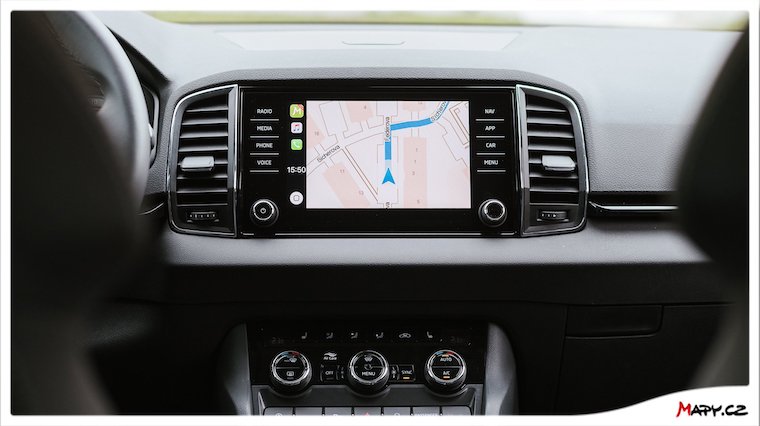
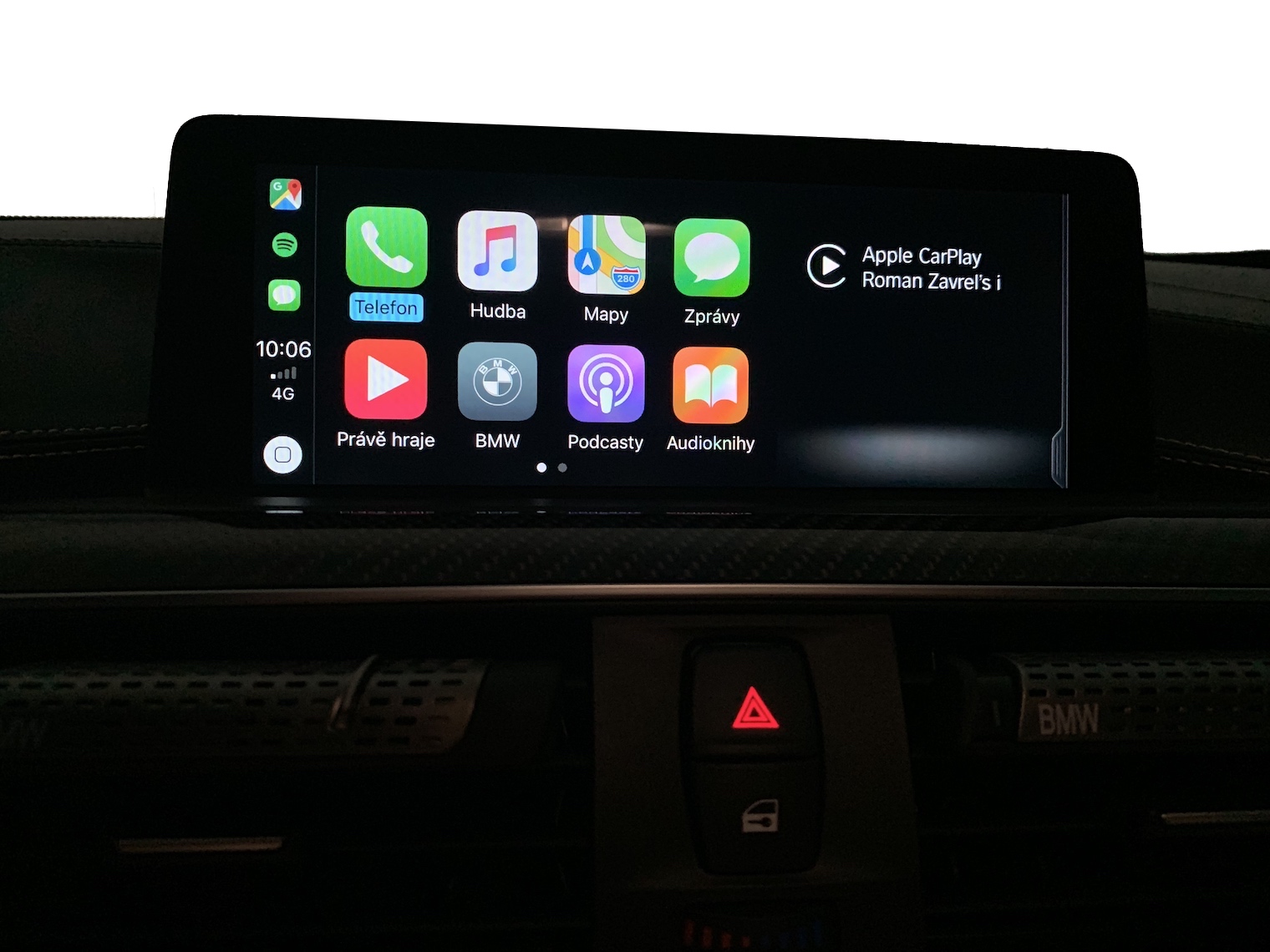
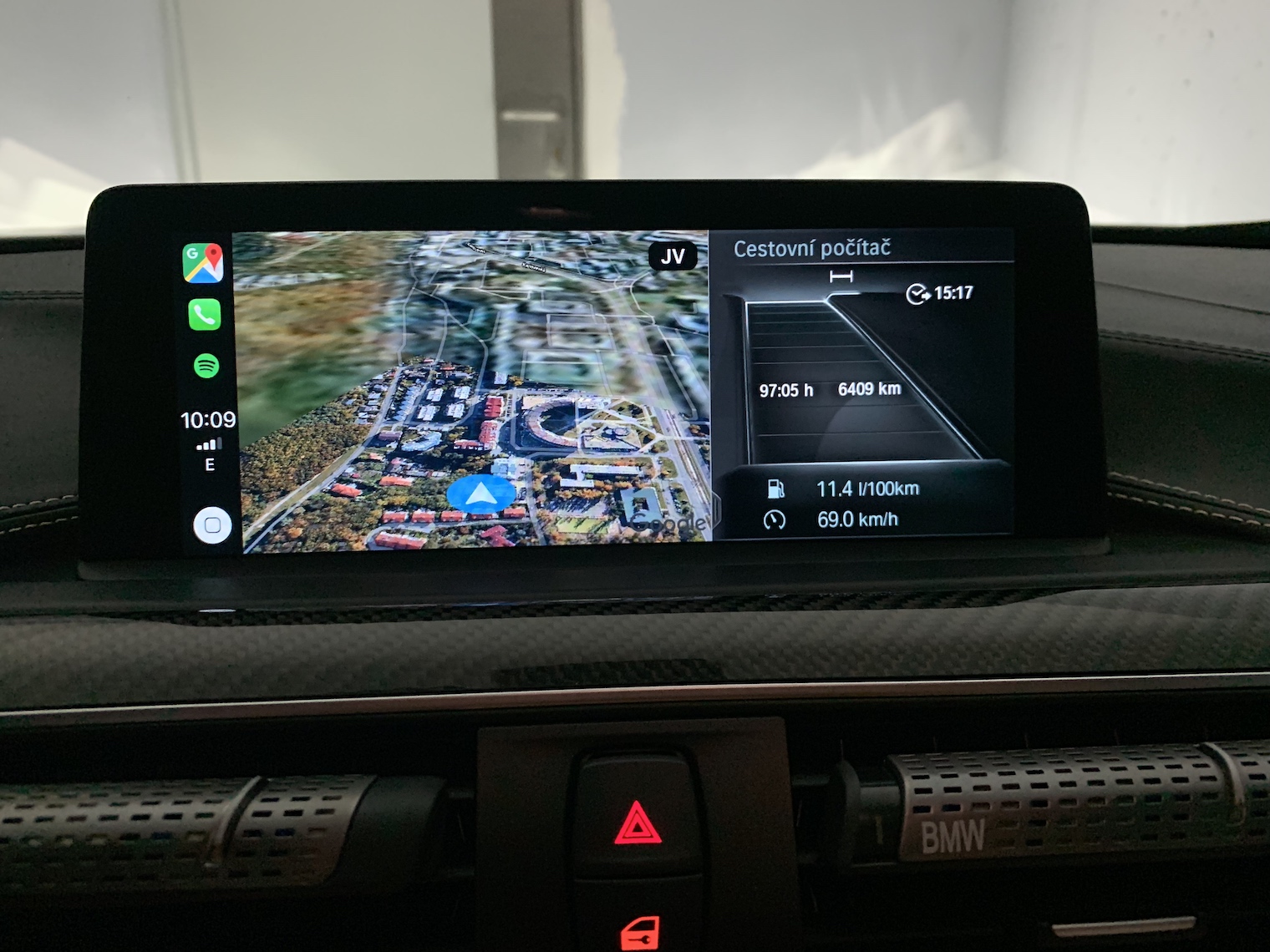
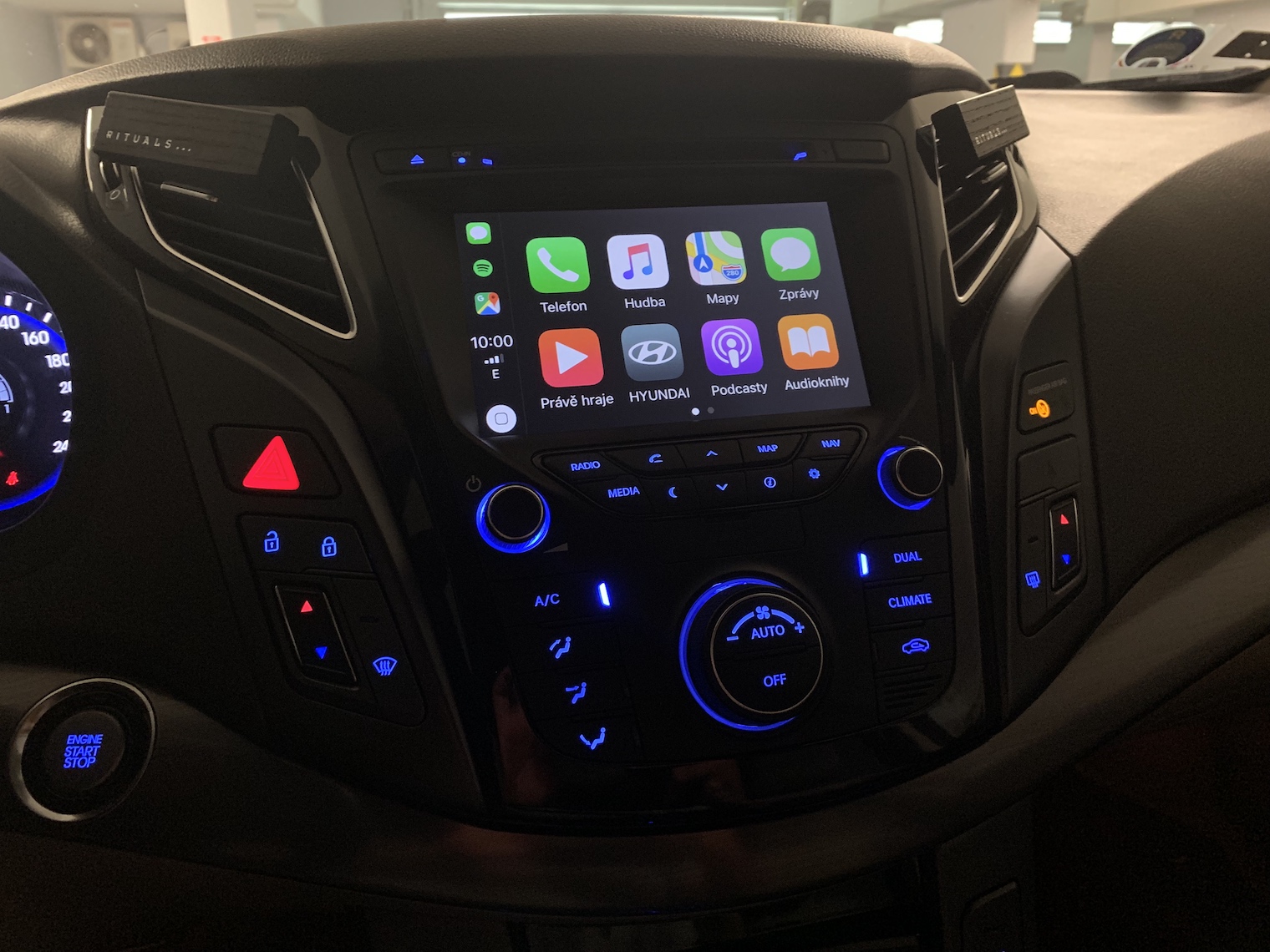
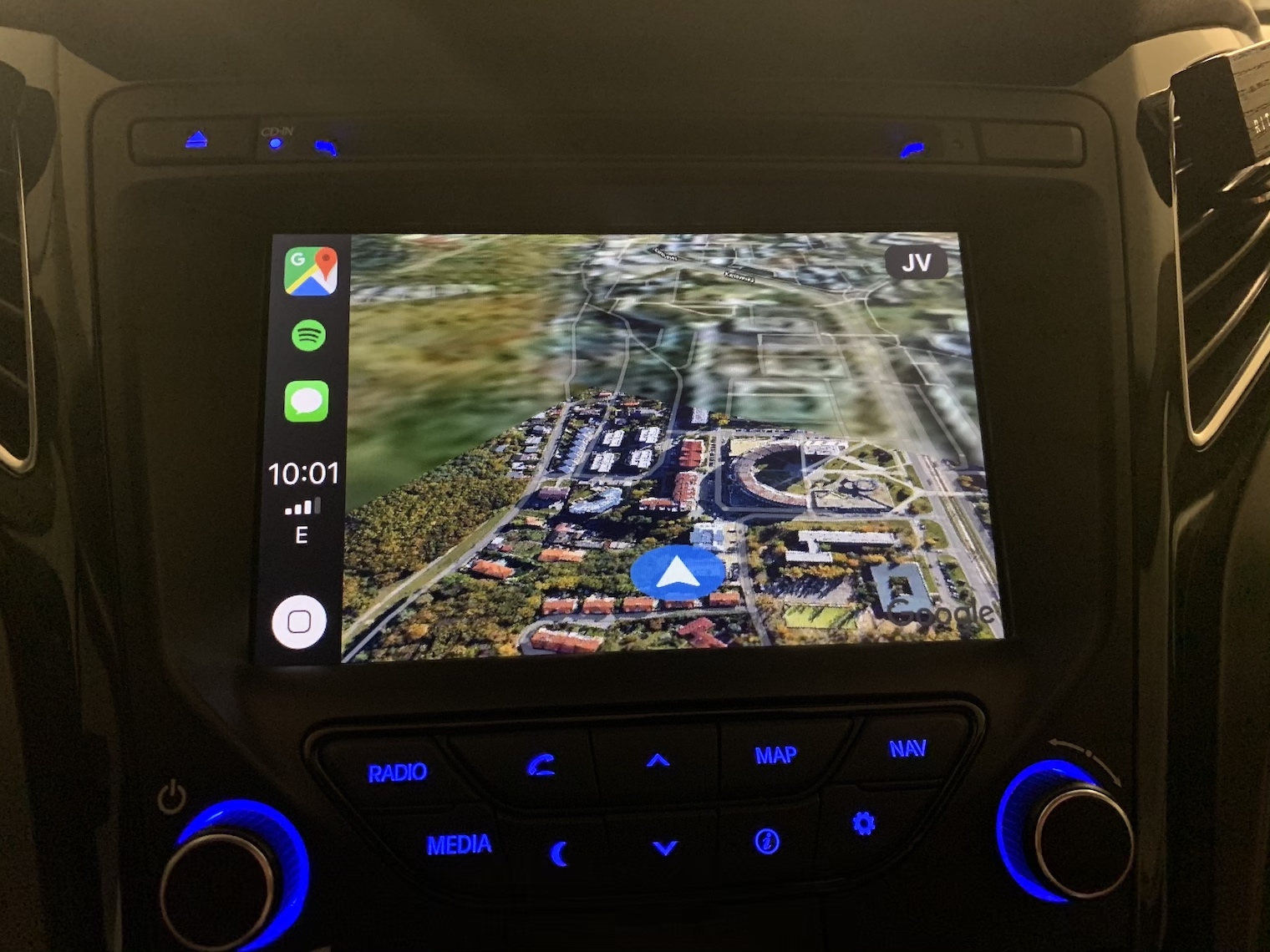
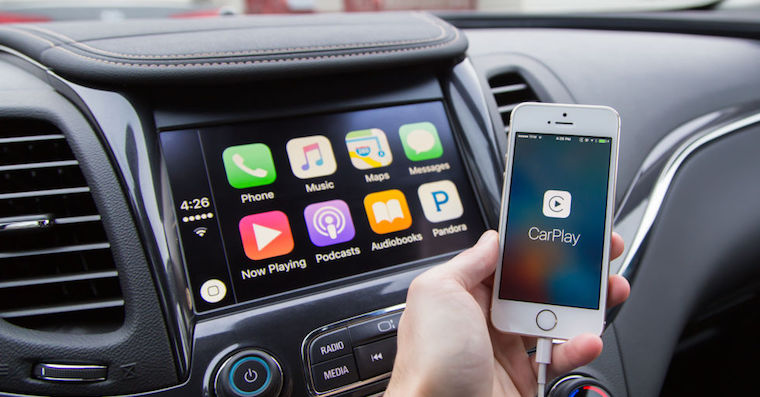
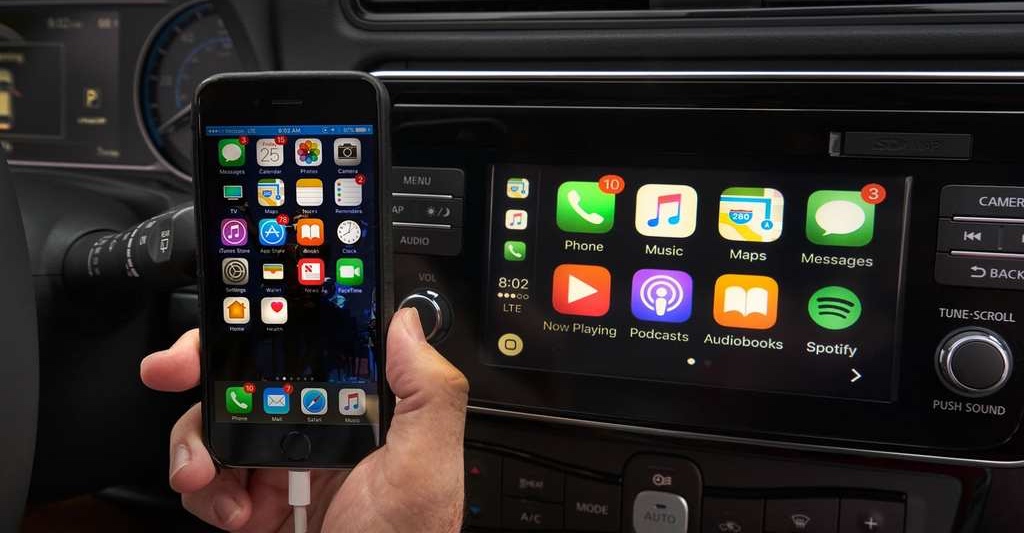
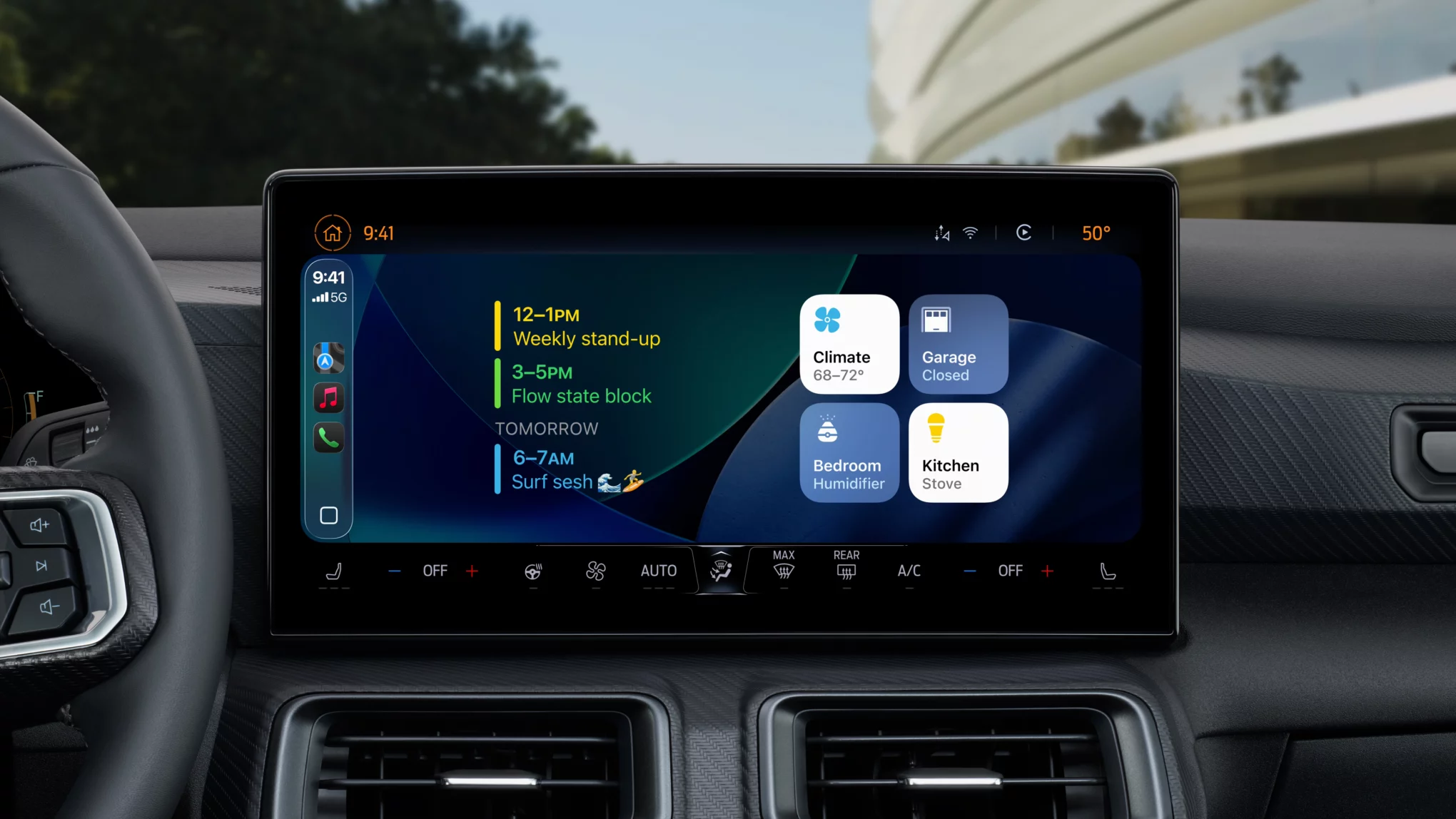
Anything you may need while driving, she will be happy to do for you. SiriWhether you need to call someone or launch an app, just Siri activate and tell her your request. In previous versions CarPlay when activating the voice assistant Siri displayed across the entire screen, which was not very user-friendly. In the new version CarPlay however, it is already Siri it simply displays only in part of the screen and does not interrupt your navigation or anything else. Together with the use of Siri so from CarPlay you pull out the complete maximum and at the same time you will not endanger other road users.
Pause spoken audio
Gallery
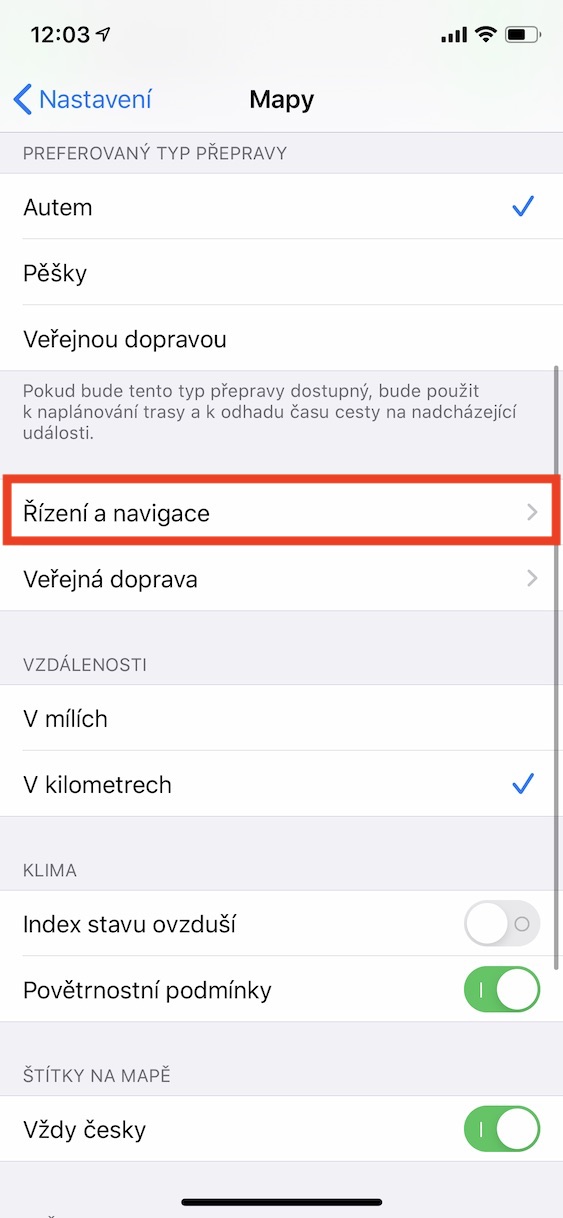
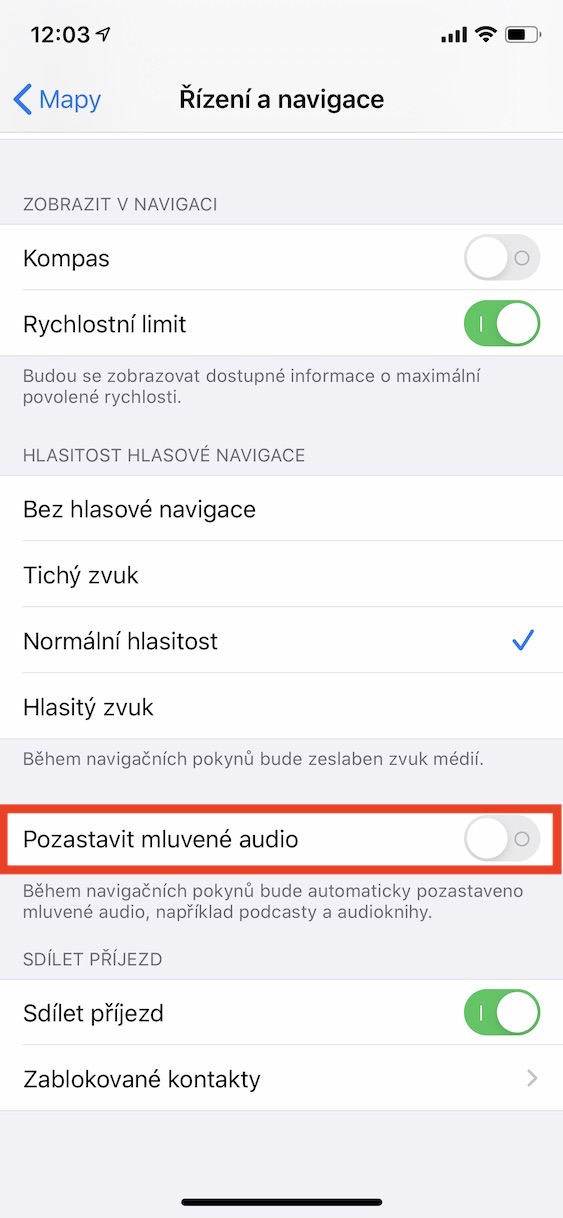
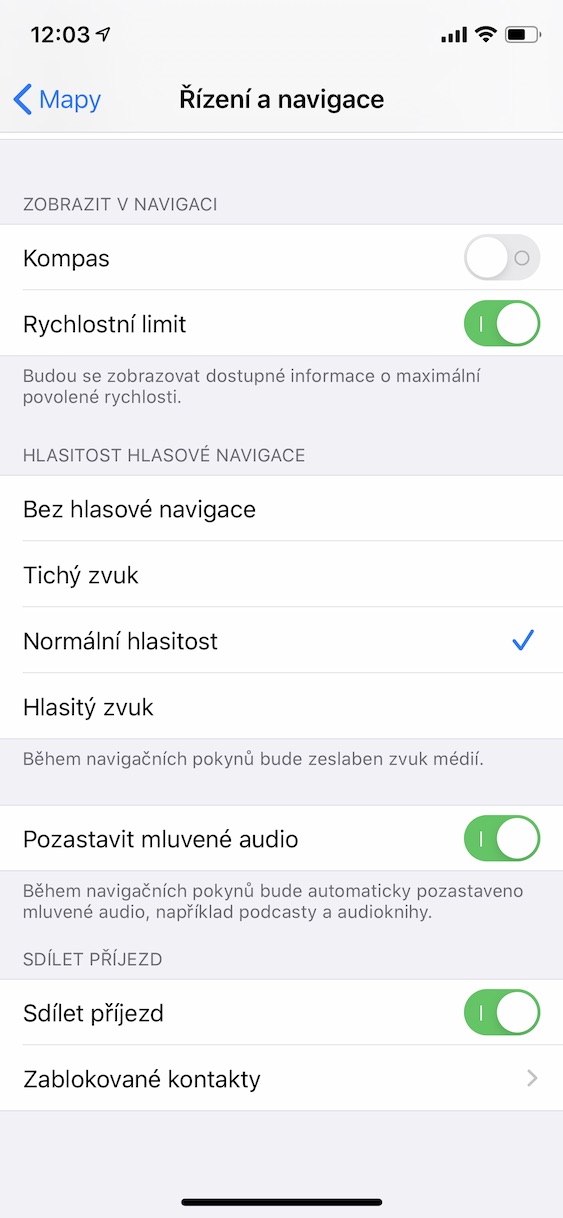
If you are one of those users who likes to listen to podcasts in the car, you definitely don't want to miss out.chat interrupt navigation instructions (or other instructions). Because of them, you can easily miss part of the podcast and lose information that could be important to you. Fortunately, there is a feature that allows you to always pause podcast playback before a certain instruction from CarPlay pauses, and once the instruction is completed, the podcast starts again. This is how you 100% the certainty that you will hear the podcast in its entirety and without gaps. Pro To activate this feature, go to on your iPhone Settings, where you click the option Maps. Click on the section here Steering and navigation a activate function Pause spoken audio.
Redesigned Maps from Applu
Gallery
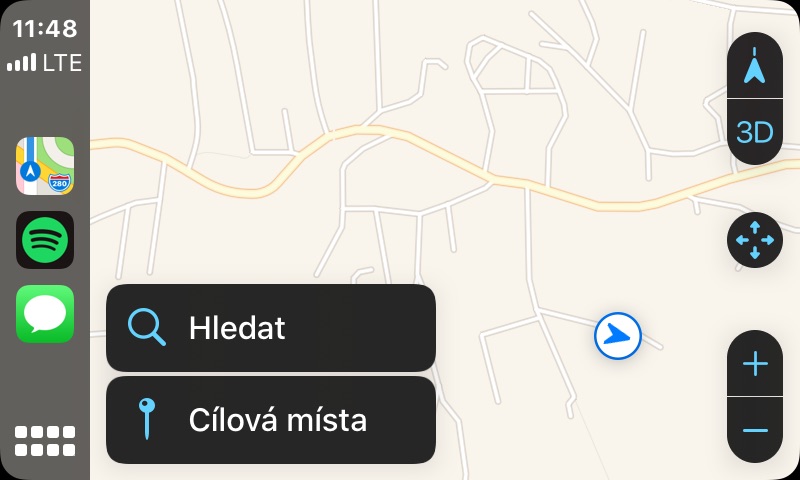
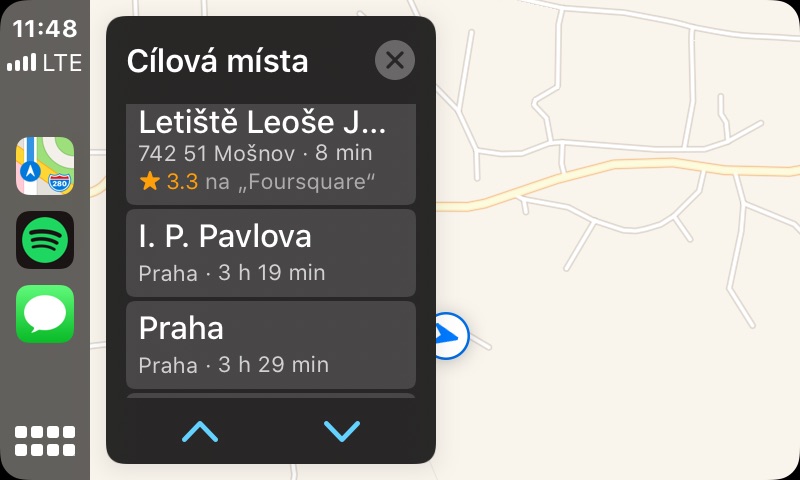
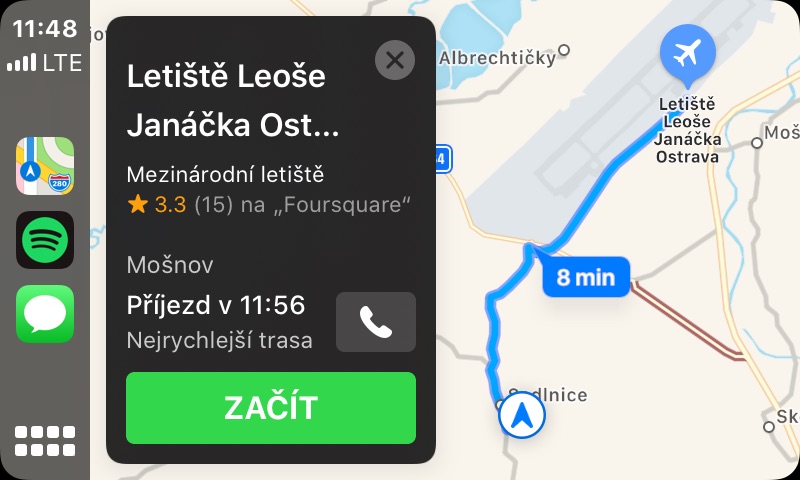
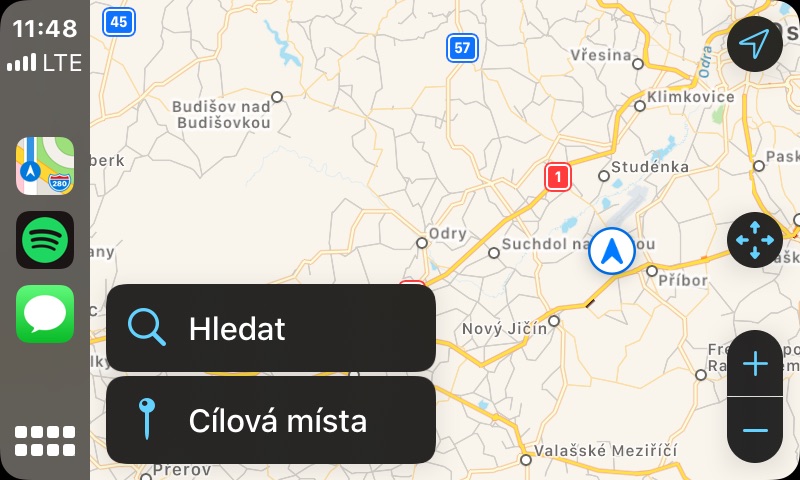
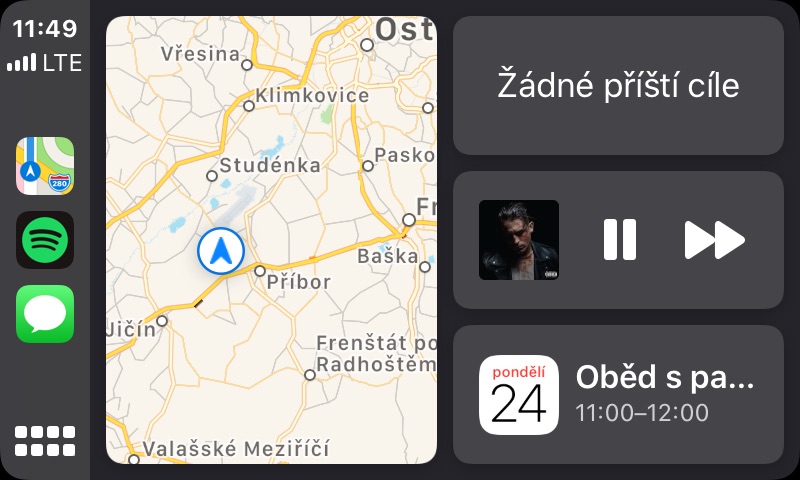
If you have previously been unable to access the Maps app due to a malfunctioning Appthey switched to a competitor, so maybe you should give it a try now after that timeanci. Over the course of several new releases, Maps from Applu have received many improvements and users are gradually returning to them, mainly due to their excellent compatibility with CarPlayFor example, Maps now has the option to switch between light and dark modes, and the layout on the home screen is also great, where you can find the map, navigation instructions, and music in one place.
Support for third-party applications
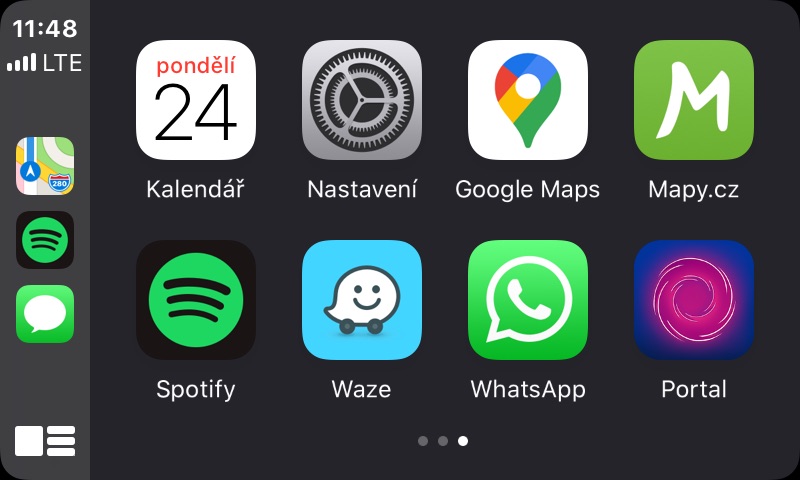
V CarPlay There is no longer just one application from Applu, but you will also find various third-party applications here. Some of them include Waze, or Mapy.cz from Seznam, which are mainly suitable for navigation. However, of course, there is also support for various music applications, such as Spotify, Pandora and others. CarPlay is becoming more and more diverse and offering more and more third-party applications over time, which is definitely good news.





Can anyone advise me why sometimes after connecting iPhoneX with iOS 13.xk Lightning cable Carplay
in VW Golf7 it blocks audio?
Carplay v appke Podcast shows the podcast playing, but without sound. I have to pull the cable out
and reconnect iPhoneX to make the sound active.
Where is the option to switch between light and dark mode in Maps please? I couldn't find that anywhere and the dark mode irritates me so much that I can't even concentrate on driving... :-(
CarPlay great, but that dark mode Apple maps It's really scary. They chose such dark colors that you can only see the route but nothing around it. Especially at dawn and sunset, when it's not yet dark or not yet, but the map switches to night mode. Apple he got tons of reactions from users and nothing. It was perfectly balanced back in iOS 12.