
On your iPhone and iPad, you can use the “press and hold” feature to display advanced features and actions. So let’s take a look at 9 tips for using the “press and hold” feature within the SafariYou can of course use these tips on all iPhones and iPads. Let's get straight to the point.
You might be interested in

Save multiple bookmarks at once
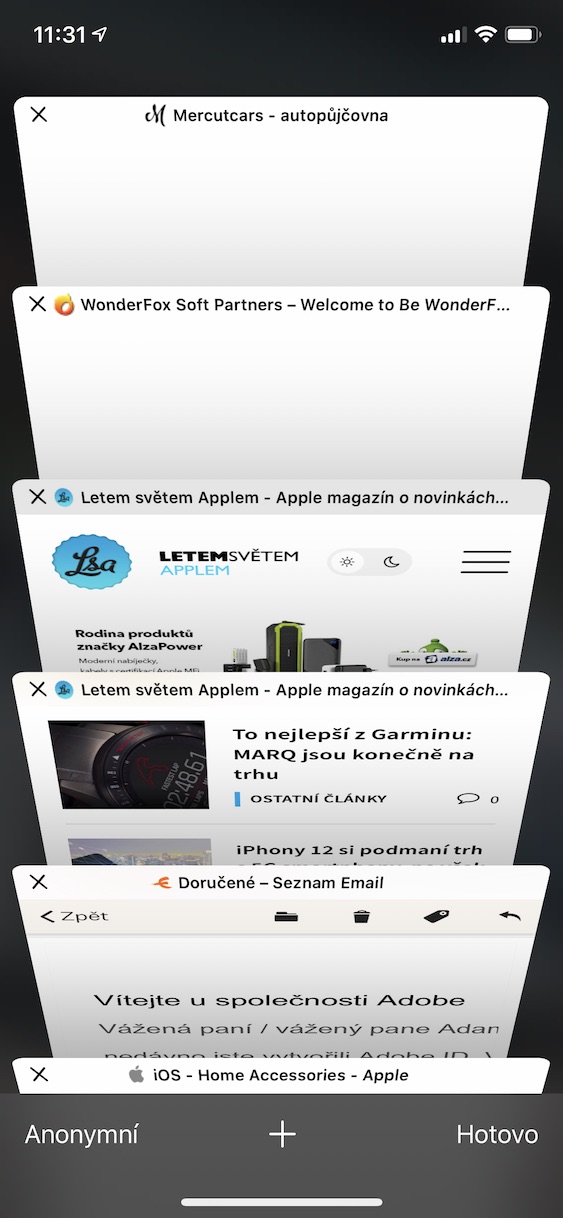
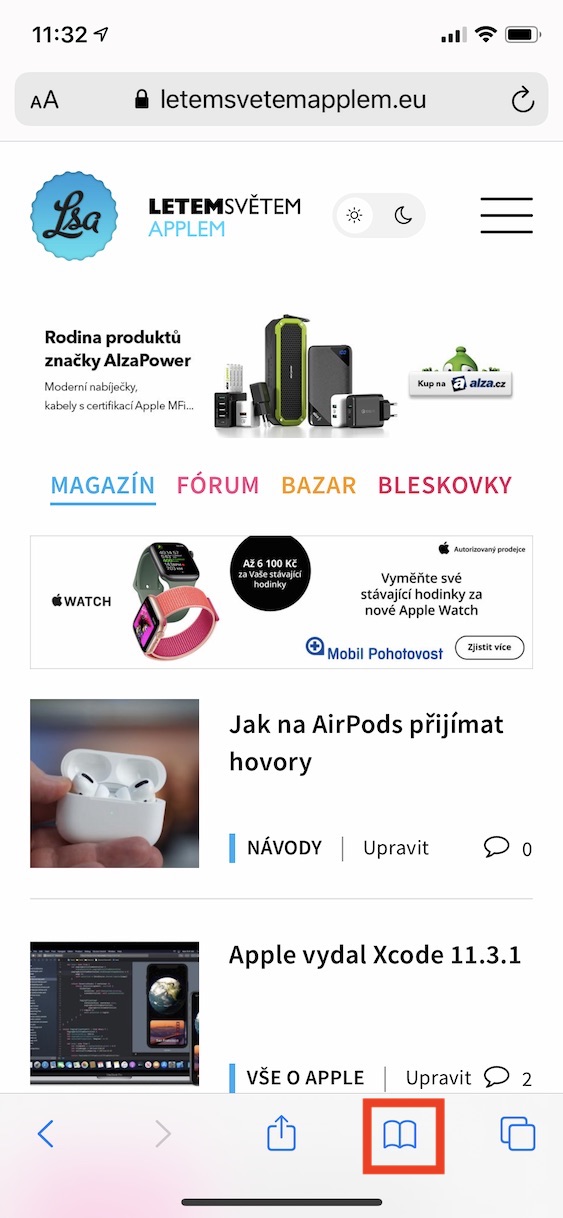
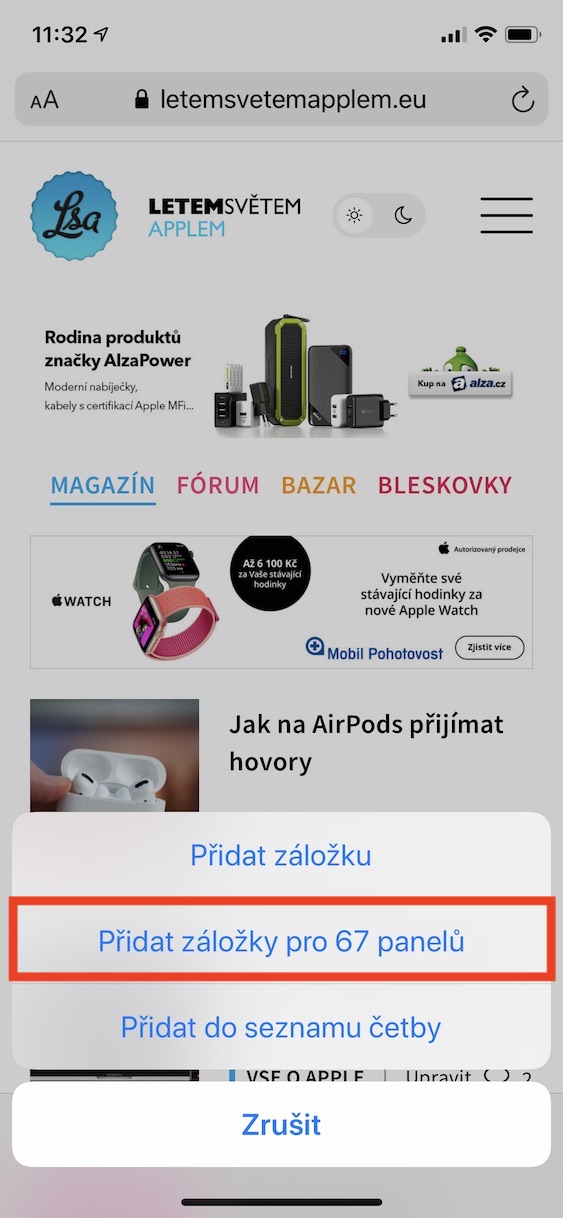
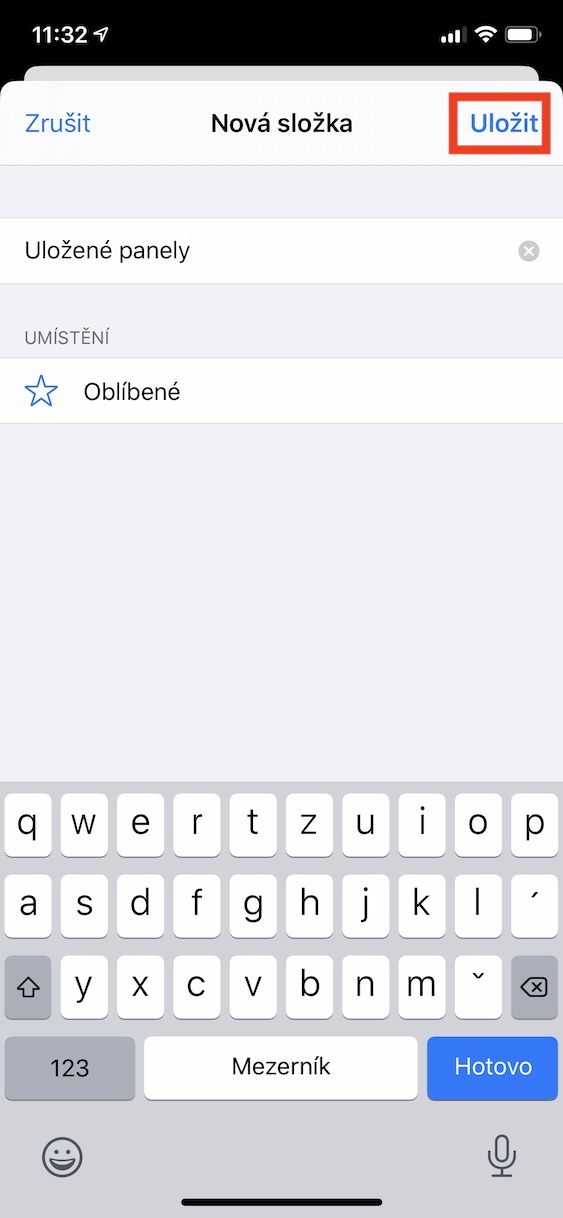
If you have Safari If you have multiple panels open, you can bookmark them all at once – for example, if you plan to look at them later and don't want to lose them. Just tap and hold on any of the tabs. book icon (bookmark). A menu will appear in which all you have to do is select an option Add bookmarks for x panels. After pressing this option, you can still choose whether you want to place these bookmarks in a special folder that you either create or choose.
Gallery
Bulk copying of links from bookmarks
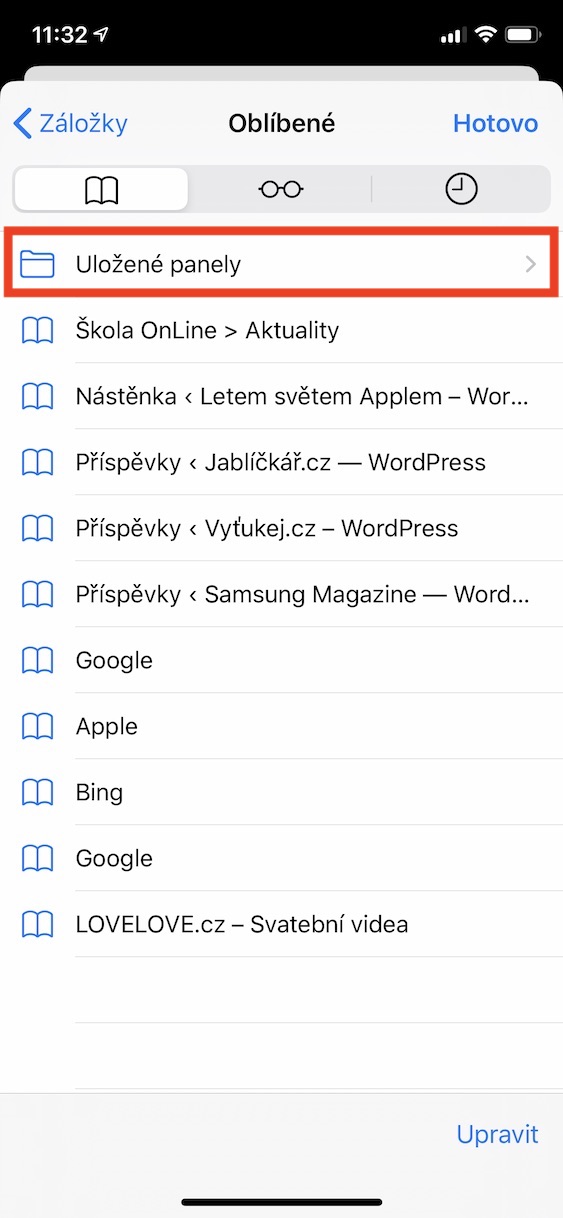
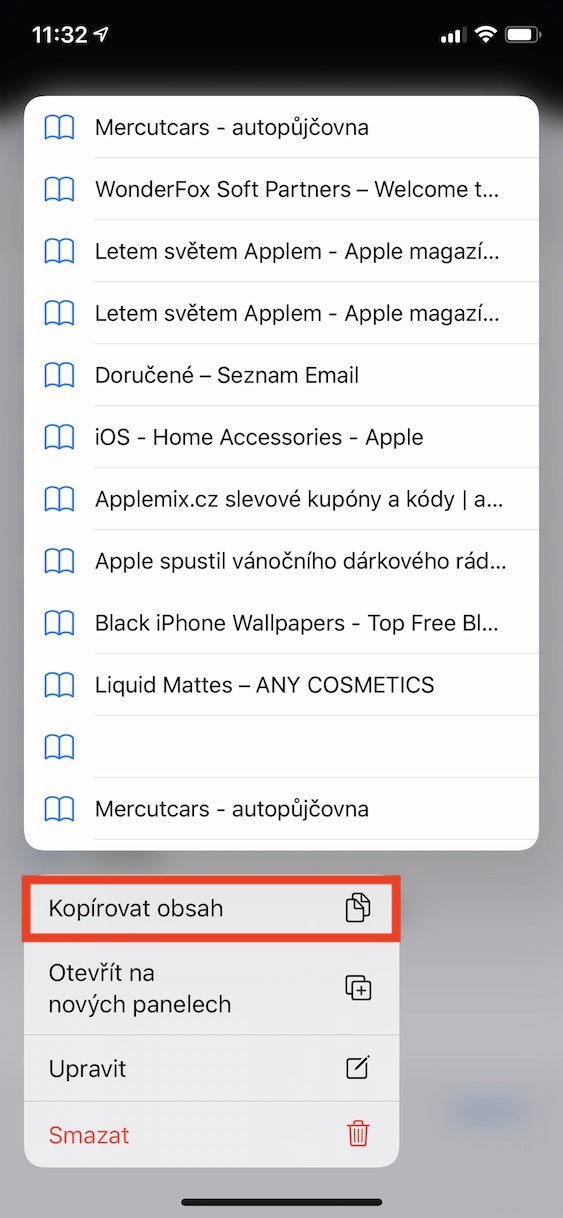
If you have some interesting pages in your bookmarks that you want to share with your friends, there is nothing easier than using this tip. If within Safari you move to your bookmarks (book icon) and hold your finger on one of the created folders, so you can choose the option Copy content. This will save all links to your clipboard, which you can then share anywhere.
Gallery
Quickly scroll through a web page
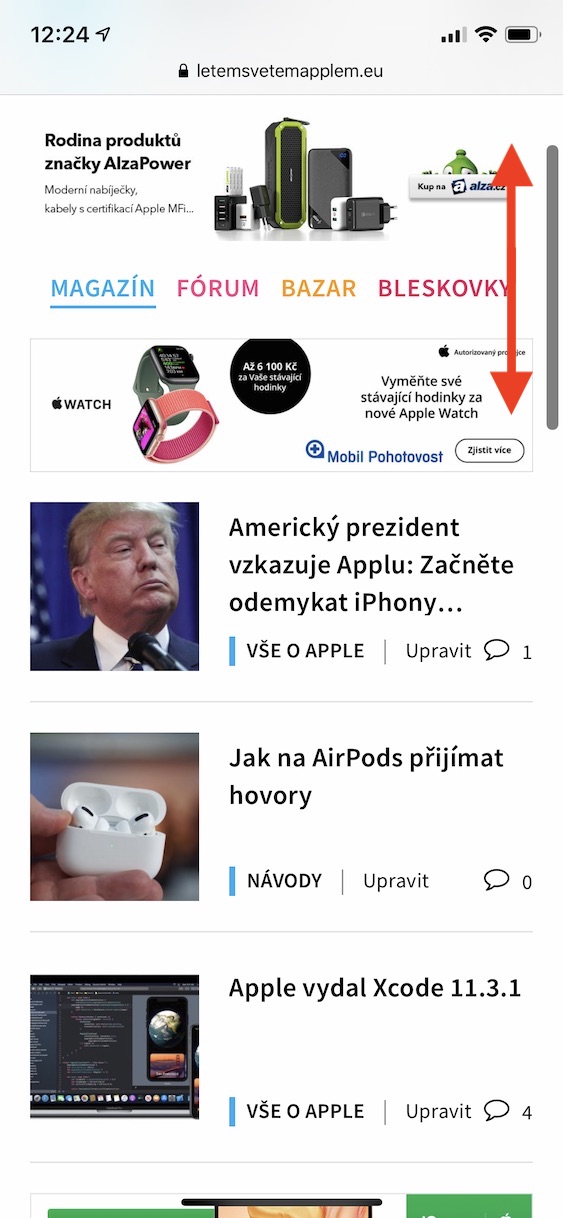
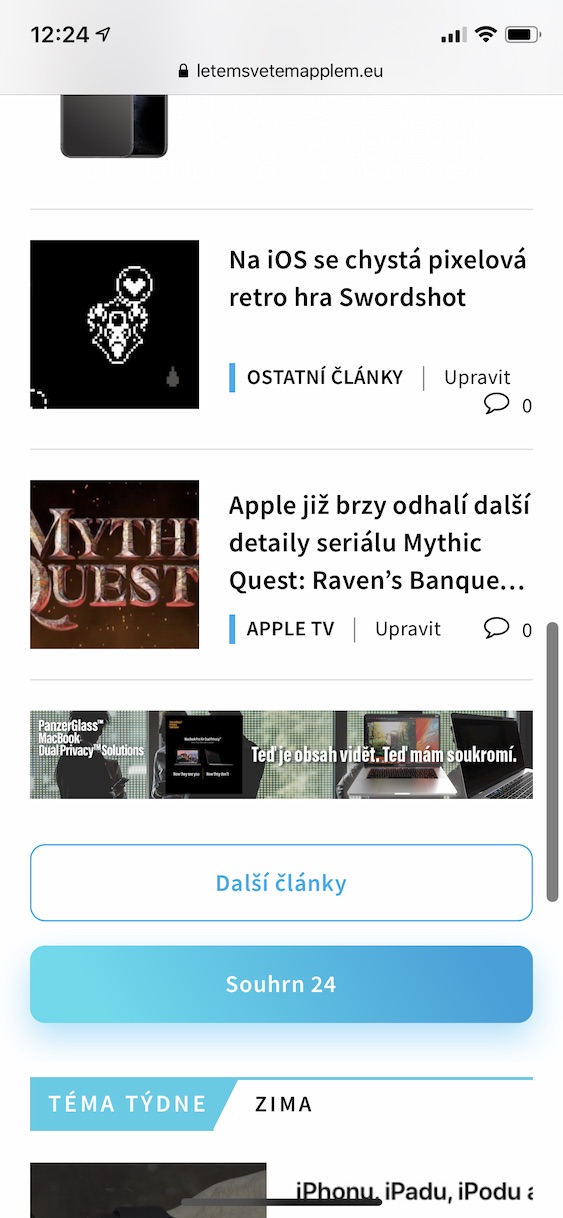
If you are on a long web page and want to scroll up and down faster, follow these steps. First, swipe your finger up or down slightly to make the scroll bar appear on the right side of the screen . Then hold your finger on the scroll bar . Once it enlarges, simply start scrolling up and down, which will help you scroll through the page much faster.
Gallery

Close all open panels
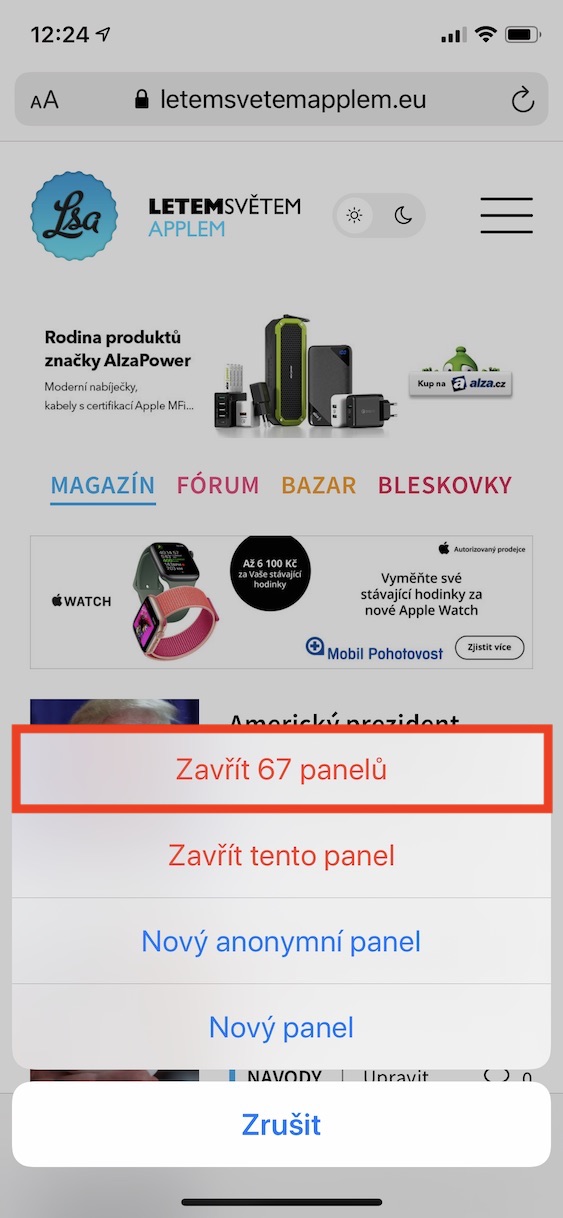
Most of us don't close open panels on our iPhone or iPad regularly. So in the end, you might end up with Safari several dozen or hundreds of panels open. I bet none of you would want to close these panels manually. Even for this in AppThey thought so. Pro closing all panels at once is enough to they held up their finger na panels icon (two squares over each other). Then just select the option Close x panels.
Re-opening closed panels
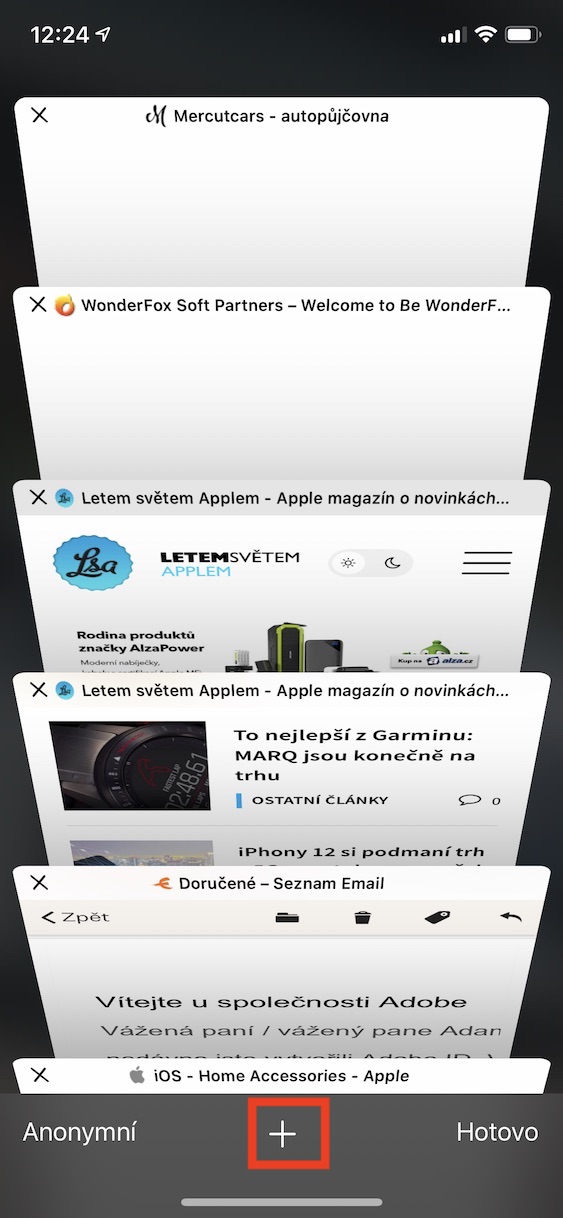
If you accidentally closed a panel but would like to get it back, of course you can. Just click on the panels icon (two squares on top of each other), then hold your finger on the + icon . Here you can easily view a list of all the panels you have recently closed. You can reopen them by simply clicking on them.
Gallery


Open all tabs in panels
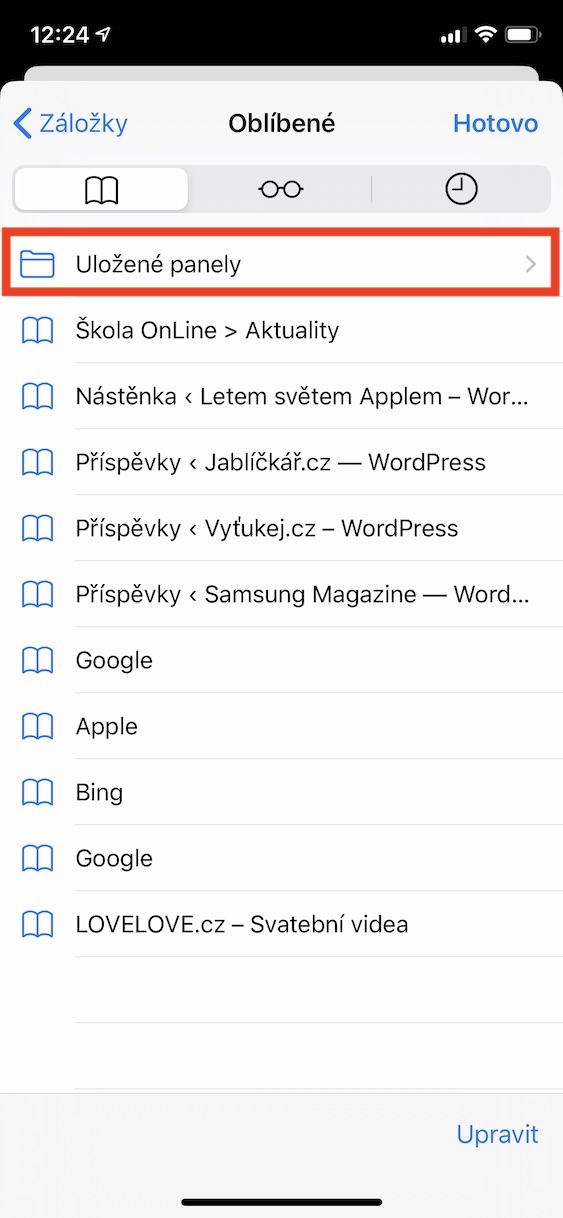
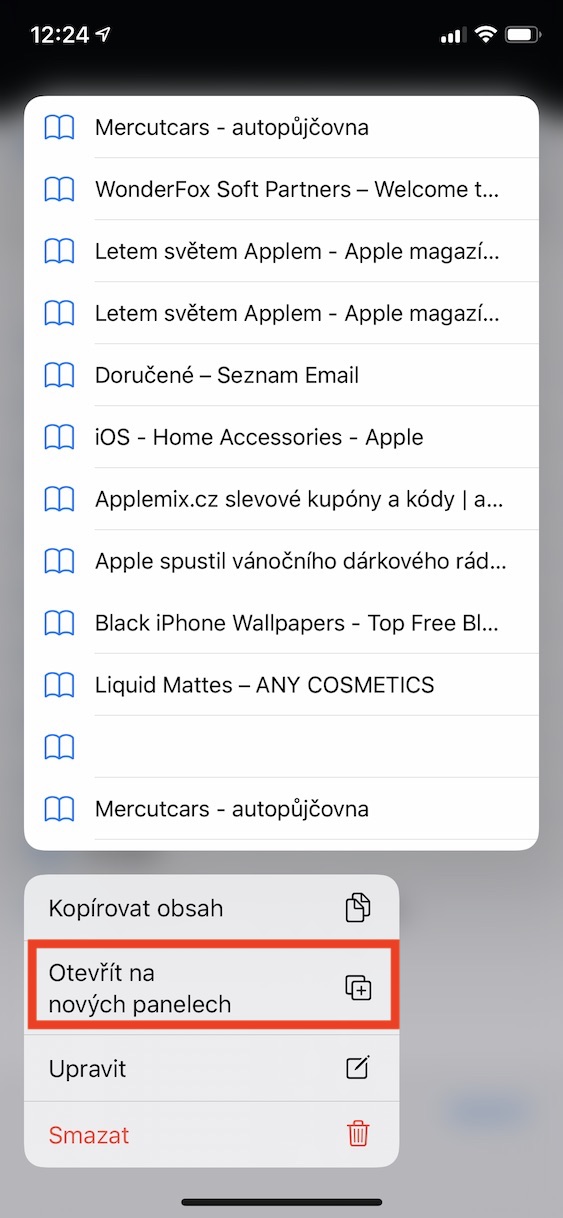
If you have some bookmarks saved in the form of panels that you work with at the same time, you will like this tip. You can easily open all the bookmarks from a folder in panels at once. All you have to do is Safari moved to bookmarks (book icon), and then held their finger on the bookmarks folder. Then just select the option Open in new panels.
Gallery
Preview of a website or link
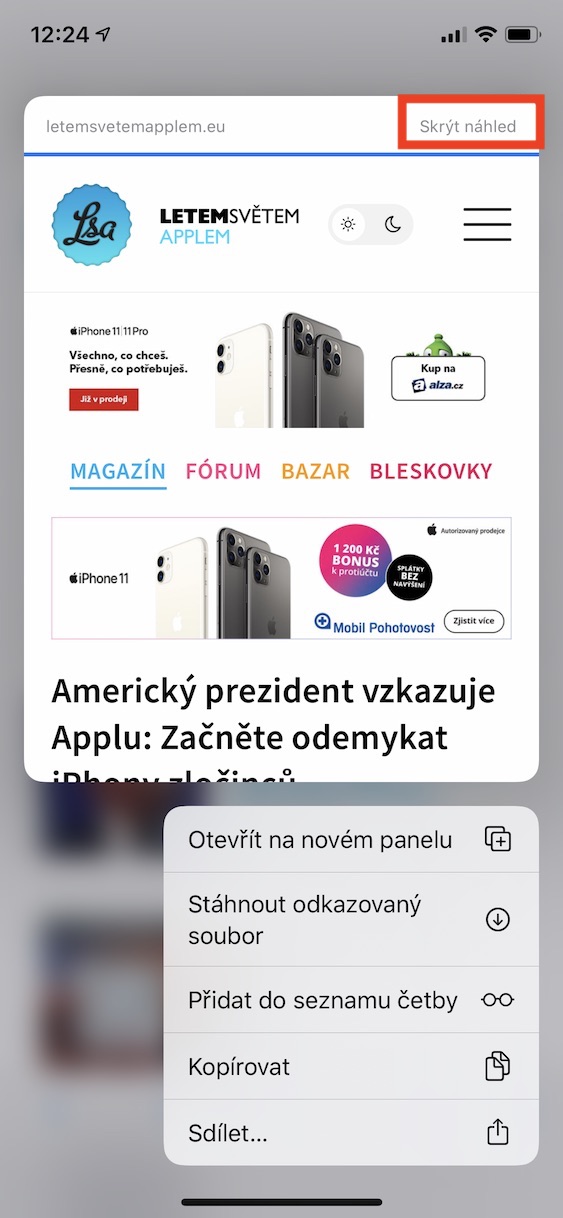
If you want to look at the content of a particular web page before going to it, this is also possible. Just hold your finger on the link . A small window with a preview of the web page will then appear. Along with the preview, options that you can work with will appear at the bottom - for example, opening in a new tab, copying the link, etc. If you want to cancel the preview, just press the Hide preview button in the top right.
Download linked files
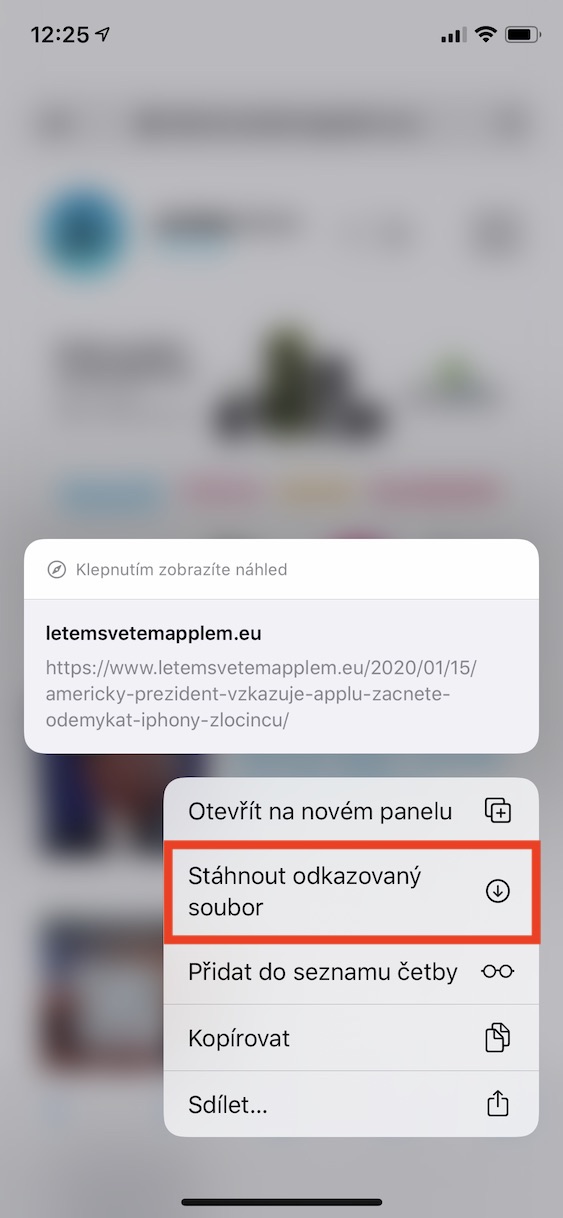
V iOS 13 and iPadOS 13, we have Safari konehave received a download manager, so we can also use it on our iPhoneand iPads toonedownload files. If you find something on the Internet link, which links to the file download, so just click on it they held up their finger. Then just press the option Download the linked file. So you don't have to go directly to the page where the file is located and then go back.
Gallery


Panel settings
This last tip is again only for users Safari on the iPad. If on one of the hold your finger on open tabs, you can notchat display panel settings. From here you can perform several actions, including the option to copy the URL, close all other panels, or sorting panels by name or website.
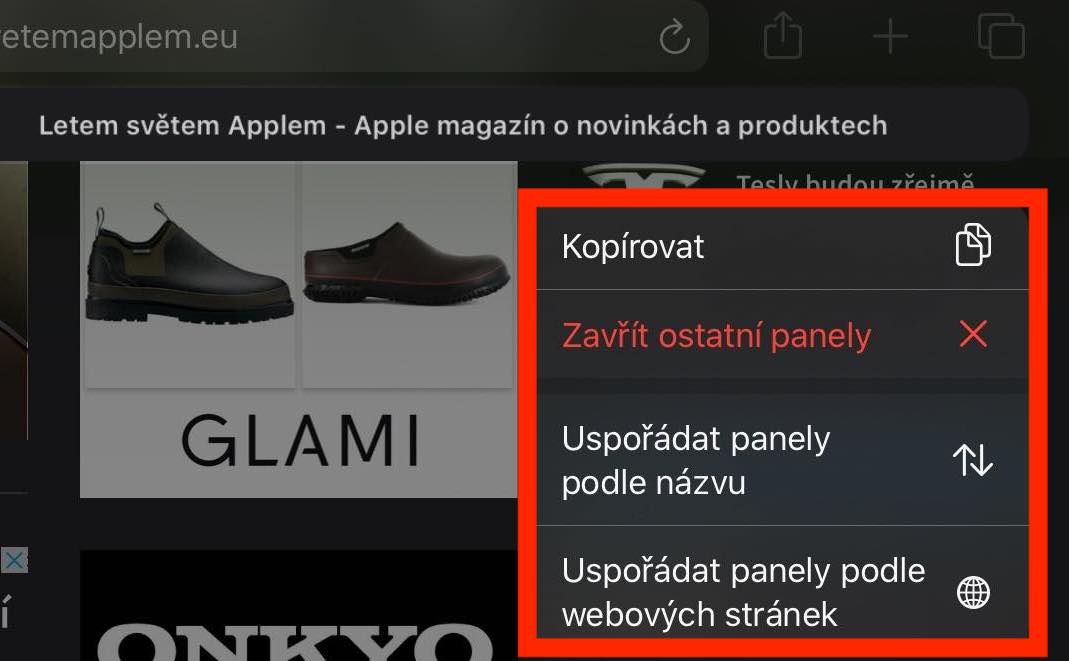






You can sort panels by name or website not only on the iPad, but also on the iPhone. Just iPhone rotate to landscape, use a two-finger gesture to preview all tabs, and hold or press your finger on one of them. Then the menu will appear. 😉
Otherwise, these are good tips. 🙂
And did you know that on your page, scrolling quickly using the scroll bar is basically impossible because the gray scroll bar is simply invisible on your smart black background? 😀😀😀