Apple will be very patient in syncing all your devices. In fact, anything you do on your iPhone or iPad can also appear on your iPad. However, in some cases, this sharing and syncing is not as useful as it might seem. For example, if you receive a message on iPhone, so its notification will automatically appear on the iPad as well, MacBooku, Apple Watch and other devices that are registered under the same Apple ID. For example, many iPad users paint or do other creative hobbies where they simply don't want to be disturbed. So one such message can really throw you off. So how can you set up so that messages from your iPhone don't appear on your iPad? We'll show you that in this article.
You might be interested in
How to set your iPad to not be disturbed by incoming SMS and iMessage from iPhone
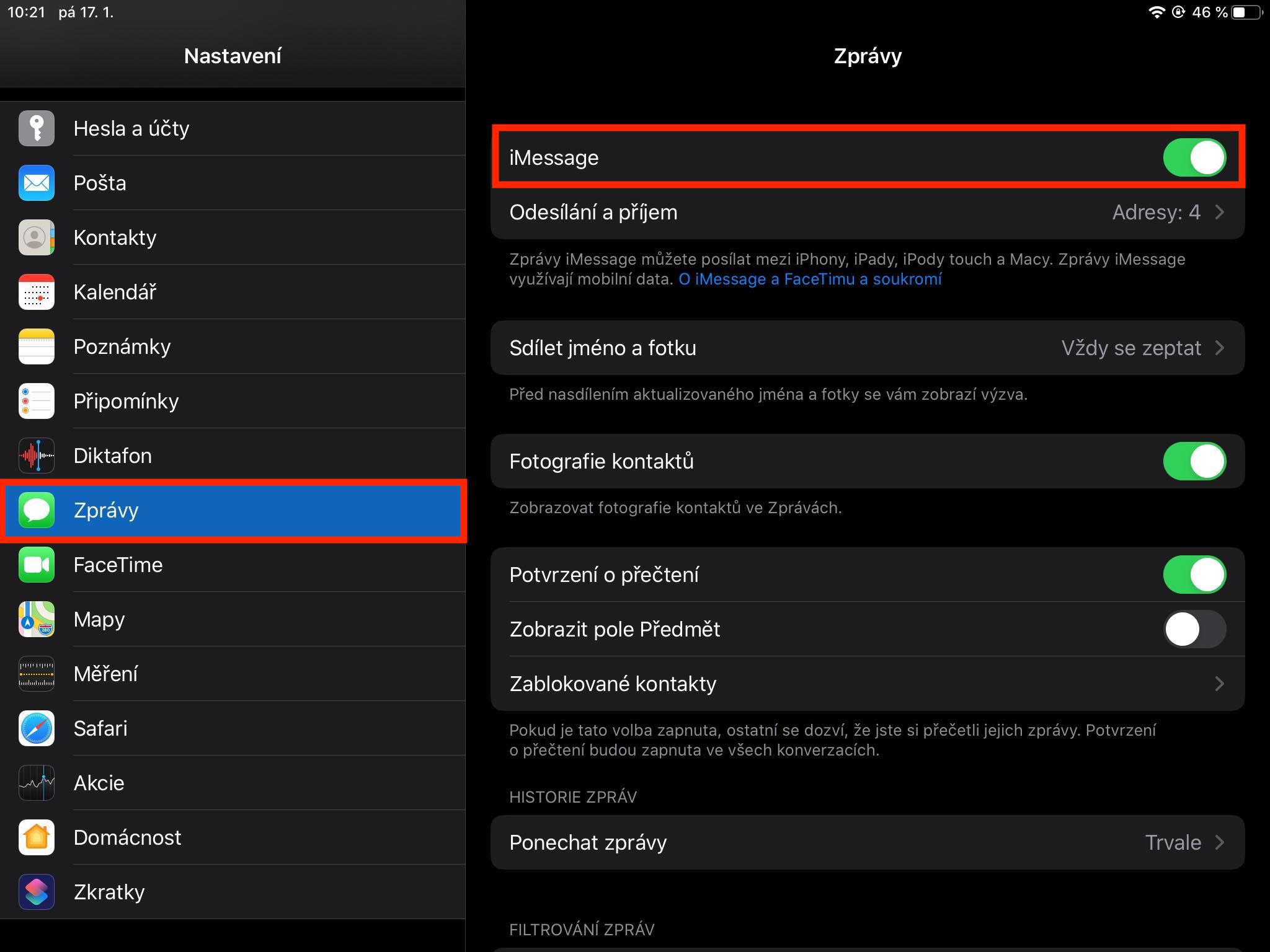
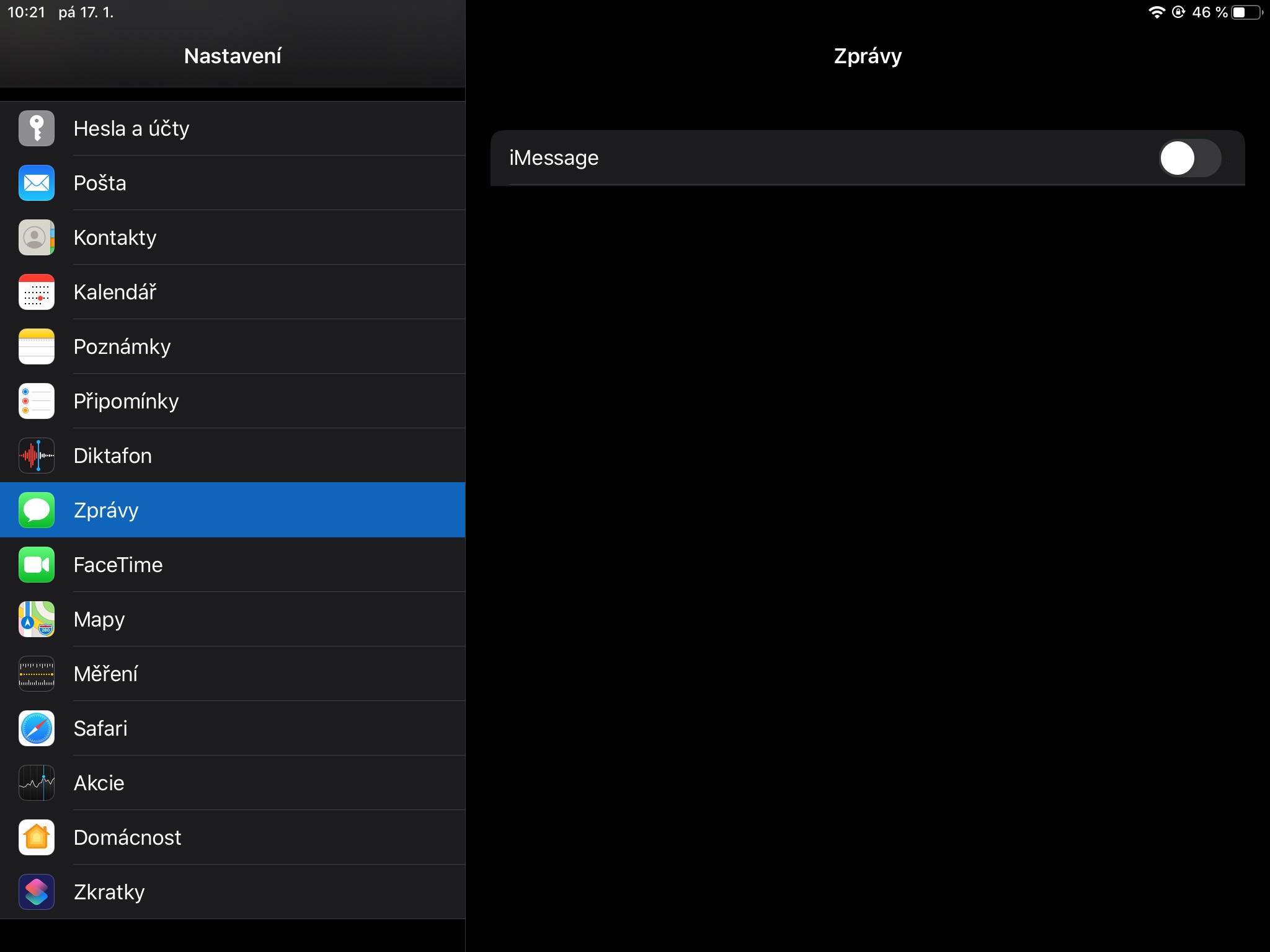
If you want to completely disable receiving messages from iPhone on your iPhone and you don't want to send messages either, the procedure is very simple. Move to your iPad to open the native app Settings. Once you've done that, find the section in the settings section News, which you click. Here it is simply enough to use the switch deactivated named function iMessage. A warning will appear before deactivation, which is enough confirm. This will ensure that no one bothers you on the iPad, and at the same time you will not bother others with your texting, and you will be able to focus fully on your creative work.
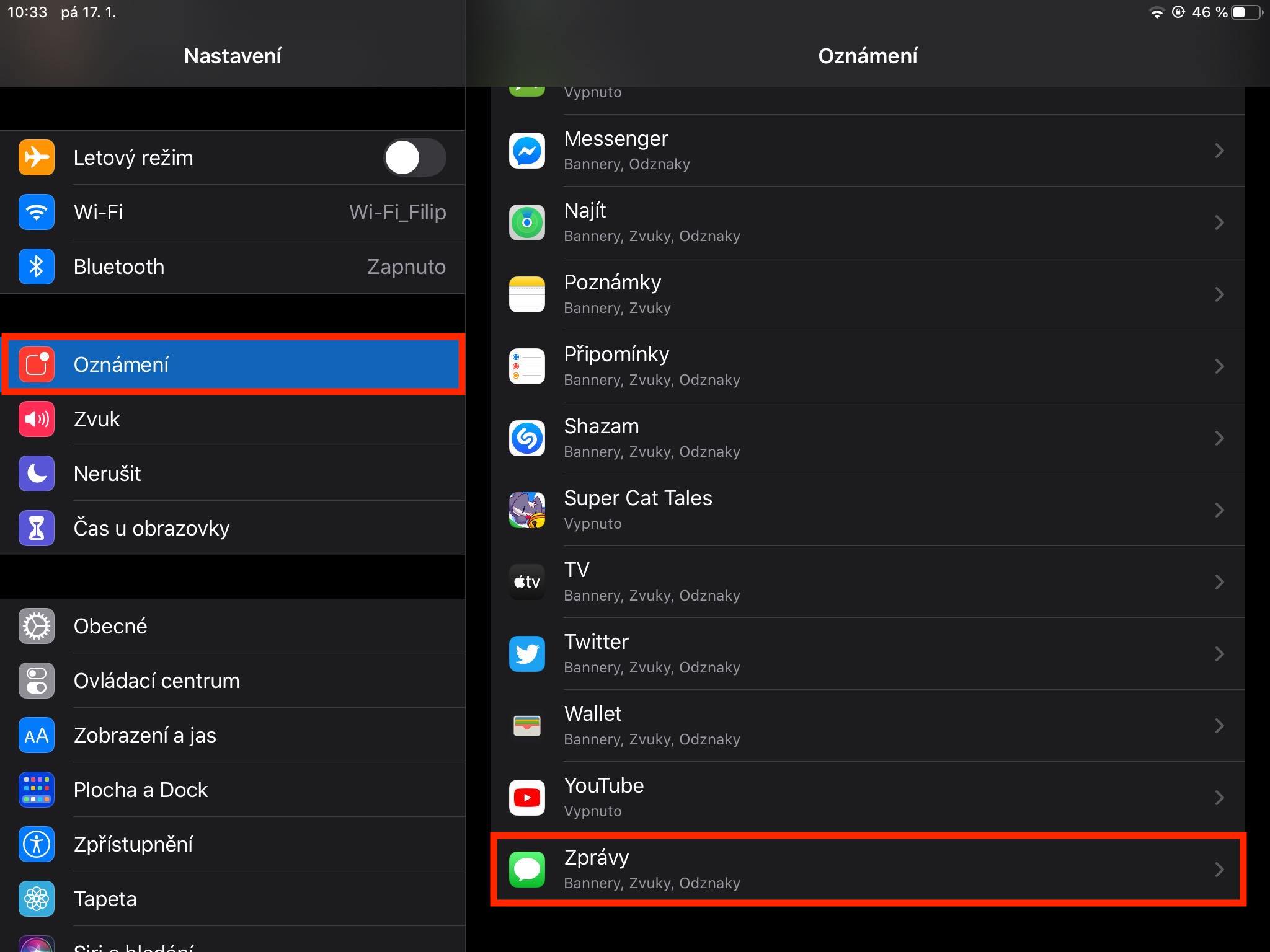
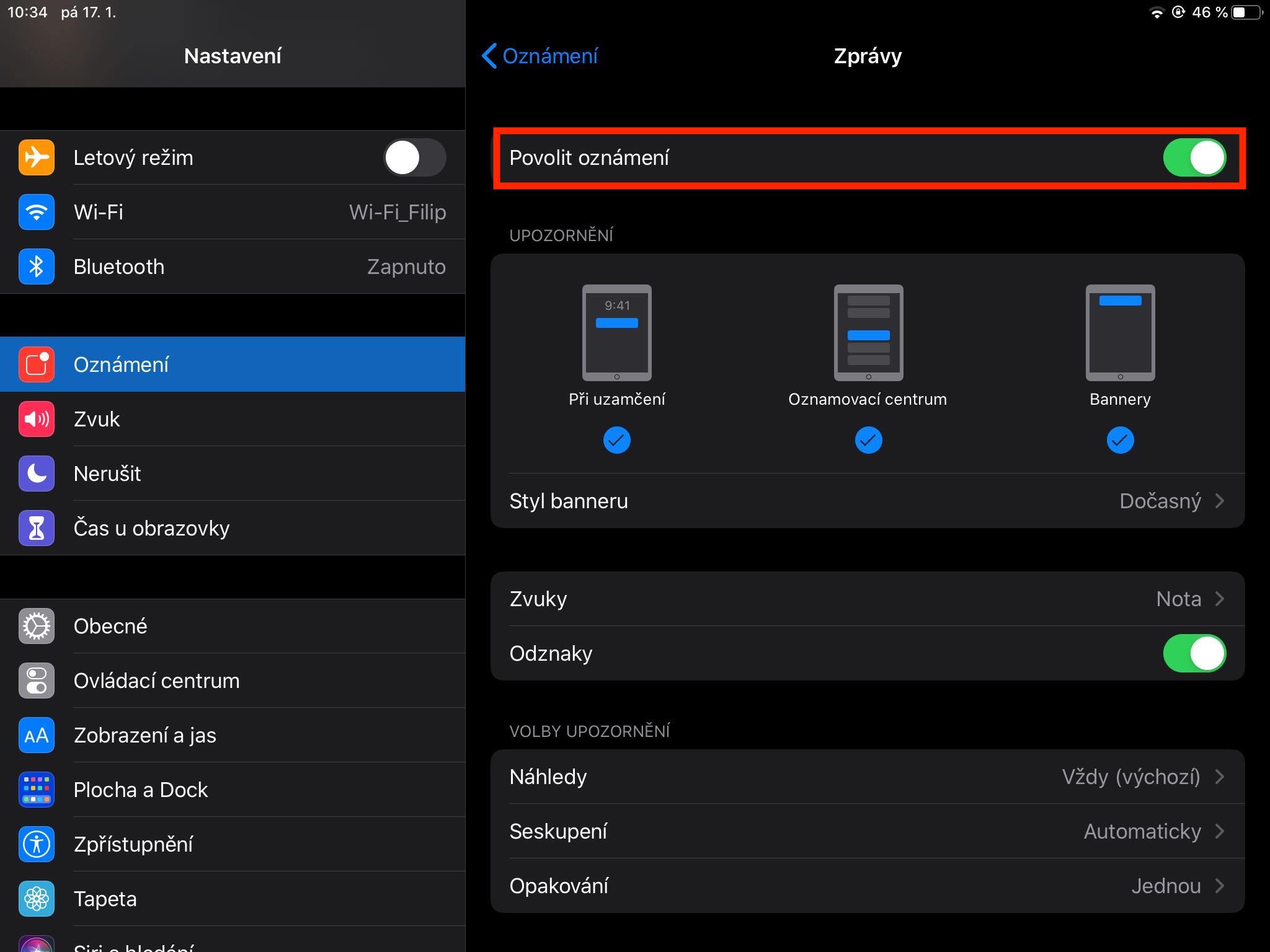
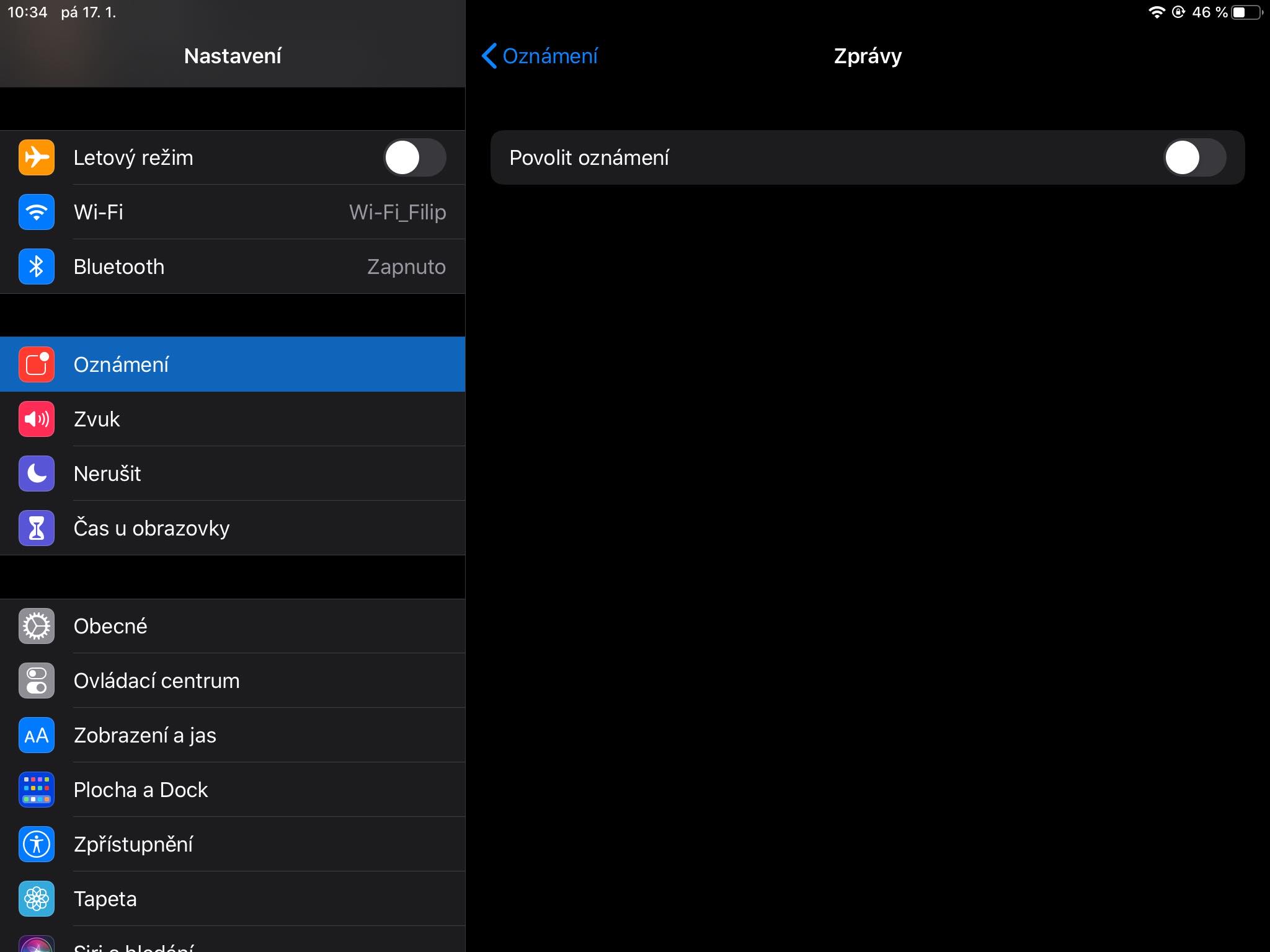
If you don't want to completely give up the ability to receive and send messages on your iPad, you can disable notifications. All you have to do is open the native Settings app on your iPad and click on Notifications. Then scroll down to the list of apps and find the Messages app. Then tap on this box and use the toggle to disable the Allow Notifications option . This will completely disable notifications from the Messages app on your iPad. For example, if you only want to disable the display of banners or notifications in the Control Center or when locked, just uncheck these options.