
Together with the arrival iOS 13, which has been available to the general public for almost a month and a half, has also brought an acceleration of the system itself. Unfortunately, however, on older devices we may encounter slight lags and possible slowdowns of some actions and processes. Fortunately, however, there is a setting in the iOS There are several settings available that can help you improve the responsiveness and speed of your iPhone. However, it is important to note that activating some settings will disable certain features - the saying "something for something" is perfectly applicable here. Let's take a look at 5 tips that can help you iPhone s iOS 13 speed up.
Turn off background updates
Gallery
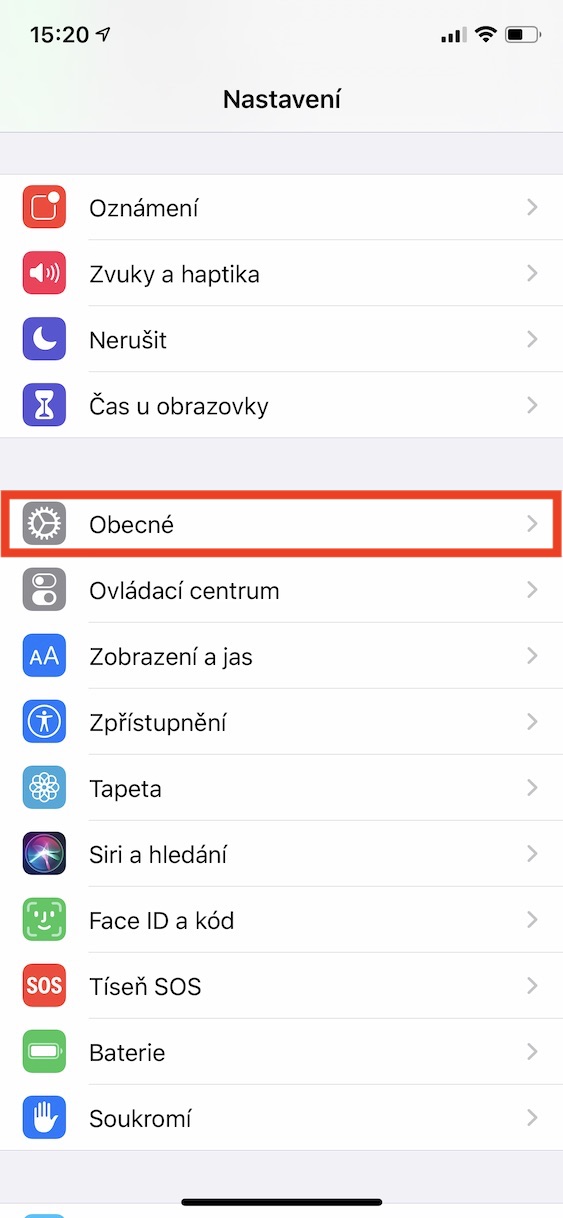
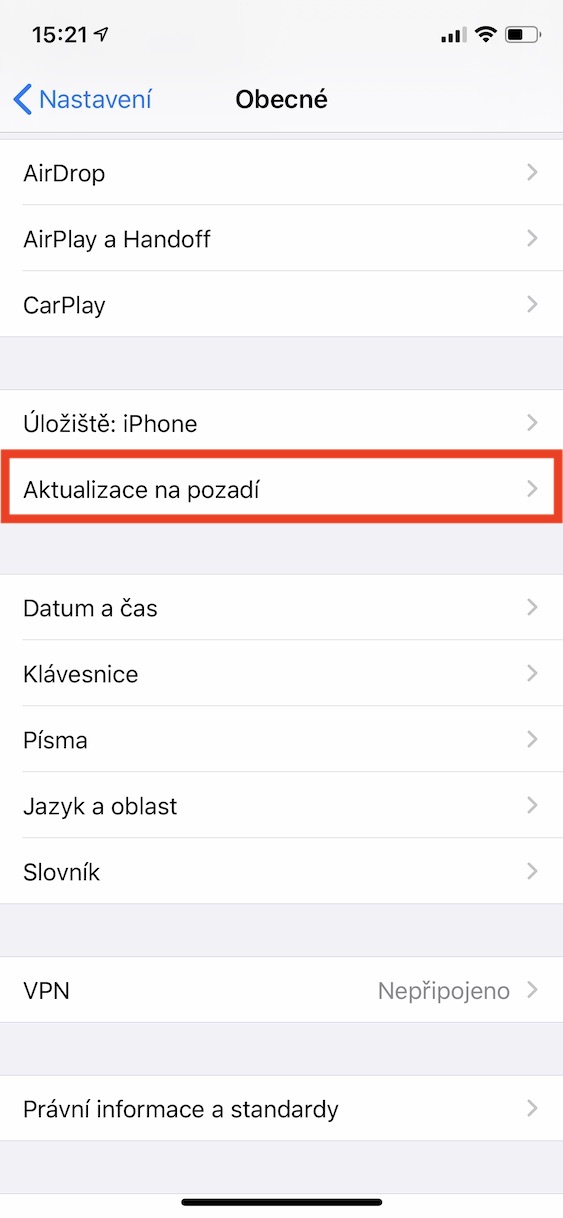
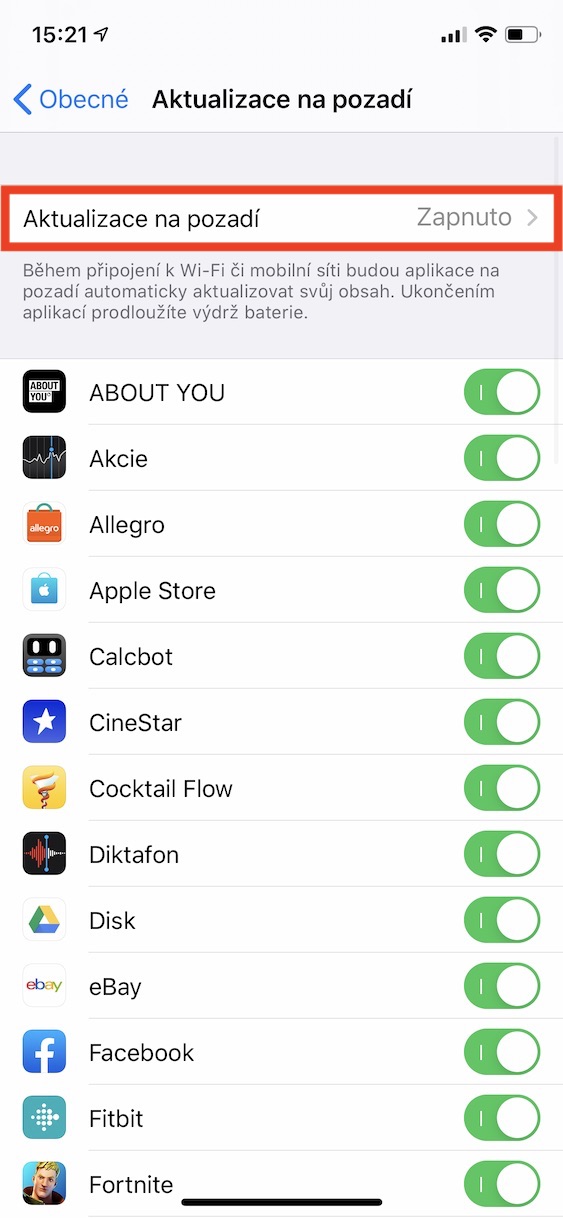
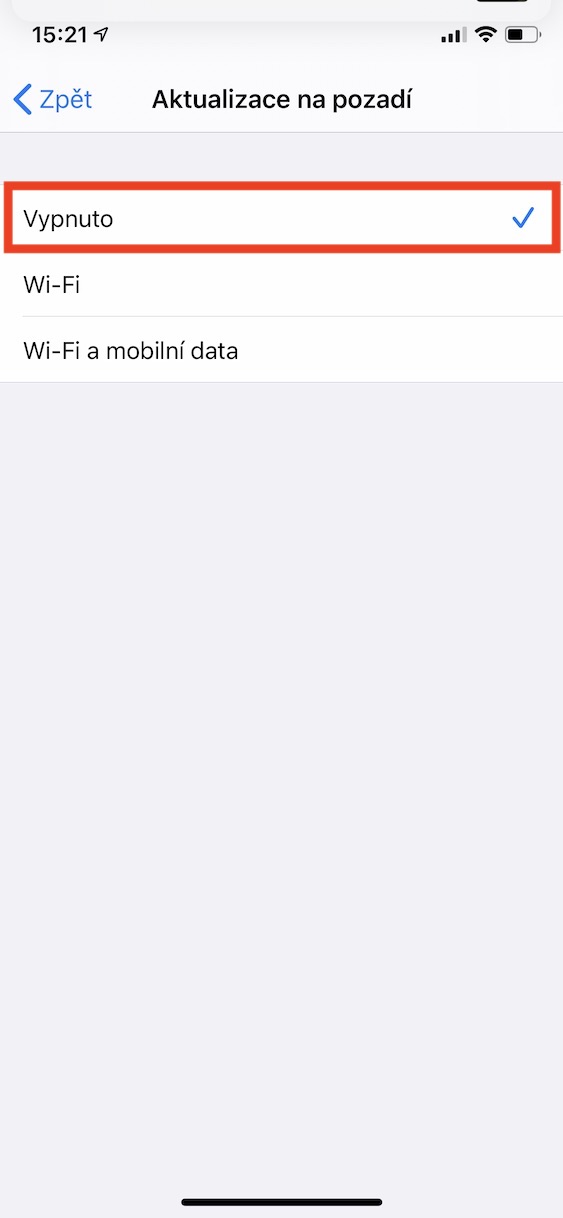
In the background, iOS There are a lot of things going on. One of them is automatic background updates. This feature automatically updates various data and information in some applications - for example, Weather or Stocks. By disabling this feature, your iPhone noticeably faster. In addition to the system speed up, you can also look forward to extended battery life. You can turn off background updating in Settings -> General -> Background Updates. Then just click here column of the same name and select an option Turn off.
Activating the reduction of transparency
Gallery
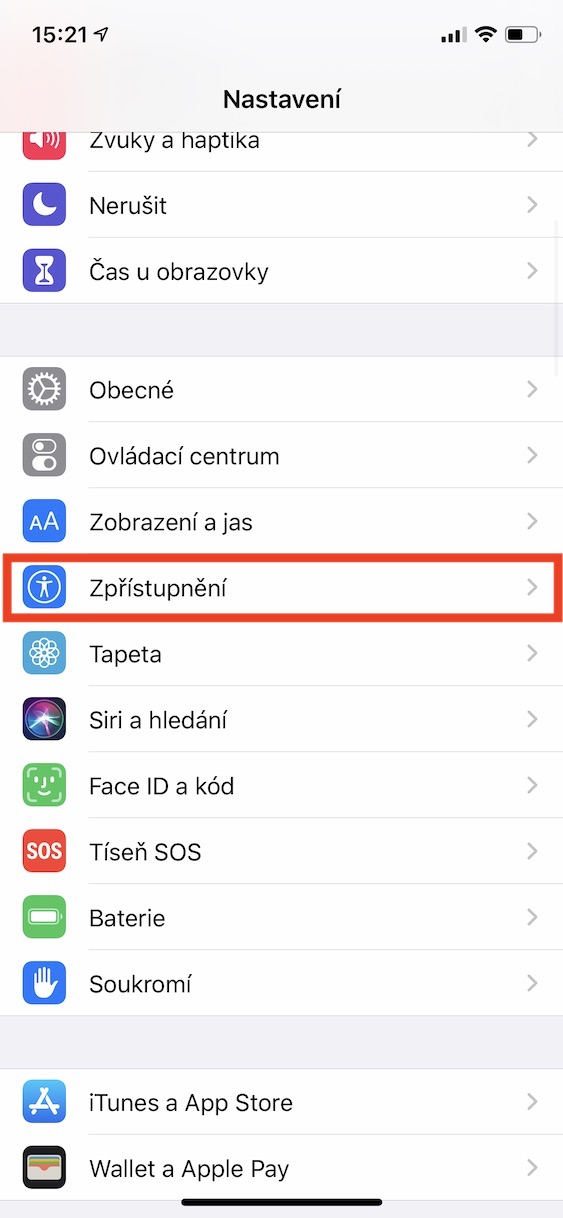
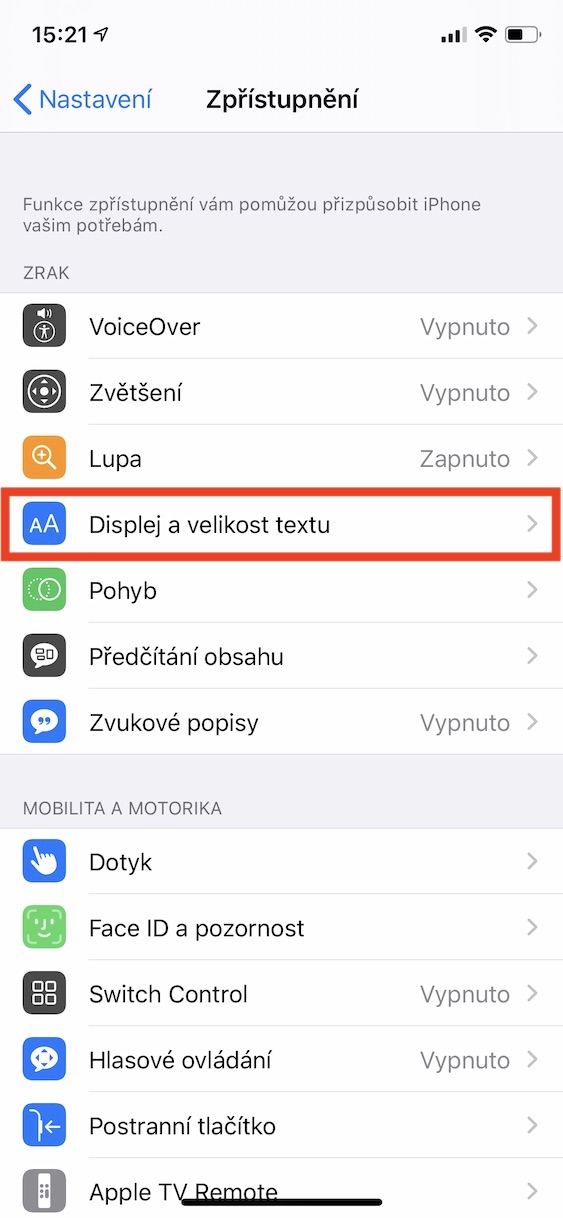
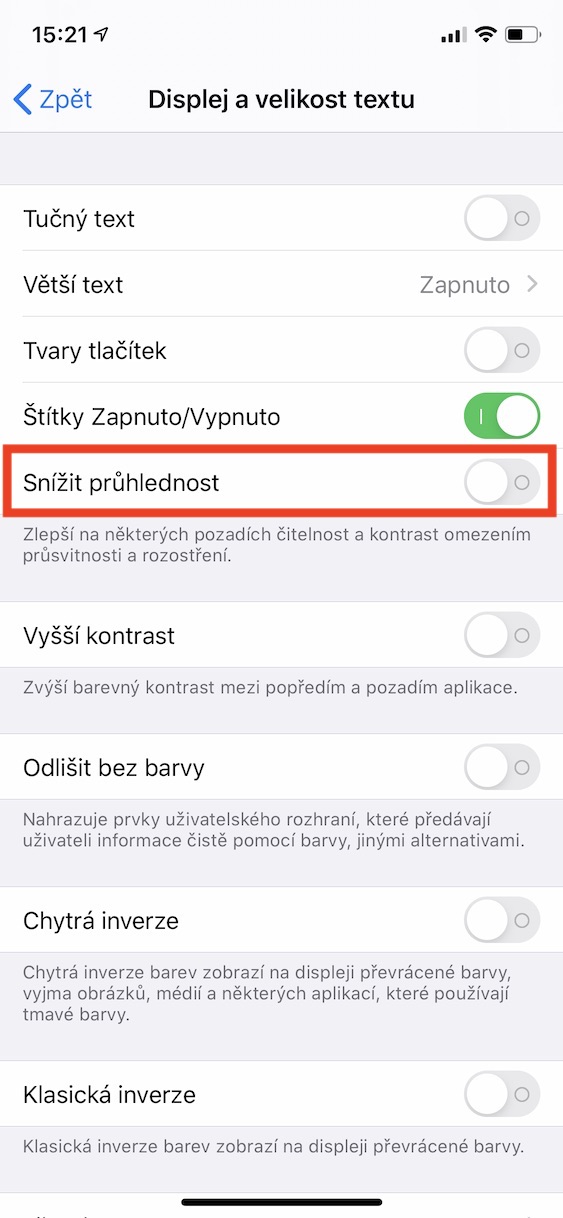
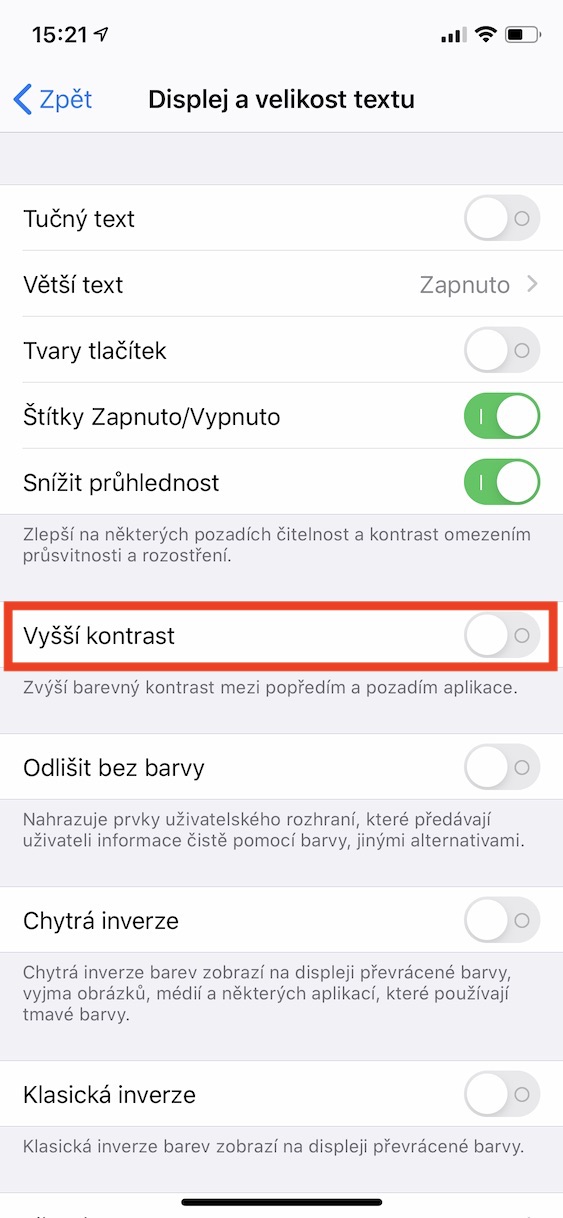
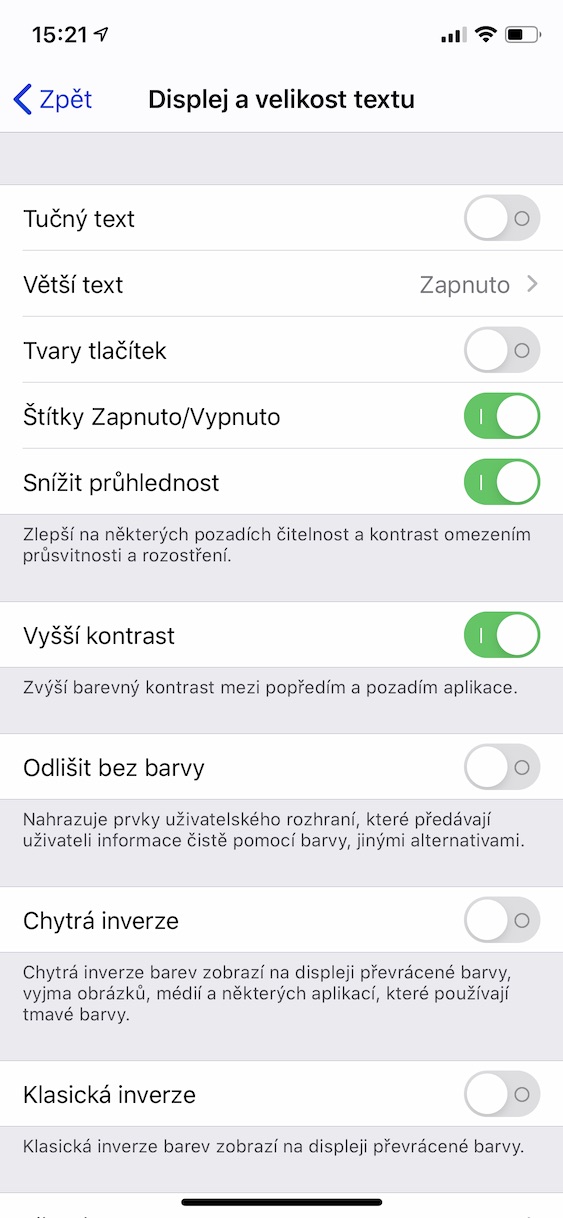
What he does iOS nice, there are of course all sorts of effects. However, these effects of course require a certain amount of power to render, which would otherwise iPhone could have been used in a completely different way. Fortunately, there are several options in the settings that allow you to disable various effects in the user interface. One of them is the Reduce Transparency function, which can be found in Settings -> Accessibility -> Display and text size. A function is enough here Reduce transparency simply activate. At the same time, you can activate function Higher contrast, which will provide even greater system acceleration.
Activating movement restrictions
Gallery
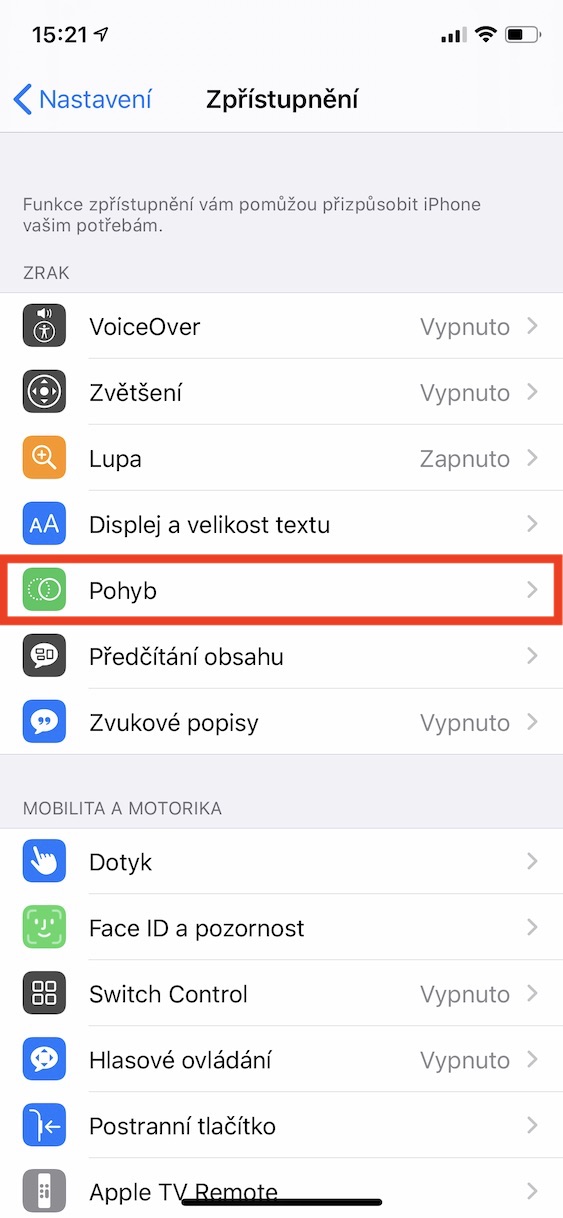
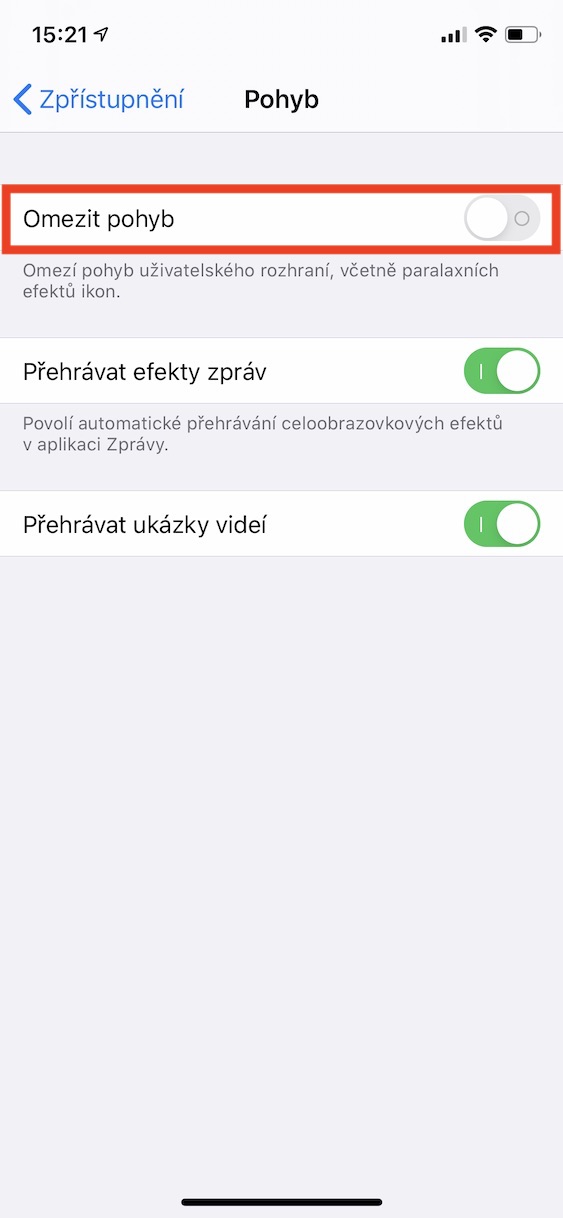
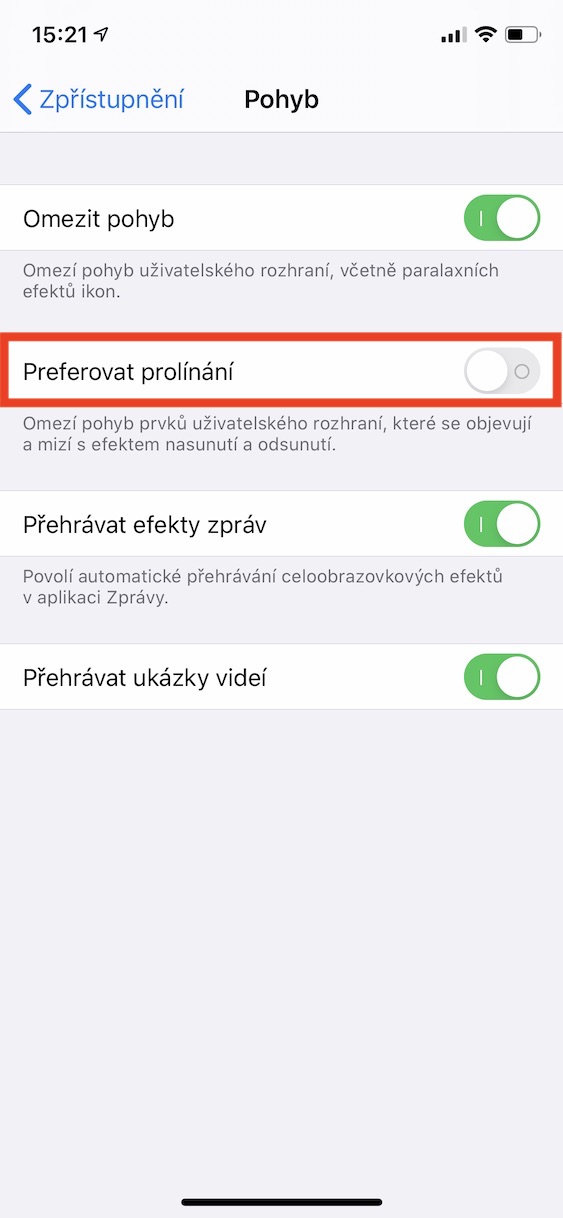
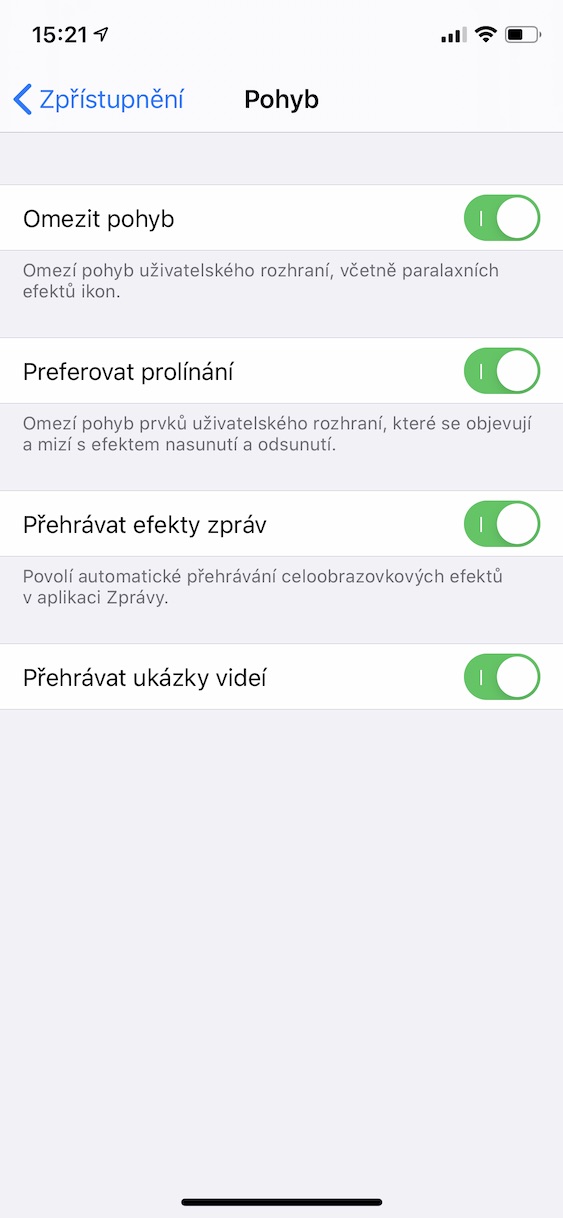
Wherever within the iOS As you move, you can observe various animations. Just like in the case above, these animations also require some computing power to render. Fortunately, you can replace these complex animations with very simple blending animations. All you have to do is go to Settings -> Accessibility -> Motion and here activate function Limit movement. After activation, another option will appear Prefer blending, which also activate.
Turn off automatic app updates
Gallery
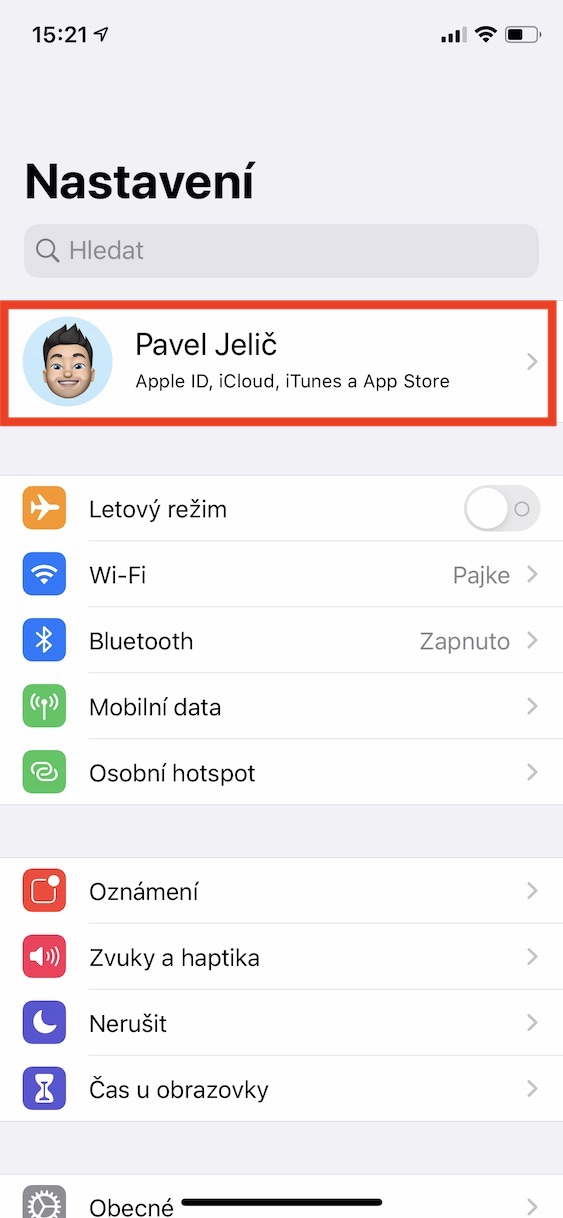
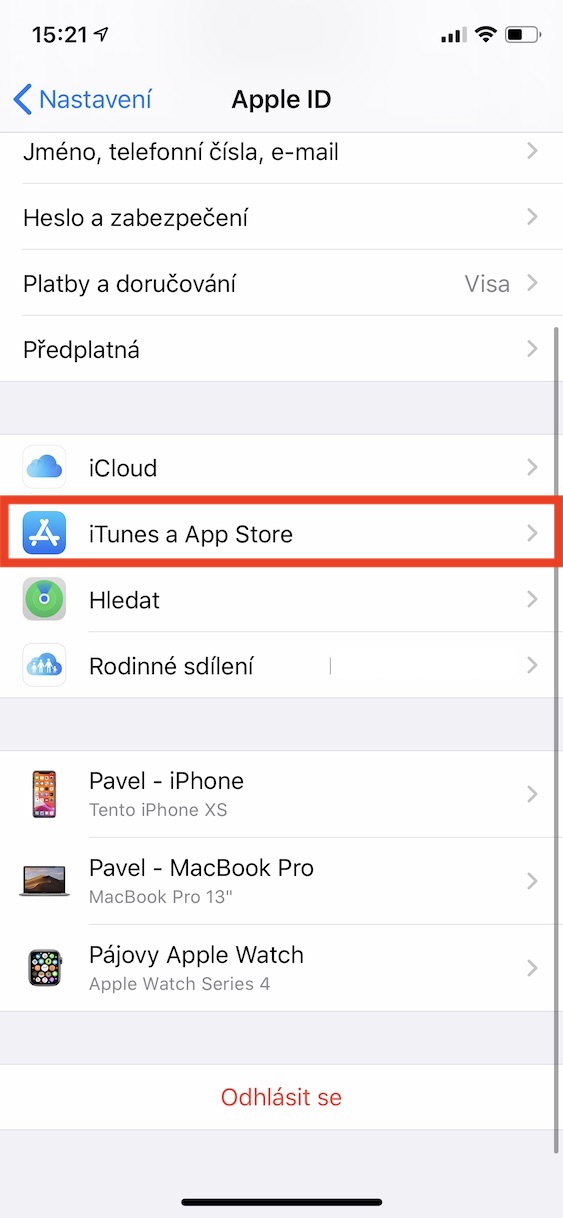
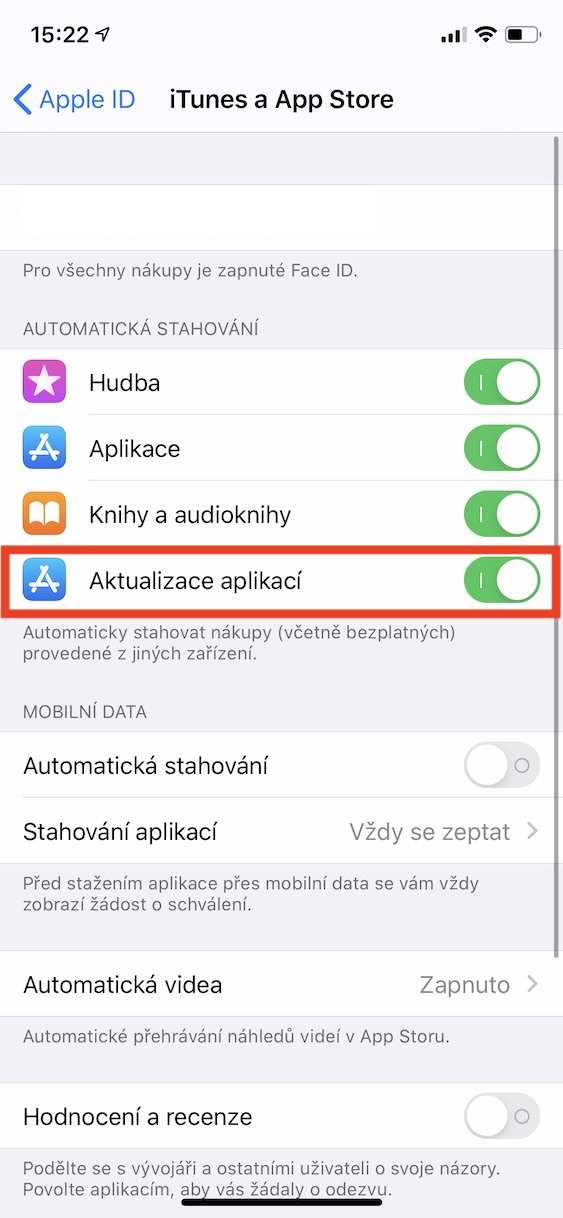
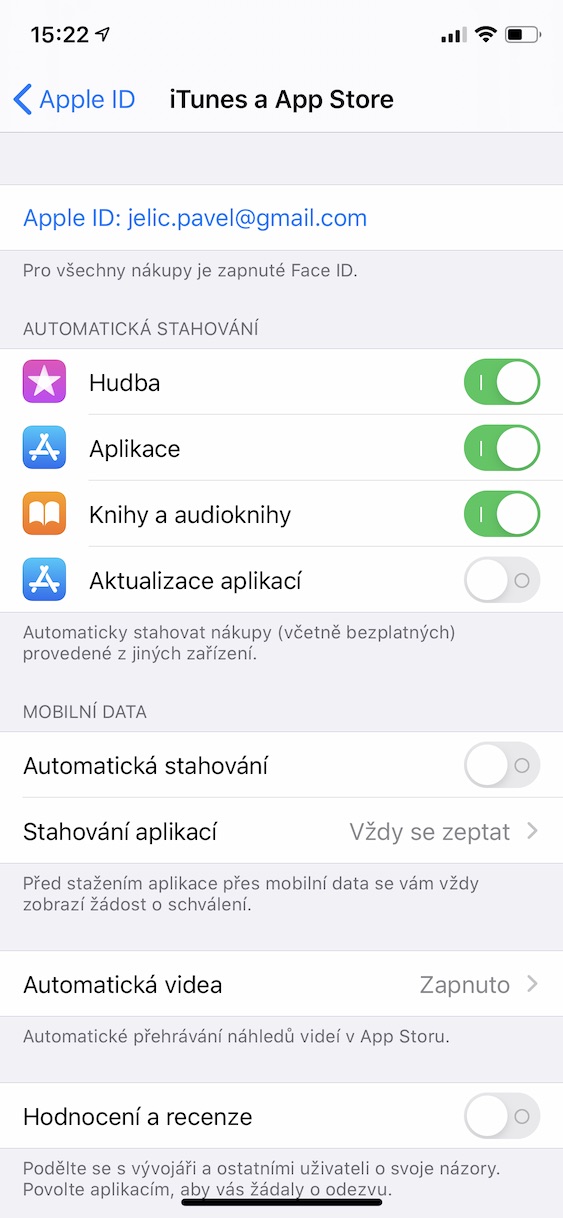
Your iPhone From time to time, it checks in the background to see if it can update any of your apps. You guessed it, this action also requires a certain amount of performance, which can be reflected elsewhere. After disabling automatic app updates, you will have to download all updates manually, but you will get some extra performance. Pro To disable automatic app updates, go to Settings -> your name -> iTunes and App Store and here deactivate help switches possibility Update applications under the Automatic Downloads section.
Clearing the RAM memory
Yes, you read that right – clearing RAM is not just an Android issue, but also iOSThis procedure is divided depending on whether you have iPhone s Touch ID, or with Face IDSo, choose your paragraph below and follow the instructions to clear your RAM.
iPhones with Touch ID
On your iPhone with Touch ID hold side (off) button, until the s screen appears "swipe to turn off" slider. After that, all you have to do is held down the home button until the home screen with applications appears again. You have successfully cleared the RAM.
iPhones with Face ID
Gallery
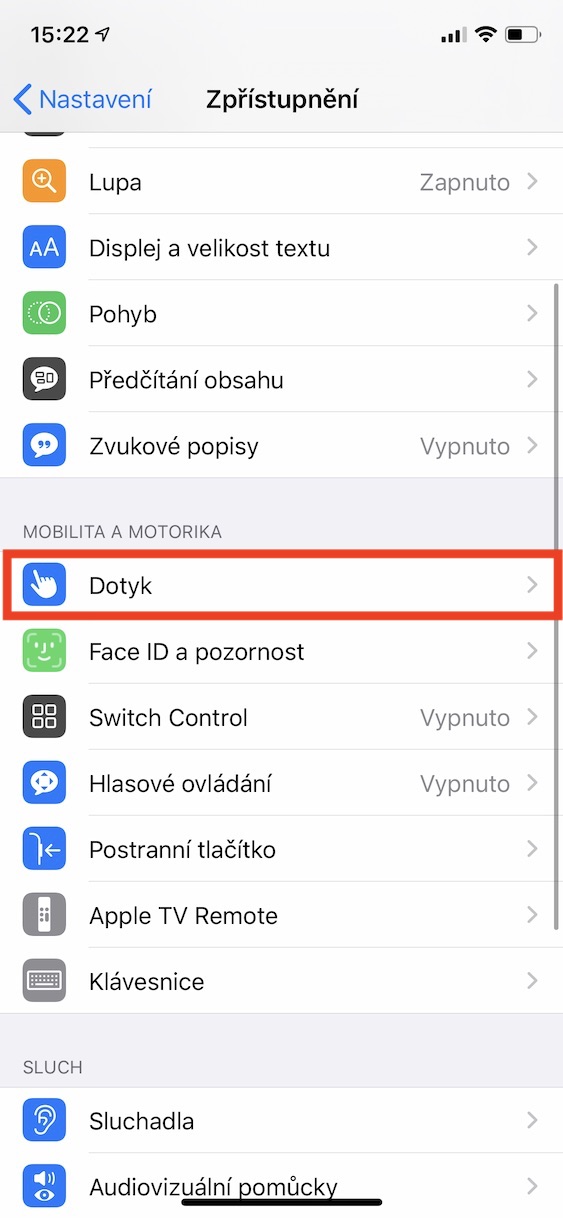
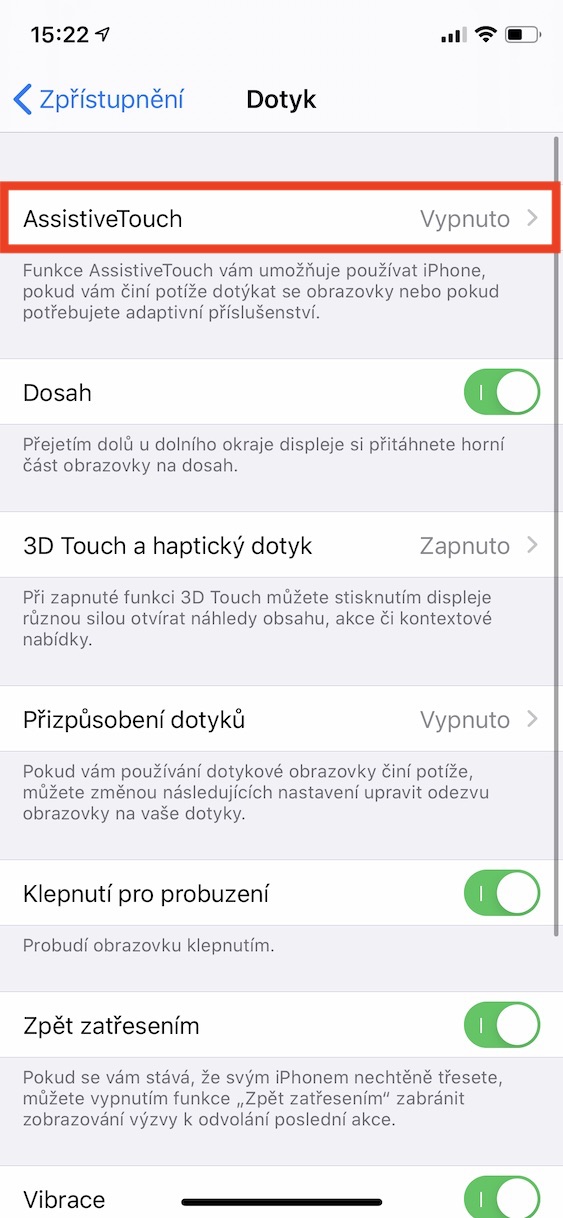
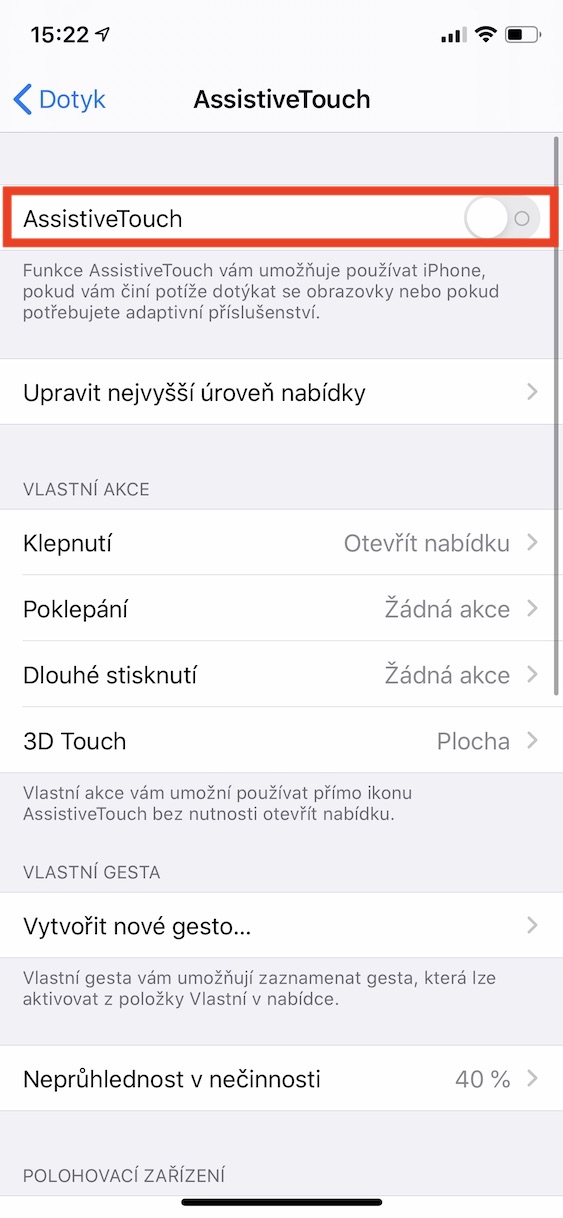
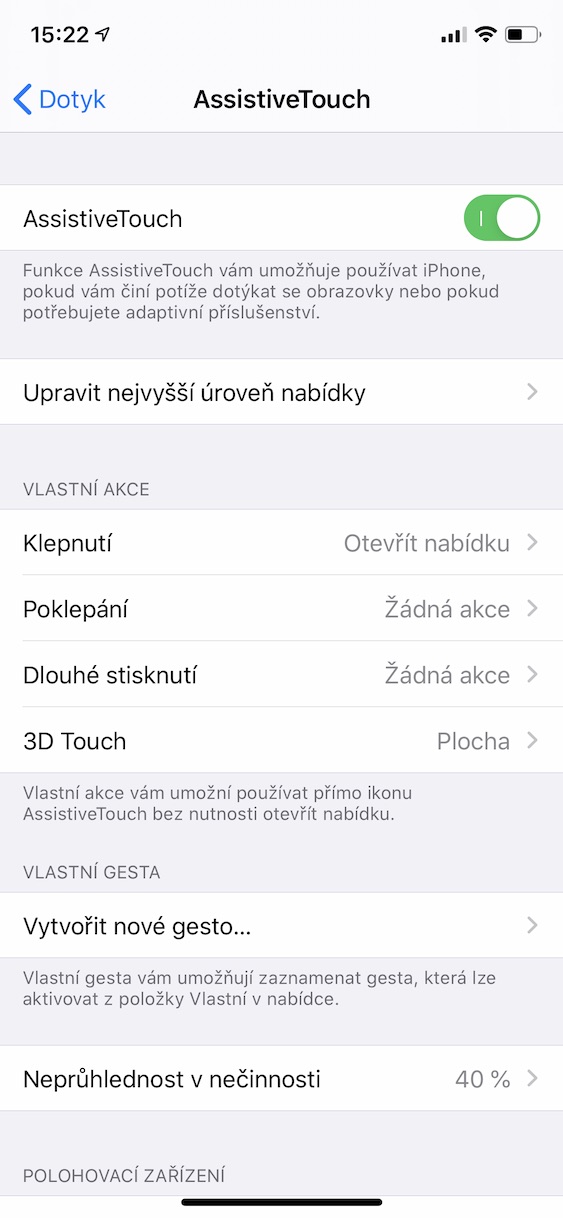
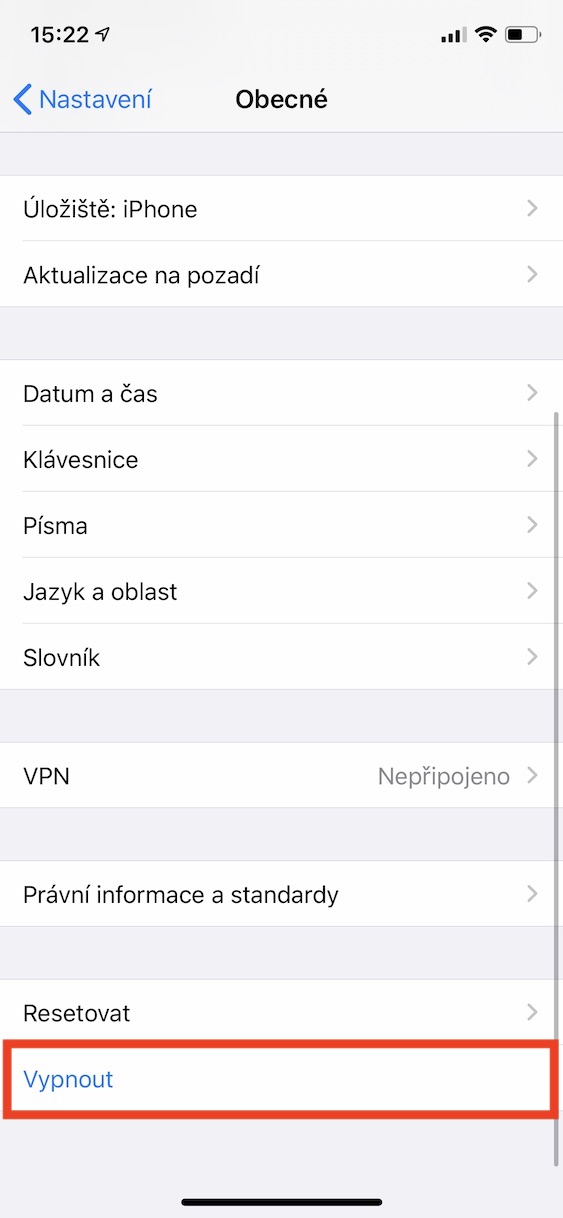
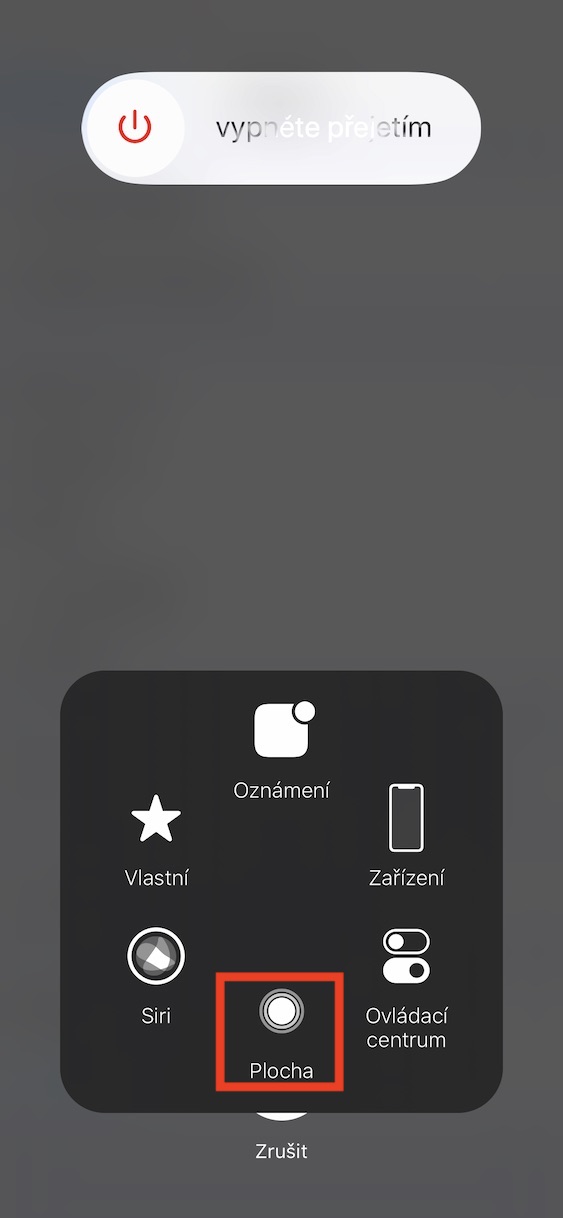
First of all, you need to have a Face ID activated Assistive Touch. So go to Settings -> Accessibility -> Touch -> AssistiveTouch and here it with a switch activate. Then go to Settings -> General -> Disable. Now click on the floating button AssistiveTouch a hold the home button, until the home screen with applications appears. You have successfully cleared the RAM.




I have already encountered the fact that one of the versions iOS 12, even though automatic update was turned on, nothing happened nestHello, the update was not running. Only after capturing the screen above in App Store -> Update and download it below and underline below after about 2-4 seconds. appls updated. I have not found out if this is a bug iOS or a standard process. I would say the first version applies.
Anyone with similar experiences with other versions? iOS?
I have the same problem... I think it must be a bug in the OS because even when I tried to do a clean installation, it didn't help
Guys, you don't know where it is: manual synchronization with iTunes?
Dik
Zitra66 – thanks for the tip, guy!! Well done!! I want nothing to do with iTunes! You just don't see such a rascal.
Good day, on to the last paragraph, which is clearing RAM on an iPhone with Face ID I don't understand, when I follow the instructions, I click the floating button and hold the home button? What is the home button on the iPhone X please? Thank you
Forget about wiping RAM. You're just making trouble for yourself. That's advice again, come at me from the side...
ProWhat do you think?
Resp. when i do it according to the instructions, after pressing the home button i can't hold it because it immediately prompts me to enter the passcode to unlock the iphone. Can you advise please?
first reset the functions of the floating button, and when you tap on it, 6 items will pop up and the bottom is the home screen. not hold but only tap.
Slavomír - in my opinion, Jakub writes about the process of erasing the RAM in iP with TouchID ("hold down the side button and then hold down the home button"), not about deactivating various systems. process.
Jakub – if there is no problem elsewhere, then what you wrote should not be possible with TouchID. The cause may also be in the version differentiation iOS etc.
I would rather recommend the Status app. It will also show you various processes. One click and you have a cleaned Frame, conveniently and safely. I've been using it for years max. satisfaction. Downside - I think it costs €1,50. But it's definitely worth the price.