
Along with the arrival of the latest operating systems for Apple phones and tablets, some applications have also been redesigned. In iOS 13 and iPadOS 13 have seen a redesign of the Find app, Reminders, and Photos, for example. And it is the last-mentioned app, Photos, that we will focus on today. Now, you can add filters not only to photos, but also to recorded videos directly within the app. This feature was missing from mobile operating systems and it could be said that if you wanted to edit videos in any way, you had to use a third-party app. So let's take a look together in this article at how you can add filters to videos.
You might be interested in
How in iOS 13 and iPadOS 13 add filters to video
Gallery
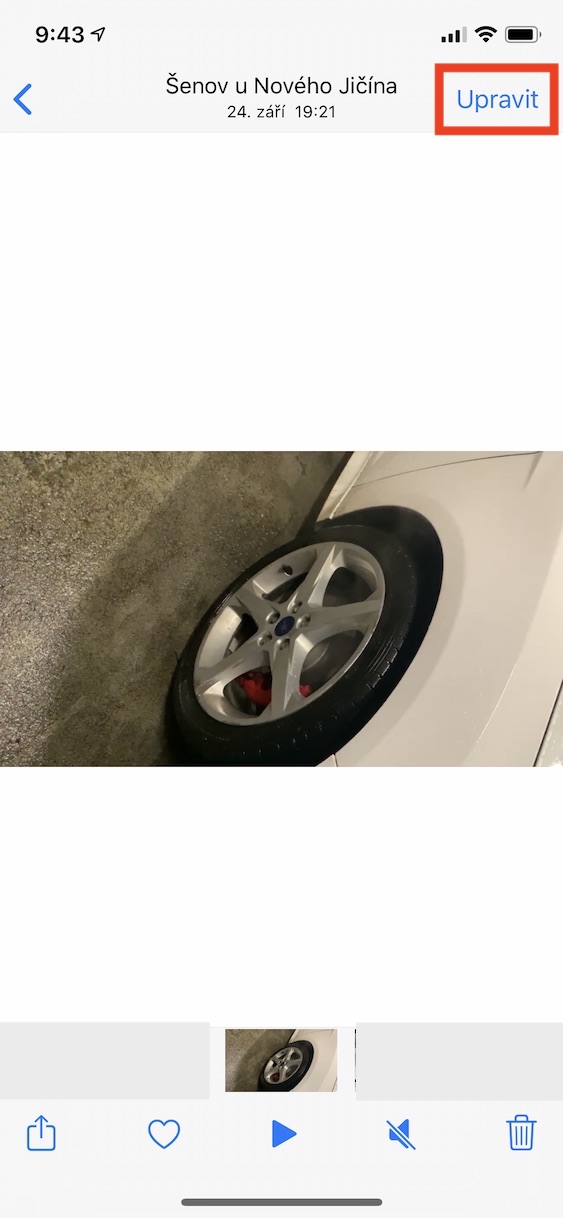
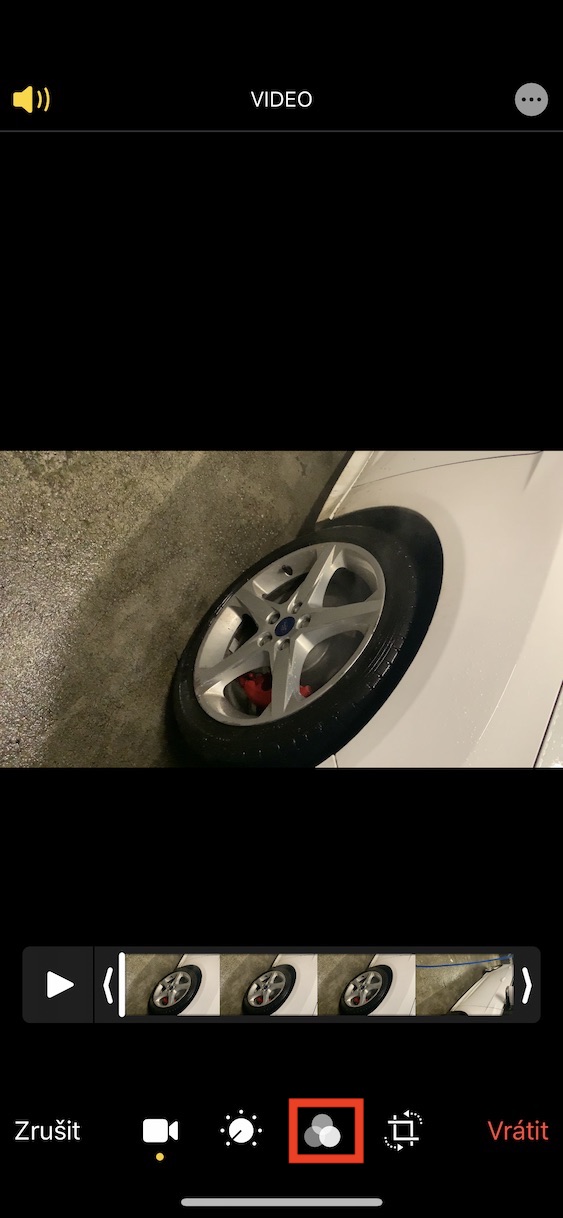
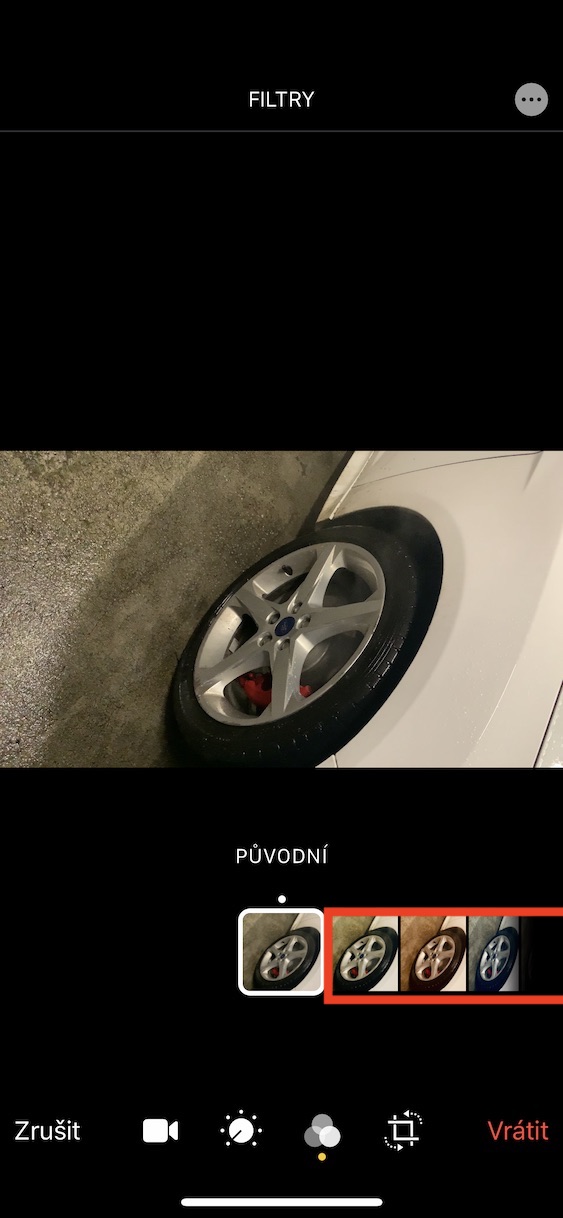
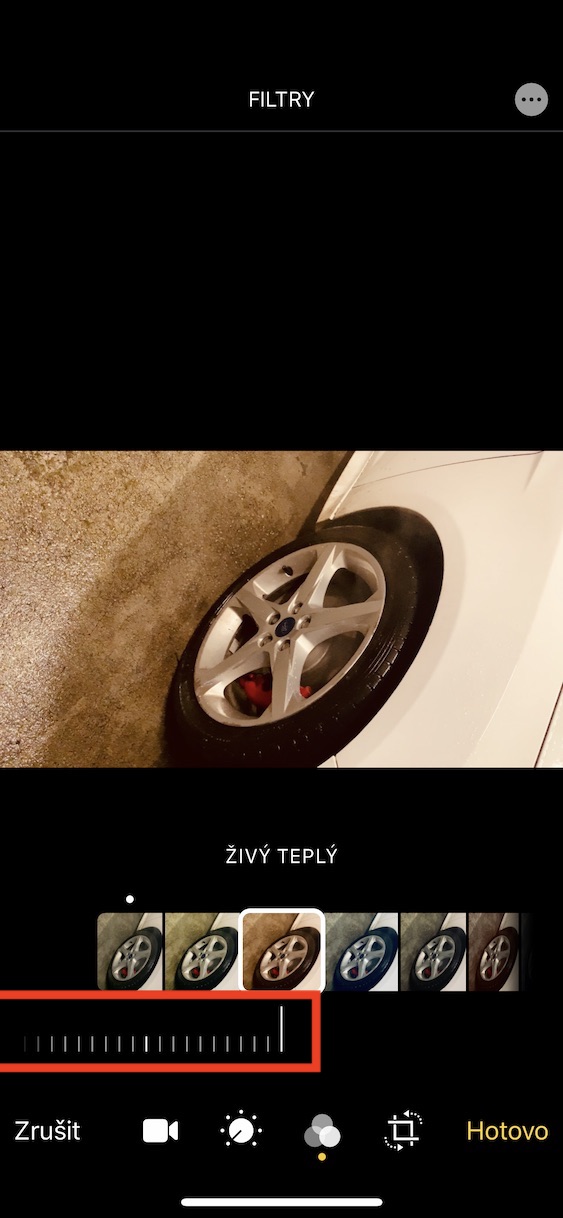
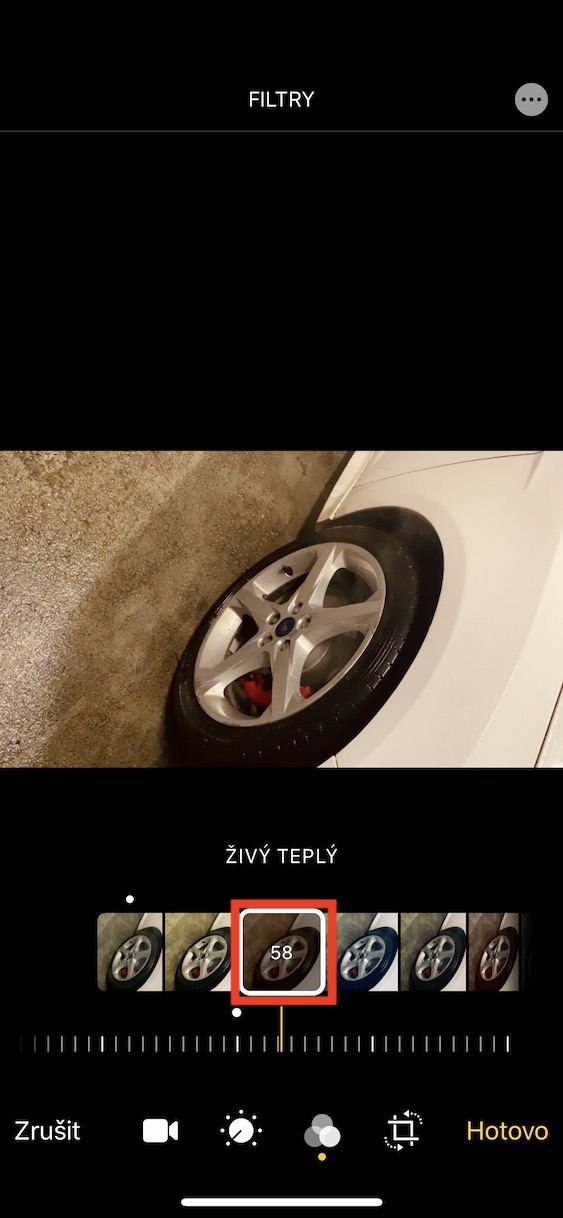
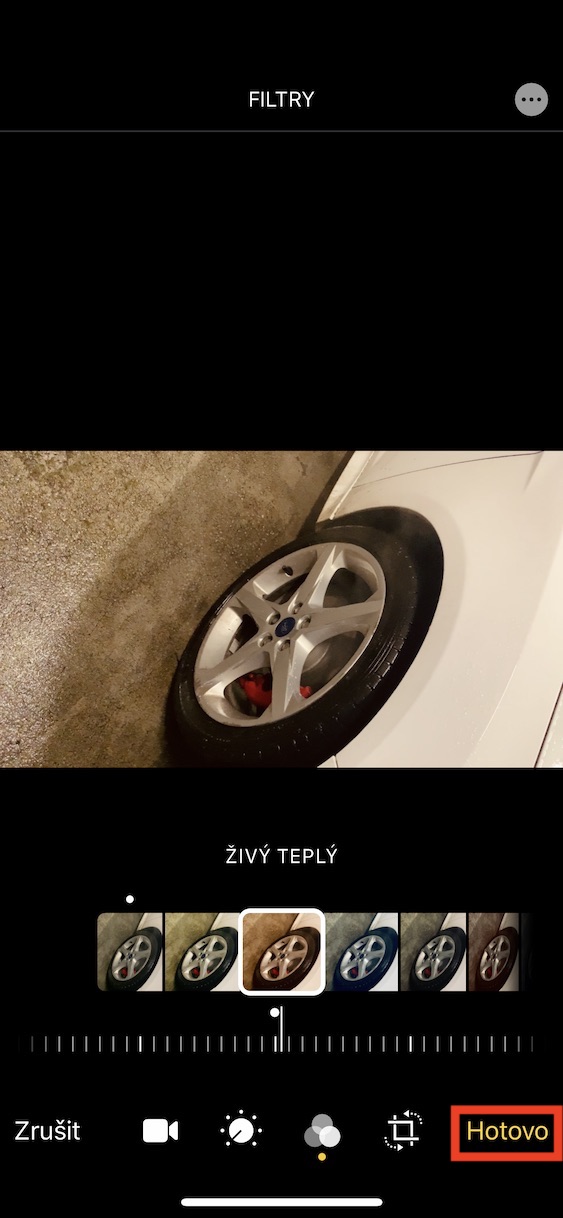
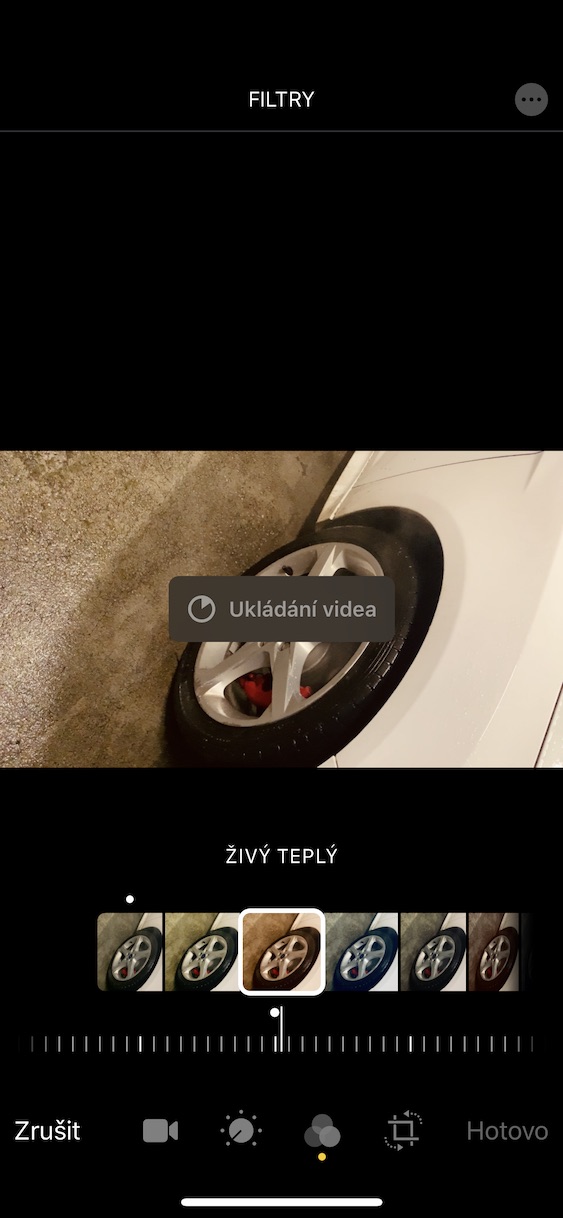
On your iPhone or iPad, which has the latest version installed iOS 13 or iPadOS 13, move to the native app Fotky and find Video, to which you want to assign a particular filter. Once you find the video, watch it click open and then tap in the upper right corner Edit. Then, in the editing environment, in the bottom menu, move to the filters section, which has three balls icon. From here, you can choose from several filters, including sepia, black and white, and more. As soon as you move to a certain filter, use it again slider you can choose how much to filter the video will affect. After you are satisfied with the result, just click the button Done in right down corner.
We've got a lot of new cool features in the Photos app. One of the most anticipated changes, or features, is the ability to rotate videos. If you're in iOS 12 and older wanted to rotate a video, you had to do so through a third-party app. That's already in iOS 13 and iPadOS 13 are a thing of the past, as you just need to go back to editing environment, select in the bottom menu rotate and crop icon, and then tap in the upper left corner rotate video icon.



I consider the ability to crop a video in native mode to be by far the most important and most used editing feature. appce.