
Operating system iOS 13, and of course iPadOS 13, is packed with great new features. In previous articles, we've shown you how you can, for example, allow downloading applications from App Store on mobile data, or perhaps in what way to see if the sound volume from the headphones is harmful to your hearing. Together with these instructions, we have also prepared complete manuals for new and revised applications. However, there are actually many new features in the new operating systems that are worth noting. One of them includes, for example, a new option that allows you to take screenshots of entire web pages at once. As a result, you don't need to take screenshots of the entire webpage from top to bottom, but just take a single screenshot that can automatically take a screenshot of the entire page. So how to do it?
You might be interested in

How in iOS 13 do screenshot entire website
Gallery

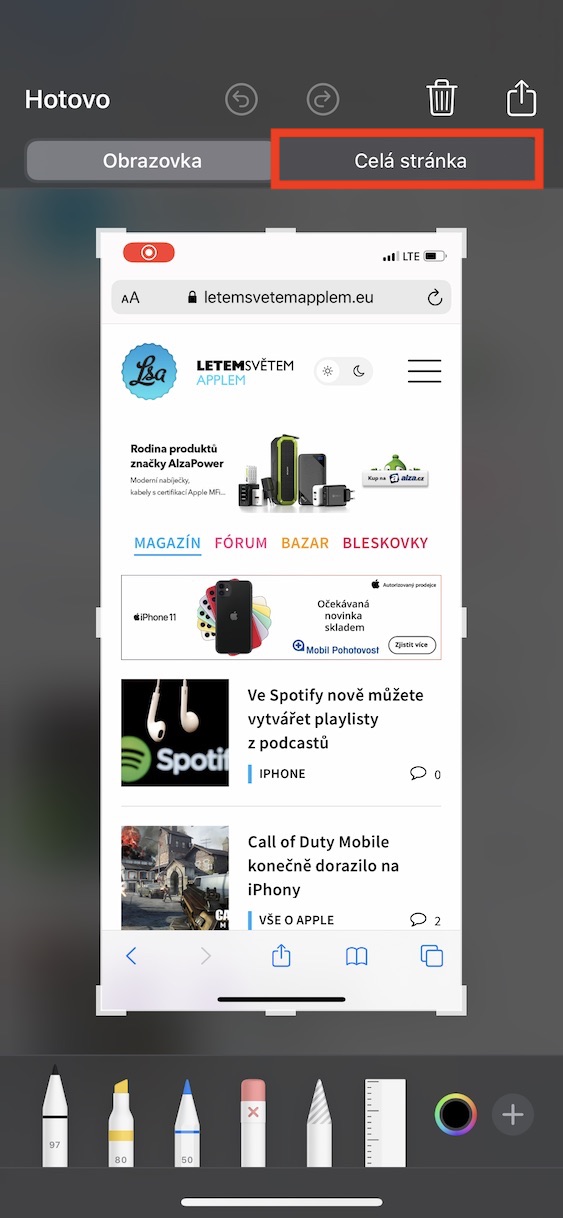
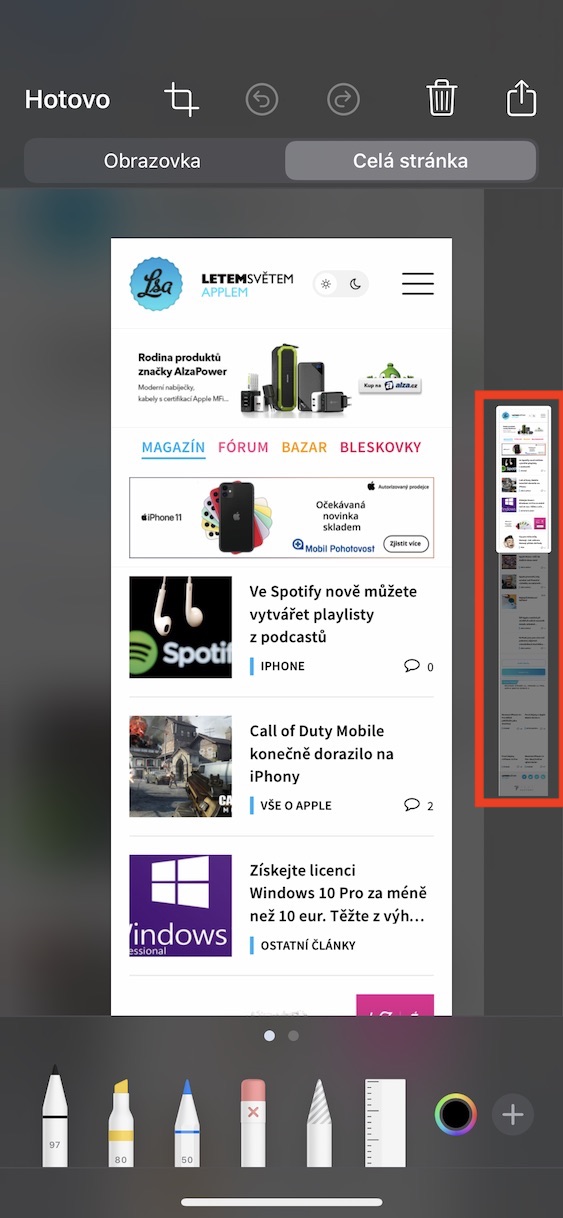
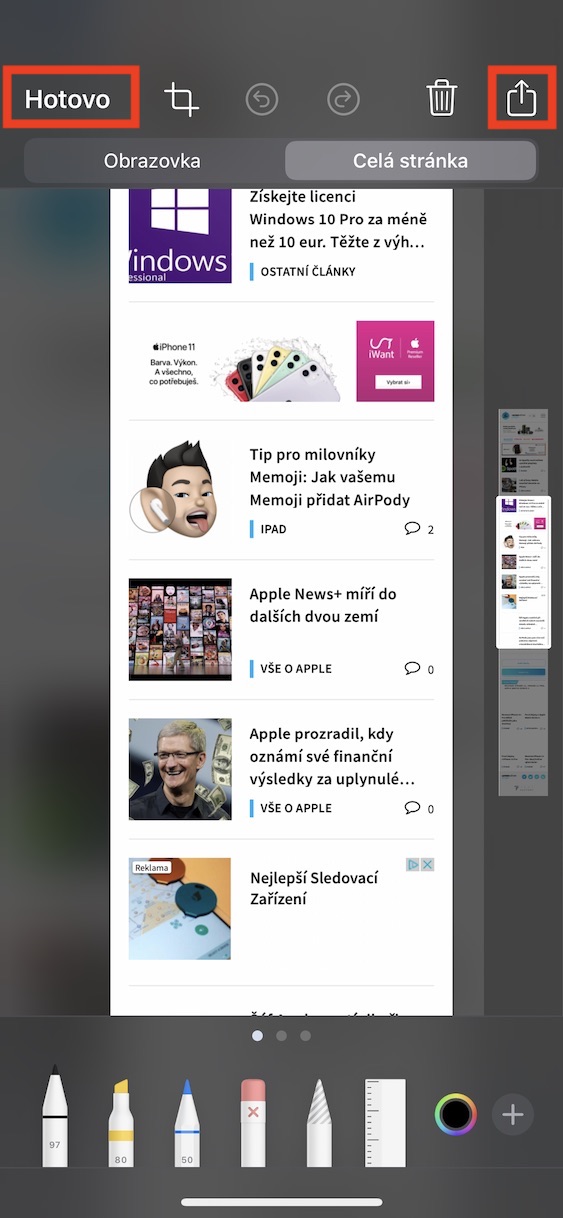
In the past, if you wanted to take a screenshot of an entire web page, you had to go through a complicated process. First, you had to download an app that could take such a screenshot, then you had to take screenshots of the entire page from top to bottom. Then you would paste those screenshots into the app, which would at best produce a usable result. ProIt's really complicated, but with iOS 13/iPadOS 13 you can leave it behind. Pro To take a screenshot of an entire web page at once, simply click on it in your browser. Safari they passed, and then they created a classic screenshot. Once you do, it will appear in the bottom left corner screenshot preview, which you click. Once you've done that, just click on the option at the top of the screen The whole page. This will take a snapshot of the entire web page. You can then simply save it in PDF format by pressing a button done Alternatively, you can tap to share the image immediately share buttons.
Unfortunately, in this case, you will not be able to create a long screenshot in JPG or PNG format, so you cannot save it to the Photos application. You will be created a PDF file, which is already very widespread these days and there is no problem opening it on any device. However, if you need to use the classic image format, you cannot avoid the original procedure. Let's hope that Apple will add the option to choose and save it in the next update.onec we will be able to choose whether we want to create a PDF file or a classic image.



It's nothing new, in the previous ones iOS It worked and it still works in a simpler way. Just go to the page in safari print it, then zoom in on the preview and you have the same PDF as the screenshot above. Only faster and easier.
And unfortunately it's just as limited as before. If the page is longer it will only save a small portion.
For example:
I want to save this tutorial:
https://steamcommunity.com/sharedfiles/filedetails/?id=902718192
And it saves not even a tenth of the entire tutorial.
and the question, why is it good to screen the whole website nowadays...?
… is it necessary to stand for it like in the past?
V ios 14 this option is no longer available