
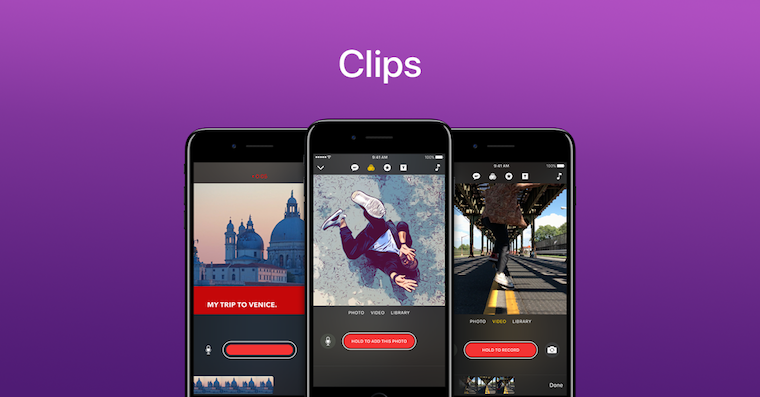
Apple with Clips (released last week) targets users who have a need to create short and entertaining videos. These can then be easily shared on a social network. The user interface is very simple, yet it hides several functions that are not visible at first glance and will greatly help you in video editing. Learning how to use all the available functions can take a long time, so here are some tips to help you get started.
You might be interested in

Crop shot
You can only create square videos in Clips, which means you have to crop your video before importing it. Luckily, you can zoom in and out on your video, so you can use it in its original width, but it will still have black bars at the top and bottom. Unfortunately, you can't crop your video later, so make sure you've cropped it correctly before you hit the record button to add it to your timeline.
Use filters
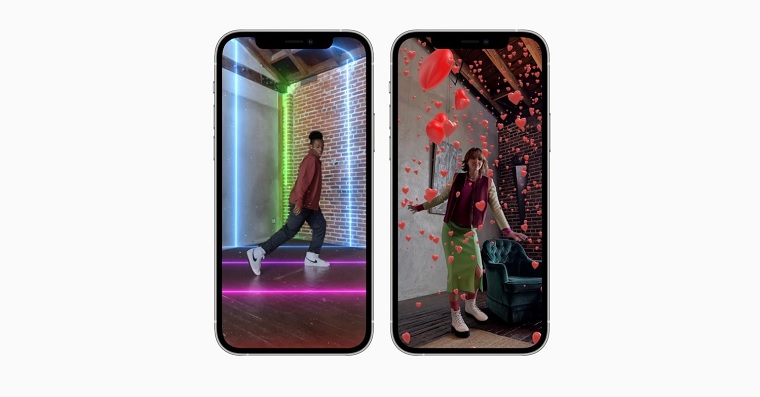
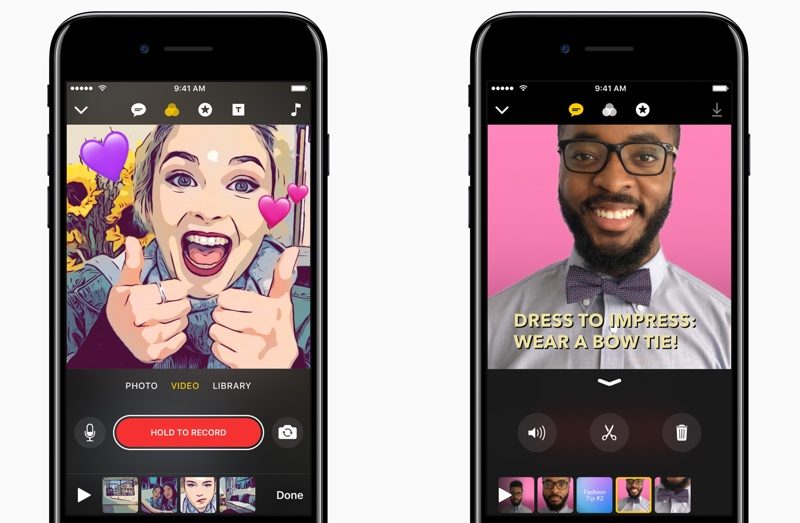
The application offers a selection of several filters that you can apply to your video/photo. The comic book filter can be interesting - it interestingly highlights some details while downplaying others. Of course, the choice depends a lot on the specific clip to which you apply the filter.

Keep your audience engaged
People will likely watch your video on small mobile phone screens. Therefore, make sure that the main subject fills most of the screen. Cut the footage so that only the most interesting parts remain. Three to five seconds of each shot is the perfect length to keep the audience's attention.
The key to a good video is quality sound
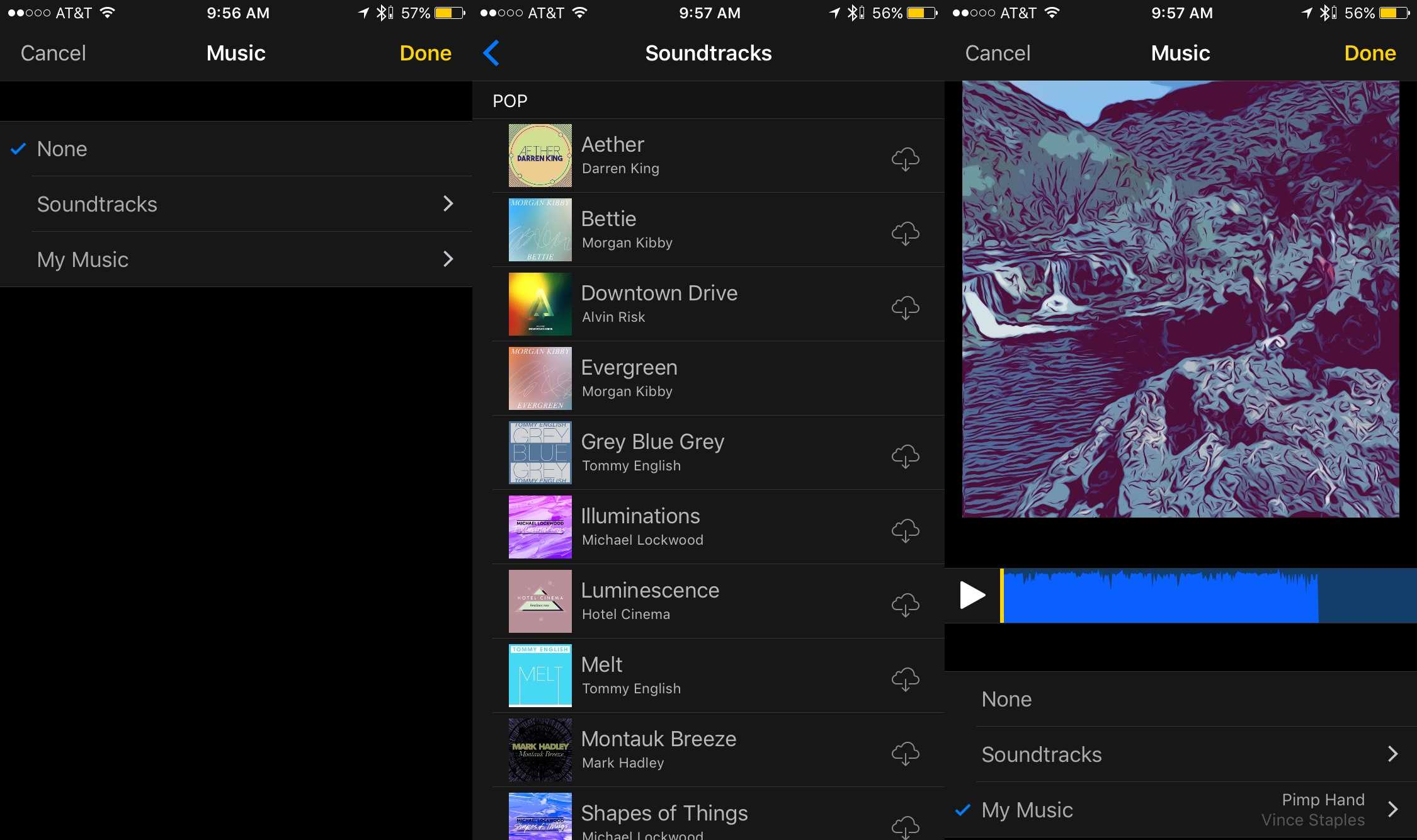
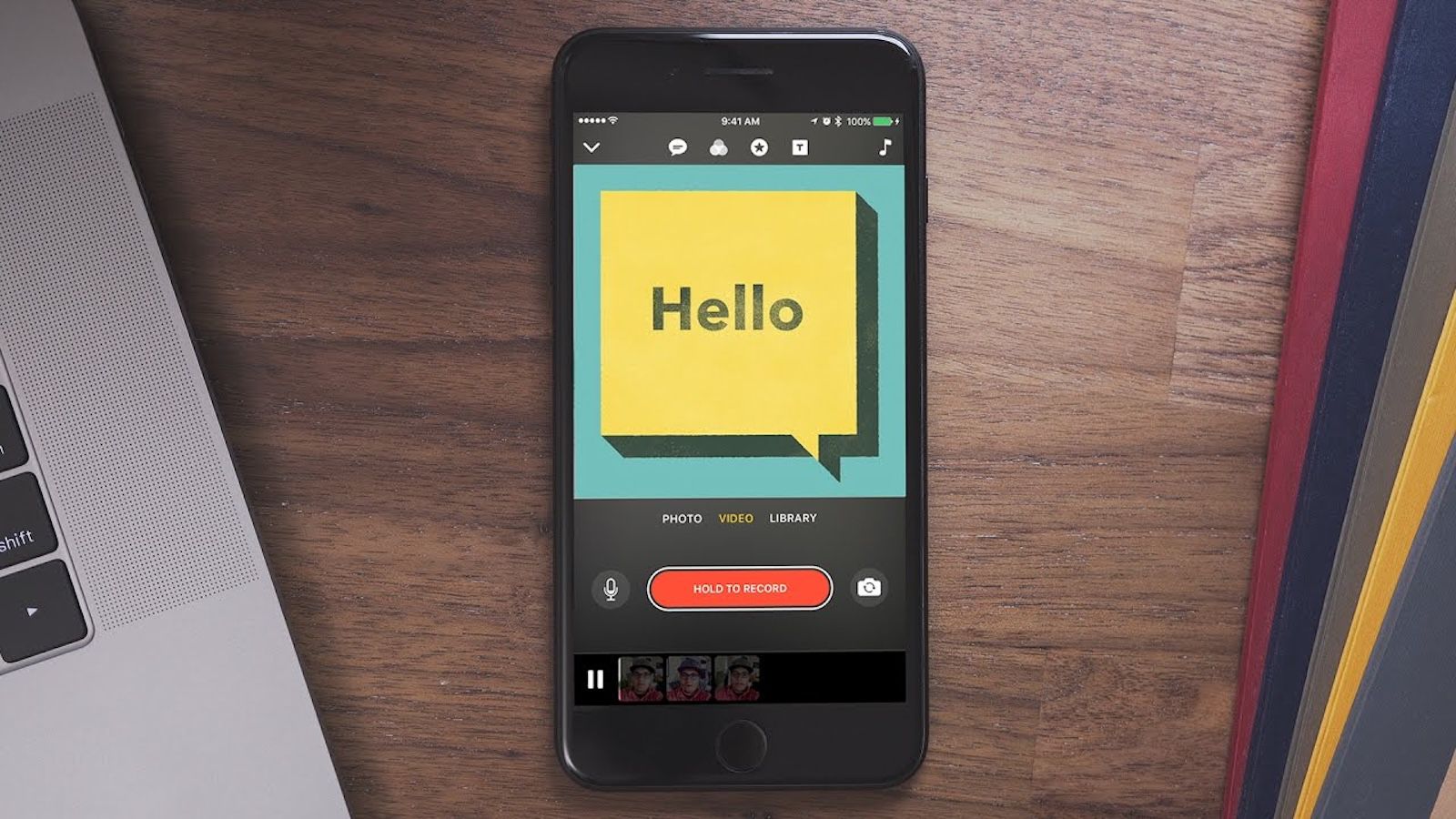
Although videos, and the Clips app in particular, are mainly about images, sound plays a crucial role in videos. Apple Fortunately, it's easy to add a few royalty-free songs to your video. Just tap the music icon in the top right corner of the app and soundtracks from Applu will appear. Alternatively, you can also use music from your iTunes library. After you select a song, just trim it and place it correctly where you want it to play.
Also, make sure the microphone is muted when adding music from iTunes. Otherwise, ambient noise will also be recorded in the audio, which you will not be able to remove later.
Take care of your video subtitles
Everyone doesn't have to watch your video with the sound on, so it's a good idea to add subtitles to your video. The application can automatically turn your speech into subtitles. Just tap the speech bubble icon at the top of the screen, select a caption style, and then simply speak. Your words will be automatically converted to text as you record.
Experiment
Be creative. Clips is basically a lightweight version of iMovie, once you master all the features and learn how to use them, you'll be able to produce short and fun videos in minutes.
A fun video by iJustine that illustrates all the main features:
Source: Cult of Mac




I liked the subtitles in Slovak as well.
How do I add more music to a clip please? I can only put one song there. Thank you!
I wonder that too…do you know the answer?