
Does it seem to you that your iPhone, iPad or iPod touch slow? Whether you just updated iOS or have you had problems with performanceonem, there are a few easy tricks that can be used to make your iPhone again a little (sometimes even dramatically) faster. Regardless of why your iOS If your device is slow, we bring you four ways to speed it up again. We'll start with the simplest one that probably comes to mind for everyone, and end with the most complex but effective one, where you'll also find complete instructions on how to do it.
1. Restart iPhone
In many cases, it is enough iPhone just restart. This can be done by holding home and lock buttons at the same time. You have to hold it until the logo lights up Applu. Then just release and wait for it to turn on.
2. Motion Restriction function
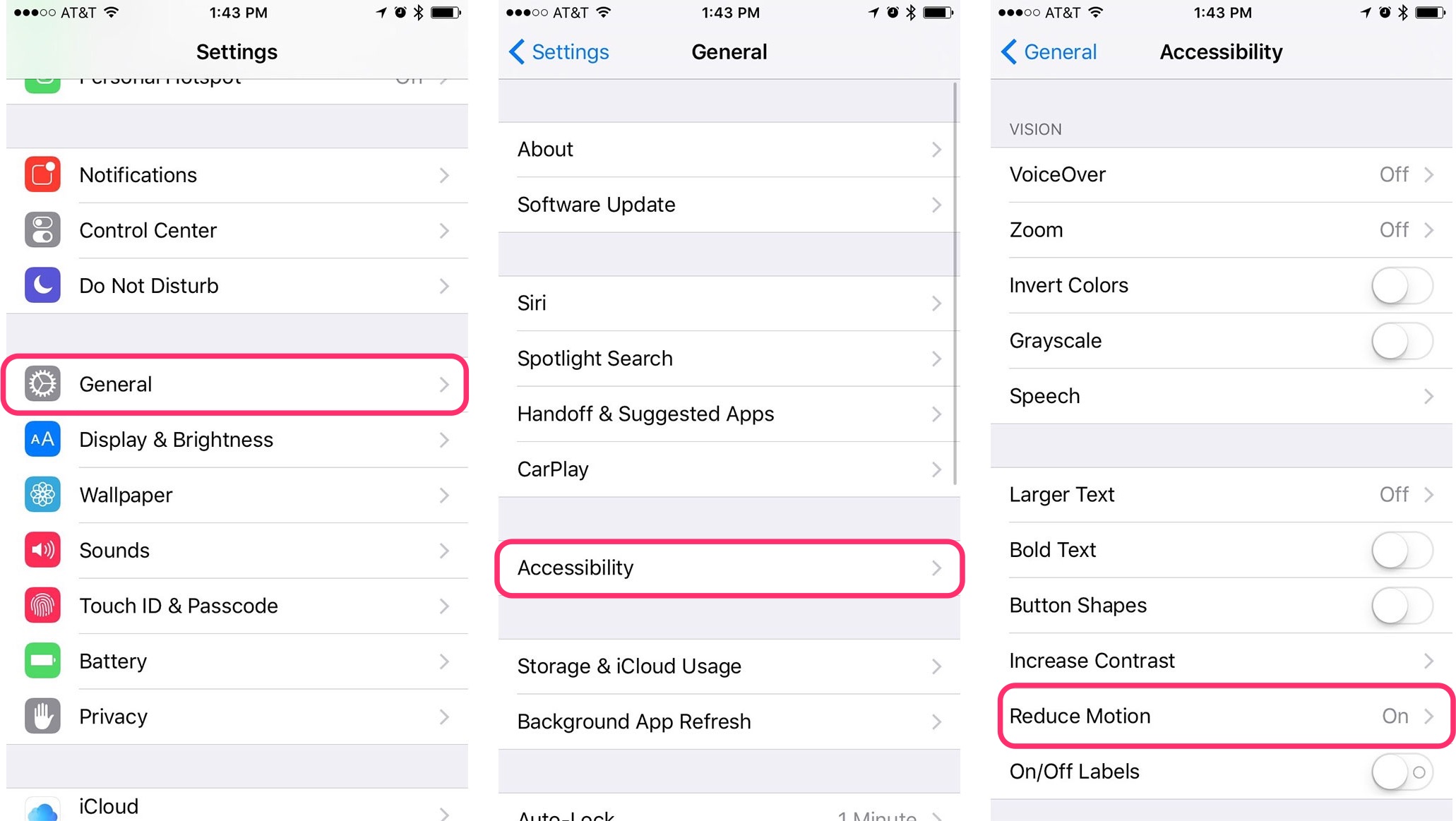
If you are using iPhone 5 or older devices, iOS 9 doesn't run smoothly on these devices. Pro You are offered the Motion Restrictions feature. It turns off all animations in the system. Whether animations when opening applications or motiononewhich creates the so-called 3D effect. Proyou can do it simply by using: Settings>General>Accessibility>Restrict movement.
3. Background apps and location
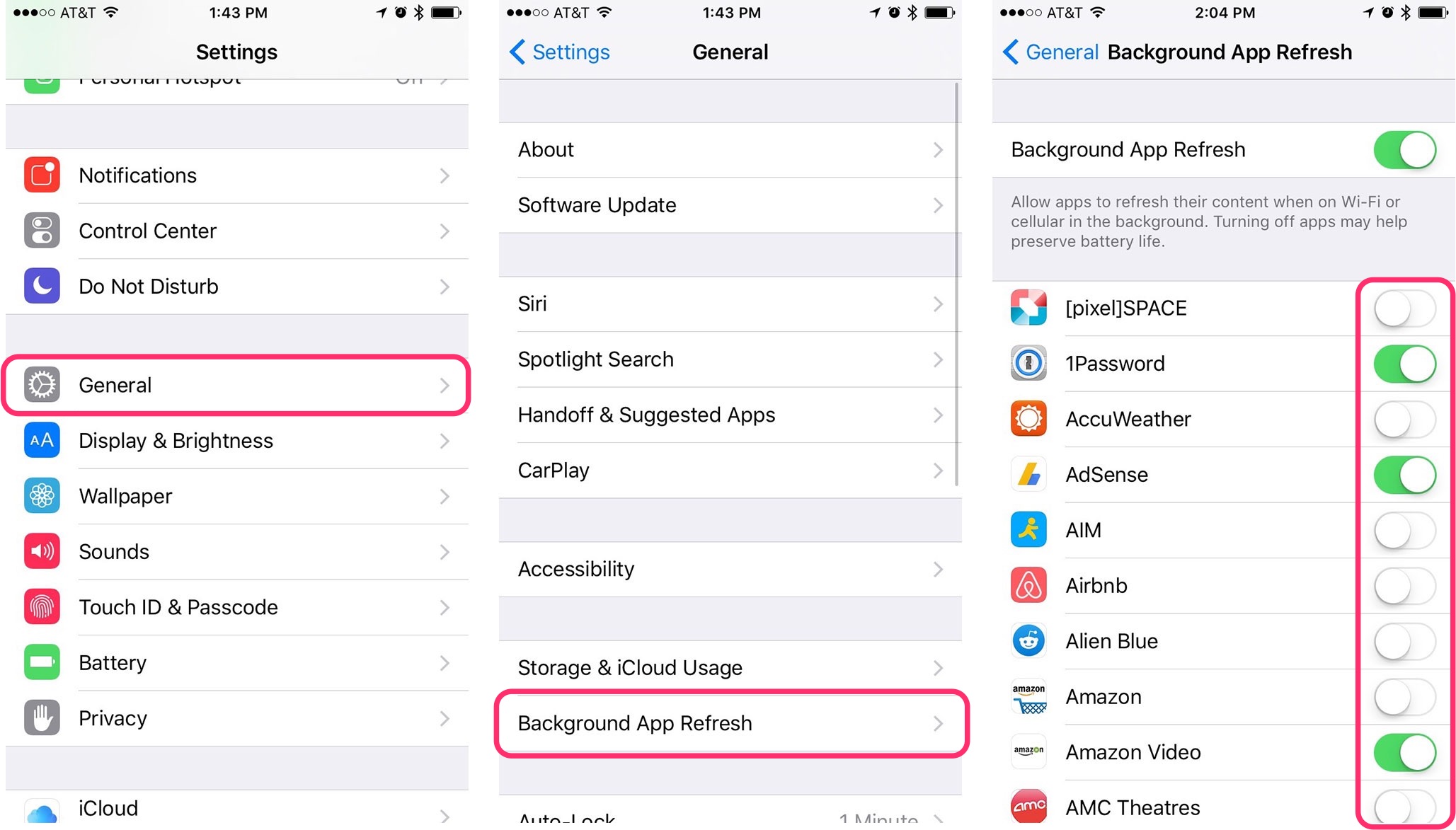
One thing you should do on your device is to go through the background app settings. If you have a lot of apps running in the background, it can slow down your device and drain your battery faster. The same goes for the location that some apps require. ProGo through all your apps and consider whether you need and use these features in that particular app. You can turn off background apps in Settings>General>Background App Update.
If you want to turn off the aforementioned location services for any of the applications, go to Settings>Privacy>Location Services.

4. Restore using iTunes
If none of the previous steps help you, there is no other option but to factory reset your device. It's best to back it up to your computer and then re-upload it to your iPhone. It's pretty simple, but you need a computer with the latest possible software loaded onto your iPhone.
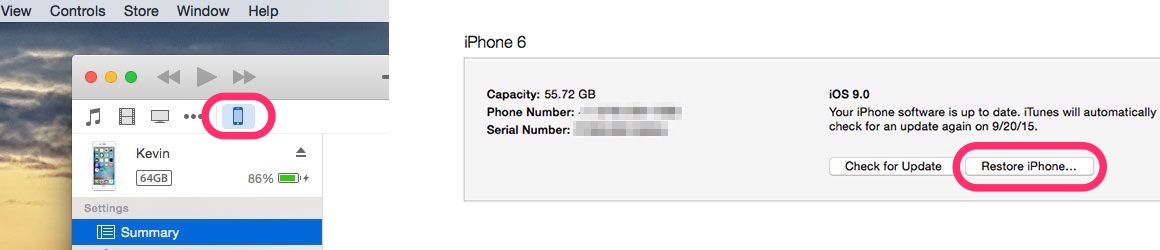
- Connect the device to PC, on which to launch iTunes.
- It will appear in the top panel device icon, which you need to click.
- Here you click on Restore iPhone...
- If you have the service turned on Find iPhone, you will be prompted to turn it off.
- After that, just continue according to the instructions and agree to all the terms.
- After restoration you will have iPhone in the original condition in which you purchased it.
*source: Cult of Mac


Pro The most obvious speedup for me is the glitch with animations... it works on all iOS versions https://www.youtube.com/watch?v=Knzk2c9fzvw
The best way is… buy the latest iPhone :)
Martynet it, but the little bit goes into the budget :)
Mitsuke: thanks for the tip, I didn't know that, but I was fine with it on the iPad, otherwise on the iPhone 6s it was fine, I was surprised how quickly it started :D