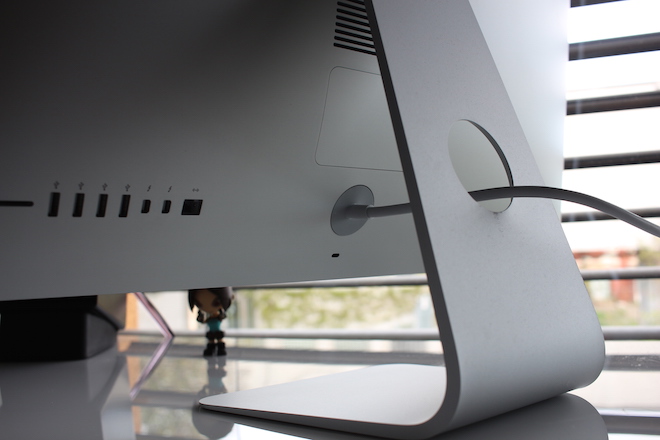
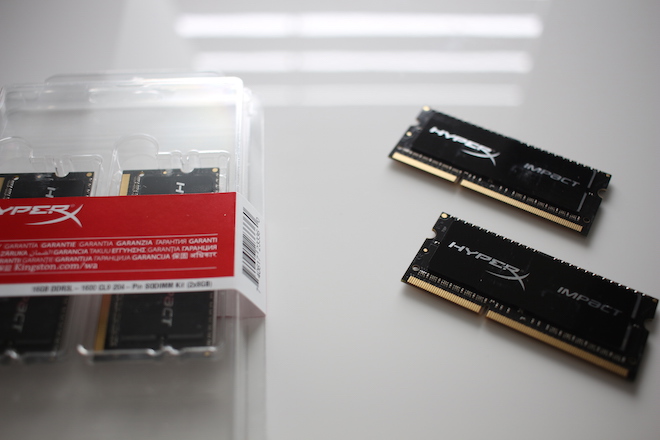
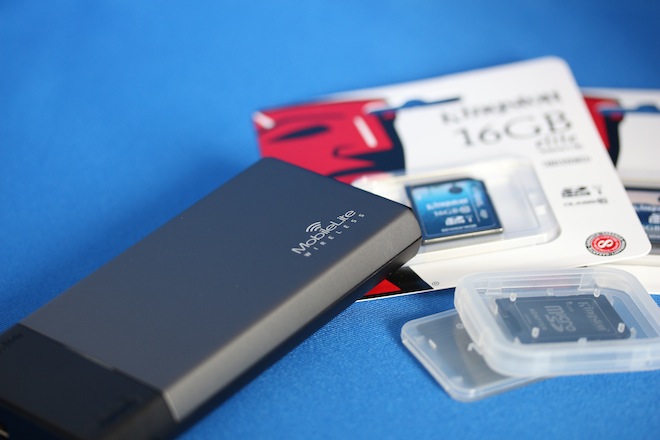
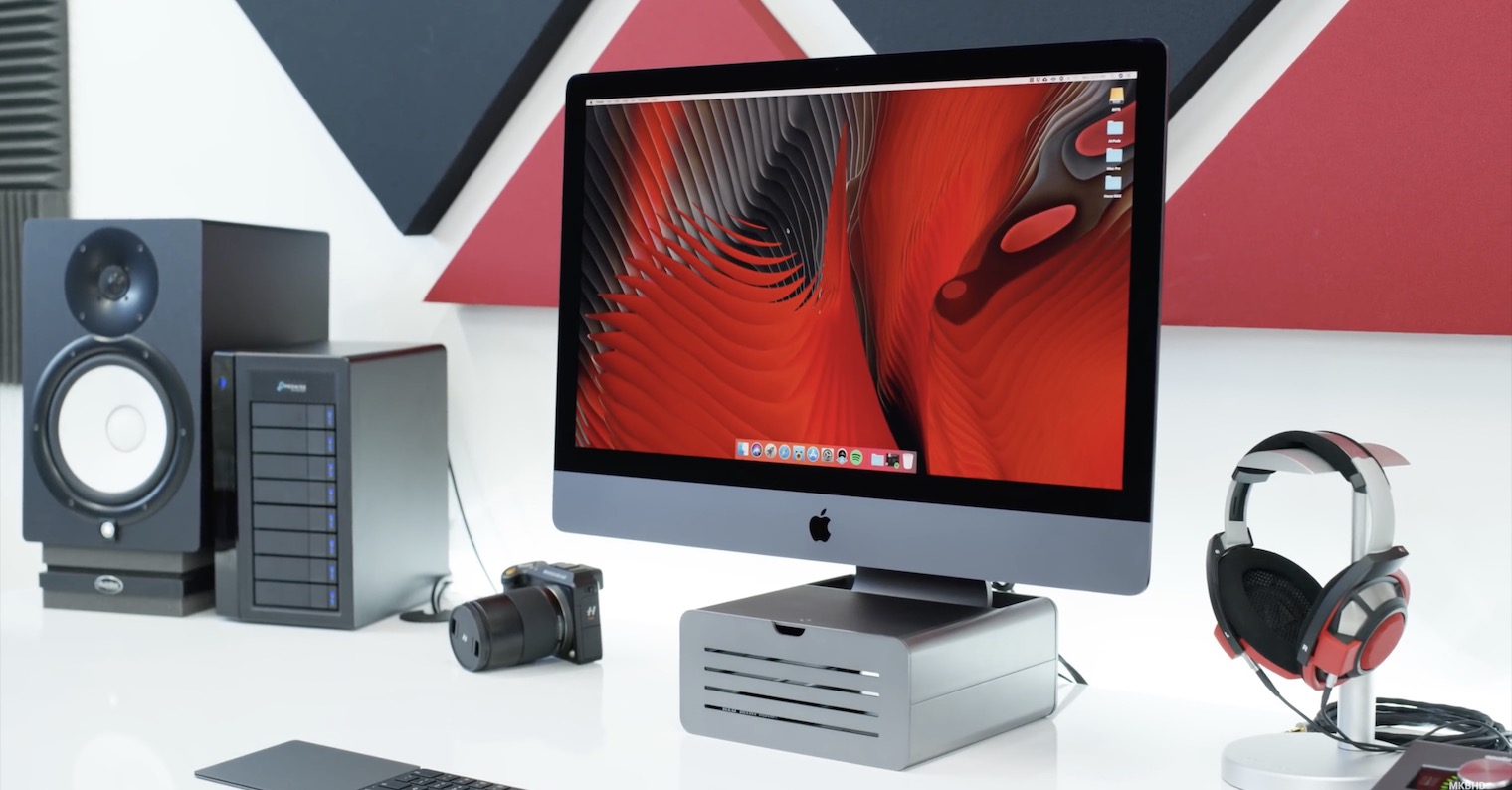
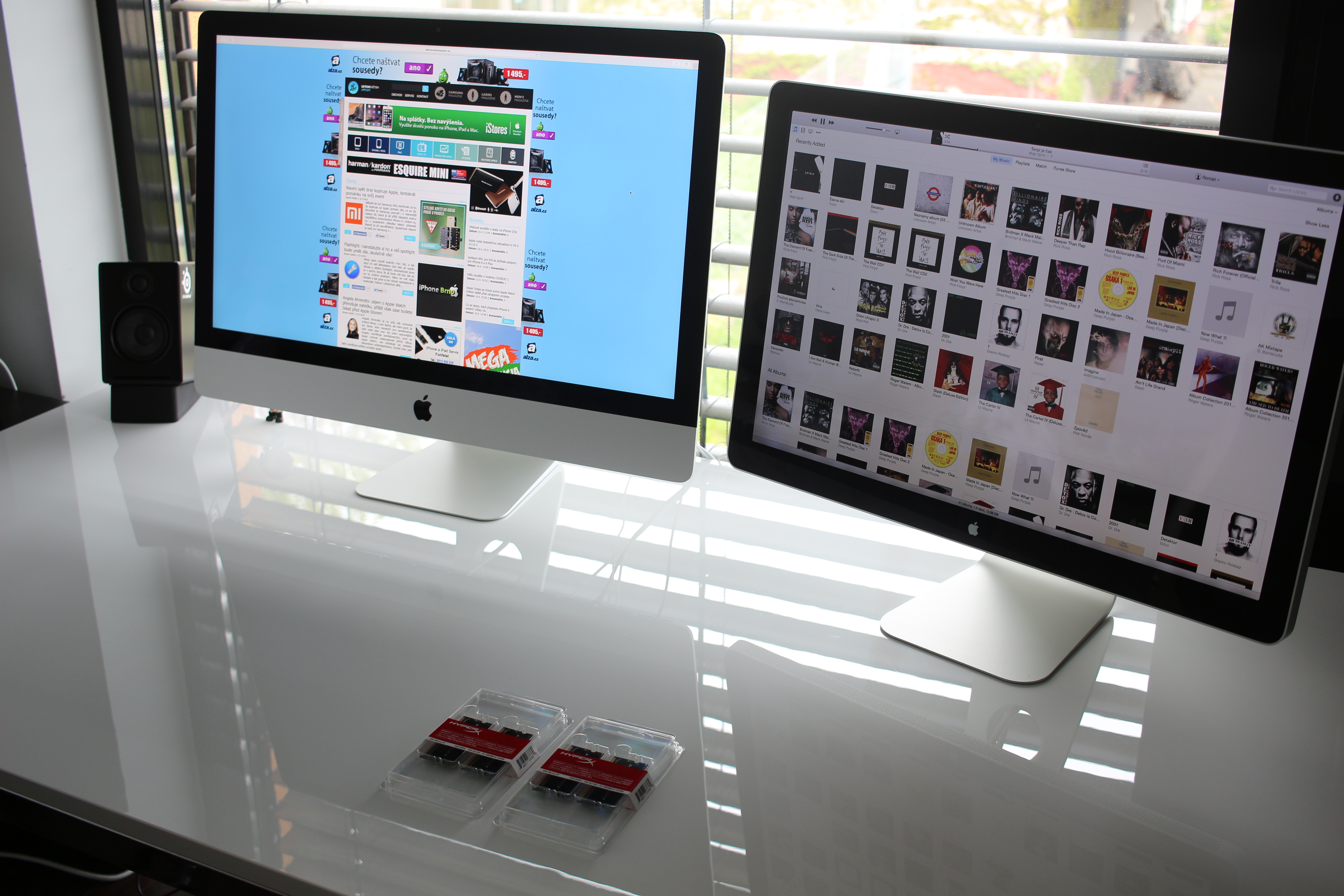
I'm just writing an article about how RAM affects the performance of the new iMac. Retina 5K and so I thought I'd do it for the boys from Kingstownone advertising in two articles at once, with the idea that maybe someone will be interested in how the memory is actually replaced in this computer. Memory from Kingstone I've been using it for years and I won't let them. iMac Retina The 5K has only 8GB of RAM by default and the prices it offers Apple for memory upgrades are something I consider to be a mental disorder, to put it mildly. So I was impatiently waiting for the memory to arrive and I started replacing it. Today atoneThe courier delivered the shipment directly from Kingston and so it was time to start the exchange.
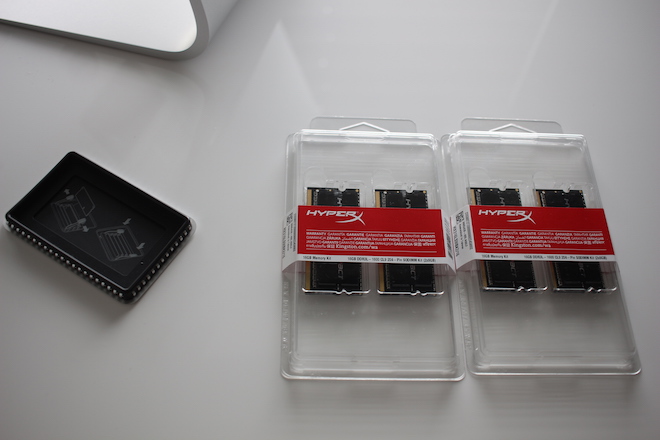
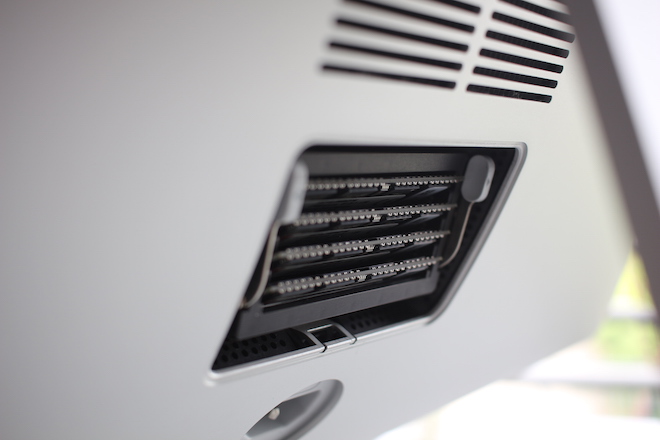
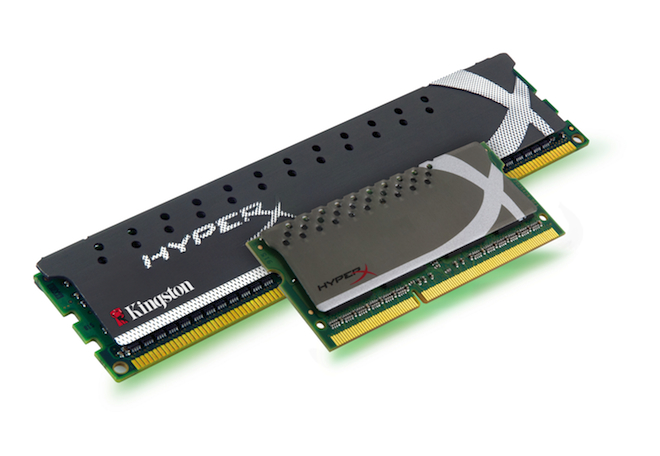
The RAM is the only thing you can replace in your iMac. You can install it with a quad-core memory with maxminimum size 32GB. The computer offers four slots in which you can install 4x8GB DDR3 RAM in the laptop version. You also have to be careful, because there are also laptop memories that already have an integrated passive cooler, but this increases the height of the memory and you cannot put it in the iMac. The ideal choice is, for example, Kingston SO-DIMM DDR3L 1600Mhz Impact, i.e. memory without a cooler. You can buy two 2x8GB kits for a price of slightly over 7500 CZK and use the slots on maximum, which Apple offers. Compared to memories from Applu, which is no different, you will save 7500 CZK, for example on a nice stand for iPhone.
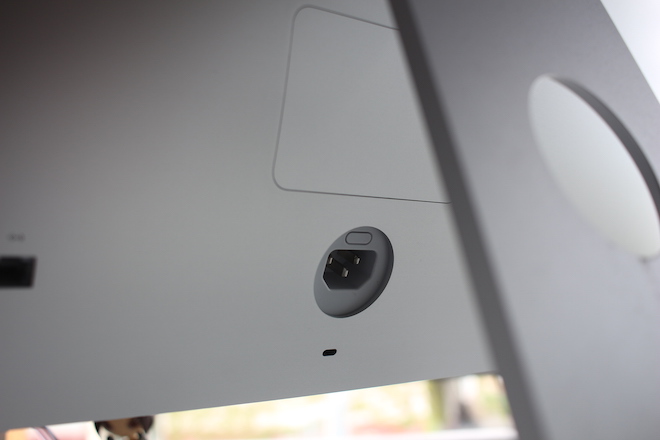
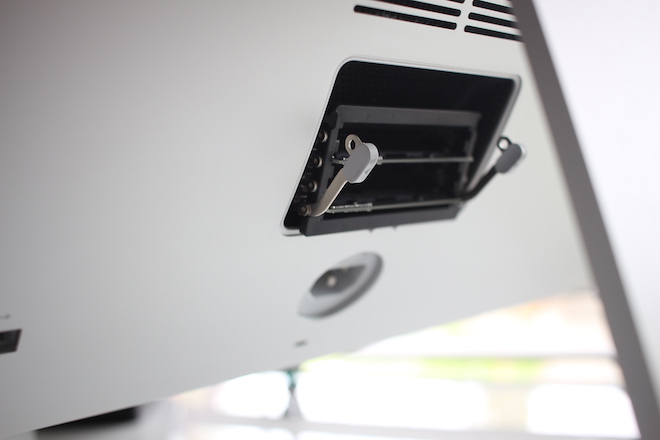
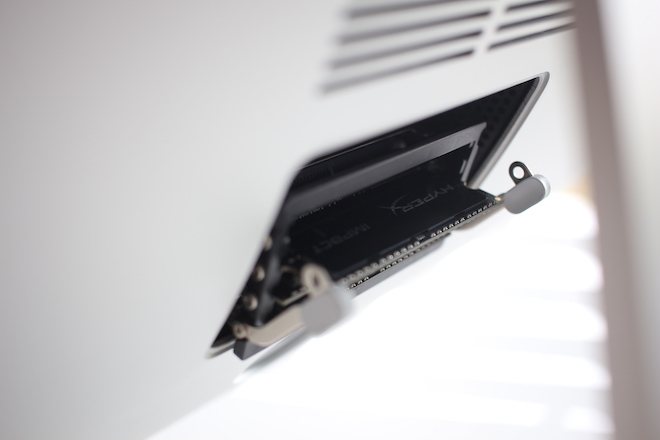
The replacement itself is quite simple and you do not need to screw anything. All you have to do is turn off the computer and disconnect it from the electricity by pulling out the power cable, under which there is a button that must be pressed to unlock the memory access. You have to push the button really hard with something until the cover protecting the memory opens and you can pull it out. now you only need to press a pair of side levers and four slots will slide out in the style of R2D2, into which you can insert memory. You put the cover back on and all the fun is over, because now all you have to do is turn on the computer. You can easily verify that all memories are working as they should directly in About This Mac.