The Phone app on iPhone offers two views to choose from, depending on how you prefer to work with your calls and contacts. The unified interface brings your favorite contacts, recent call history, and other important elements together on one screen. But if you prefer the traditional layout with separate tabs, you can always switch back to it.
You might be interested in

The difference isn't just cosmetic. In Unified View, you have your favorite contacts at the top of the screen and recent activity right below them, while other parts of Phone are accessible via a bottom bar and menu. Classic View, on the other hand, is reminiscent of the interface iPhone users have been accustomed to for years, separating each part of the app into separate tabs.
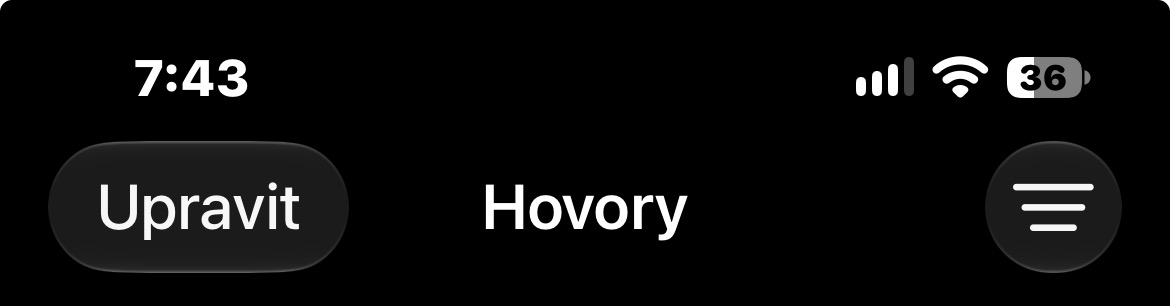
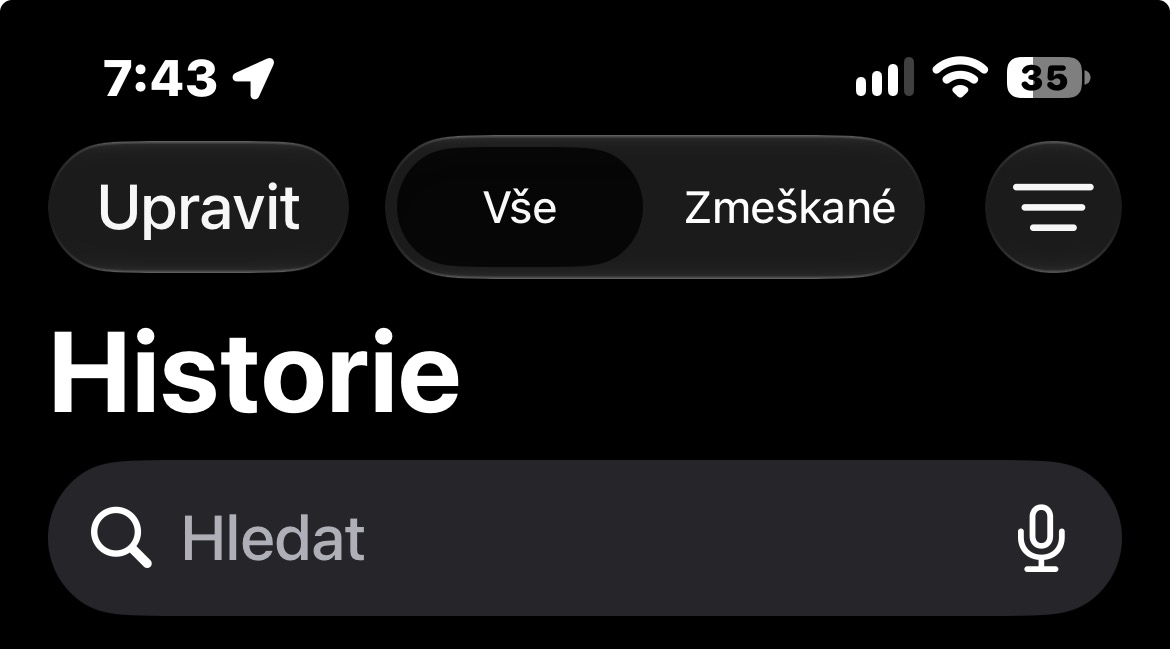
On your iPhone, open the Phone app and tap the three-dot icon in the top-right corner. From the menu that appears, select Classic. The interface will immediately change, and you'll get separate tabs for call history, contacts, dialer, and voicemail at the bottom of the screen.
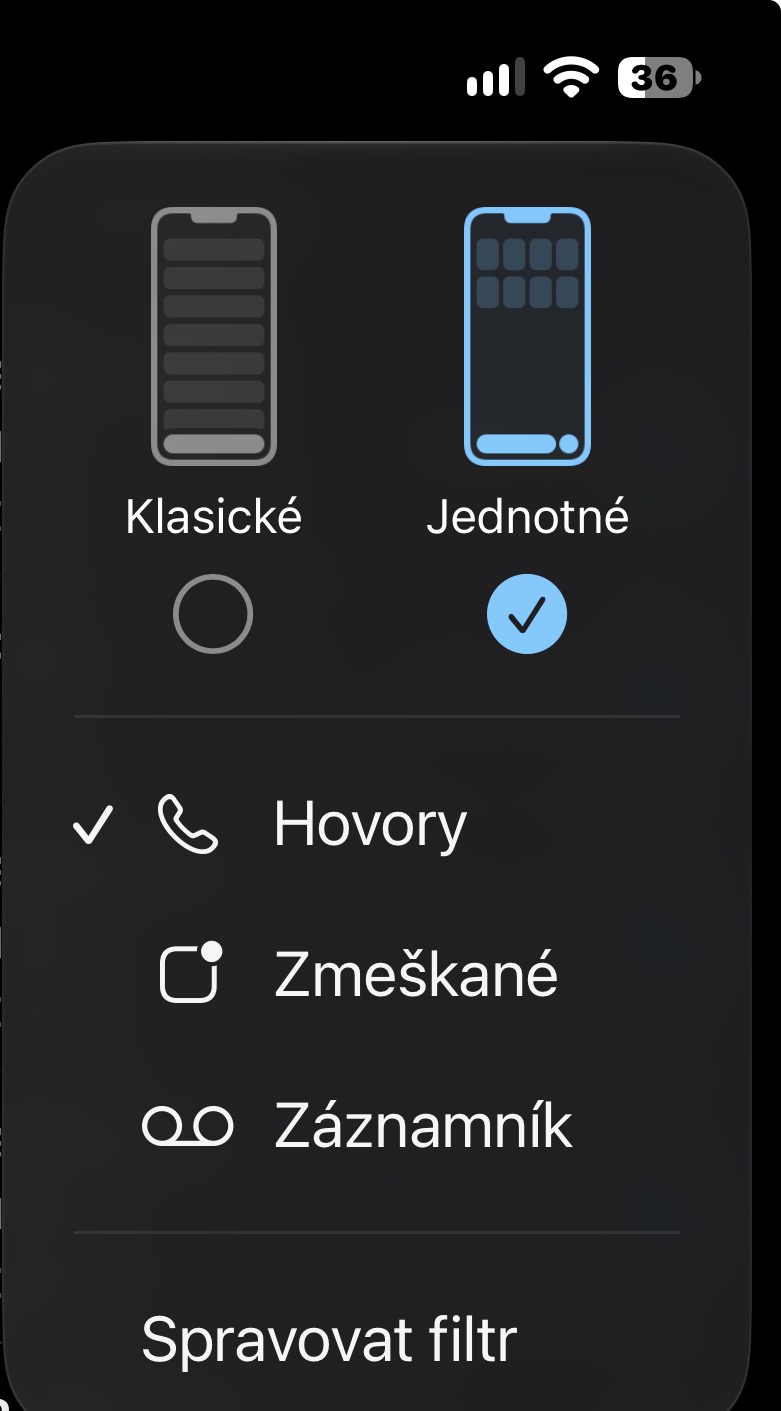
If you start to like the more modern layout after a while, it's just as easy to change. Tap the three-dot icon again and this time choose Unified. So it's okay to try both ways for a while and then stick with the one that works faster for you.
iPhone It also remembers the selected layout even after you close the Phone app, so you don't have to set it up every time you launch it. It's a seemingly small thing, but it can make using one of the most basic apps in iOS noticeably more pleasant – especially if you prefer the classic layout that has been around for years.