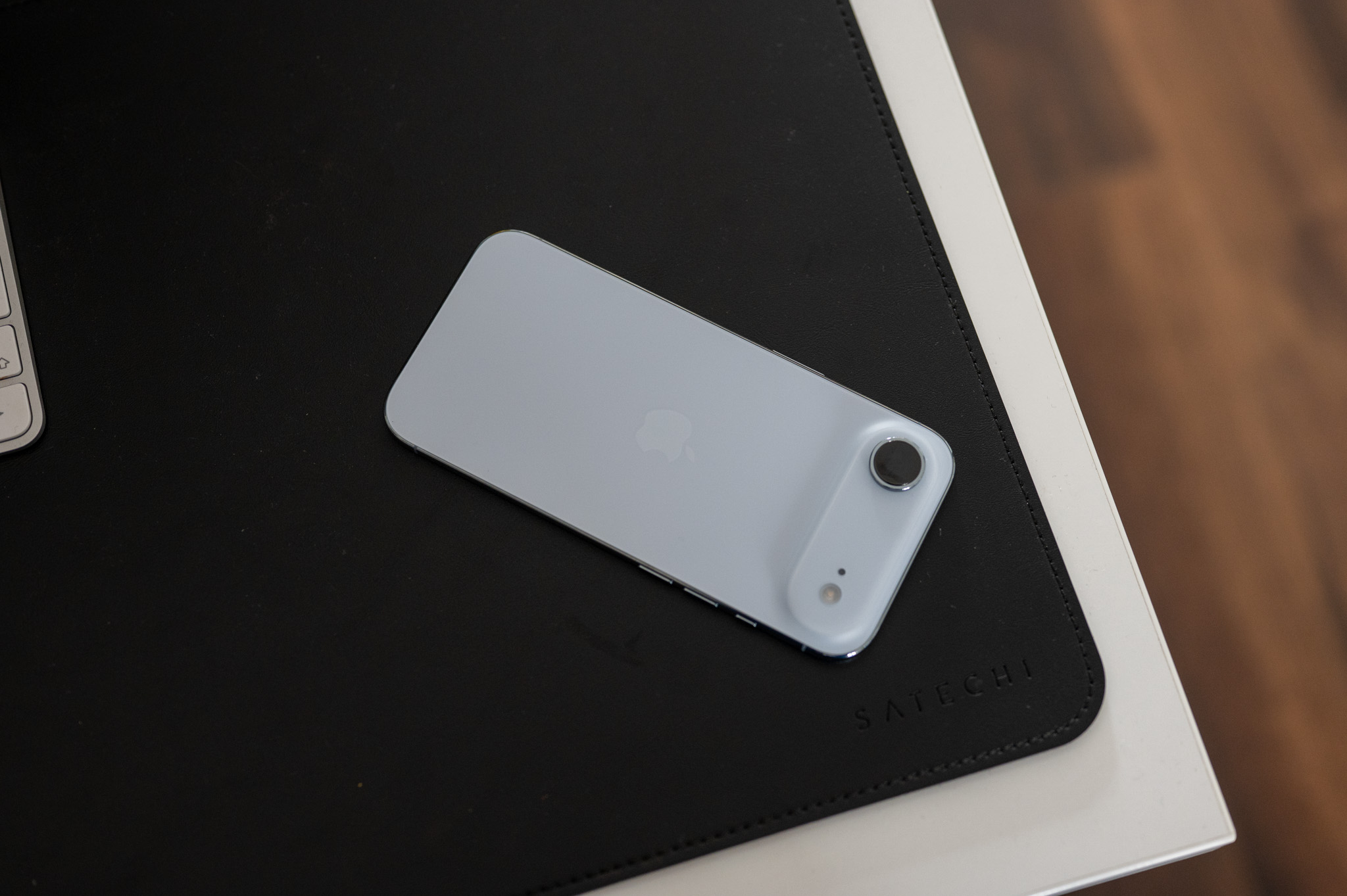
Face ID Today, biometrics isn't just for unlocking your iPhone or confirming payments. Third-party apps can also use biometric authentication to access their content, log in to your account, or confirm certain actions. If you want to keep track of which apps you've used, Face ID allowed, iOS offers one place where you can easily check and change their permissions.
You might be interested in

Management can be useful, for example, when you have enabled the use of Face ID automatically and later changed their mind. You don't have to look for the appropriate option directly in the app's settings. Access can be managed directly in the iPhone's system settings.
How to check app access Face ID
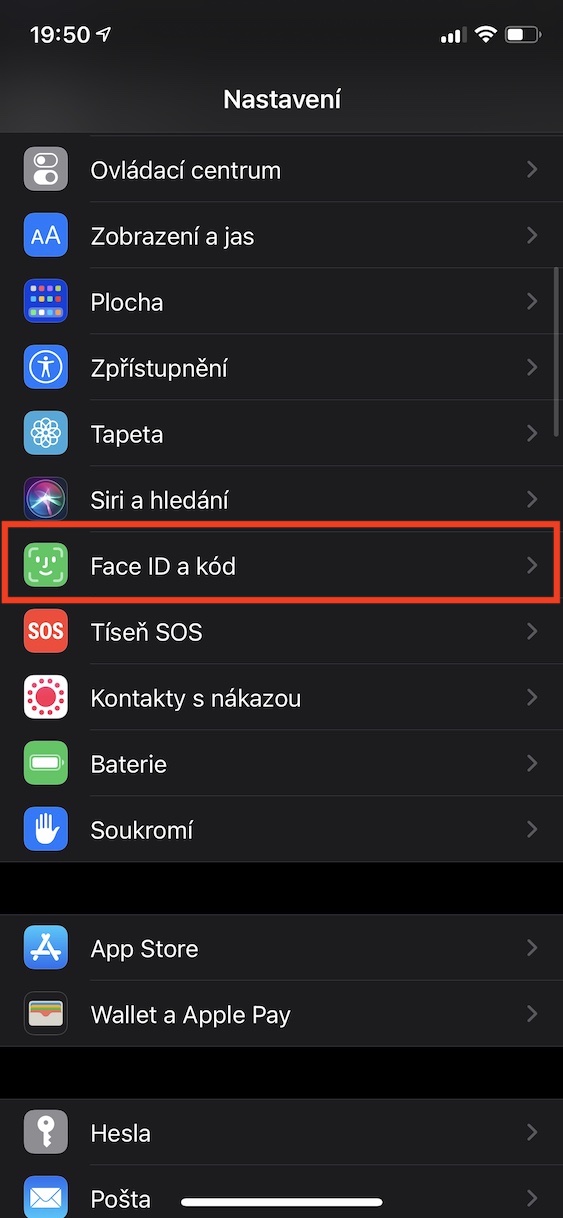
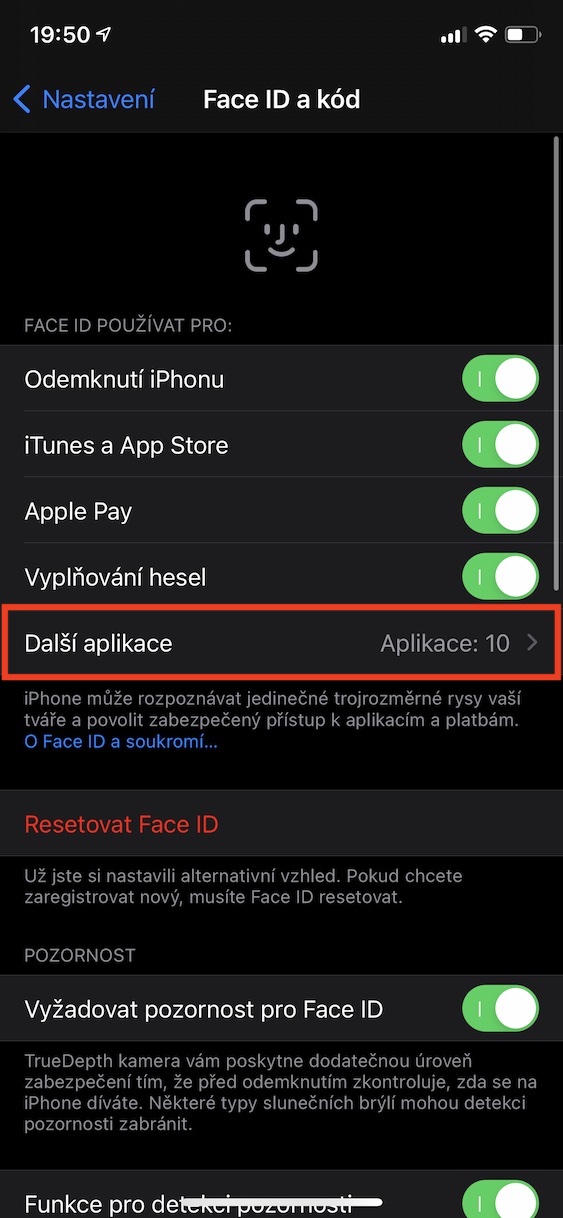
On your iPhone, open Settings and go to the Face ID and passcode. You will be prompted to enter your device passcode for security reasons. Then tap More Apps.
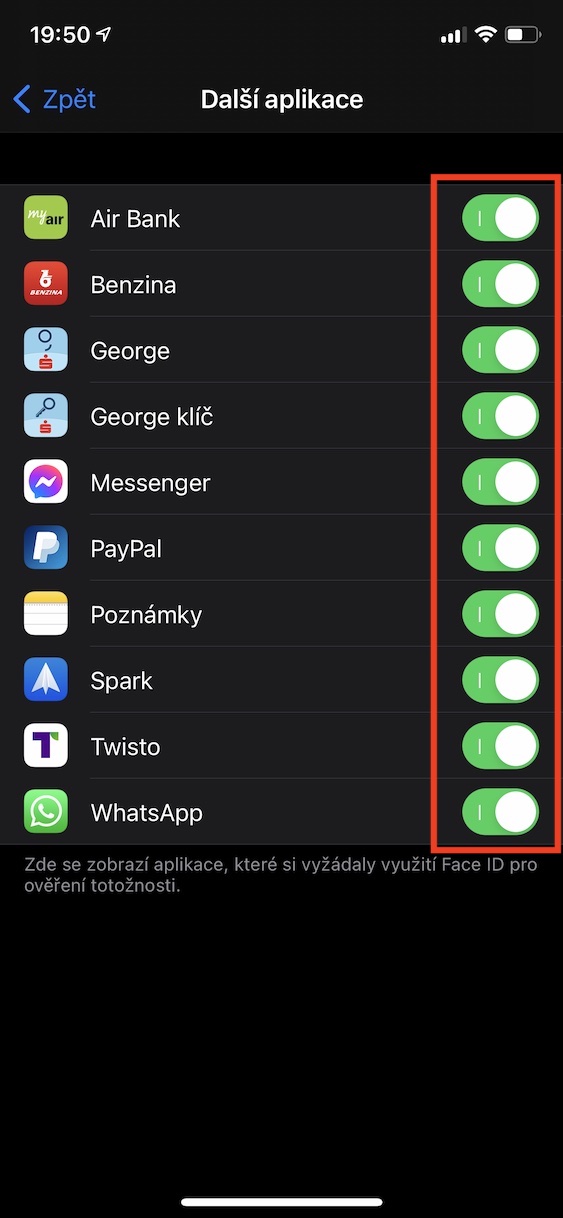
A list of applications that have requested permission to use the Face IDUsing the switches for each item, you can then determine which applications can use biometric authentication and which applications you can remove this option from.
So, for example, if you don't want a certain application to continue using Face ID to log in or access protected content, simply deactivate the corresponding switch. It is not necessary Face ID turn off for the whole iPhone nor change its main settings.
Gallery

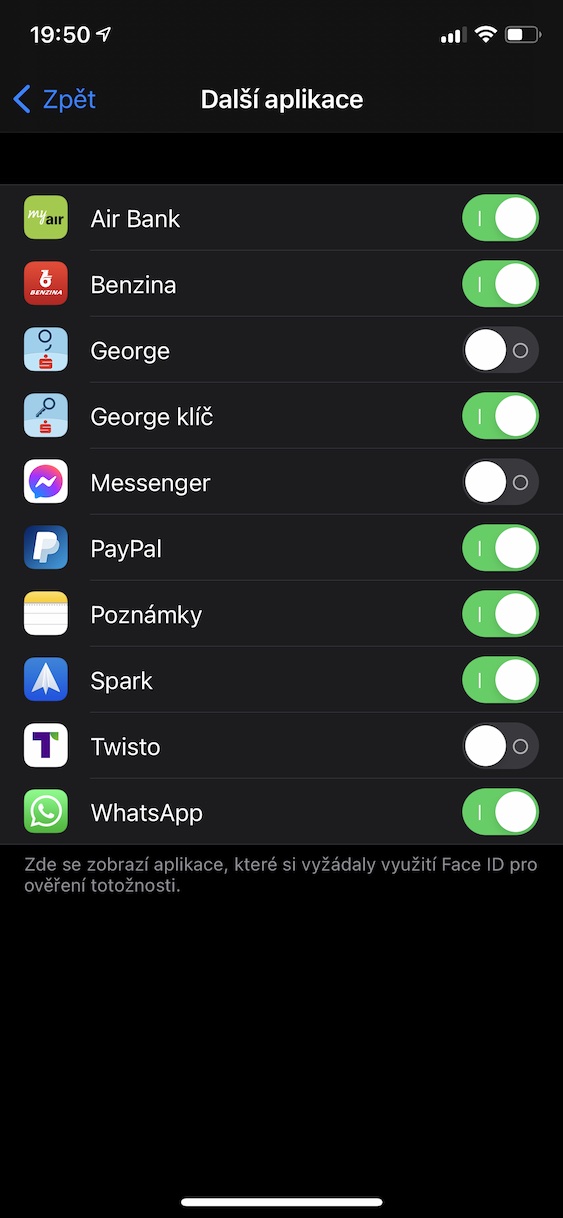
However, it is good to take into account that removing access to Face ID does not mean that the application will be automatically locked. It will only prevent it from using biometric authentication via Face IDThe method of subsequent login or authentication depends on the specific application and its settings.
Regularly checking permissions is an easy way to keep track of which apps can use individual iPhone features. And if you are Face ID previously allowed without much thought, checking the list in the Other Apps section will only take a few seconds.