
Today my mom came to me and asked me a simple question: "Can I notchat read the name of the person calling me?” Of course, I answered this question in the affirmative and set up the function on my phone. However, it didn't even occur to me that I hadn't made a tutorial on this topic before, so I didn't hesitate for a moment. For example, if you do work in which you can't see the phone display and don't have the opportunity to read who's calling you, you will definitely appreciate this function. The setup is very simple, but you won't find it on your phone just like that. So how do you do it?
You might be interested in

How to activate the Call Notification feature
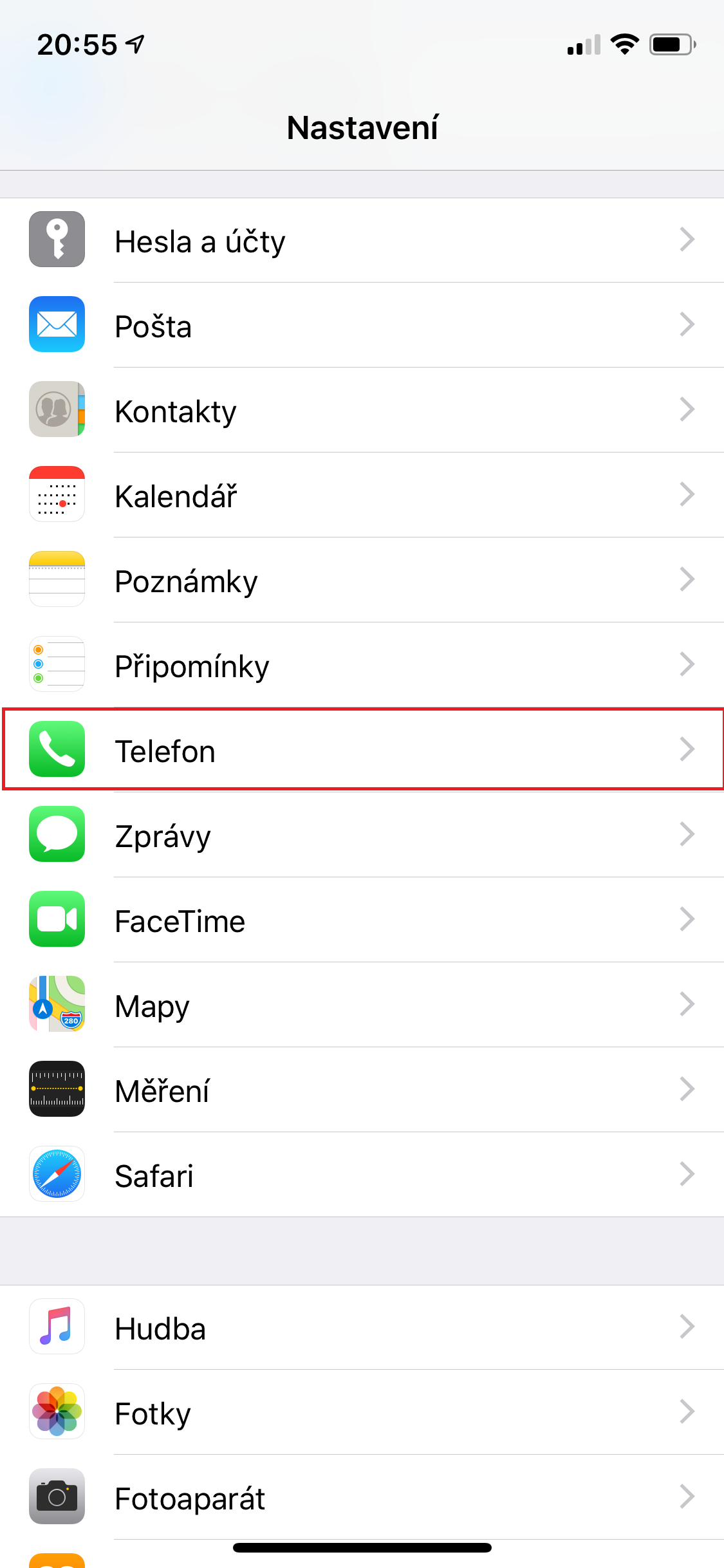
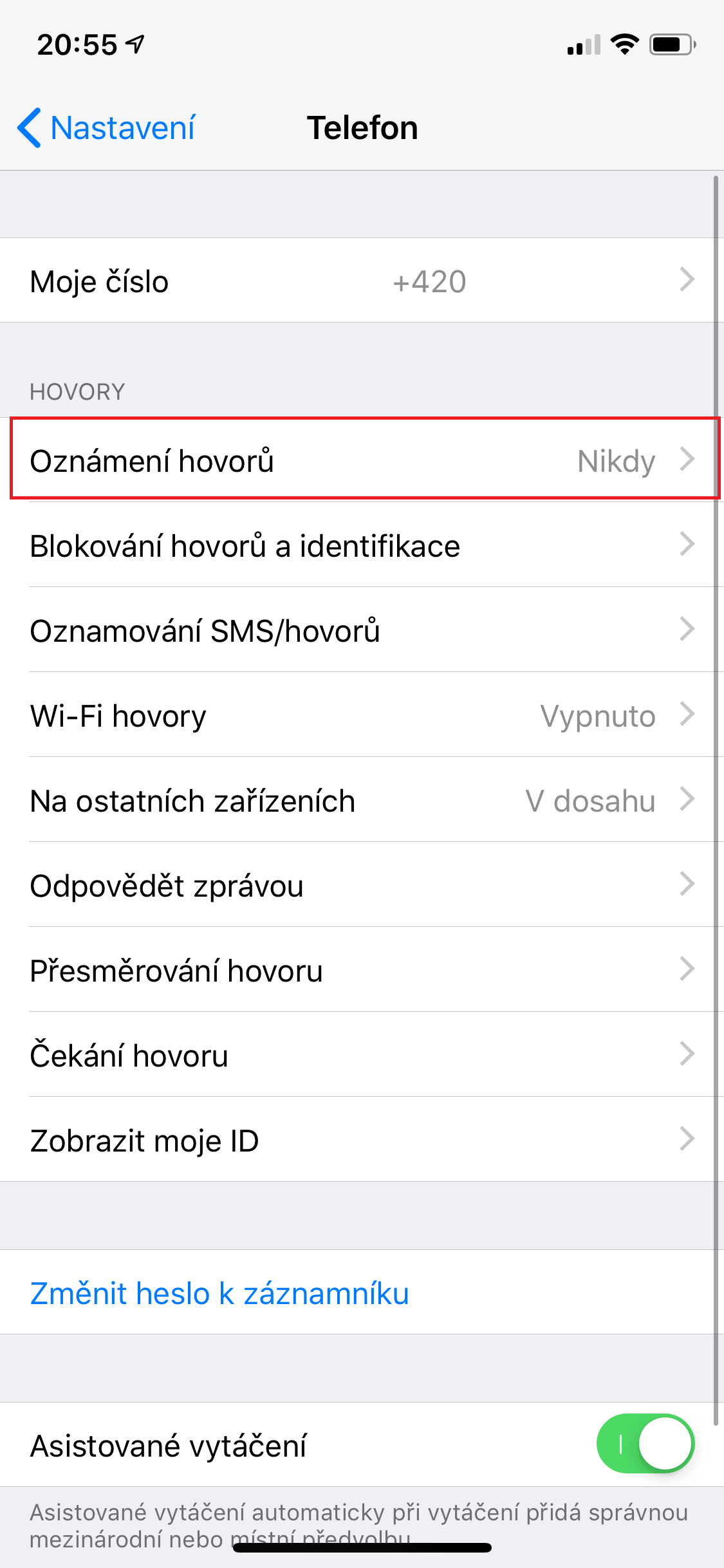
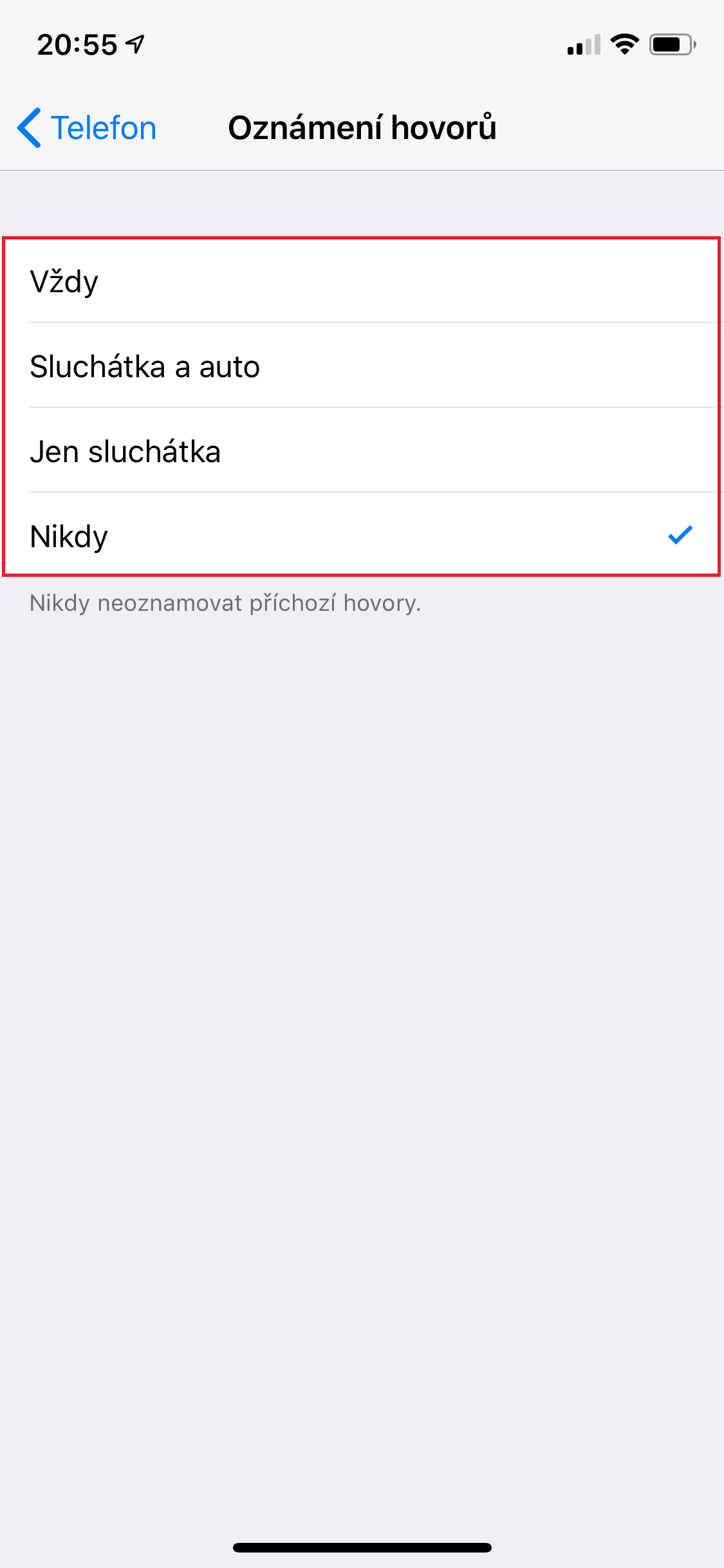
On our iPhone, we open the native Settings app . Here, we scroll down until we find the Phone column , which we click on. Now all we have to do is move to Call Notifications . After clicking on it, you have a choice of four call notification options:
- Always
- Headphones and a car
- Just headphones
- Never
In this case, I don't think it's necessary to explain when the Call Notification feature will work. So, set when you want to activate Call Notification according to your preferences, and you're done.
If someone calls you with Call Announcement turned on, you will always hear the caller's name within the first second. However, I have sometimes Siri she pronounced the name incorrectly, or rather she pronounced the name under which the contact was previously saved. So if you Siri reads the caller's name incorrectly, delete the person from your contacts, then add them again by creating a new contact. This procedure helped in my case and the function now works as I expected. If you don't have the person in your contacts, then Siri reads the caller's phone number.



It's probably because of English pronunciation. Siri unusable.
I have been using it for a long time and it works great.
turn it off siri and it will speak Czech or Slovak
Fact? I did not know. Thanks for the tip!
When turned off Siri again, shortcuts don't work.
And how can I call someone by voice?
For example, in the car, I would say through the handsfree: "Call Michal" and iPhone would dial a contact with the name Michal
Can it be done? I would like to discuss in Slovak
In EN I would probably have to say something like "Kol Majkl", which I don't like
I think it can be done through shortcuts on the phone
And it actually announces it Siri? When I had it on, the announcement was in English. After turning it off Siri in Czech.
Seriously, it's announced in Czech, if it is Siri off?
"If you don't have the person in your contacts, then Siri reads the caller's phone number." - Doesn't read. Says "unknown caller."
It has nothing to do with Siri . Laura or the lady reads it in Czech and she doesn't read the numbers, but she says that we don't know the number
Siri you can learn (not exactly perfectly) the pronunciation of a given name. I don't remember exactly, but something like "Hey Siri"How to pronounce..."