Just a few days of normal use Safari and a few open panels can quickly become a small digital warehouse. You save one article for later, another is for information on work, another has a recipe you've been meaning to try, and somewhere in between there's a page you opened a week ago and have no idea why. If you don't want to manually move panels one by one, Safari offers a simple way to organize them automatically.
You might be interested in

The function is especially useful when you have a lot of pages open and need to quickly find a specific website among them. Safari It can sort open panels either by the page name or by the website they come from.
How to automatically arrange panels in Safari
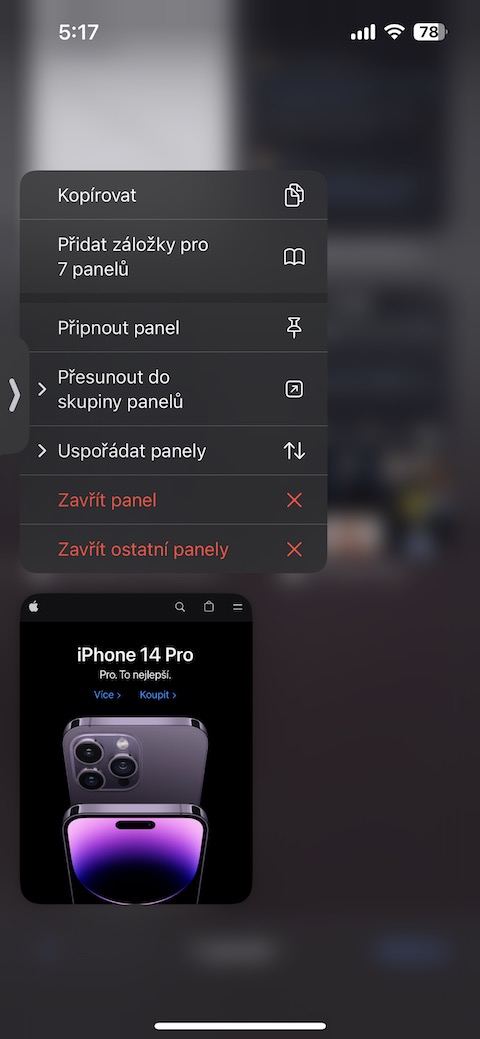
The procedure is very simple. Open on your iPhone Safari and tap the panels button in the lower-right corner of the screen. You'll see an overview of all the pages you're currently open. Then tap the three-dot icon in the upper-right corner and select Arrange panels from the menu that appears.
Safari will then offer you two options. You can arrange the panels by page name or by website name. After selecting one of them, all open panels will be automatically rearranged and you don't have to move them manually.
I find sorting by website more practical when Safari you use at work or in research. For example, if you have several articles open from one magazine, another page from Wikipedia, and several results from another website, Safari groups them together. Instead of searching for one page among dozens of previews, you at least know approximately where to look for it.
Gallery

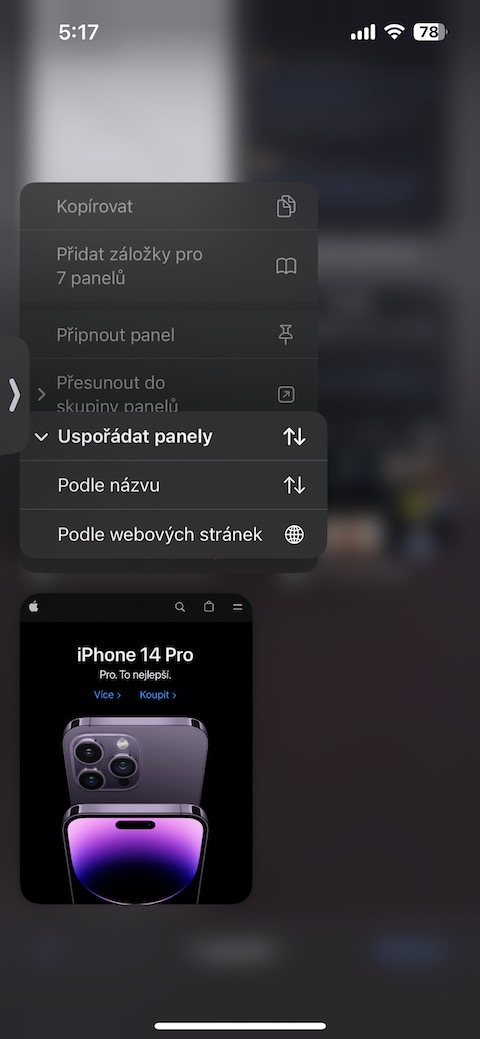
Sorting by page name, on the other hand, is useful in situations where you remember what you opened, but you no longer have any idea what website the information came from. With a really large number of open panels, even such a small thing can save a surprising amount of searching.
Of course, auto-arrangement won't replace panel groups or the occasional cleanup of pages you no longer need. But it's one of those subtle features Safari, which you may not know about for a long time and after discovering them, wonder why you were manually browsing dozens of open pages all the time. So if your panel overview resembles something moreoneIf you want a more comprehensive catalog than a few websites you've read, it's worth trying this option.