The Files app offers a number of features that make working with documents easier, but some of them are a bit overshadowed by the more familiar ones. But it's the little organizational tools that often save you the most time. One of them is the ability to pin frequently used folders to Favorites.
You might be interested in

If you regularly work with certain documents, save files to the same location, or have a folder that you open several times a day, it pays to have it on hand at all times.
How to add a folder to Favorites
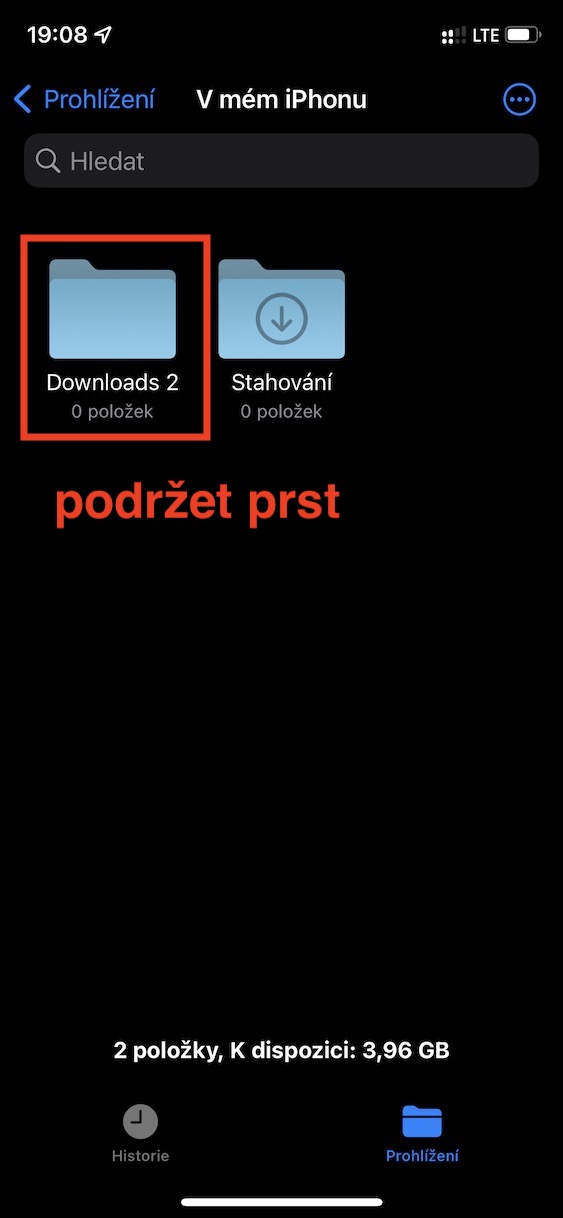
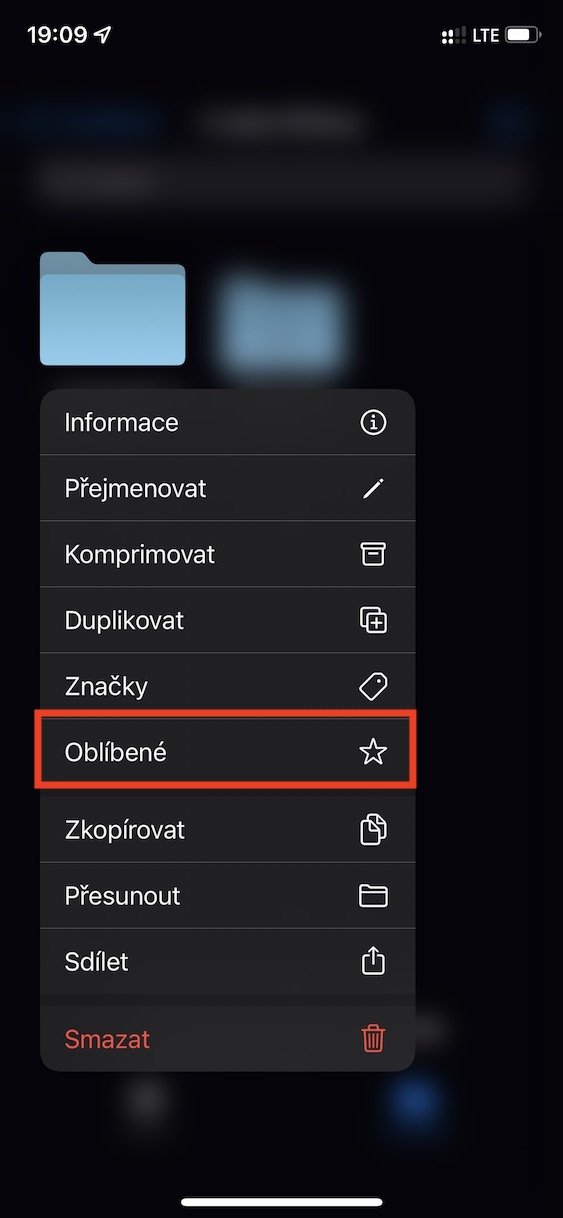
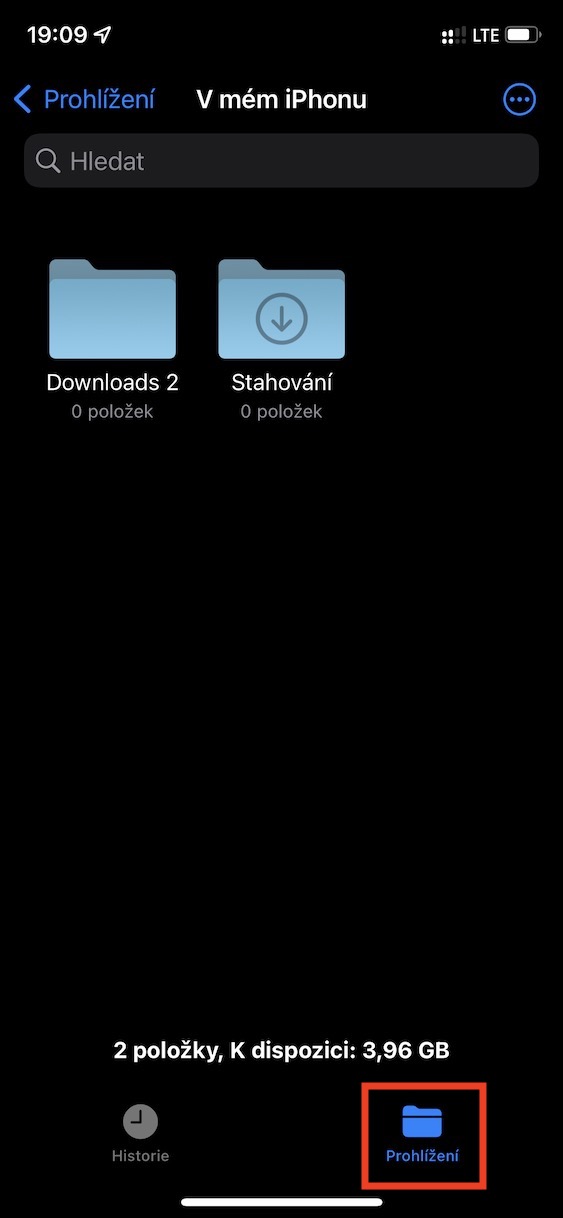
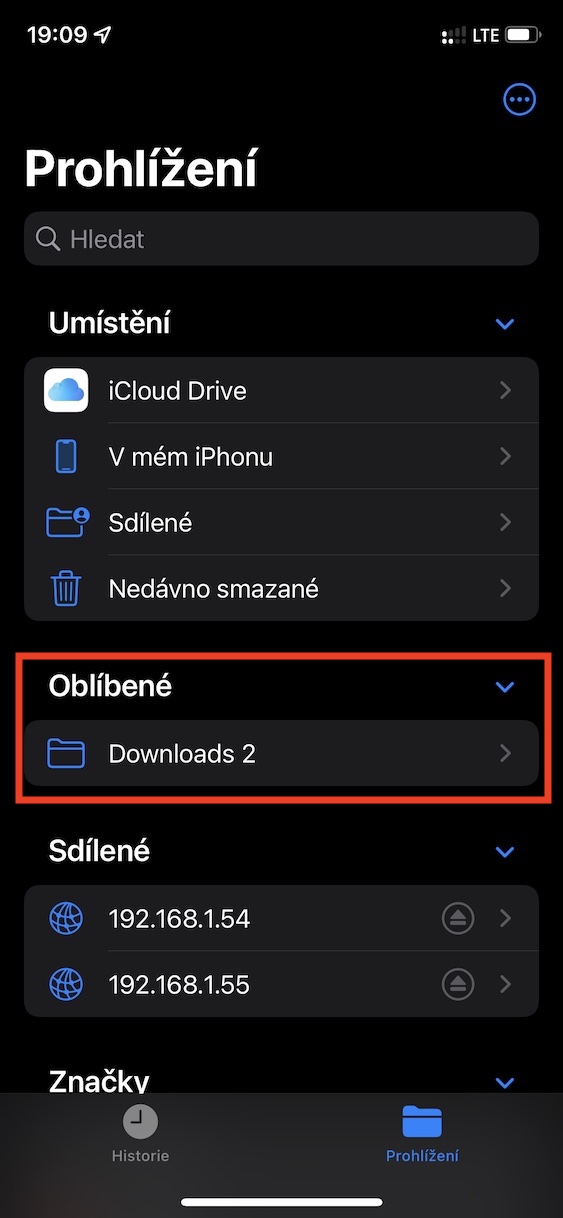
The process is very simple. In the Files app, find the folder you want to have quickly accessible. Then, long-press on it and select Add to Favorites from the menu that appears. The folder will immediately appear in the Favorites section, which is located at the top of the sidebar. This allows you to access it from virtually anywhere in the app without having to navigate through entire directory structures.
Gallery
Practical use in everyday operation
This feature is especially useful when you're working with a large number of files. For example, it could be a folder with work documents, scanned invoices, study materials, or photos you want to edit. Instead of having to go through several steps to find the right location, it's just a click away. And if you're using multiple cloudIf you have multiple storage locations at the same time, pinning folders can make navigation much easier.
Favorite folders can be edited at any time
If you stop using a folder, you can just as easily remove it from Favorites. Just long-press it again to bring up the context menu and select the appropriate option. This way, you can continuously customize your Favorites section to your current needs and only have the folders you actually use there.