If you feel like your PS5 isn't running at its full potential, you may have default settings on your system that prioritize graphics over smoothness. To get your gaming experience up to 2026 standards, you'll need to dig into the settings and manually tweak a few things. Here's a tried-and-true guide to how I sped up my console.
You might be interested in
Enabling system-level performance mode
The first and most important step is to “force performance.” In Settings > Saved data and game/app settings > Game preferences, toggle Performance mode or Resolution mode to Performance mode. This tells the console that you prioritize high frame rates (FPS) over resolution. Games will then automatically launch in modes that target 60 or 120 FPS. If you’re aiming for quality and 4K, follow the same steps but select Quality mode.
Gallery

Image, VRR and latency
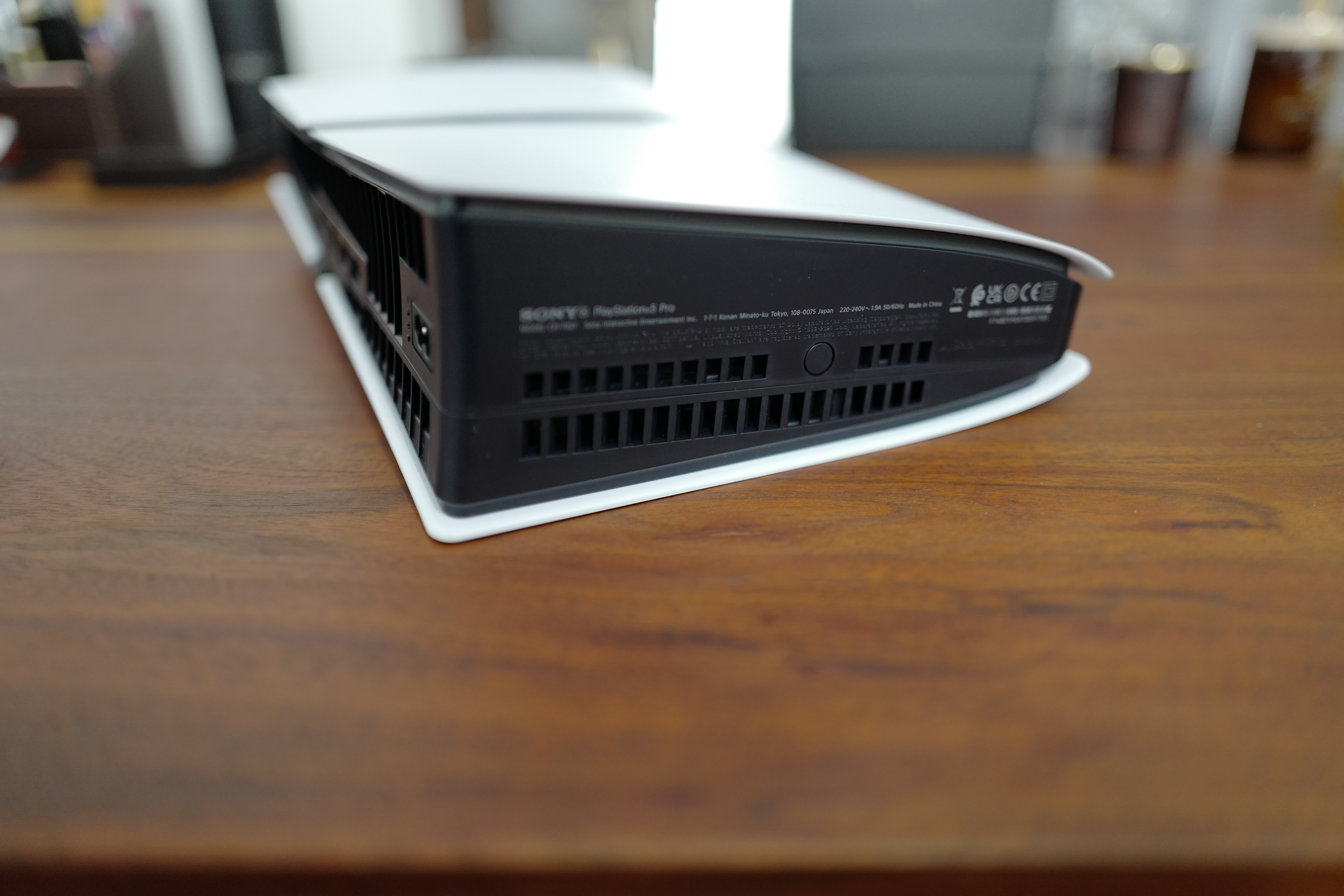
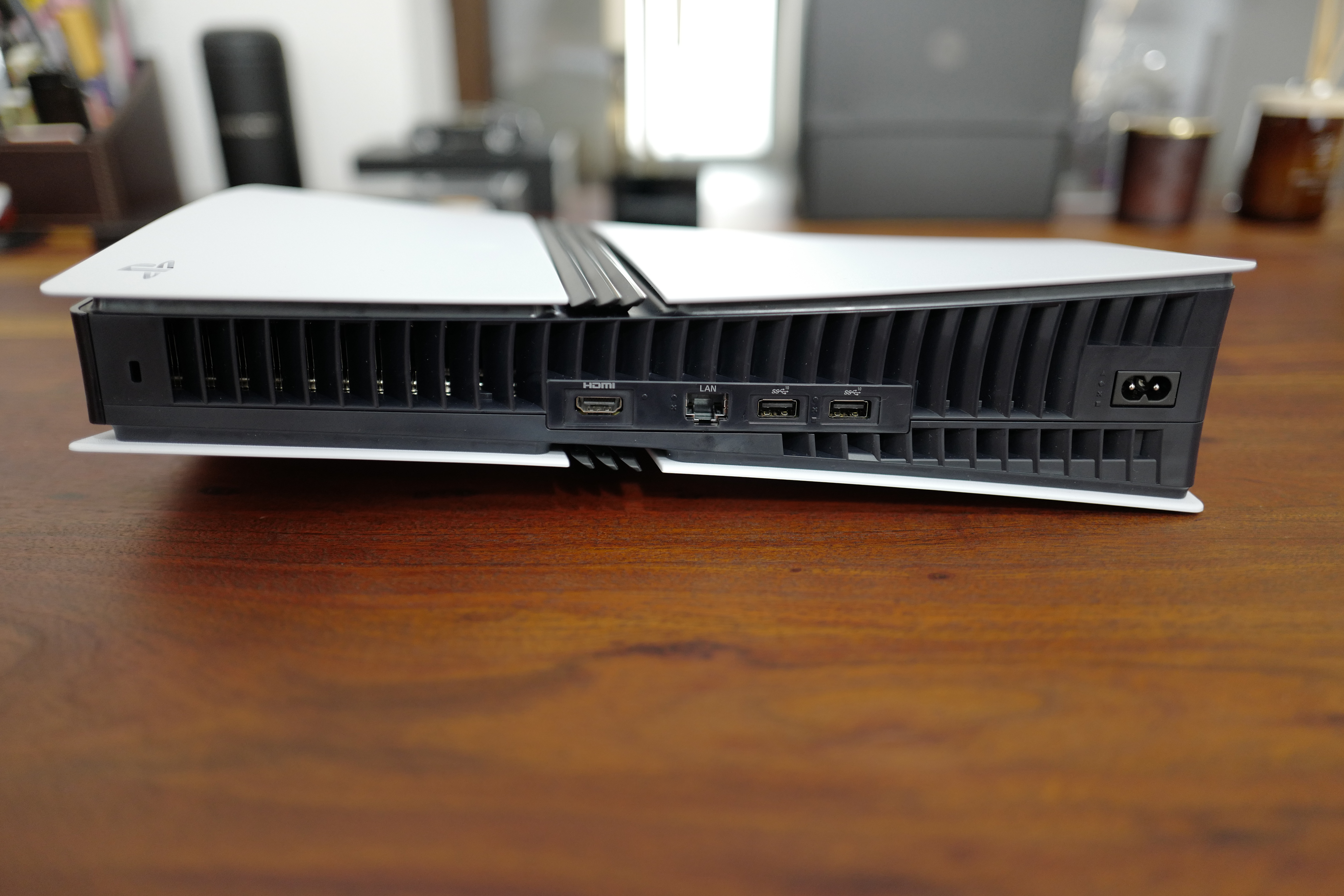
Pro A truly smooth, tear-free picture is a key setting in Display & Video > Video Output. If your monitor or TV allows it (you need HDMI 2.1), set Output to 120 Hz and VRR (varia(VRR) to Automatic. VRR is the absolute standard in 2026, eliminating lag and visual artifacts even in unoptimized games. Also, don't forget to activate ALLM (Automatic Low Latency Mode), which switches the TV to the game mode with the lowest input lag.
You might be interested in
System maintenance for stable operation
The state of the software also affects performance. ProI regularly clear the cache and rebuild the database via Safe Mode. Just hold the power button until the second beep when turning it on and select Clear Cache and Rebuild Database. This process will delete unnecessary files and speed up the system loading. If your games are running suspiciously slowly, also check the free space on the SSD and turn off automatic video recording when you get trophies, which unnecessarily drains the system during gameplay.