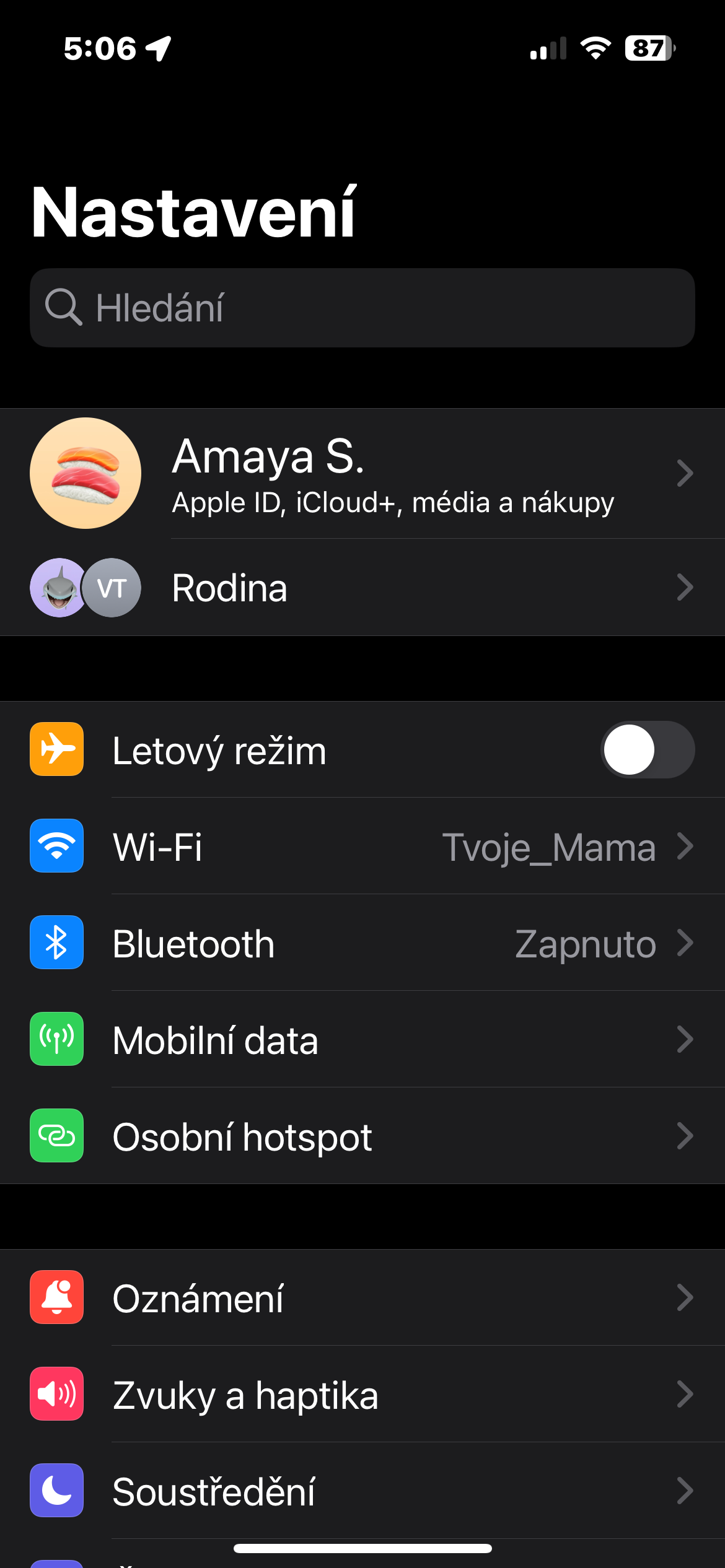
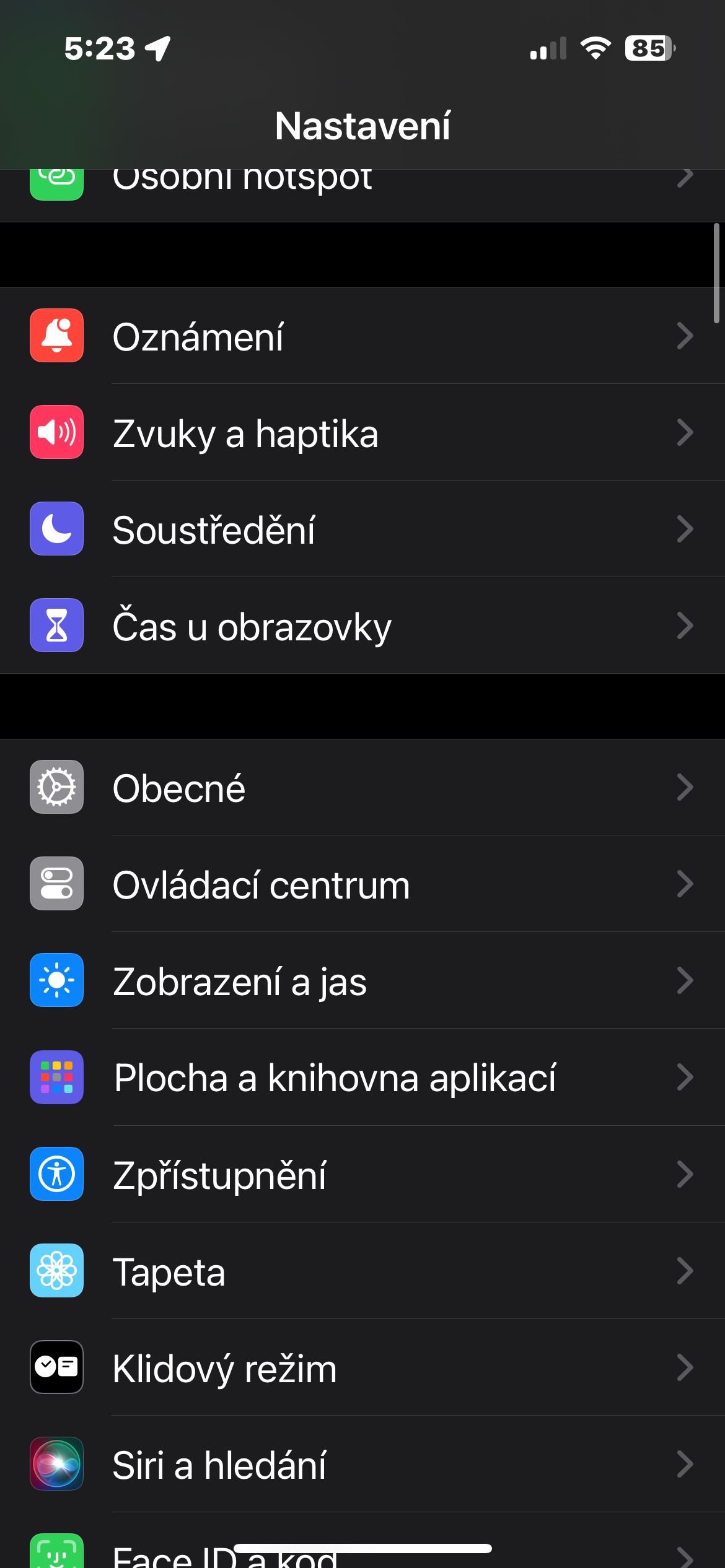
Be careful with public Wi-Fi networks
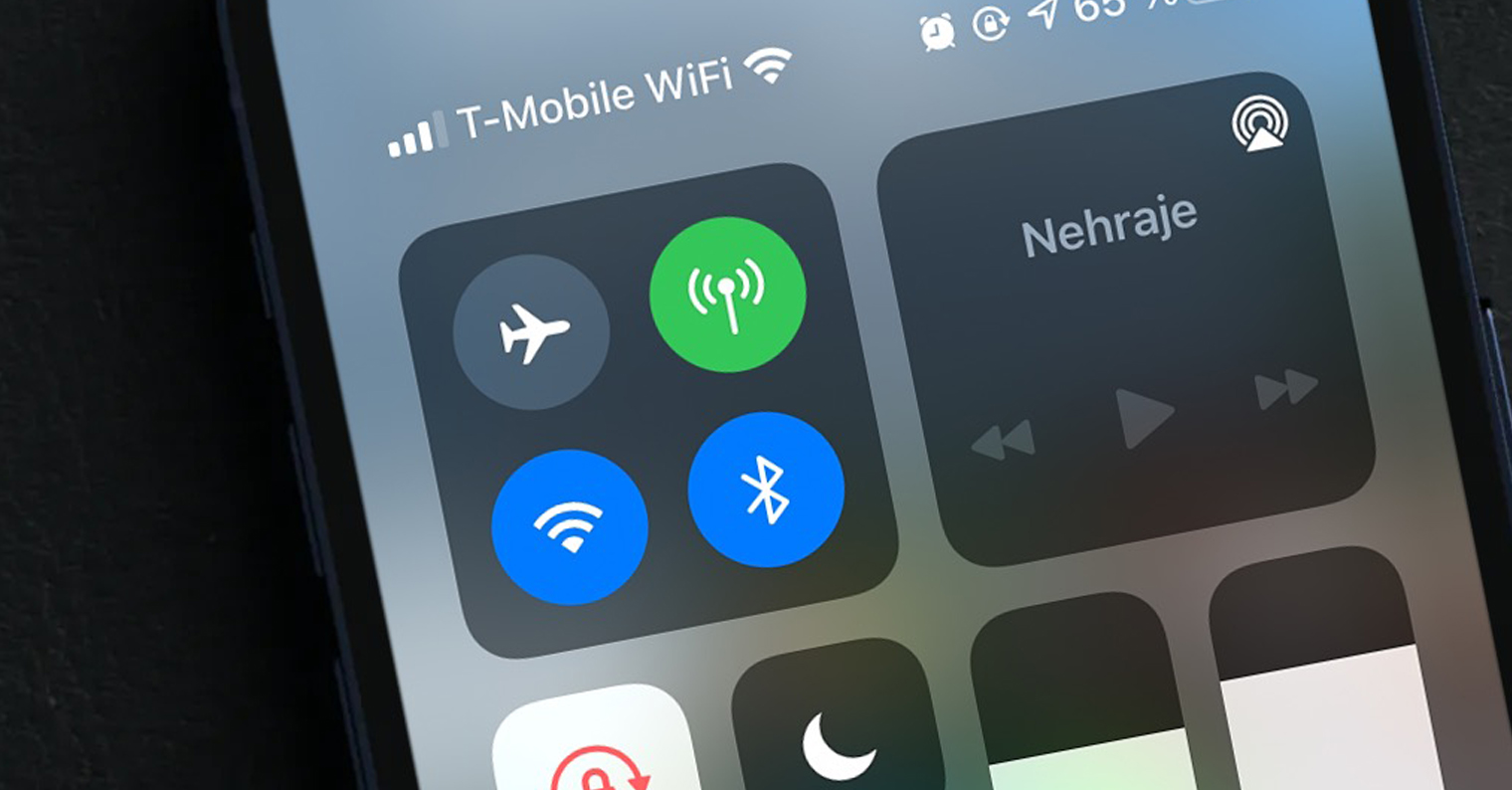
Free Wi-Fi at airports, train stations or cafes can be tempting, but it also poses risks. Attackers can access your data through an unsecured network. If you do need to connect, avoid logging into email, social media or online banking. It's best to use a VPN or mobile data - these are much safer options.
Gallery
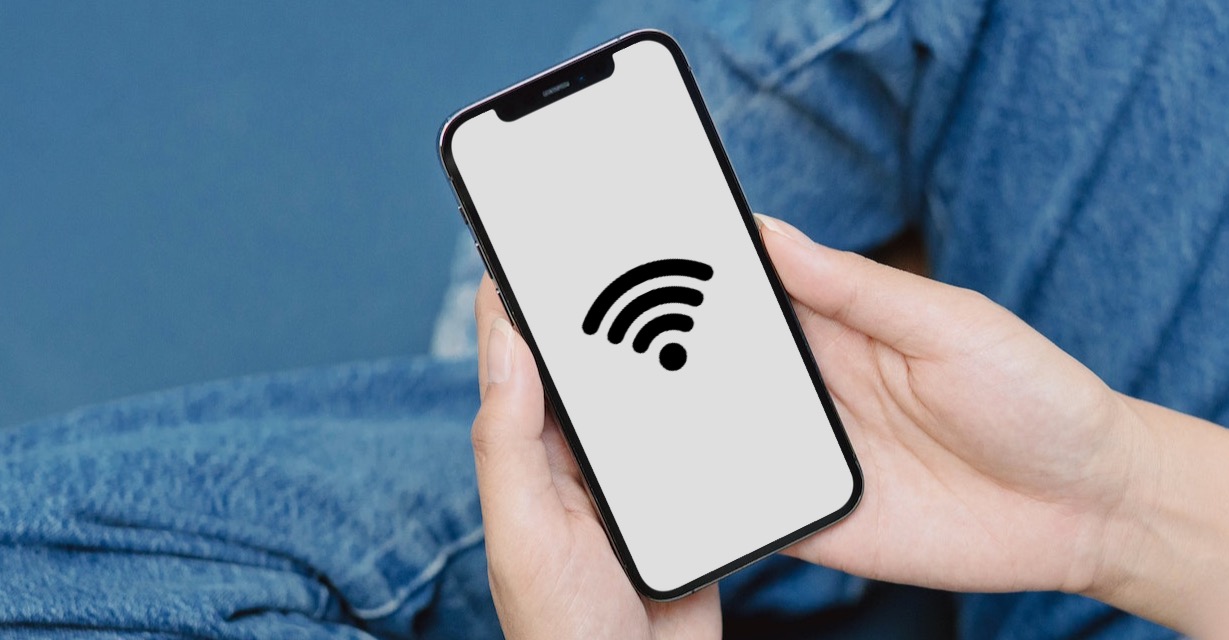
Restrict apps' access to personal data
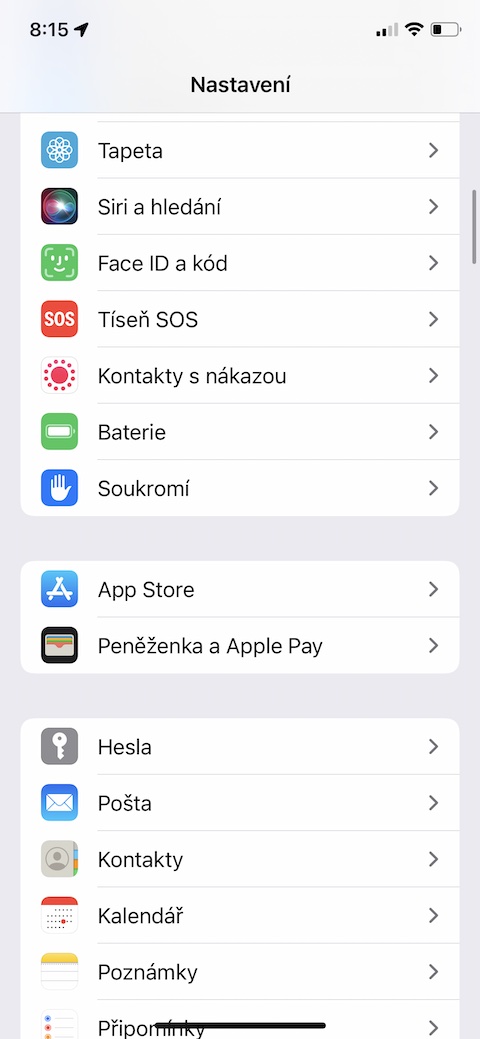
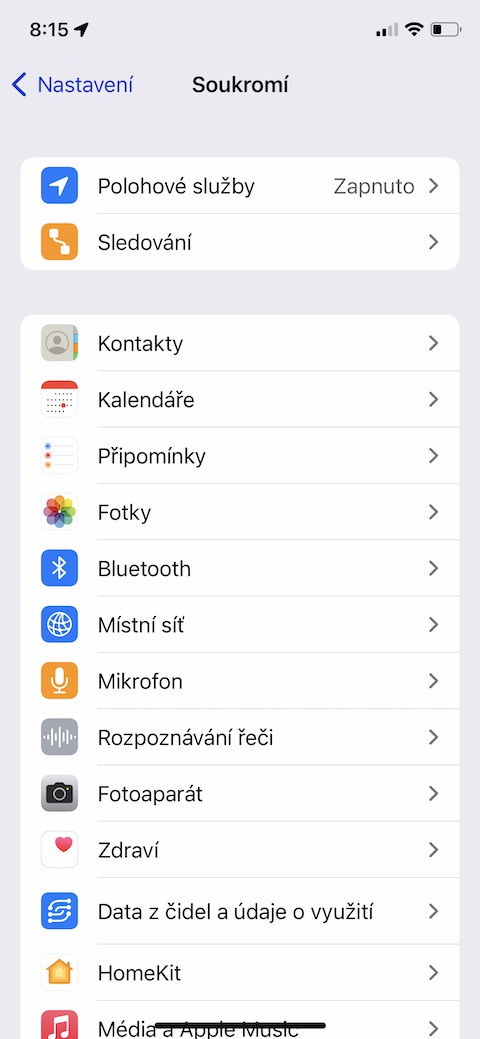
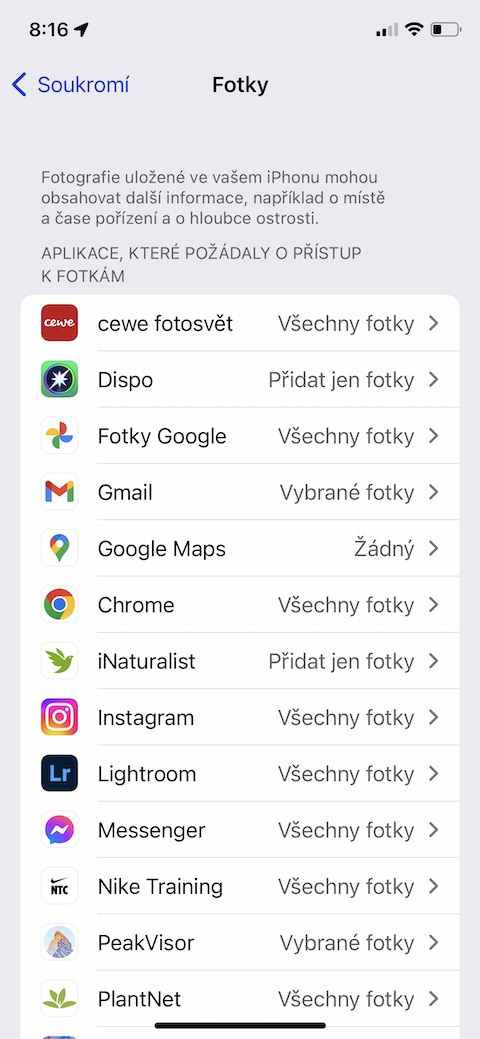
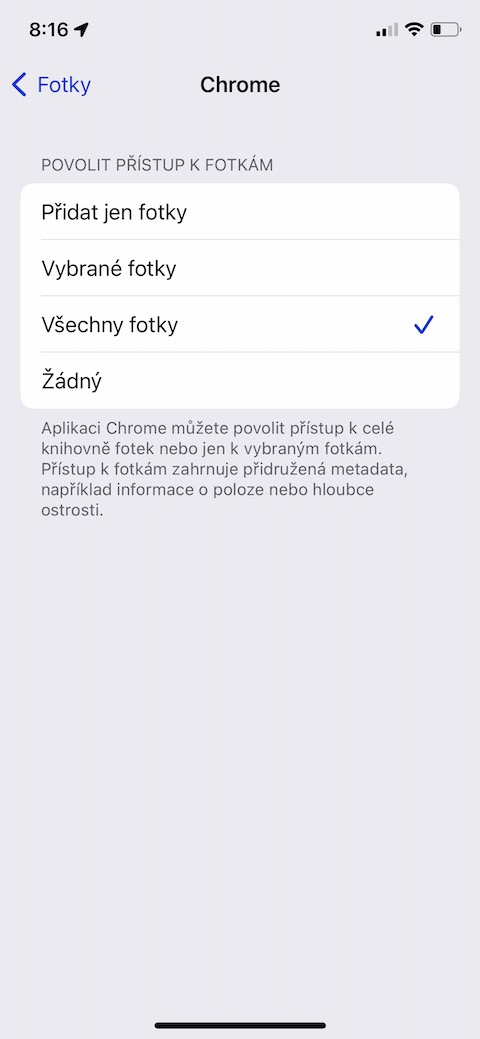
Many apps ask for permissions that they don't need to function. So check what they have access to regularly. Open Settings → Privacy & Security and review individual items, such as Camera, Microphone, or Location. For each app, consider whether access is really necessary. Limiting permissions will reduce the risk of misuse of personal data.
Gallery
Turn on two-factor authentication
A strong password is essential, but by itself nestTwo-factor authentication adds an extra layer of protection – even if someone gets your password, they won’t be able to access your account without a confirmation from your device. You can activate the feature in Settings → tap your profile → Password & security → Two-factor authentication. It’s recommended to turn it on at least for Apple ID and important applications such as email or banking.
You might be interested in
Protect yourself from fraudulent sites
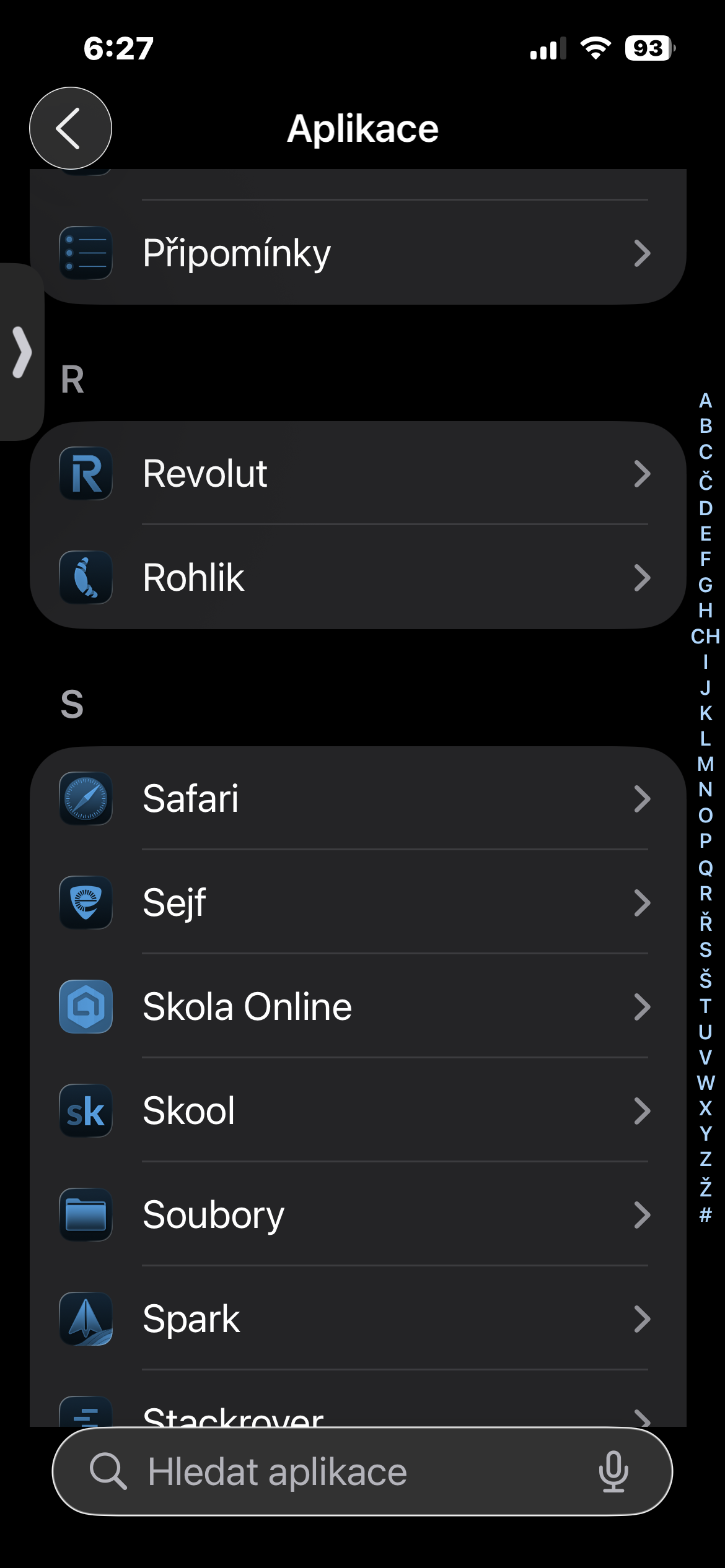
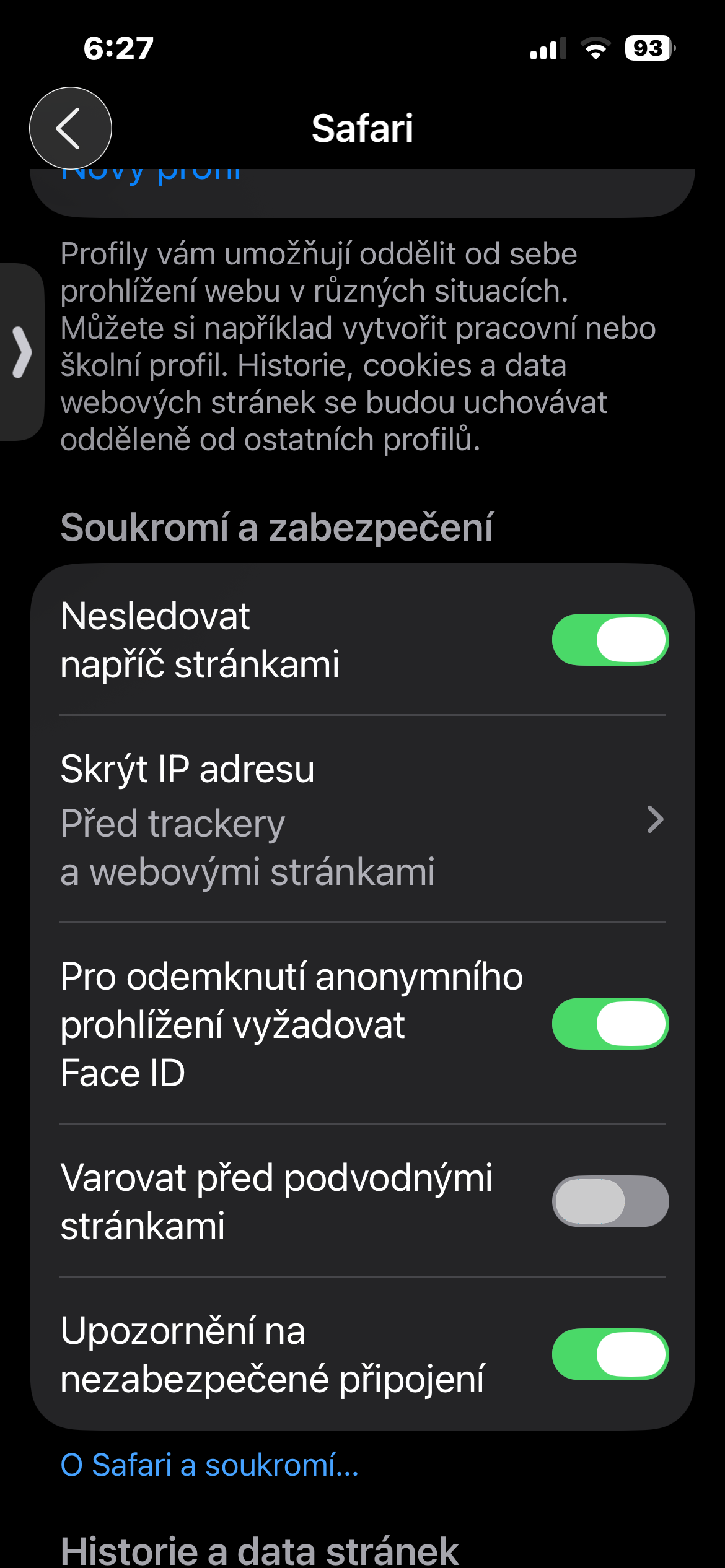
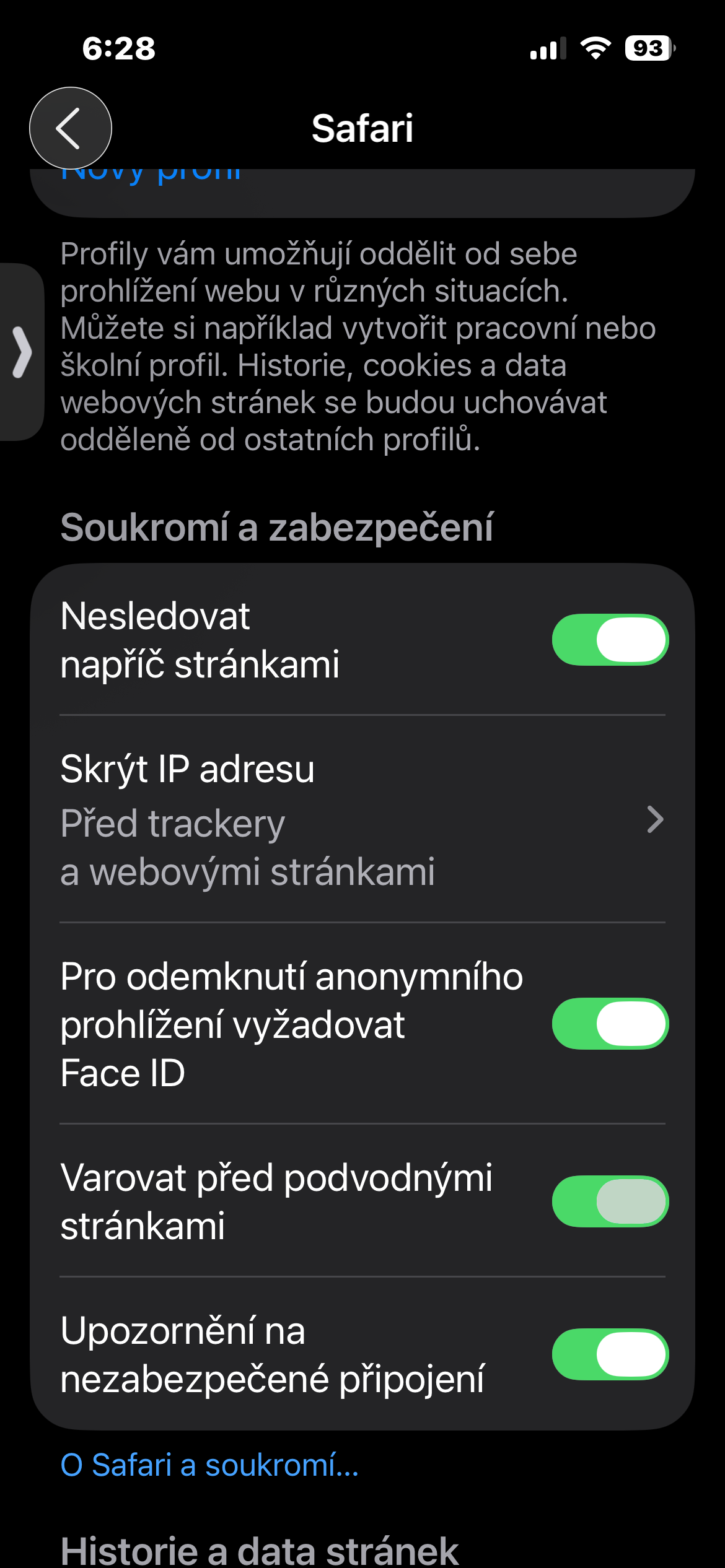
Phishing websites try to look like trustworthy sites to trick you into giving them your login details or card numbers. In Safari you can activate warnings for these sites. Open Settings → Apps → Safari → Privacy & Security and turn on the Warn about fraudulent sites switch. This will allow the browser to automatically warn you when you try to access a suspicious website.
Gallery
Don't forget about system updates
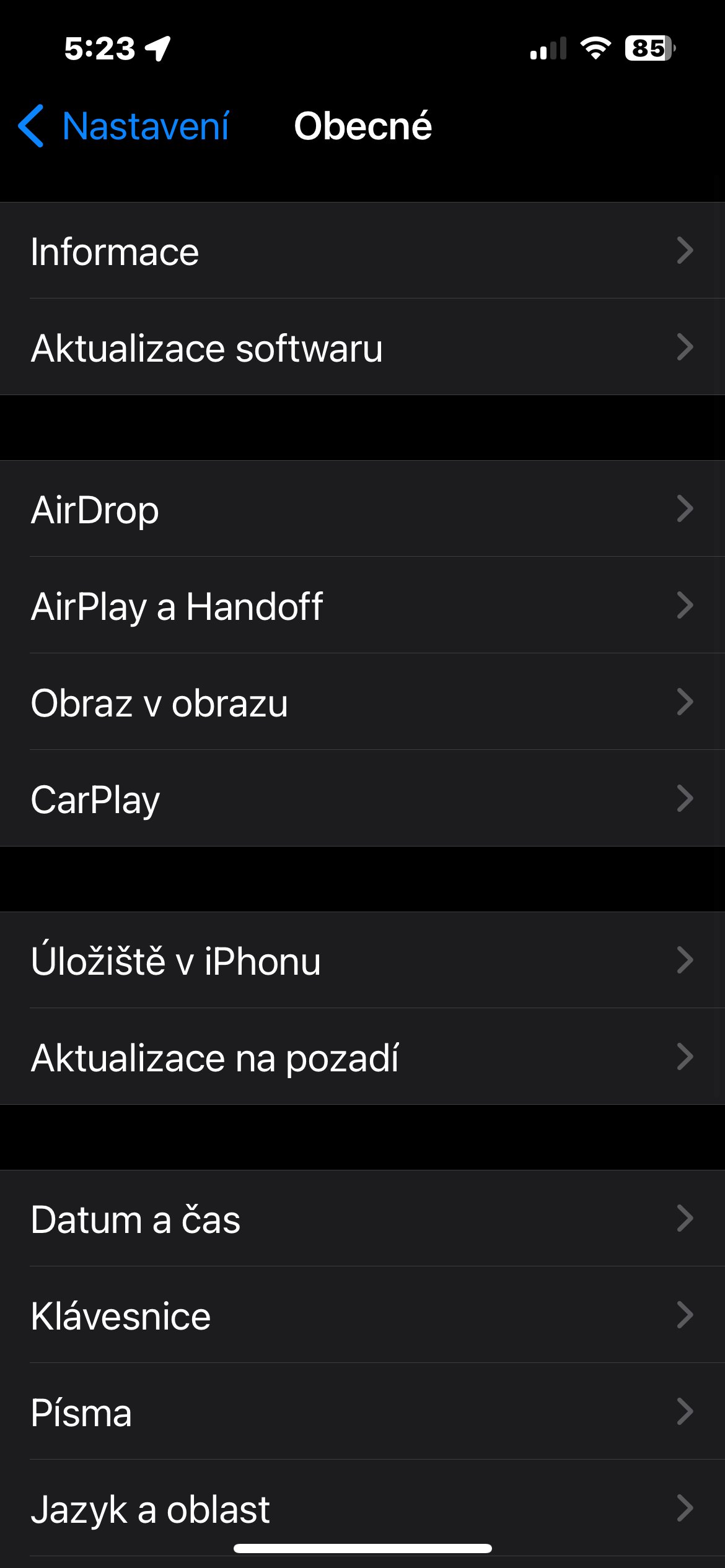
Updates are not just about new features, but mainly about security fixes. Apple regularly releases Rapid Security Responses – small, quick patches that address vulnerabilities before attackers can exploit them. You can enable their automatic installation in Settings → General → Software Update → Automatic Updates → Security Patches & System Files.
Gallery