How to disable notifications in Bedtime Mode? Bedtime Mode on your iPhone is a great way to help you sleep or relax. It allows your iPhone proturns it into a smart alarm clock or digital photo frame. However, if you are bothered by notifications that appear on the full screen in this mode, we have a solution for you.
You might be interested in
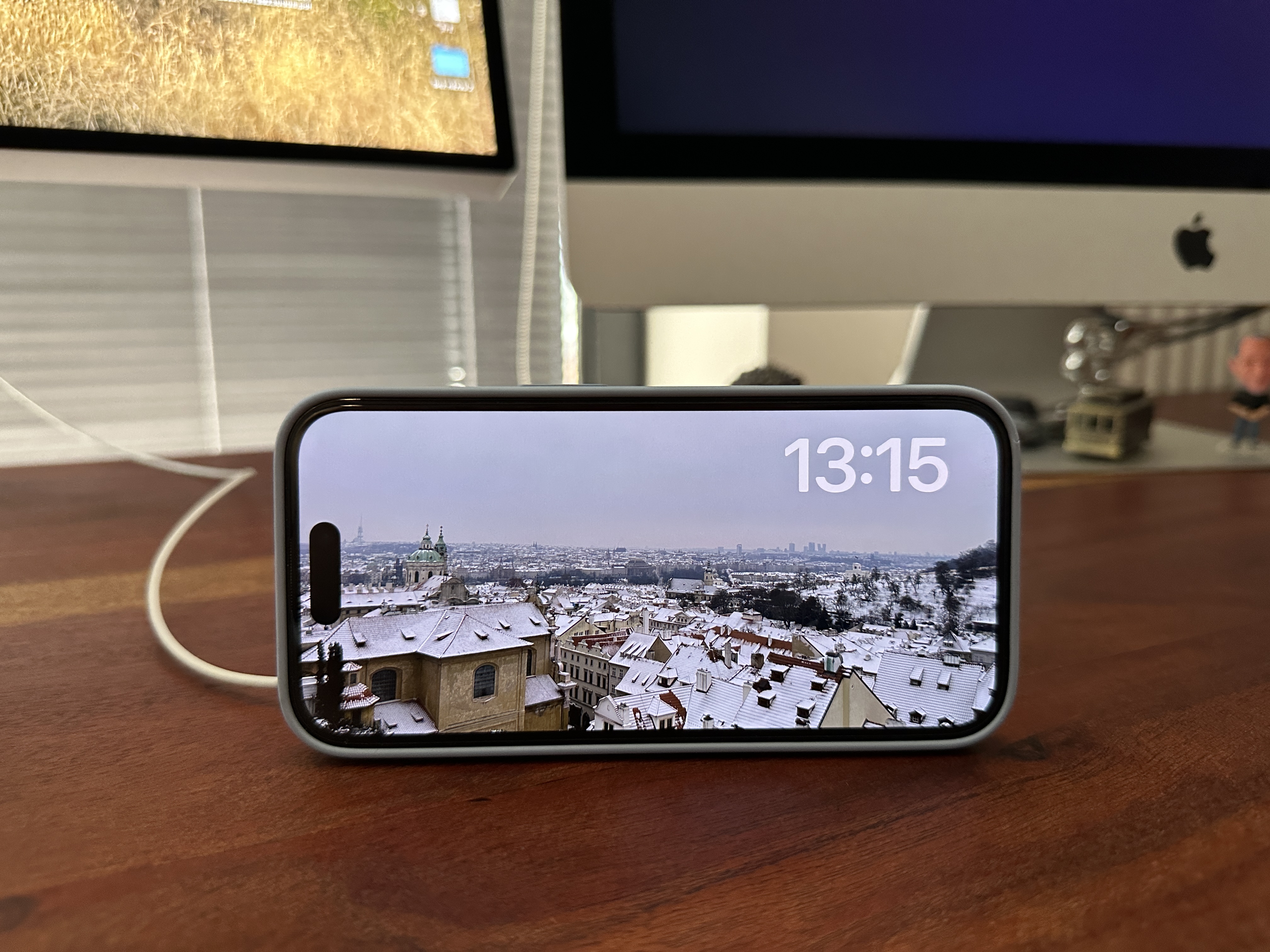
Idle mode is designed to give you an overview of important information such as messages or notifications. By default, these notifications appear on his screen, which can be distracting, especially at night. If you want peace and privacy during Quiet Mode, you can easily turn off notifications.
How to disable notifications in Idle mode
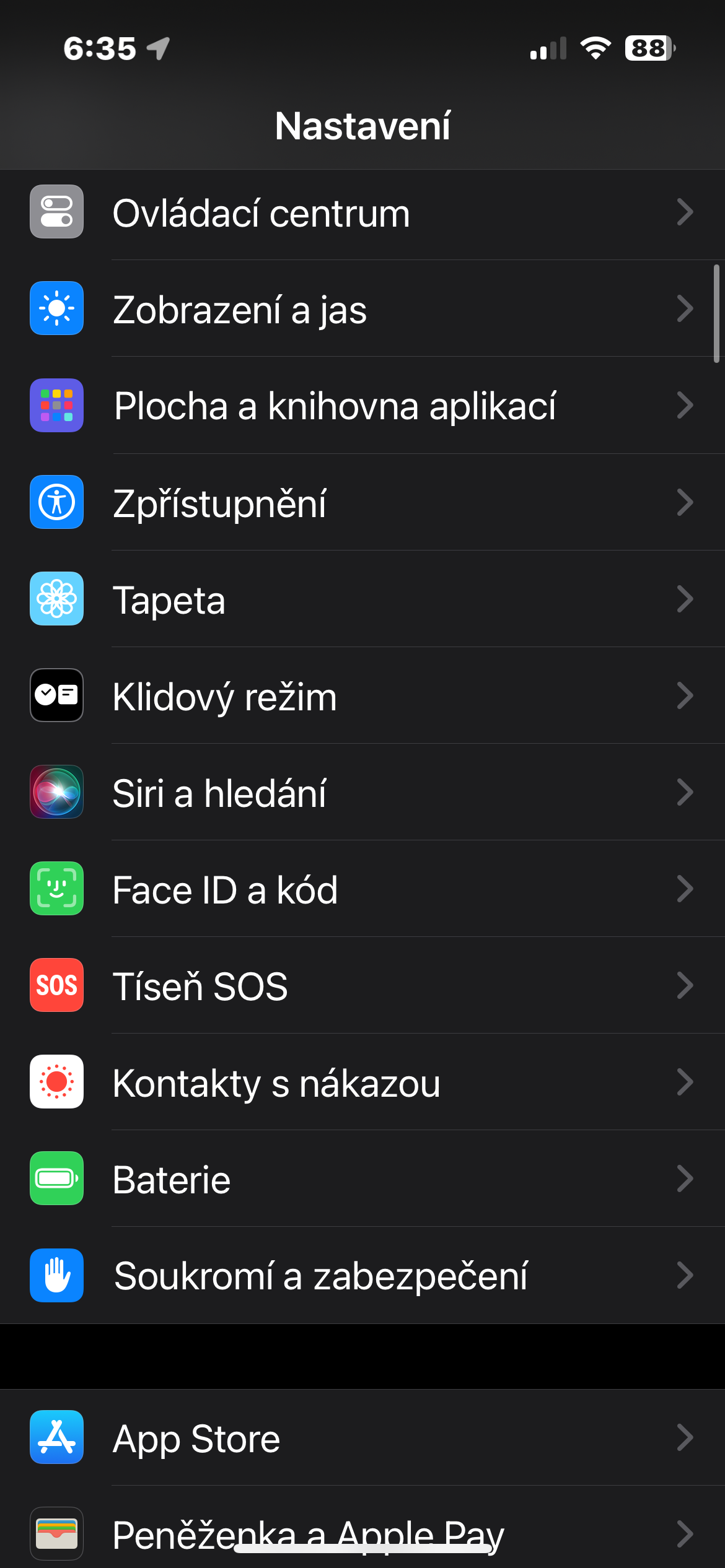
- Open Settings: On your iPhone, go to the Settings app.
- Select Sleep mode: In Settings, find and tap Idle Mode.
- Disable the display of notifications: In the Idle mode settings, find the Show notifications option and turn it off by sliding the switch to the left position.
Gallery
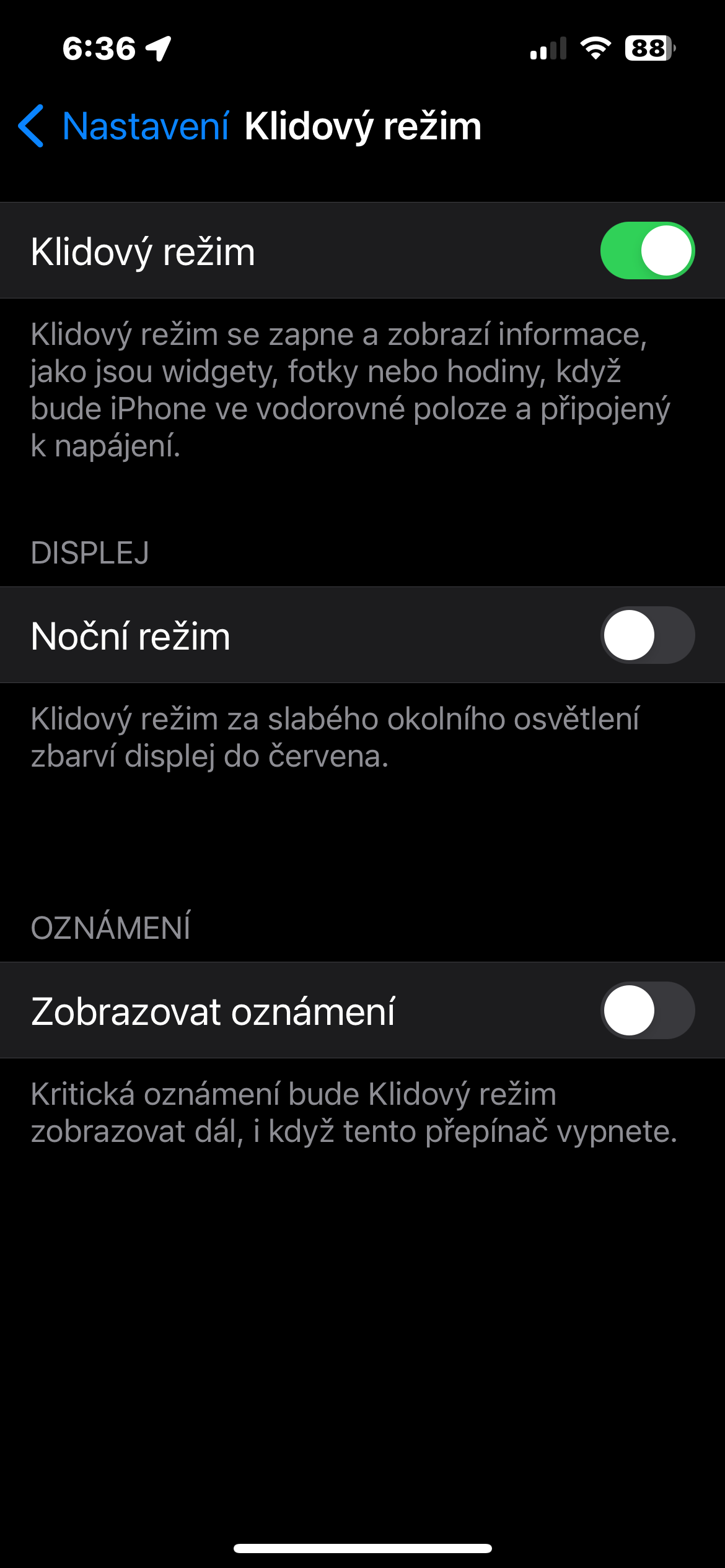
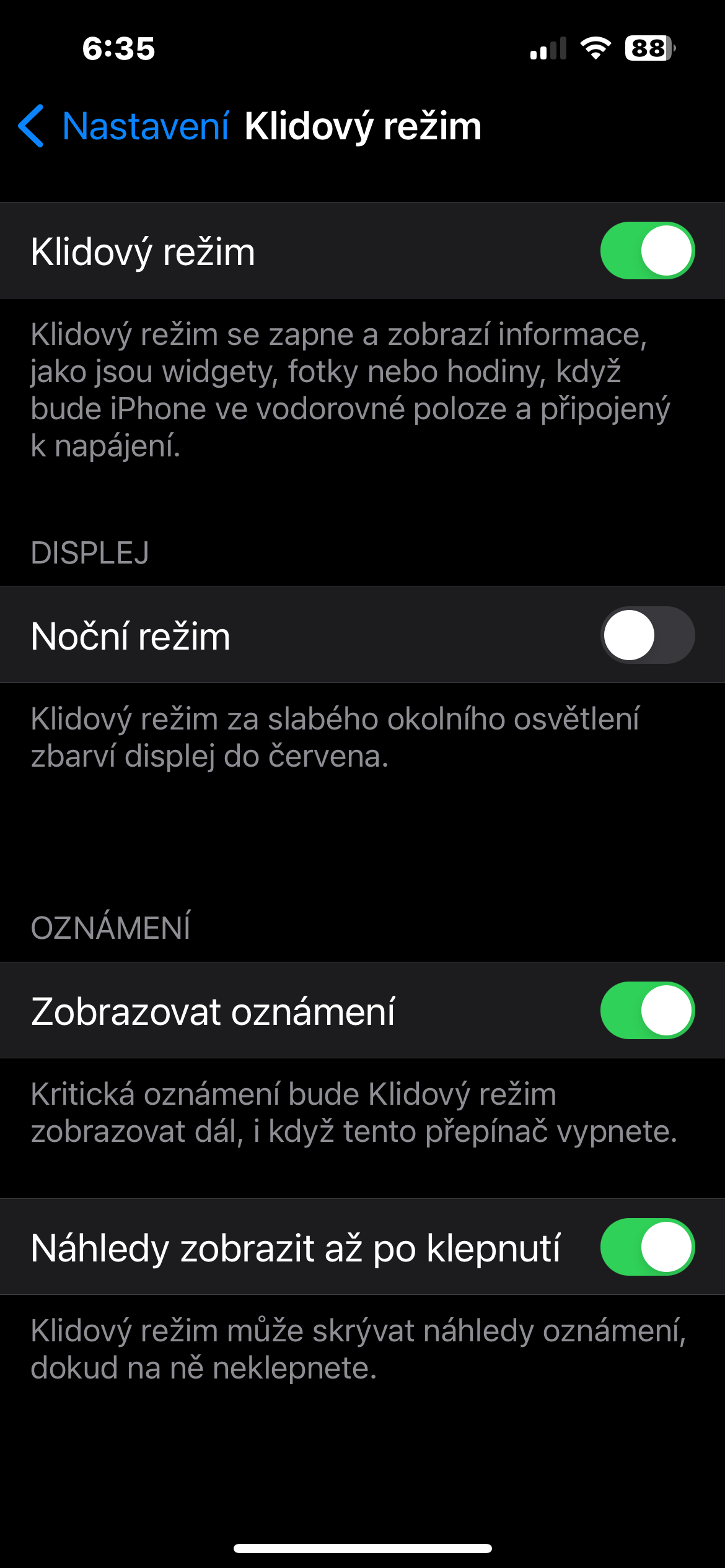
With this step, you will ensure that you will not see any notifications in Quiet Mode and thus ensure perfect peace and perfect privacy.