Security improvements
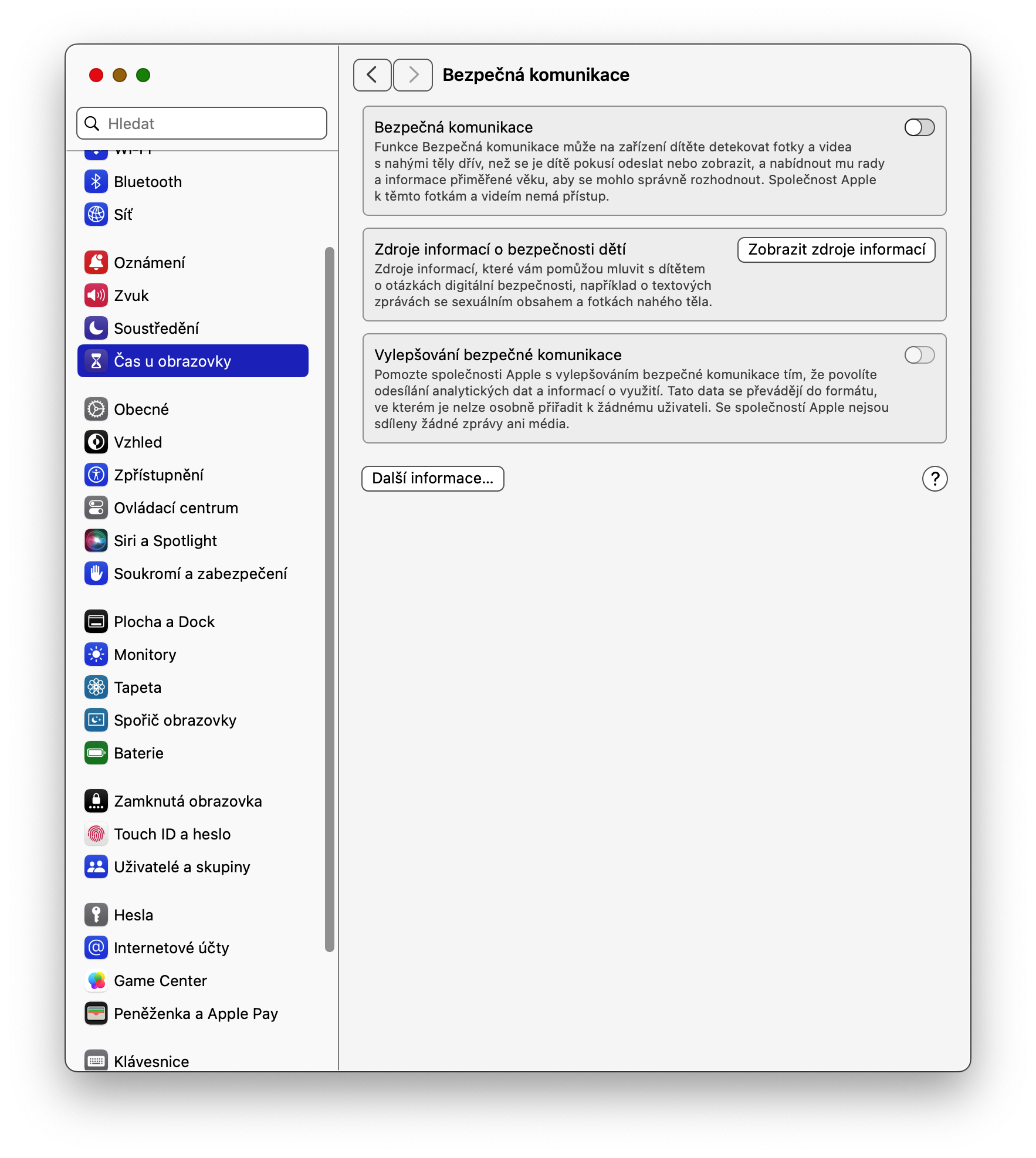
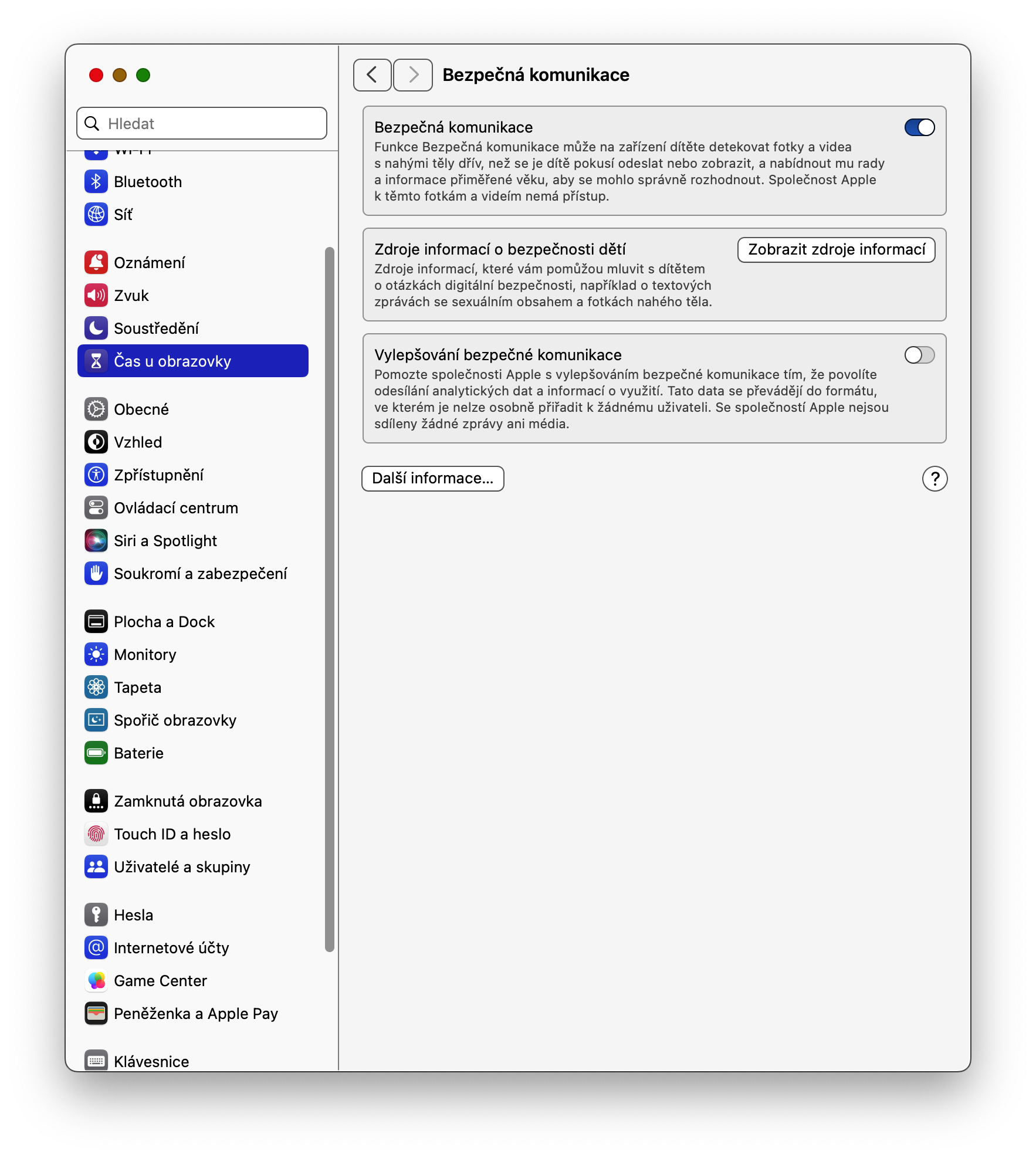
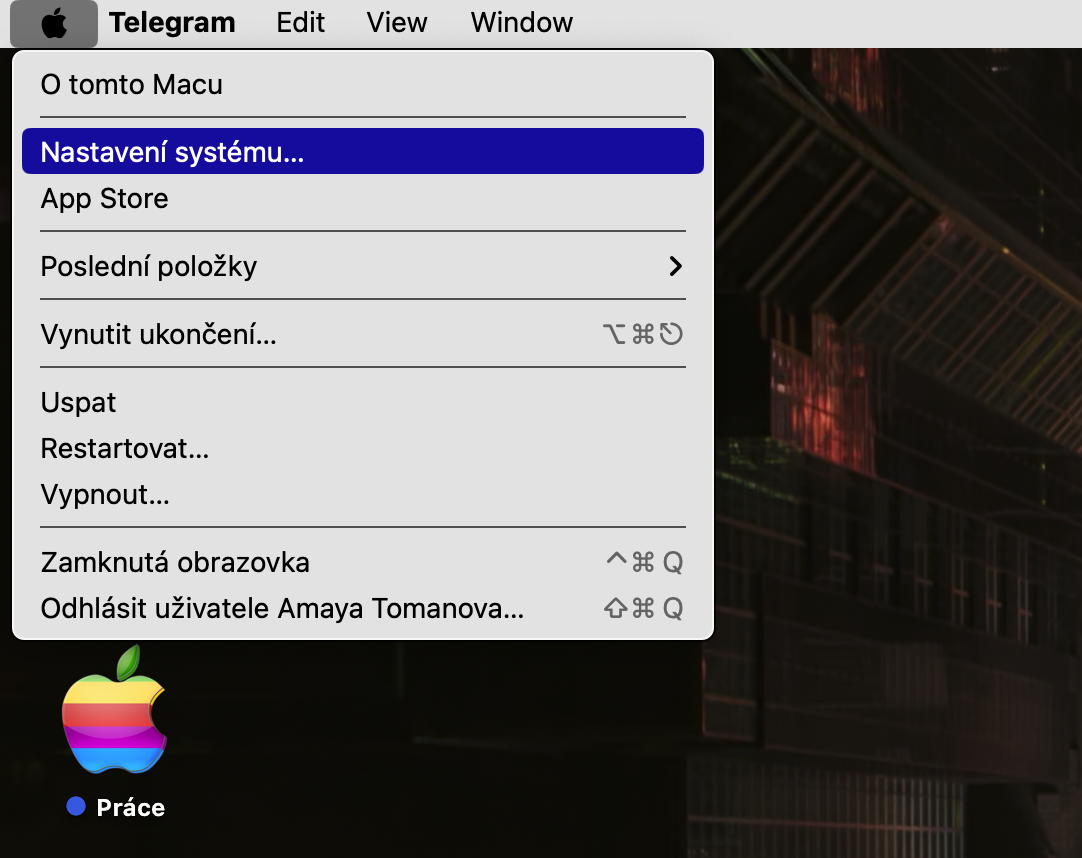
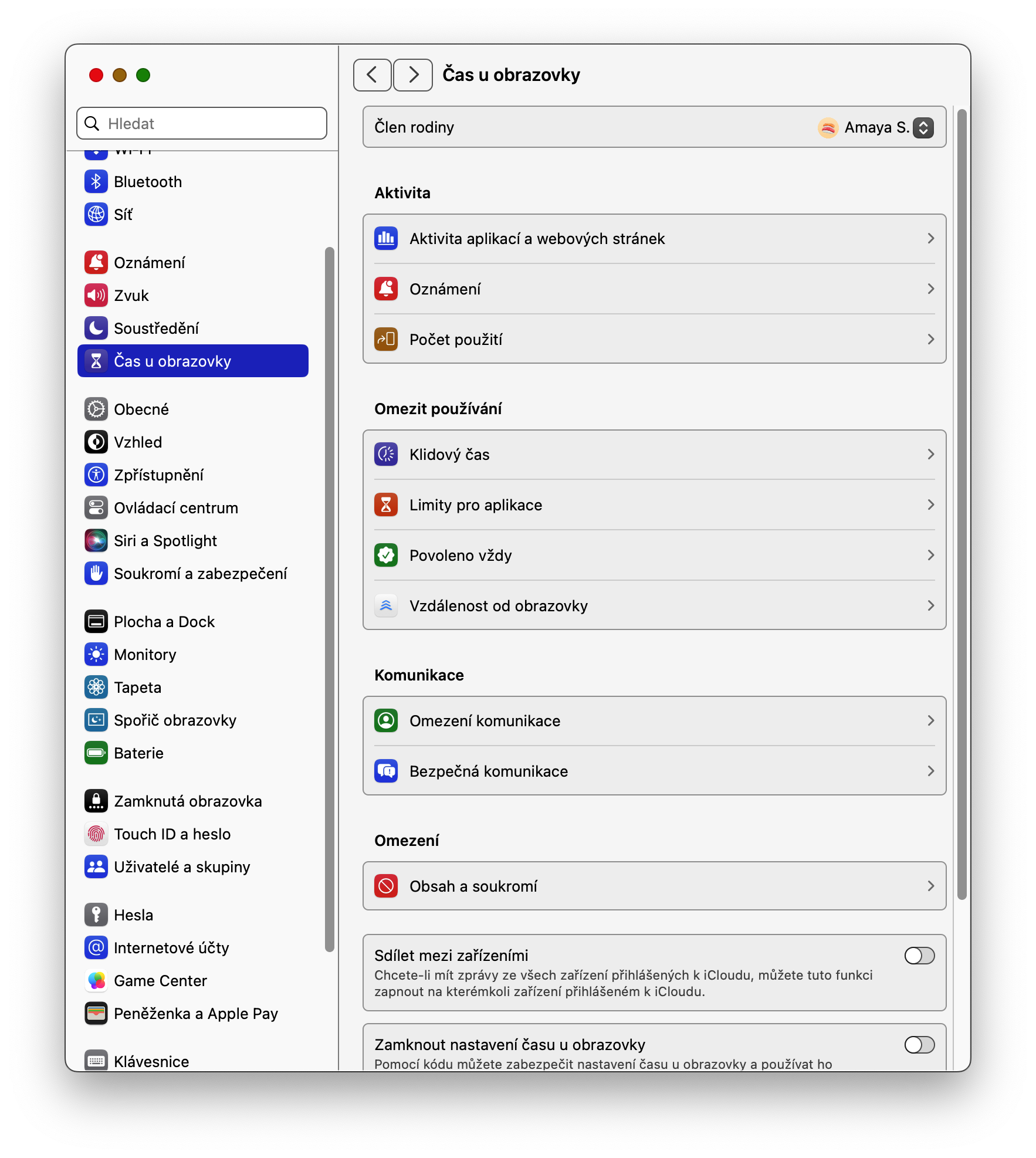
Company Apple This year, it is improving the security and privacy of its users across operating systems, and macOS Sonoma also brings several adjustments and improvements. For example, the Secure Communication feature within the AirDrop, in the photo picker, and in FaceTime. This optional feature is designed to protect children, but some adults will certainly appreciate it. If you AirDrop or, for example, in native Messages, you receive content that the system considers confidential, it will be automatically blurred, and you will have to confirm whether you really want to see it. In the upper left corner of your Mac screen, click menu -> xsystem settings – > Screen time. Head to the section Communication -> Secure communication and activate the item Secure communication.
Gallery
Change font size in applications
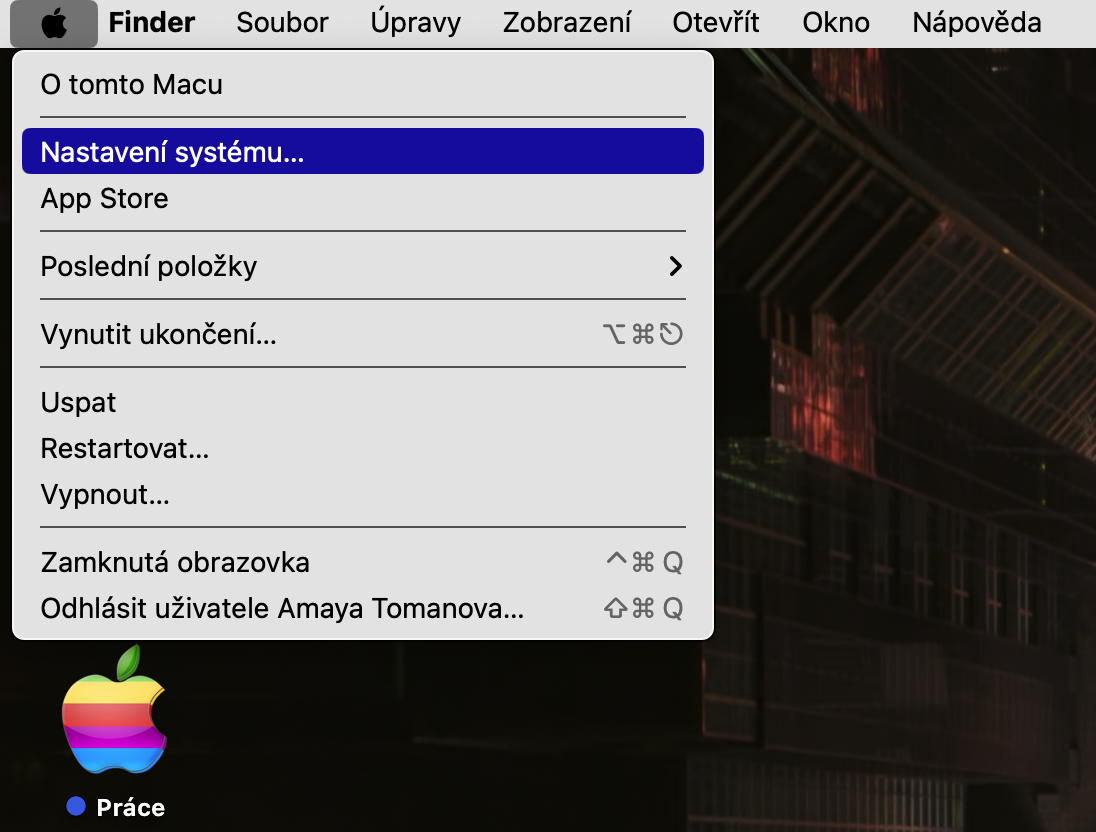
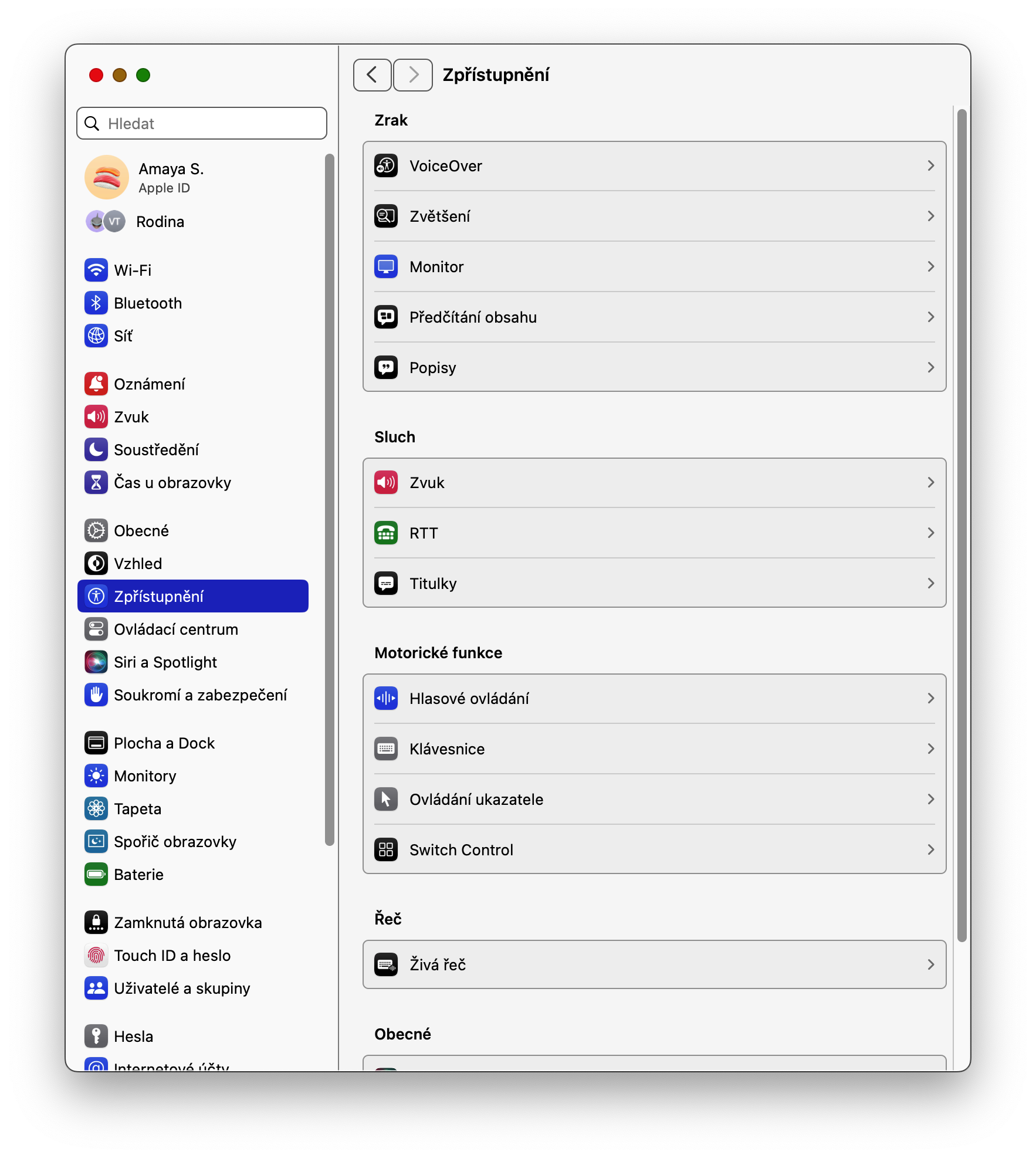
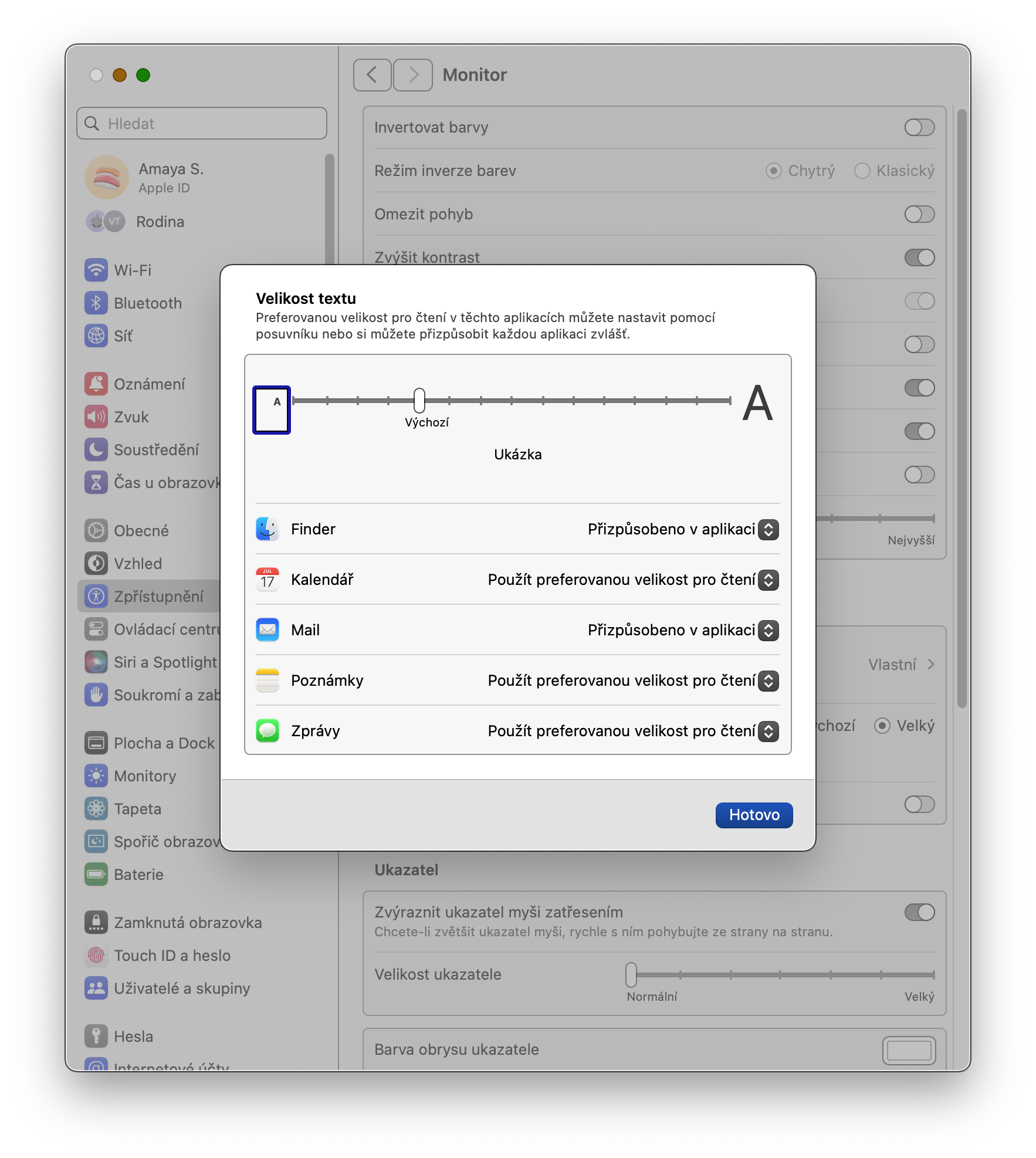
Apple allows macOS Sonoma users to customize fonts in individual applications – this is a feature that is part of Accessibility. Pro start its activation on Mac menu -> System settings -> Accessibility. Click on Monitor, select Text size and set the text size for selected applications.
Gallery
WidgetFrom your iPhone to your Mac desktop
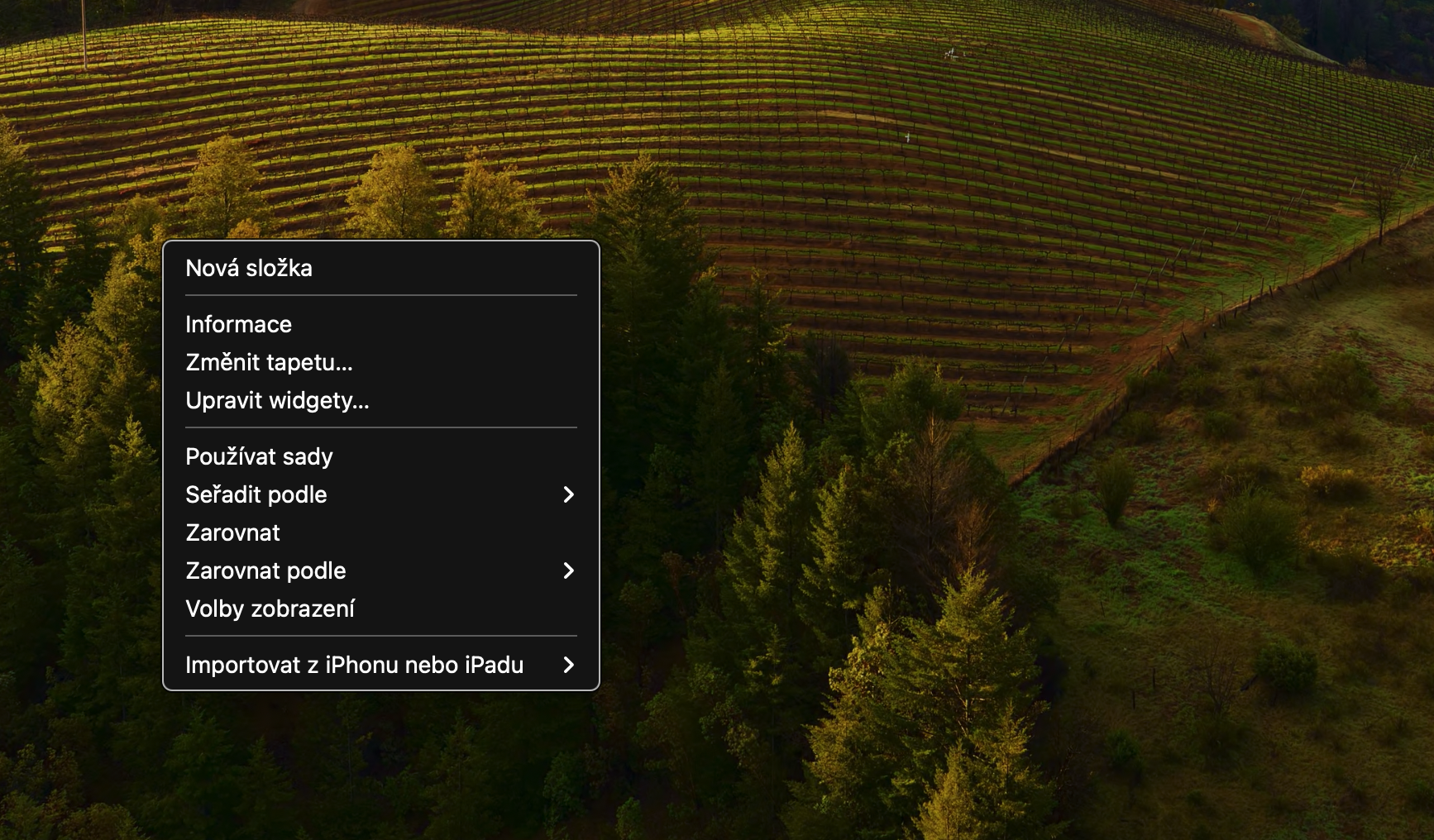
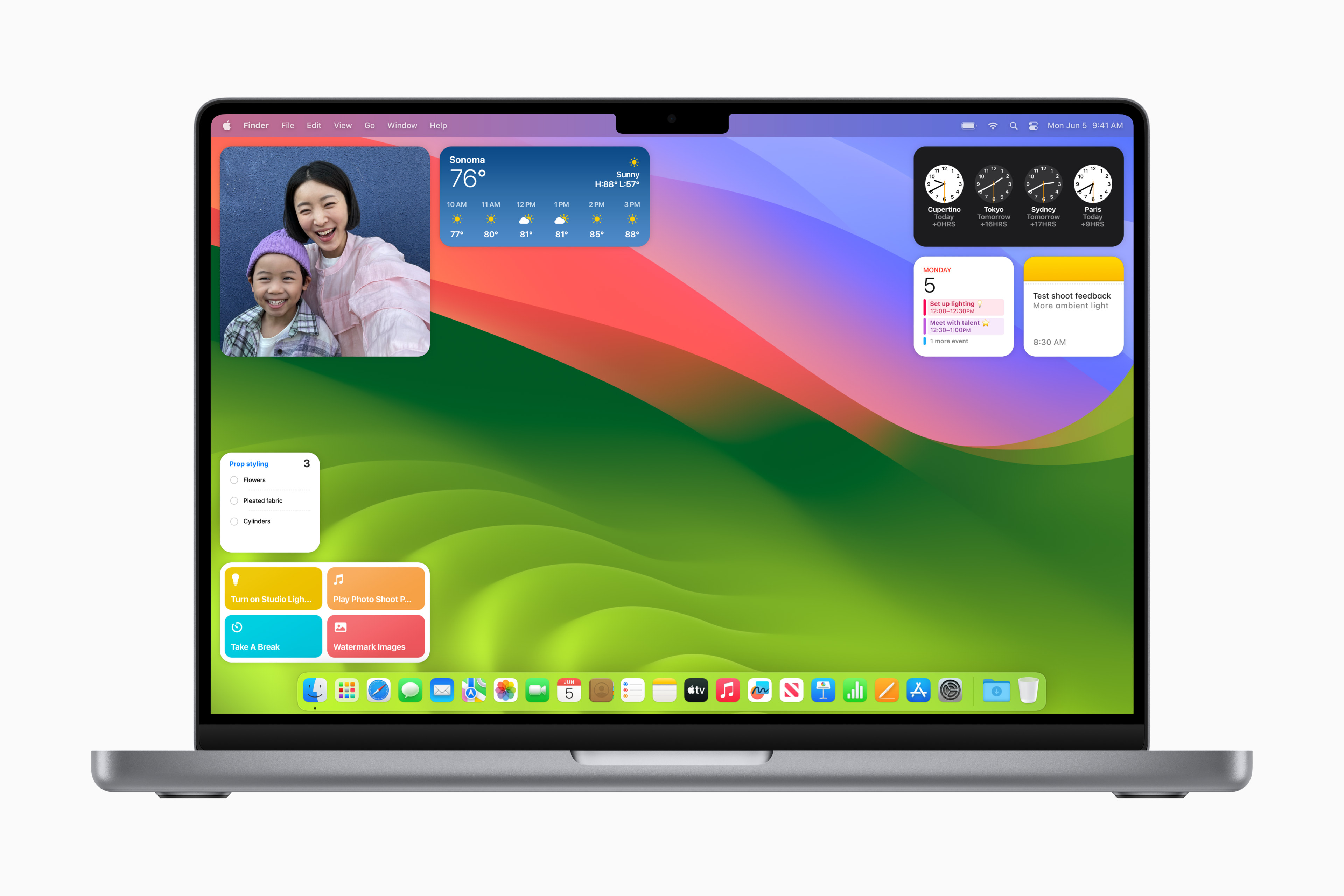
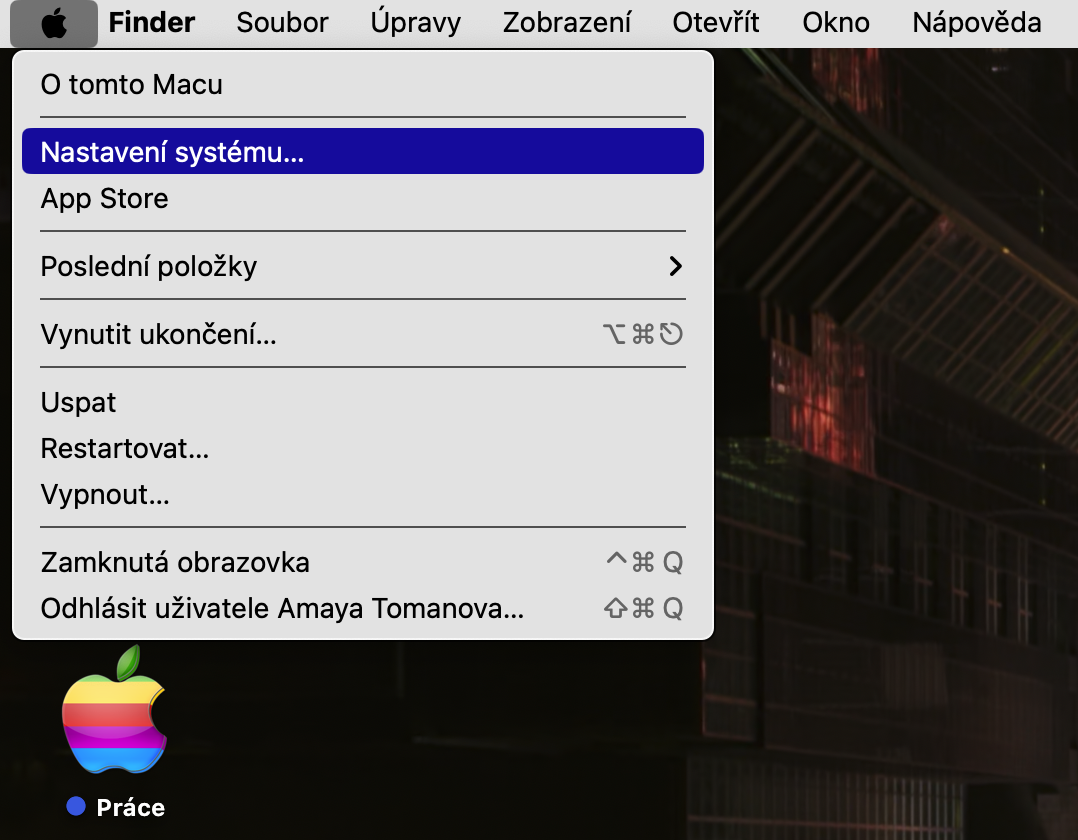
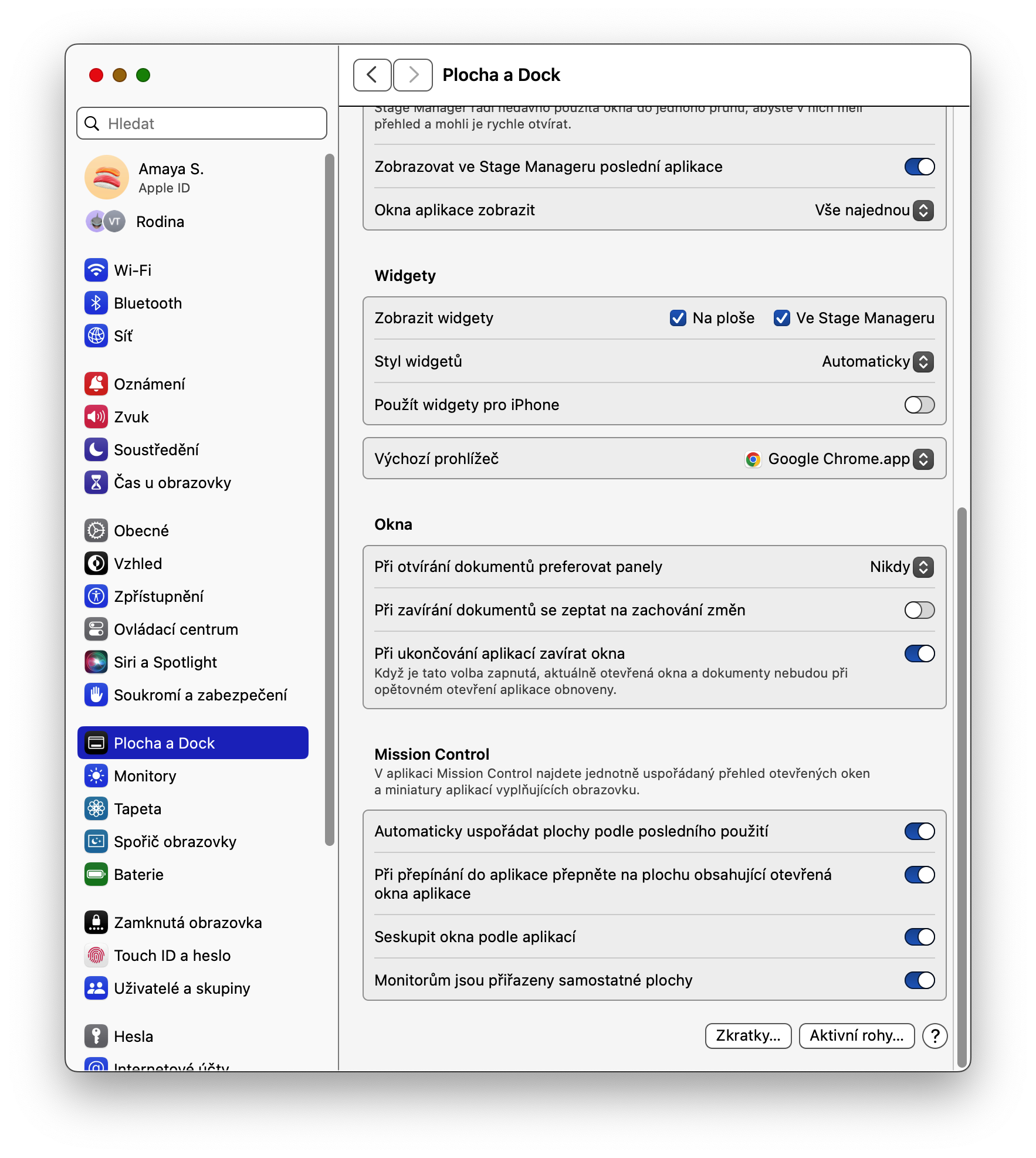
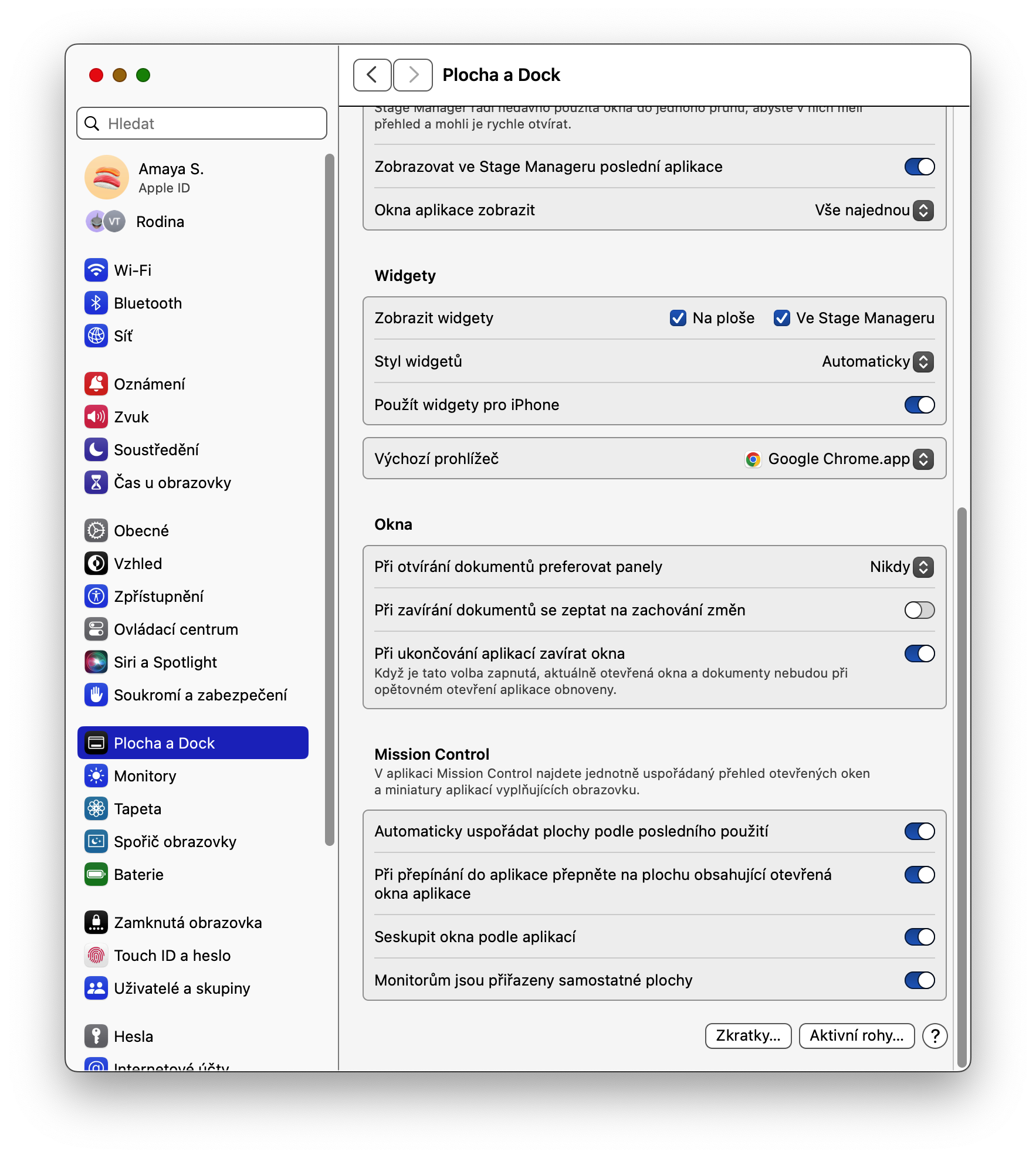
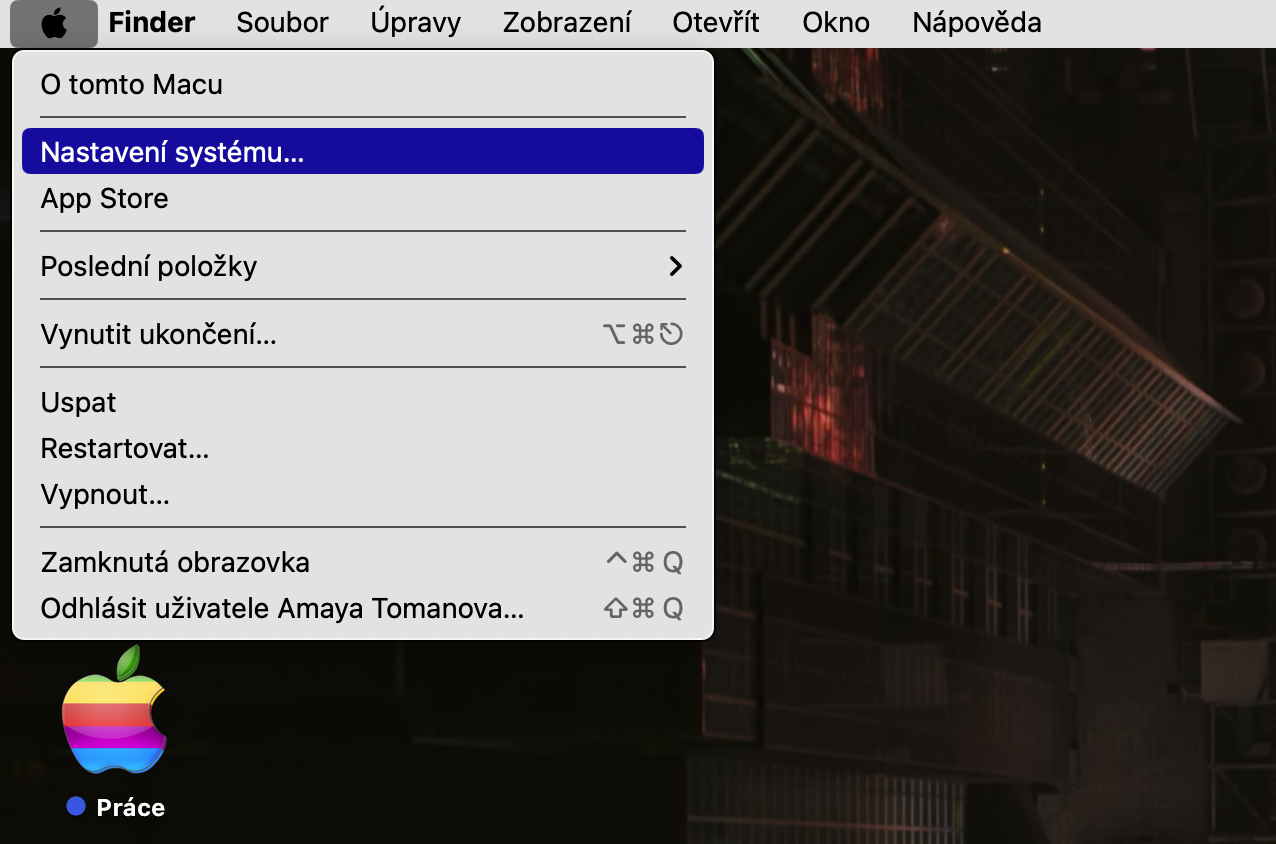
macOS Sonoma also allows you to add widgety to your desktop so you can access them conveniently at a glance. In addition to allowing you to add widget for Mac, you can now also add to your Mac desktop widget pro iPhone. In the upper-left corner of your Mac screen, click menu -> System Settings -> Desktop and Dock, and activate the item Use widgetfor iPhone.
Gallery
Recovery of an accidentally deleted password
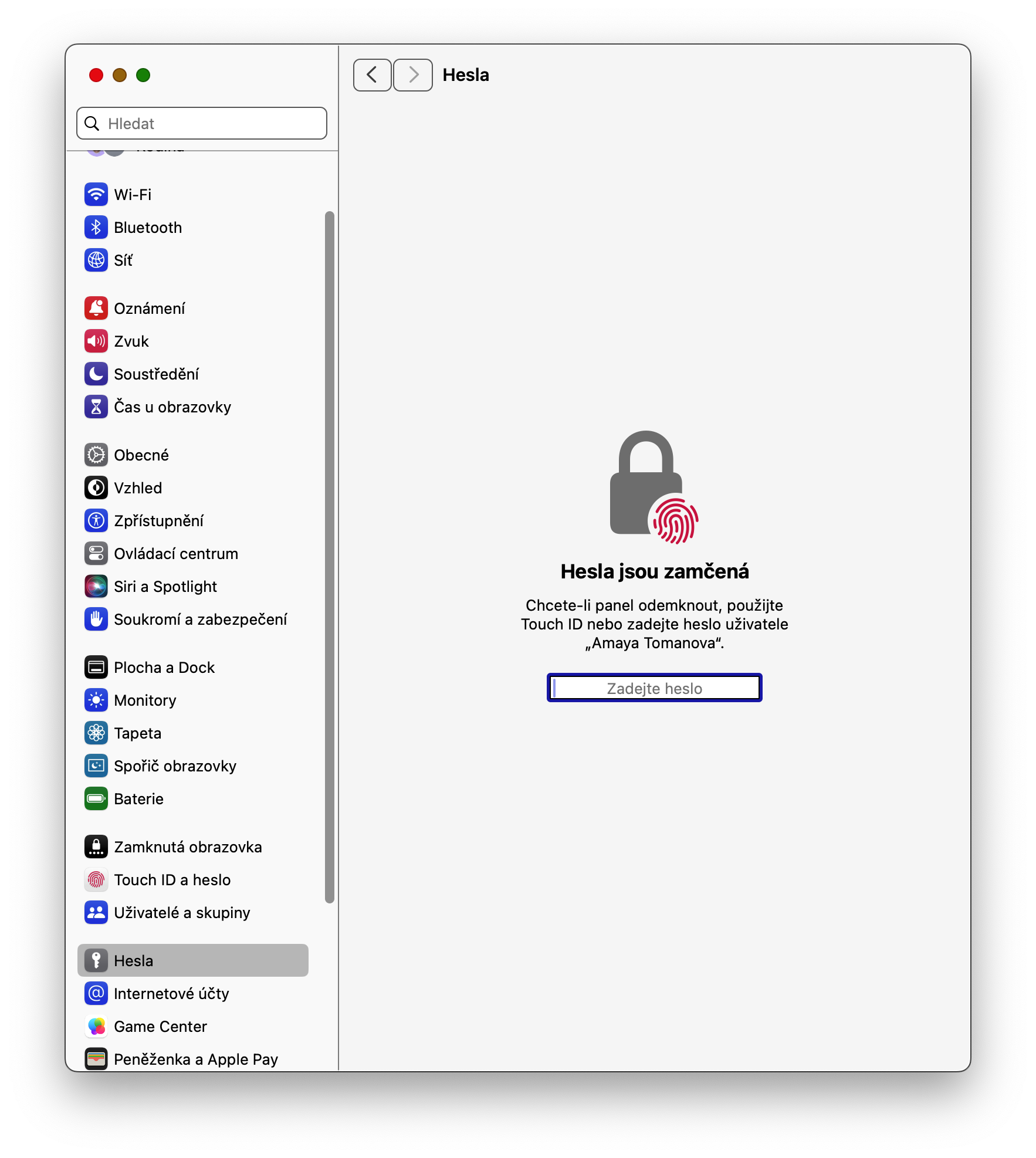
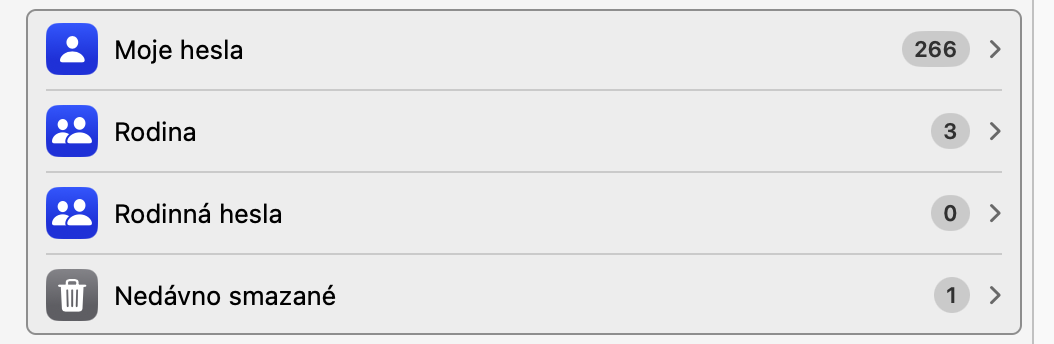
Now you don't have to worry about losing your password. In macOS Sonoma, you can use the password recovery feature, which automatically saves your password for up to 30 days from the date you deleted it. In the upper-left corner of the screen, click menu -> System Preferences -> Passwords , and then click Recently Deleted in the main part of the window.
Gallery
Communication preferences
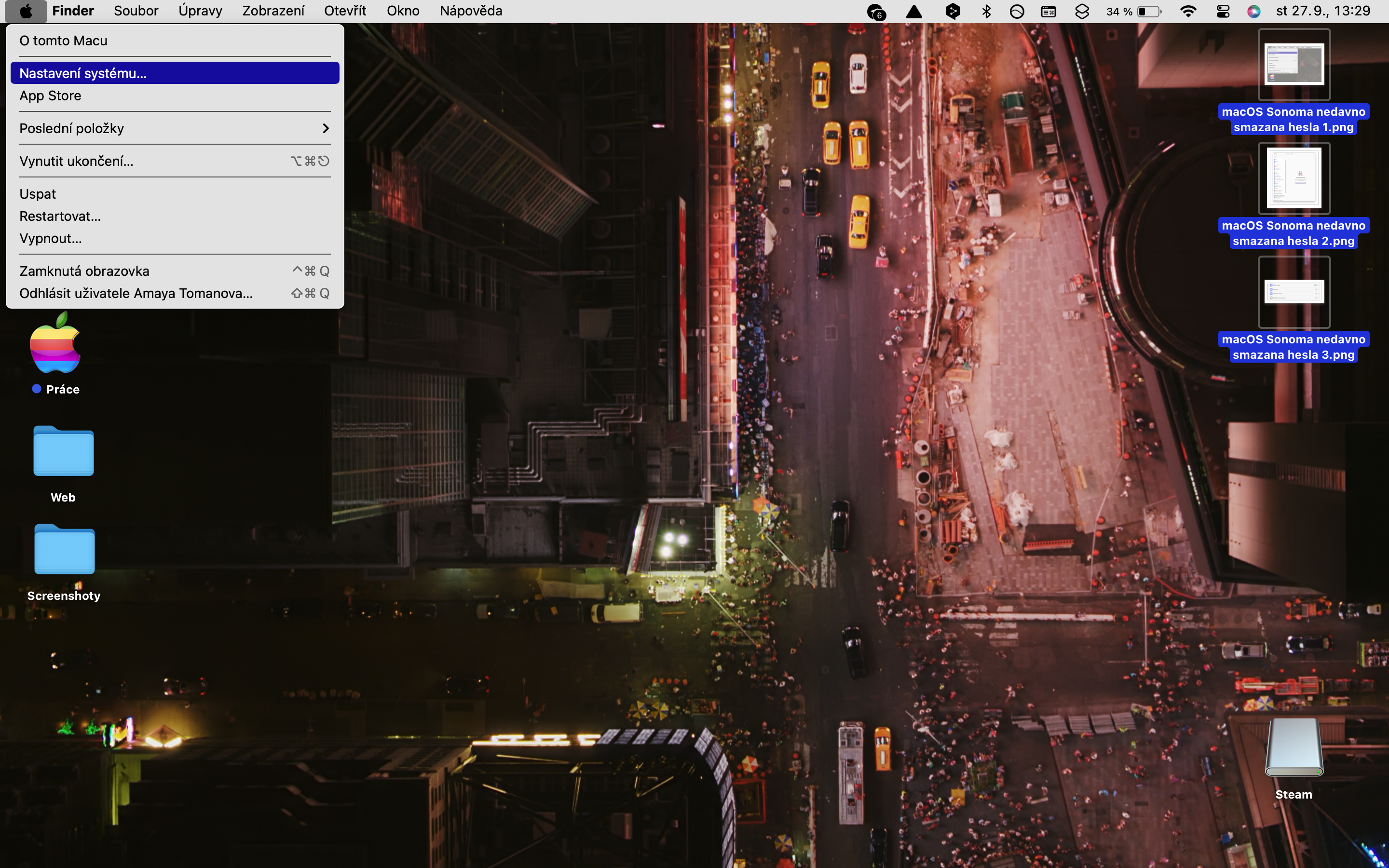
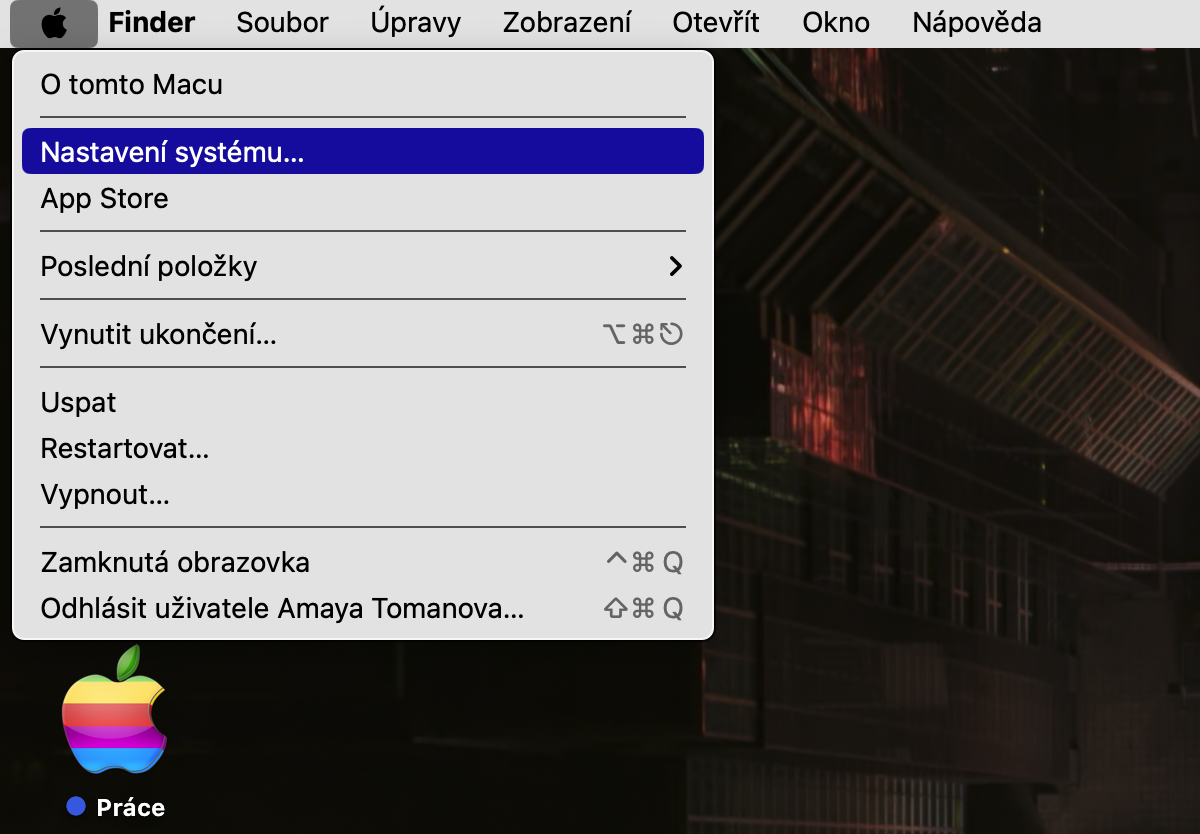
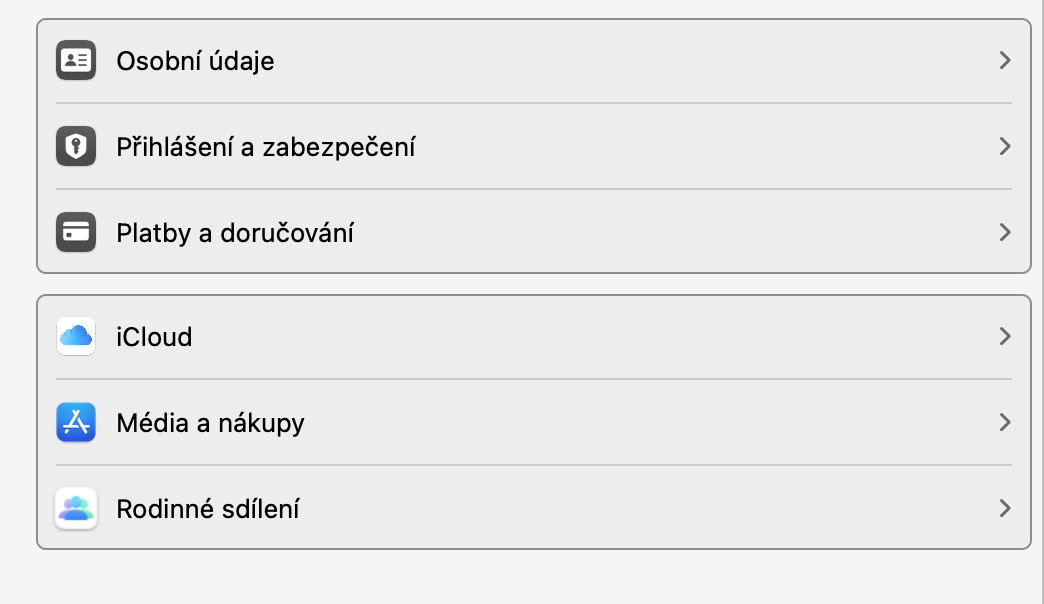
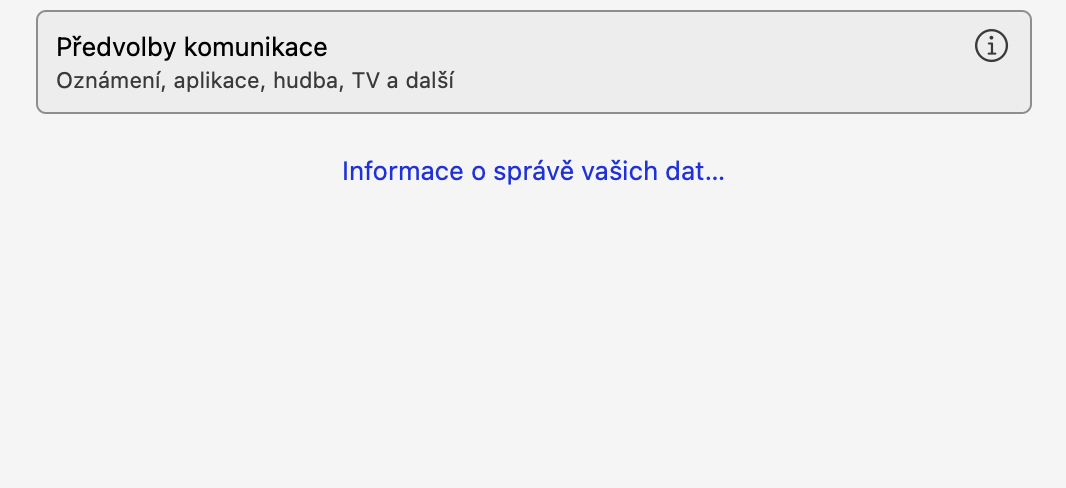
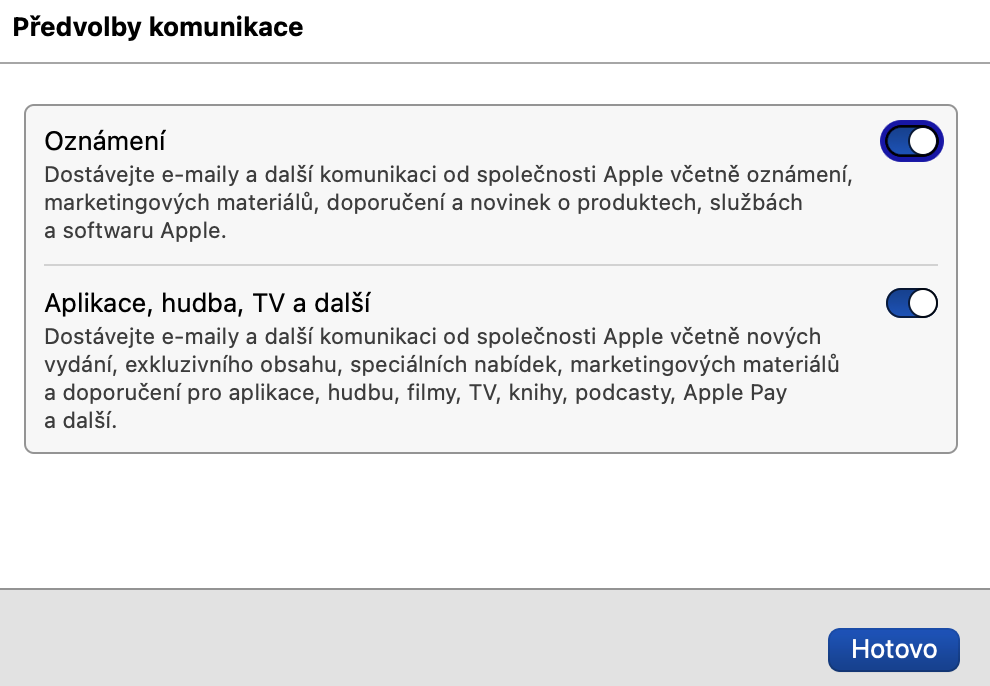
You can customize your communication preferences in macOS Sonoma. To do this, go to menu -> System Settings -> System settings -> panel with your name -> Personal information. Now click on the "i" right next to it Communication preferences and select notifications for the latest announcements and releases or choose to block them. Nakonec Select Done for further confirmation.
Gallery