
Apple a few days ago toonefinally, after several weeks of waiting, released new versions of its operating systems. Specifically, we received updates iOS and iPadOS 15.4, macOS 12.3 Monterey, watchOS 8.5 and tvOS 15.4. If you are one of our regular readers, you probably already know about all the new features that the systems have introduced. We are currently addressing readers who have problems with the performance after installing the updates.onem or poor device performance. This article includes a total of 5 tips for extending the life of your Mac with the new macOS 12.3 Monterey.
You might be interested in
Get a Mac with Apple Silicon
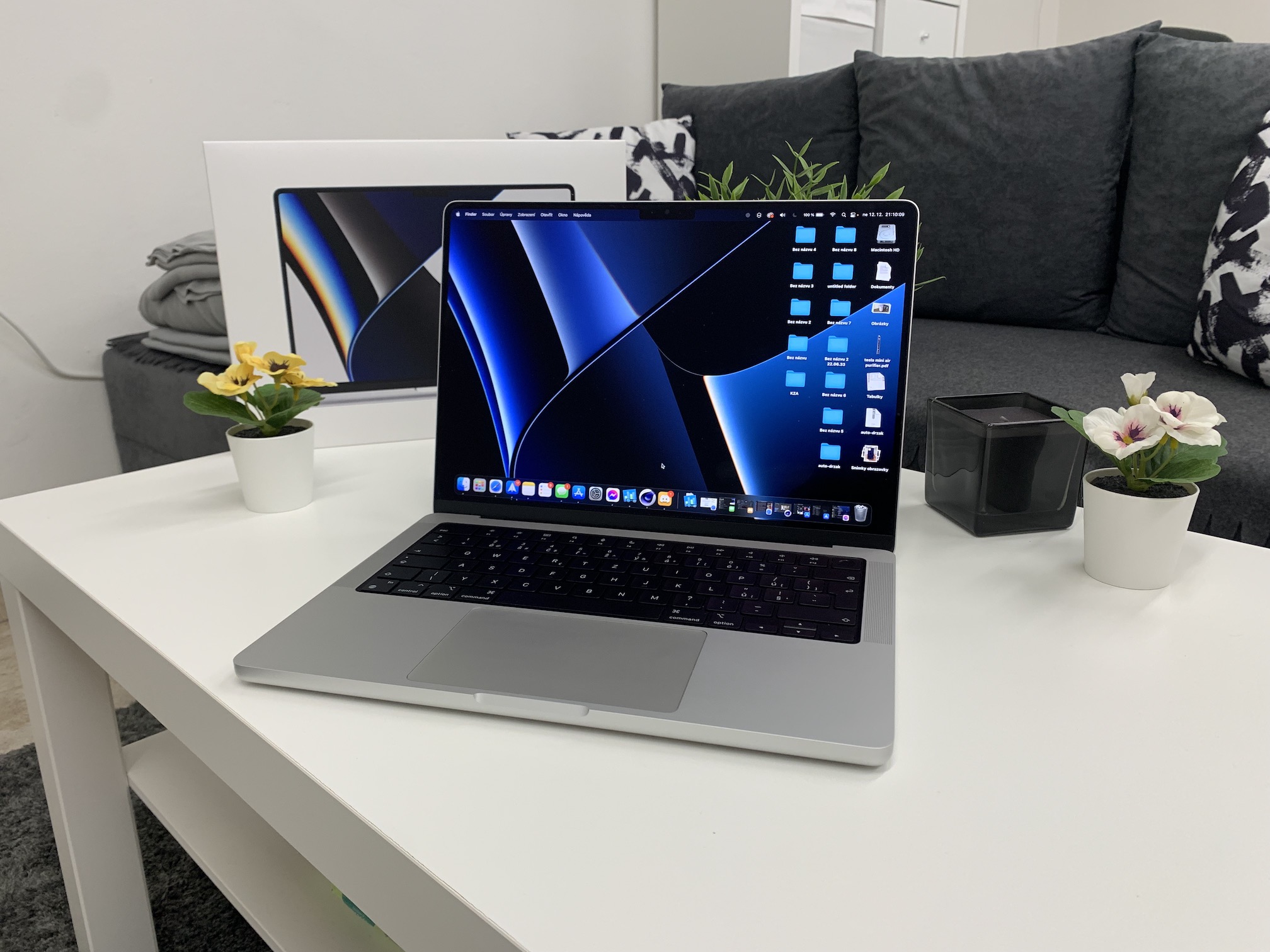
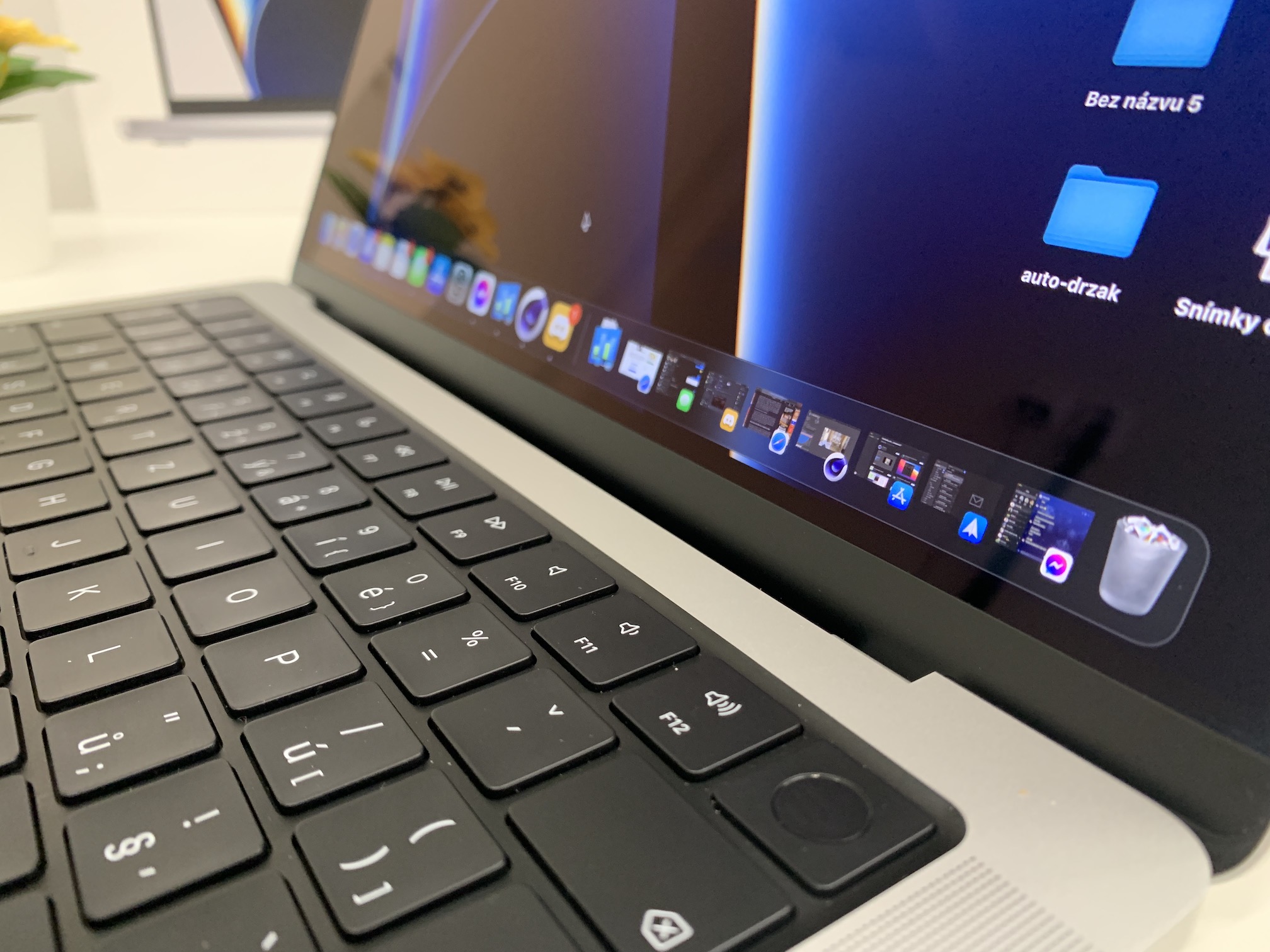
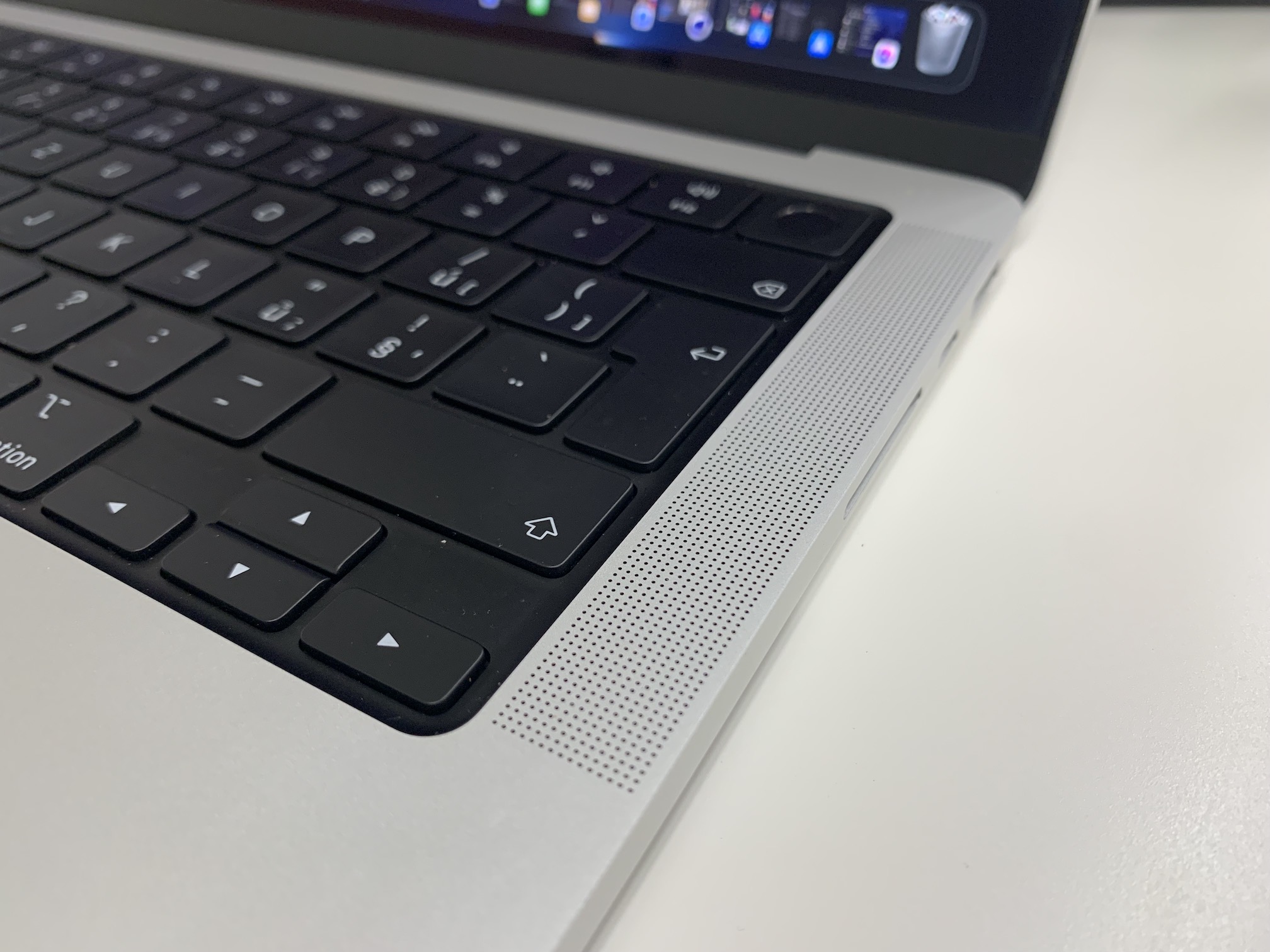
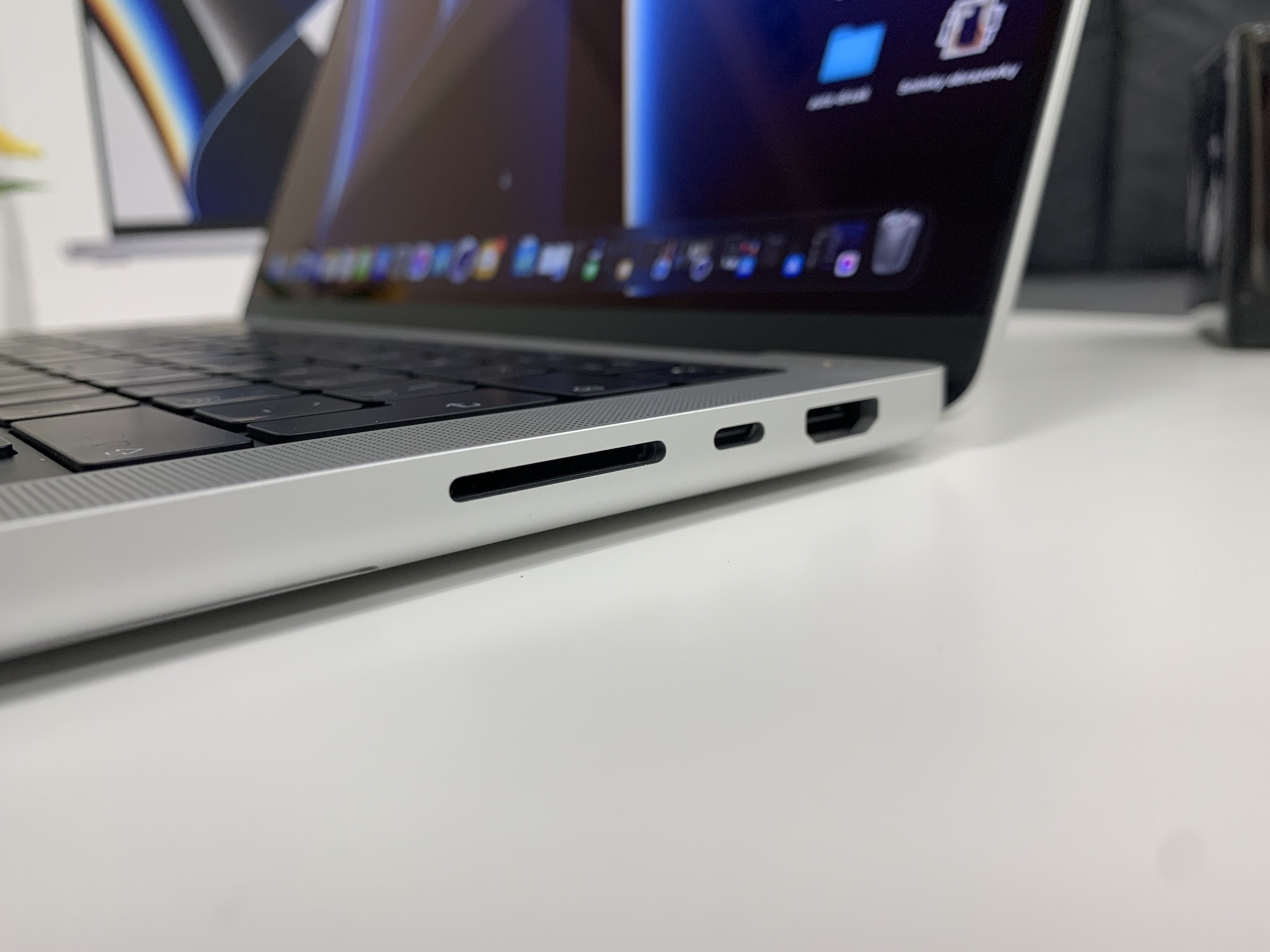
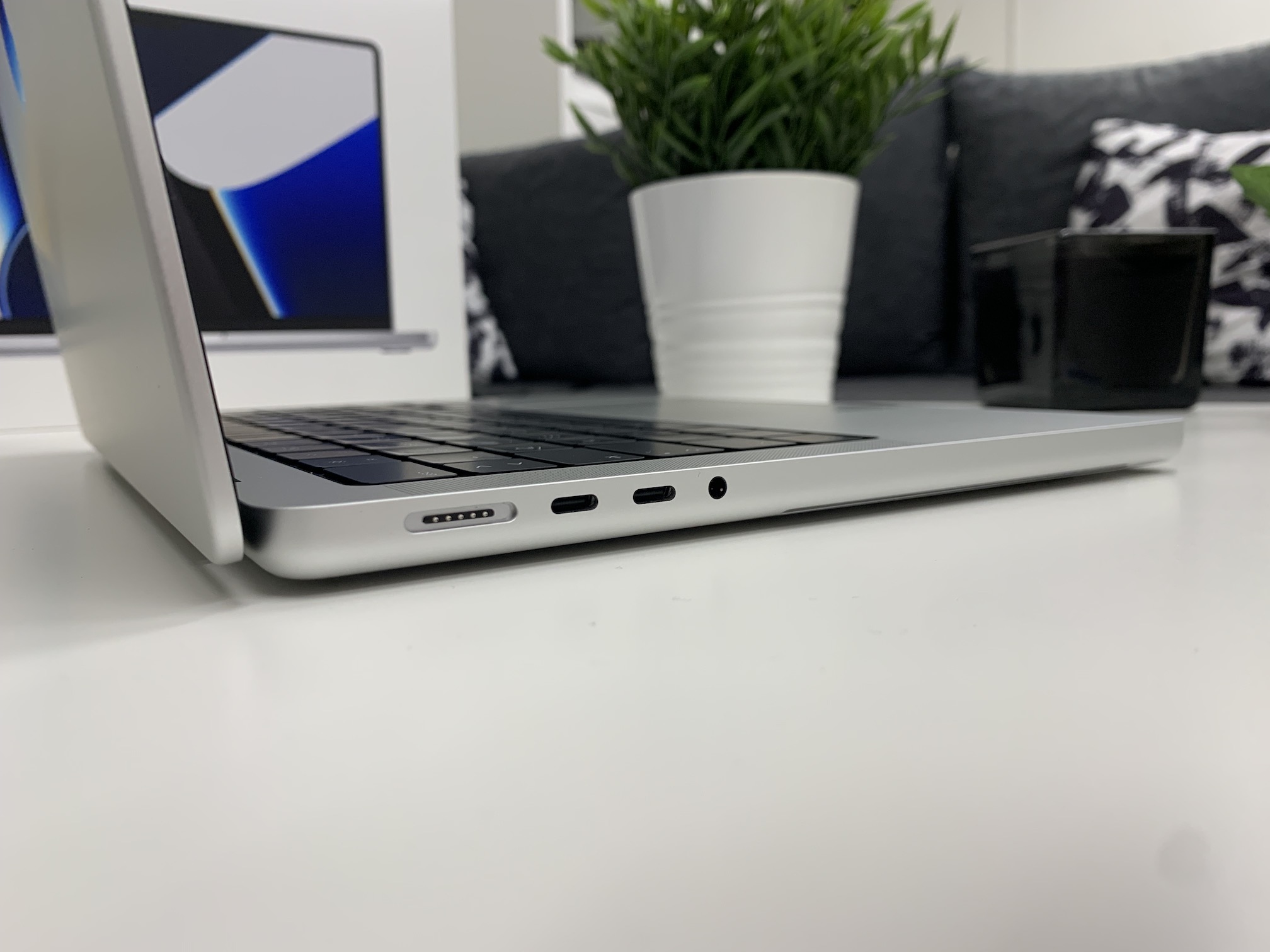
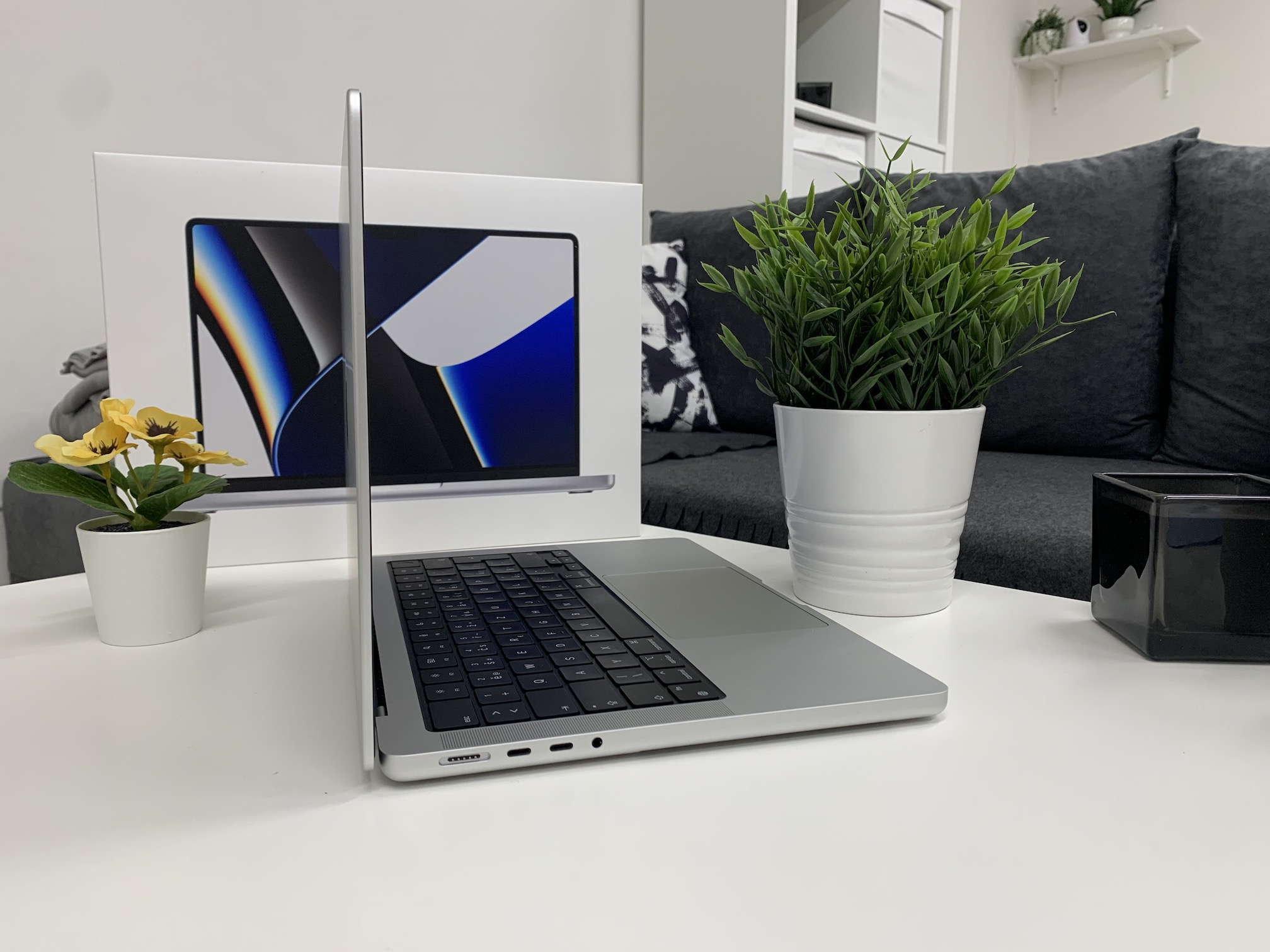
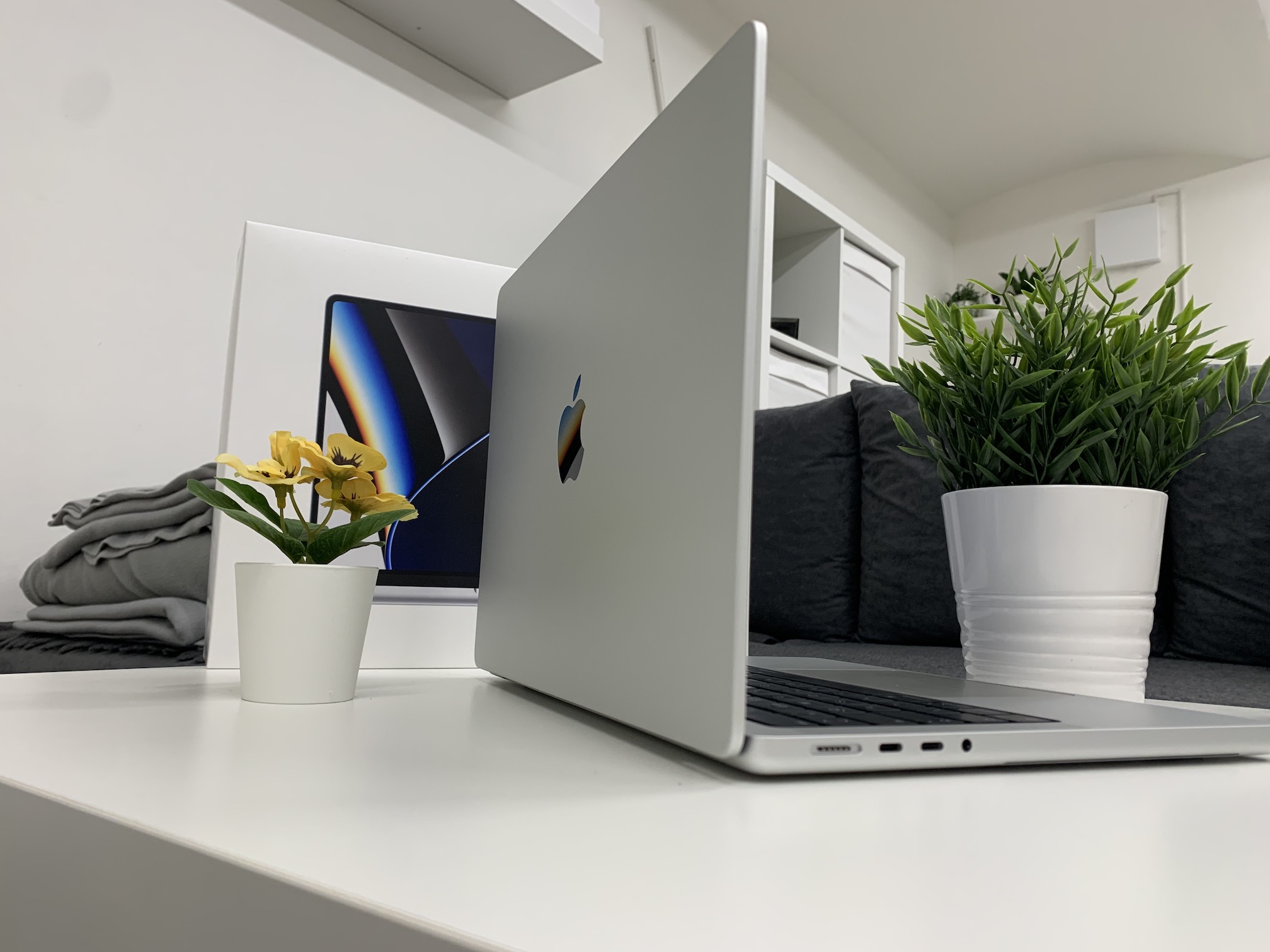
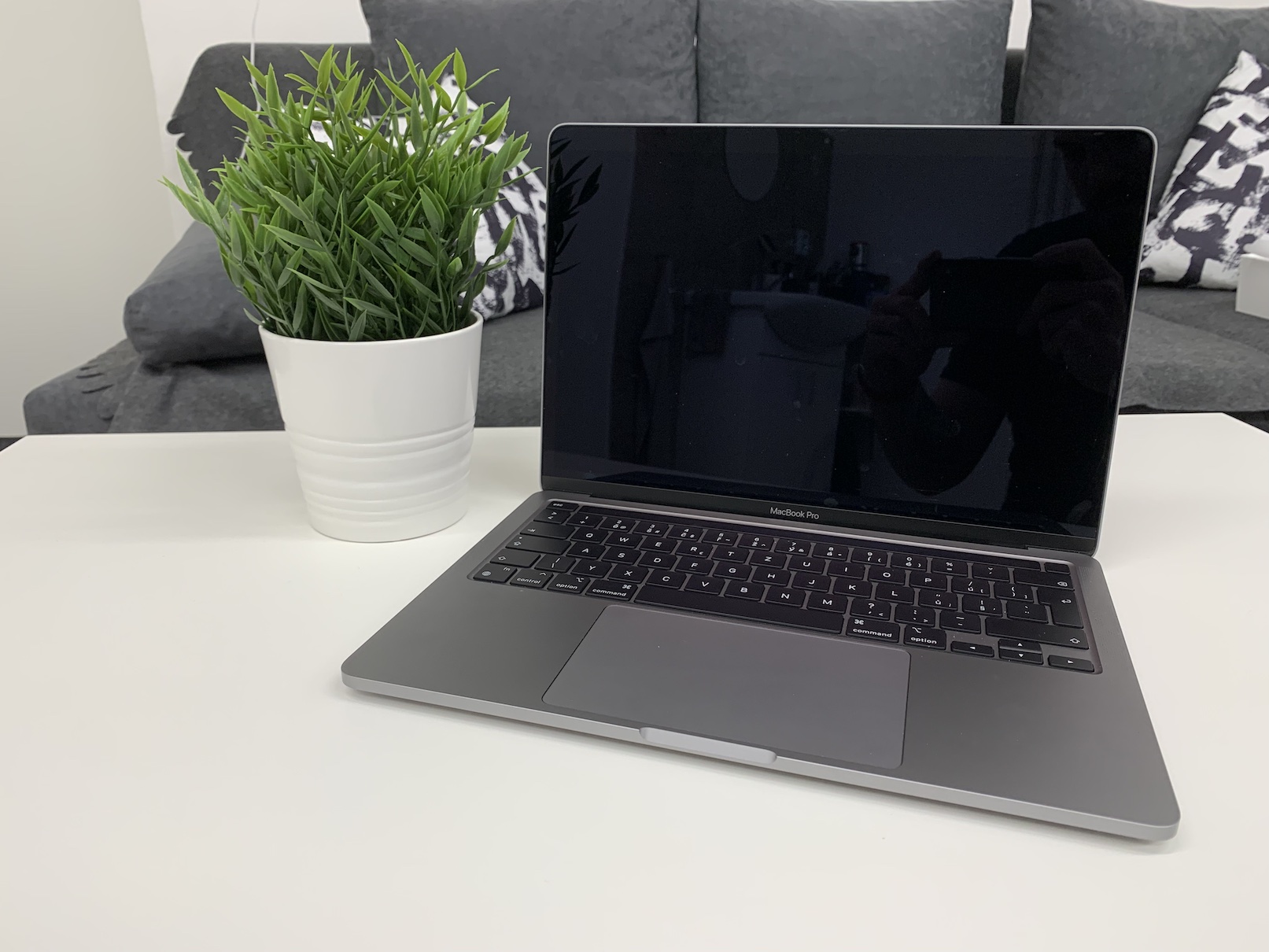
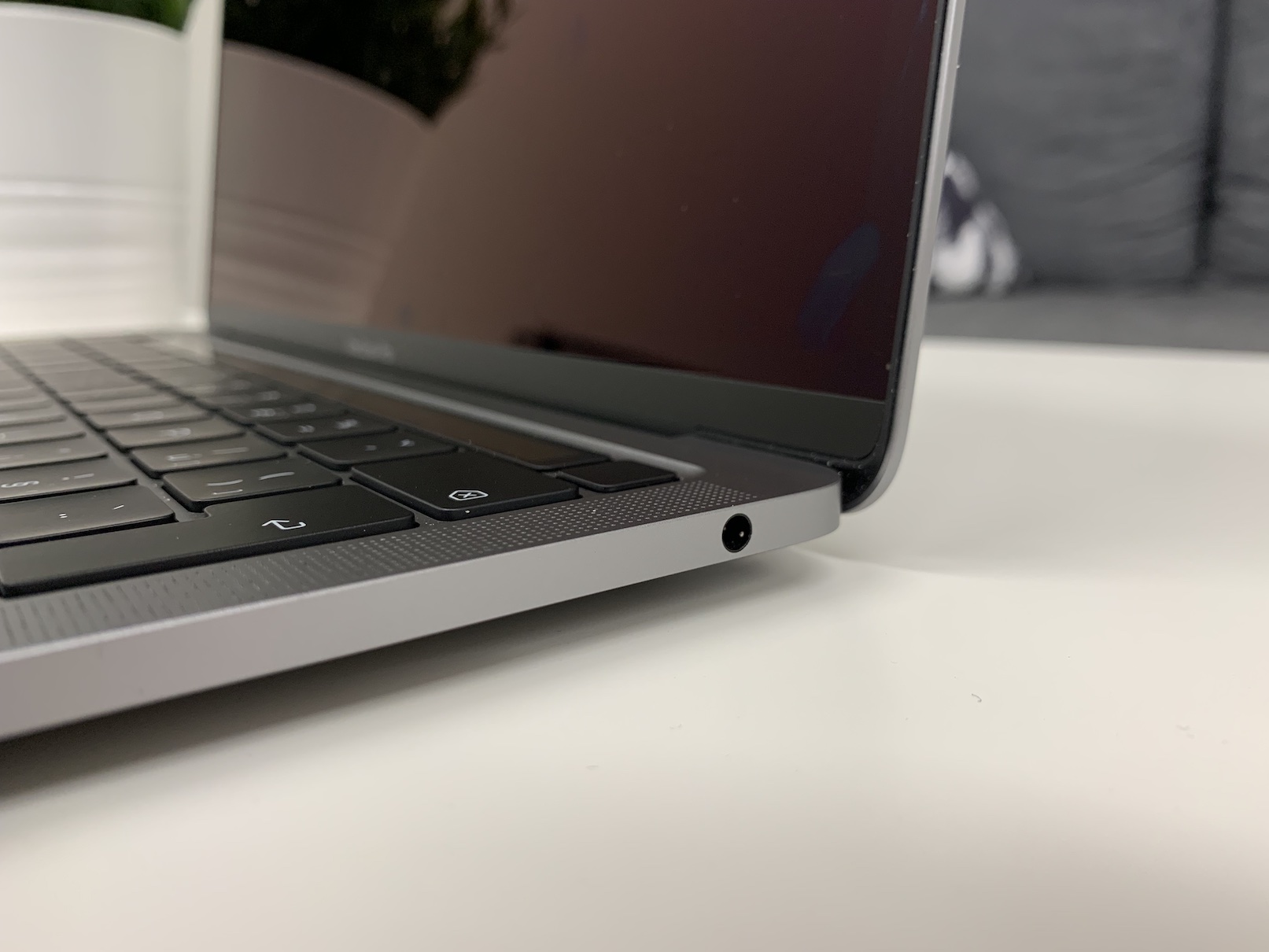
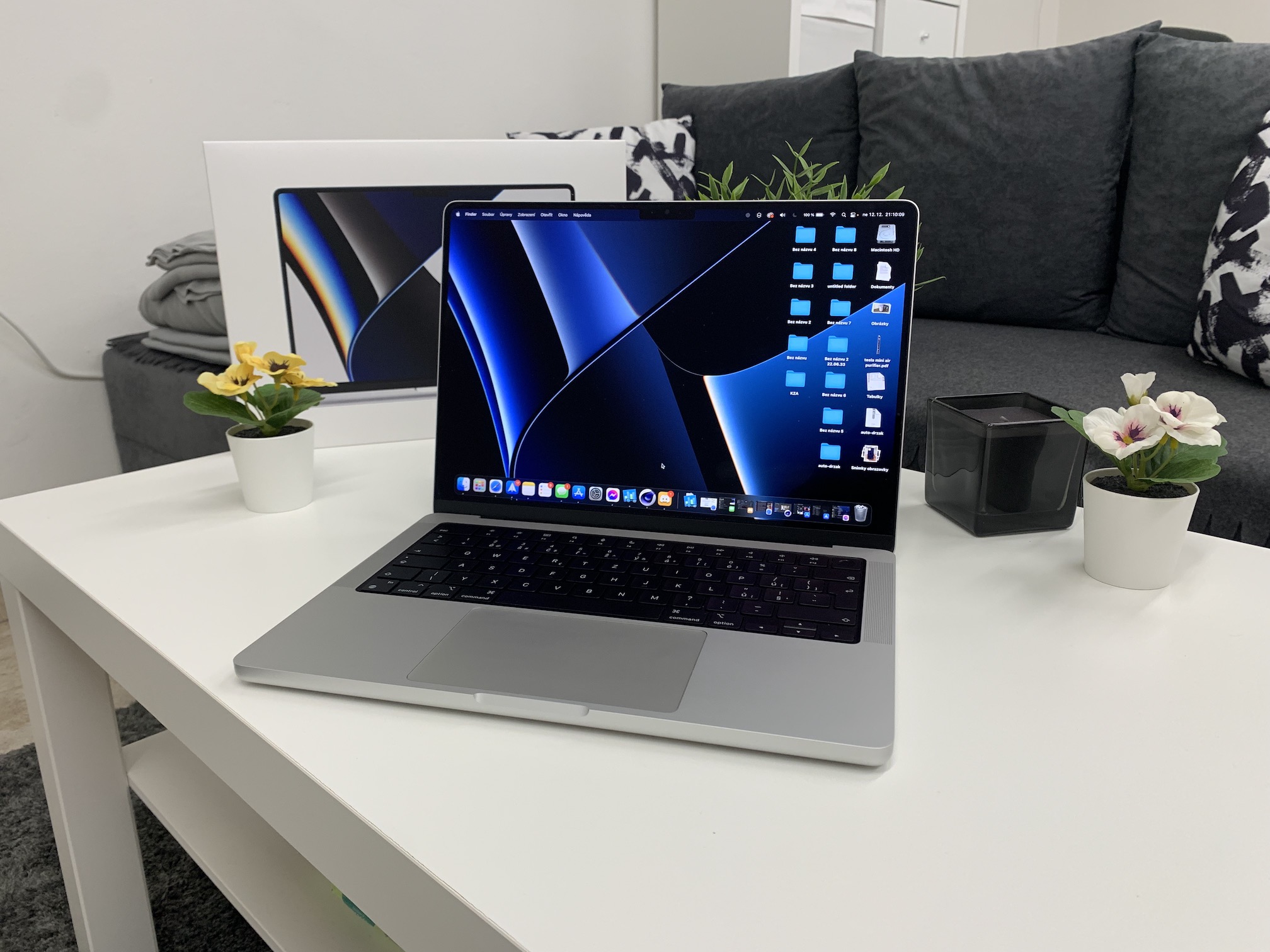
Right at the beginning, I am coming with a slightly provocative tip, but it is definitely the best of all. If you still own an Apple computer with an Intel processor, definitely start thinking about replacing it with new machines with chips as soon as possible Apple SiliconIn addition to being incredibly powerful, these new devices are also several times more energy efficient than Intel processors, so they last much longer on a single charge. In addition, it is clear that sooner or later it will stop working. Apple devices with Intel processors, so the sooner you make the switch, the better. You will most likely have a problem selling a Mac with an Intel processor, but even if you were to keep this machine as a spare, you definitely won't regret it.
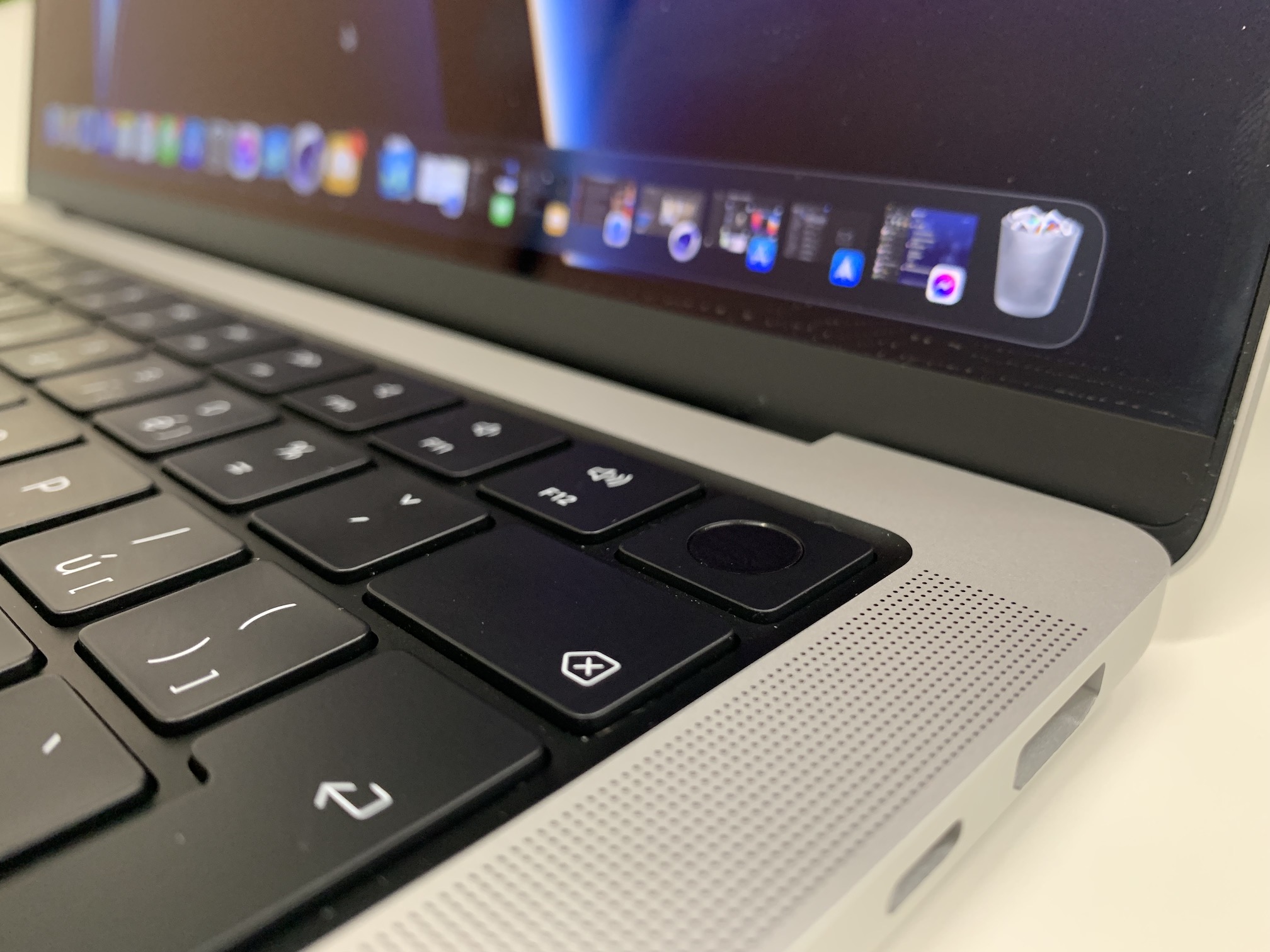
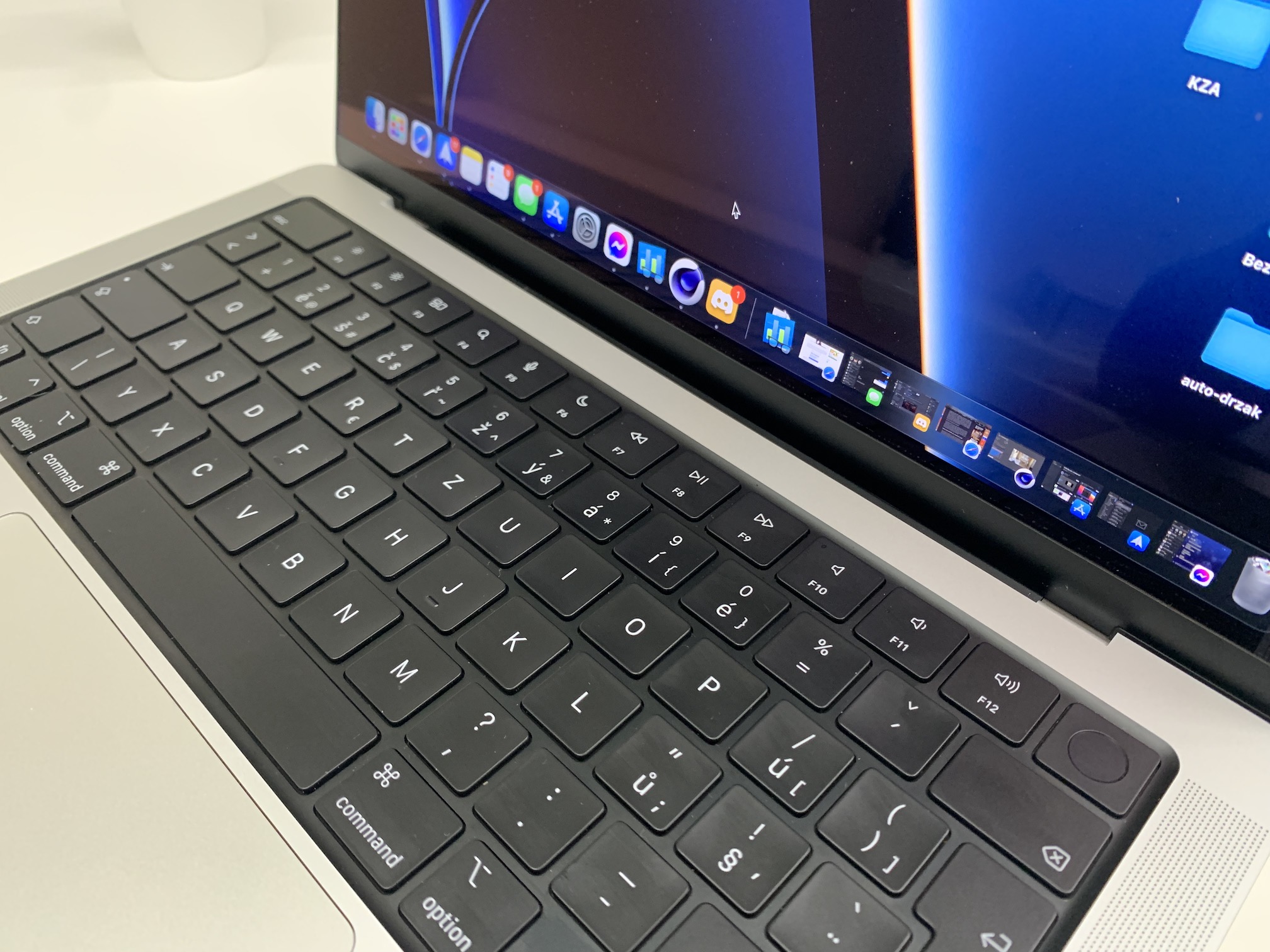
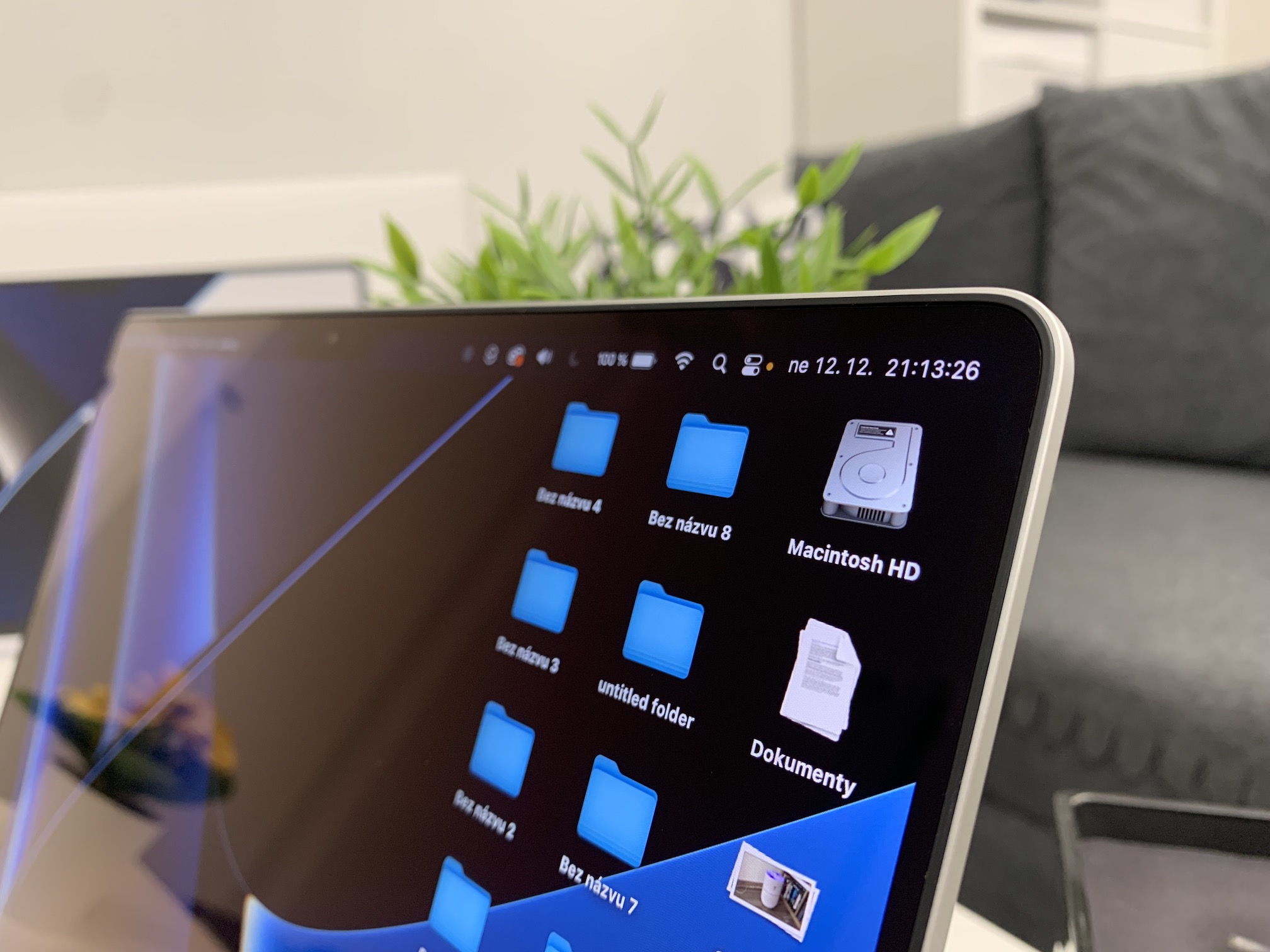
14 '' MacBook Pro (2021)

Use of lower brightness
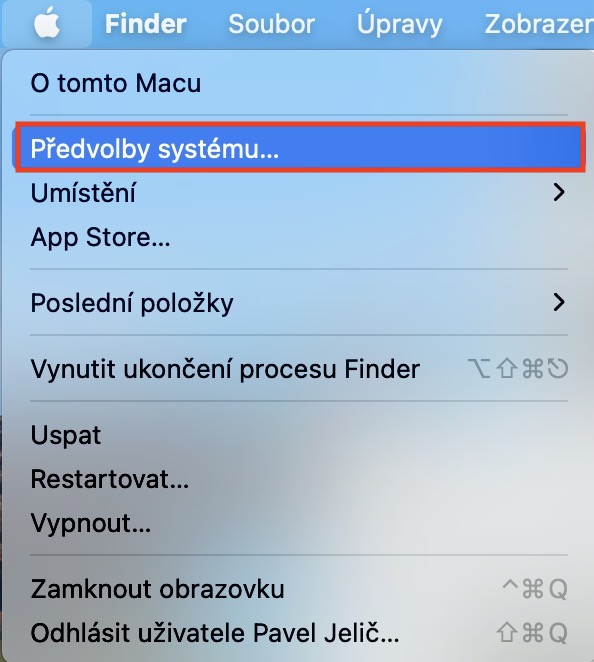
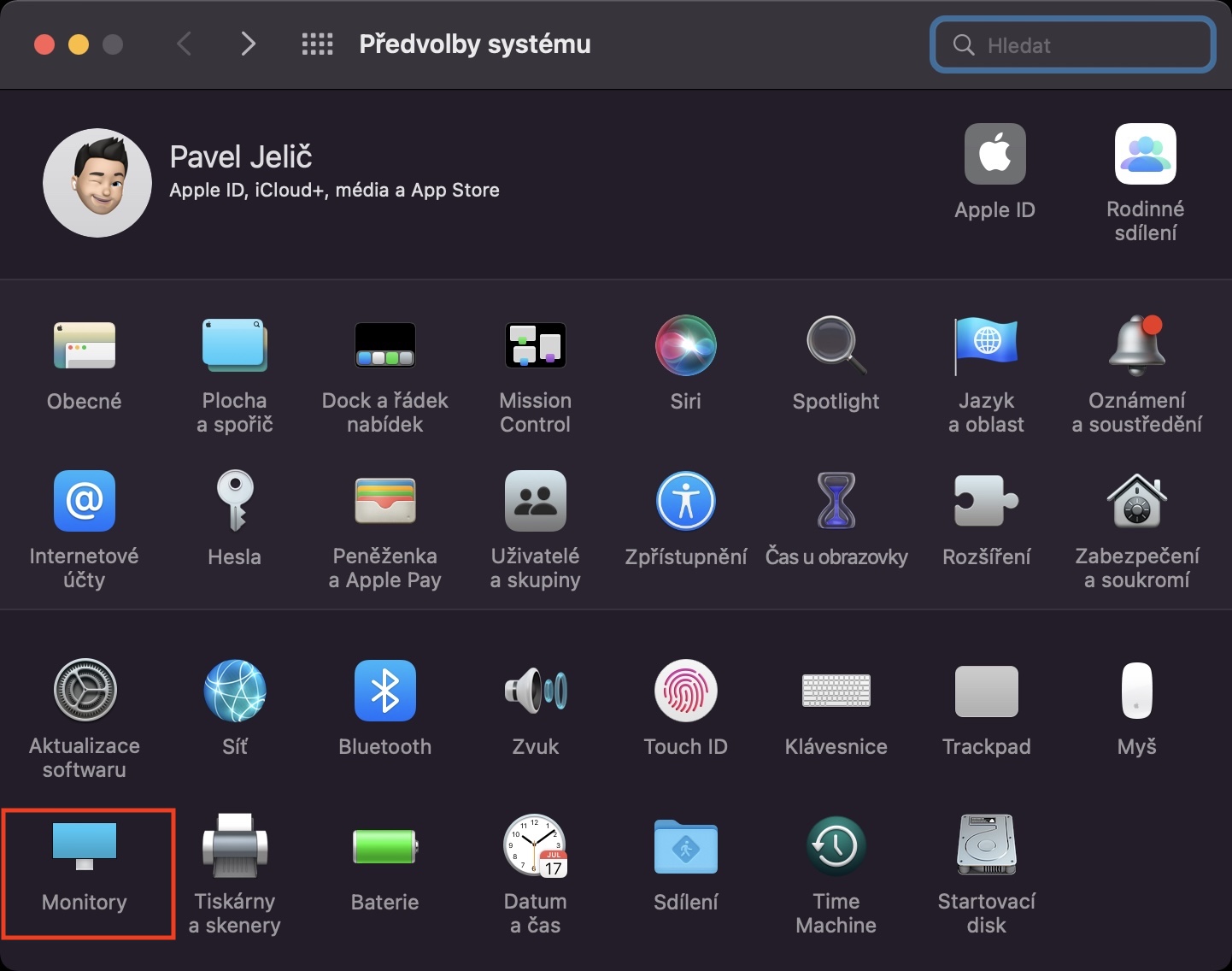
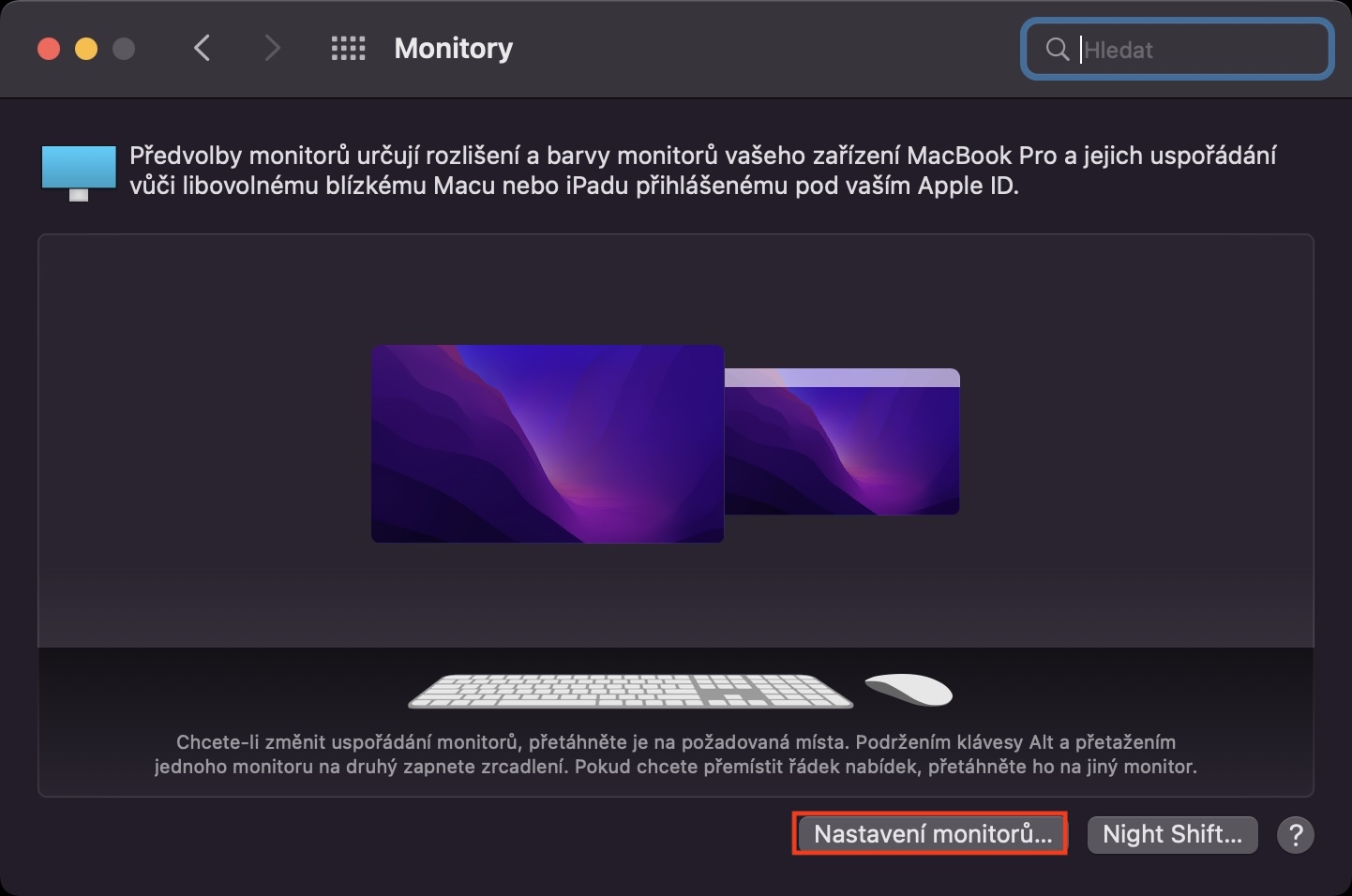
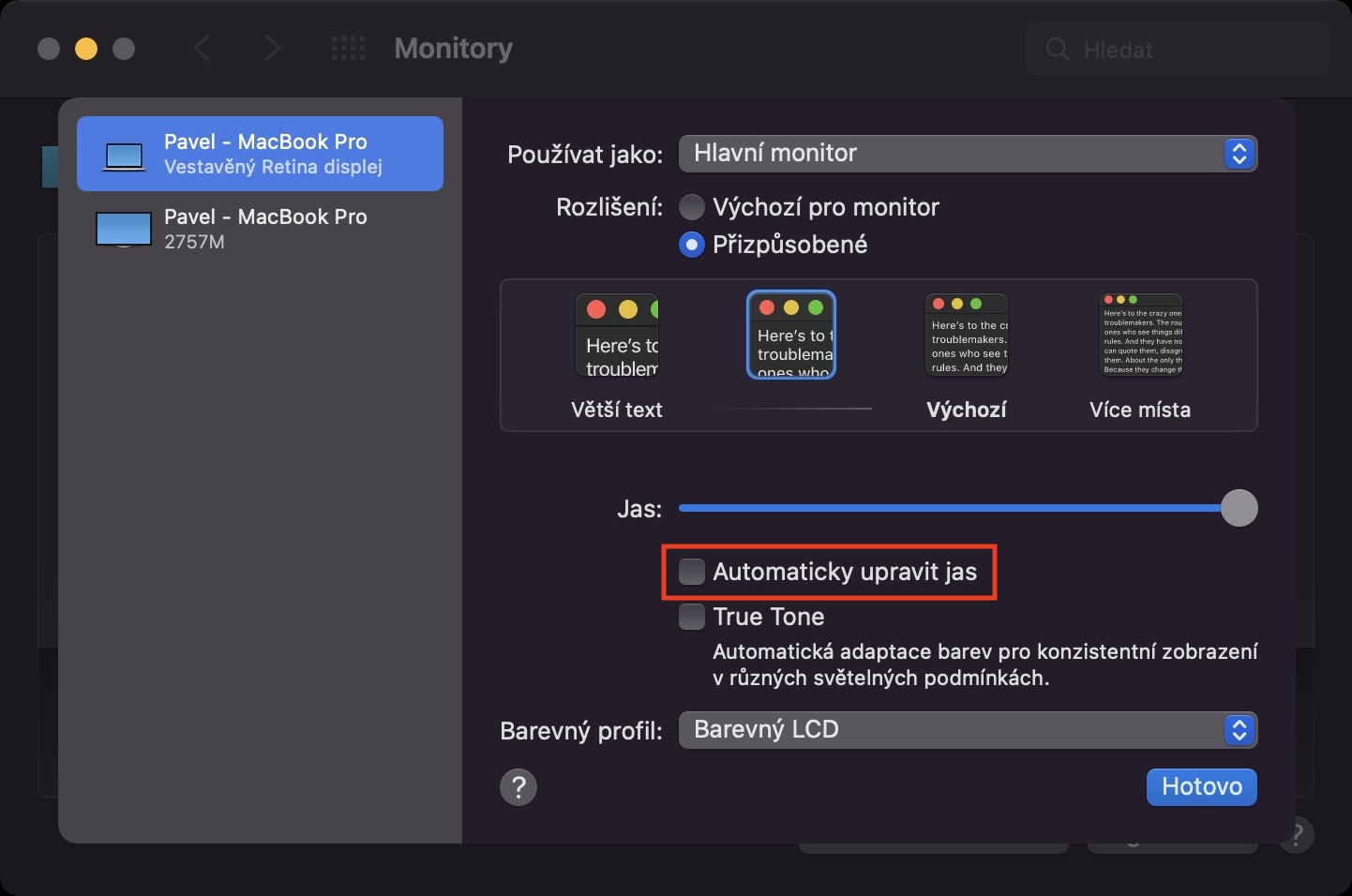
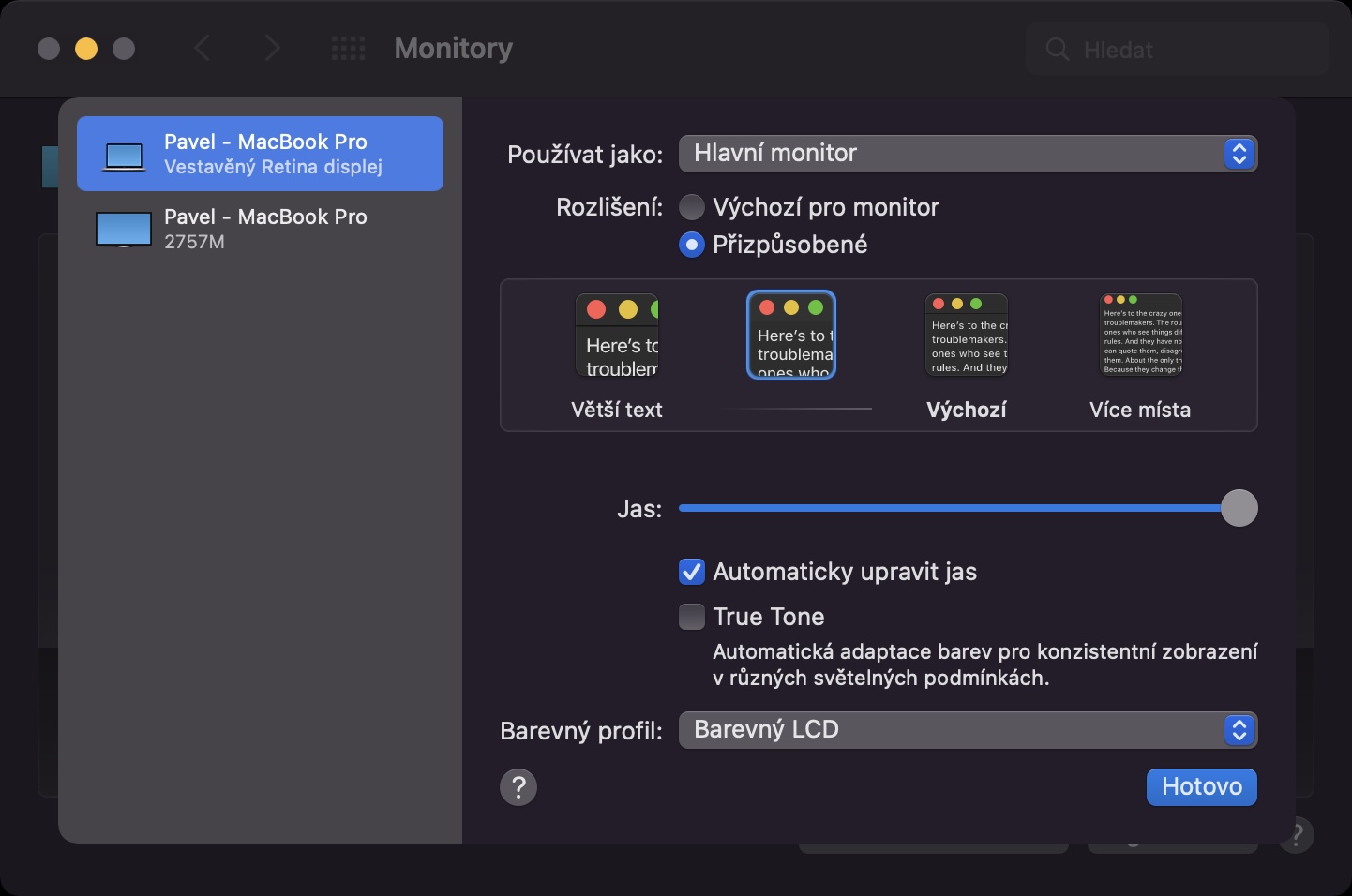
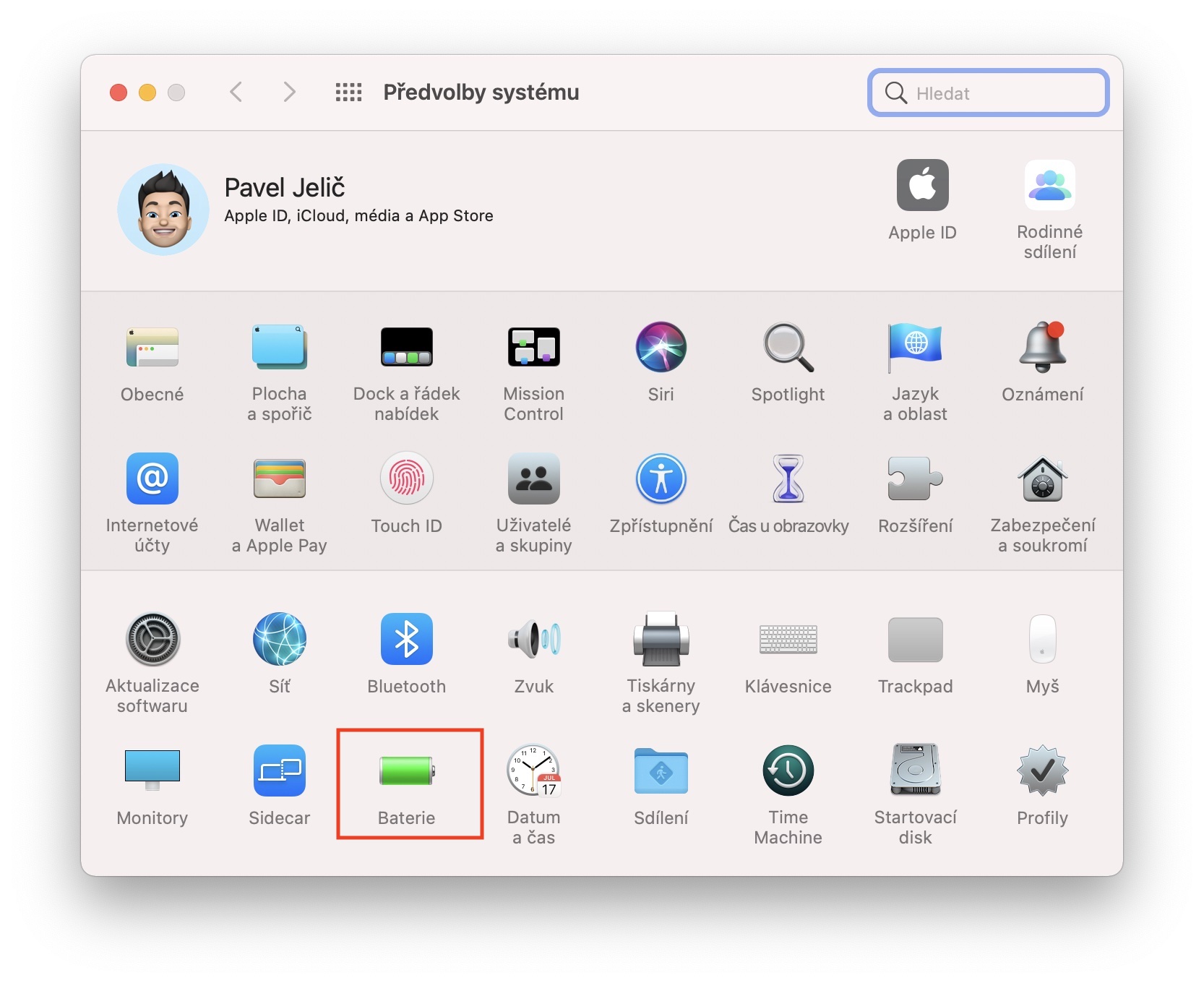
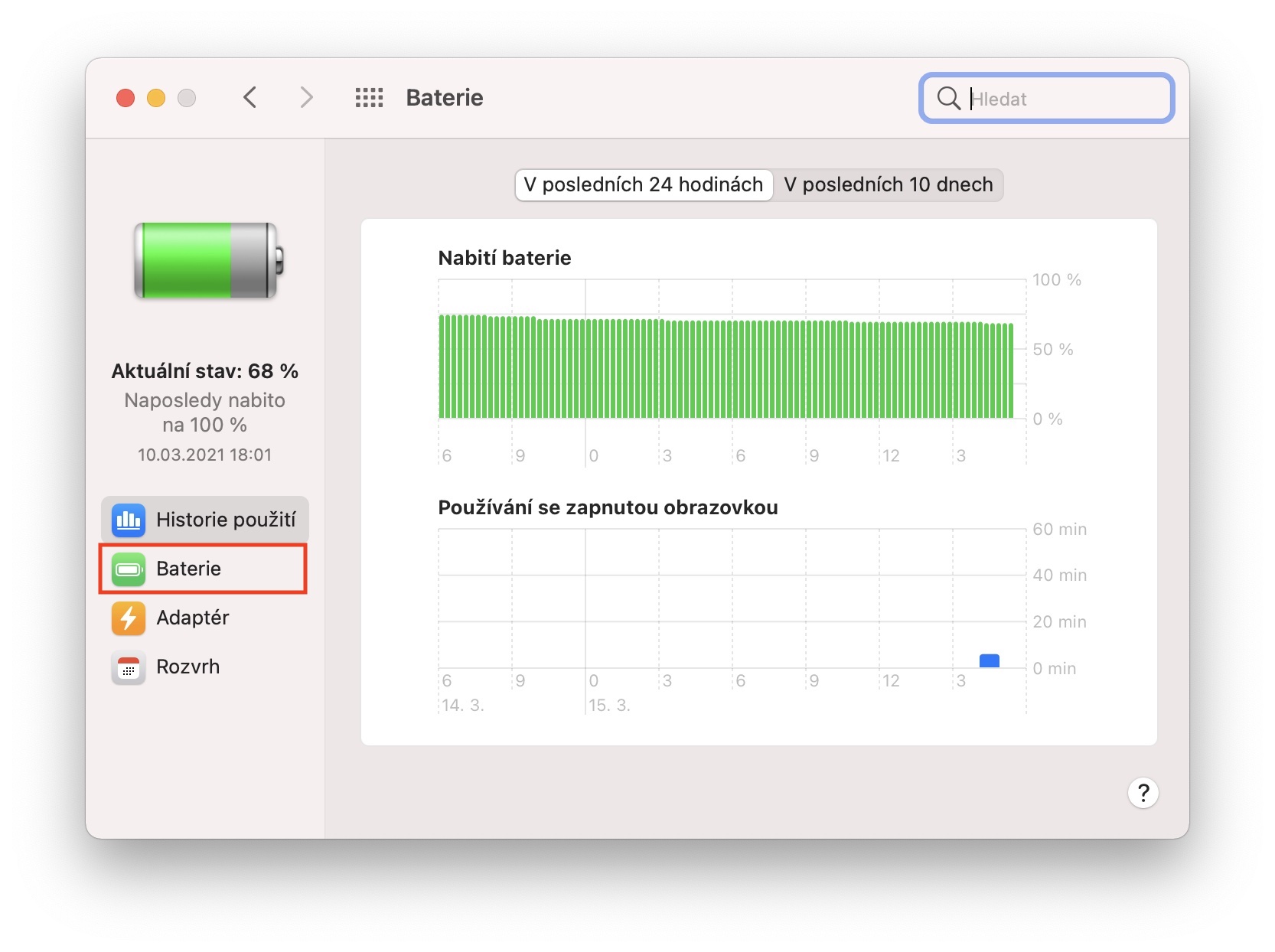
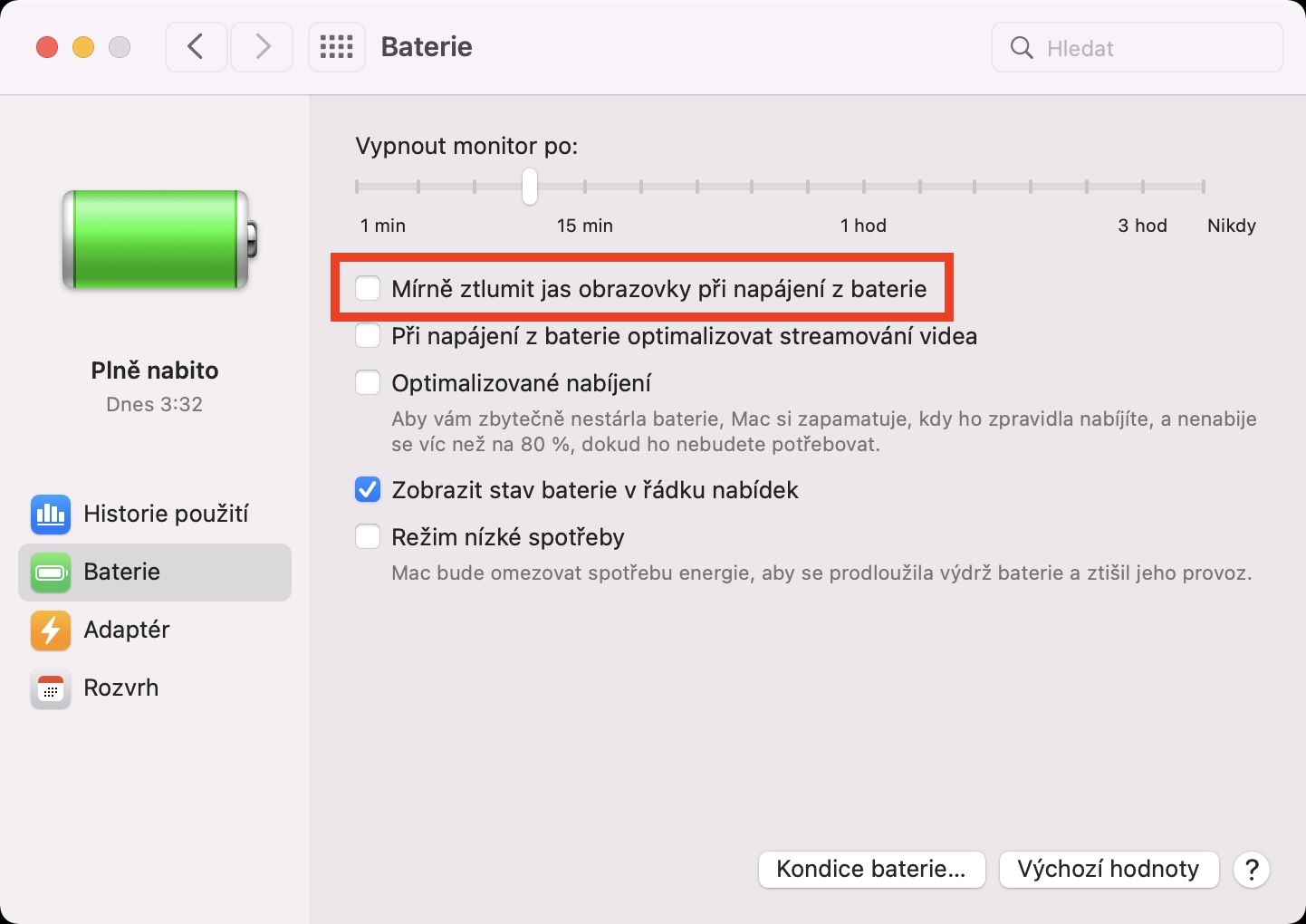
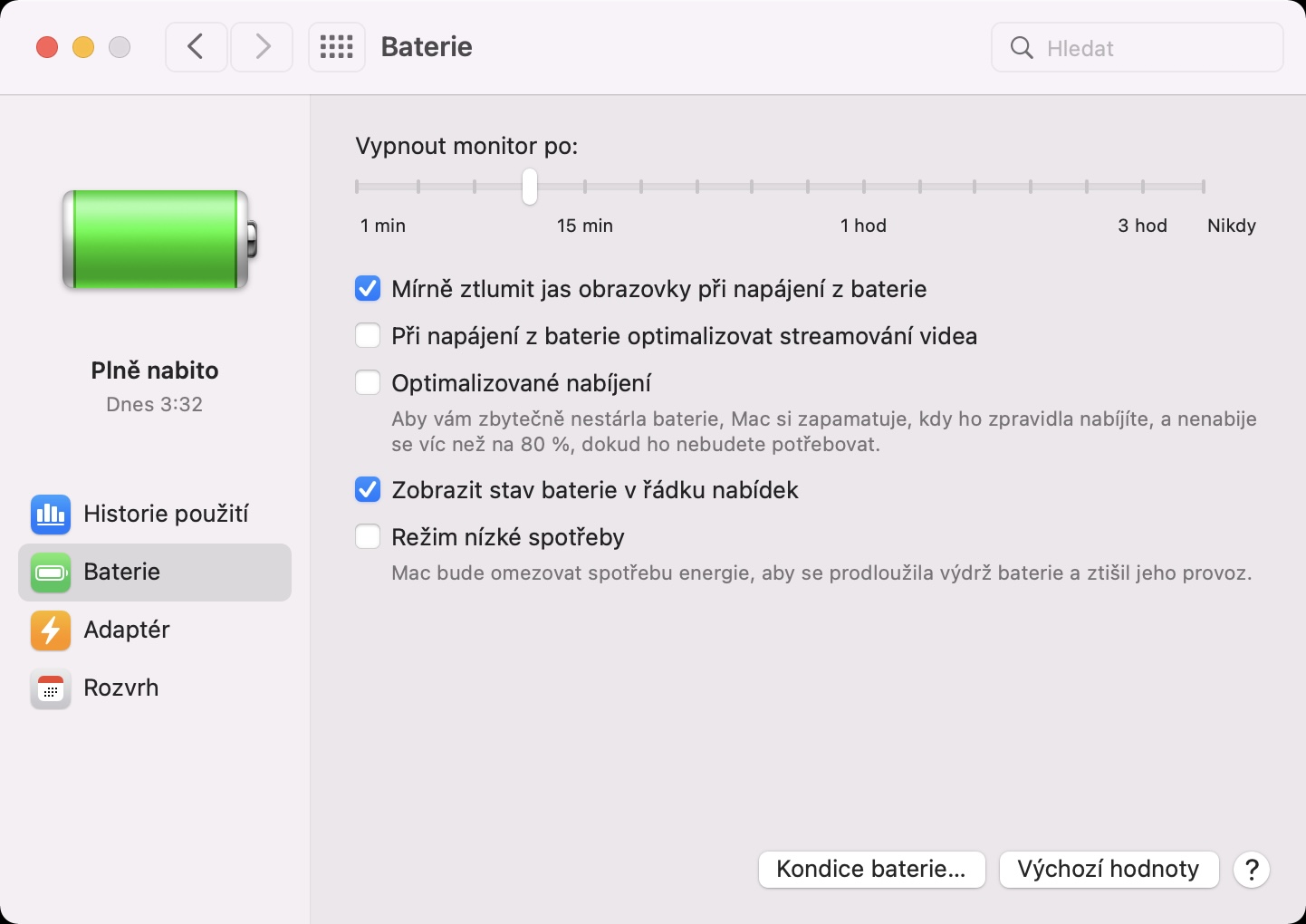
The biggest "consumers" of the battery are the hardware, together with the display of your device - this applies both to the Mac and to the iPhone, iPad, Apple Watch and other portable devices. The higher the brightness of the display, the greater the energy consumption that the battery must supply. It's on everyone for exactly that reason Apple devices have automatic brightness enabled by default, which saves battery. Pro To check whether you have automatic brightness activated, just go to → System Preferences → Monitors, where check Automatically adjust brightness. Otherwise, you can of course continue to change the brightness manually using the top row of keys or the Touch Bar. In addition, it is possible to activate the function for automatic slight dimming of the brightness when powered by the battery, namely in → System Preferences → Battery → Battery. That's enough here turn on function Dim the screen brightness slightly when on battery power.
Activation of automatic brightness
Activation of slight dimming of the brightness when powered by battery
Review demanding applications
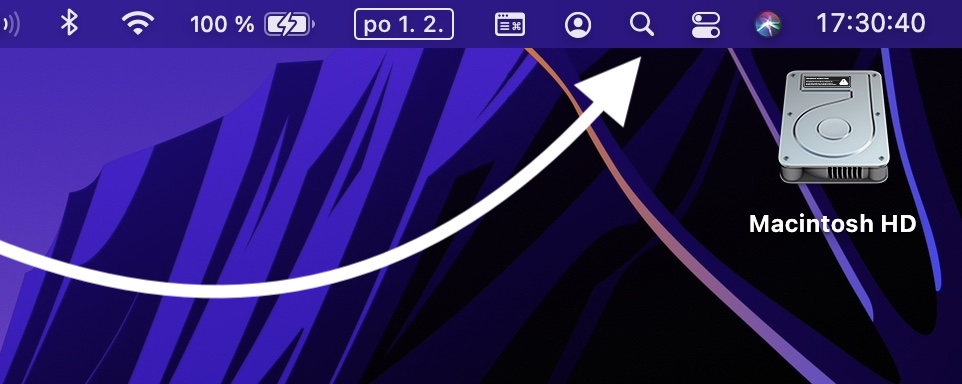
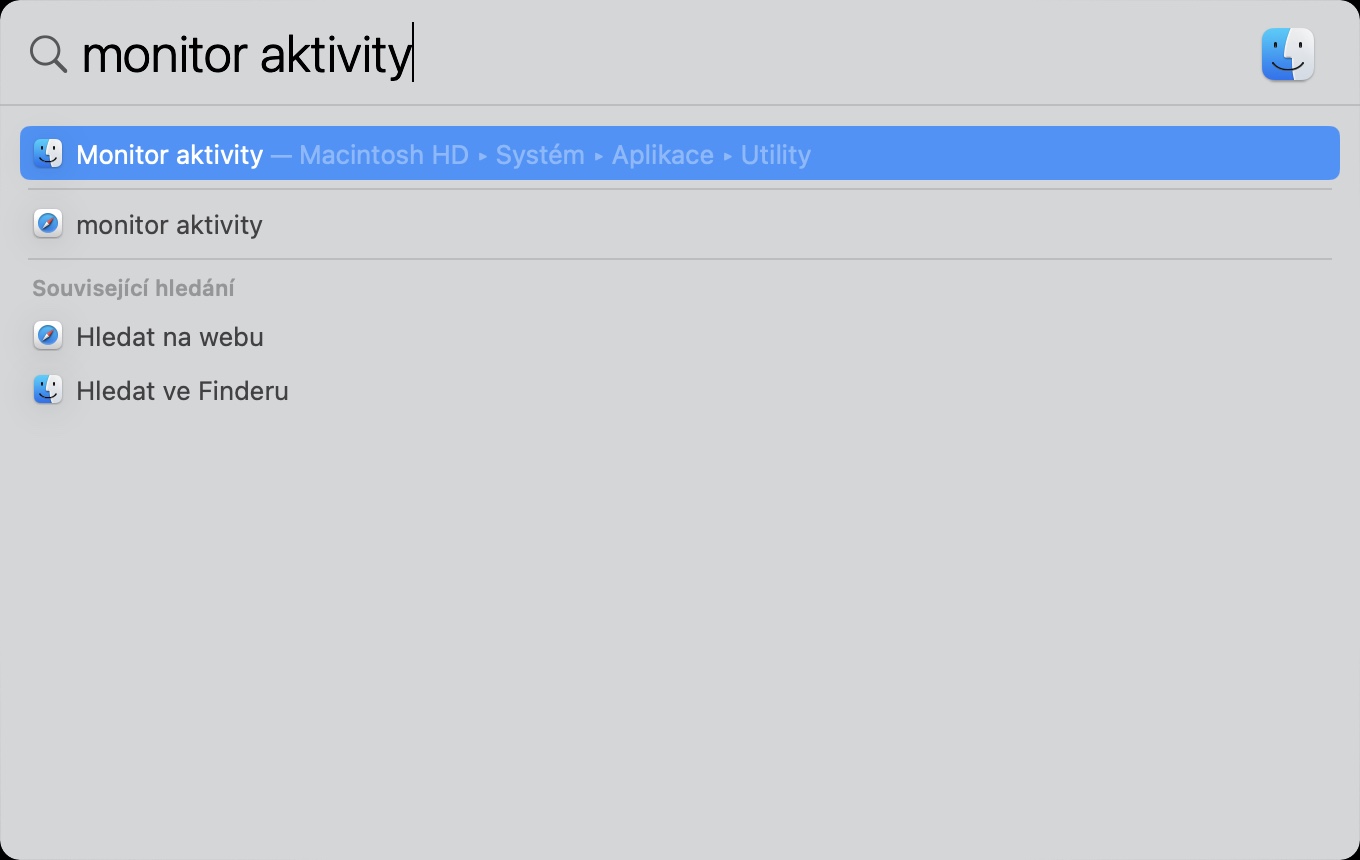
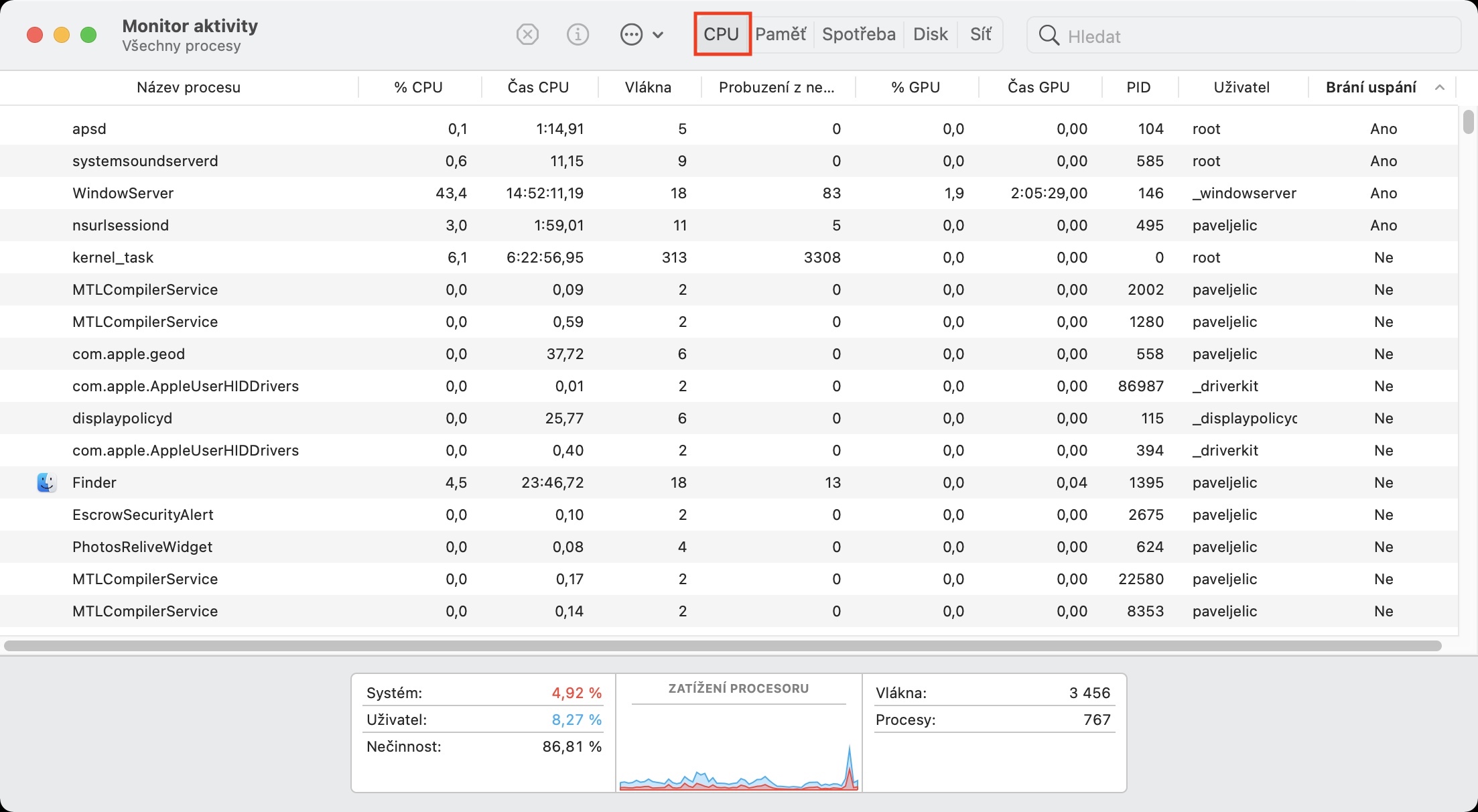
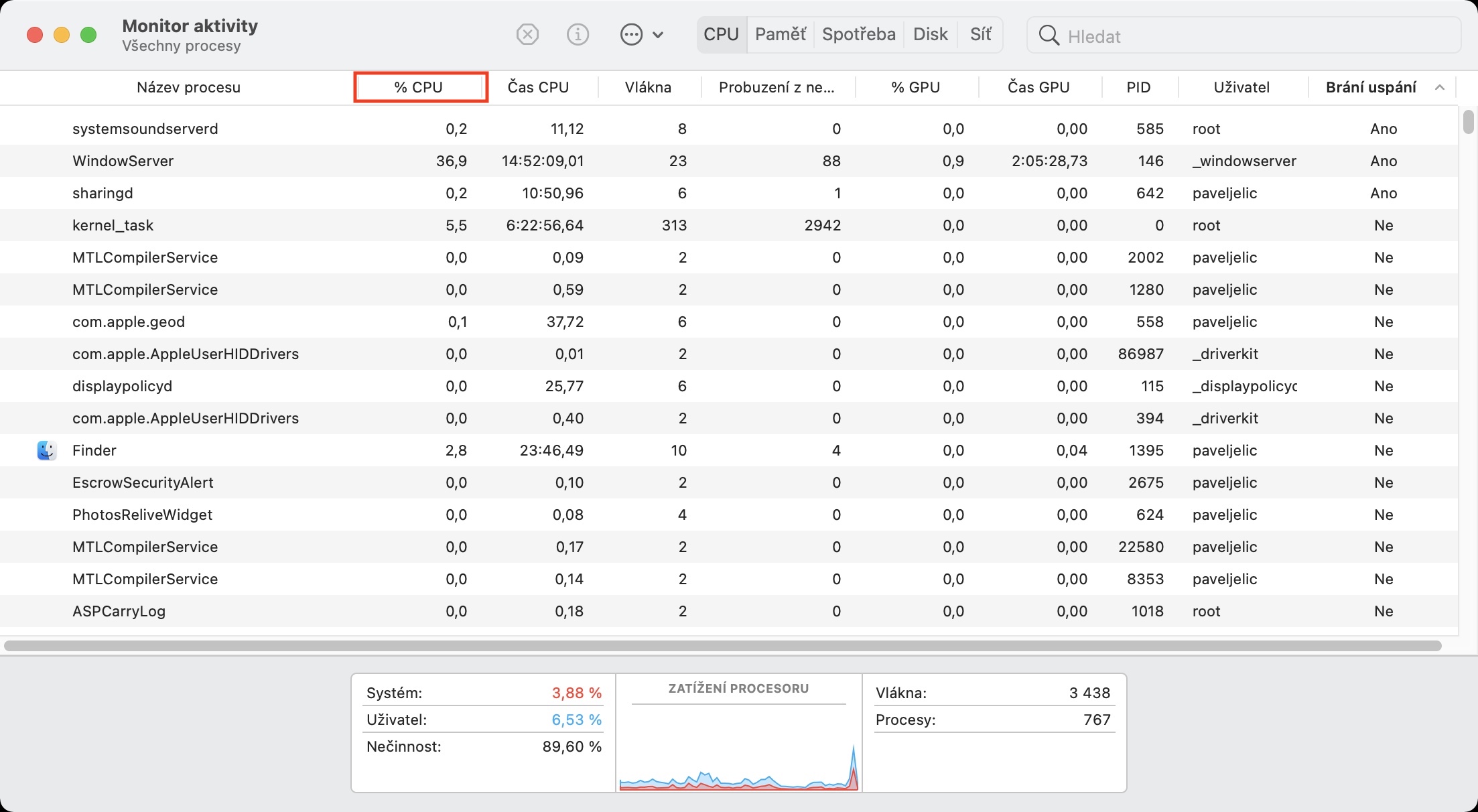
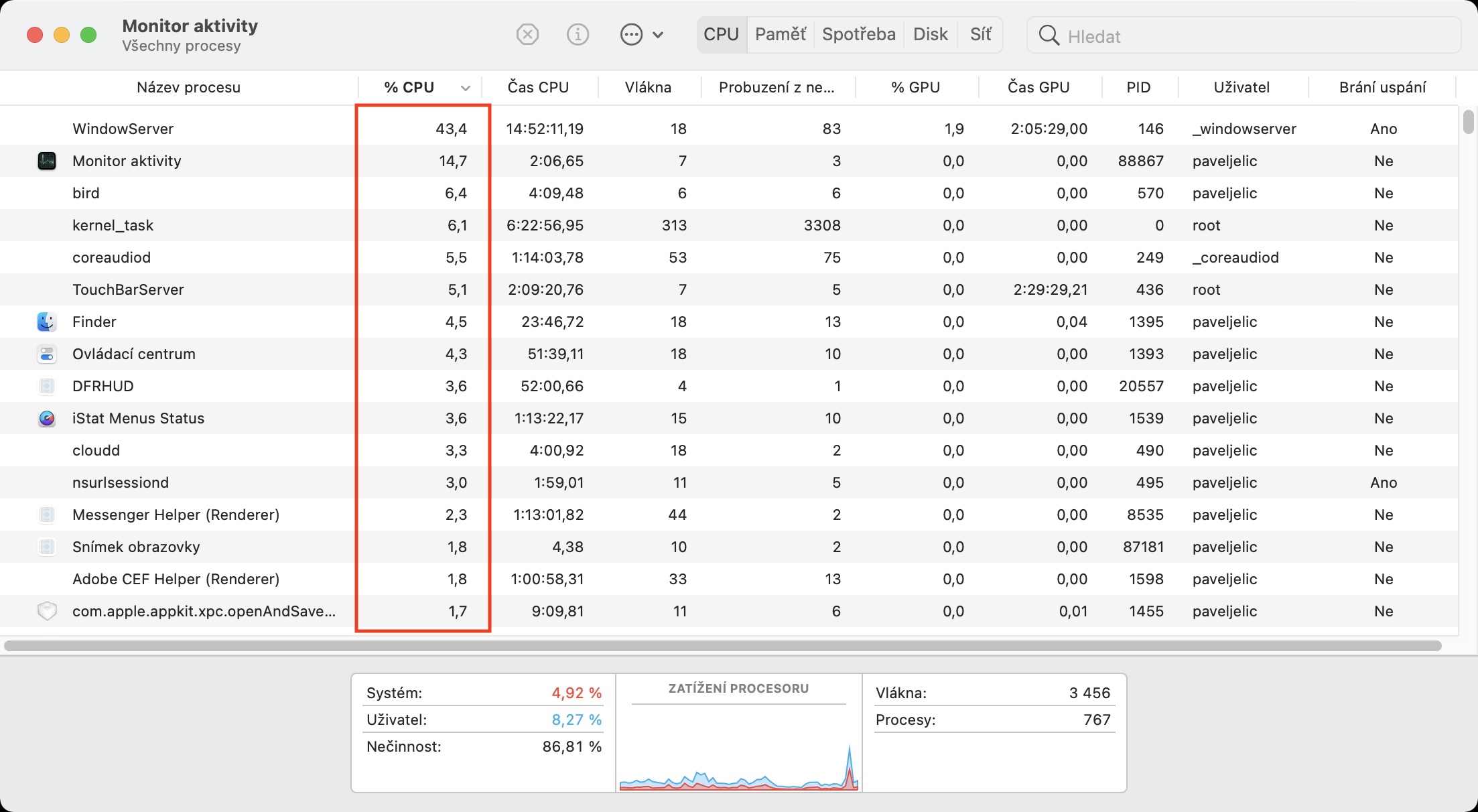
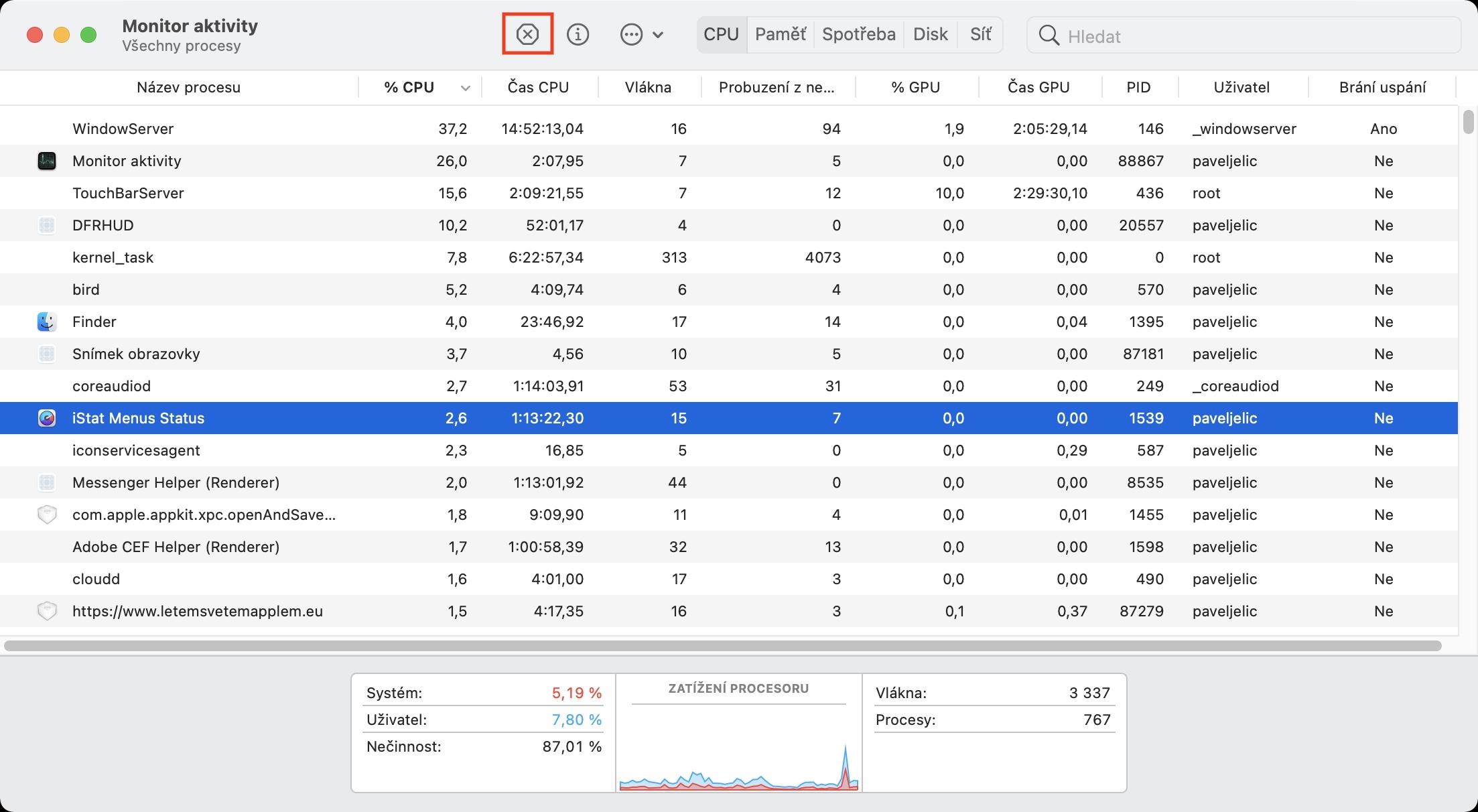
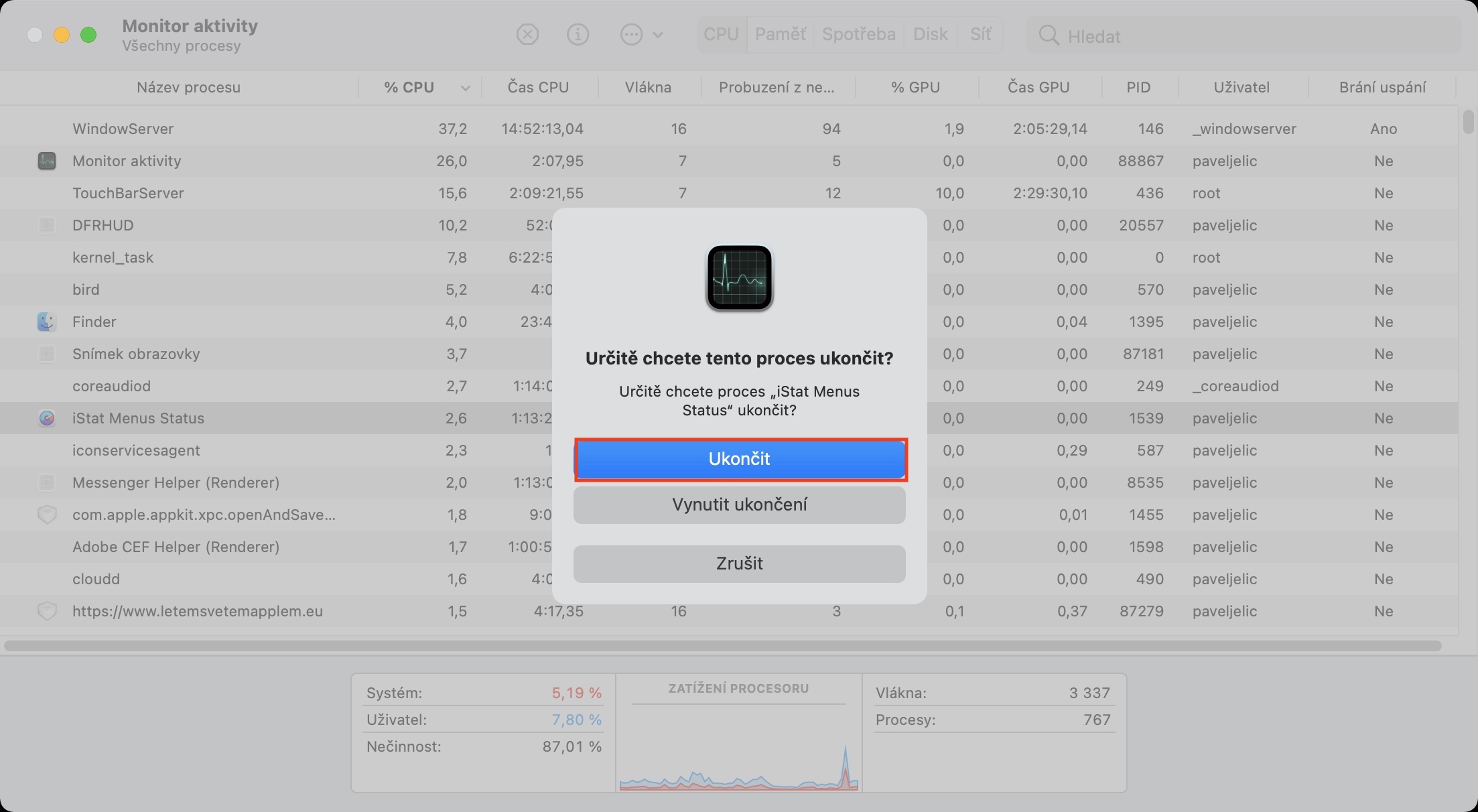
As mentioned on the previous page, the hardware, along with the display, uses the battery the most. The more power you need when using your Mac, the faster the battery drains. So to ensure the longest possible battery life, you should limit complex operations. In any case, you can easily view and check the applications that use the most power on your Mac and then turn them off if necessary. This often identifies an application that may be using the hardware excessively due to a bug and causing it to drain extra quickly. Pro check demanding applications open the application Activity monitor – for example via Spotlight, possibly through the folder Utility v Applications. Open the tab at the top of the application window CPU and organize all your applications descending according to cpu %. Applications that they use the hardware the most. By tapping you can mark and subsequently by pressing the X button in the toolbar end.
Gallery
Activate low power mode
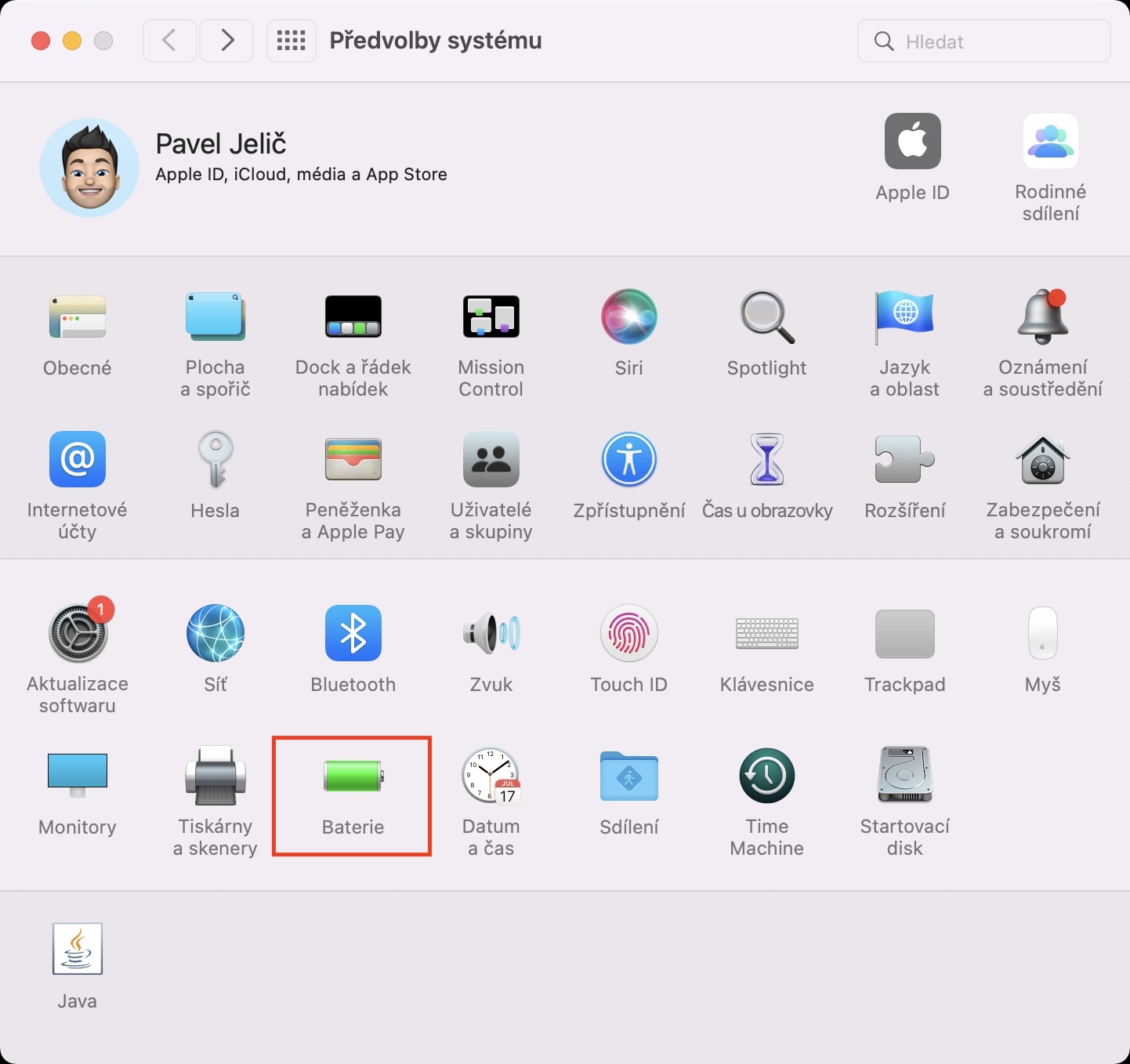
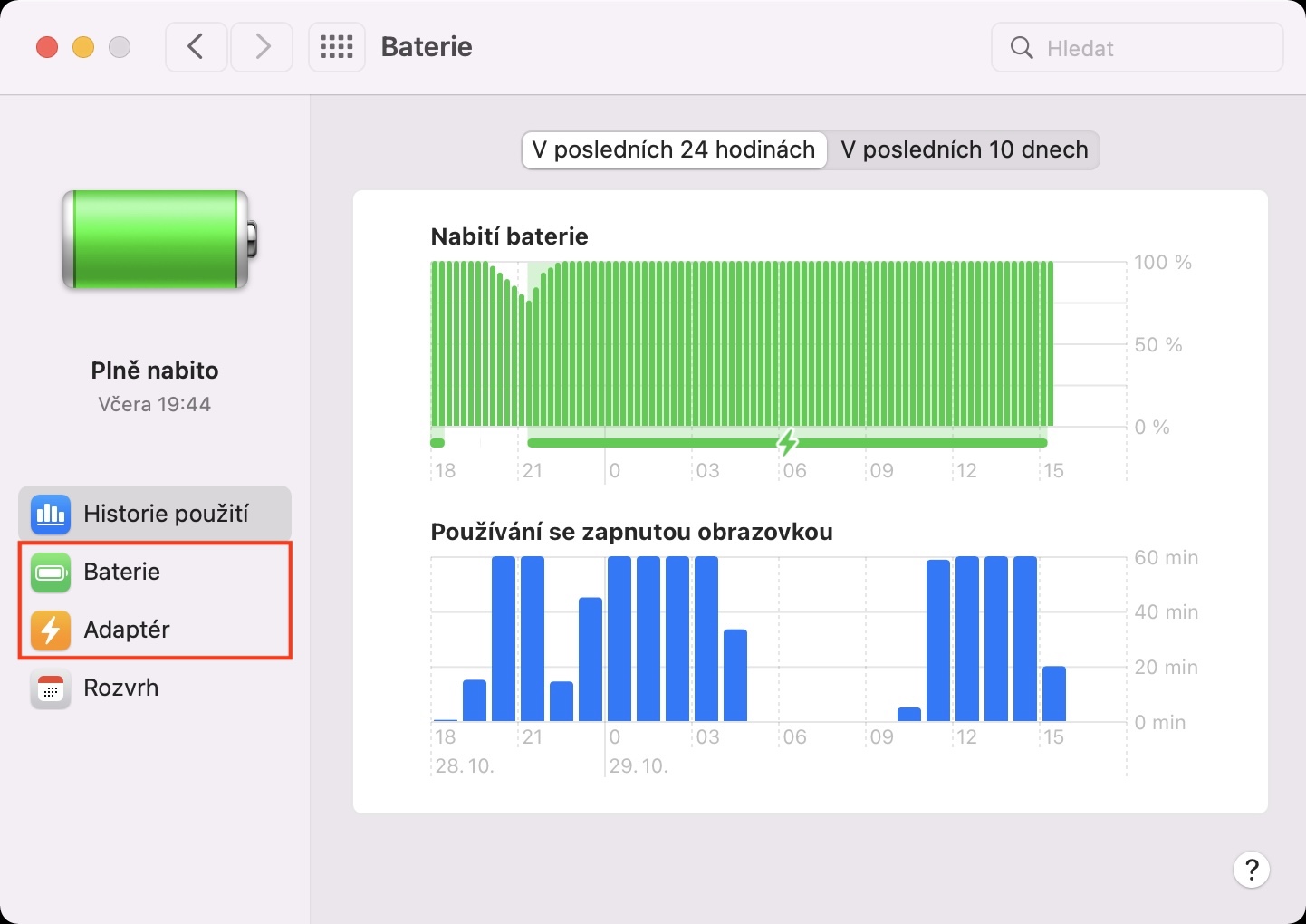
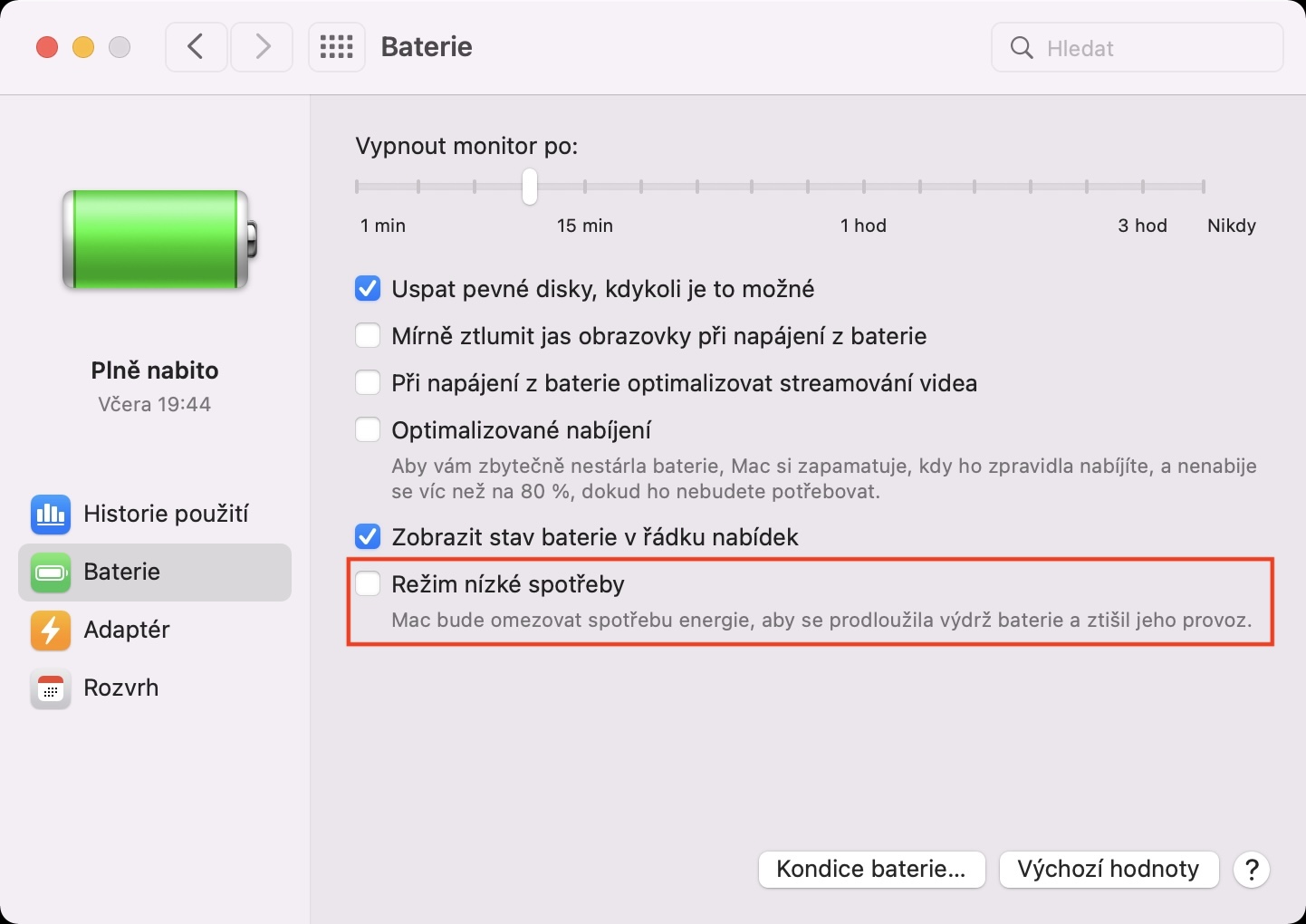
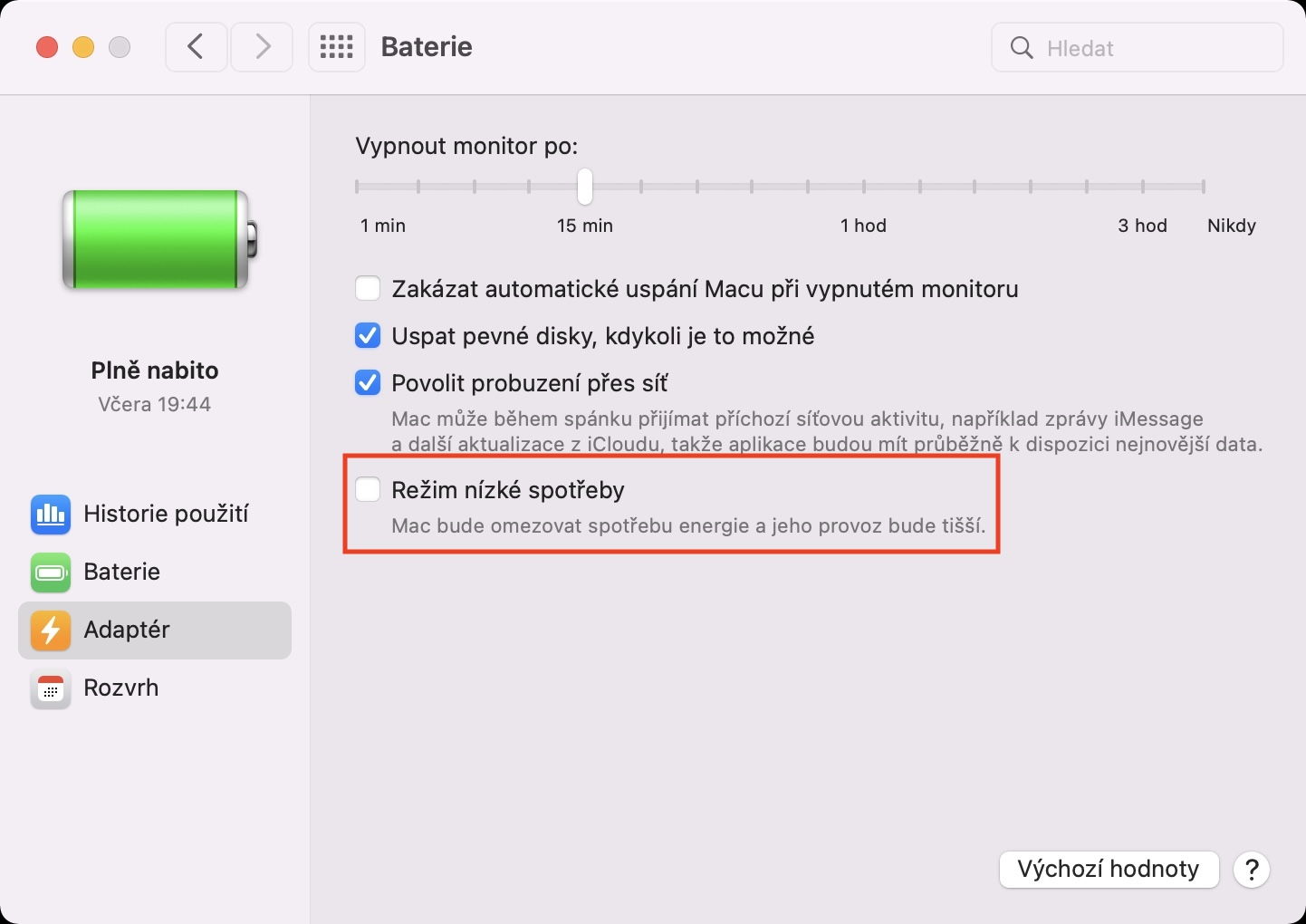
In case you own iPhone, so you know that if the battery level drops to 20% or 10%, a dialog box will appear to inform you of this fact, and also give you the option to quickly activate low power mode. Macs did not have such a mode for a long time, until the arrival of macOS Monterey. So if you want to save battery power so that your device lasts as long as possible, you activate low power mode in → System Preferences → Battery → Battery, where tick to activate Low power mode. You can deactivate this mode again by unchecking it. It's definitely a shame that we can't simply control Low Power Mode on the Mac from the Control Center like we can on the iPhone. Maybe we'll see it in the next updates.
Gallery
Turn on optimized charging
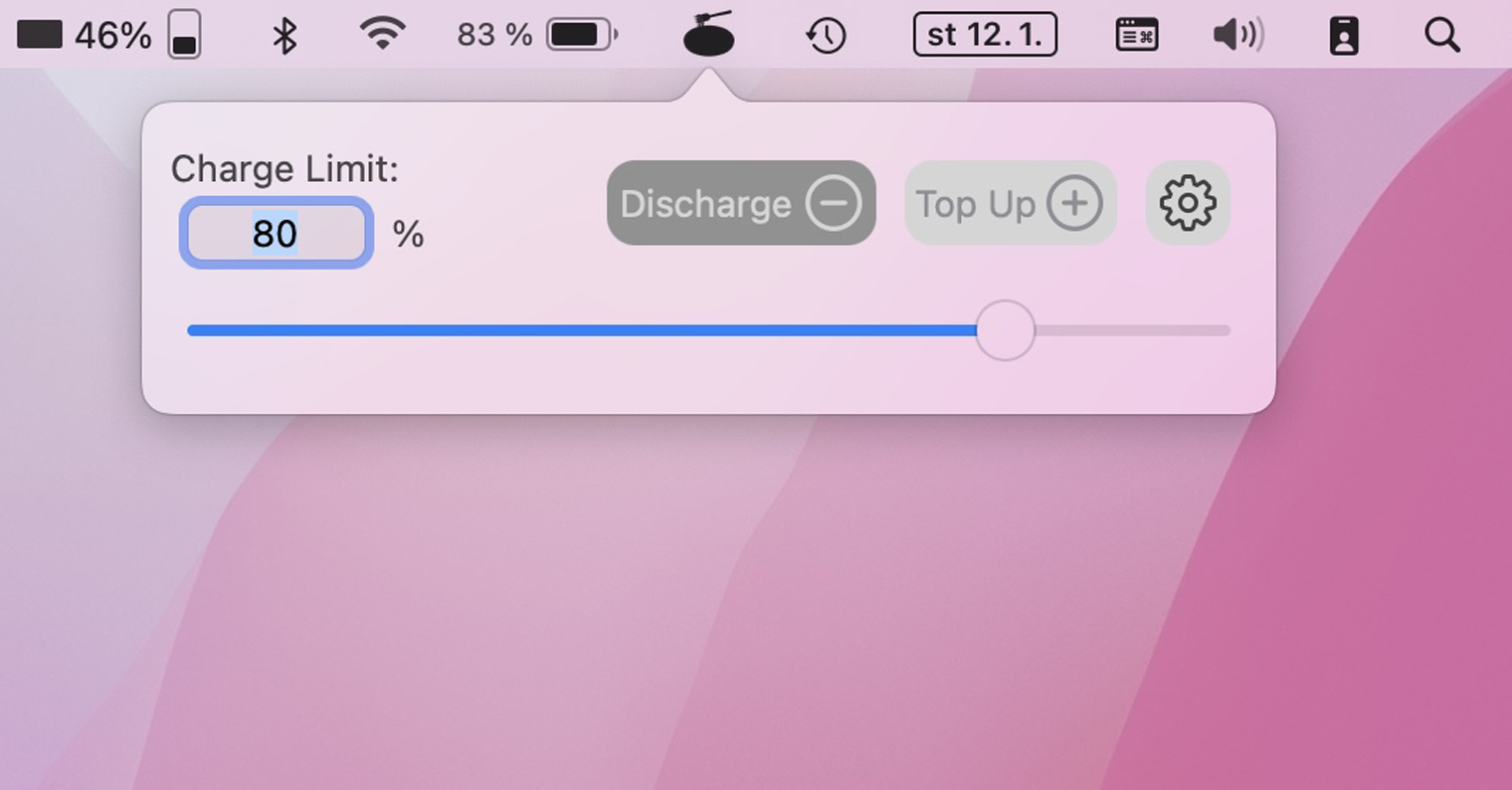
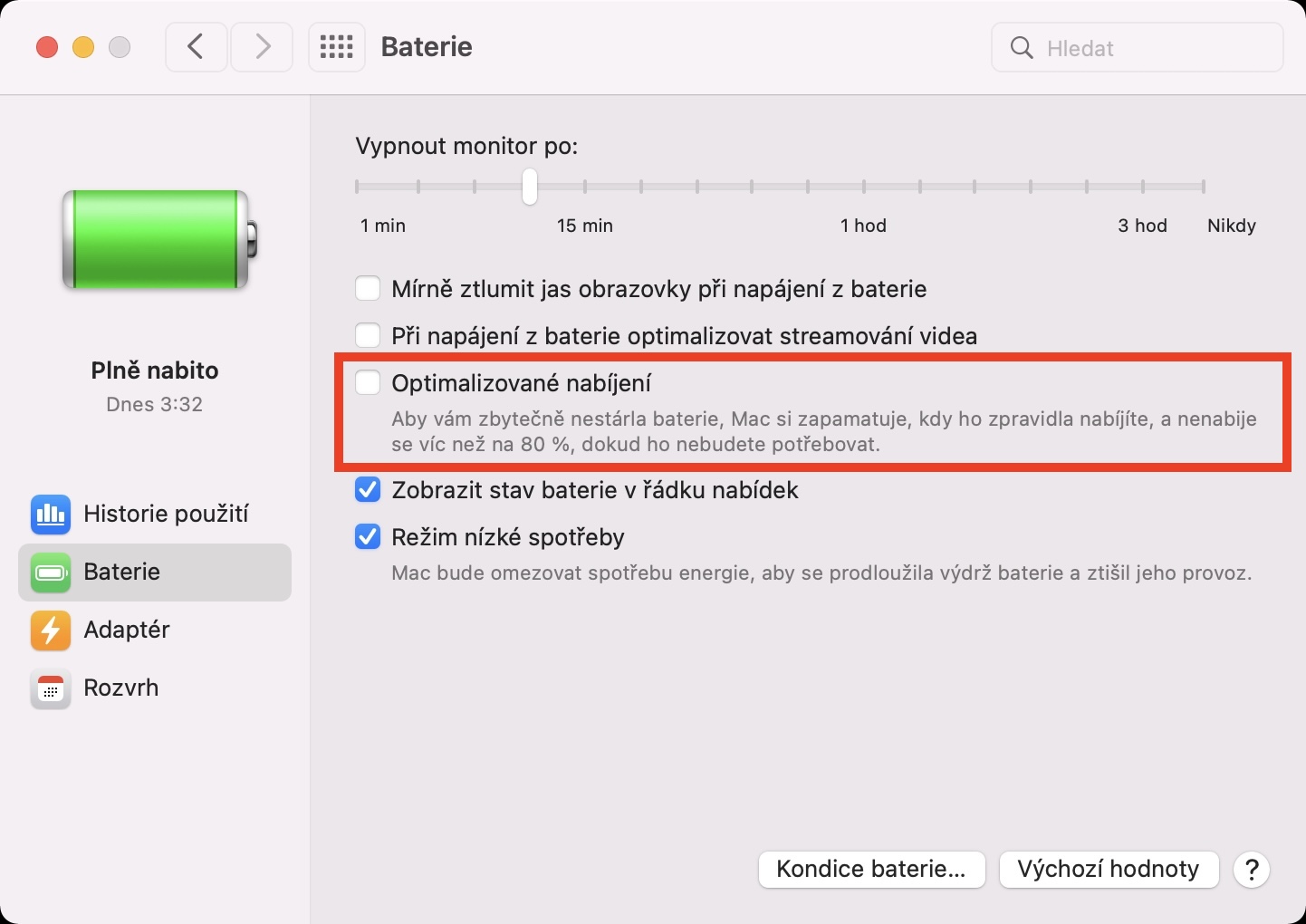
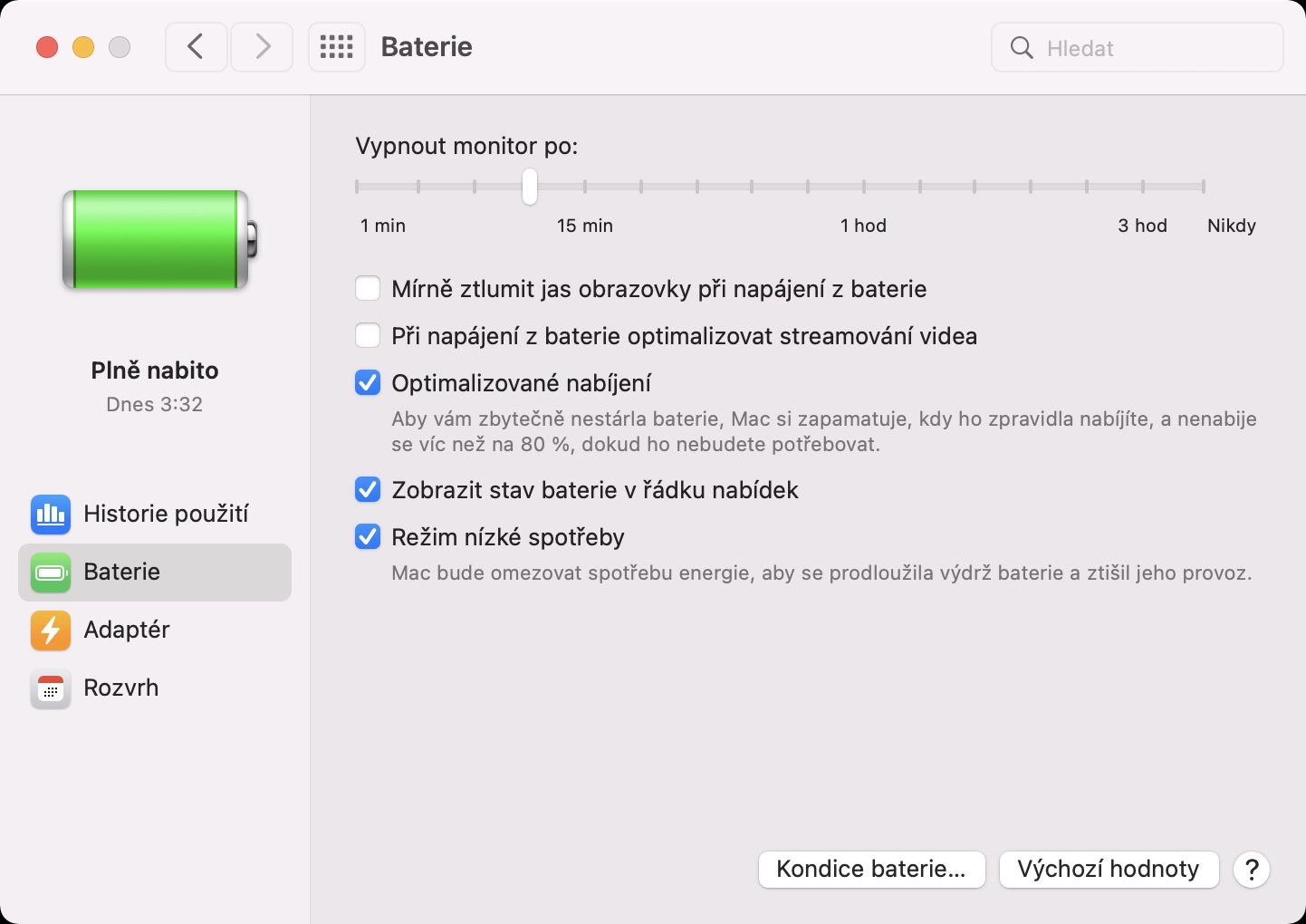
The batteries inside portable devices “feel” best when their charge level is between 20% and 80% for long periods of time. This means that you should MacBook (and other devices) should not be allowed to completely discharge, but also not be completely recharged, especially if you use your Apple computer on a desk and have it practically permanently connected to the power supply. Of course, the battery will still work outside the mentioned range, but it will age faster, which will subsequently decrease its maximal capacity and health. macOS includes a feature Optimized charging, which can "stuck" charging to 80% - you can find it in → System Preferences → Battery → Battery. In all honesty, this feature isn't exactly ideal, and you're much better off downloading a simple app Al Dente, which is available in the basic version, which is sufficient, completely free of charge. In this application, you directly set a charging limit beyond which the battery will not exceed. As for discharging, of course we can't stop it, so you just have to think about timely charging.
You might be interested in
Gallery






Buying a new MB is a great tip to extend the life of your existing battery.