
Before you start reading the following lines, we would like to draw your attention to the fact that they are primarily dedicated to users who found their first Apple product. They are the ones who will use the advice from this article the most (and probably the only ones).
Tonight you may find it under the tree AirTag, which is a small, inconspicuous device that, according to many speculations, should have been here years ago. In this article, we will try to tell you what to do if Santa Claus gave you this locator.
You might be interested in

AirTags
As we mentioned above, AirThe Tag has been a highly anticipated product that has been rumored for years. Since it is not an expensive product, it is the ideal gift for a die-hard Apple fan. Especially if you have ever forgotten your backpack or wallet somewhere. With AirNothing like this may happen to you with a tag. But how do you proceed and what is needed to get the little locator with the logo of a bitten apple up and running? Let's talk about that now.
Gallery
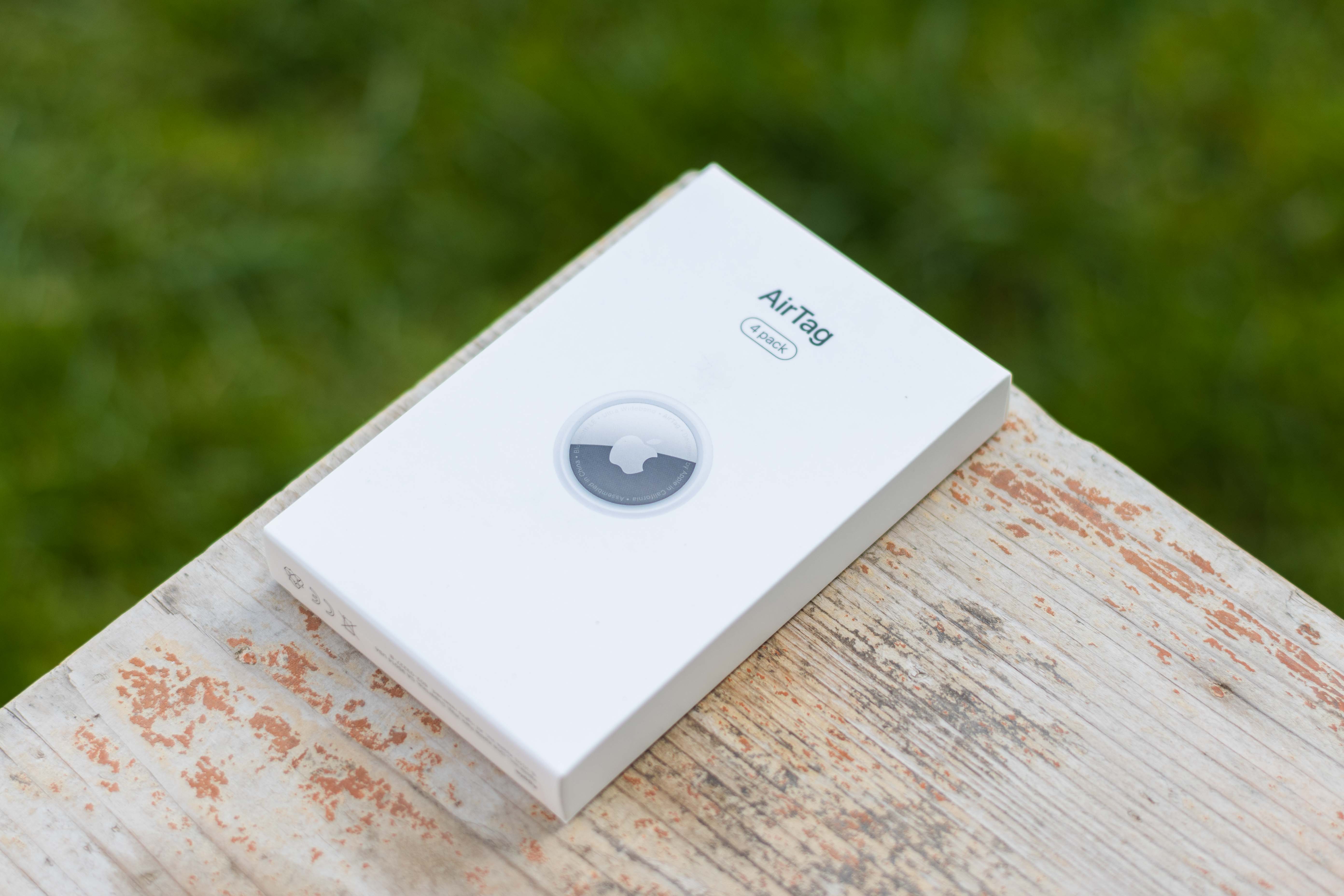
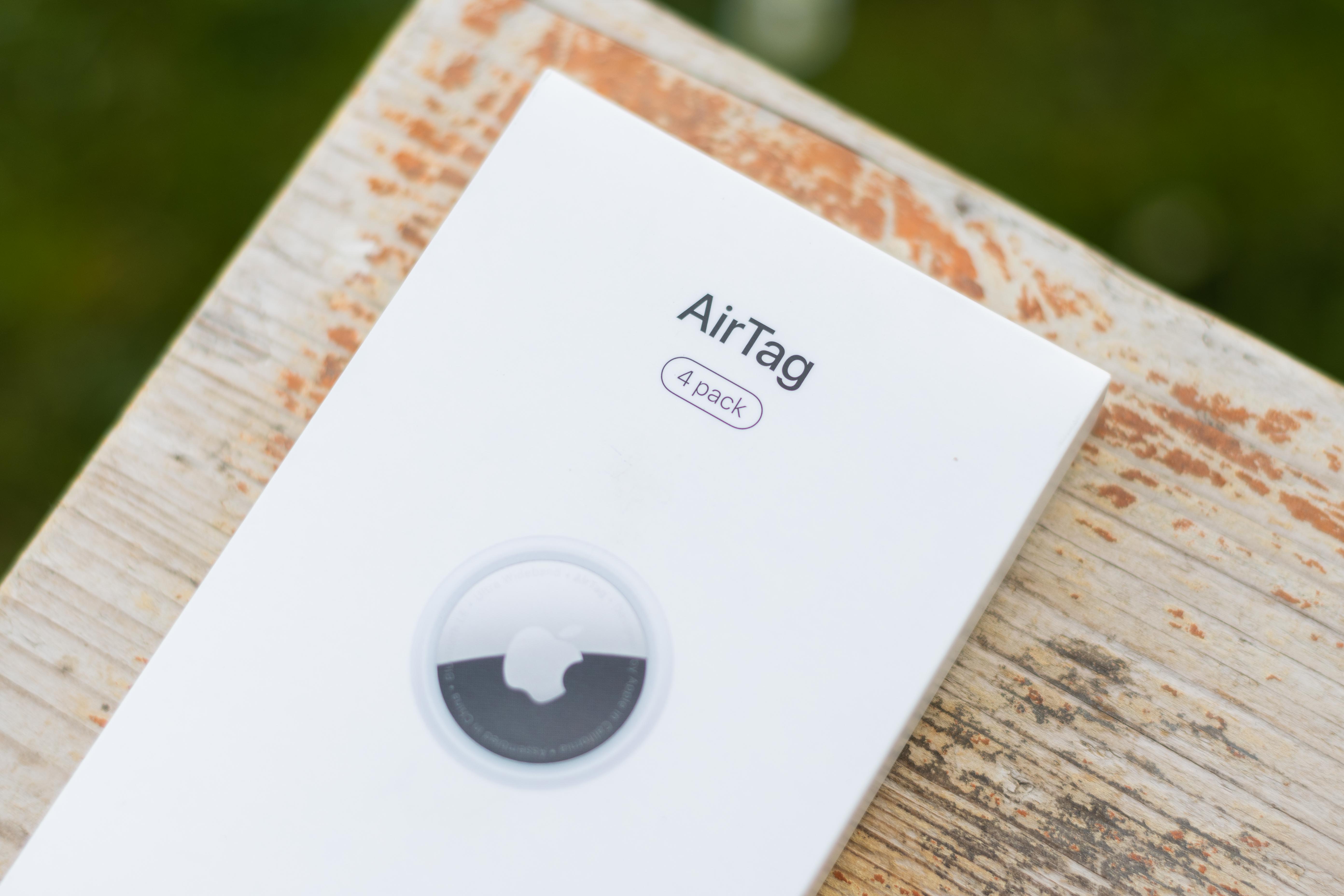
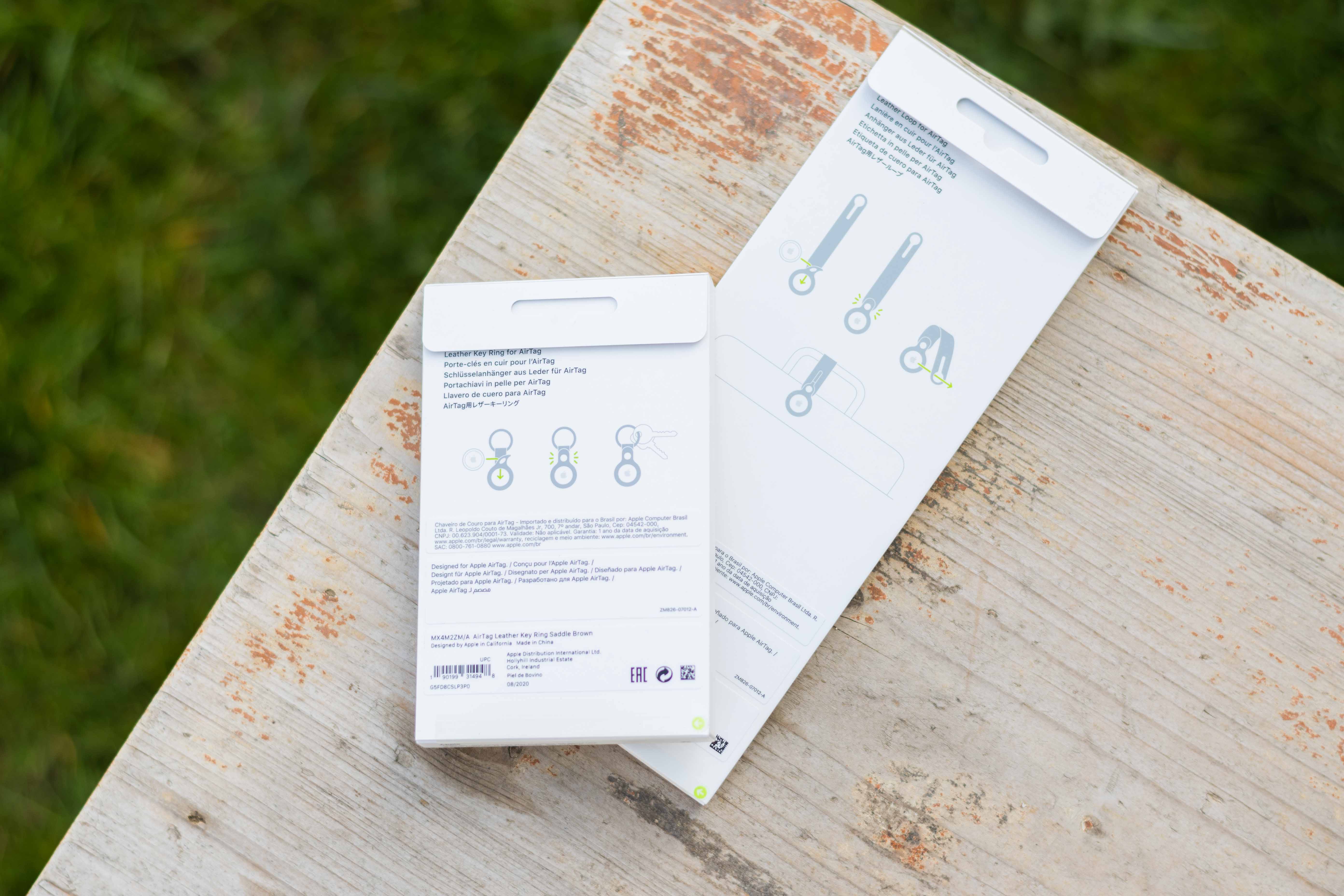
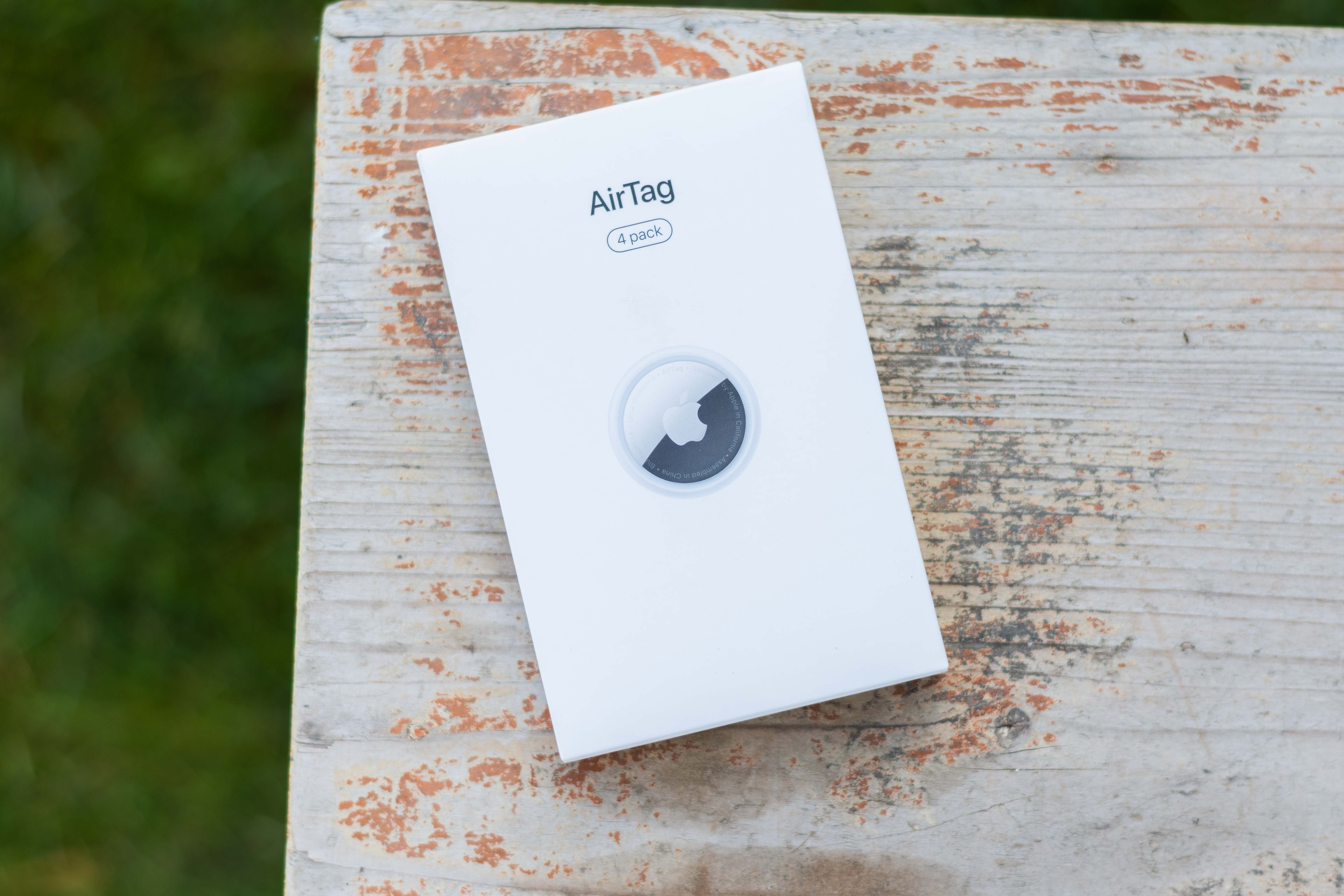
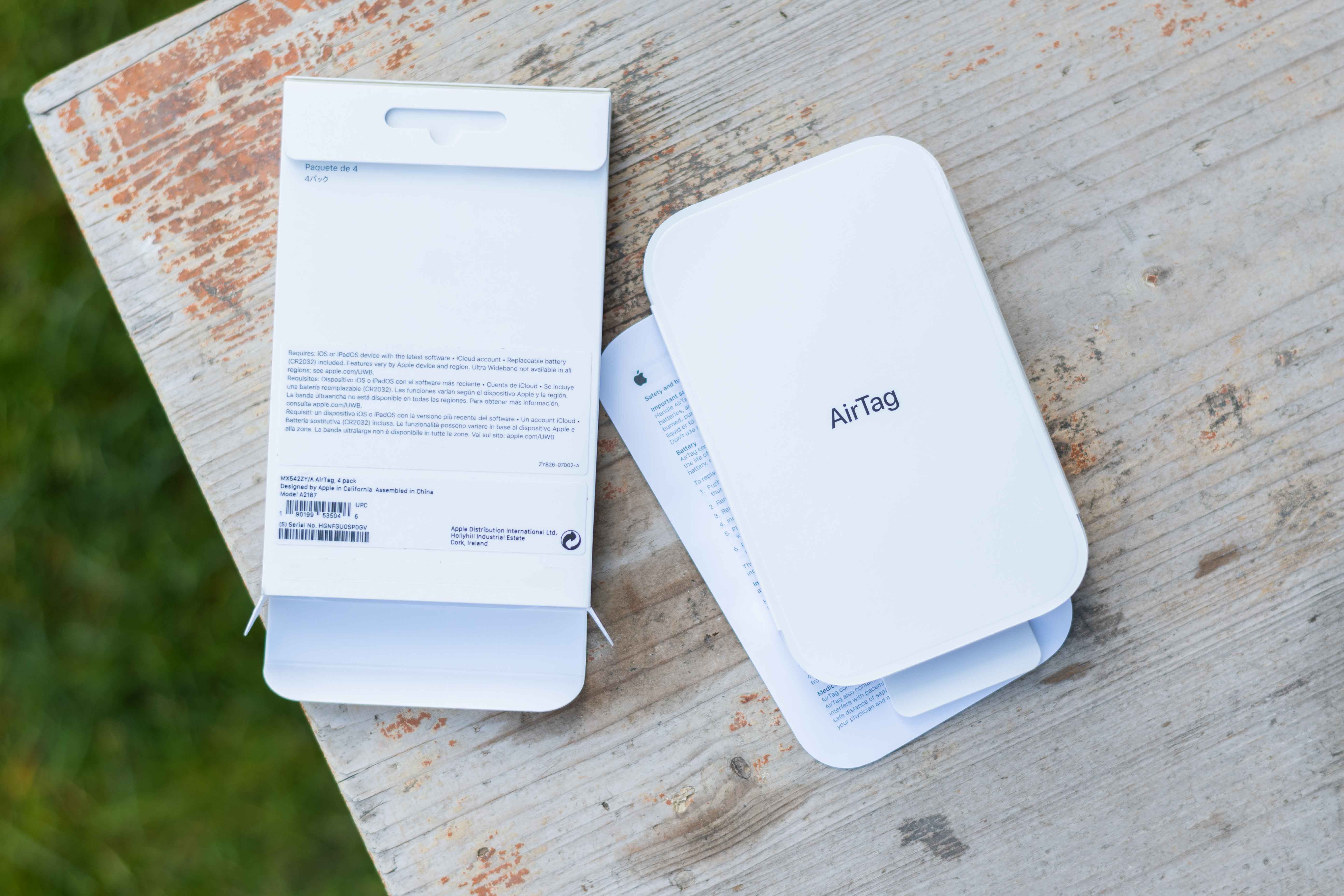
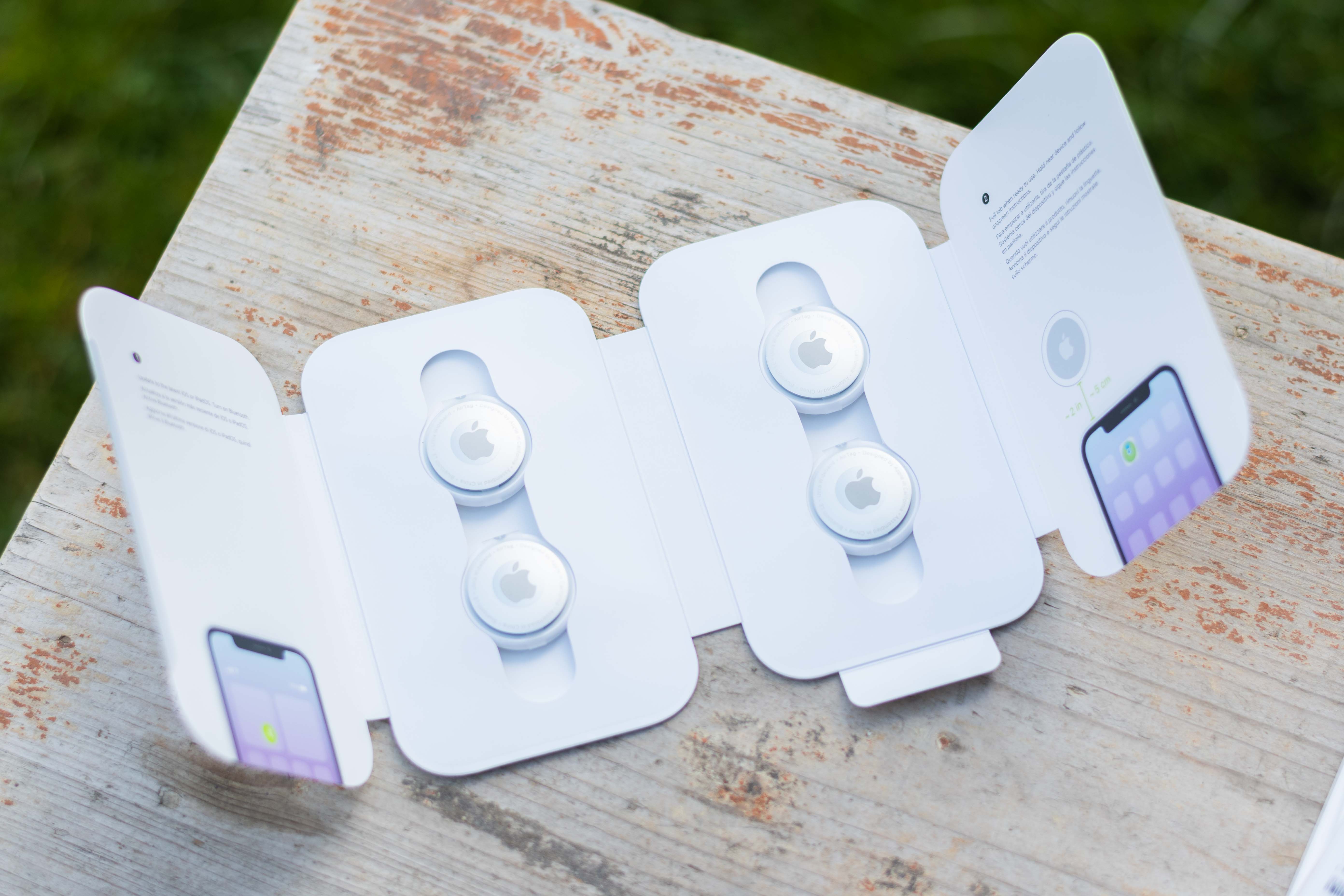
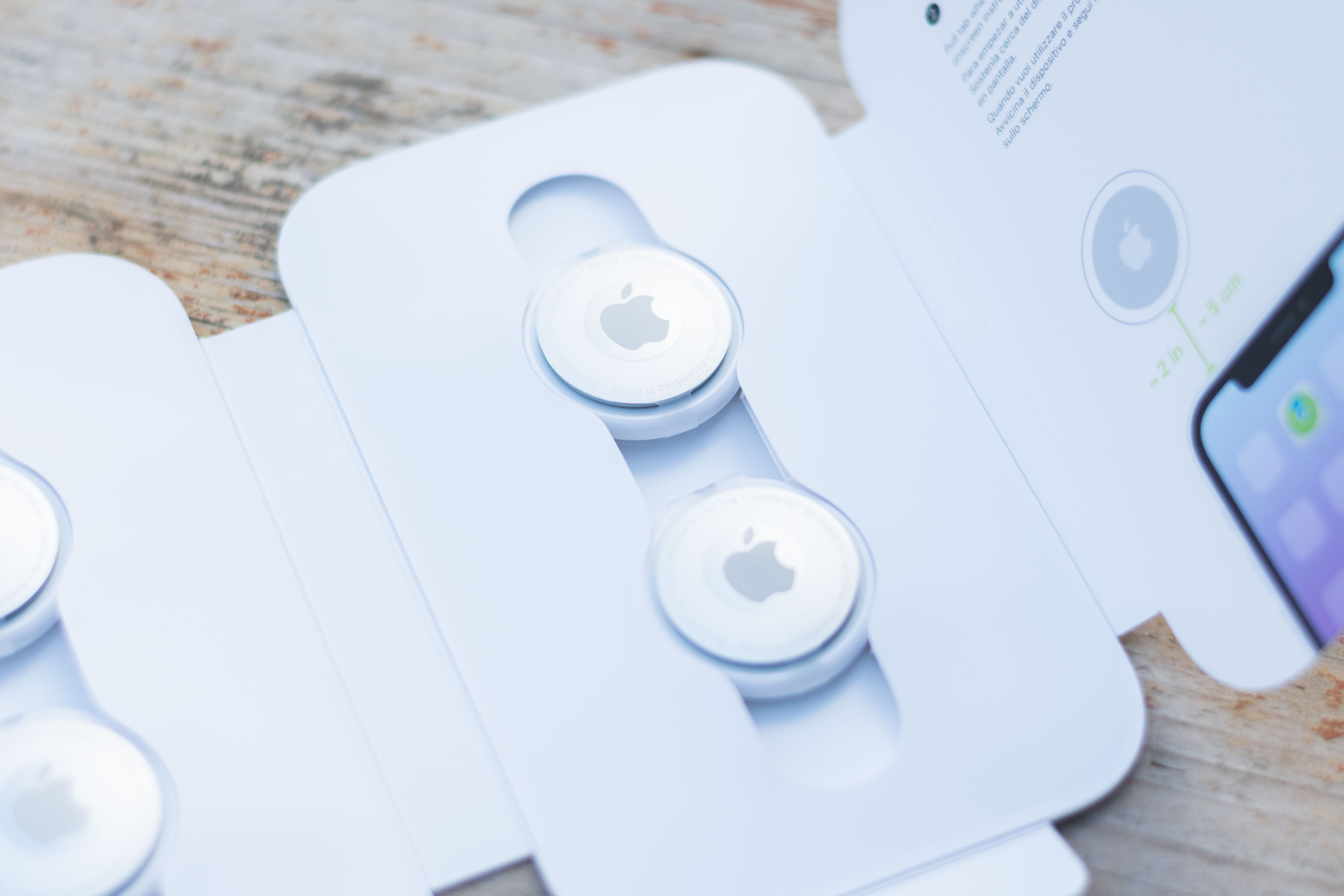
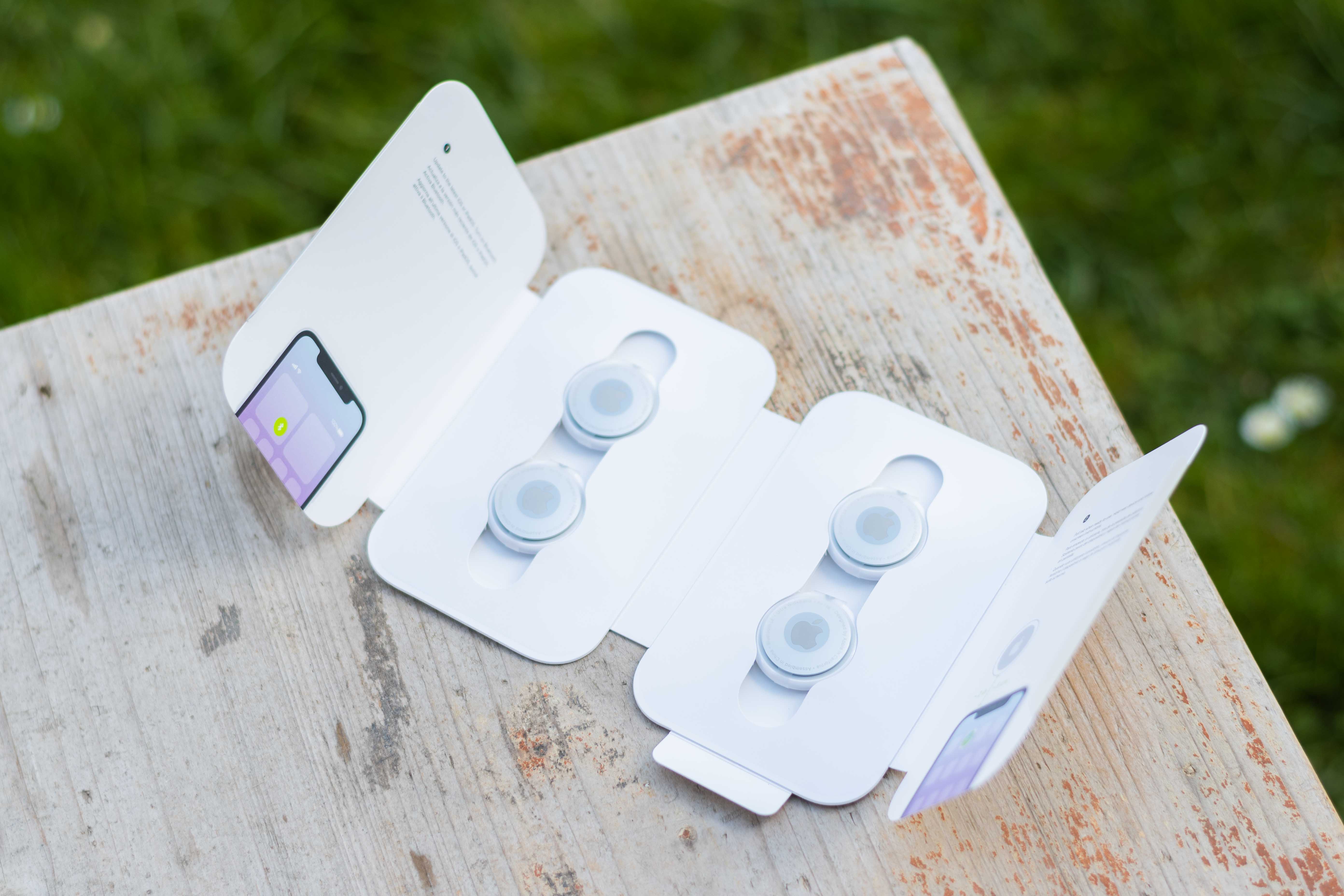
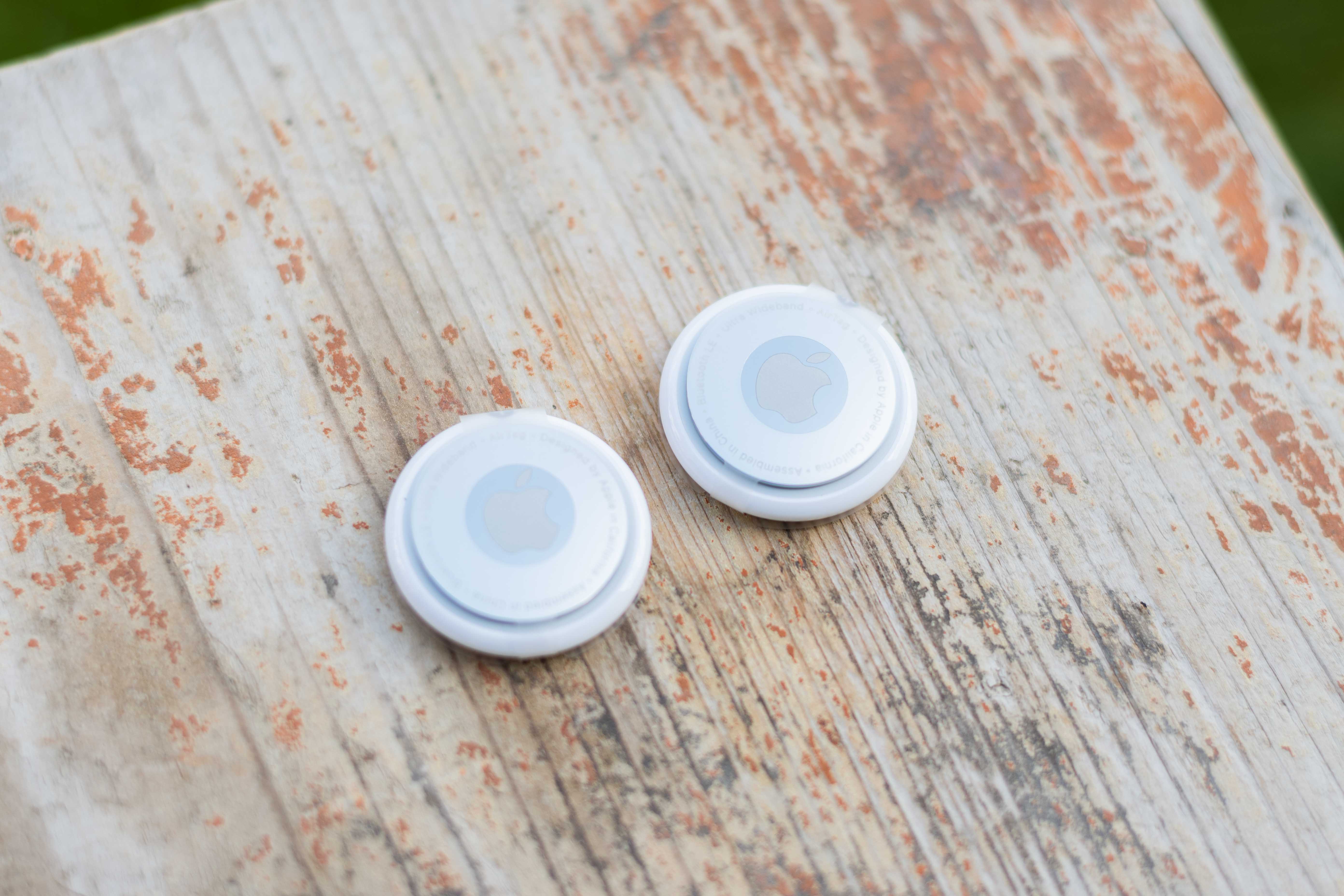
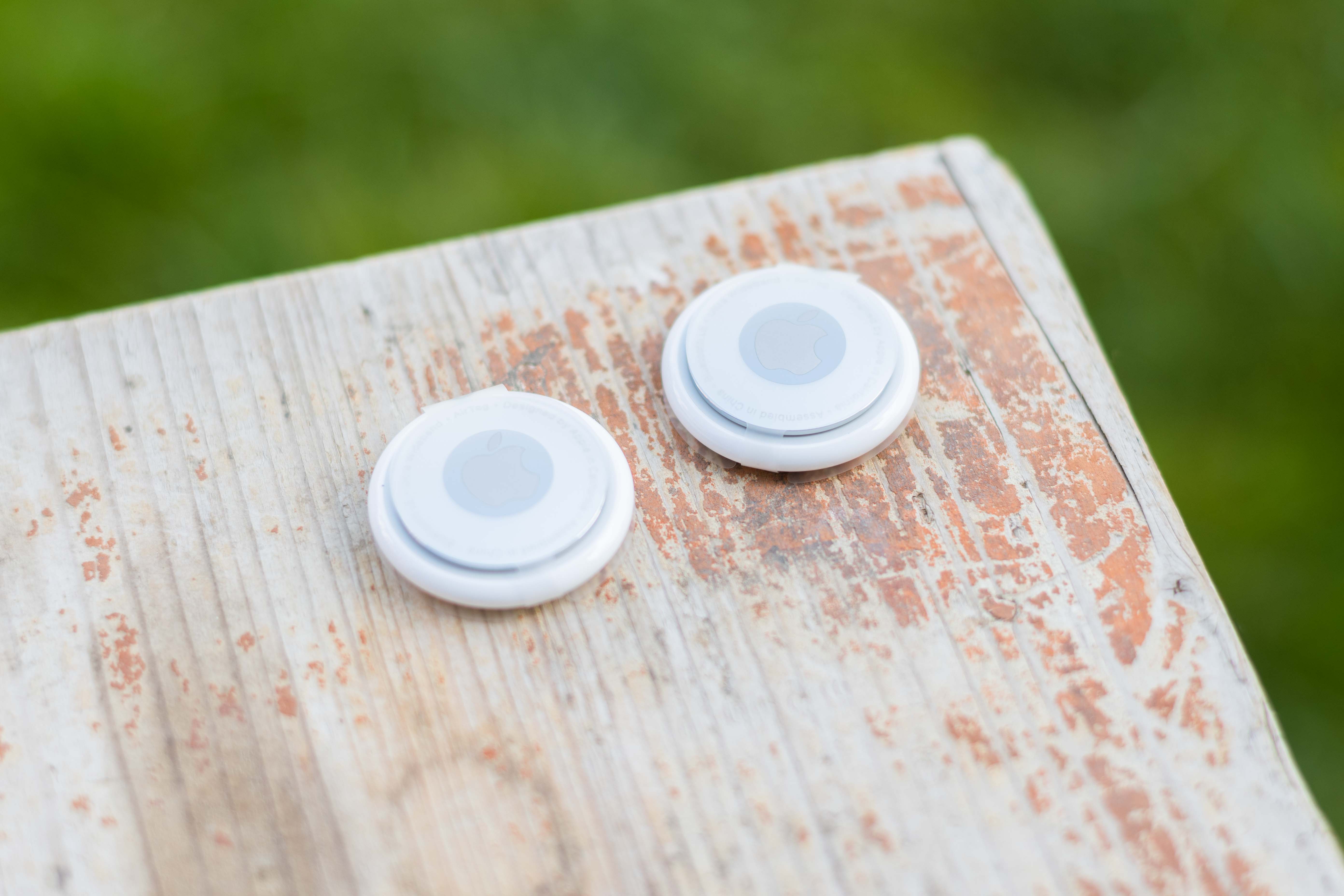
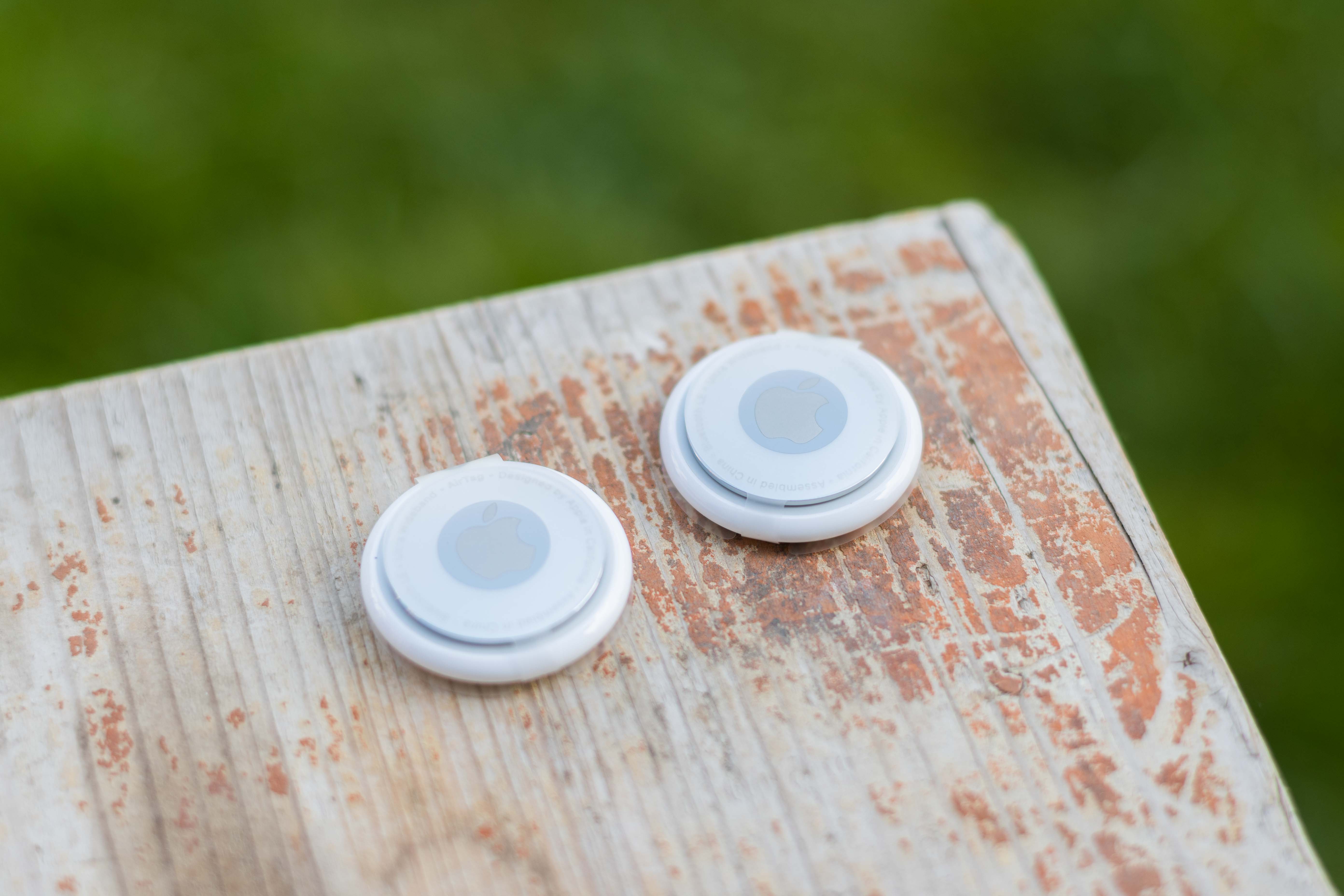
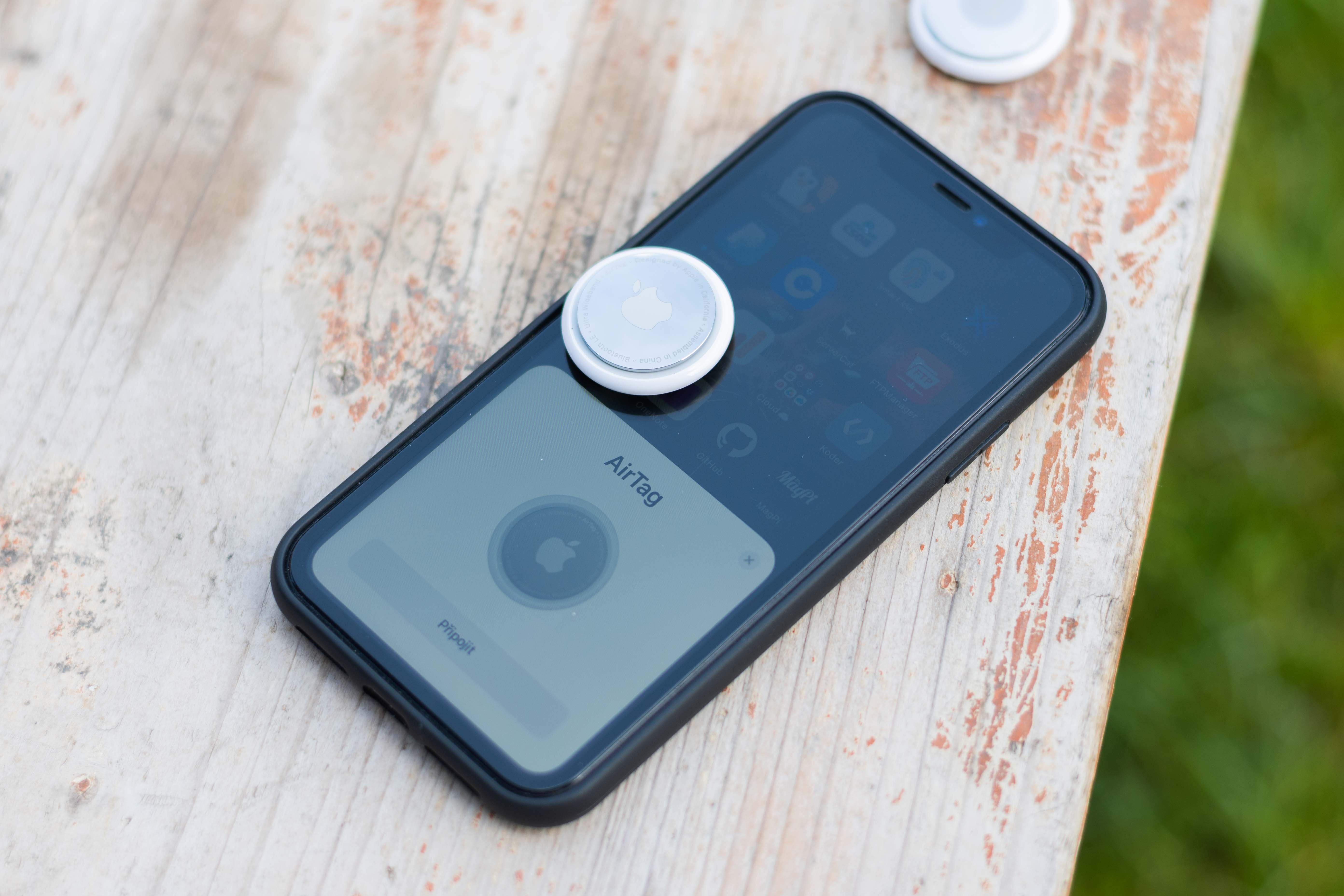
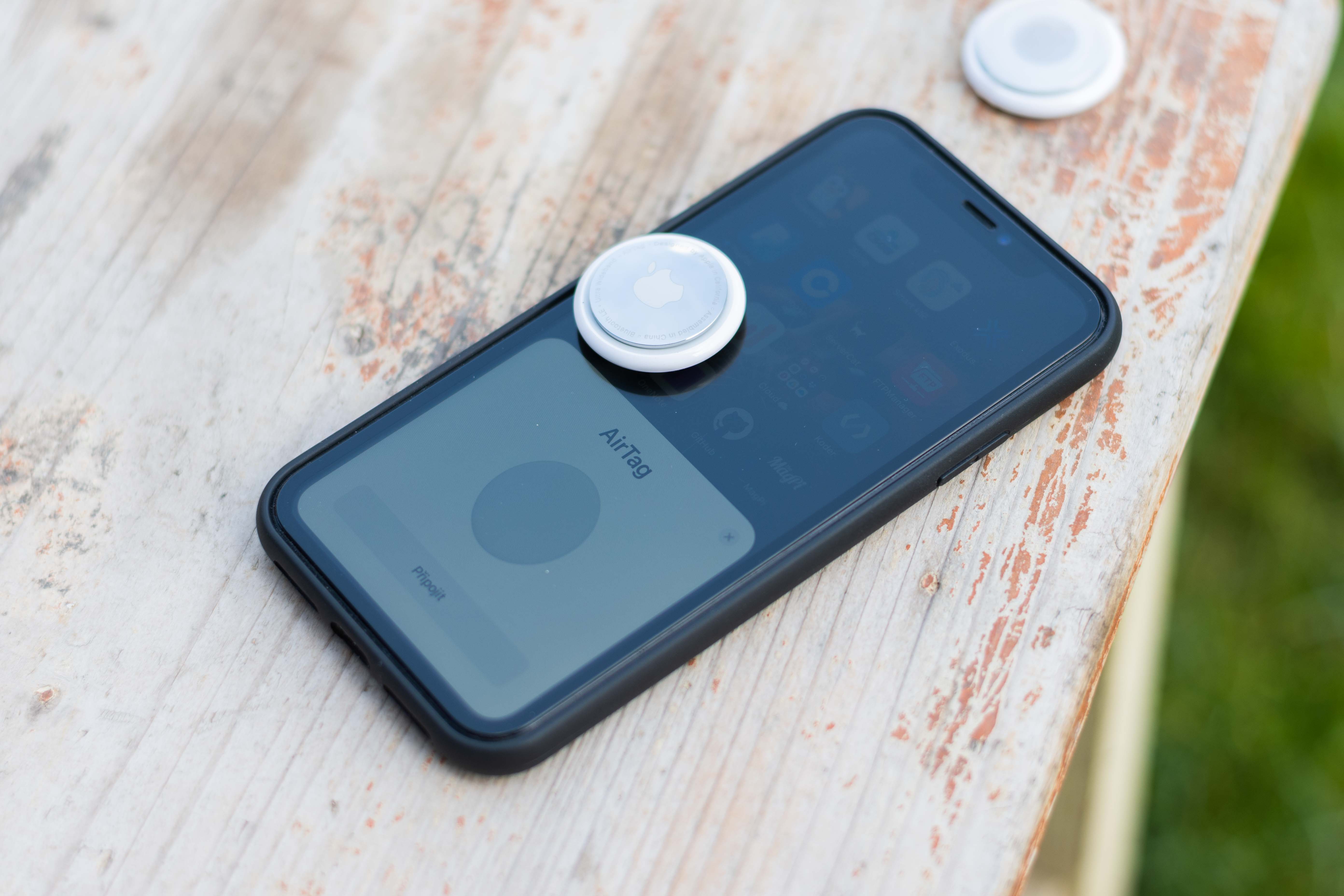
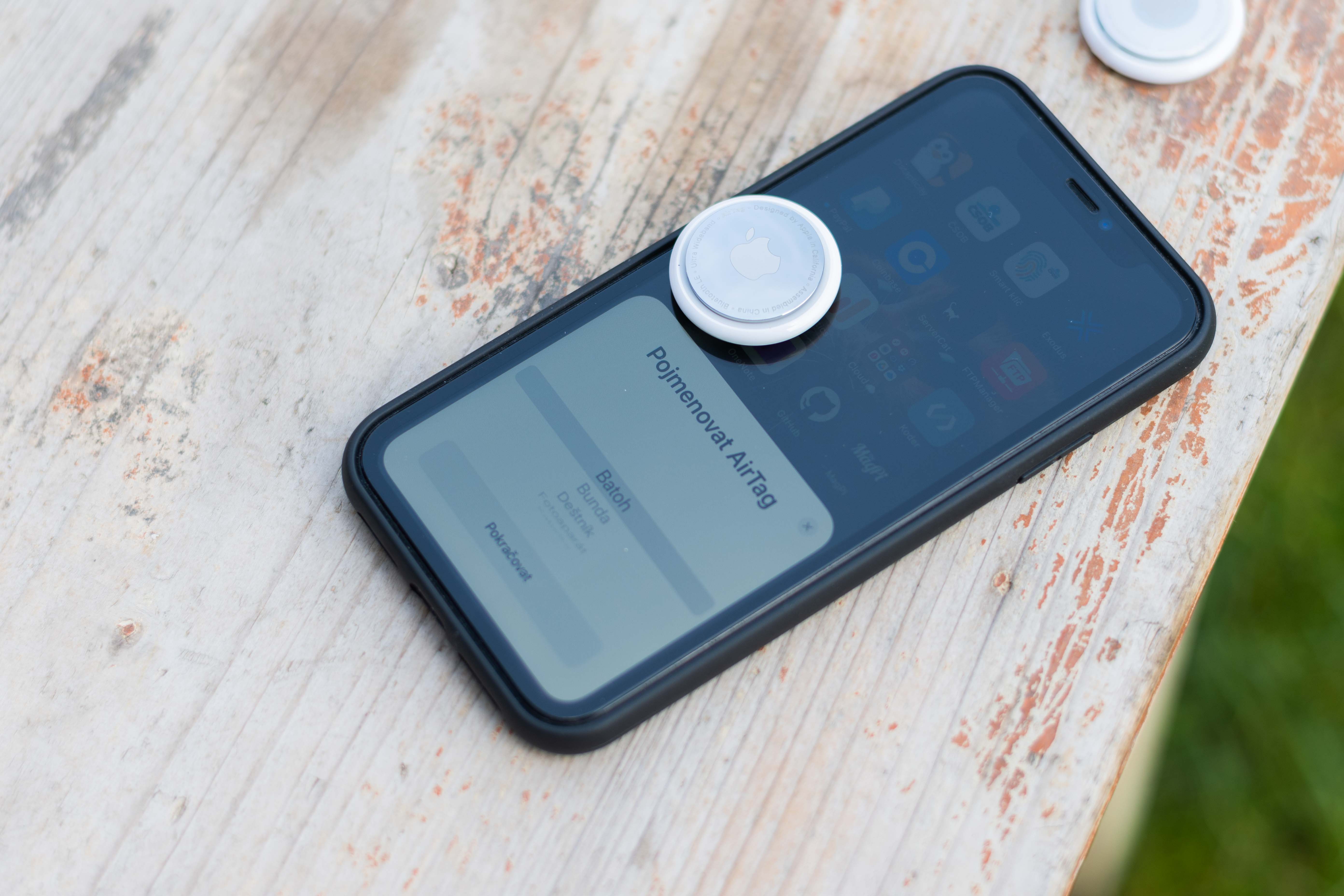
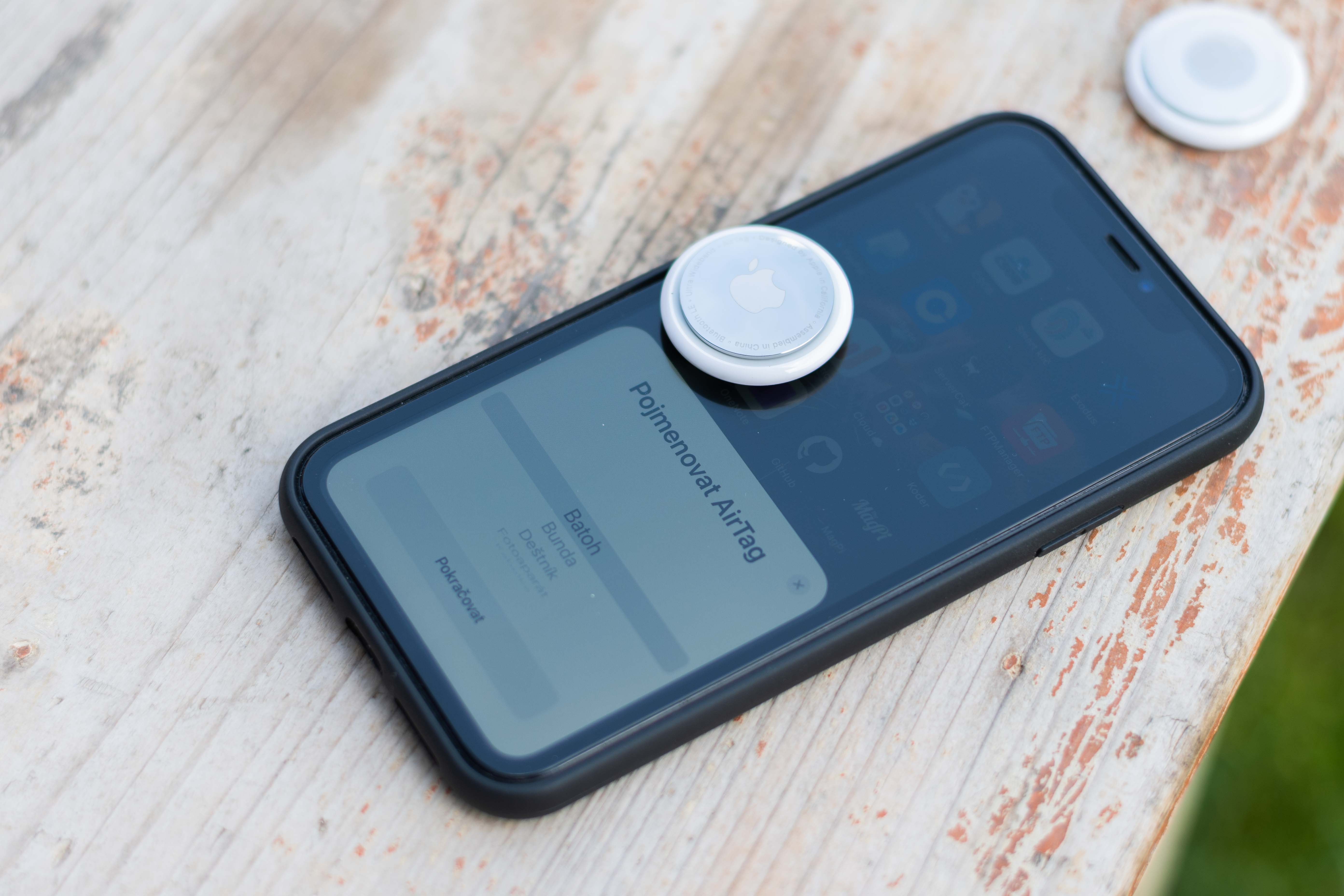
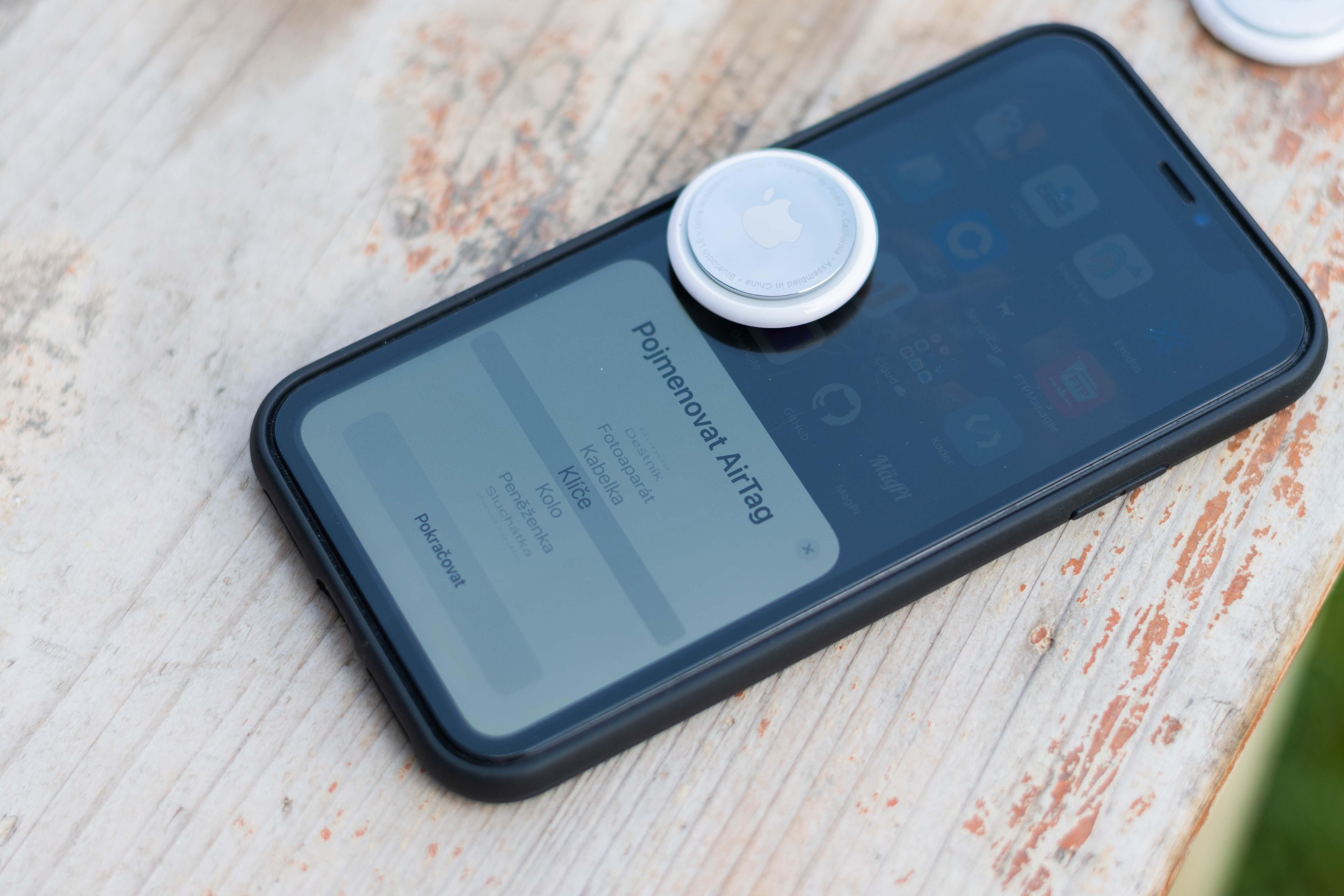
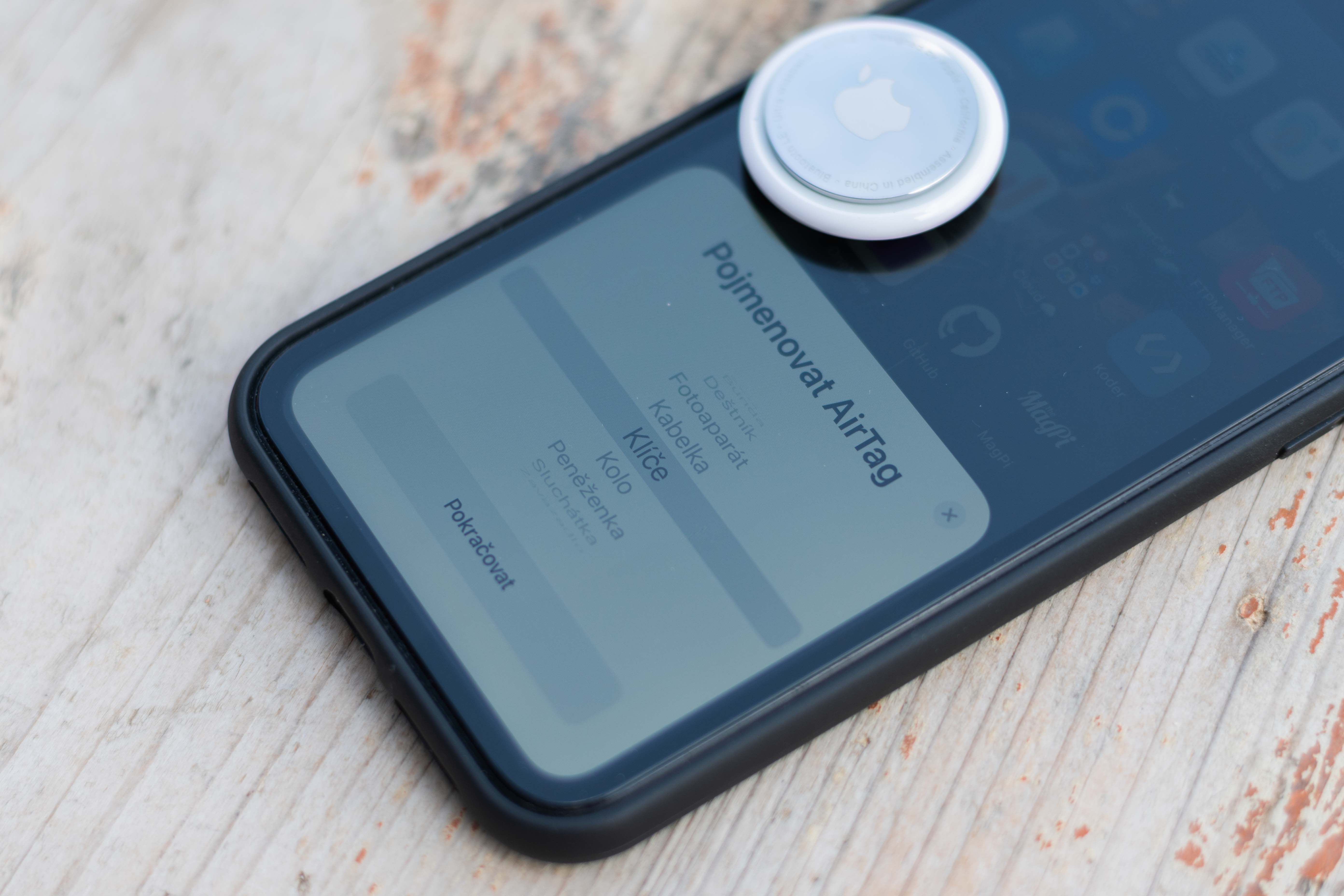
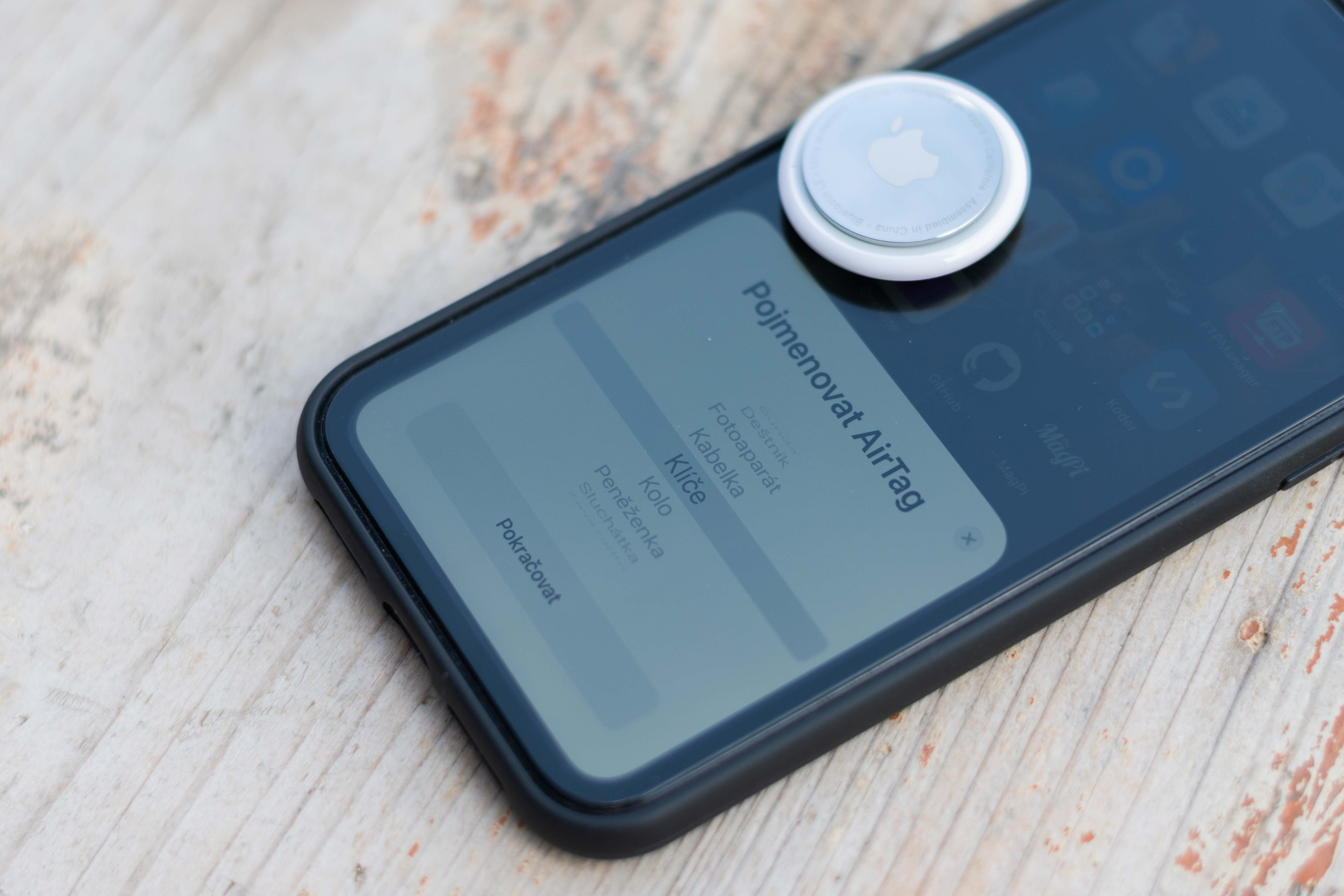
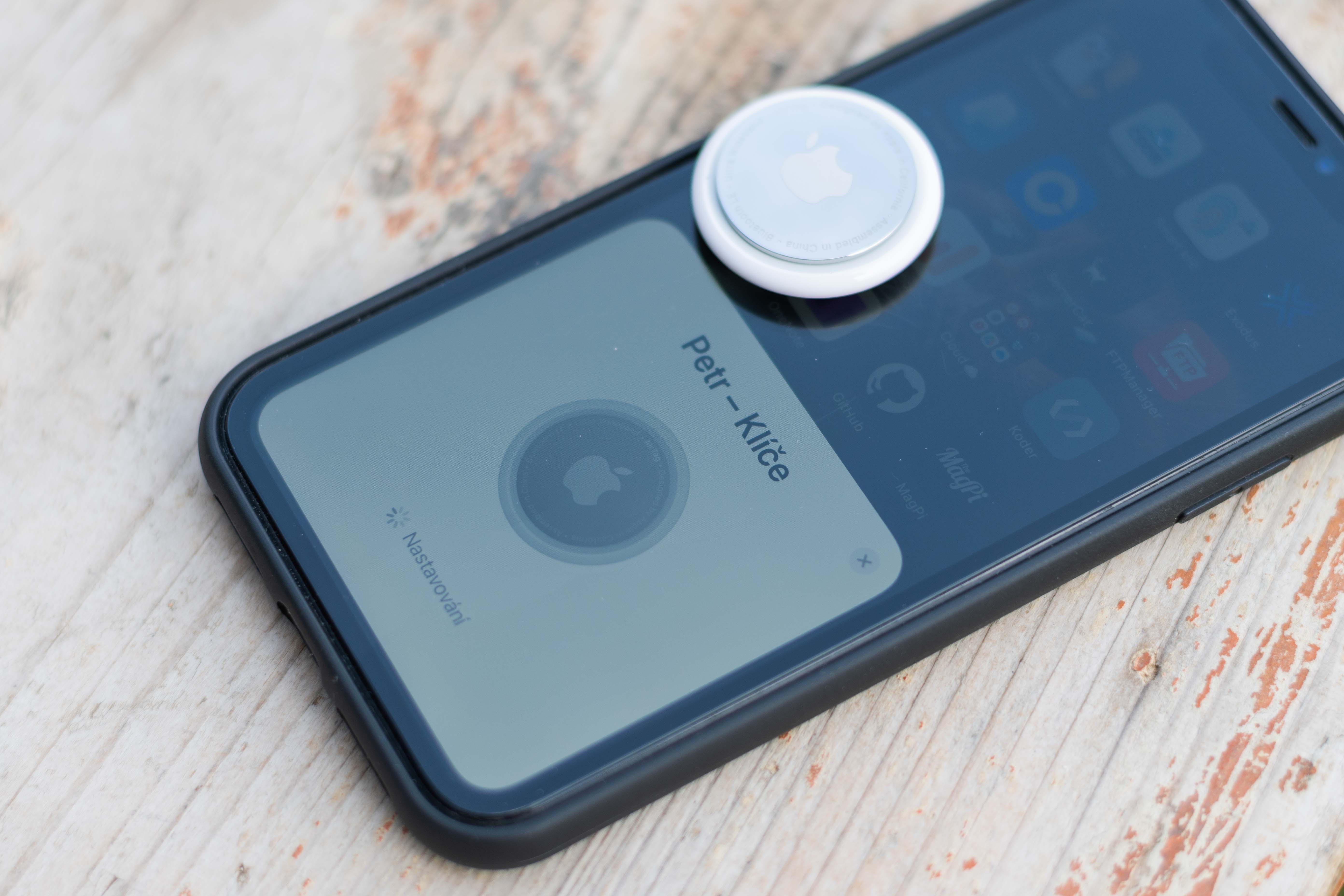
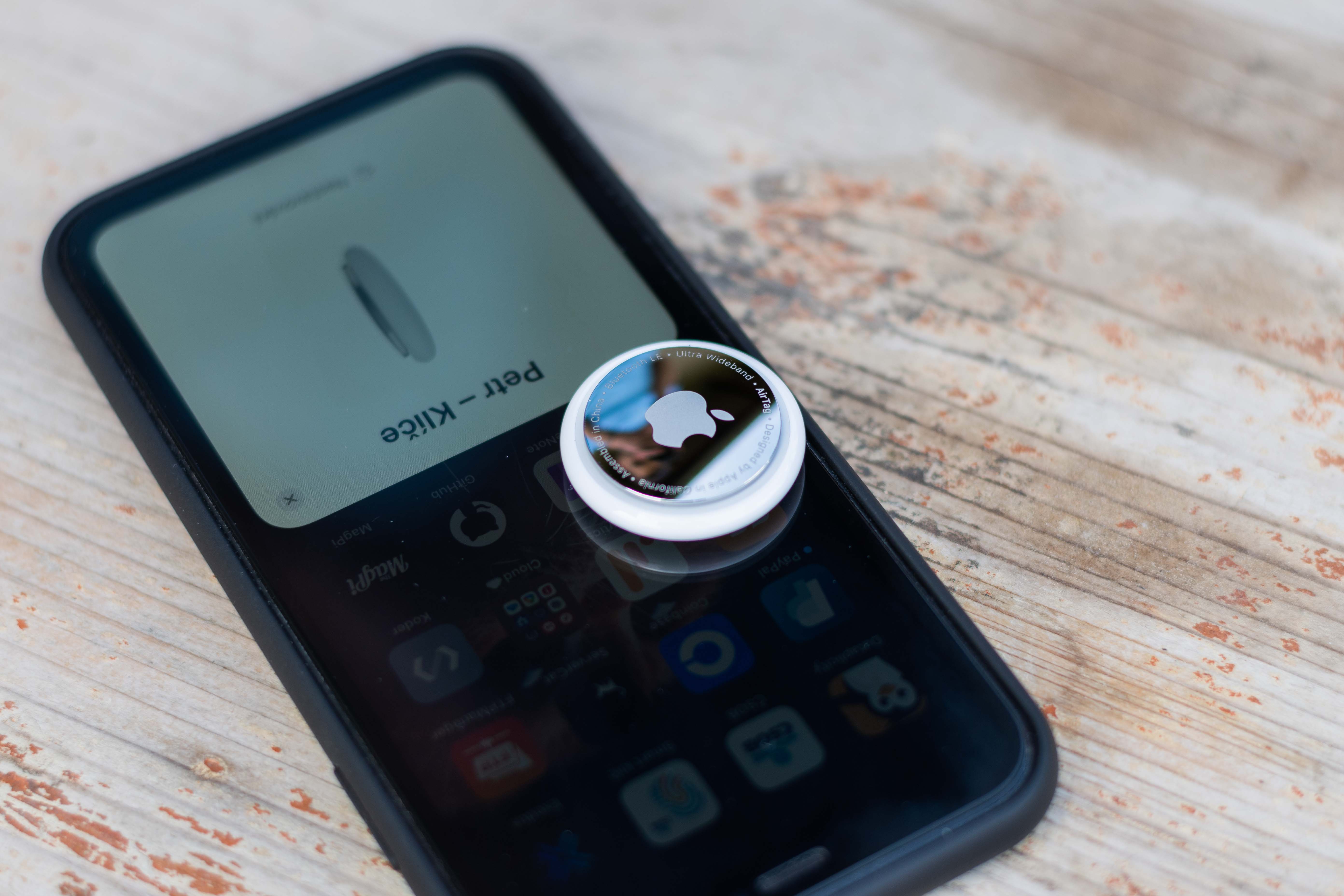
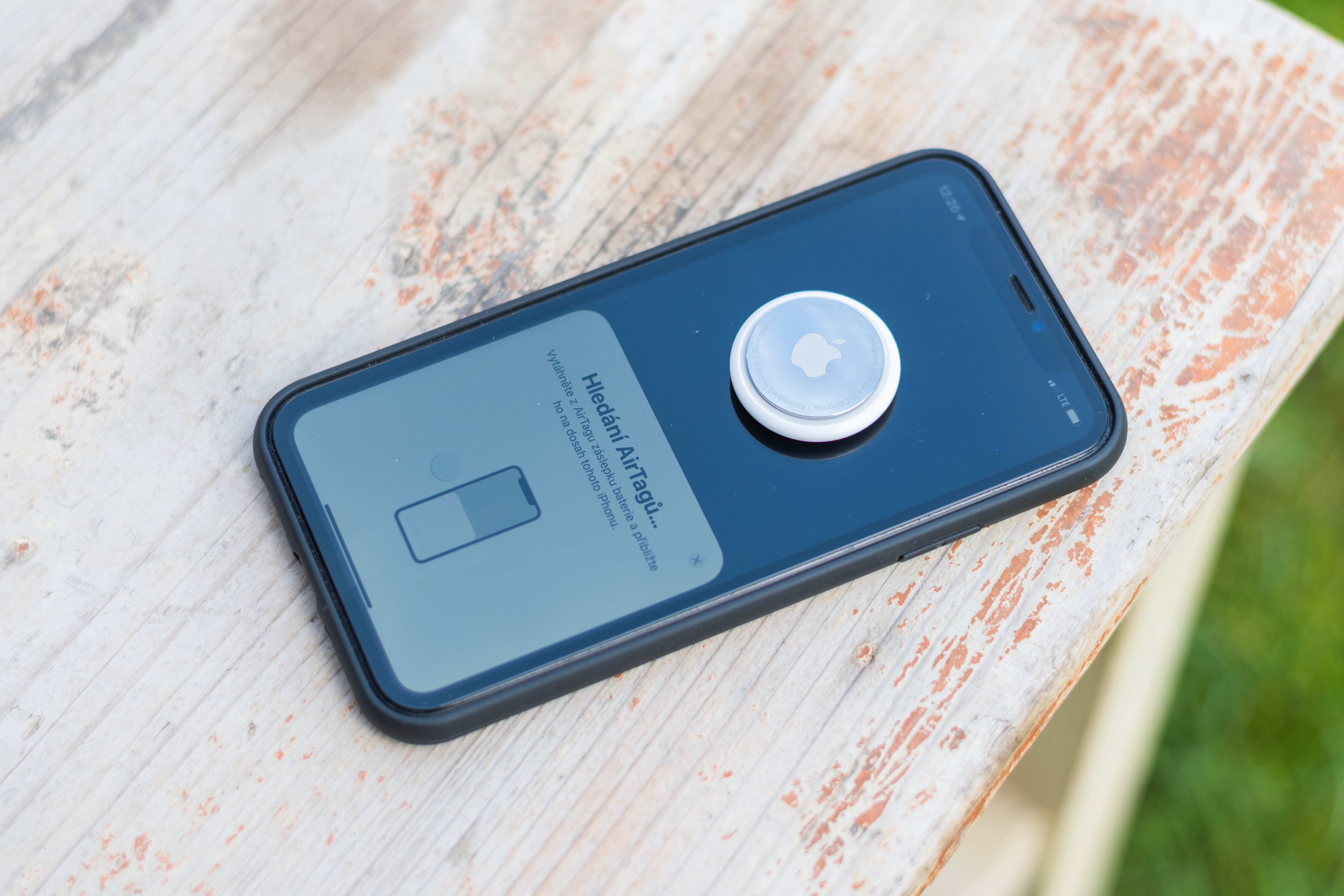
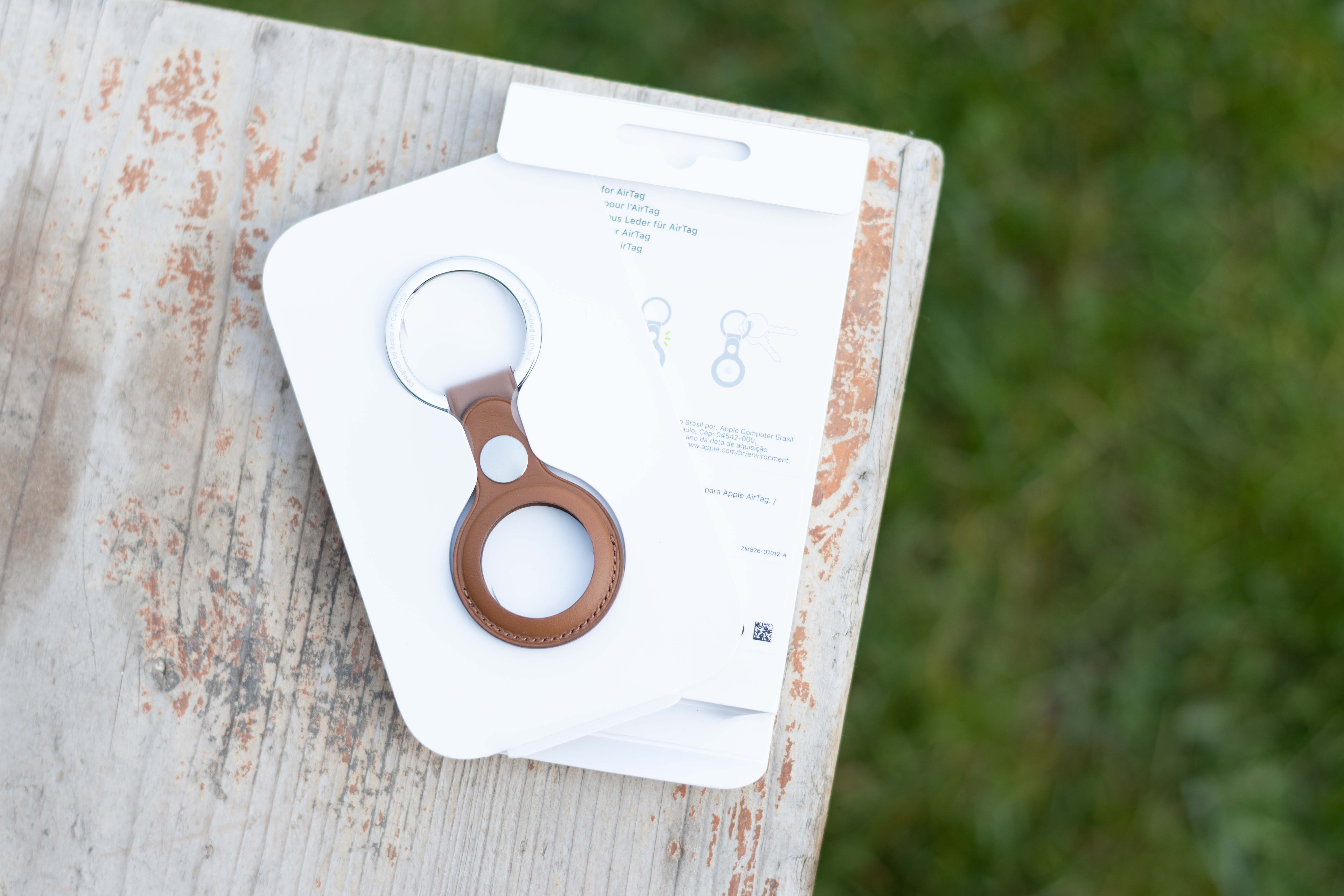
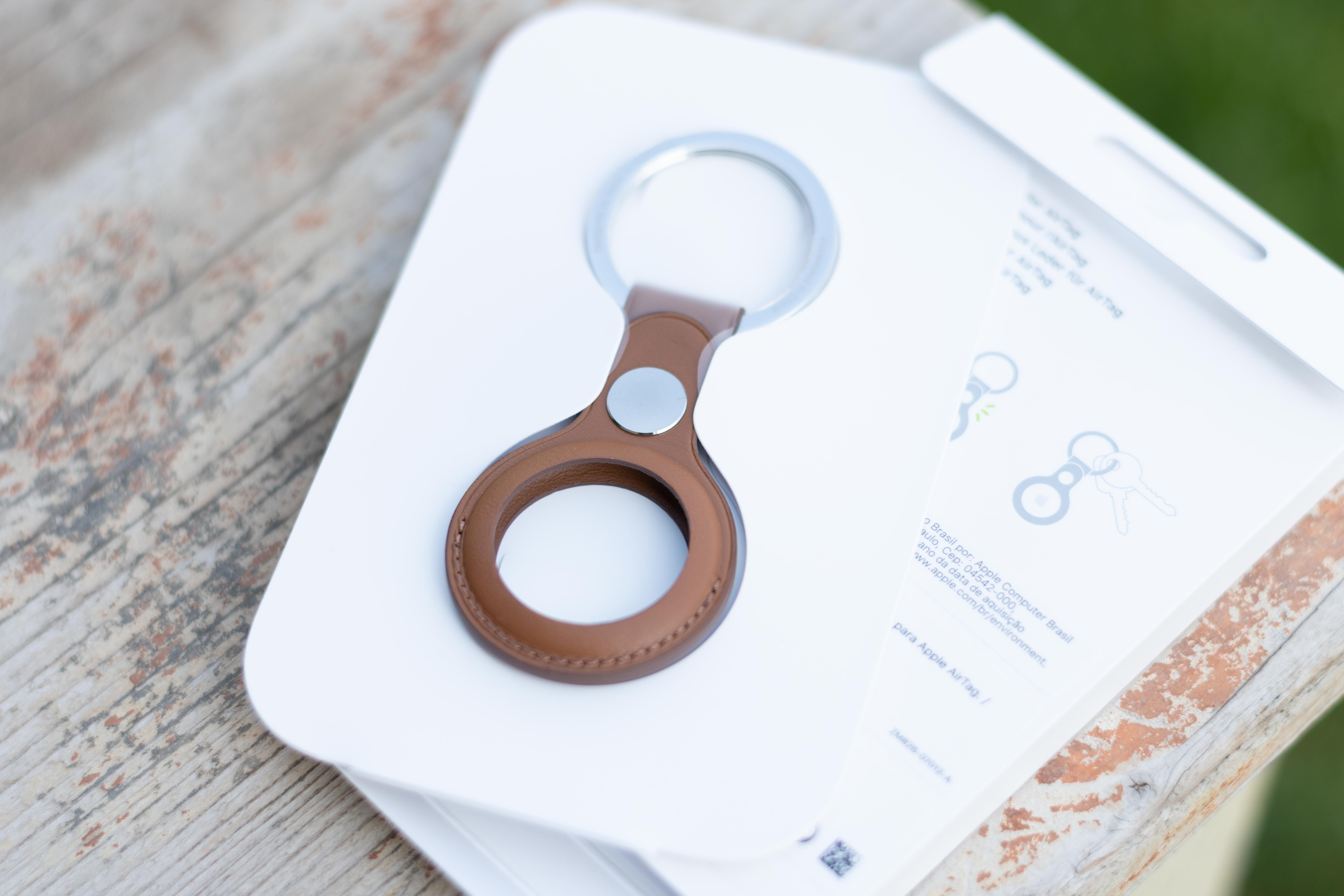
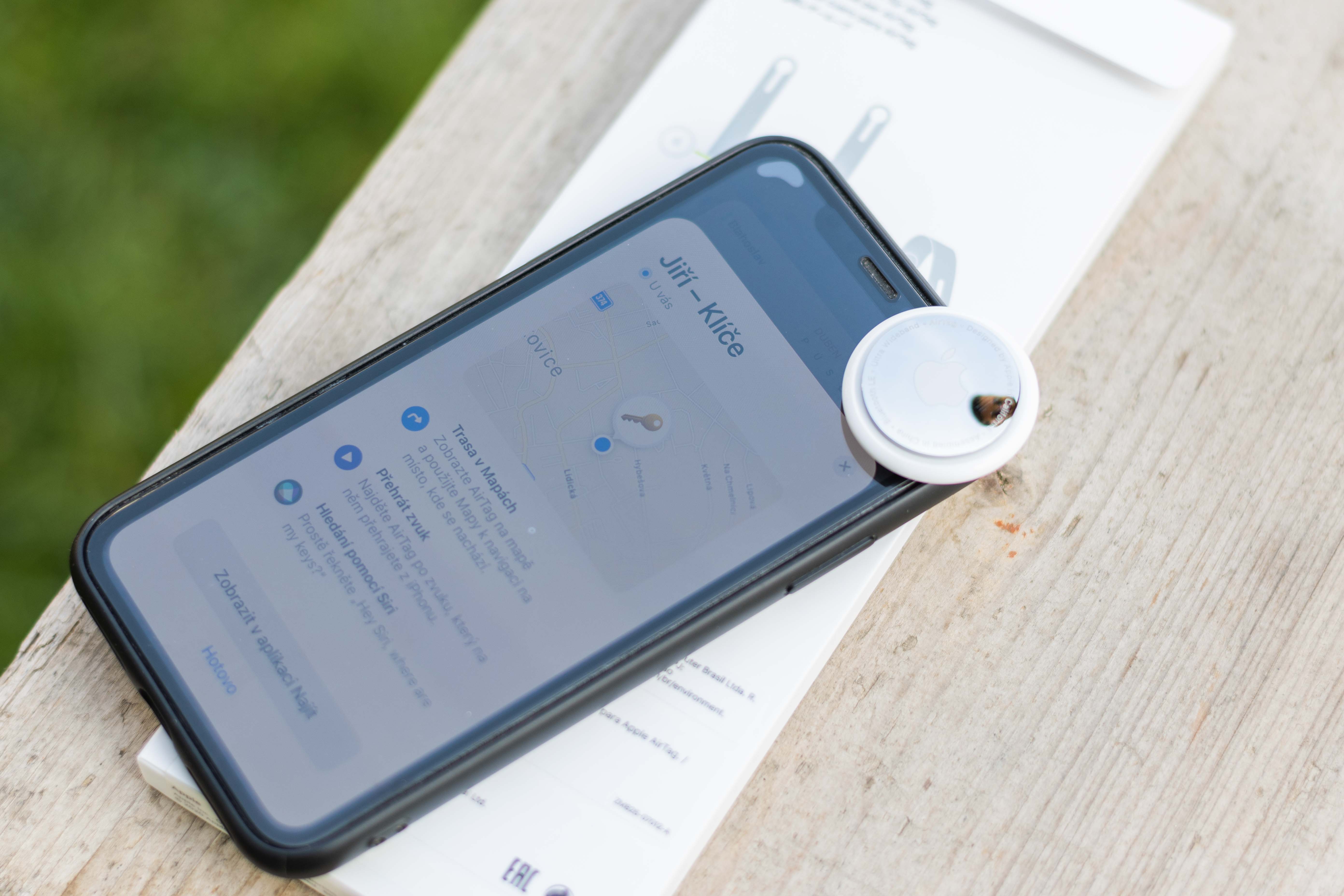
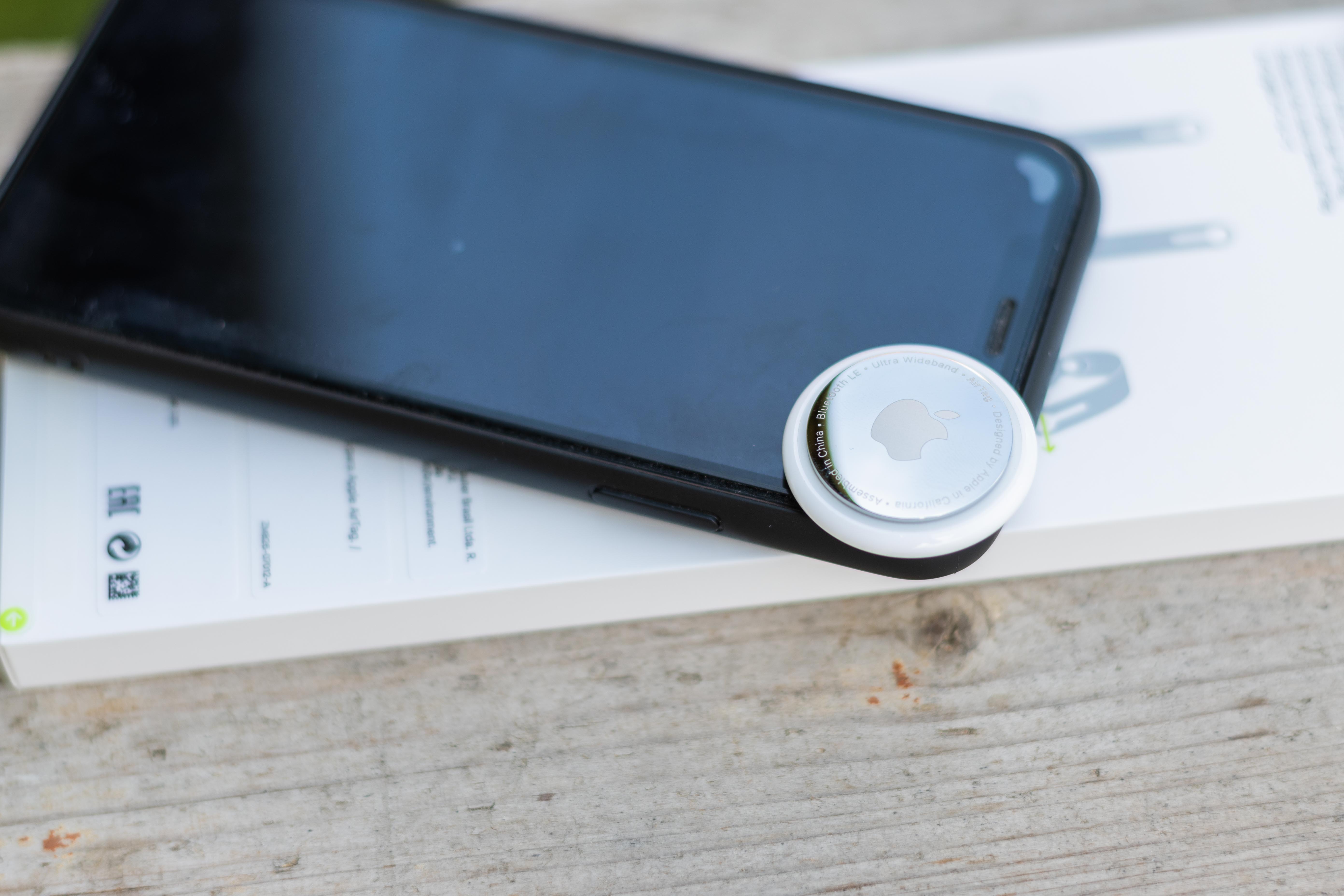
First of all, you need to own iPhone, iPad or iPod touch with system iOS 14.5 or iPadOS 14.5 and later and have two-factor authentication, Find My, Bluetooth, Location Services turned on, and have a good Wi-Fi or cellular connection. Pro To use the advanced search feature, which is only available on iPhone 11 and later, you need to have location access turned on for the Find My app. If you're not sure if that's the case on your device, go to Settings > Privacy > Location Services, scroll down, and tap Find My. Check the box next to While Using the App or While Using the App or widgetThen turn on Precise Location.
How to set up Airtagu
- if it is AirTag is new, peel off the protective film and activate the battery by pulling the tab. AirThe tag will then play a sound.
- Hold AirTag near your iPhone, iPad, or iPod touch and tap Connect. If you have AirMore tags and the device displays "More found" AirTags", arrange it so that only one is nearby at a time AirTags.
- Select the subject name from the list or select Custom Name, AirName the tag and choose an emoji. Then tap Continue.
- Click Continue again to register. AirTag yours Apple ID.
- Tap Done.
Jak AirRename tag
If you have AirThere are more tags, it is useful to name them, for example, after the things on which the locator is attached. Renaming procedure (if you do not do it immediately after unpacking or AirSo you move) is very simple.
- Open the Find app and tap the Items panel.
- Click on AirThe tag you want to rename or change the emoji for.
- Scroll down and tap Rename Item.
- Select a name from the list or click Custom Name.
- Enter for AirTag your own name and select the desired emoticon.
- Tap Done.
You might be interested in
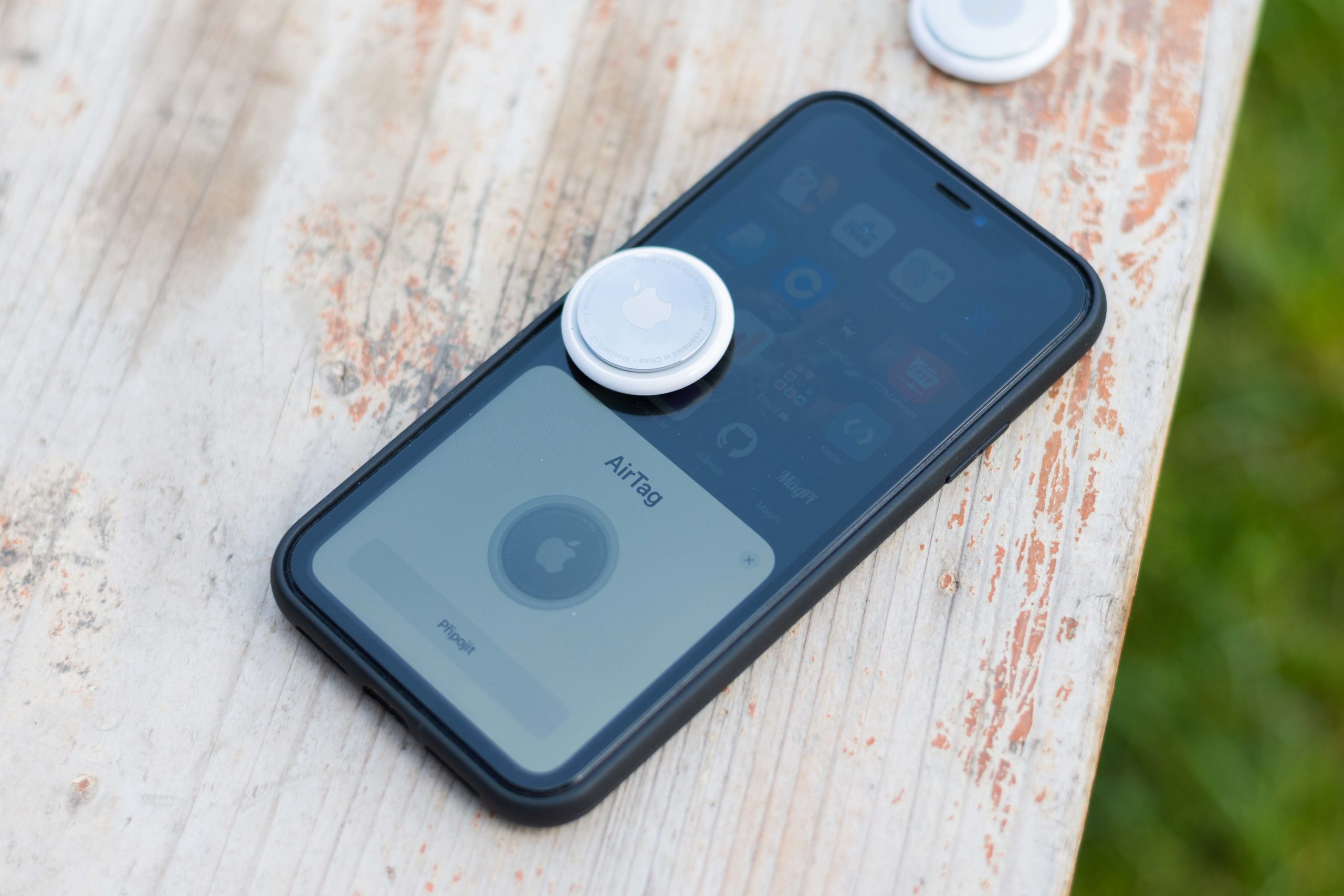
You have with AirTag trouble?
It may happen that AirIf for some reason you are unable to set up your tag correctly on the first try, even though you have carefully followed the steps above, there is no need to panic right away. Apple in this case, it offers options to solve possible problems.
- If the setup animation disappears, put your device to sleep by pressing the side button or the sleep button on your iPhone. Then wake and unlock iPhoneThe animation should reappear after the timeout. maxat least 15 seconds.
- If you need to set more AirTags, ensure that only one is near the device at a time.
- Remove the battery AirTag and replace it. (procedure below)
- if AirTag still doesn't connect to device, reset AirTags.
How to change the battery Airtagu
- Press down on the polished stainless steel battery cover and rotate it fully counter-clockwise.
- Remove the cover and remove the battery.
- Insert a new CR3 lithium 2032V coin cell battery (available at most electronics stores) with the positive side facing up. You will hear a sound indicating that the battery is connected.
If the CR2032 battery has a bitter coating that partially covers the battery contacts, it may be AirTag or other battery-powered products will not work. - Replace the cover, aligning the three tabs on the cover with the three slots on the AirTag.
- Turn the cover clockwise as far as it will go.




... I'll throw it away, I don't have it. iPhone 😭
:-D I have to laugh.... it can't be otherwise. I'm thinking about the thought processes of a person who doesn't have iphone, yet he goes to a very narrowly focused website specifically on apple products and then feels the need to write the above.... :-D
If the CR2032 battery has a bitter coating that partially covers the battery contacts, it may be AirTag or other battery-powered products will not work.
where are the days when I licked the batteries to see if they were bitter or not…… (4,5V so-called “flat” and 9V batteries were best tested with the tongue…)
I bought Air tag and so far it only works when I'm nearby with my phoneonem. As soon as I simulate theft or am in a strange place and AirI'll leave the tag there and leave "forgotten backpack" so airThe tag won't show me my location via a stranger Iphone and he seems unavailable. Only when I approach him does he say hello, I'm here, you left me. So either I have a defective part or I don't know. I have iPhone SE 2020 15.3.1