If you want to write down anything, whether it's a thought, an idea, a recipe or a list, you can use the native Notes app to do it. This application is available on practically all Apple devices and is used for simple note-taking. Apple is of course always trying to improve native Notes. For a long time now, we have been able to share individual notes with other users, who can subsequently contribute to it, or edit it in any way. The procedure for sharing a note is simple – just move to it, then tap the + icon in the upper right corner. Then send the user a link to add to the shared note.
You might be interested in

How to view activity in a shared note in Notes on Mac
Until now, you might have encountered a minor problem in a shared note. If a user made any changes, you had to spend a long time searching for what specific changes were involved. However, in macOS Monterey and other new systems, you can forget about this inconvenience, as you can notchat view the complete activity history in the selected shared note. This allows you to view all changes made by the user at the selected time. To view the complete activity history, follow these steps:
- First, go to the native app on your Mac Comment.
- Then find a click the shared note, in which you want to view the activity history.
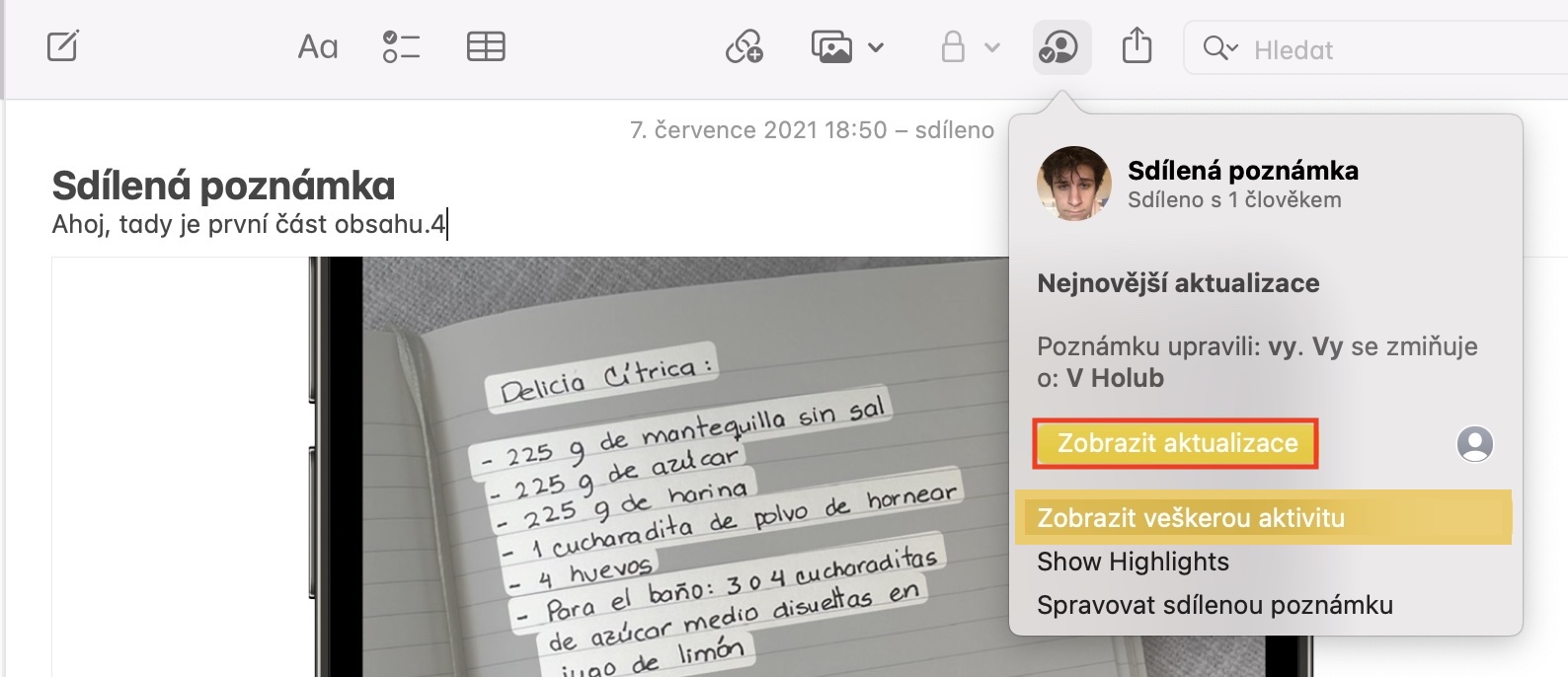
- Once you've done that, tap on in the upper right corner of the window stick figure icon with a pipe.
- This will bring up a small window where you tap on the option View all activity.
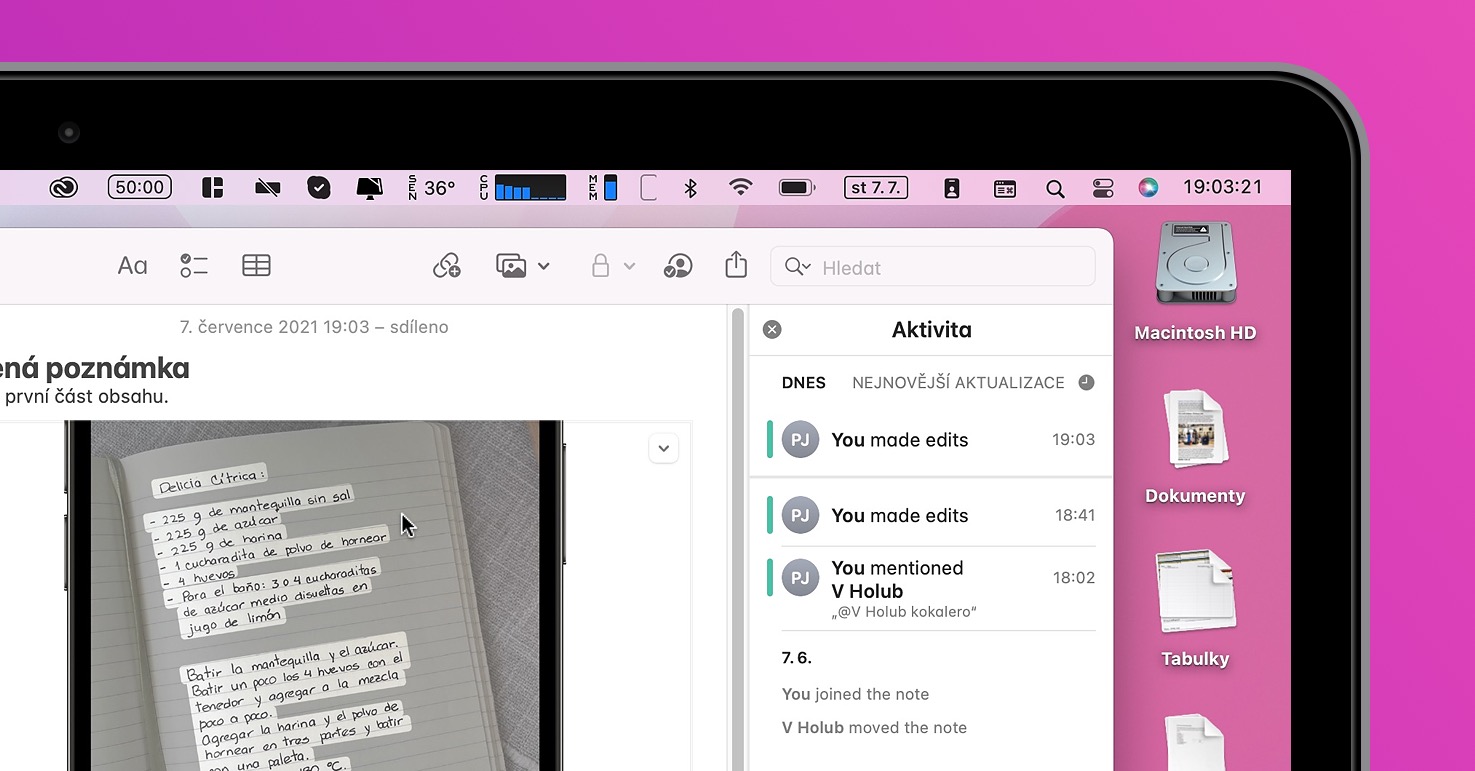
- In the right part of the window you will see a small panel in which all the activity in the note will already be displayed.
- If you want to see the changes from a specific day, you just need to go to record taped, whereby highlights the changes.
Gallery
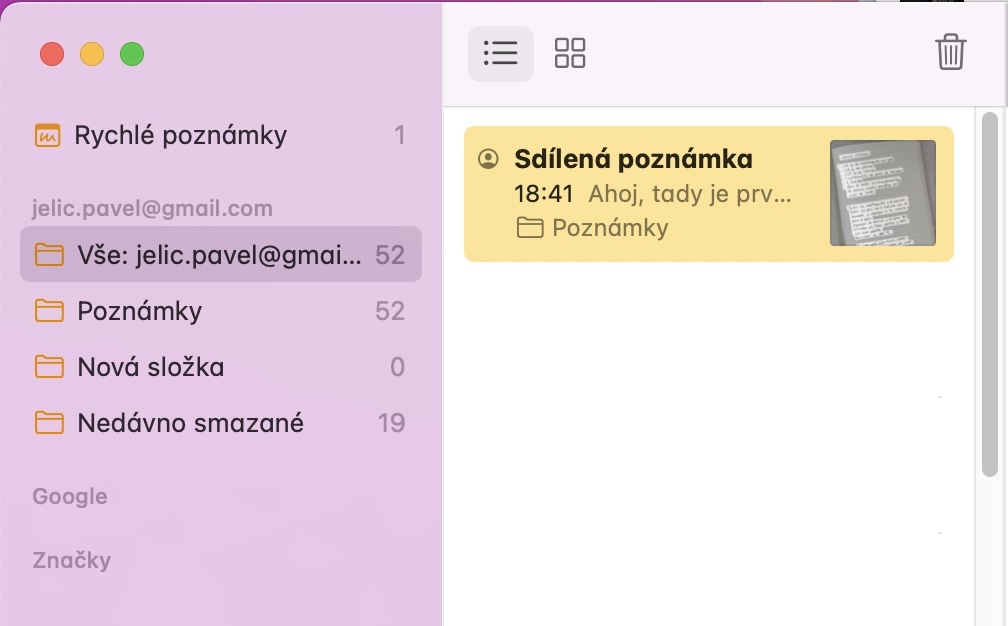
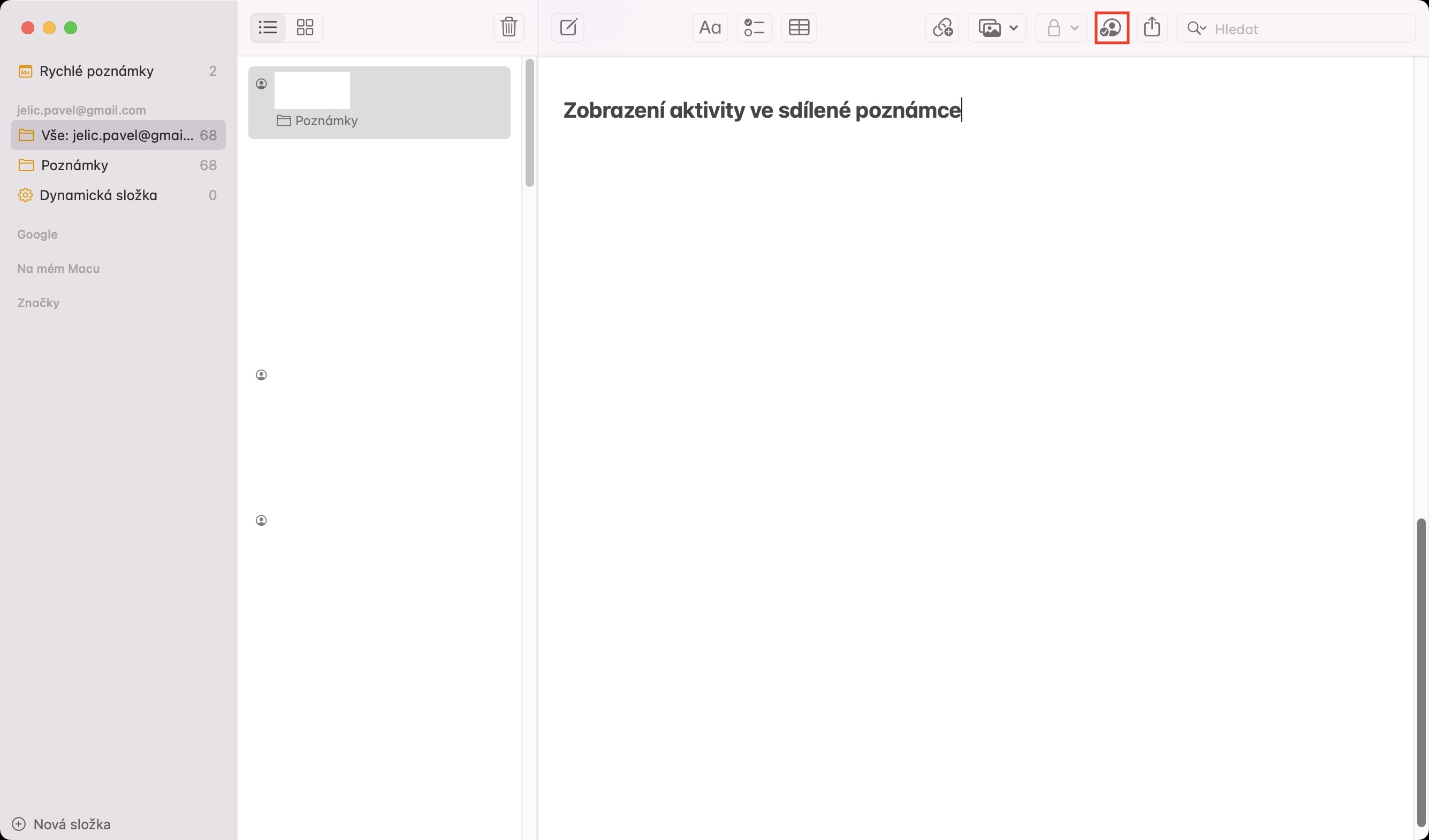
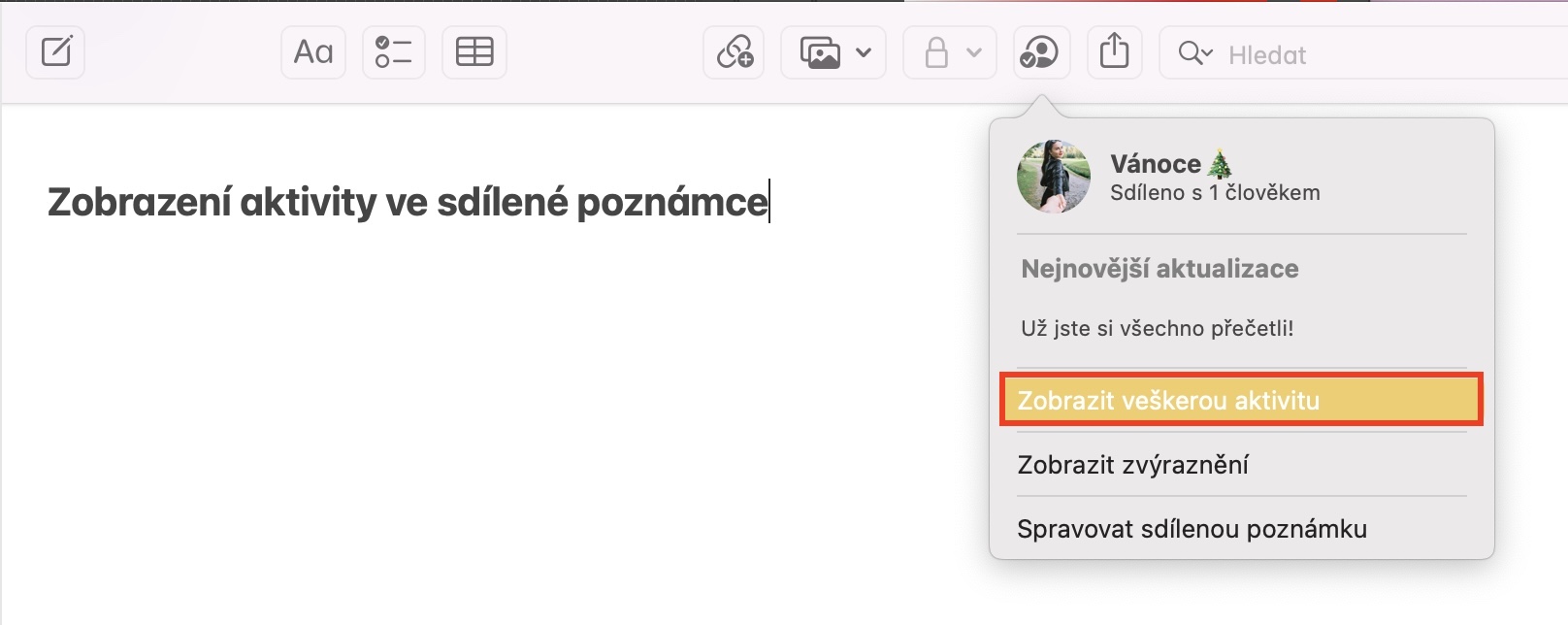
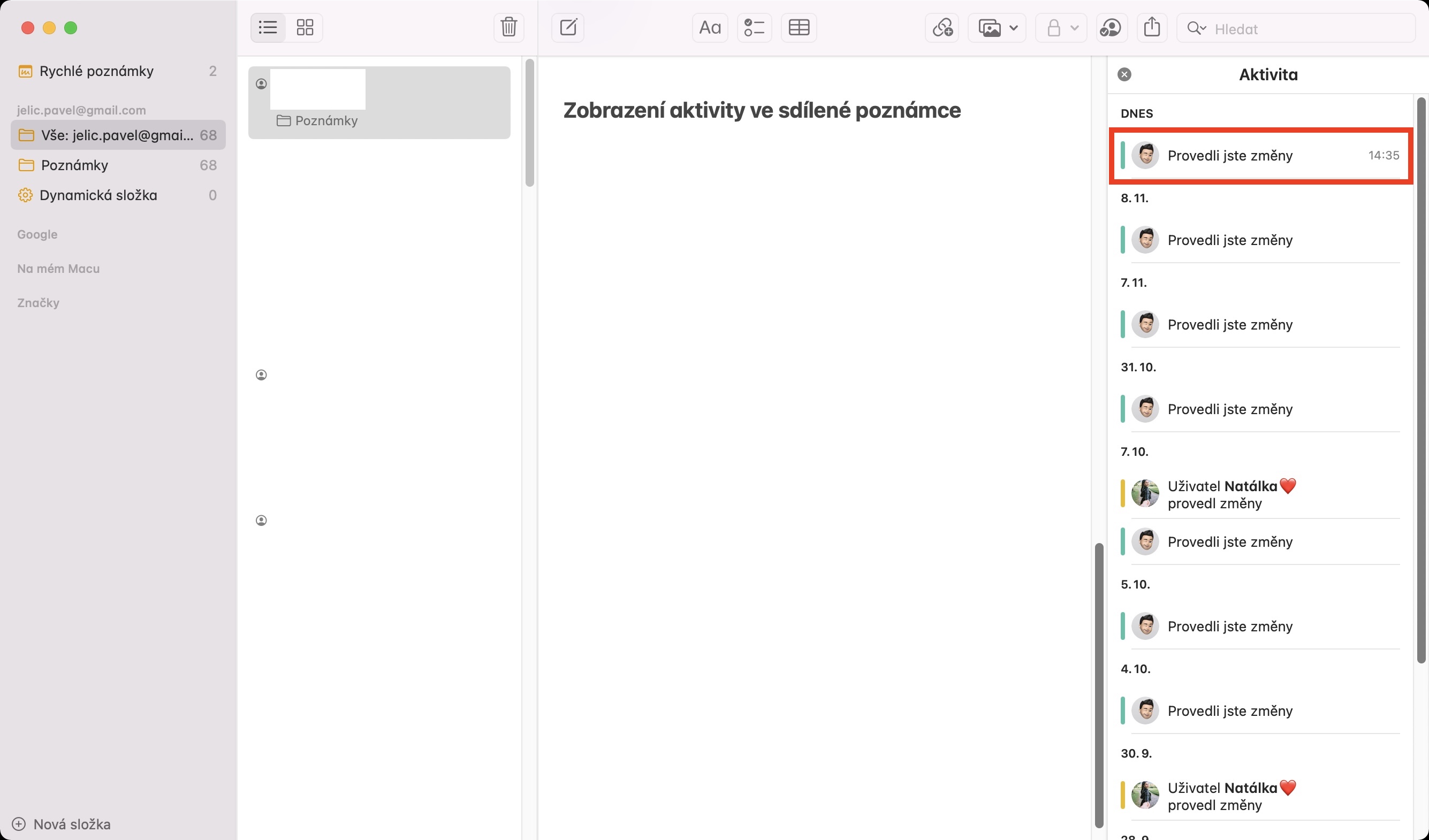
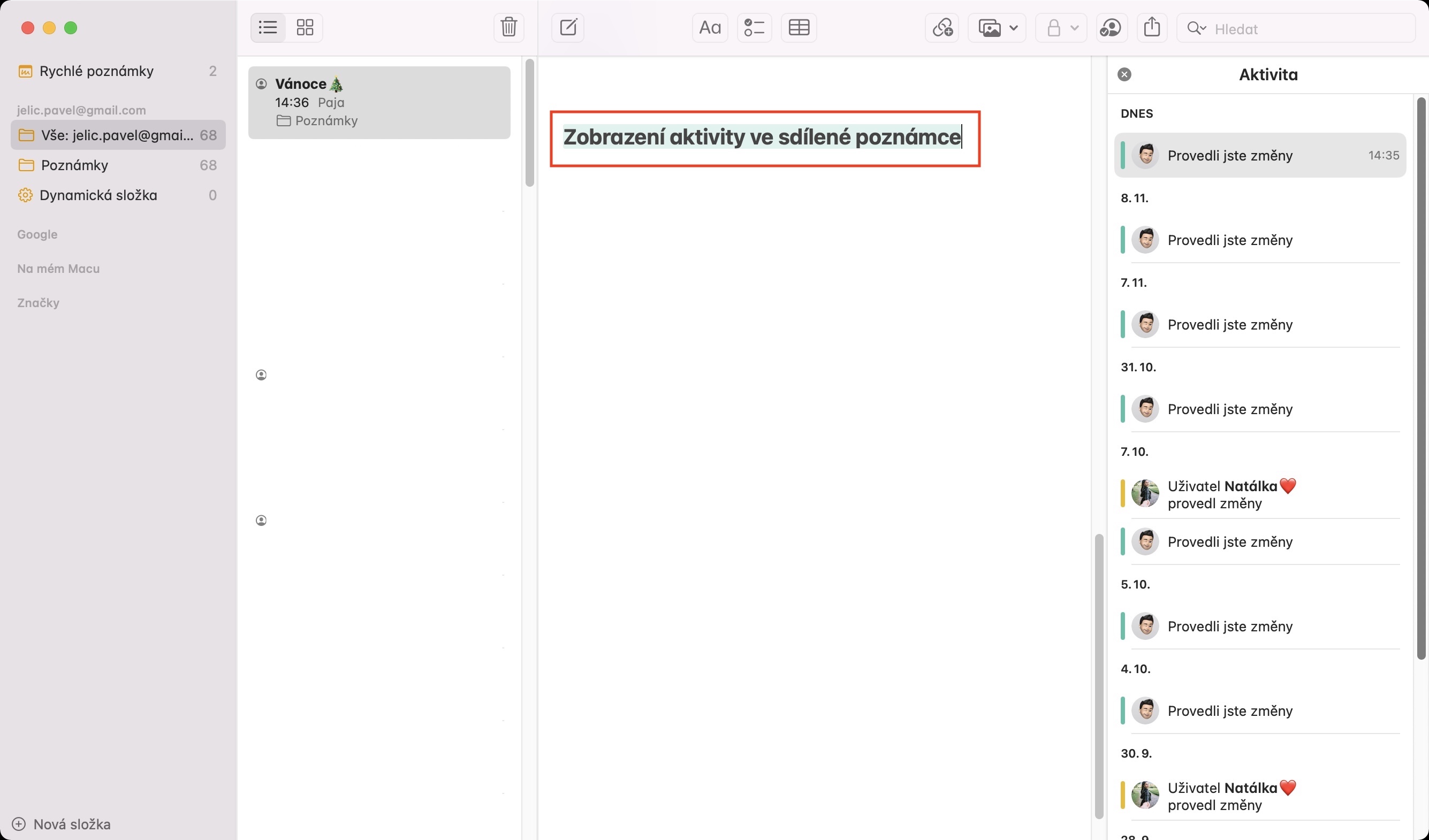
Using the above procedure, you can view the complete activity in a shared note on your Mac. If there have been any changes to the shared note since you last viewed it and you would like to quickly view them, just click the checkmark icon , then click Show Updates in the Recent Updates category . Alternatively , you can open and close the activity history panel in a shared note by clicking View in the top bar, then click Show Note Activity. You can also use the keyboard shortcut Control + Command + K.