For the show iOS and iPadOS 15, macOS 12 Monterey, watchOS 8 and tvOS 15 have been out for a few long weeks now. Apple specifically introduced the aforementioned systems at the opening presentation of the developer conference WWDC21. Immediately after the presentation, the first developer releases were released. beta version, a few days later then Apple also rushed with beta versions for the public. Thanks to them, practically everyone can try out the new operating systems. In our magazine, we have been covering all the new features and improvements for more than a month now - this only underlines the fact that there is more than enough news, which might not seem like it at first glance. In this guide, we will look at another new feature from iOS 15.
You might be interested in
iOS 15: As in Safari customize the homepage
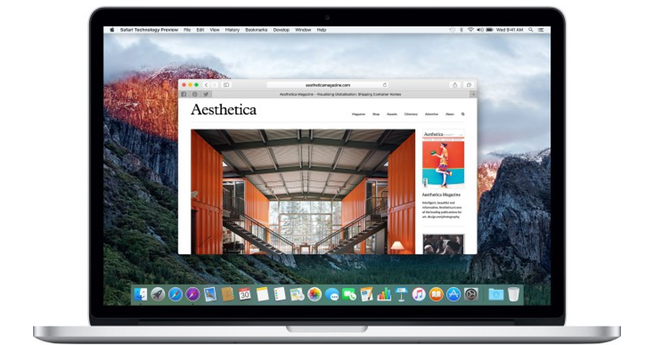
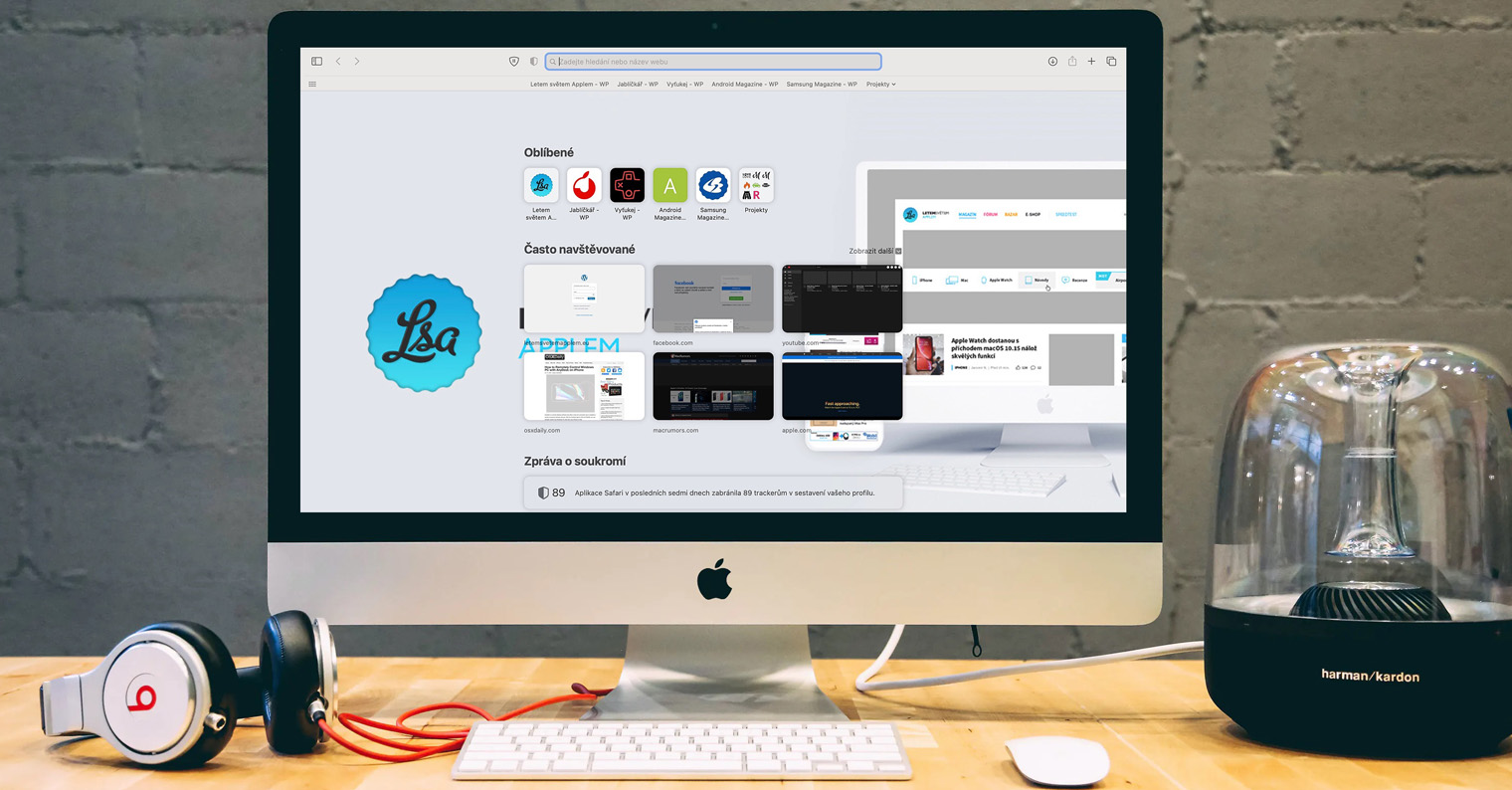
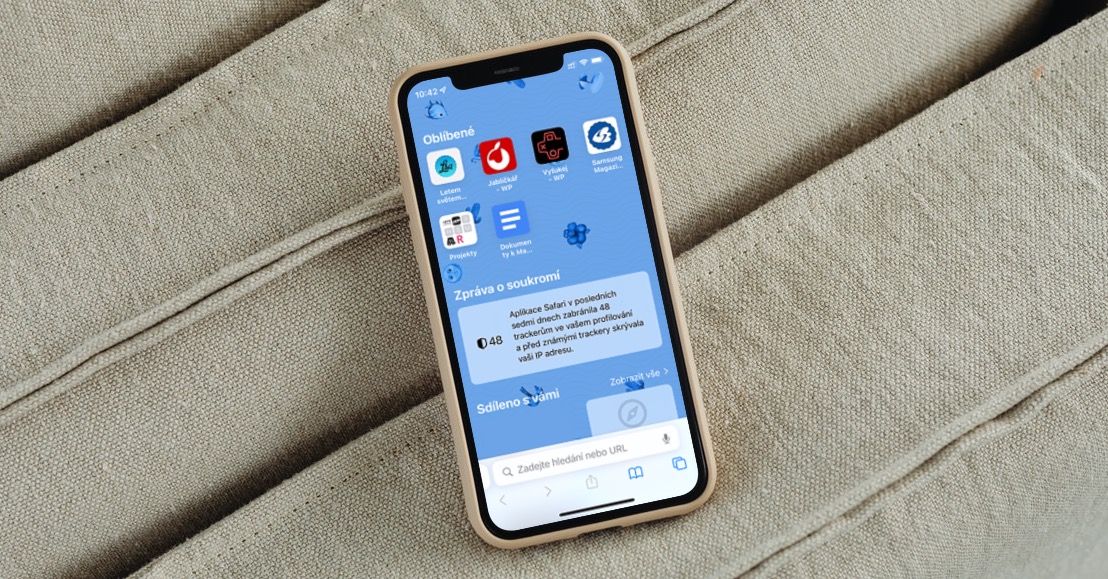
If, in addition to an iPhone, you also own MacBook, you must have noticed the option to customize the home page in macOS 11 Big Sur after the release Safari. We can easily change the background, for example, we can also select several elements that should (not) be displayed, and of course we can also change their position. Specifically, you can notchat display, for example, favorite panels, frequently visited ones, privacy report, suggestions Siri, reading list, or panels opened from your other device. The good news is that the same feature is coming to iOS 15. Here the homepage can be customized as follows:
- First, you need to sign in to your iPhone with iOS 15 moved to Safari.
- Once you do so, move to home screen.
- You can do so by pressing + icons bottom left on panel overview screen.
- Then scroll down on the home screen all the way down and click the button Edit.
- Here you can set the display of individual elements, together with background image.
- Once you have made all the changes, just tap on cross top right.
Gallery
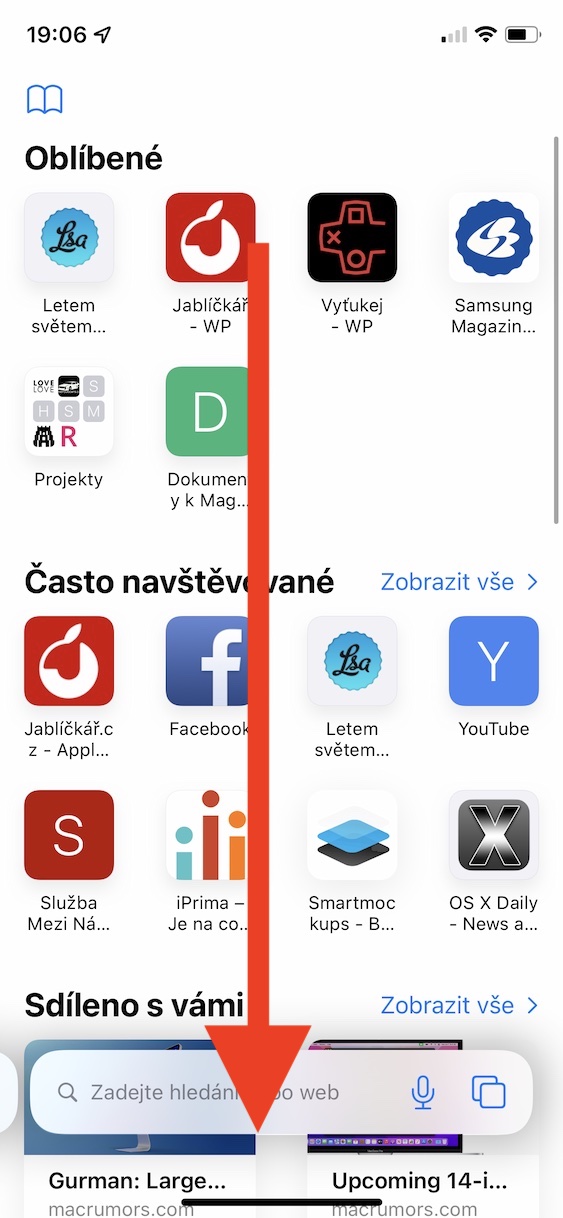
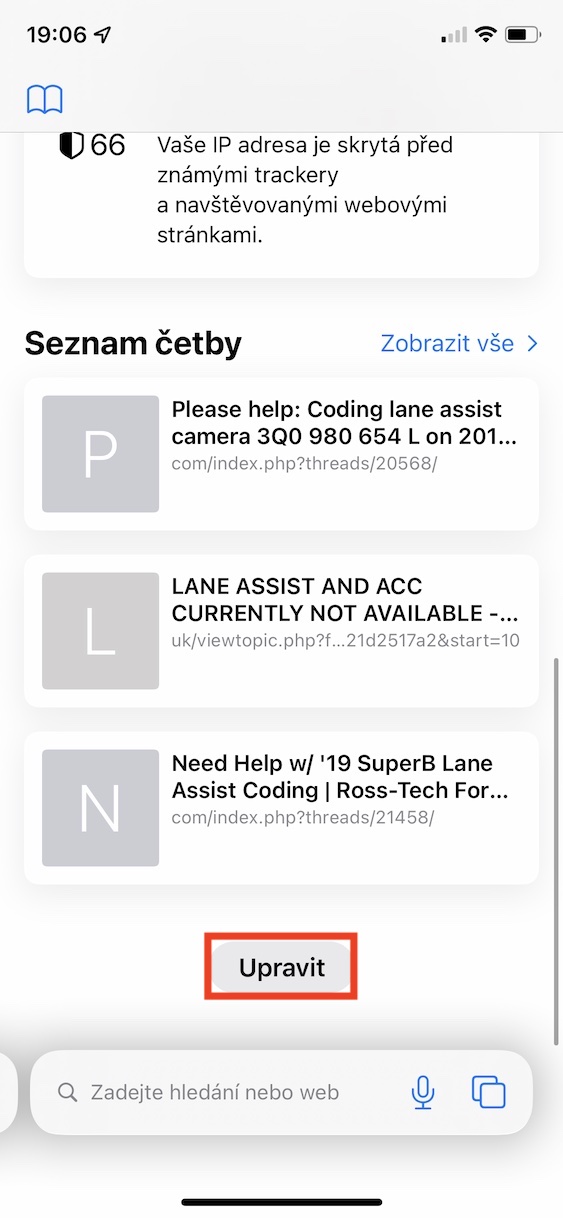
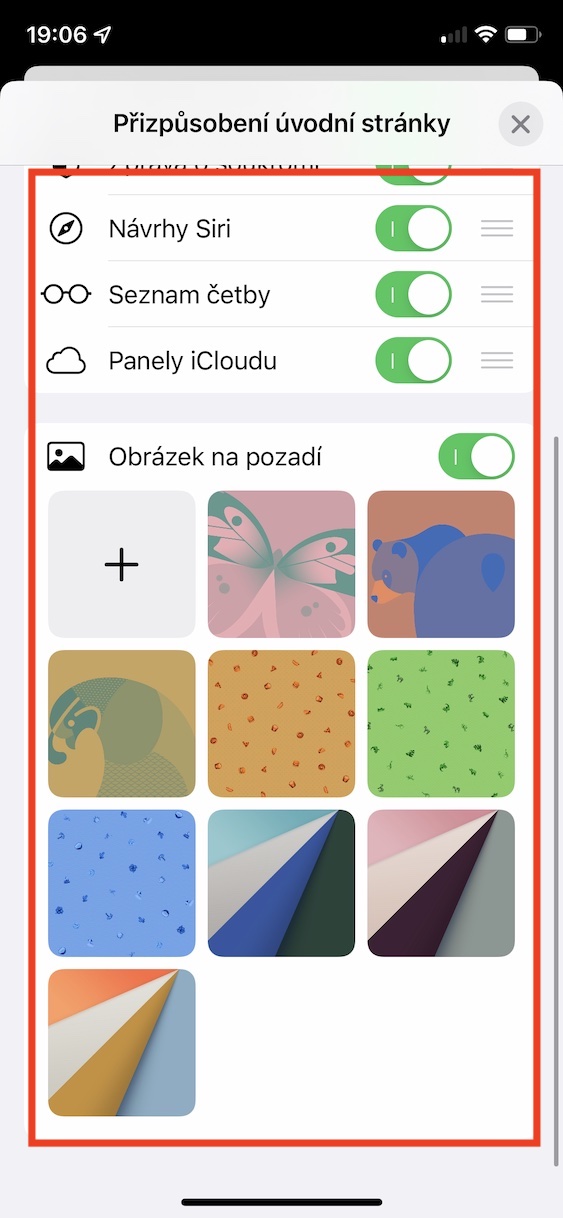

Using the method above, you can customize the home page on your iPhone (and iPad). Specifically, there are elements for displaying your favorite and frequently visited pages, as well as an element that displays pages that have been shared with you. Of course, there is also a privacy message, suggestions Siri, reading list, and panels you have open on other devices within iCloudu. For the background, you can choose one of the pre-made wallpapers, or you can choose your own by tapping the tile with the + icon. You can also activate the home page synchronization function at the very top.