
Apple about two days ago at the ongoing conference WWDC21 introduced new versions of its operating systems. To be precise, we saw the release of iOS and iPadOS 15, macOS 12 Monterey, watchOS 8 and tvOS 15. We've been keeping an eye on these new operating systems for the past few days, trying to bring you all the information you need to know about them. In this article, we'll take a look at 10 hidden features in iOS 15 that you might not have known about because they were mentioned in the presentation Apple he didn't mention. So let's get straight to the point.
You might be interested in
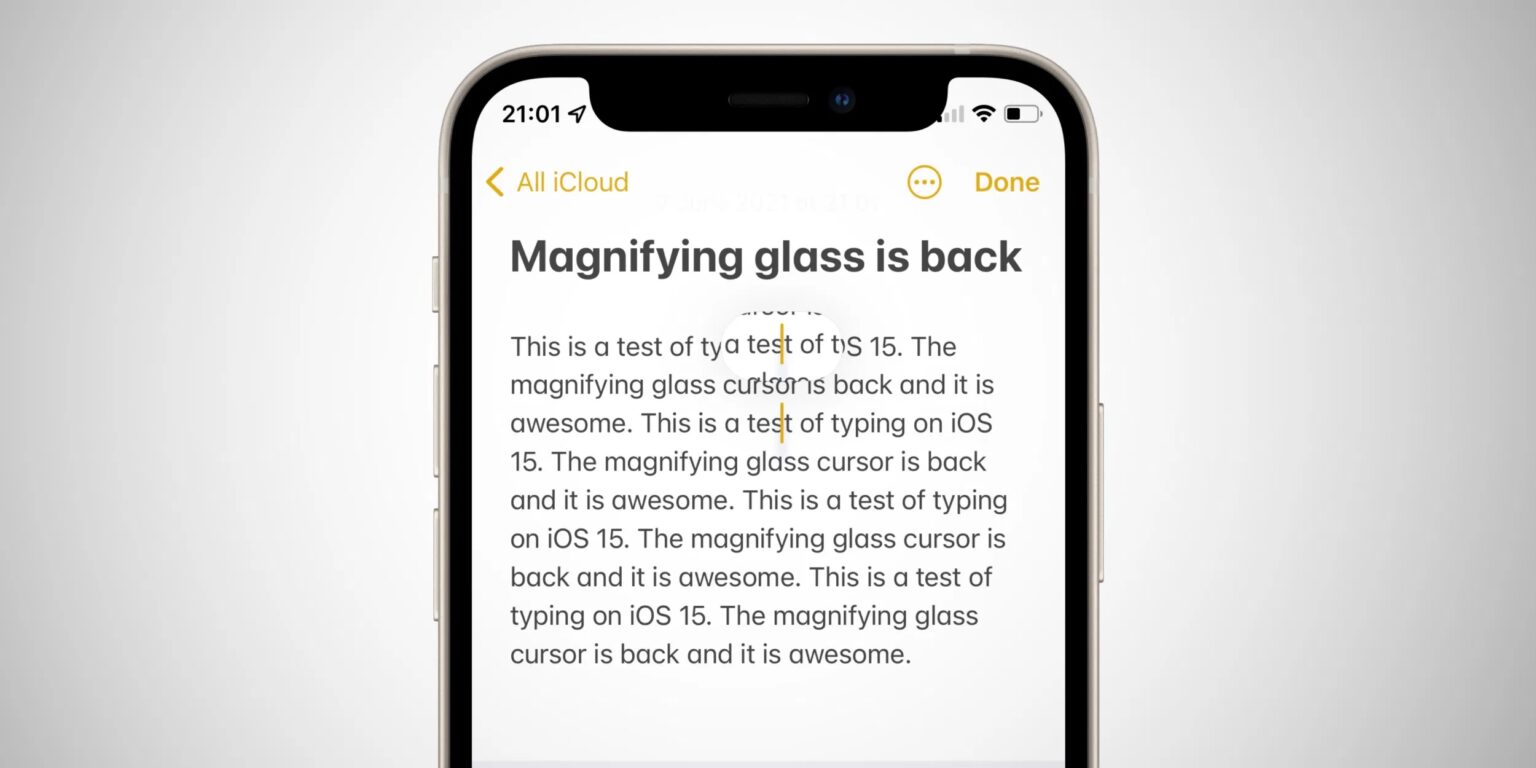
Magnifier in Notes
If you are in iOS 14 threw the note into editing text, so you had to move the cursor "blindly", which is not ideal when editing text. You may not be able to see where the cursor is through the finger that is touching the display. In iOS 15 a new feature was added, where when editing text in Notes will show a magnifying glass above your finger. This is a small window that shows you exactly where the cursor is in the text.
Text size only in certain application
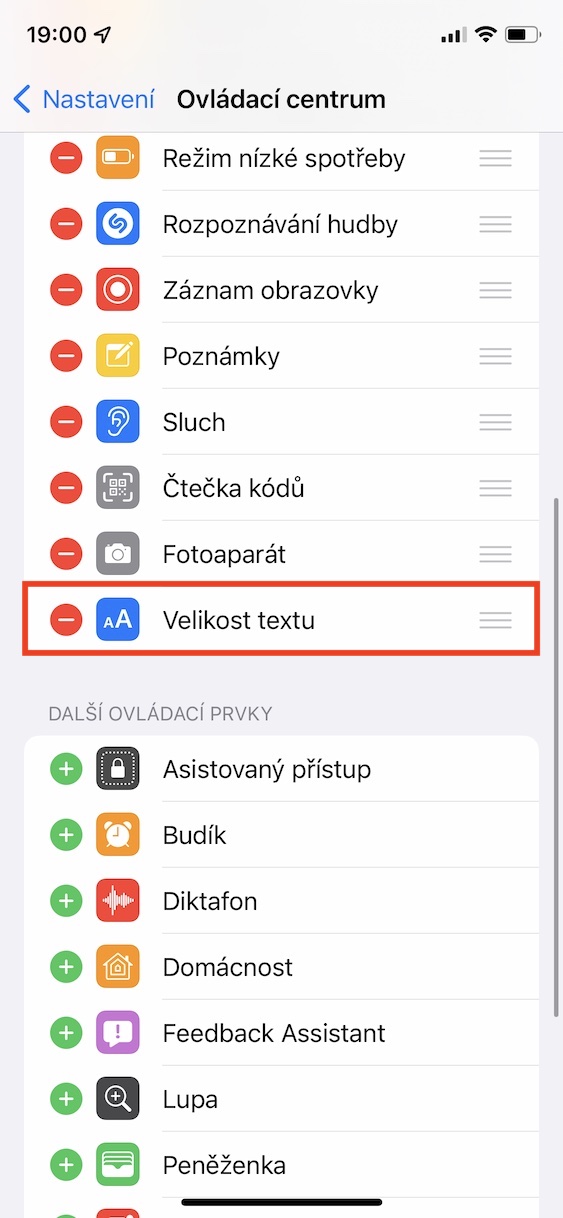
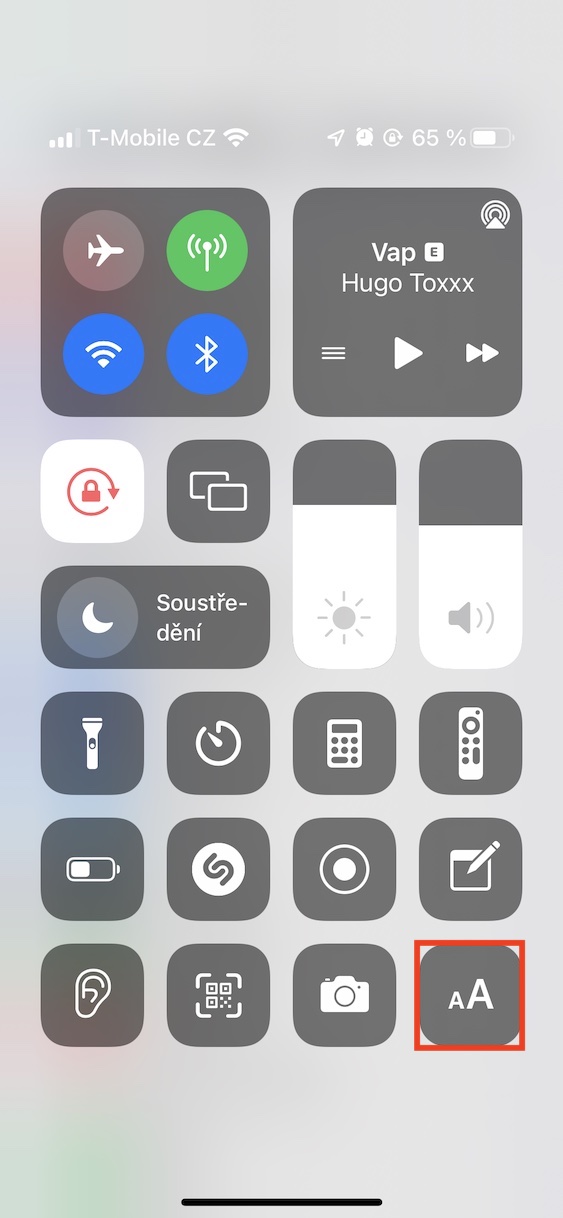
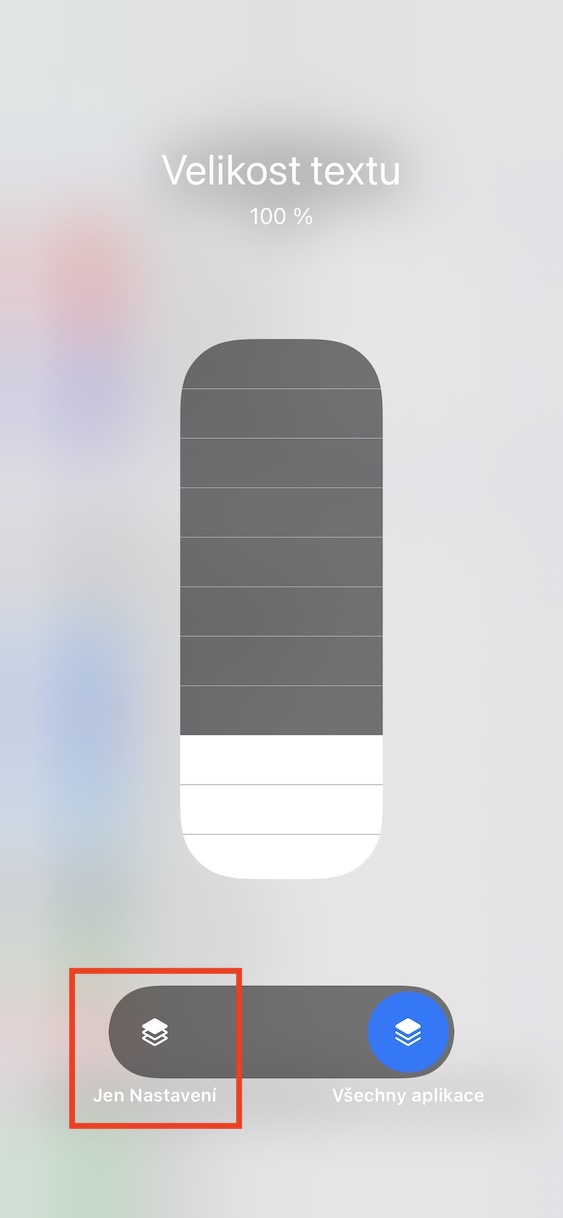
Within iOS you have been able to change the font size system-wide for several years now. But this may not necessarily suit everyone. The point is that changing the font size will actually happen everywhere. In iOS 15 you can set the font size separately for each application. Just go to control center add element to change font size. Then move to specific application, where the font size should change, open the control center, click on element to change font size and select a change at the bottom only for the running application.
Gallery
Panels in Safari
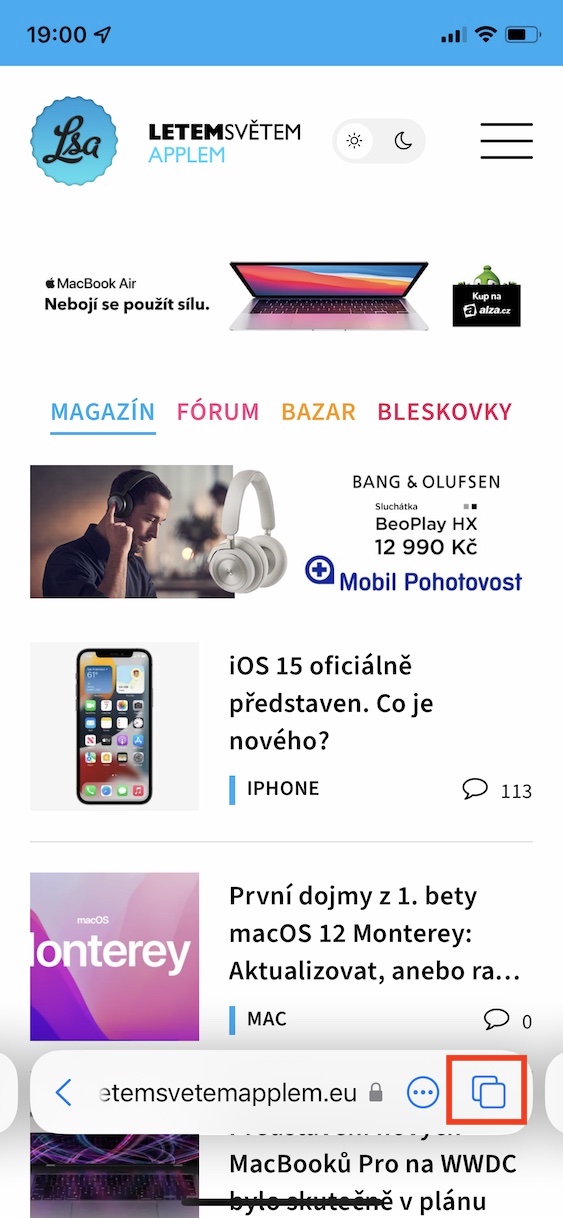
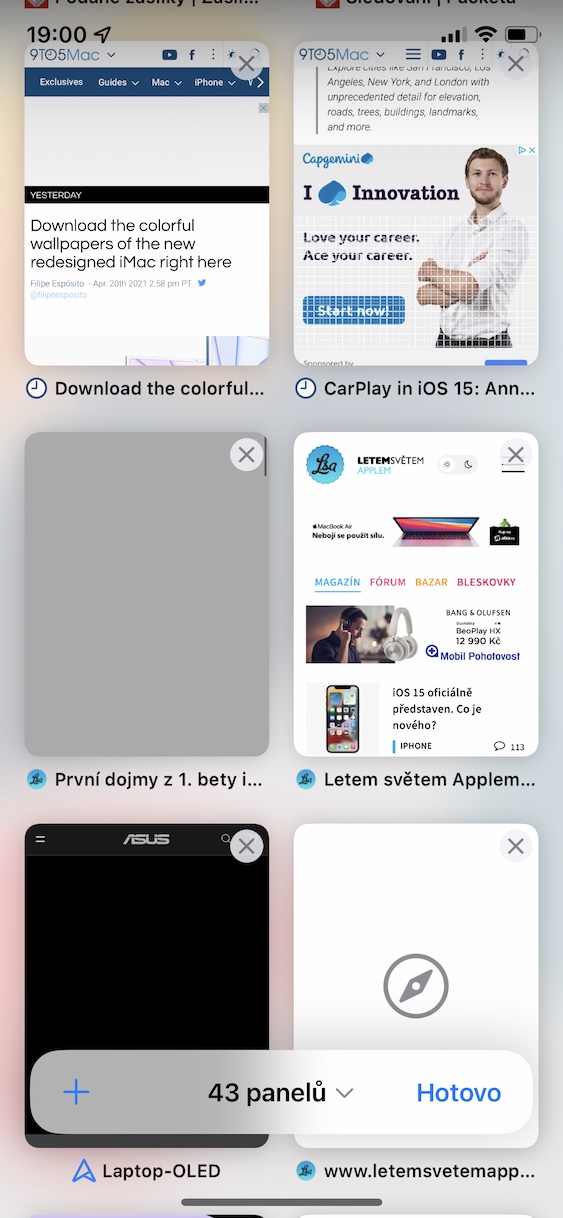
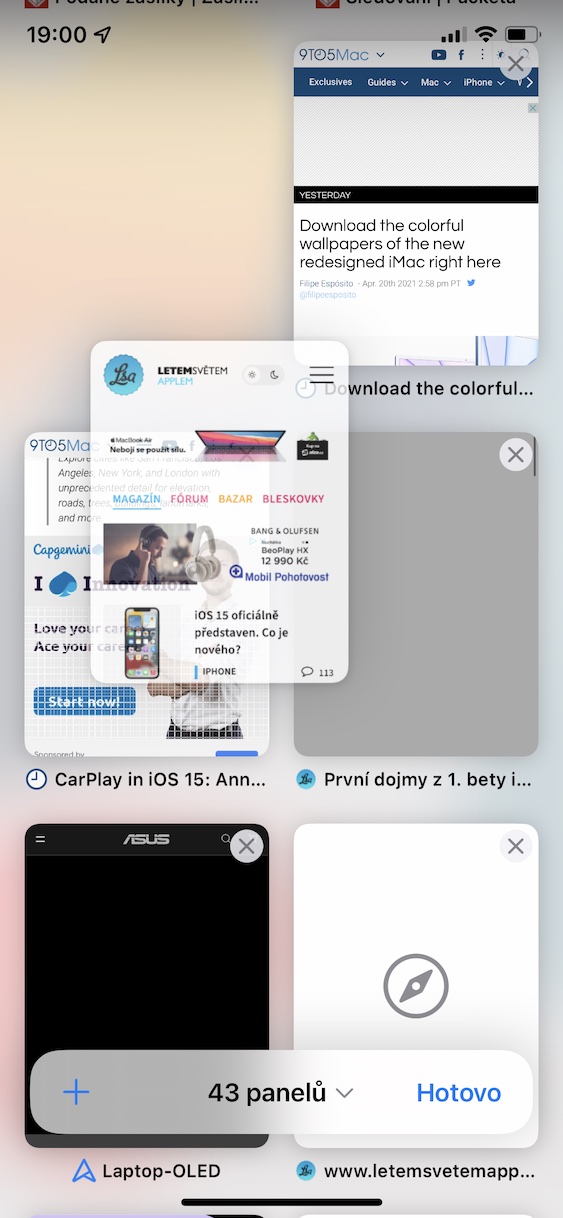
Safari has seen relatively major changes to the user interface, both in macOS 12 Monterey and in iOS 15. In addition to the fact that the address bar is now located at the bottom of the screen on the iPhone, the display of all open panels has also changed. They are now not displayed in a fan, but in grid mode. You can also place individual panels between each other toss, by holding and moving. Tap to display the panels icon of two overlapping squares to the right of the address bar.
Forgot device alert
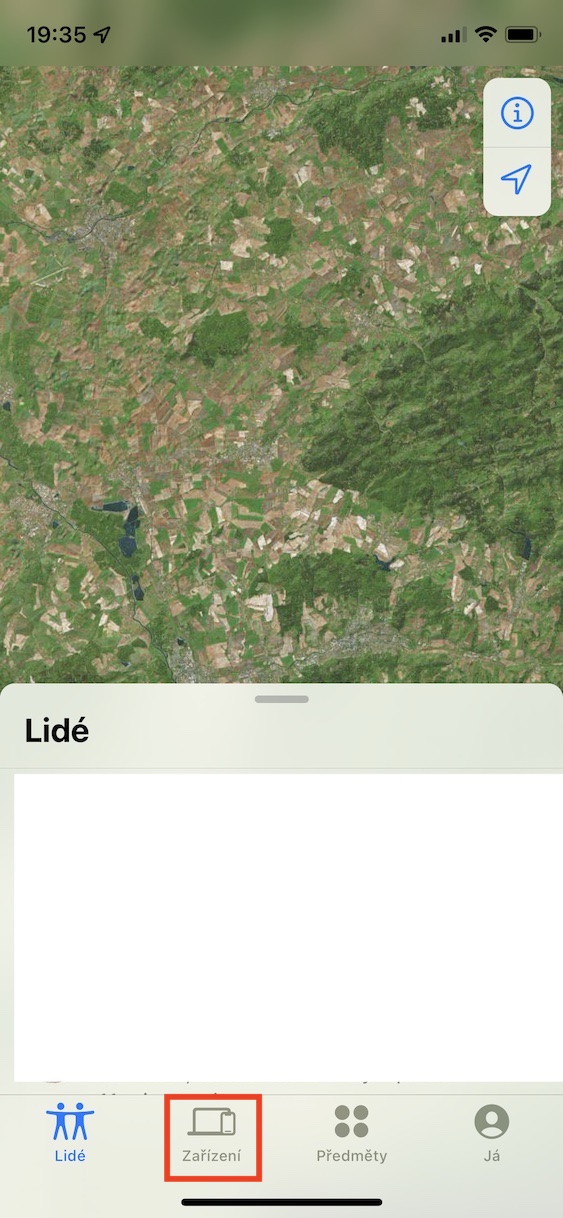
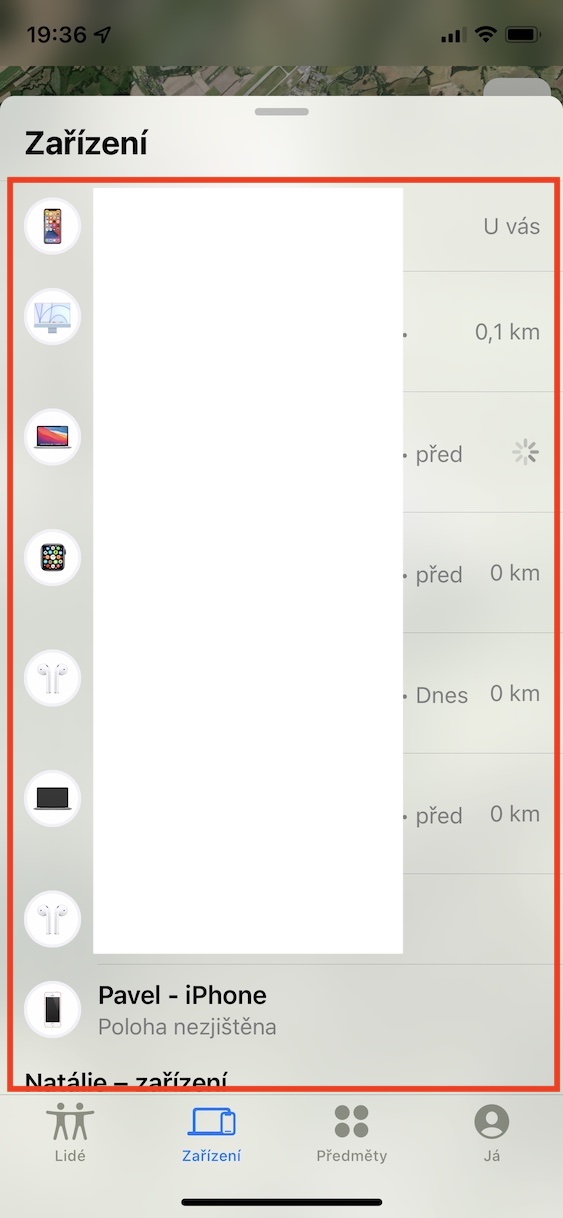
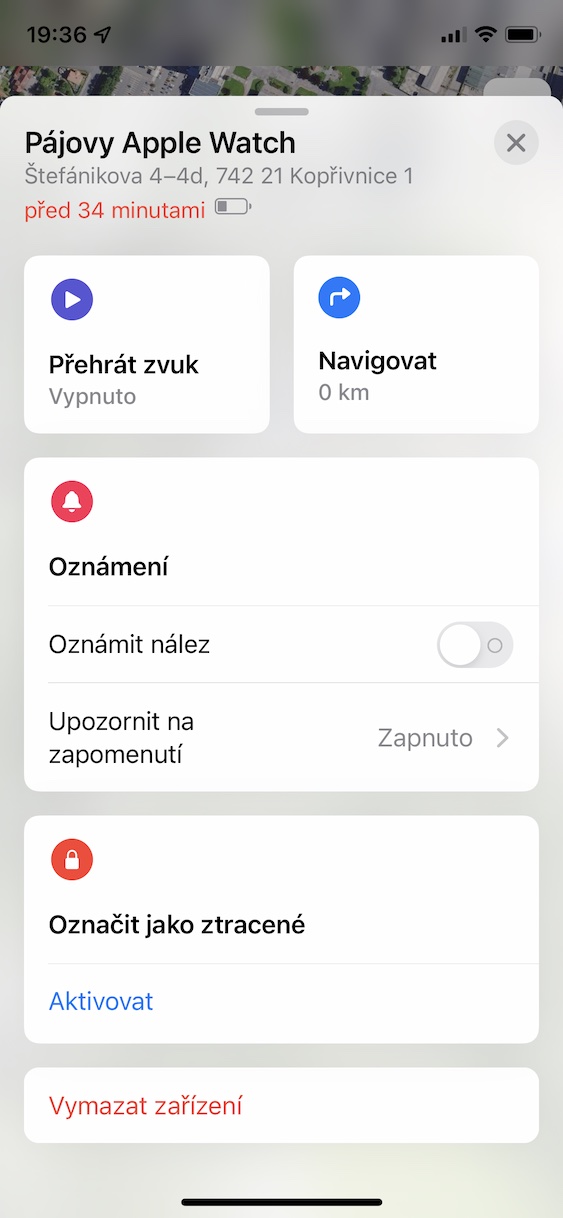
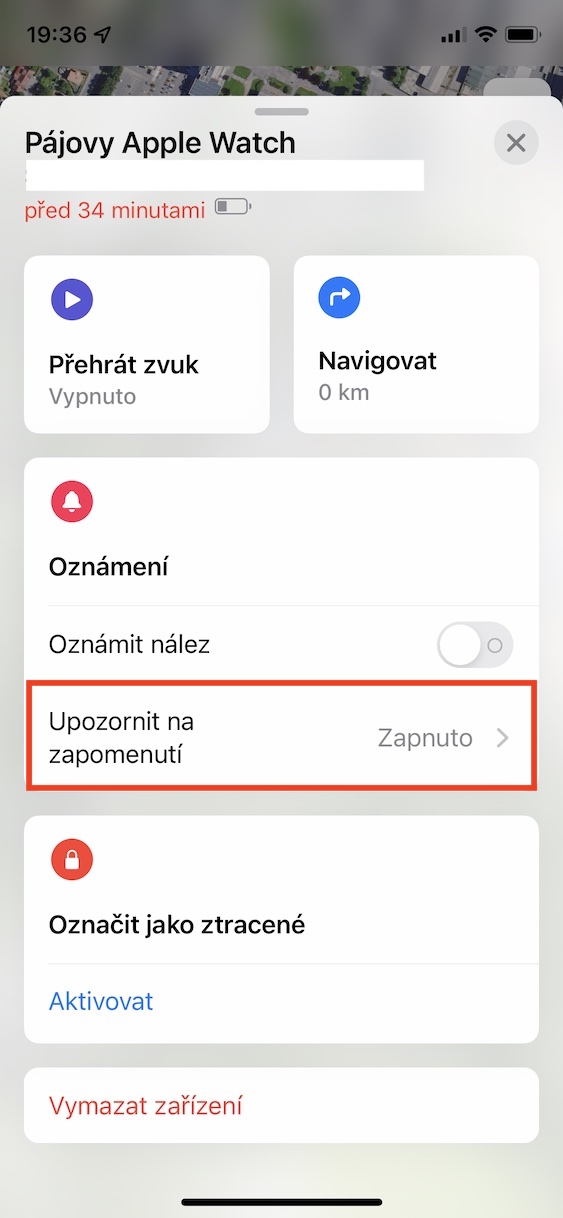
Are you one of those people who often forget? If you answered yes to this question, then I have perfect news for you. In iOS 15 you areoneYou can activate a function that will alert you if you have forgotten one of your Apple device. To activate, go to the application Find, where are you in the section Equipment unclick device, for which you want to activate this function. Then click on the box Notify to forget where to activate the function.
Gallery
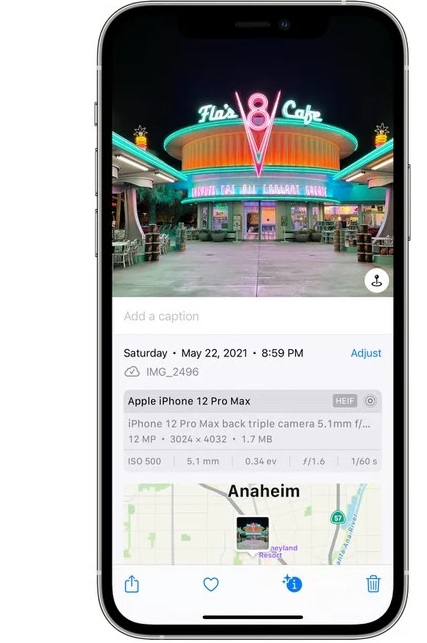
Displaying EXIF data for photos
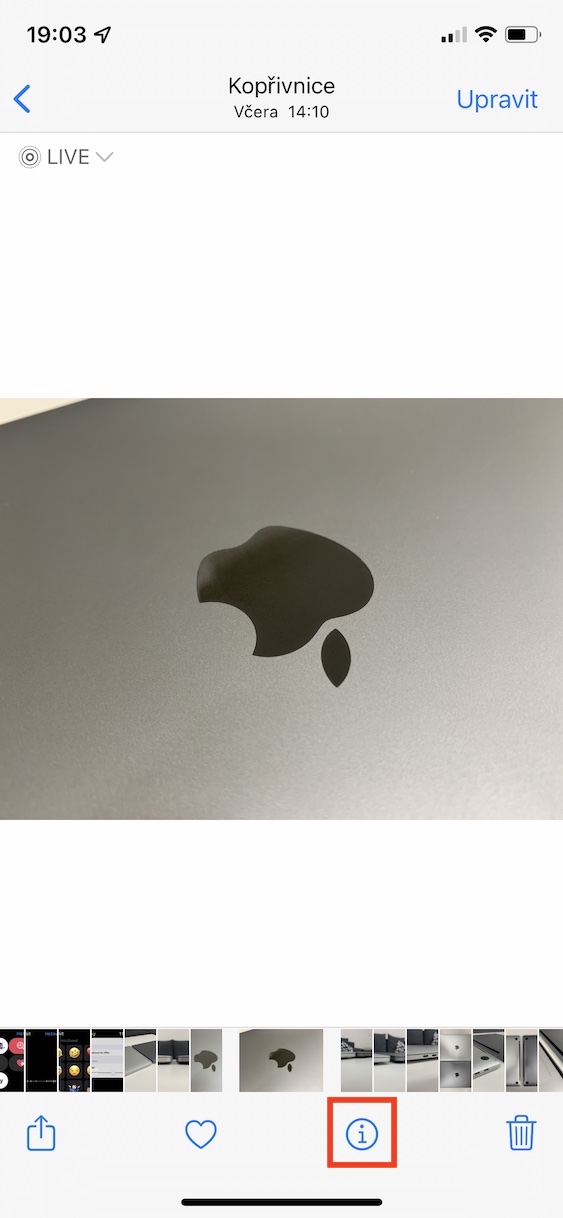
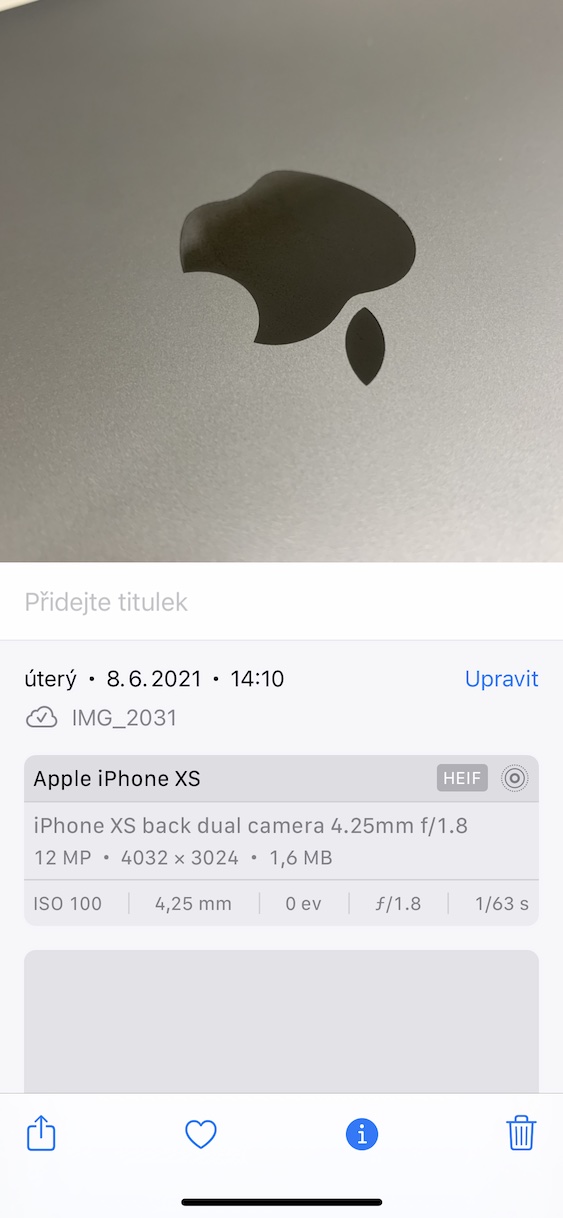
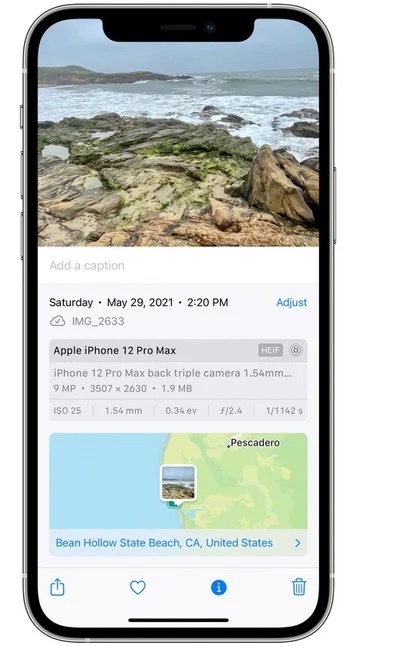
When you take a picture, in addition to the photo itself, metadata is also stored, i.e. data about the data – in this case, the photo. This data determines, for example, when and with what the photo was taken and reveals a lot of other information about it. In iOS 15 you can view all EXIF metadata directly in the application Photos. Enough here click the image and then tap at the bottom icon ⓘ. Alternatively, it will also show which application the photo was saved from, if it was not taken with the Camera.
iOS 15 information about photos
Change Live Photo mode easily
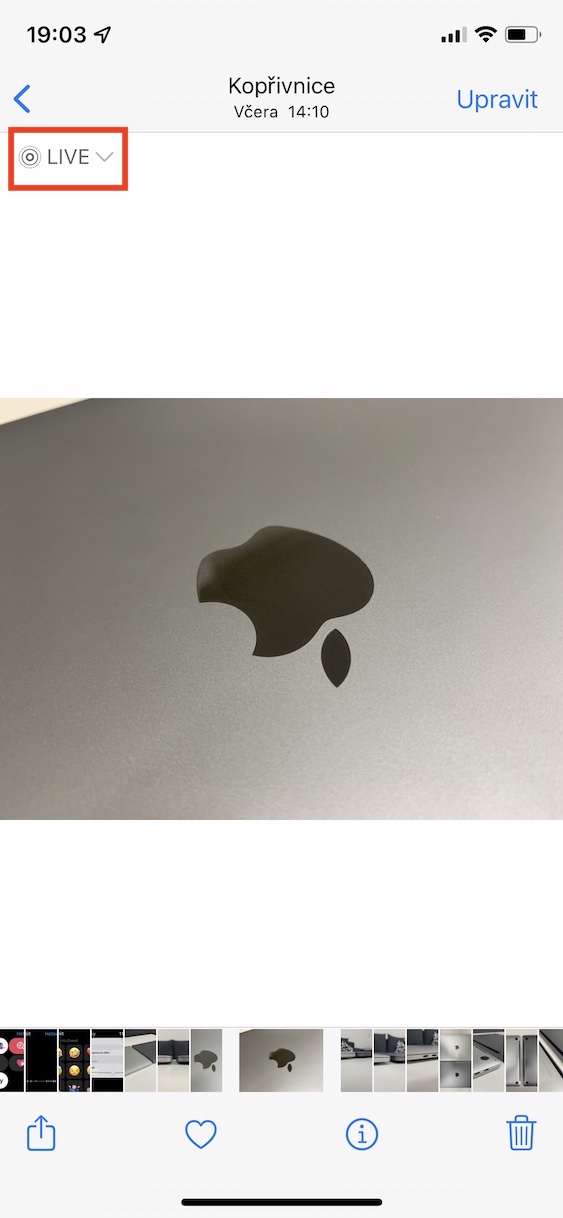
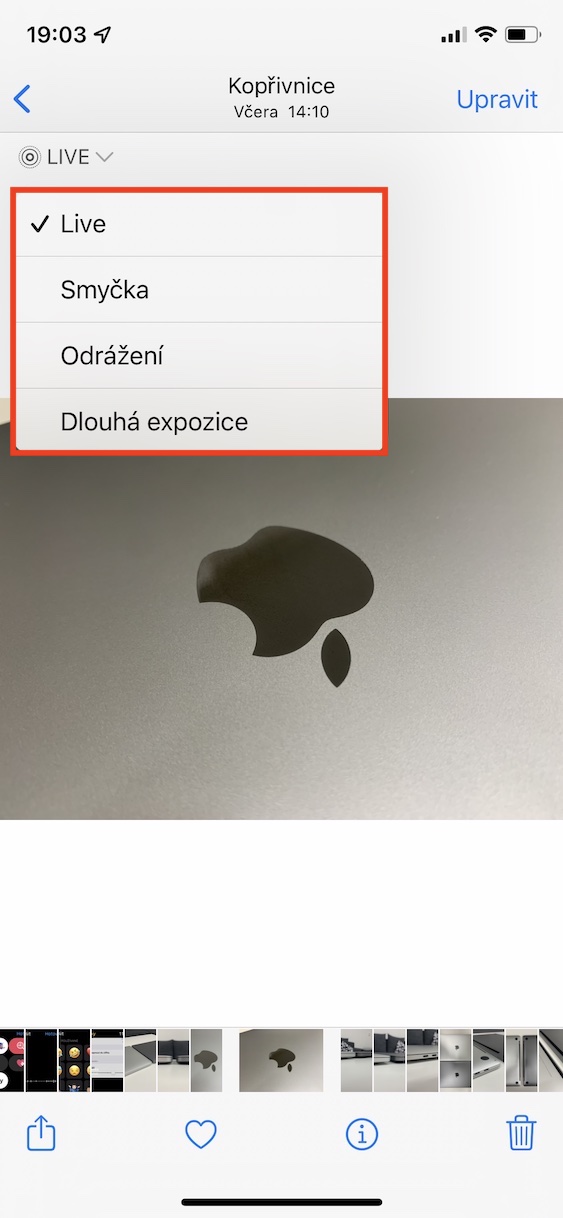
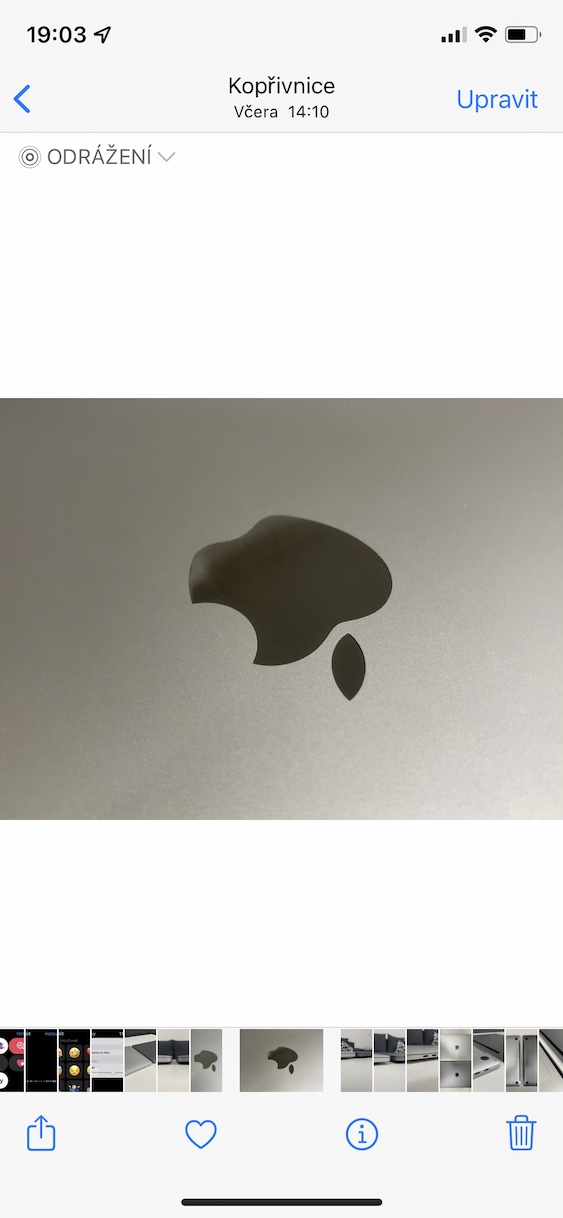
We will stick to the photos themselves. If you own iPhone 6s and later, which can be used by the way iOS 15 still installed, you certainly know that you can use the Live Photo function, which can transform a classic photo into a short video. This video can then be easily converted to a GIF, for example, or an effect can be applied. You can now apply the effect by Photo with Live Photos in iOS 15 open in photos, and then at the top left, tap the LIVE icon. Simply select the desired effect from the menu.
Alarm clock and time setting change
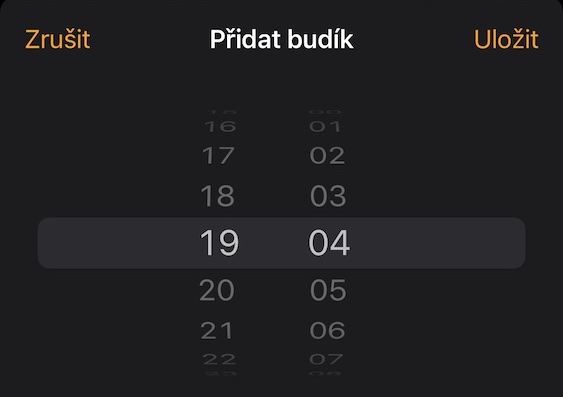
With the arrival iOS 14 we all got a small change within the Clock application. Even in older versions iOS Originally, the alarm time was set like the dialing method on old telephones. Apple decided to change this option and when setting the alarm time, a keyboard was displayed in which you manually typed the time. Users didn't like this, and so on Apple setting the wake-up time by pattern dialing old phones in iOS 15 returned.
Easier management of VPN configurations
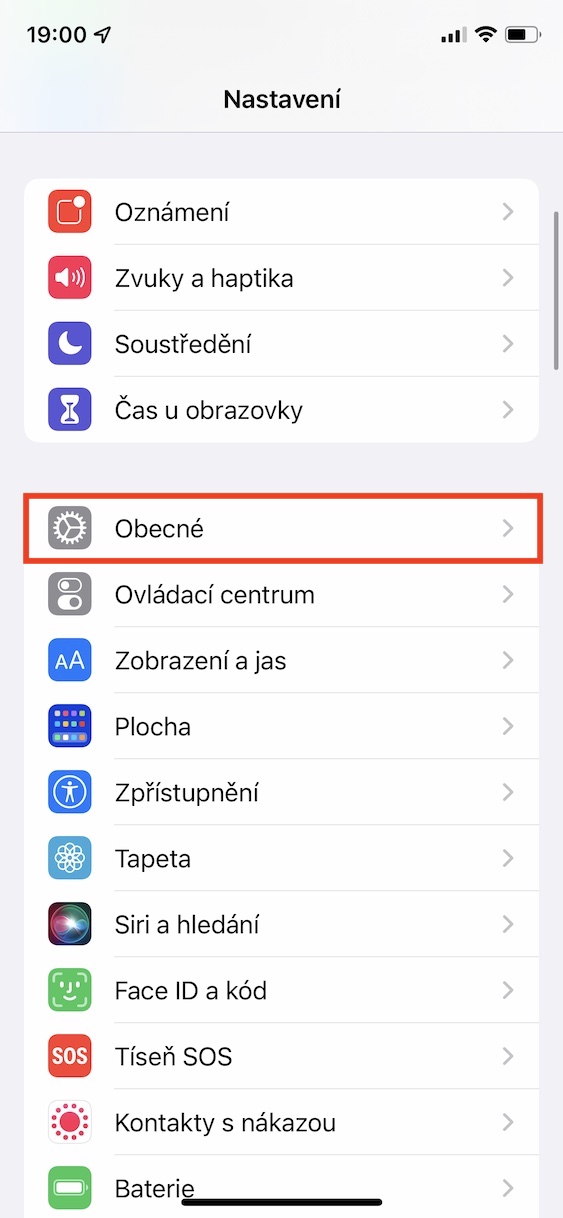
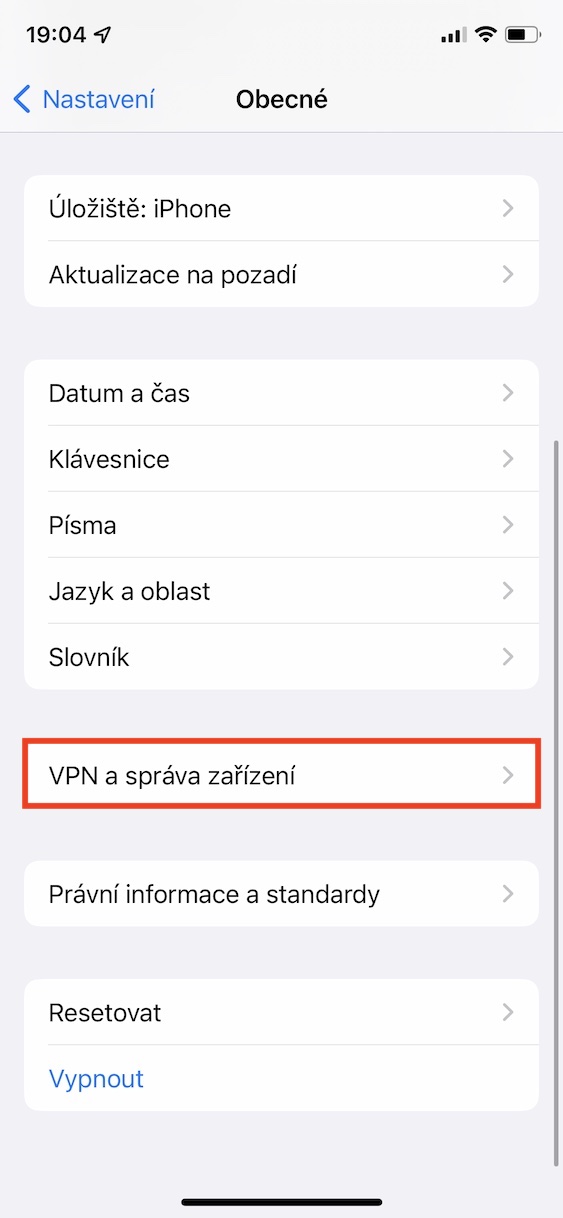
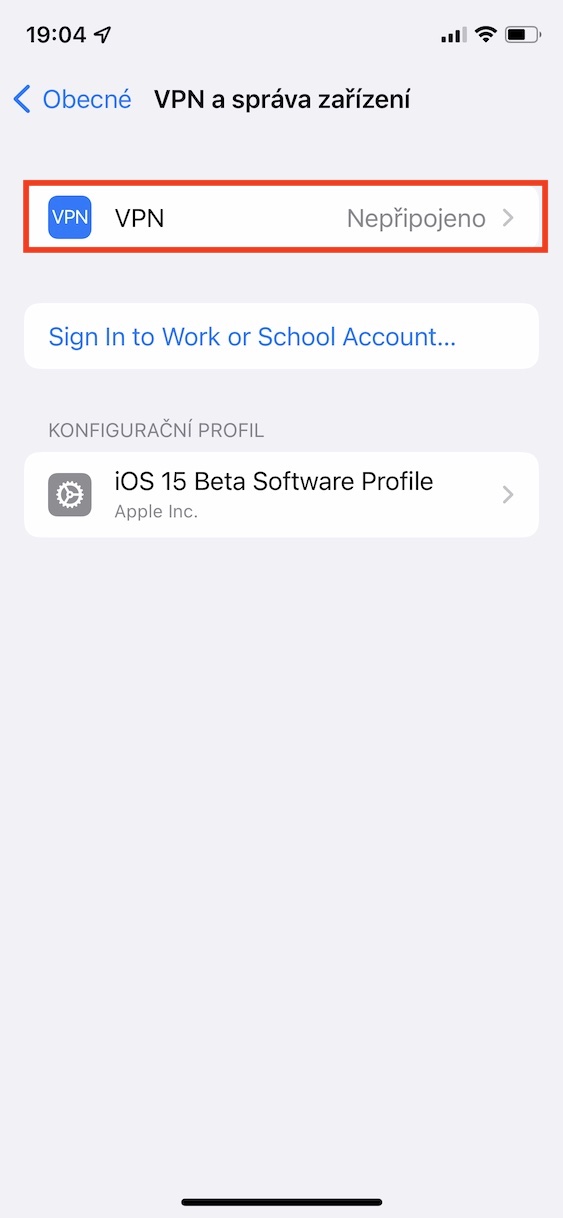
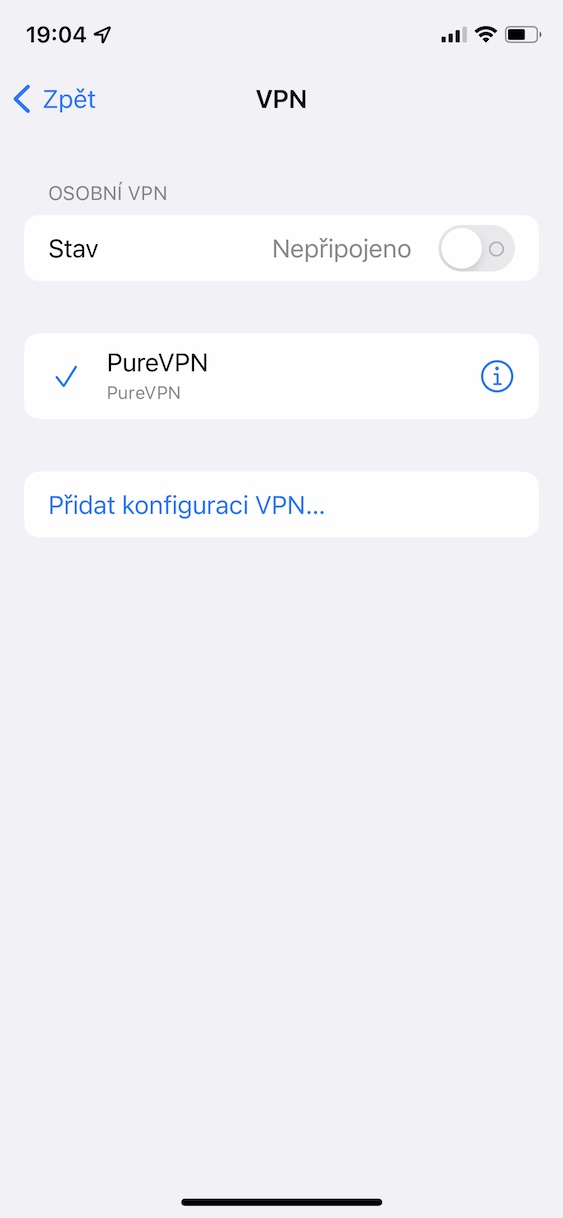
If you are in previous versions iOS installed a VPN application, so after the first launch it was necessary to configure the VPN in order for this service to work at all. Good news for all VPN users on iPhone is that in ioS 15, managing VPN configurations will be even easier and clearer. All information about VPN configurations can now be found in Settings -> General -> VPN and device managementIn addition, you can iPhone connect to a work or school account and manage system profiles.
Gallery
Notifications from Weather
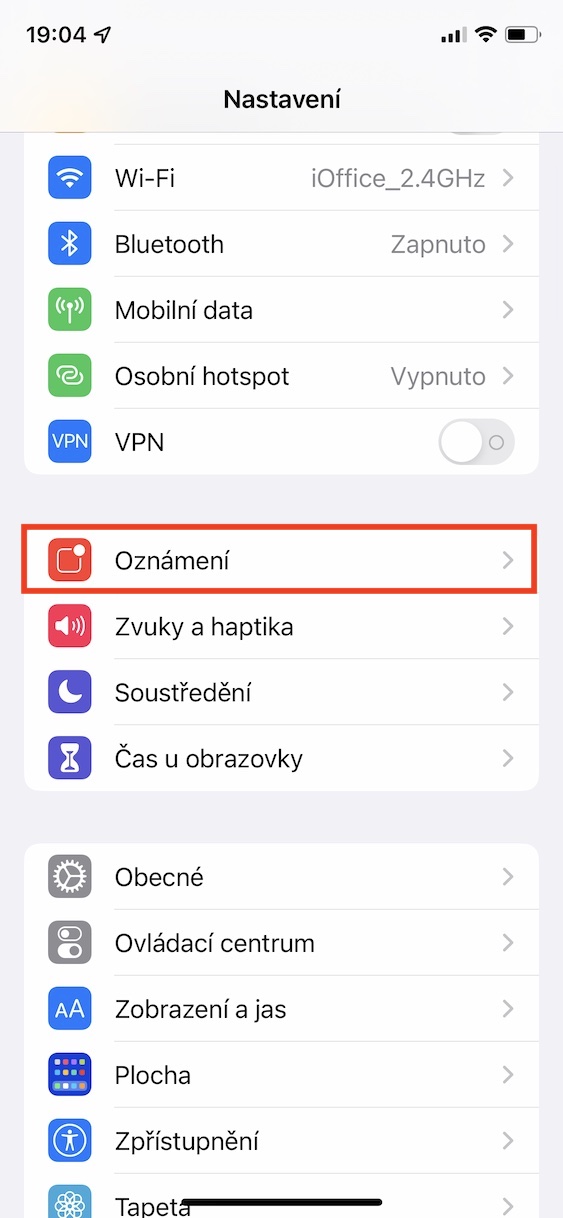
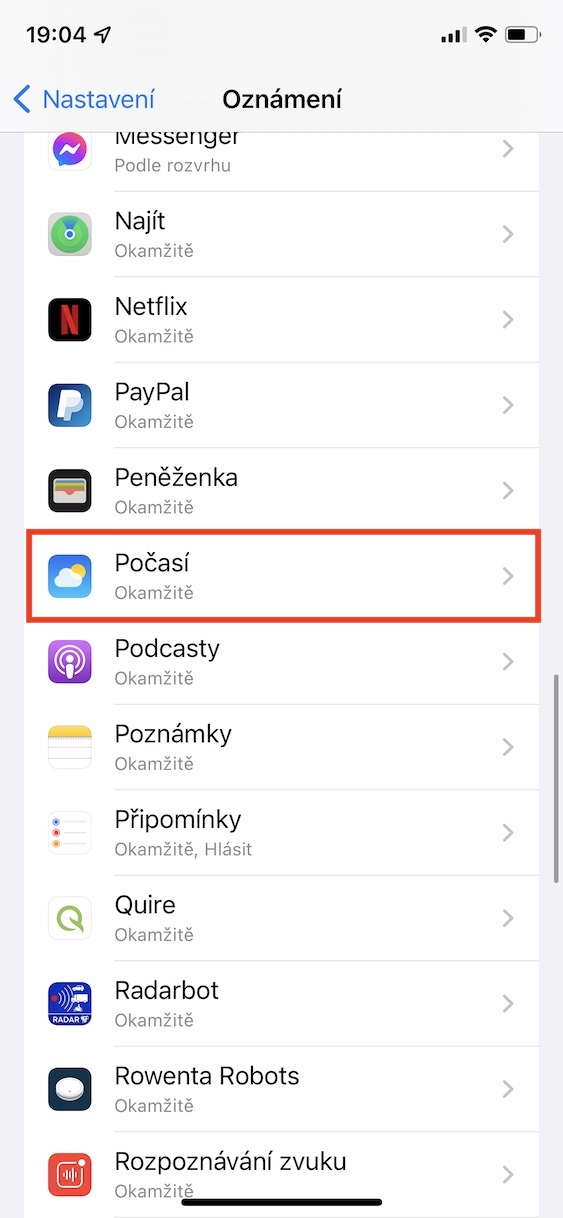
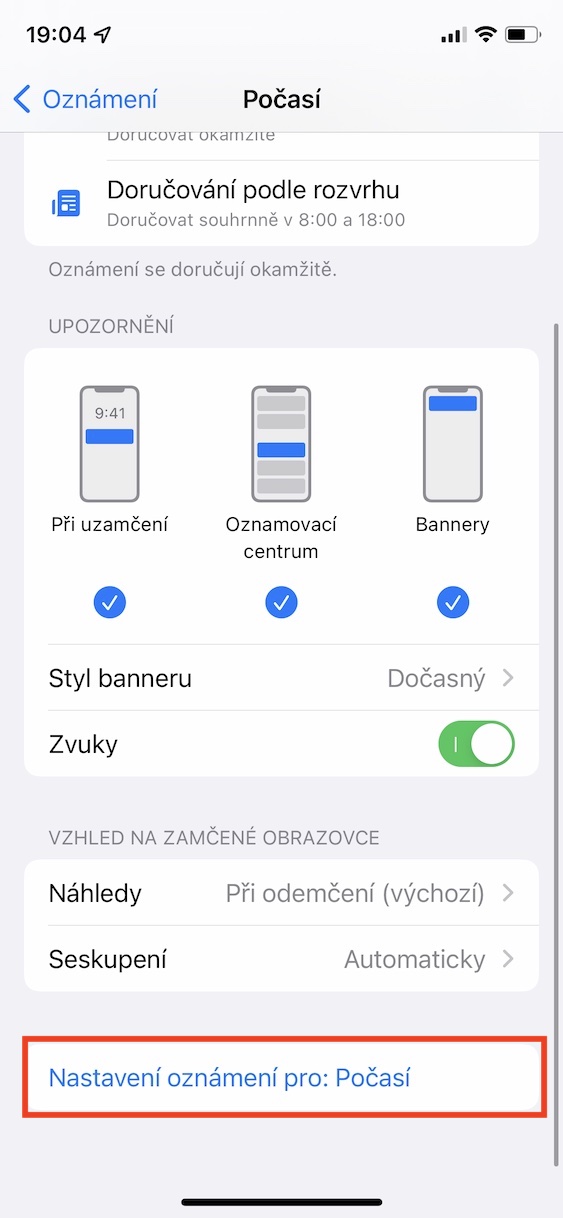
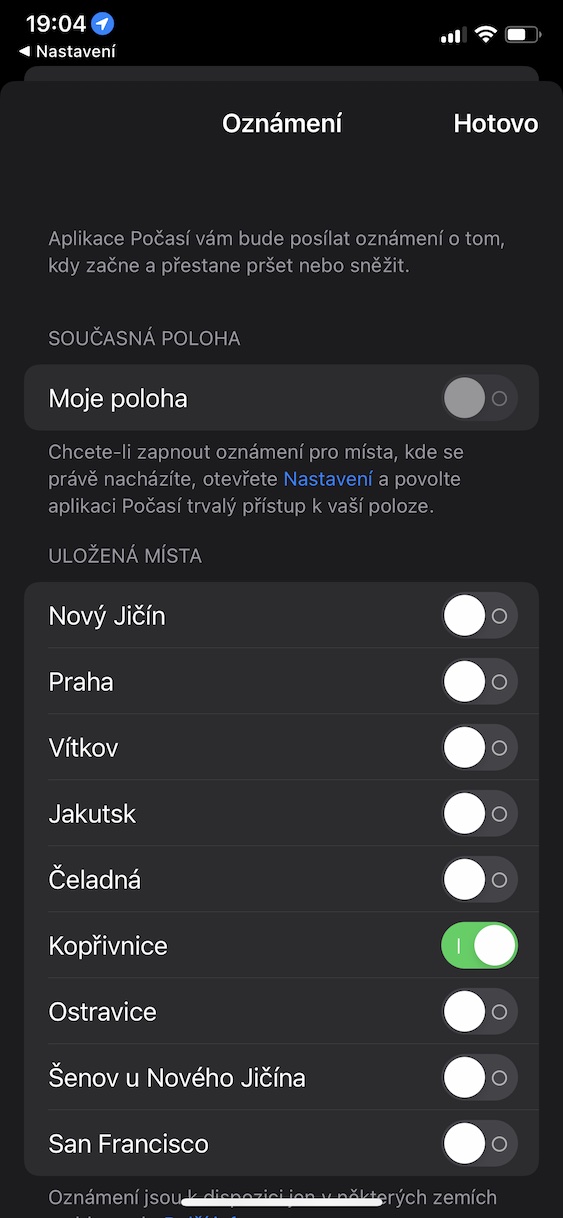
In previous articles, we have already mentioned several times that the new version iOS 15 comes with a completely redesigned Weather app. Apple was inspired by the Dark Sky app, which he bought a while ago, for the redesign. In addition to the new look, which is really perfect, you can notchat send various notifications from this application – this function is slightly hidden, however. You can find it in Settings -> Notifications -> Weather -> Notification settings for Weather, where you can already set everything you need.
Gallery
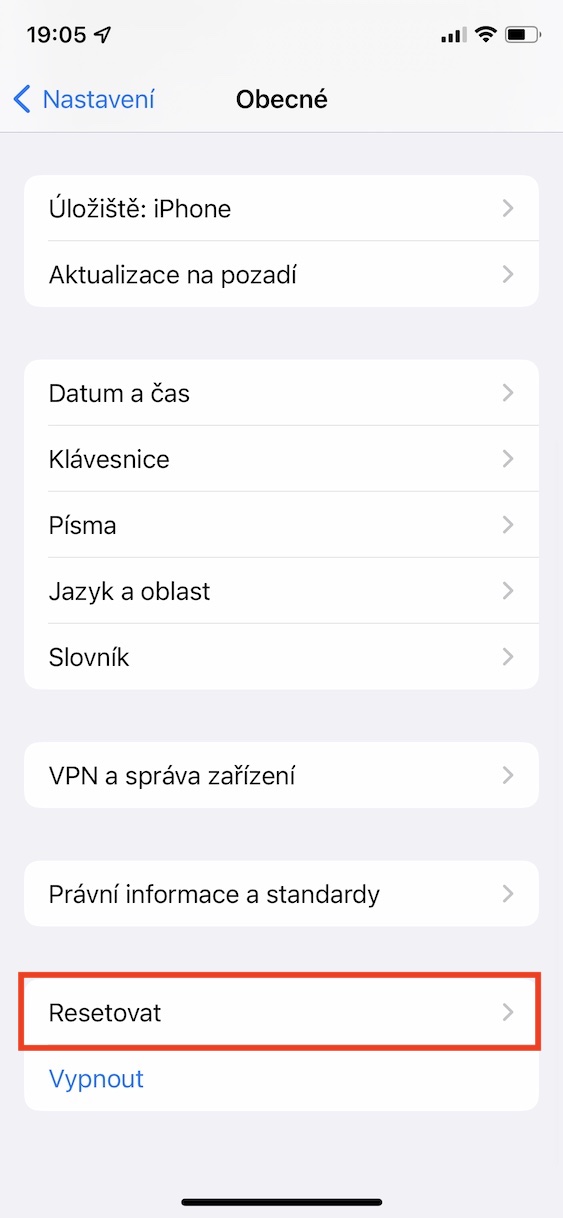
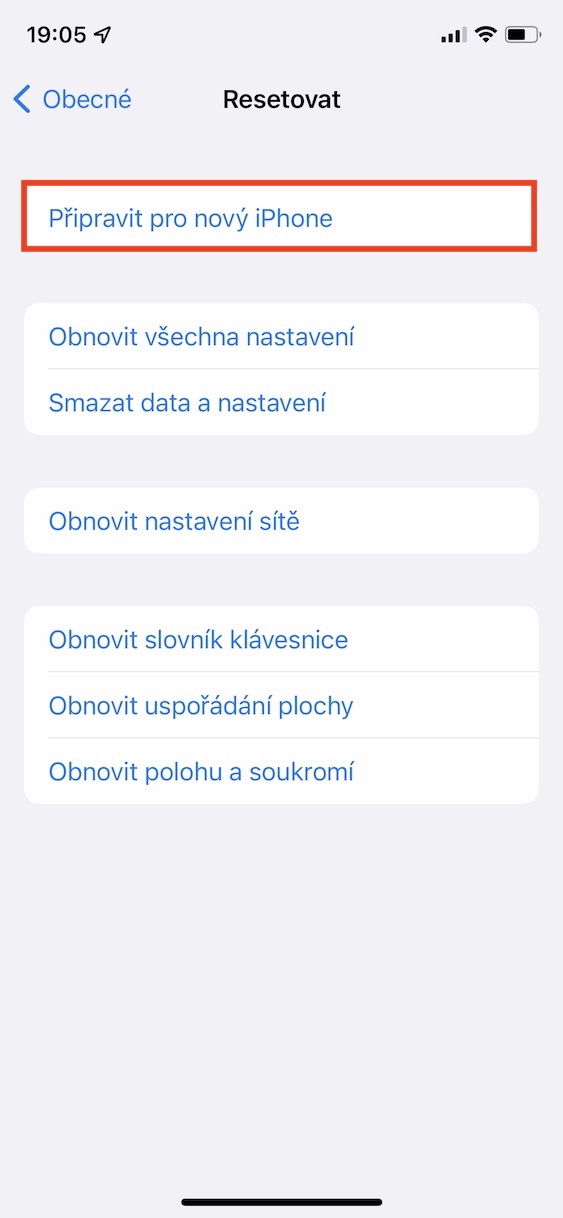
Preparing for the new iPhone
If you order a new one in the future iPhone, which you replace the existing one, you can be sure that with iOS 15 will make the entire transition much smoother and easier. A special feature has been added that will make it easy for you to prepare for the new iPhoneYou can find this function in Settings -> General -> Reset -> Set Up New iPhone. After starting, a wizard will appear, thanks to which you can easily back up data and perform other operations.


If you own iPhone 6s and older, which can be used by the way iOS 15 still install?
Thanks for the heads up, newer of course.
Hello, regarding those notifications – they will now notify me ofonets Apple Watch for example, that I left my phone at home (at the time they disconnected from iPhone via Bluetooth)?
Hello, I don't think it will work like this. I understood it to be the other way around. In other words, you will receive a notification on iPhoneif you leave (with iPhonem e.g. In the pocket) from Apple Watch, airpods etc.
I don't know... but I personally prefer typing an alarm on the keyboard rather than scrolling through hours/minutes to find the ones I need. Could it be that way?chat.