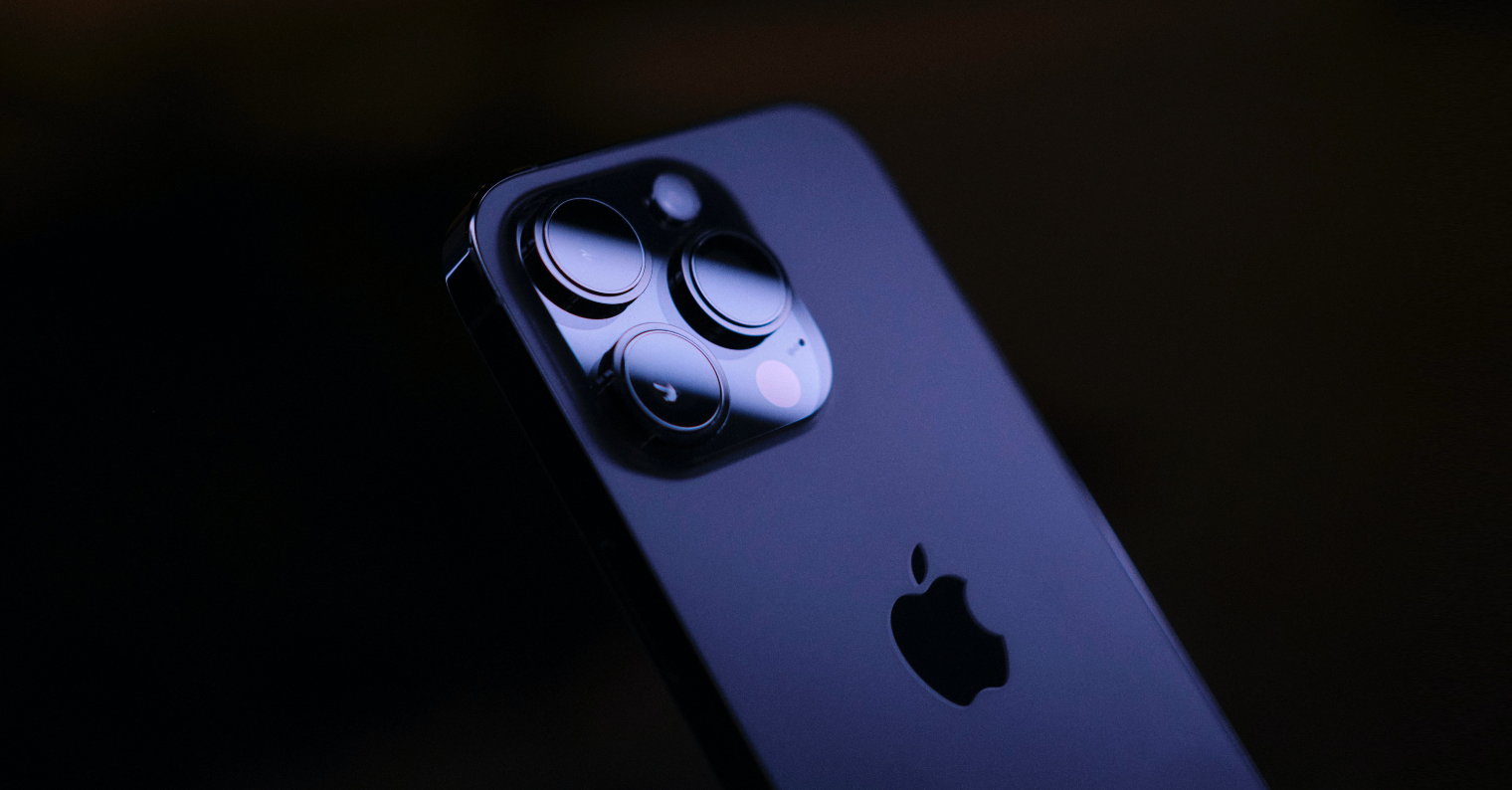
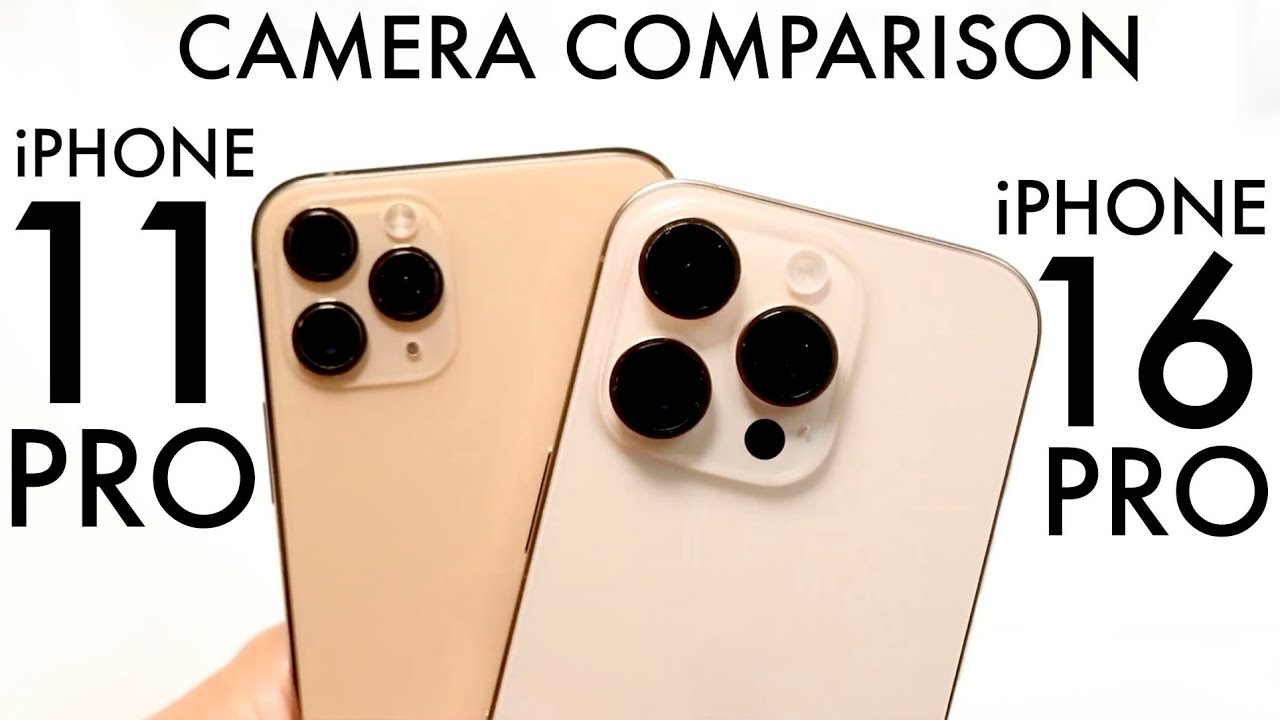
In recent years, Apple phones have seen all sorts of improvements (not just the camera). The biggest improvements can of course be seen in the flagships, but on the other hand, it's great to see that Apple added various features to older devices. In this article, we will look at 5 tips for better photography iPhonem that you probably didn't know about. The functions are certainly hidden in a way and you may not have come across them yet. If you want to learn more, keep reading.
You might be interested in
Choose between quality and quantity
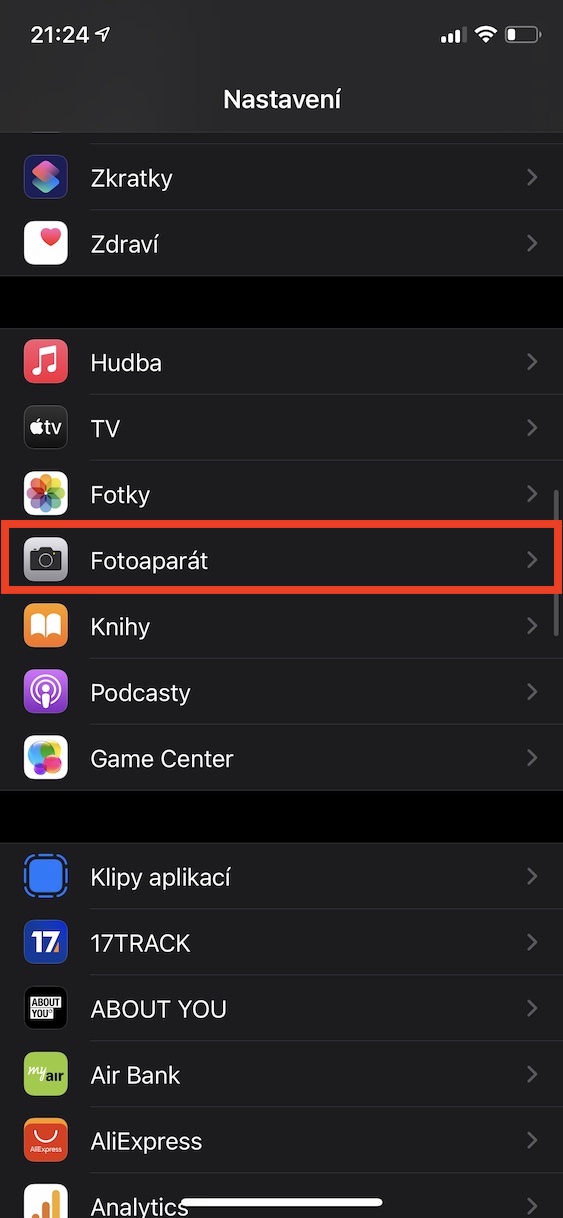
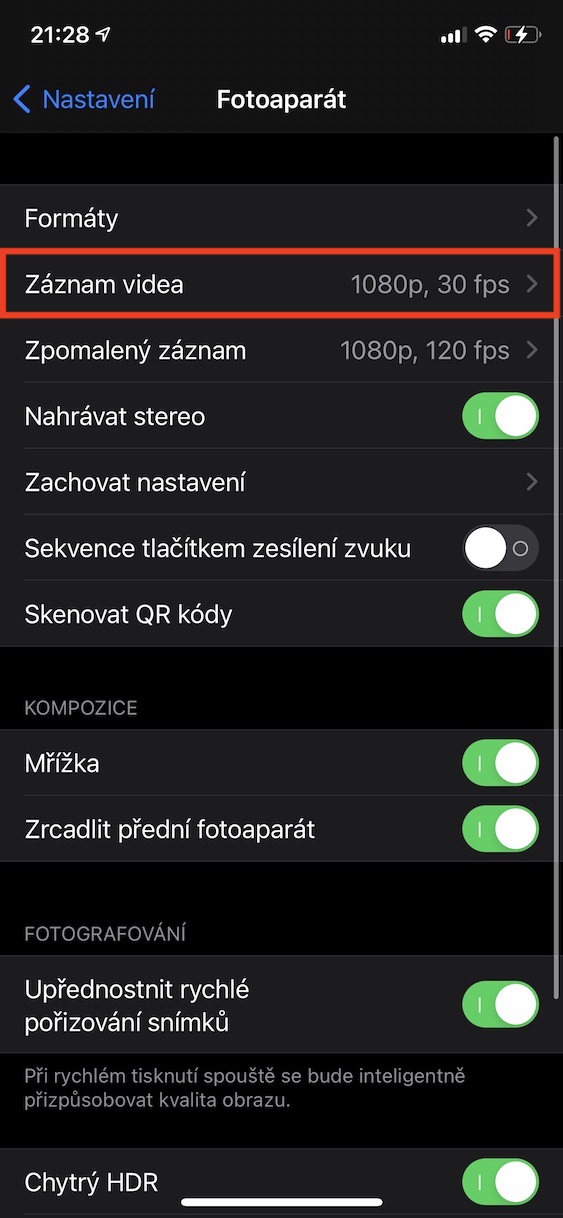
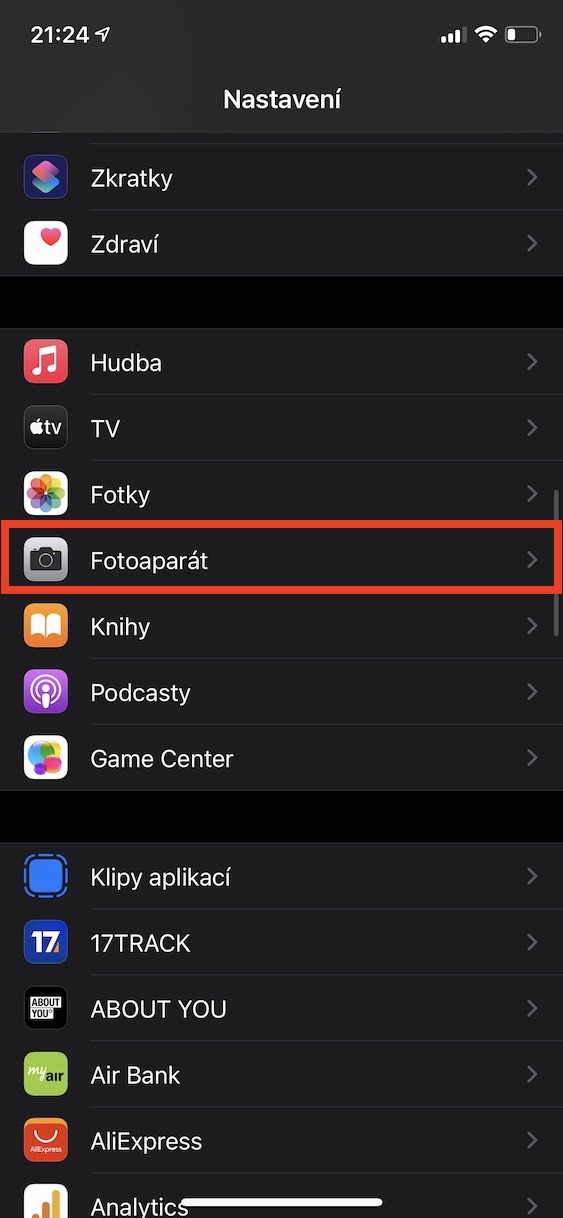
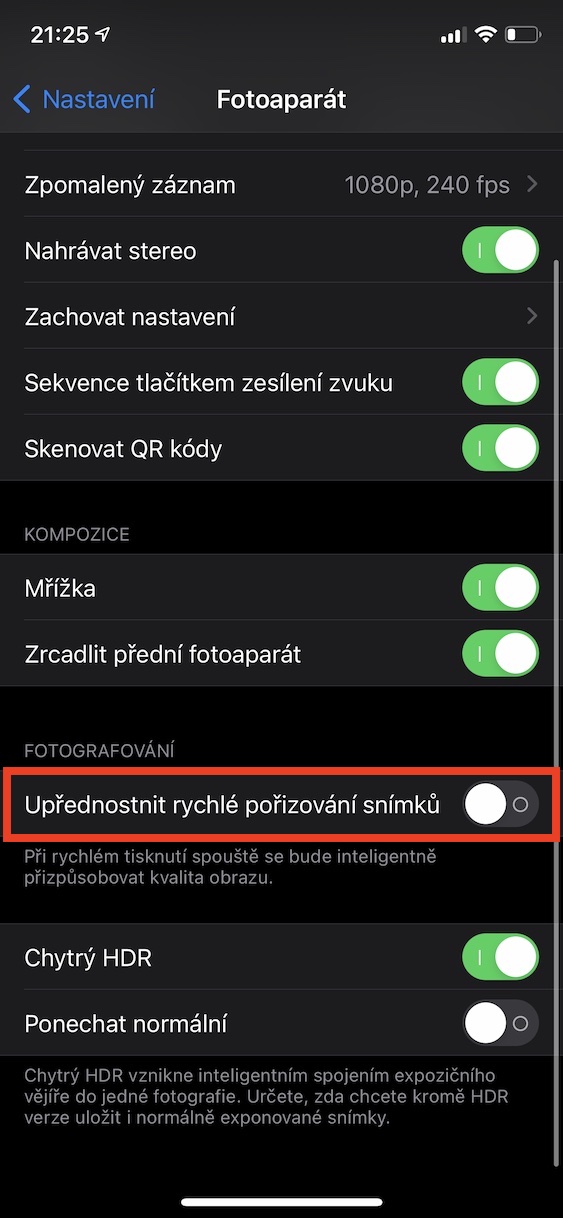
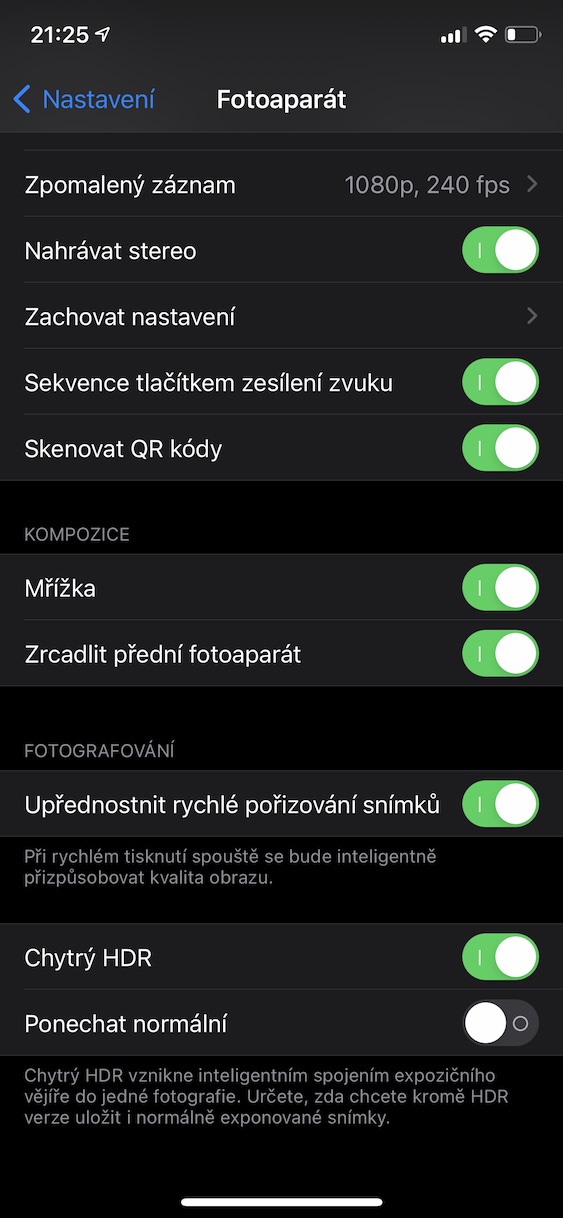
On your iPhone, you can set whether you prefer quality or quantity in the camera settings. These settings should ideally be changed before a specific type of photo shoot. For example, if you are going to take photos of sports, races, or anything else where you record movement, you should of course give priority to quantity. On the other hand, if you are going to take photos of "still" nature, where you really want to take care of your photos, you should go for slower but higher-quality photography. If you want to change this preference, you need to go to Settings, where you scroll down and click on the Camera column. Then scroll down again and use the switch in the Photography category to (de)activate the Prioritize fast photo taking function .
Prowatch night mode
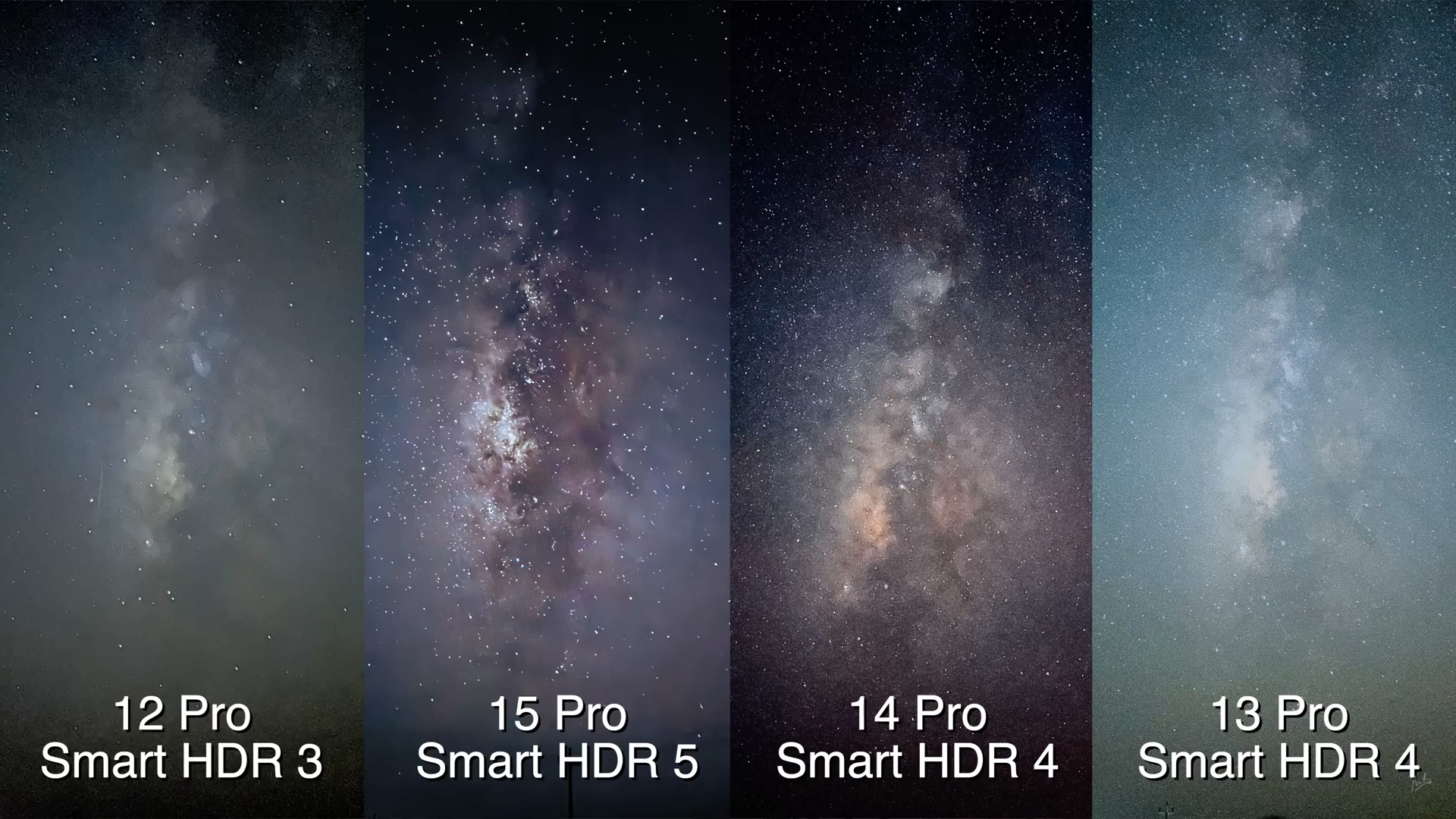
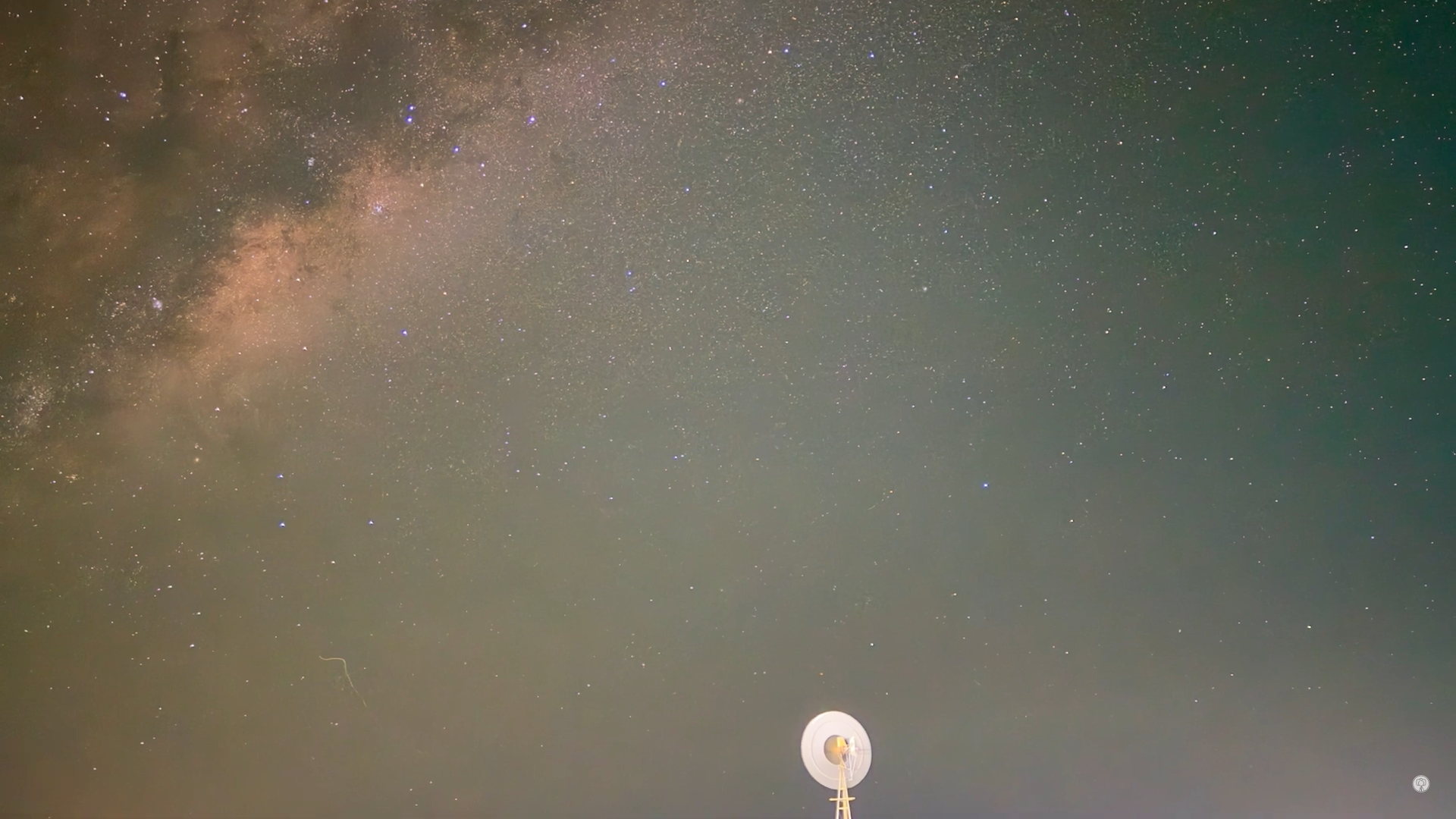
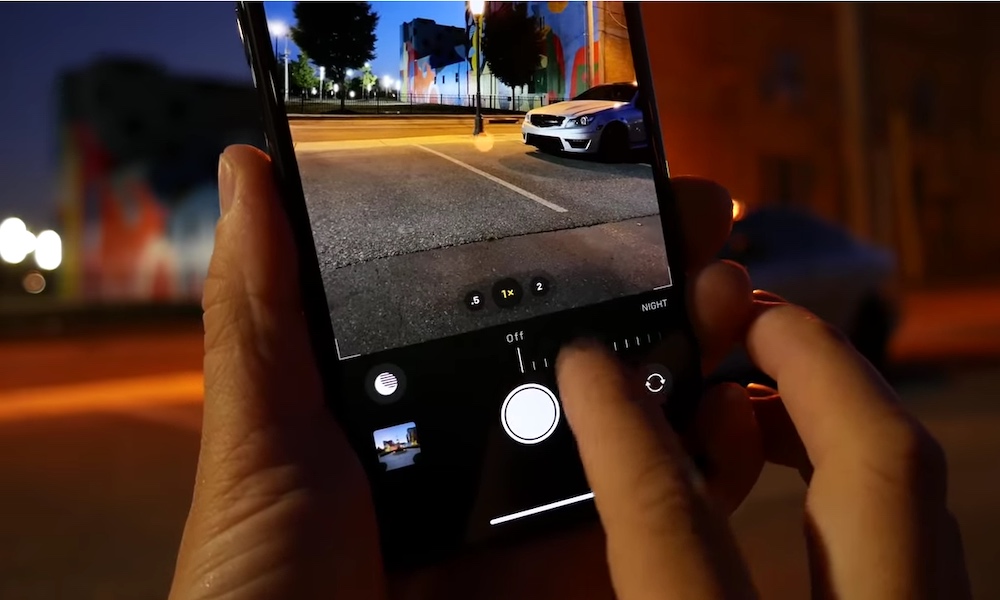
We saw the night mode for the very first time with the arrival of the iPhone 11. But it is true that we also saw a certain improvement for taking photos at night with older devices, only that Apple it does not state in any way anywhere. If you were to compare the night photos on the iPhone XS, for example, two years ago and now, you will find that their quality is much better. However, we cannot control night mode in any way on iPhone XS and older. This is especially the dominant feature of the aforementioned newer Apple phones. Night mode is automatically activated when it detects low light levels. When shooting night mode, it can take up to three seconds to take a picture, during which you should hold the device still - ideally propped up with something. The longer it takes to take a picture in night mode, the more light reaches the sensor. If you want to change the shutter speed, all you have to do is in the application Camera tapped on the Night Mode icon in the upper left corner - it should be orange. Below will then appear slider, which you just need to set according to your own discretion.
Front camera flip
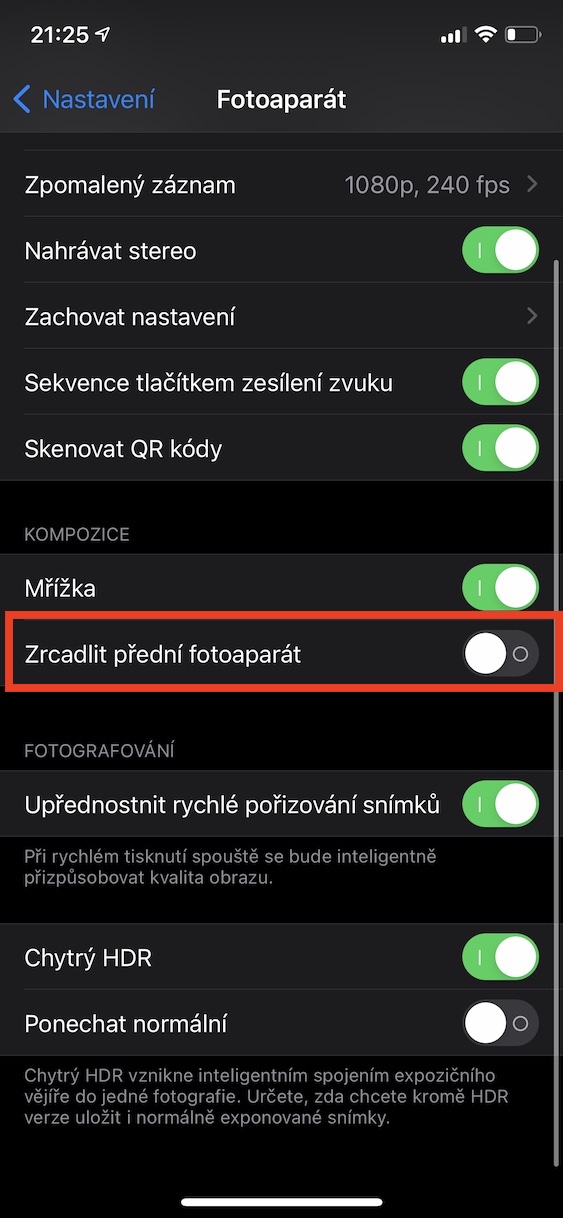
If you have a social network, ideally TikTok or Instagram, you can watch various videos in which girls look at their faces after flipping the front camera - often the results, especially for girls, are very surprising. It is very interesting to see how different we are after flipping. They say that front cameras automatically flip pictures - but if you think about it, you will find that this is true. If you would like to (de)activate this feature for automatically flipping pictures from the front camera, go to Settings, where below select the Camera option. Then all you need to do is turn on or off the Mirror front camera option in the Composition category below using the switch.
Try the format ProRAW
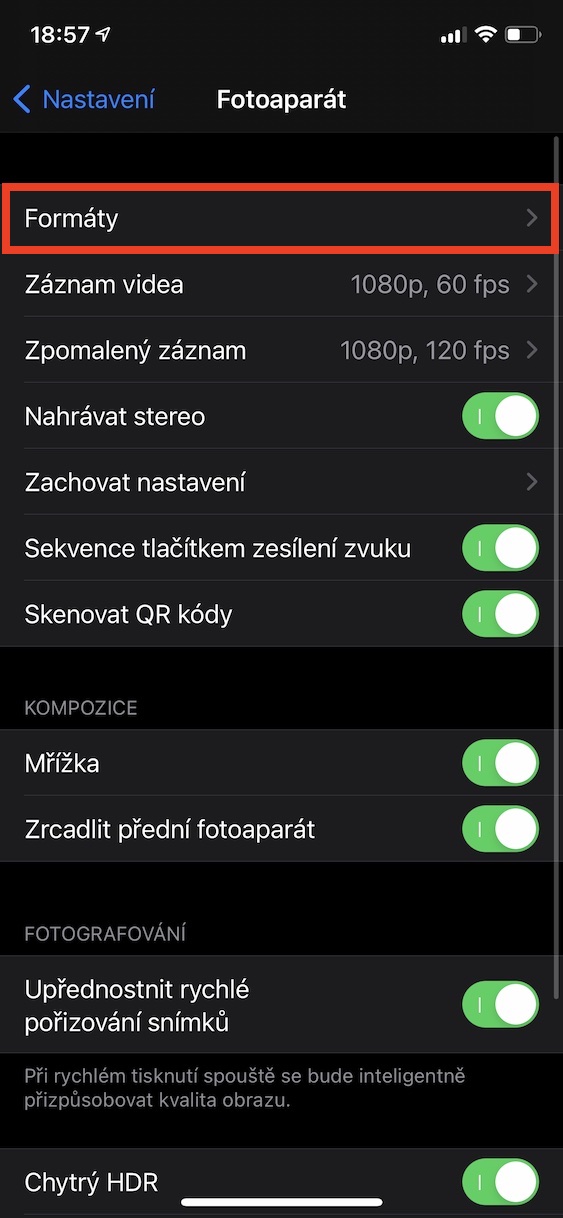
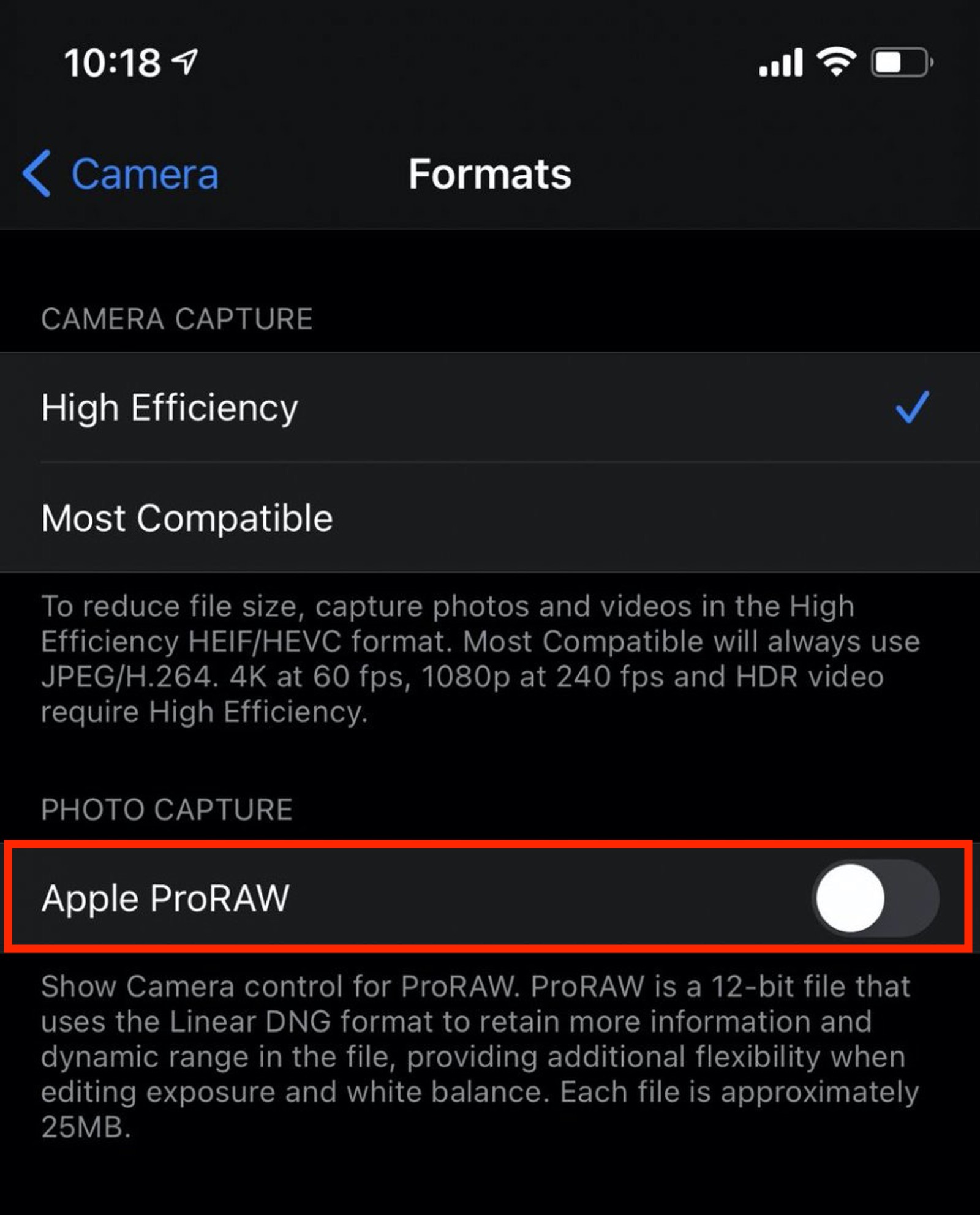
When Apple introduced the new "twelves", so we learned more about the fact that for the models Pro Apple is preparing to support the format ProRAWA few weeks ago, after months of waiting, weonethey waited patiently and Apple format ProRAW on "Pro"chka" tooneadded. But the truth is that this feature will definitely not be useful to all users. Format ProRAW It is intended primarily for individuals who like to edit their photos in post-production, and these photos also carry a lot more data, so one image can be around 25 MB. Shooting in the format Apple ProRAW you can (de)activate in Settings, where below click the option Camera. Here then click at the top Formats a below do it (de)activation Apple ProRAW. Everything you wanted to know about this format can be found in the article found at this link.
Learn how to use Auto FPS
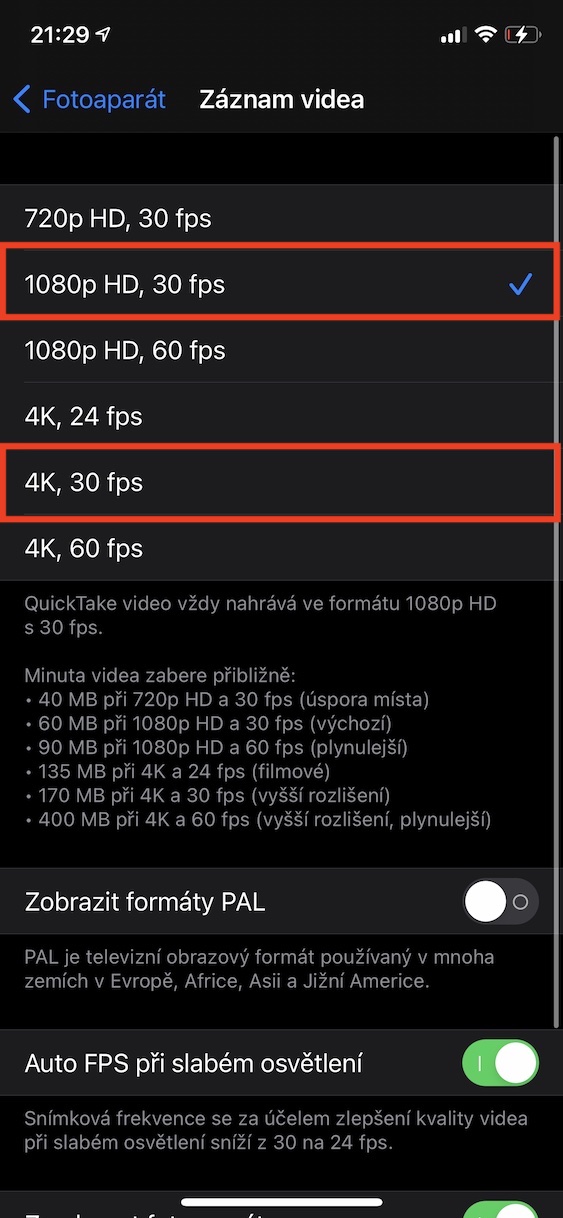
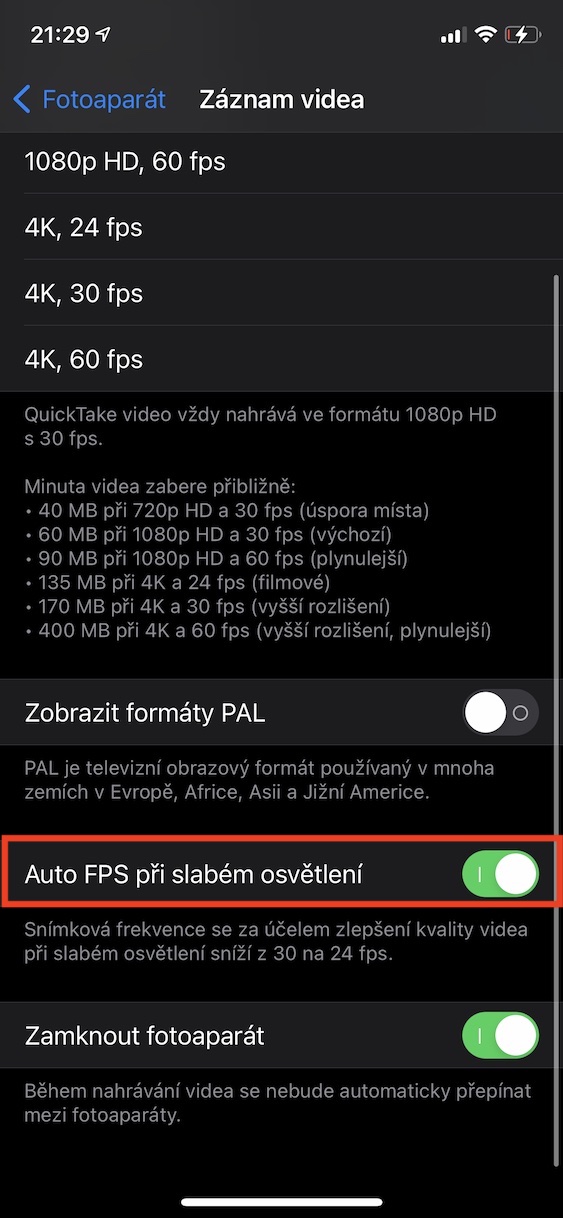
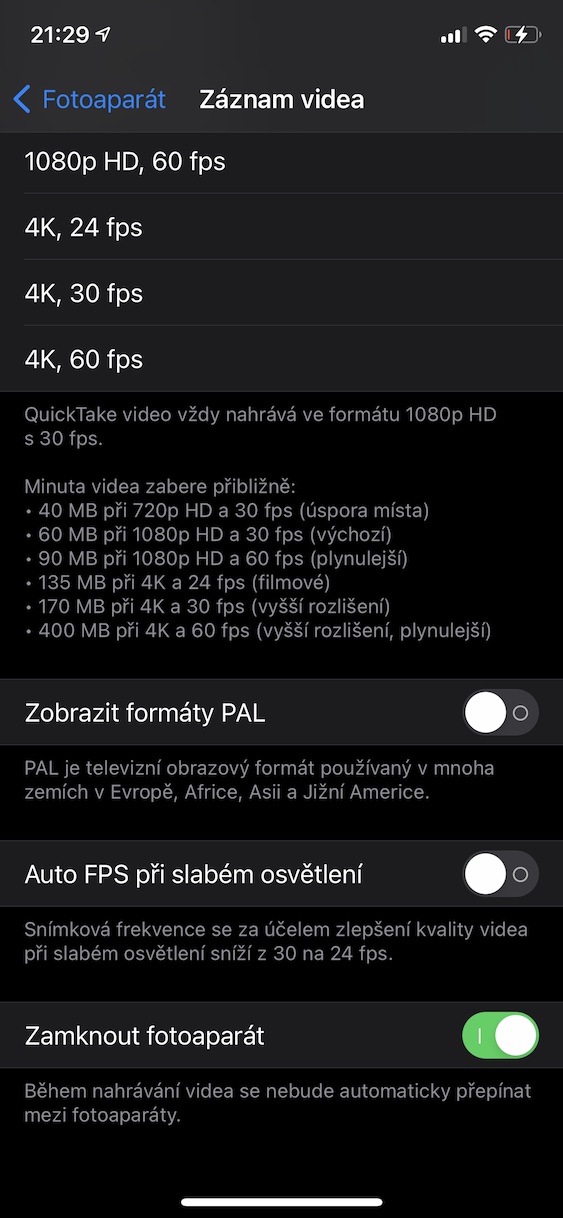
I think most of you didn't know about the Auto FPS feature. If you've ever shot a video in low light conditions, you've probably noticed that the final shot isn't as "clean" as it might have looked in the viewfinder. This is because the iPhone tries to improve the recording by automatically adjusting the FPS (frames per second) while recording. In certain cases, the Auto FPS function is useful, but in others, unfortunately, it is not. Therefore, it is necessary for you to “play around” with this function and find out for yourself when it will be useful for you and when it will not. It is important to note that (de)activating the Auto FPS function is only available when recording at 30 FPS – it does not matter whether it is 1080p or 4K. Once you have selected one of these options in Settings -> Camera -> Video recording set, the box below will appear Auto FPS in low light, which you can either turn on or off.
Gallery