
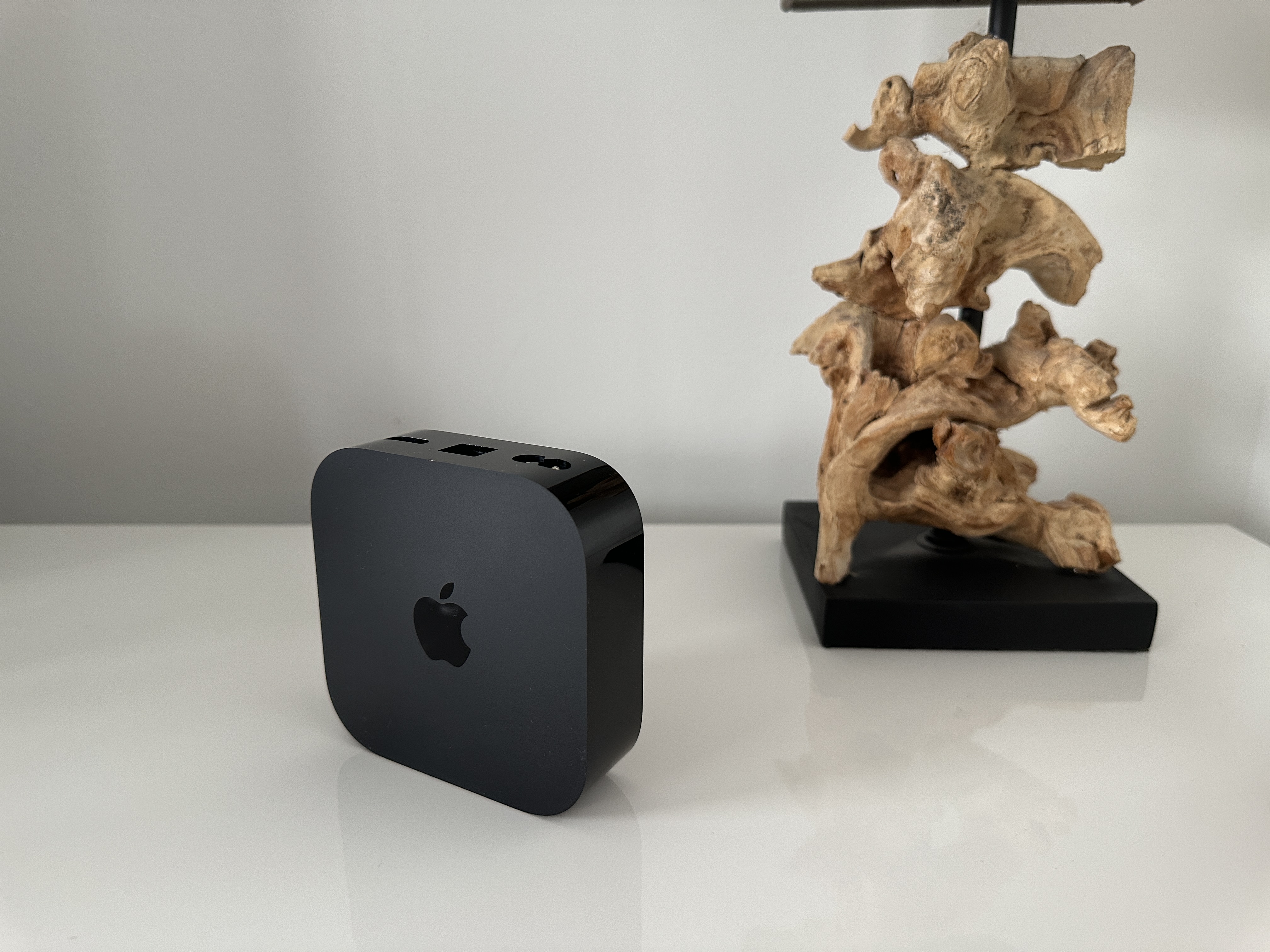
Apple TV is one of the least popular Apple devices. However, there are still countless users who Apple TV praise, and who will not let it happen. If you are one of these users, but it seems to you that your Apple TV has not been completely smooth lately, then do not despair. There are several options that can help you. Let's take a look together in this article at what you can do to speed it up. Apple TV make.
You might be interested in
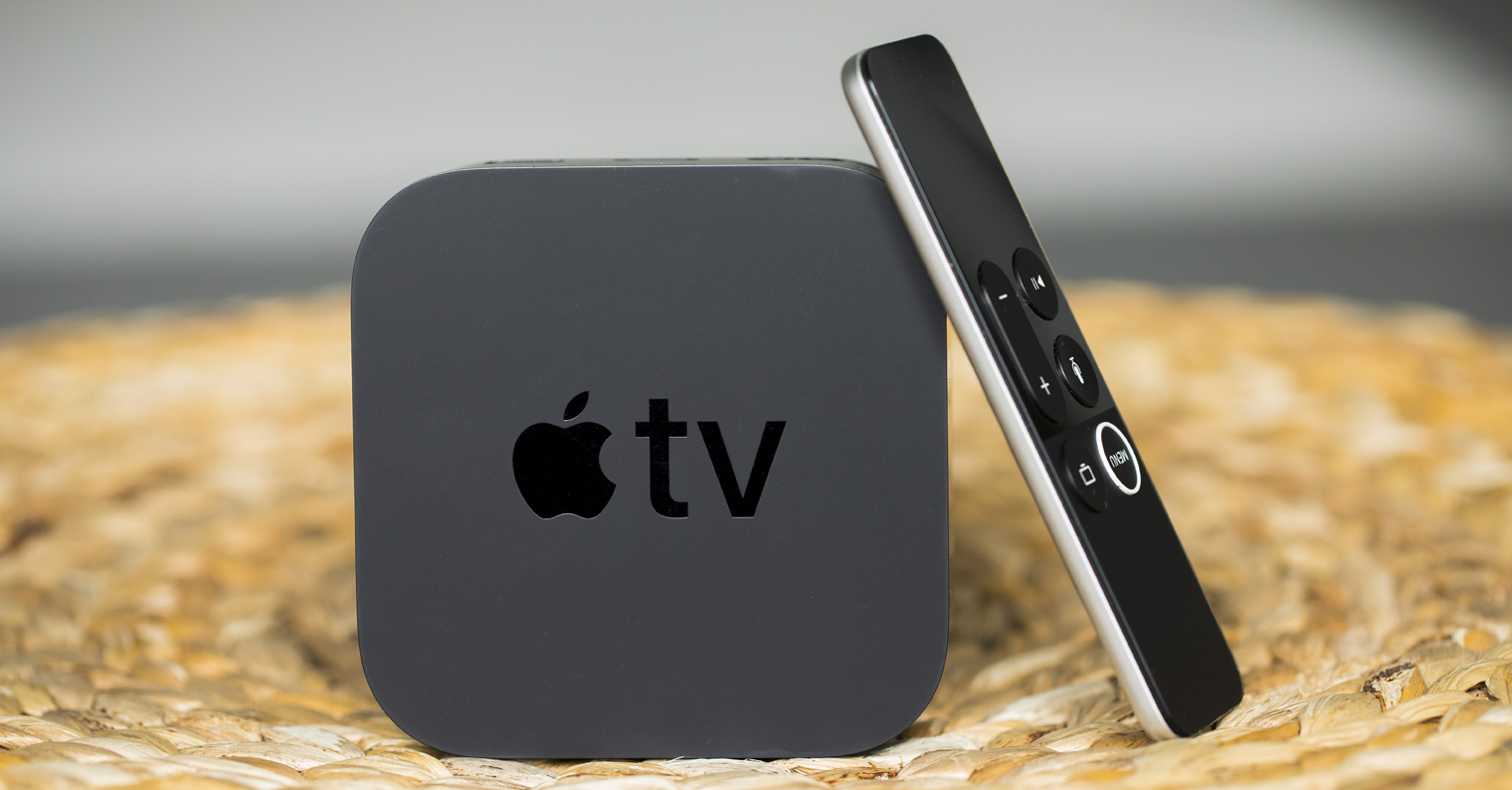
Go to cable connection
Most often, users have Apple TV problem with the fact that they are stuck playing various movies or series from streaming applications. So if you are watching Netflix or TV+ and the title gets stuck from time to time, or if an error is displayed, then there is probably a problem with the internet connection. Most users use Apple TV by connecting it to the power supply and to the television. Nakonec just connects to the Internet wirelessly and that's it. And this is where the problem arises. Connecting via Wi-Fi is easy and takes a few seconds, but it is worth noting that it cannot match the stability and speed of a wired connection. So take your time and reach out to yours Apple TV classic cable internet. Immediately after that, you will feel a significant acceleration of loading and the titles will no longer get stuck.
Gallery
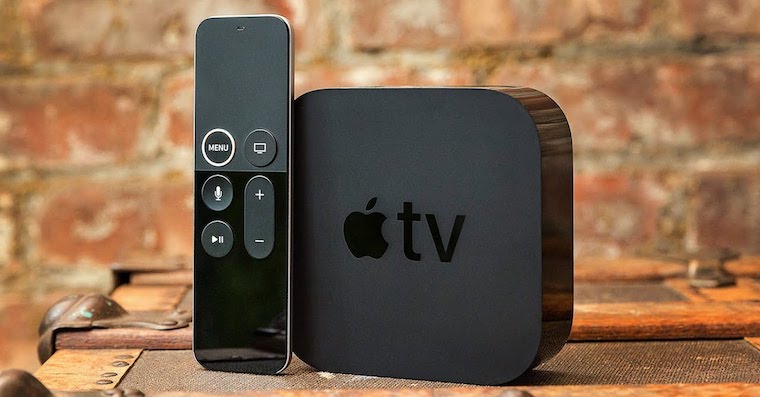
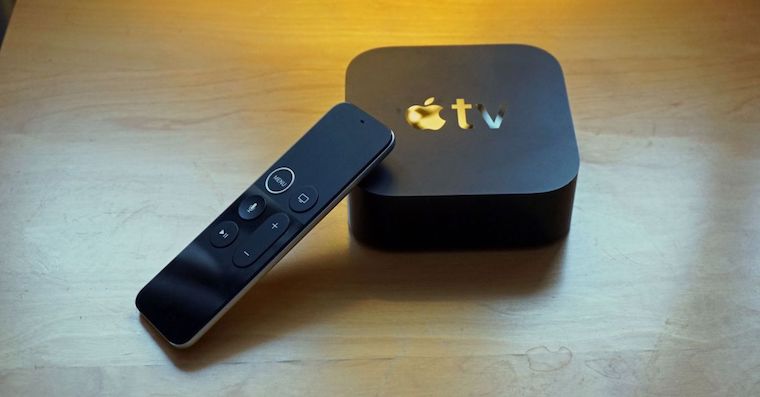
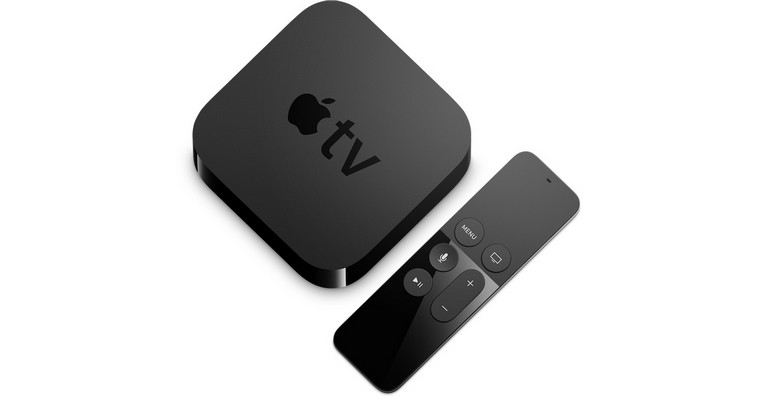
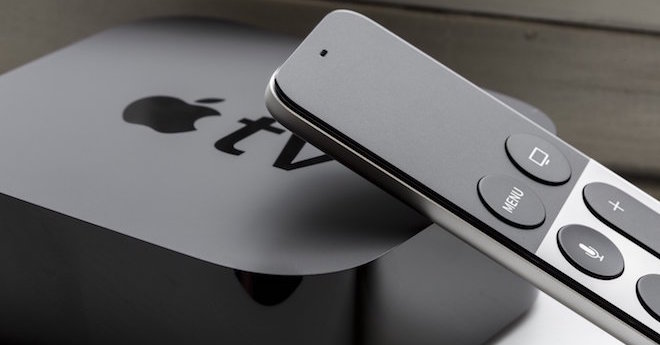
Restart Apple TV
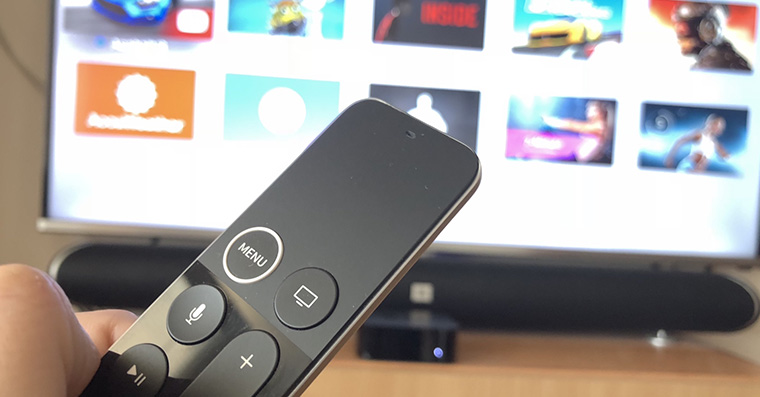
While iPhone or iPad, you can simply restart it by pressing the appropriate gesture, then swiping the power button, then Apple TV you won't find any buttons. You can only control it with the remote control and unfortunately many users don't even know how to do it. Apple TV simply restart. Instead, when stuck Apple TV completely disconnects from the network, which is definitely not ideal. The truth is that you can simply restart your Apple TV directly from Settings. So all you have to do is go to the native app Settings, where you click the box System. Then just tap on Restart and confirm the action. This is how you can Apple TV restart every few days. You can also perform a quick restart by at the same time you press the MENU button together with the button with the TV icon. After a few seconds the whole Apple TV reboots.
You might be interested in
Software Update
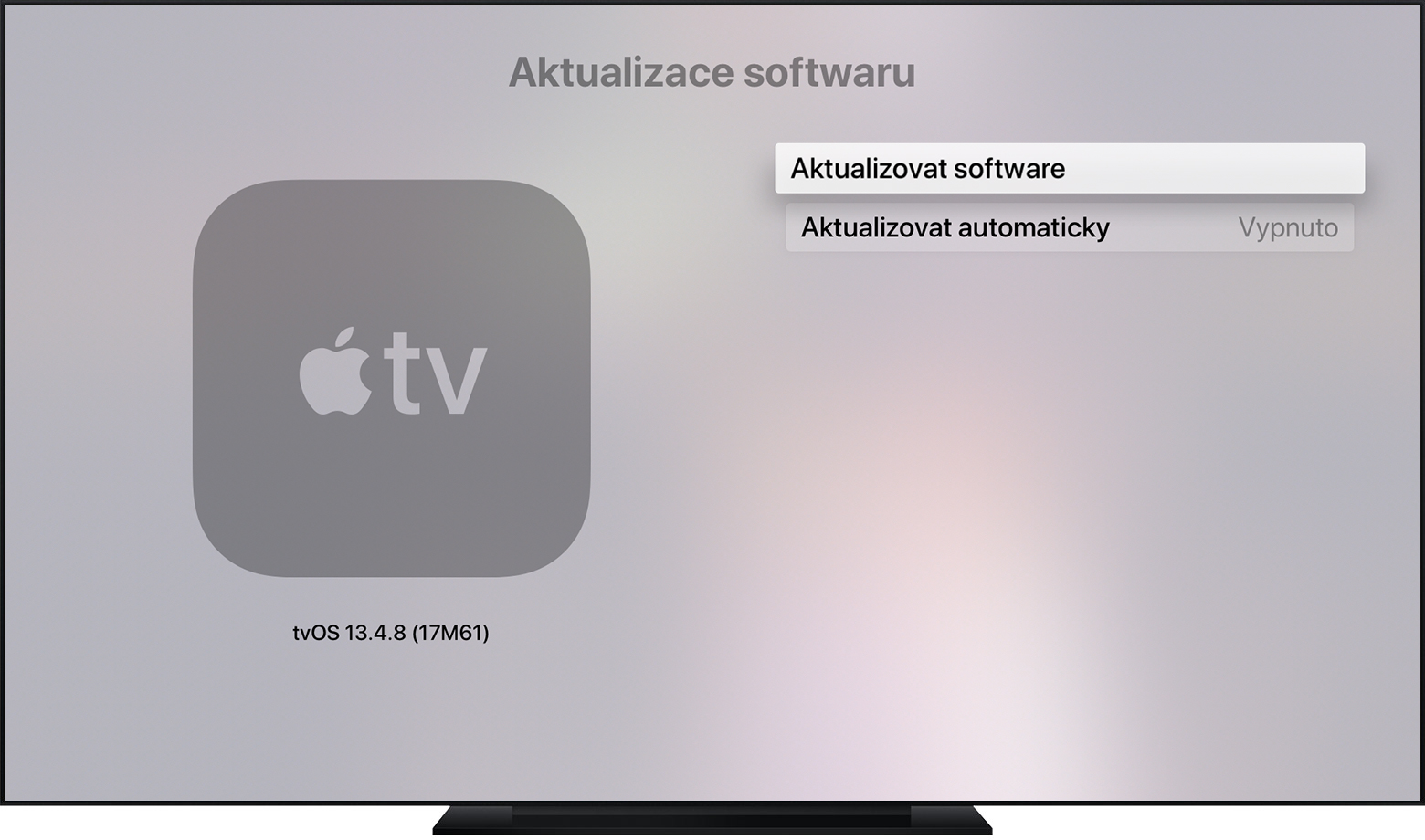
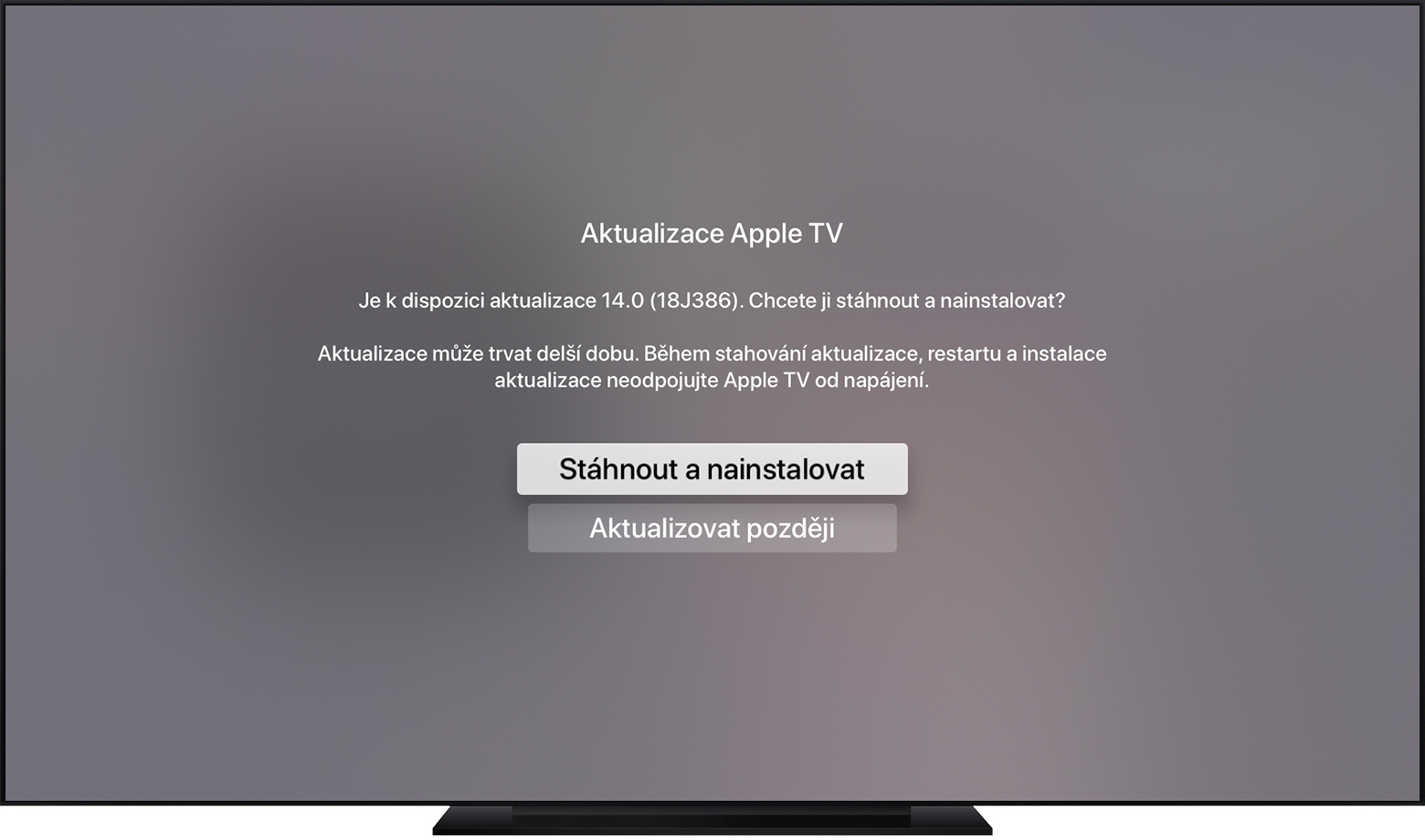
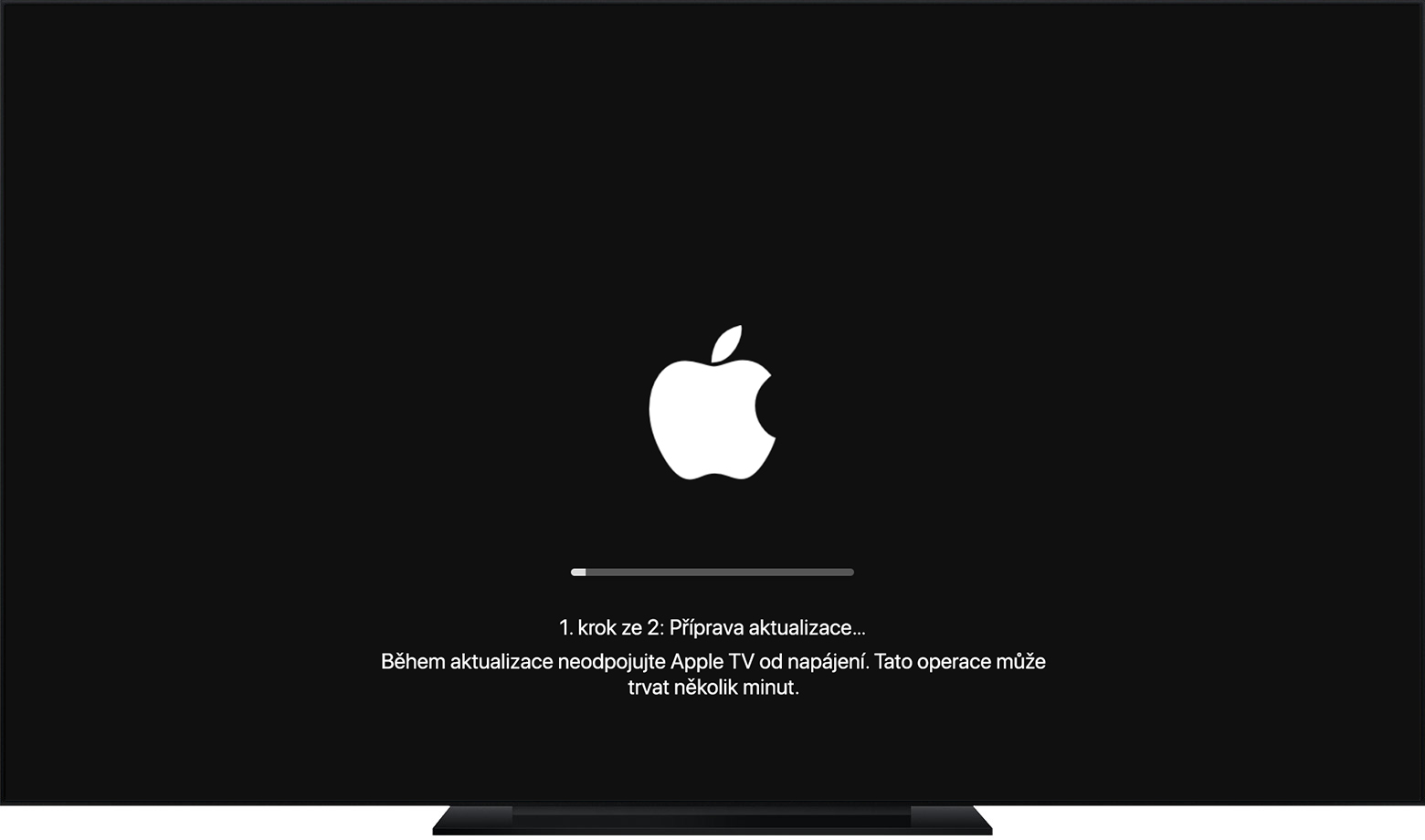
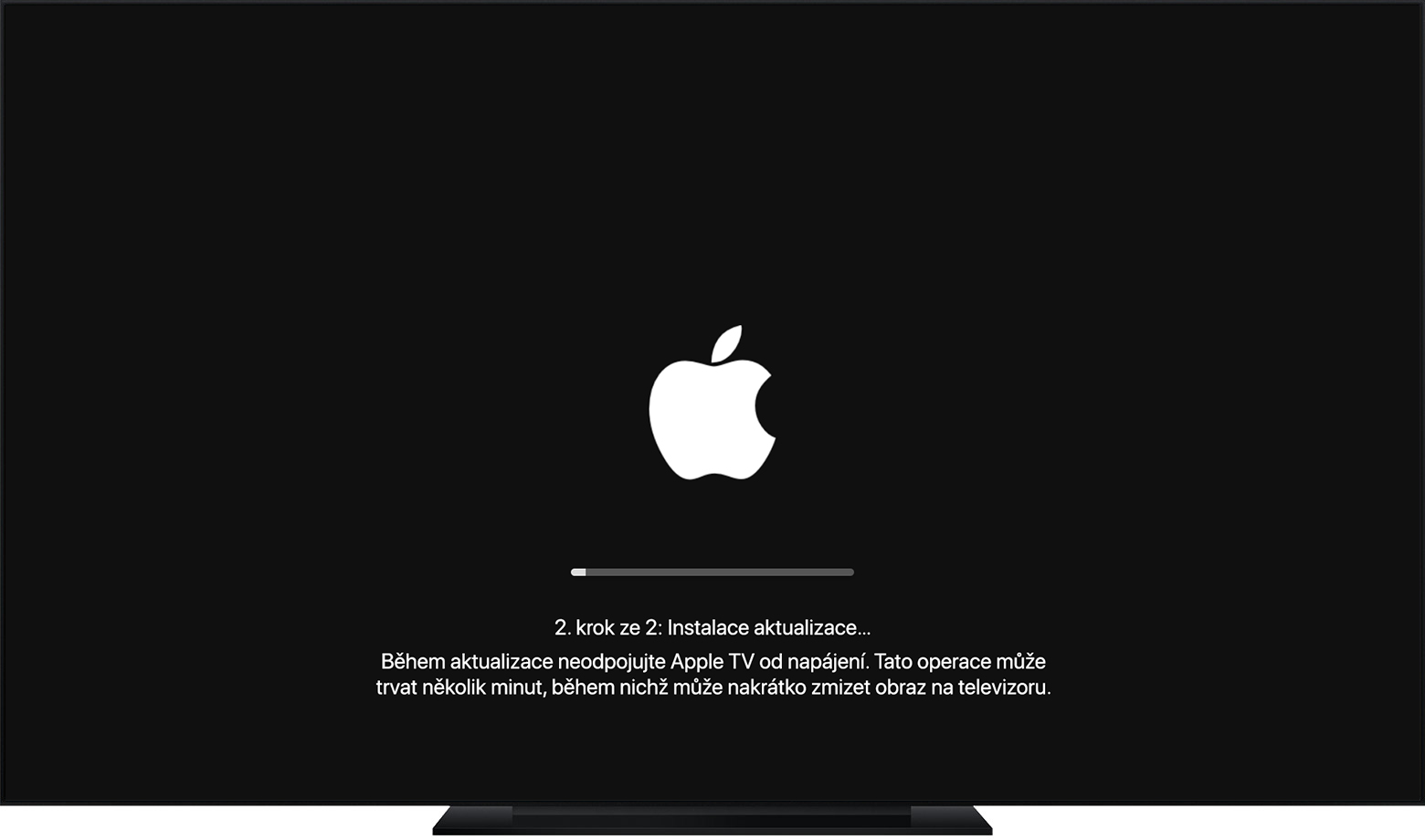
Many users do not update their devices for inexplicable reasons. But the truth is that in addition to various improvements, each update also comes with fixes for various serious security bugs. Therefore, every one of us should regularly install updates, both for hardware and applications. The same applies in the case of Apple TVIf you have any problems with tvOS, first try updating your Apple TV - in many cases, updating can help if it is Apple TV slow. To check if it is watchOS in your Apple TV current, or if there is no update available, just go to Settings, where you click the box System. Then just open it Update software. If an update is available, tap on Download and install. During the entire update process Apple TV Do not disconnect from the internet or power.
Check your internet connection
As I mentioned above – in case you have on yours Apple TV If you are having problems playing some titles, it is most likely due to a poor internet connection. If you have already Apple TV connected via cable and the problems still persist, you should check a few things. First of all, in addition to stability, speed is also important. For example, Netflix states that for UHD playback you only need an internet connection of 25 Mbps. However, it is necessary to take into account that several users and devices can use the internet in a home at the same time. In the end, we can say that the ideal download speed is at least those 100 Mb / s. In addition, it is necessary that you have a properly configured router, among others I recommend this one scheduled restart, for example, every day at night when the whole family is asleep. You should also not forget about router firmware update.
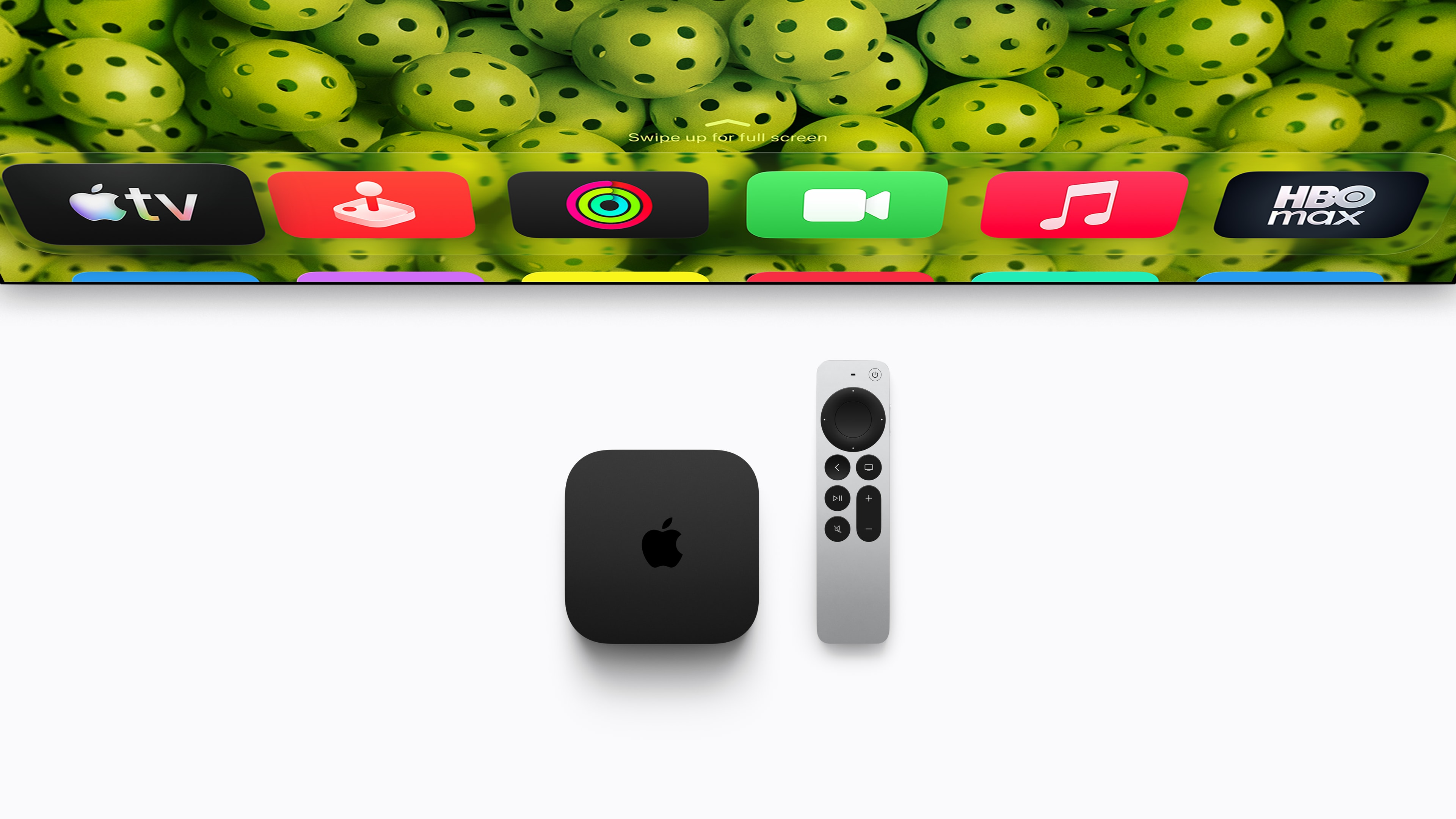


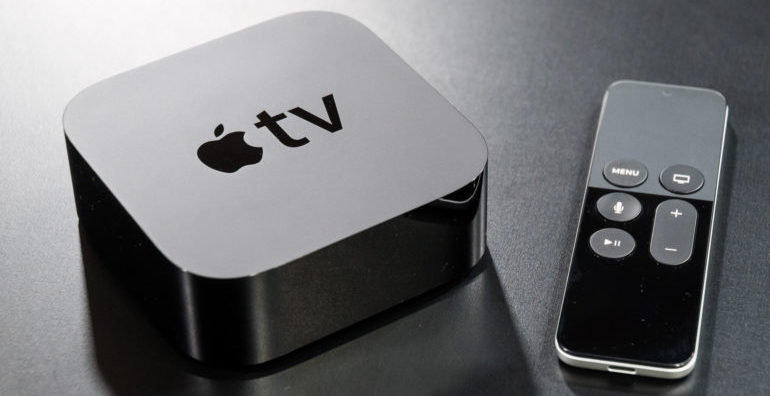

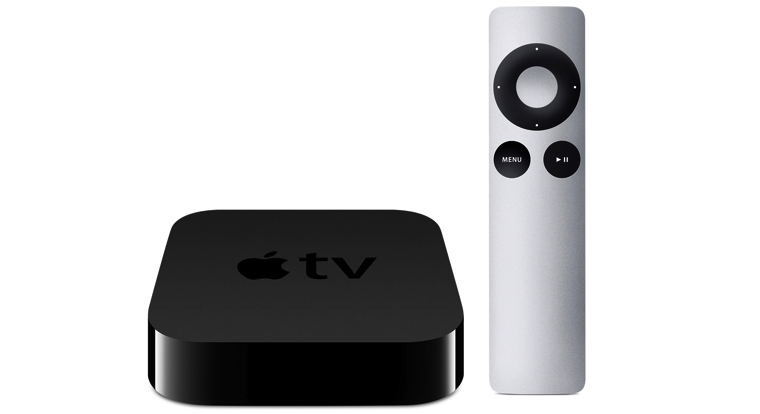






The operating system of every TV and HW is worth a fart... Apple TV will make every TV a fast and smart TV. The remote control has a timeless design and TV manufacturers have not been able to come up with such a simple and timeless remote control in all their time. I have a 4K and a classic at home and I can't praise it enough. I have never experienced the problems mentioned in the article.
I prefer a series of developers appeven though IPTV providers in particular still stick to the old habits of rubber controls, old boxes and archaic code where you have to click like crazy to get to something, with the exception of times where I scroll through the entire menu with one movement and simply choose
I was dealing with some O2 Internet and TV settings with the operator and we also talked about set-top boxes, so she told me that if I had Apple TV, so O2 is preparing an application for ATV this year and I won't need their classic HW Set-top box anymore - so I'm curious about that.