
Over time, everything is constantly evolving, and we can see this most clearly in the field of technology. If you are at least a little familiar with computers, you know that most of them haveonewhich is USB (Universal Serial Bus) and yes, you guessed it right – over time, this tooonewhich is constantly evolving. ProThe problem is that USB-C, then Thunderbolt, jumped on our bandwagon, and even some advanced computer users don't really know what's what. In this article, let's take a look atonewhich USBs to look at more closely so that you have at least a little more and better overview of them after reading this article.
You might be interested in
USB, USB 2.0, USB 3.0, USB 3.1 and USB 3.2
For the first time ever, weonewhich USB was introduced in 1996. It was a universalonewhich is backed by IBM, Microsoft and Intel, which together form the USB Implementers Forum. The goal of USB was to create a universalonewhich could work on most devices, and which could be used for all kinds of operations. In terms of speed, it started at 1.5 Mb/s, and gradually this speed increased several times. USB 2.0, which was compatible with the original USB, offered speeds of up to 480 Mb/s. USB 3.0 then came with a dizzying speed of 5.0 Gb/s, known as SuperSpeed. In 2014, we then saw USB 3.1 in two generations – the first did not change much and the speed still remained at 5 Gb/s or SuperSpeed, the second generation offered double the speed, i.e. 10 Gb/s with the name SuperSpeed+. This year, theonewhich is USB-C (smaller and narrower than classic USB), which was not very popular at the time.
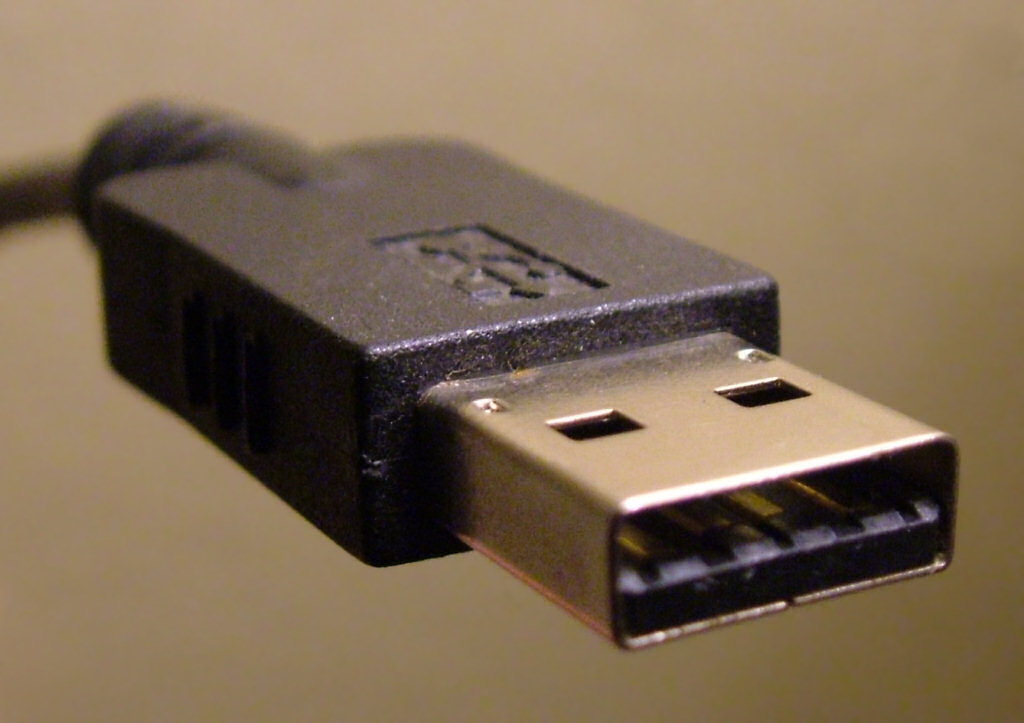
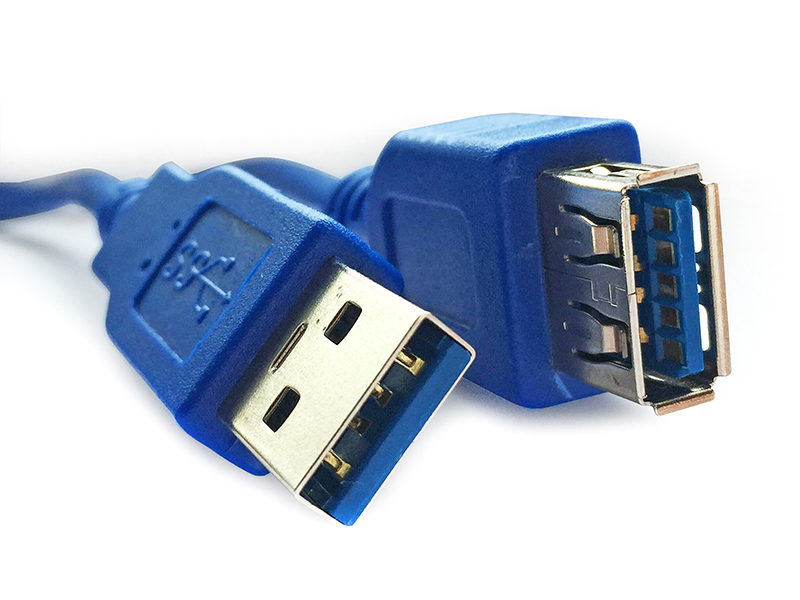
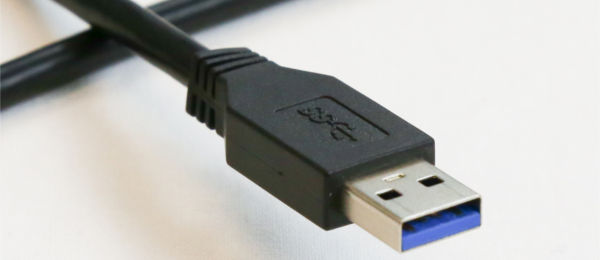
In 2017, USB 3.2 was introduced, which again retained the SuperSpeed and SuperSpeed+ speeds. However, two additional transfer modes were introduced, thanks to which the transfer speed increased to 10 Gb/s and 20 Gb/s. However, if you wanted to use the 20 Gb/s speed, you had to use the aforementioned new USB-C toonewhich. ProSo far, everything seems more or less understandable – speeds have gradually increased with the arrival of new generations. However, everything changed in 2019, when the USB Implementers Forum intervened and completely changed the designation of some past USBs. USB 3.0 and USB 3.1 were renamed to USB 3.2 Gen 1 and USB 3.2 Gen 2, and the original USB 3.2 was changed to USB 3.2 Gen 2×2. The marketing names for the speeds themselves were also renamed, namely to SuperSpeed USB, SuperSpeed USB 10Gbps and SuperSpeed SUB 20Gbps. Currently, hardware most often uses USB 3.0 and USB 3.1, but USB 3.2 has also experienced a boom in recent months.
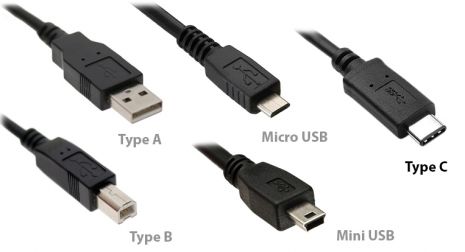
You'll notice that we didn't mention USB-C speeds in any way, and that's entirely intentional. USB-C isn't a standard, it's just a name for it.onewhich – just like microUSB or miniUSB. USB-A therefore represents a larger rectangularonewhich can only be plugged in from one side, USB-B is then the least widespread square typeonewhich you find on printers, for example, and USB-C is a small, double-sided rectangular connectoronewhich has rounded edges, which is found on newer devices. So it is important to know the difference between USB generations (i.e. 3.0, 3.1, 3.2 Gen 1, etc.) and between the cables themselves.onewhich (USB-A, USB-B and USB-C).
Thunderbolt and Thunderbolt 2
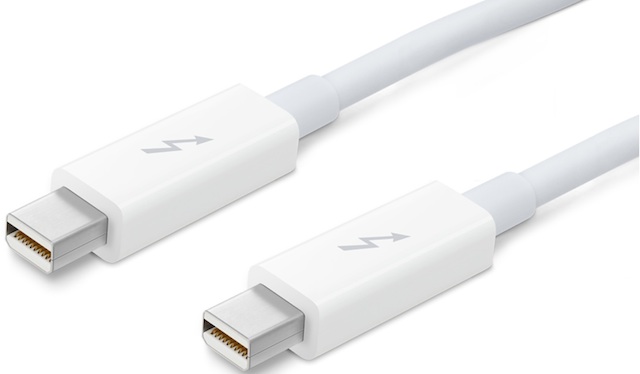
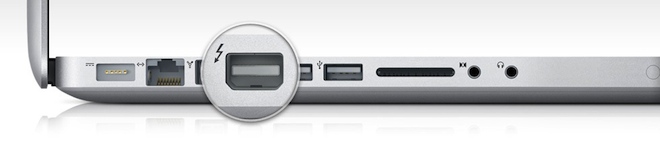
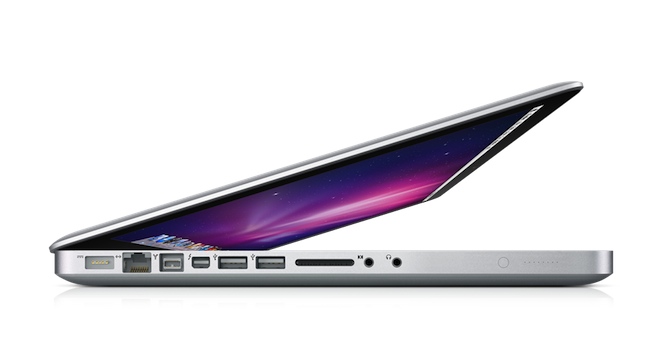
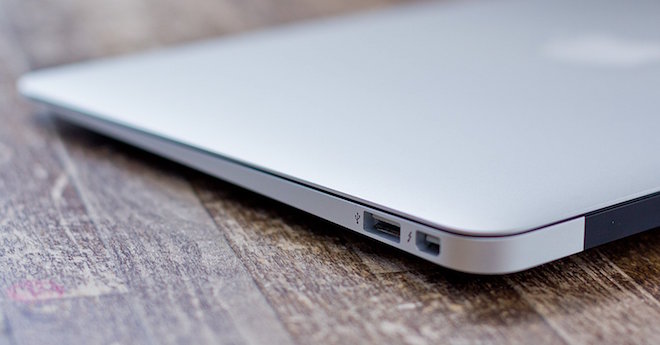
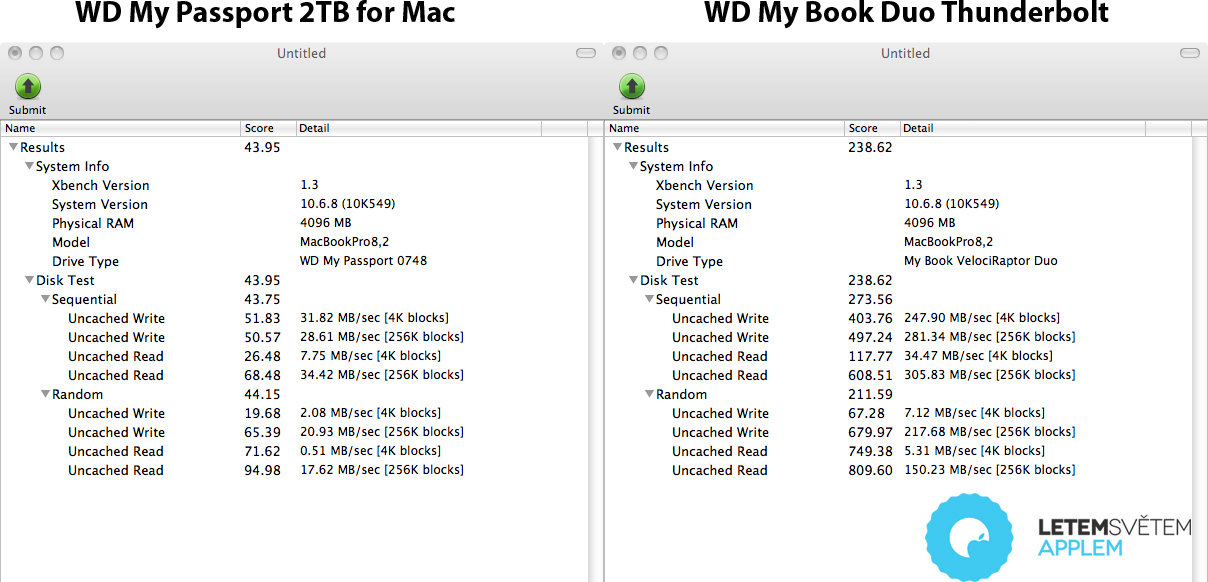
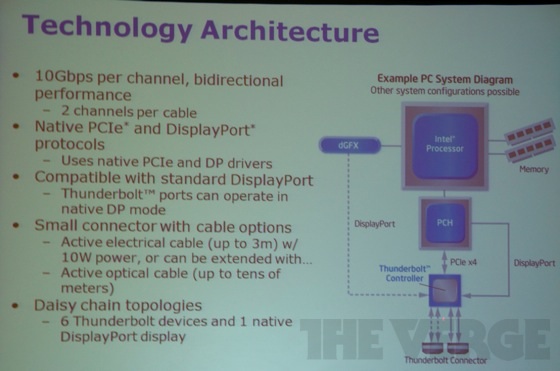
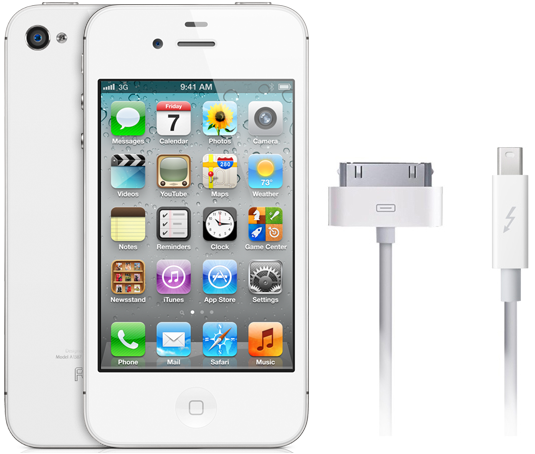
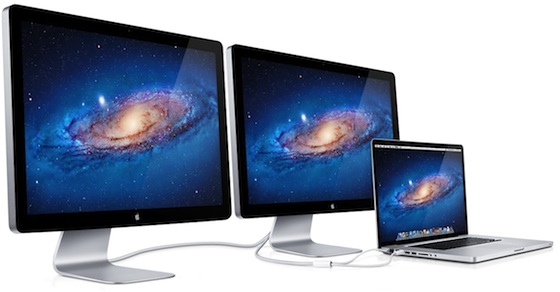
In 2011, we collaborated Applu and Intel were presented with an alternative toonewhich is called Thunderbolt. This is the first time thisonewho discovered it under the name Light Peak two years ago on Mac Pro. Compared to USB, Thunderbolt had many advantages, one of the main ones was the ability to use both PCIe and DisplayPort lines, which made it possible to connect monitors and transfer data with one cable. As for the transfer speed, Thunderbolt reached 10 Gb/s for each of the two channels, i.e. up to 20 Gb/s in total. The original Thunderbolt konewho had a design Mini DisplayPort, so it could be used on Macs as a classic Thunderbolt for data transfer or Mini DisplayPort for video transmission. It is also important to mention the fact that Thunderbolt can "connect" multiple devices by connecting them. This means that you could connect up to six different monitors this way - i.e. you ran the cable from the Mac to the monitor, and then from the first monitor to the second, from the second to the third, etc.
Two years later, in 2013, Thunderbolt 2 was introduced. It brought support for DisplayPort 1.2, which made it possible to start transmitting video with resolutions up to 4K. Thunderbolt 2 was, of course, backward compatible with the original Thunderbolt. Another change for Thunderbolt 2 was how it handled individual channels. Thunderbolt 2 enabled channel aggregation, which allowed two 10 Gbps channels to be combined to increase the transfer rate to 20 Gbps (compared to 2x 10 Gbps for the original Thunderbolt).
Gallery
Thunderbolt 3
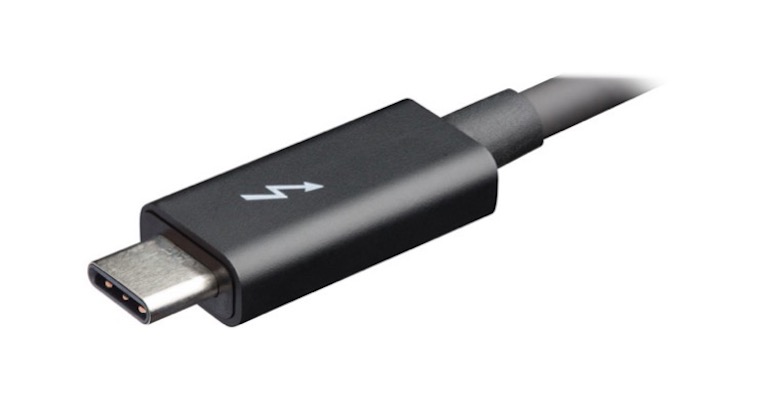
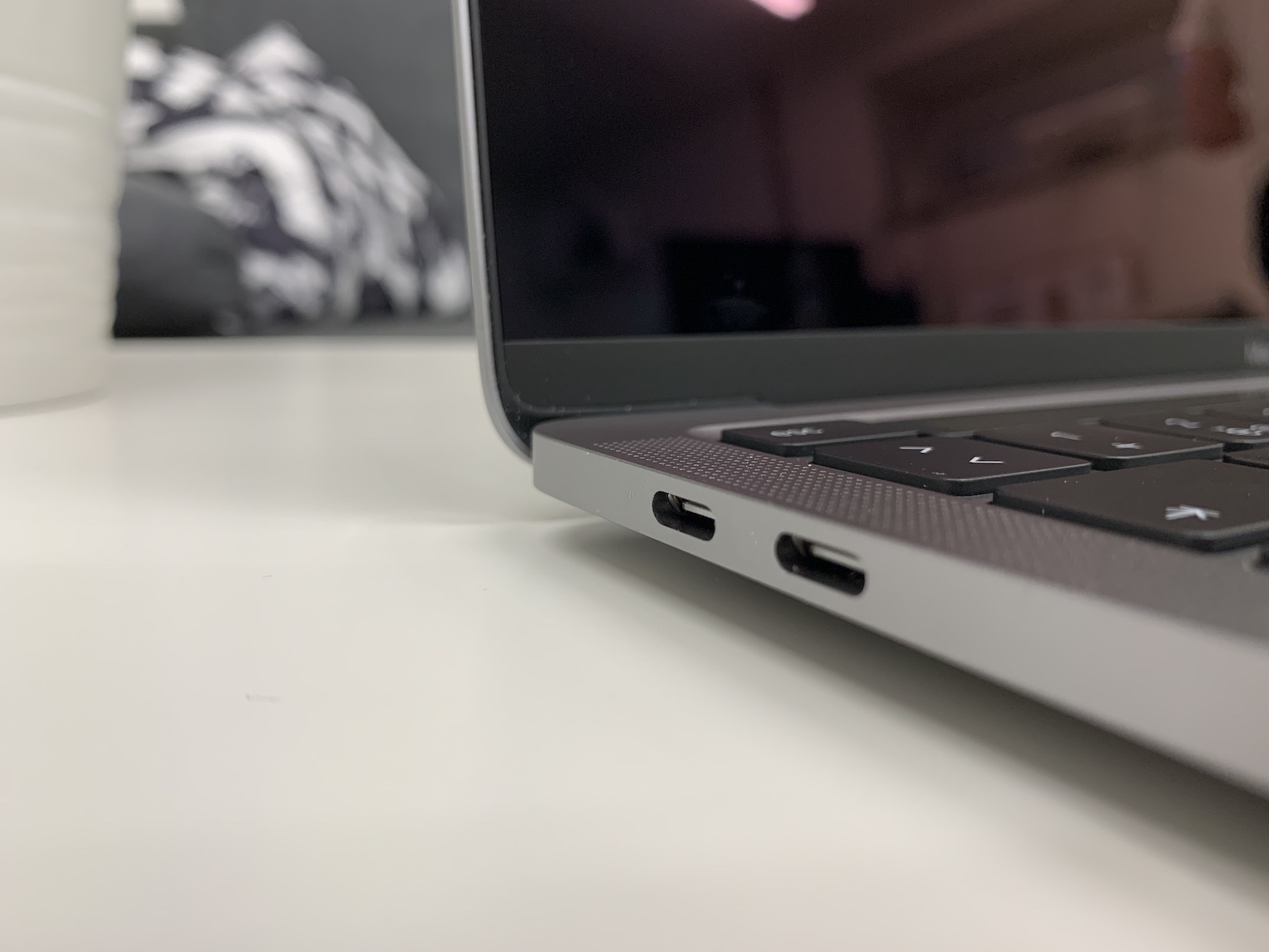
Compared to Thunderbolt 2, Thunderbolt 3 was a big leap forward. The main advantage was the transfer speed of up to 40 Gb/s, which corresponded to four PCIe 3.0 lines and eight DisplayPort 1.2 lines and several USB 3.1 lines. By increasing the data transfer speed, it was also possible to use a couple of 4K displays running at 60Hz or one 5K display. Thanks to the huge transfer speed, Thunderbolt 3 could also be used to connect external graphics cards. You probably know that Thunderbolt 3 usesonewhich is USB-C and it is logical that it also supports all USB devices (withone(USB-C). Thanks to the use ofoneUSB-C can also transmit power up to 100 W, which is suitable for charging or in the case of various dockfor users MacBooks – such dock because it can both charge MacBook, and on the other hand it also offers enough power for others toonewhich. It is therefore not necessary to connect the charging cable to a separateonewhich.
It is important to note, however, that not all Thunderbolt 3 cables are created equal. If you have a short, passive Thunderbolt 3 cable, it can reach speeds of up to 40 Gbps, which is unfortunately not the case with longer, passive cables that can maxThe minimum speed is 20 Gb/s. If you need a speed of 40 Gb/s over a longer distance, you must use an active cable. The same is true for maxminimum possible power transfer – in this case it depends on the length, but also on the cable manufacturer.
The future - USB 4 as Thunderbolt 3
In 2019, the USB Implementors Forum introduced the new USB 4 standard. Even though USB 4 is the future for now, it can be said that all Thunderbolt 3 users are already living in this future. It is very likely that USB 4 will bring practically the same specifications as the already existing and in a way timeless Thunderbolt 3. This means that USB 4 will offer USB-C toonewhich, maxminimum transfer rate of up to 40 Gbps, power transfer of up to 100 W, support for 4K and 5K displays, and backward compatibility with older USB. Given these specifications, USB 4 should reportedly be fully compatible with Thunderbolt 3. Later, USB 4 should support PCIe tunneling and DisplayPort 1.4a. We were supposed to see the first devices with USB 4 at the end of this year, but due to the coronavirus pandemic, it looks like it will be in 2021.
You might be interested in
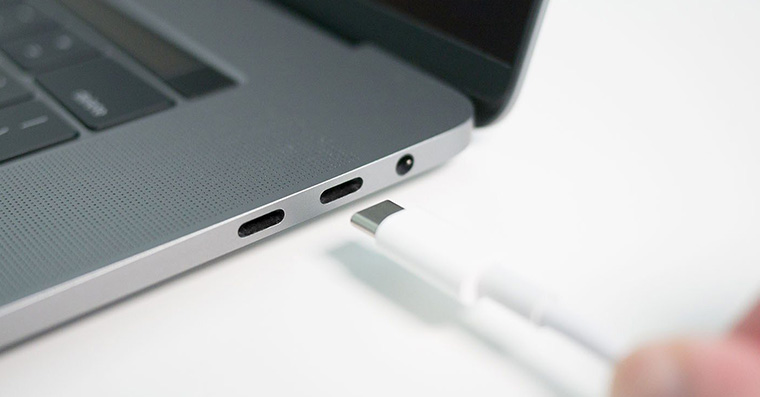
As for the upcoming Thunderbolt 4, in this case we will not see any changes and the parameters should be more or less the same as Thunderbolt 3. However, compared to Thunderbolt 3, the upcoming generation will increase the demands on connecting monitors.oneWhich Thunderbolt 4 will specifically need to be able to work with? miniat least with two 4K monitors, or with one 8K monitor. As for PCIe, Thunderbolt 4 will have to be able to work miniwith transmission speeds of 32 Gb/s, instead of the current 16 Gb/s. In addition, the limitation should then disappear maximal speeds for long cables. With transition Appon your own Apple Silicon processors, there was speculation about whether Apple would continue to use Thunderbolt. The Apple Fortunately, he confirmed this, and so it will also appear in future Apple devices.oneWhich Thunderbolt.






How great, I know it's fast, but I don't understand why, for example, mb for 2019 doesn't have a single usb port. What I want to say is that even the best and most difficult graphic artist never needs to connect a regular USB key or external drive? What does that mean?
Just now MacBook Pro It has had 2-4 USB ports for years. They are just Thunderbolt 3 ports, and if you are a pro and need speed, you will probably get USB-C or Thunderbolt 3-supporting peripherals. Pro It's no problem to take an adapter or connect a docking station to an occasional USB-A flash drive once in a while.
Helpful article; Thank you.
Hello,
I need to connect. macbook pro 2013, which does not have USB-C, but classic USB 3.0 or Thunderbolt 2 with some kind of docking station that will be able to: powered USB, HDMI, jack, mic – honestly I've been looking for a really long time, but all I can find is with a connection (to ntbk) via usb-c 😢
if I find one with USB 3.0, then it won't handle full-HD transfer and I need higher (2540×1440), maybe a USB-C to Thunderbolt 2 adapter will help me, but I can't find it... plus I don't even know if it would support data transfer from the docking station... currently dockWhat I did with USB 3.0 is actually useless to me, I would appreciate any advice or guidance, thanks
Nice article, would like to update / release it as new