
Apple strives to make its devices so that users can start using them right out of the box. However, there are a few settings and features that are definitely worth changing or configuring. So whether you are a new iPhone owner or a long-time user, iPhone for some time now, so take a look below at 10 settings that are worth changing on your iPhone.
You might be interested in
Two-factor authentication
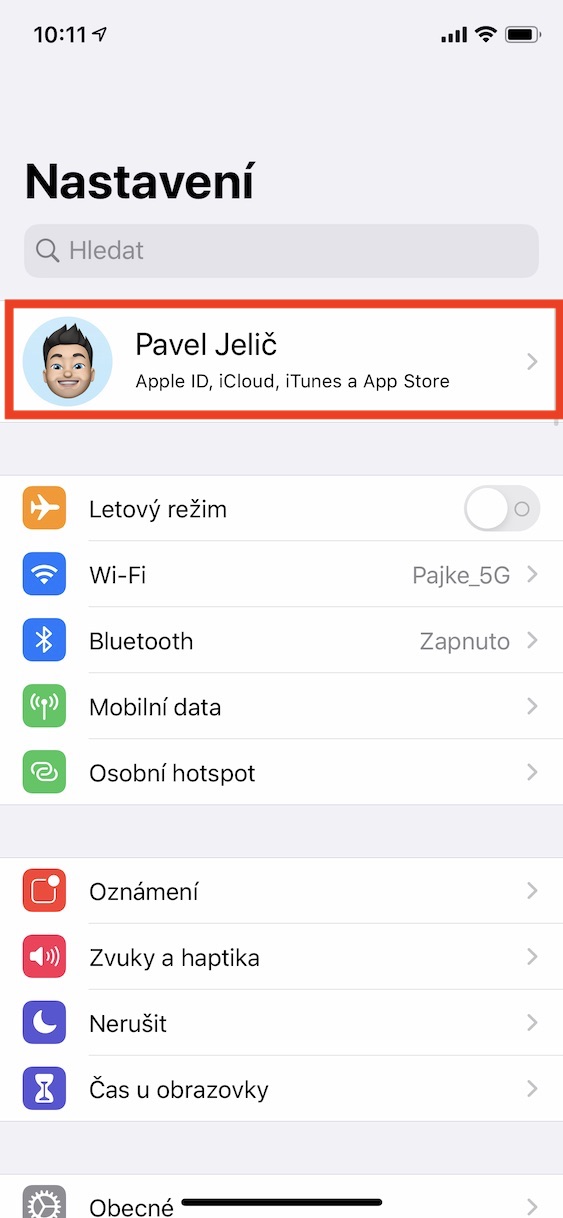
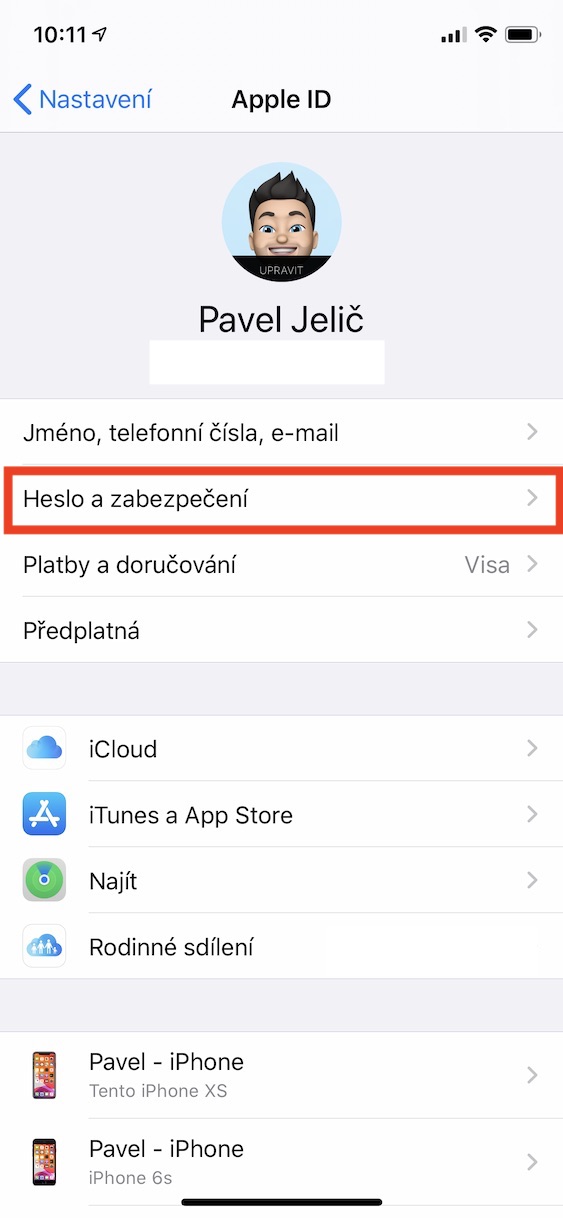
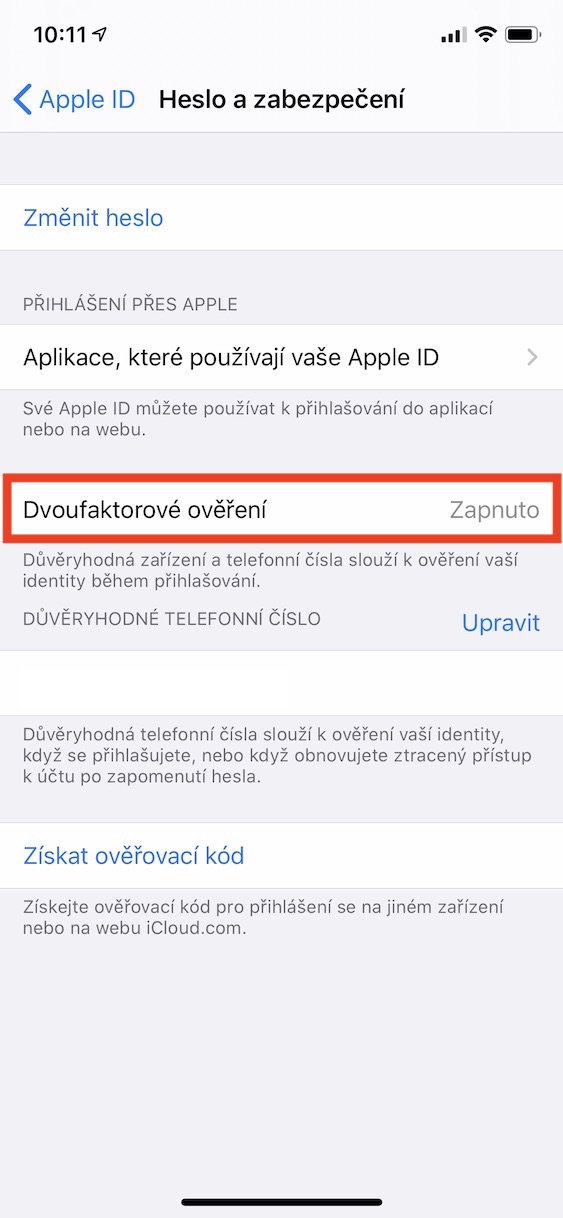
Many people nowadays still use the classic simple password security. However, it should be noted that this security is no longer as secure as it used to be. Technology is constantly moving forward, and so is security. So many social networks and other companies have implemented two-factor authentication. Thanks to it, an unknown person will not get into yours Apple ID not even after they somehow figure out your password. Pro To set up two-factor authentication, simply go to on your iPhone Settings, where at the top tap on your profile Apple ID. Then click on the option here Password and security, where it is enough Activate two-factor authentication.
Wi-Fi Assistant
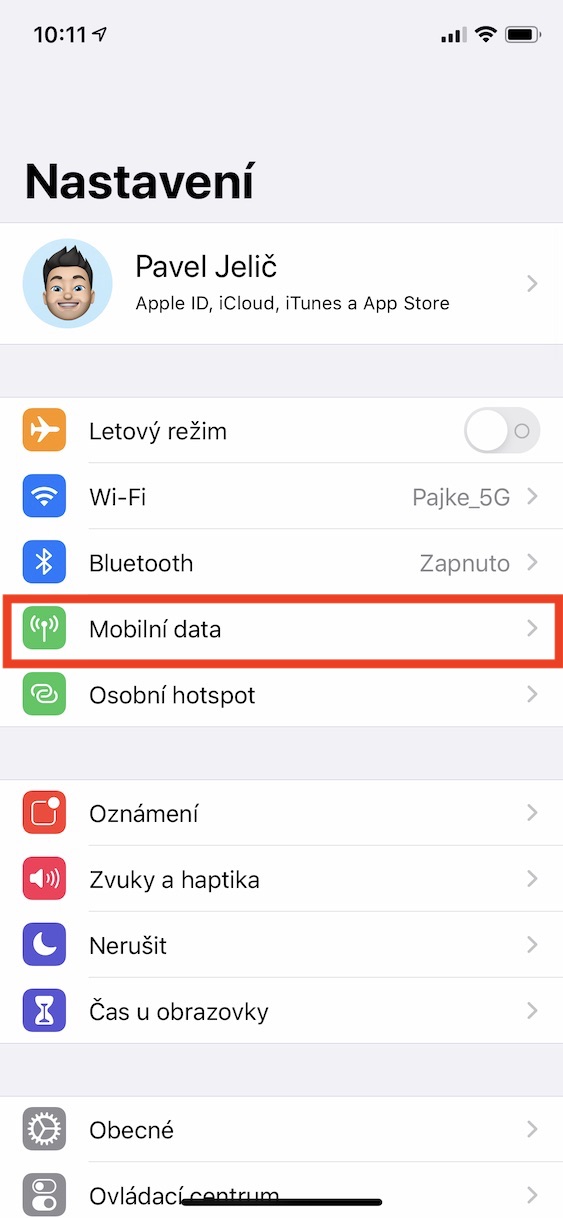
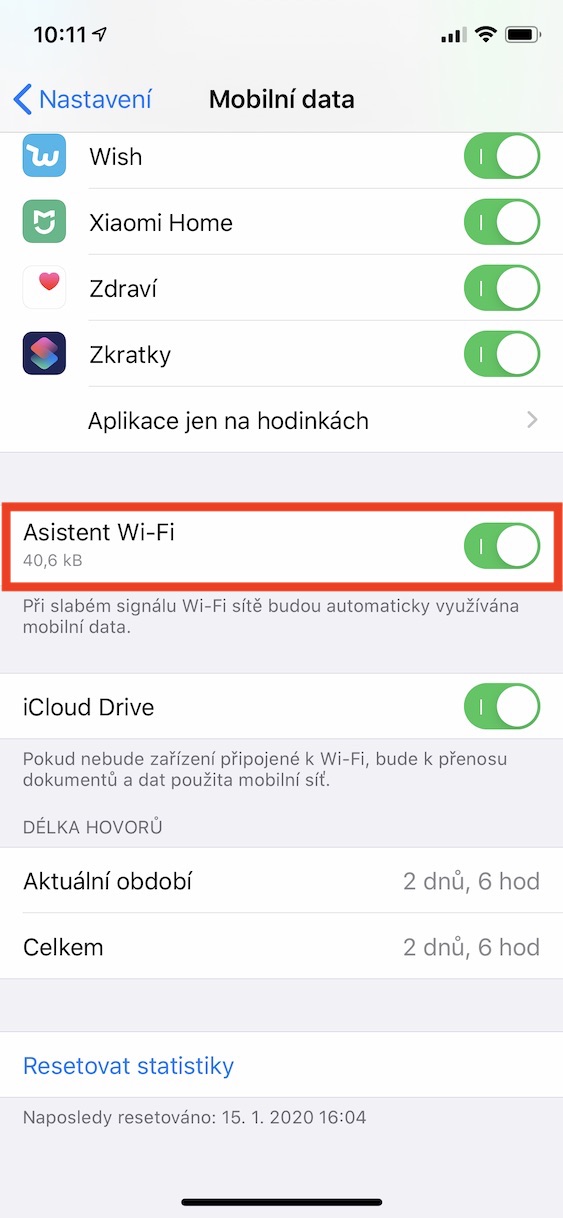
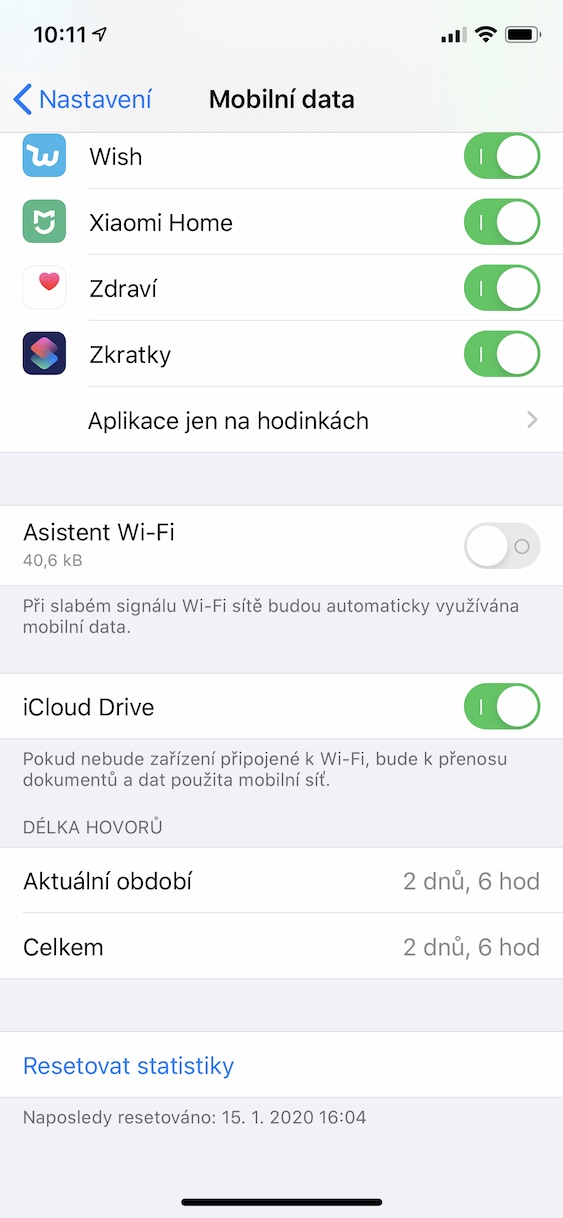
By default iOS Wi-Fi Assistant is active. This ensures that when you are connected to a nestWhen you are connected to a Wi-Fi network, mobile data is automatically activated. If you have a small data plan, you could easily reach your data limit quickly. Pro To deactivate Wi-Fi Assistant, simply go to the native app Settings, where you click the option Mobile data. Here, move to itself bottom down to the application list and function Disable Wi-Fi Assistant.
Setting emergency functions
Gallery
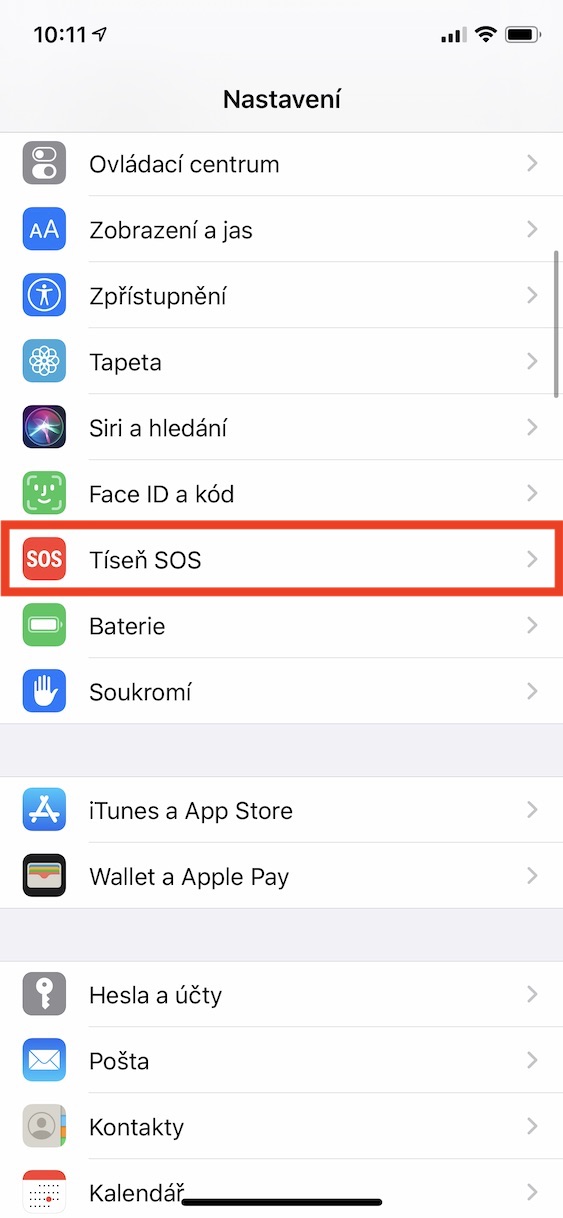

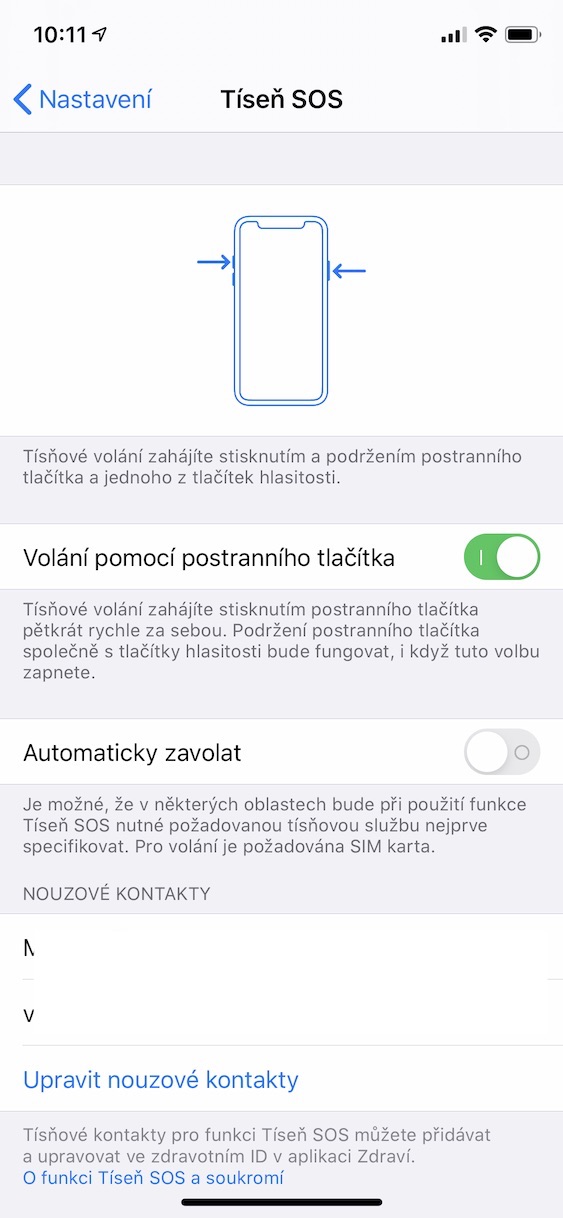
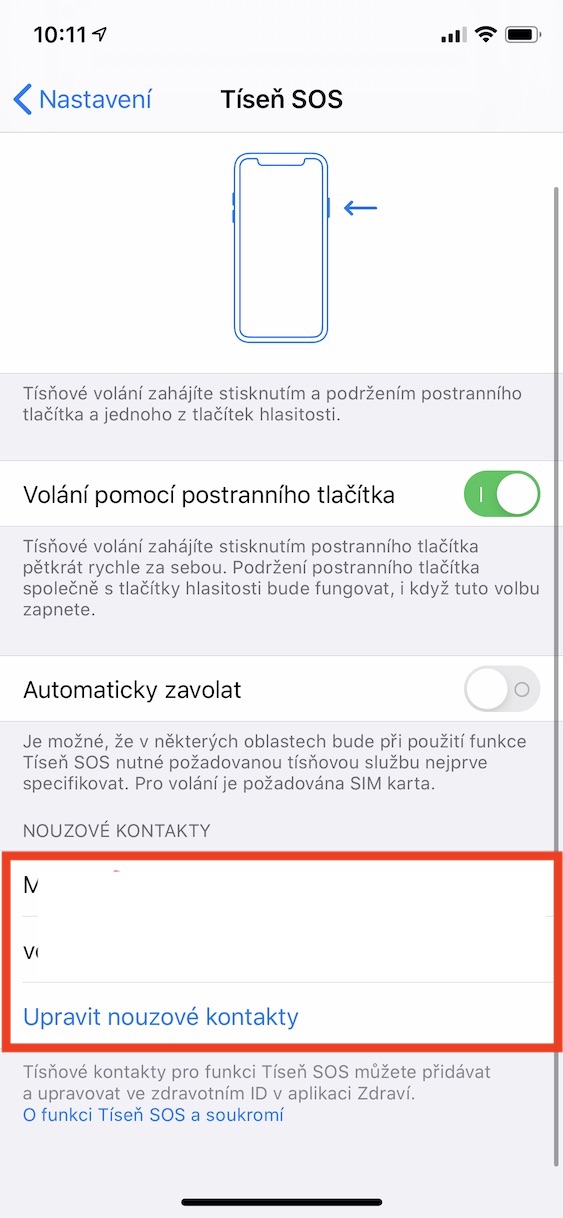
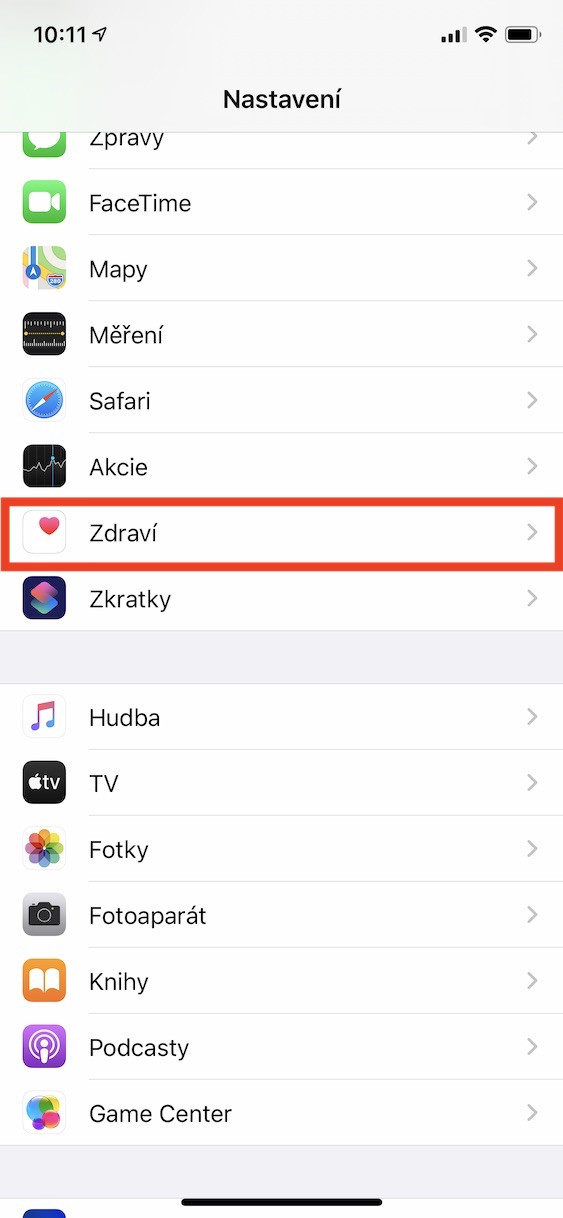
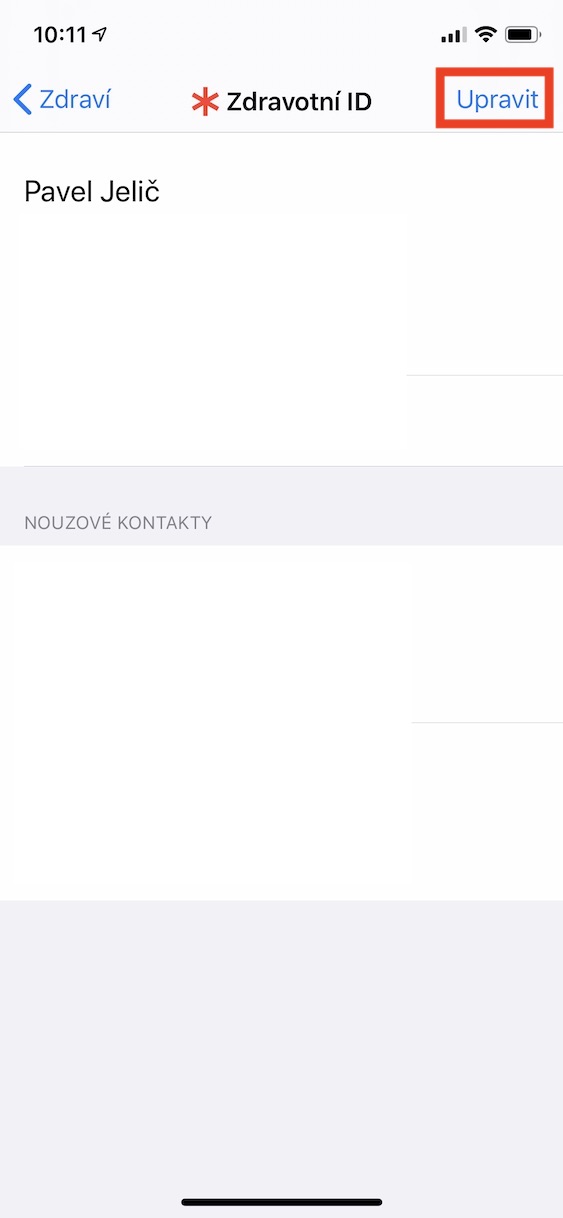
If you've been reading our magazine for a long time, you've surely noticed from time to time an article in which we informed you that Apple Watch or iPhone were able to save someone's life. As part of iOS You can set up various emergency functions – for example, calling SOS when holding down the side button, emergency contacts, and it is also definitely worth setting up Medical ID. Pro activate the SOS call function by holding down the side button and moving to Settings, where you click the option Distress SOS. That's enough here activate function Call using the side button. You can then set it below emergency contacts, to which a message is automatically sent after you initiate an emergency call. Health ID you can then set v Settings -> Health, where you click the option Health ID and in the upper right corner, tap Edit.
Code lock
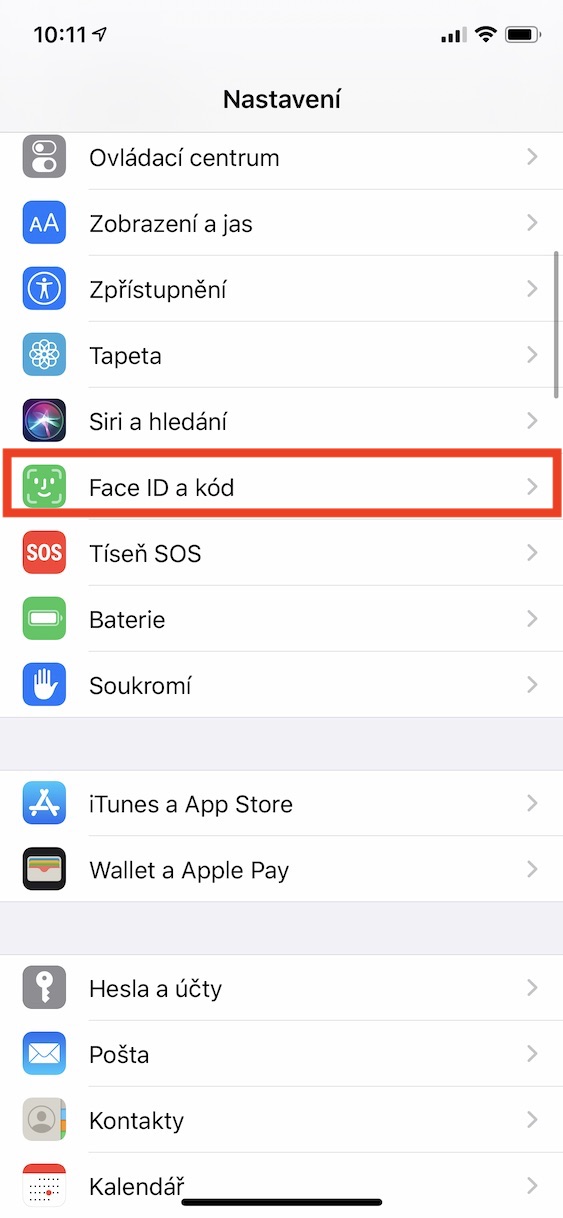
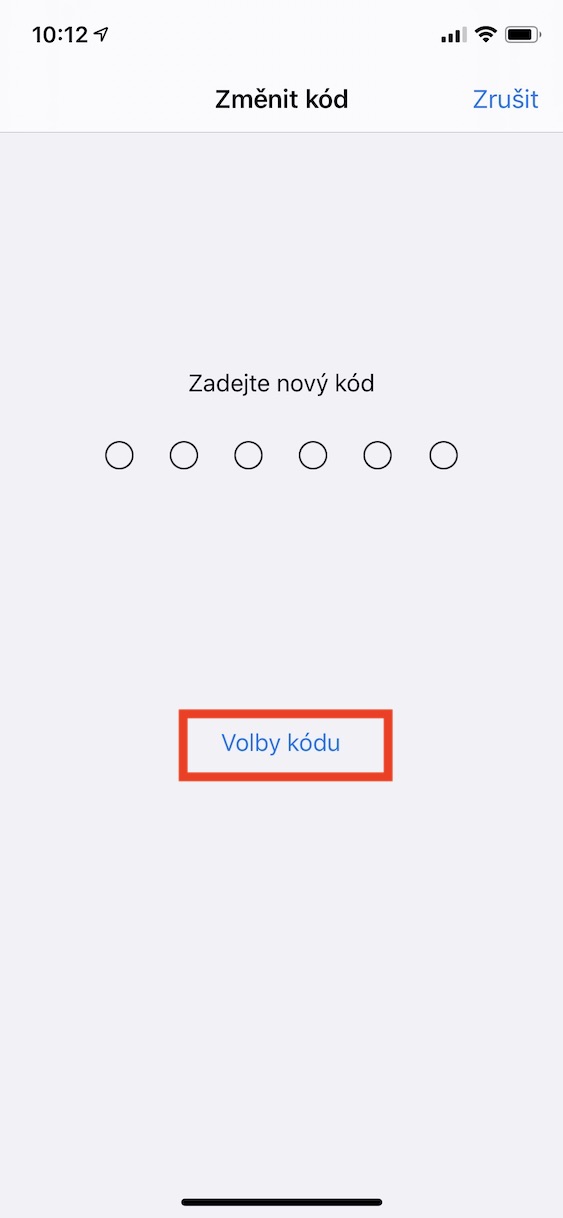
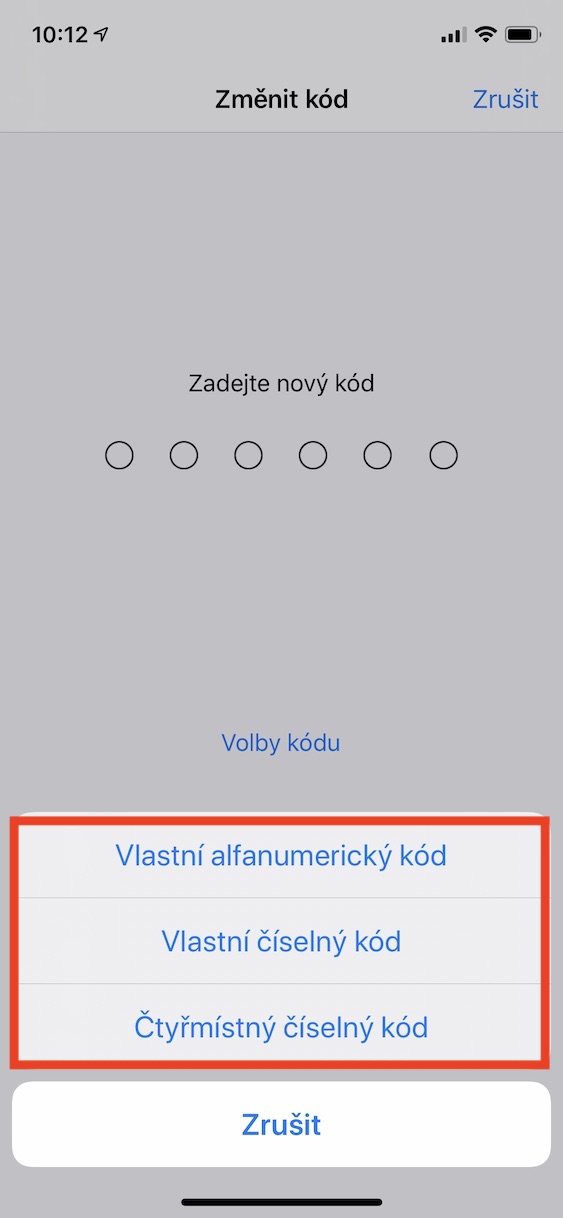
Even today, many users use iPhone without security with a code lock. It is worth noting that the code lock is the main thing that separates a potential thief or anyone else from getting into your device. I bet you definitely wouldn't want anyone to be able to look at your photos or messages. Pro activate the code lock go to Settings, where you click the option Face ID (Touch ID) and code. It's simply enough here code lock activate. Feel free to use it six-digit lock, or that alphanumeric – you will definitely increase yourancand that a thief cannot access your device.
Shutdown function back after shaking
Gallery
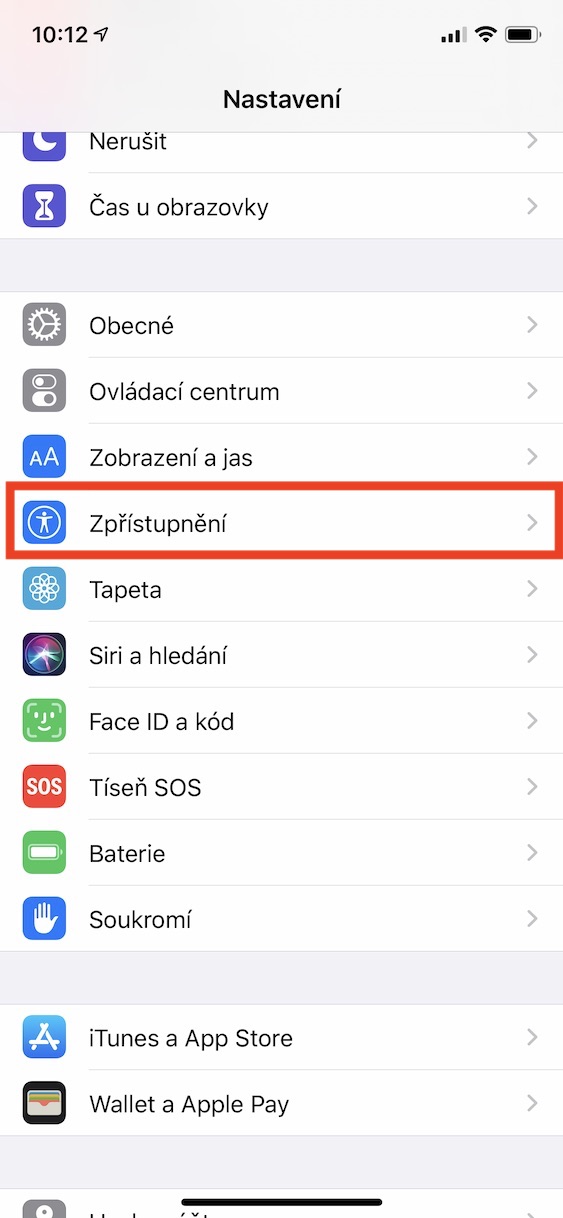
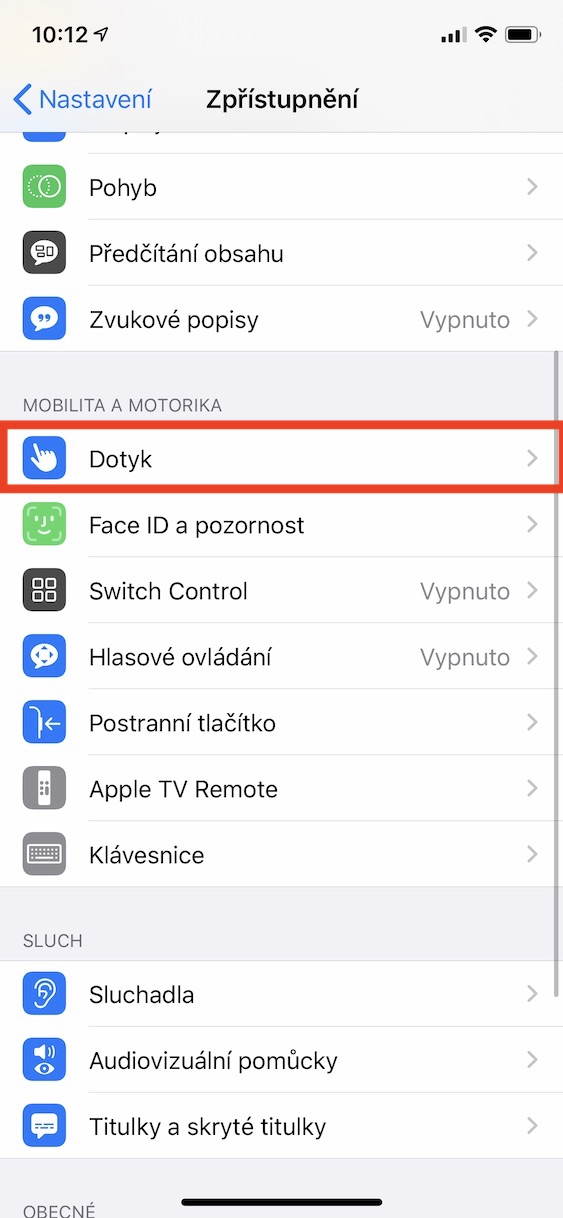
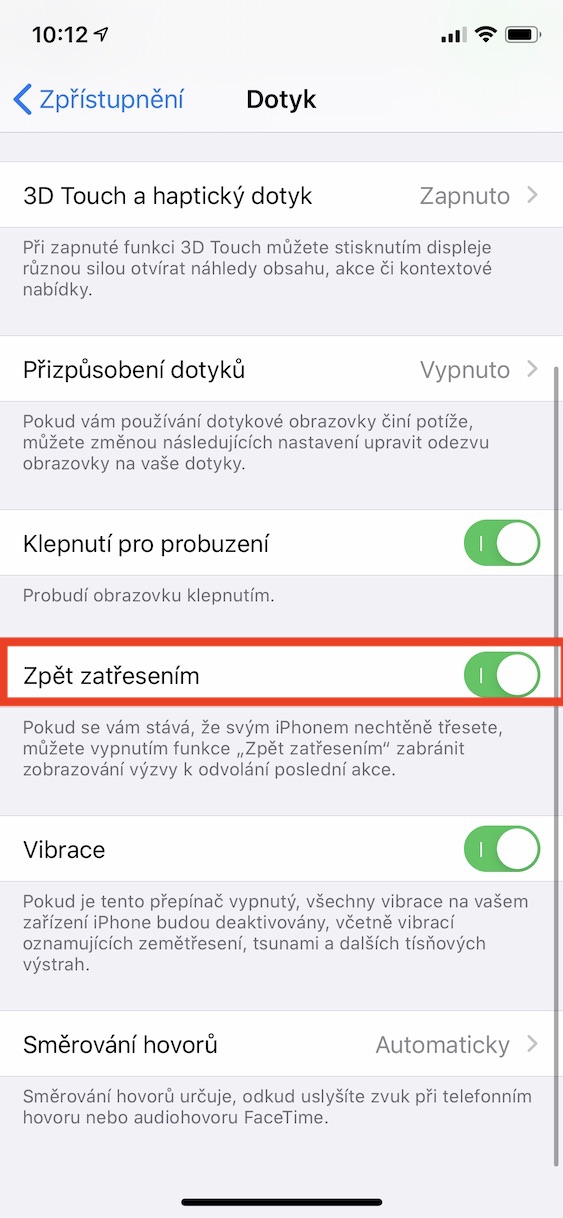
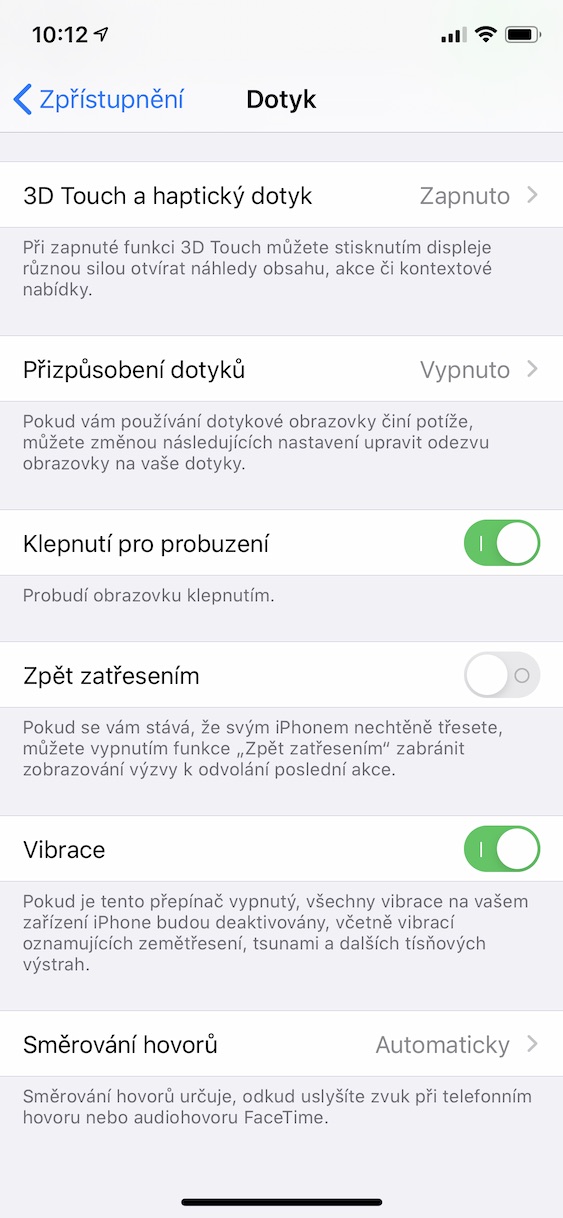
If you are already with iPhonem hands jumped into bed, or you accidentally shook it, you may have seen a small notification on your screen. By shaking it, you activated the undo after shaking feature, which allows you to undo the last step you took on your iPhone. Many users are not aware of this feature and find it rather annoying. If you would like to deactivate it, go to Settings, where you go to the section Disclosure. Move to the section here Touch and function Back with a shake deactivate.
Privacy settings
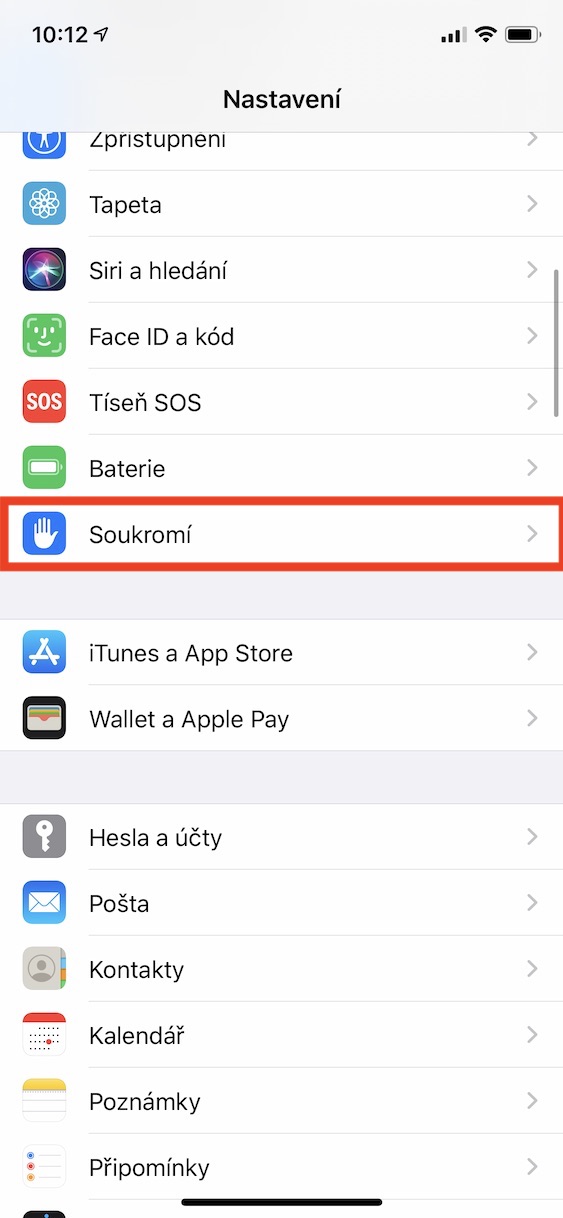
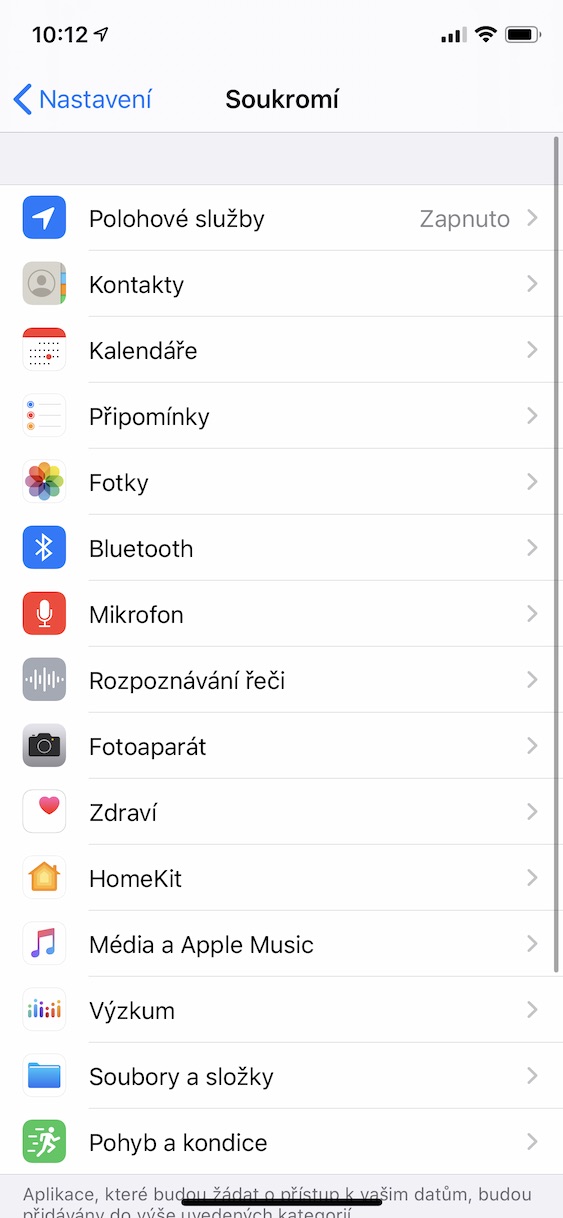
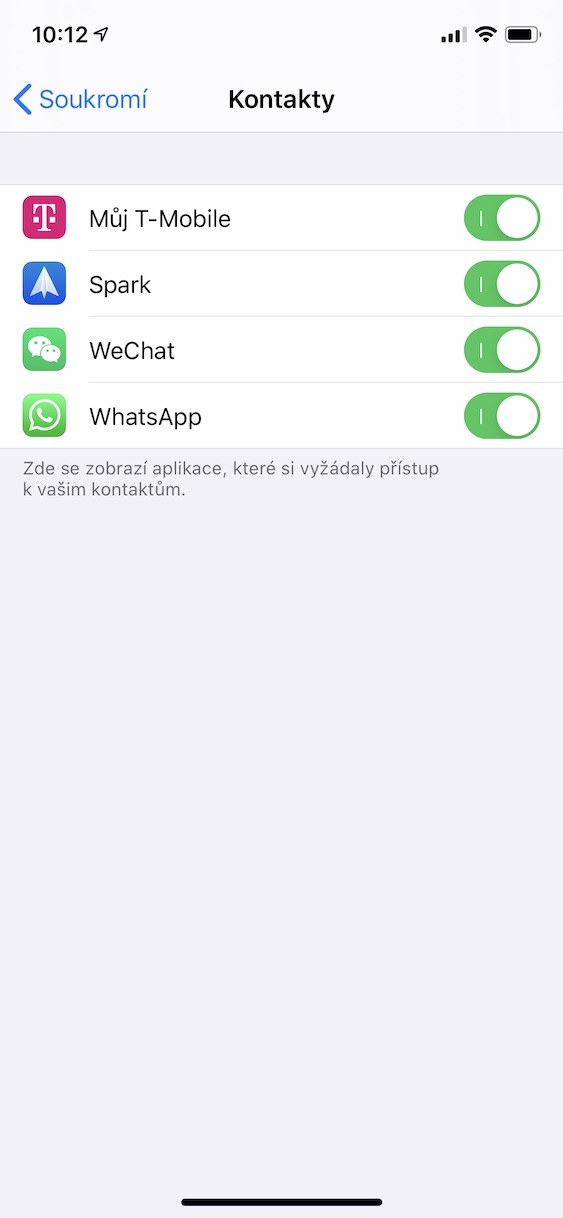
Department of settings Privacy could certainly come in handy sometime in the future. Various applications in iOS need access to various information or services. If you would like to see what features and services the applications have access to, you can do so in Settings, where you click the option Privacy. You will then be shown various categories, which you just need to open and see if the applications have access or not. Access is always sufficient simply by using activate or deactivate the switches.
Lock screen access
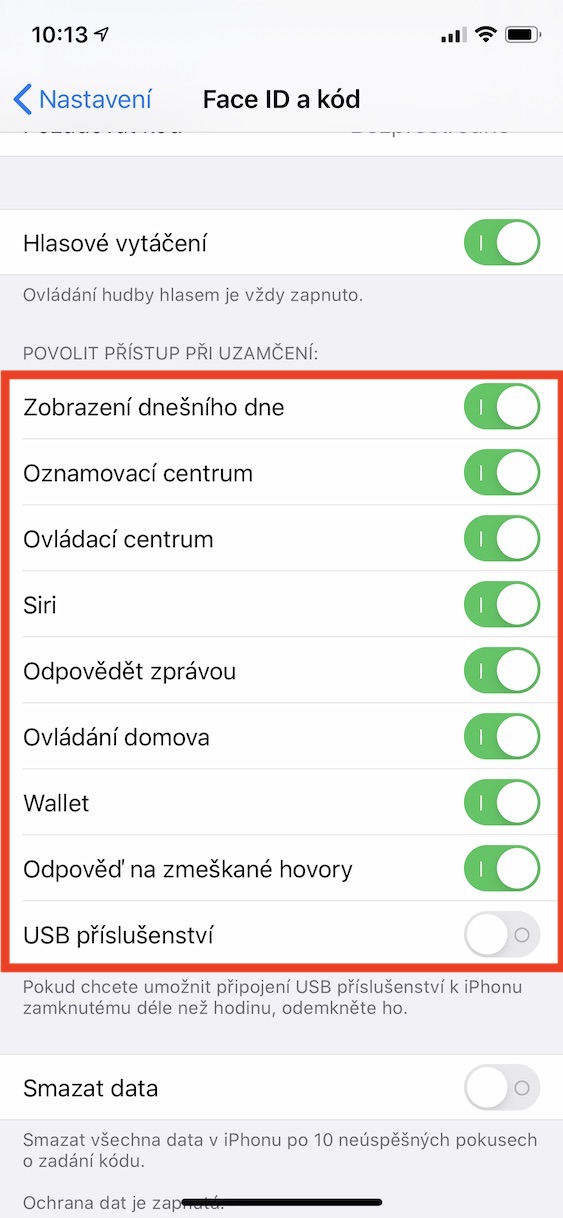
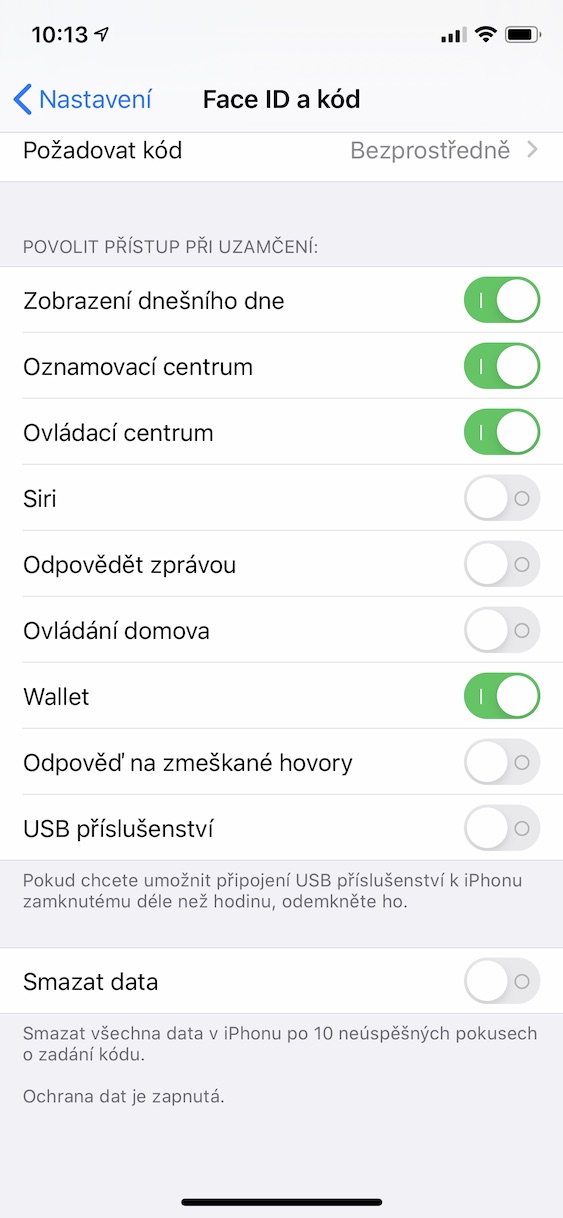
From time to time in iOS an error appears that allows someone who knows the exact procedure to open your photos or messages, for example. These errors often manifest themselves, for example, through Siri, various notifications, or notification center. However, in the iPhone settings you can choose which functions it will have iPhone access on the lock screen. Pro To set up this access, go to the native app on your iPhone. Settings and click the section Face ID (Touch ID) and code. Scroll down to the section here Allow access when locked. Help switches pal deactivate functions that should not be accessible on the lock screen. From my own experience, I recommend disabling minilittle by little Siri, Reply with message, Home control, Answer missed calls and no doubt too USB accessories (this is disabled by default).
Night Shift
Gallery
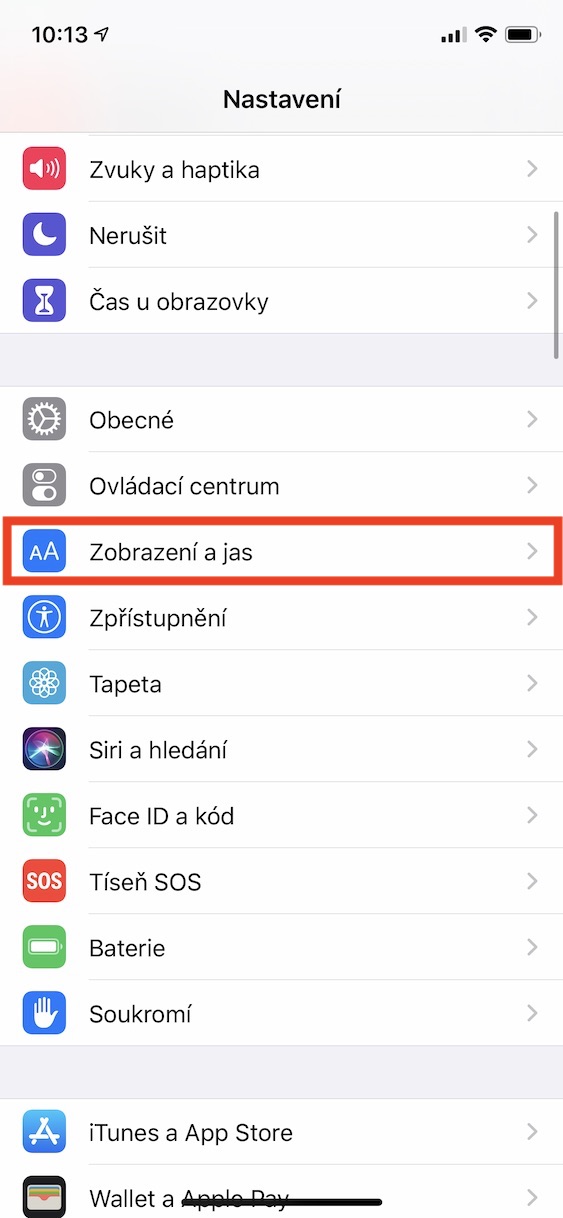
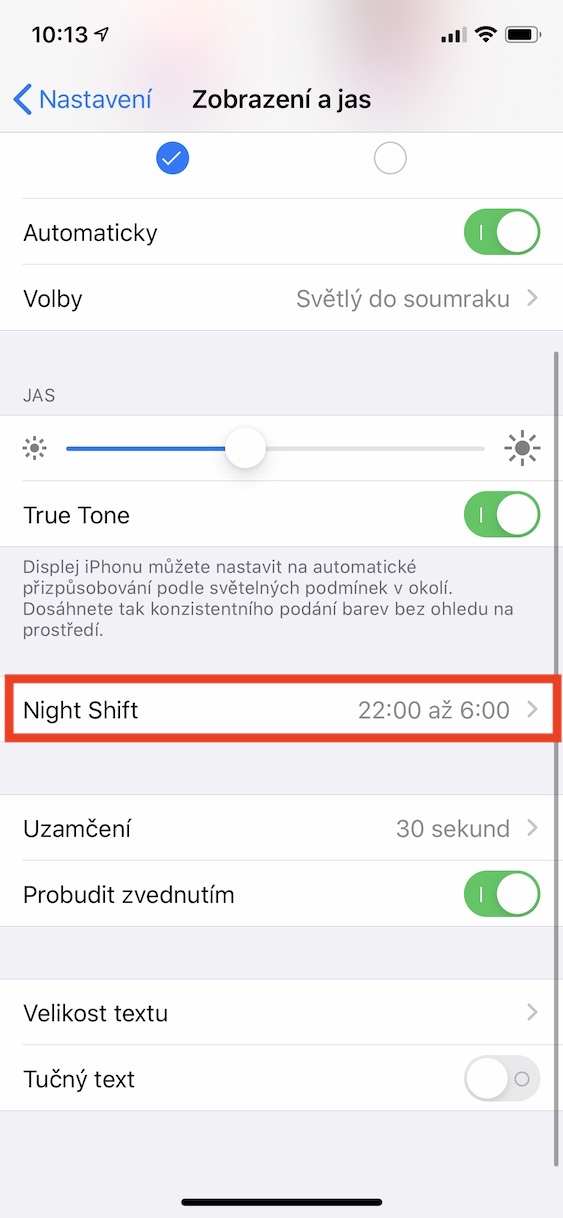
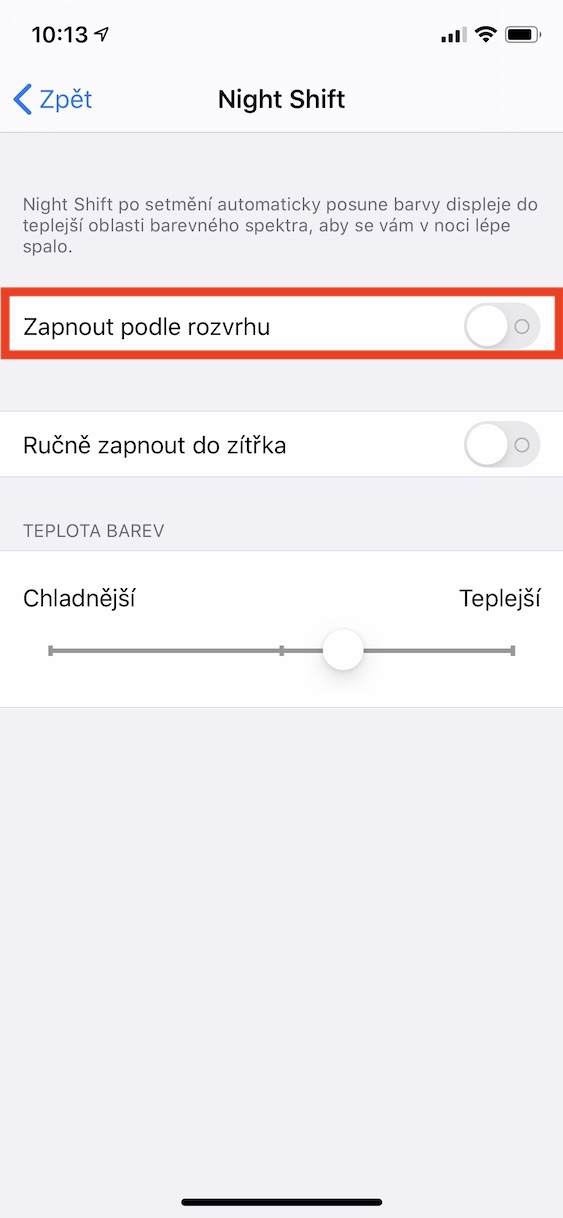
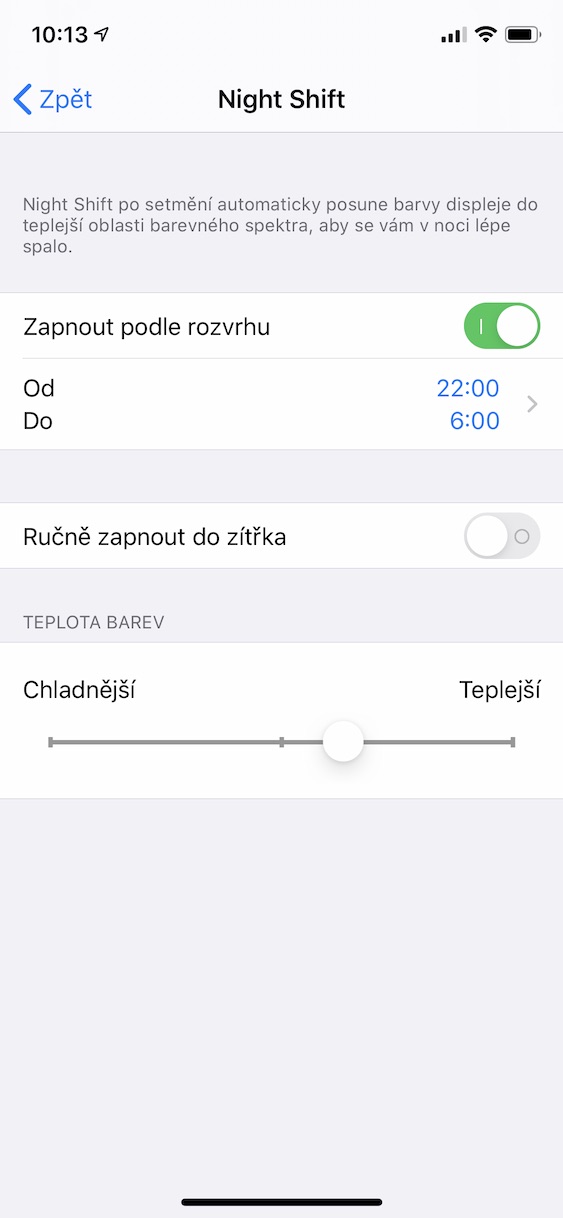
The screen, which many of us look at for several hours a day, emits blue light. We don't notice it at all during the day, but in the afternoon, evening and at night this blue light is very unpleasant for the eyes. Ultimately, prolonged exposure to blue light in a dark environment can make it harder for you to fall asleep and stay asleep. That's why there are blue light filters that can reduce it. You can also find this filter directly in iOS – just move to Settings, where you click the option Display and brightness. Move to the section here Night Shift and create schedule, according to which Night Shift should be turned on and off automatically. Personally, I have the active Night Shift set from 22:00 PM to 6:00 AM.
Do not disturb mode
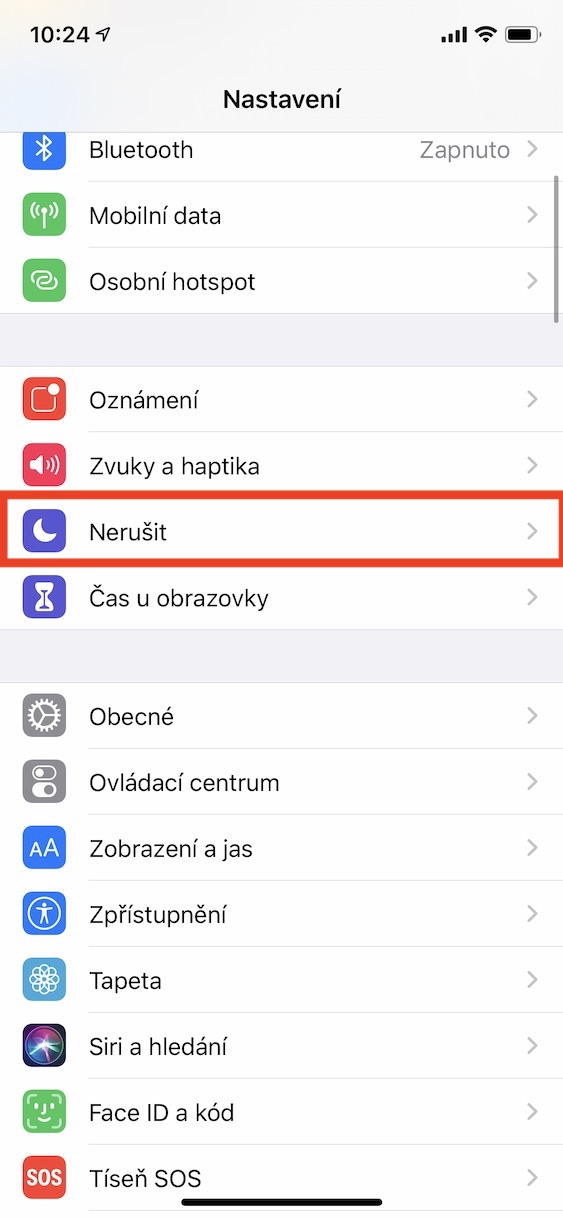
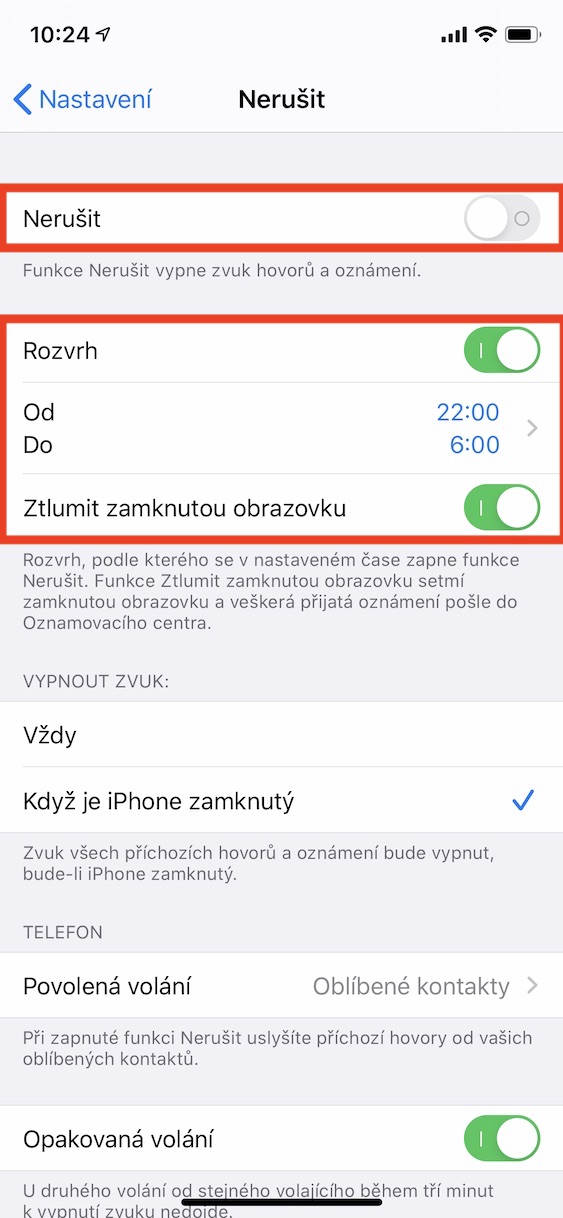
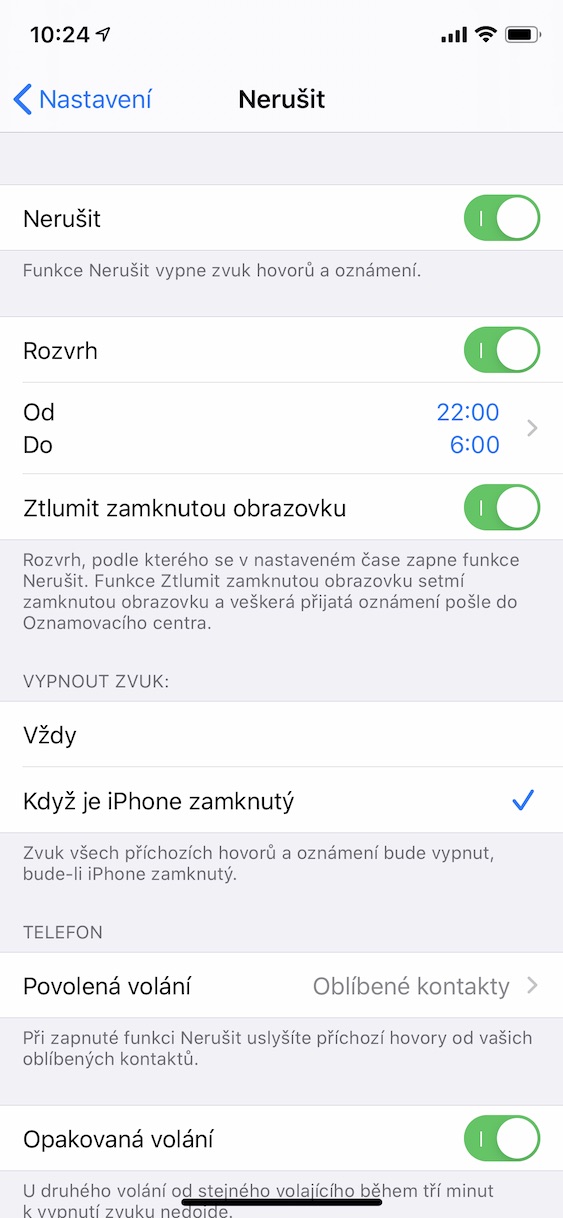
None of us probably wants to be disturbed at night, which is why we iOS There is a Do Not Disturb mode. Simply put, it turns off call and notification sounds. You can activate Do Not Disturb mode in Settings -> Do Not Disturb. In addition to manual activation, you can choose when the Do Not Disturb mode will turn on automatically, together with other preferences in the form of when the sound should be turned off, who you allow to call despite active do not disturb mode and others. You can also set the mode here Do not disturb while driving.
Automatic updates
Gallery
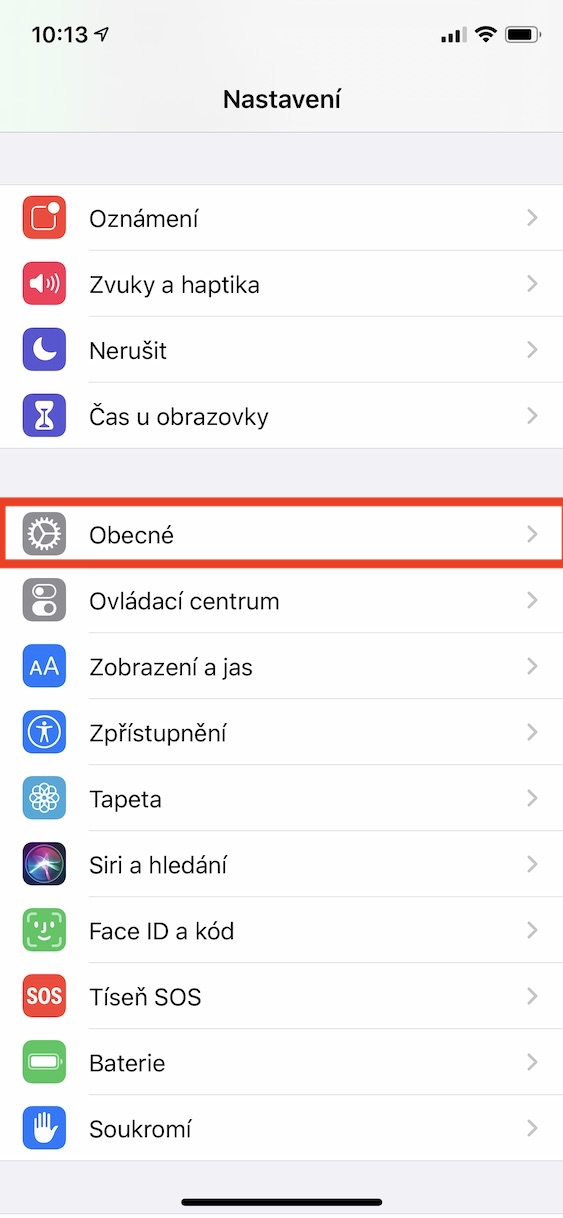
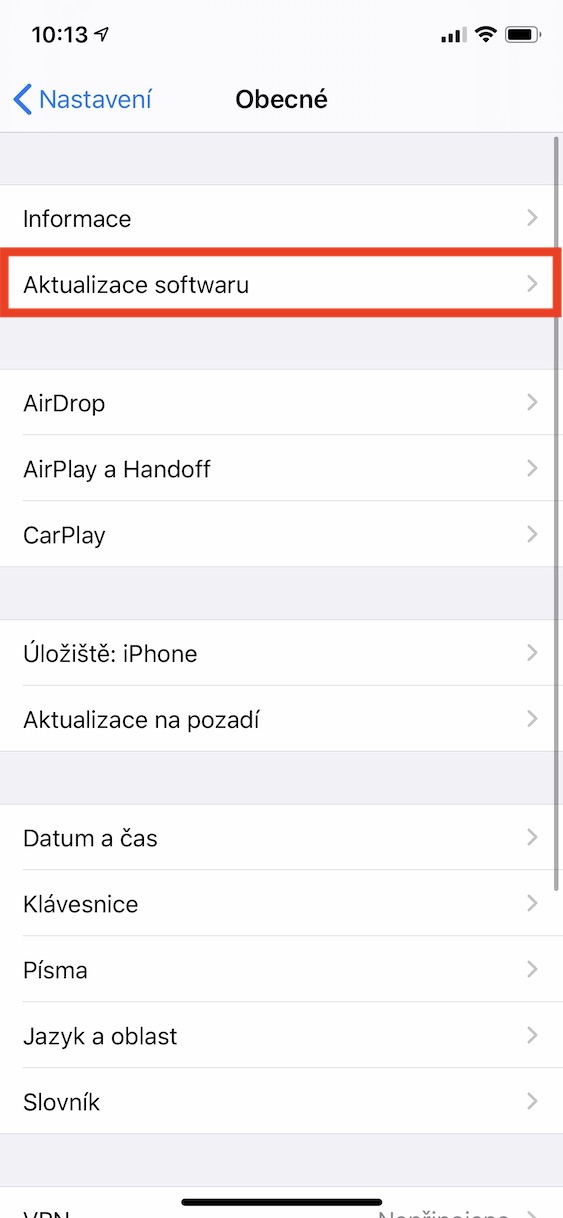
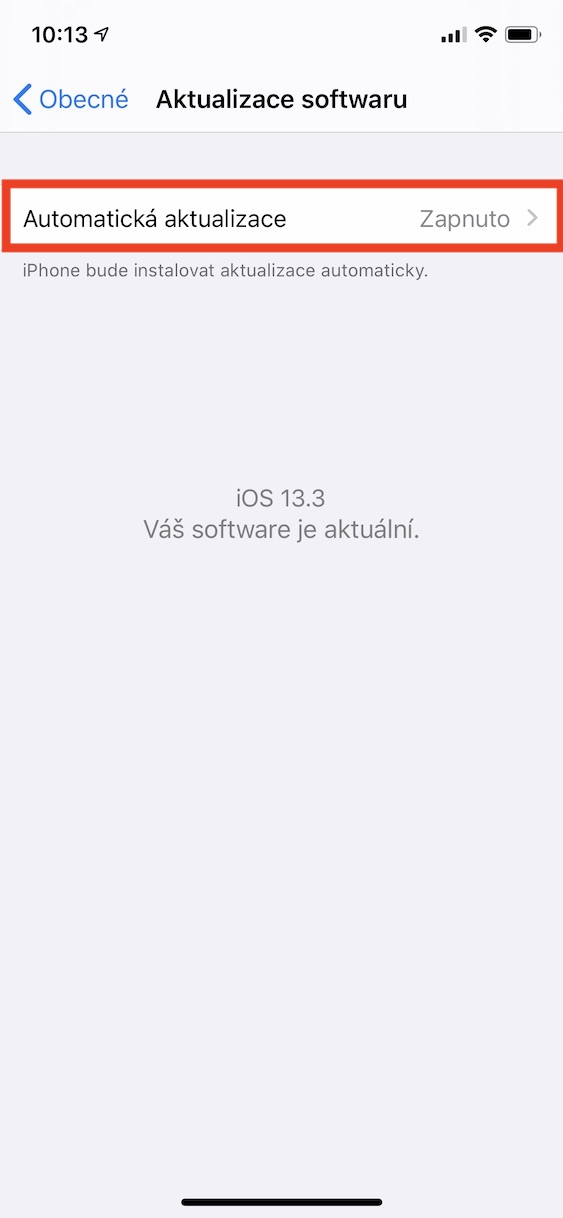
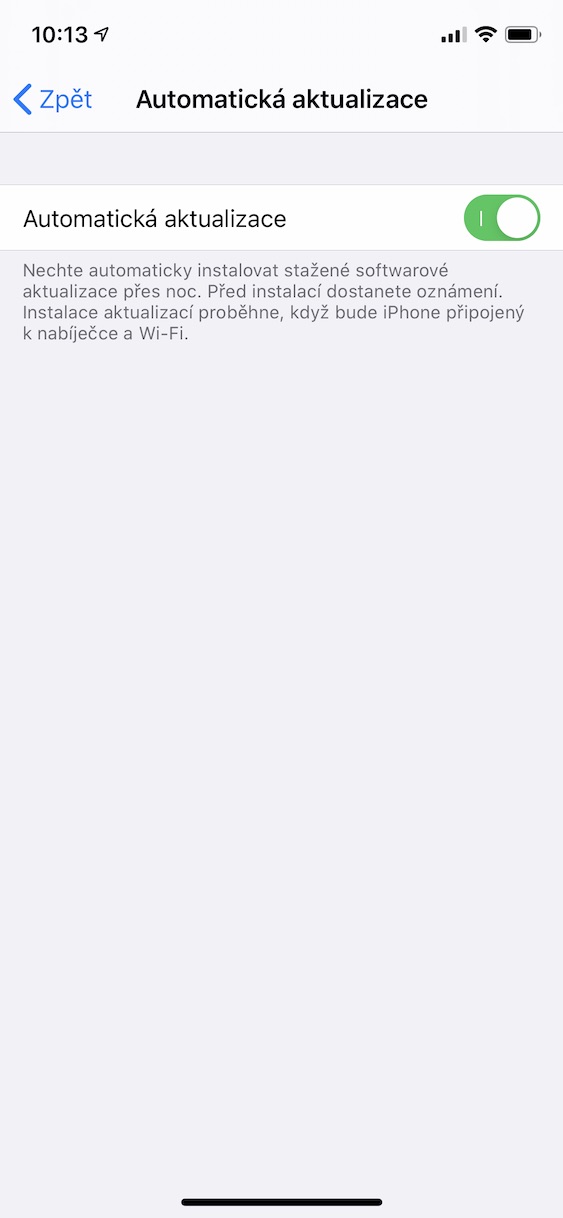
Your iPhone should always be running on the latest version of the system. Software updates not only bring new features and improvements to devices, but also fix various errors, bugs, and other annoyances. To always run on the latest version iOS, just activate automatic updates - then you don't have to worry about anything else. Pro To activate automatic updates, simply go to Settings, where you click the option In general. From here, move to the section Software Update and activate Automatic updates.





I also recommend turning off mobile data from the settings. Cloud Drive… It cost me 1,5 GB of data over the course of a month…