
Security and privacy are concepts that are very important in our lives for most of us. Apple really cares about the safety of its products, which is no secret. However, if you want to take your security to an even higher level, you can use a VPN network. VPN is an abbreviation for Virtual Private Network. But how can you use a VPN in practice and how does it even work?
Simply put, a VPN encrypts your internet connection. When you use a VPN, your IP address changes and your computer appears to be connecting from, for example, the other half of the globe. A VPN is therefore used to protect your security so that no one knows that you are viewing such and such sites. VPN can also be used when your provider blocks the connection to some sites. Sometimes these are, for example, servers intended for adults, or sites where you can download movies, games, etc. Blocking of sites by the provider, however, occurs more often in foreign countries. So how to activate the VPN?
How to get VPN working on your Mac
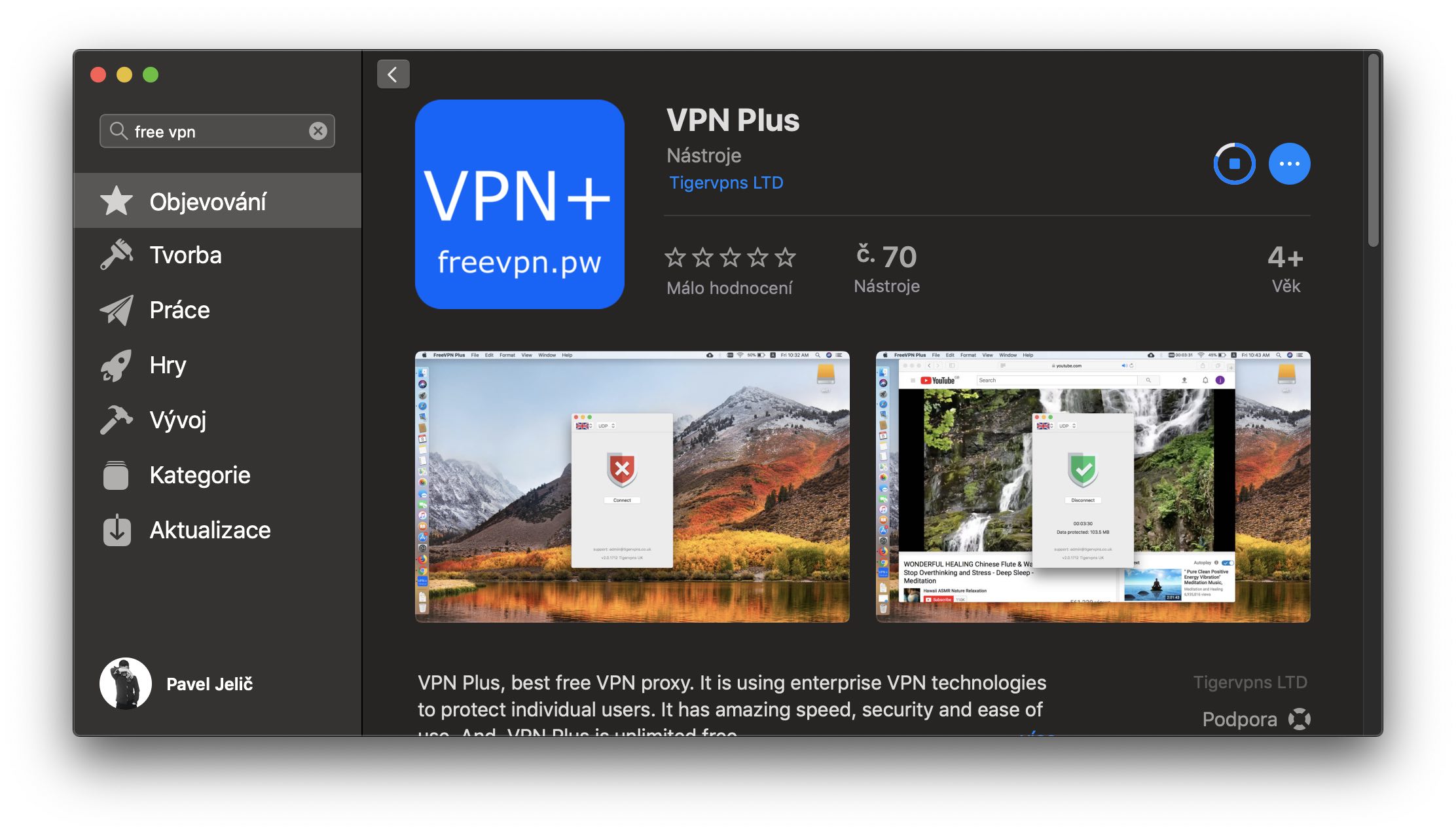
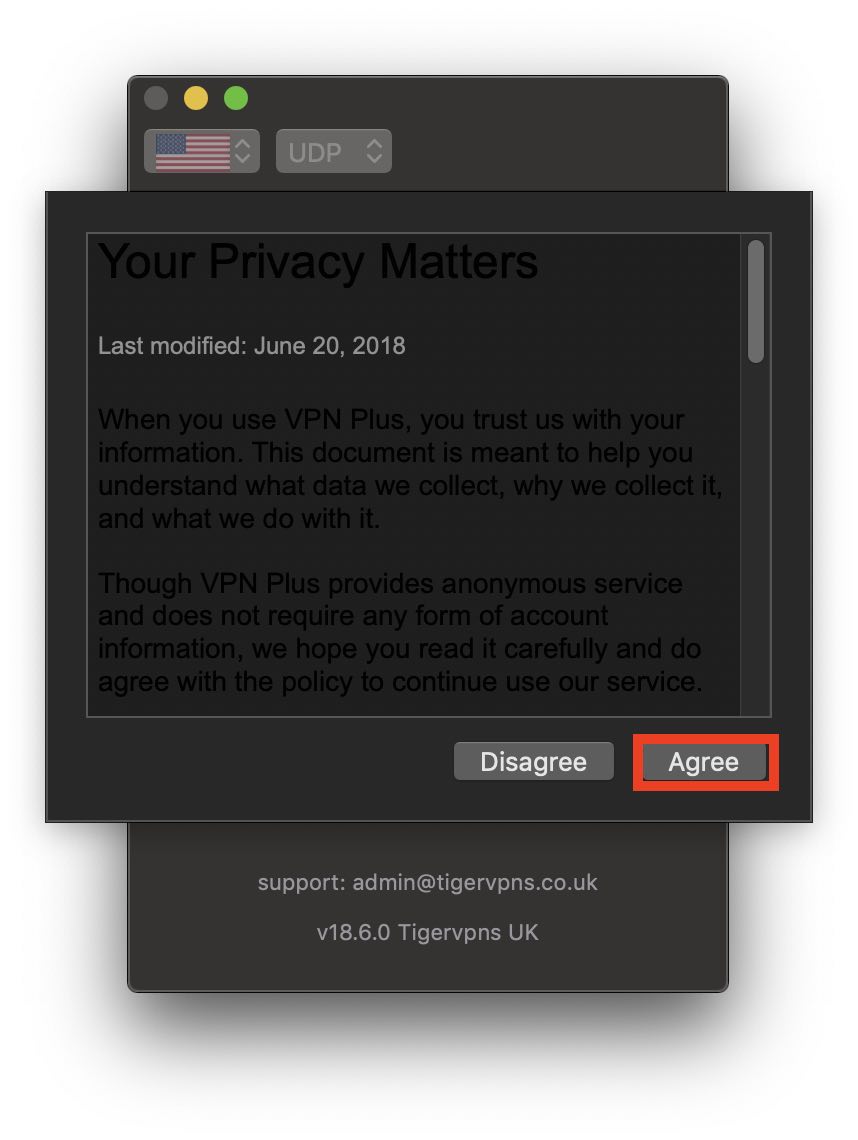
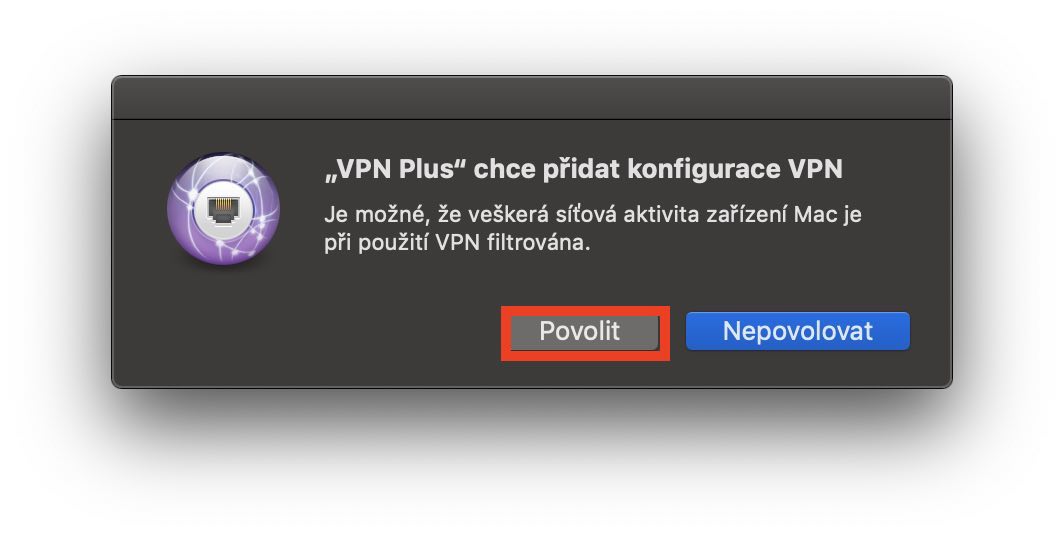
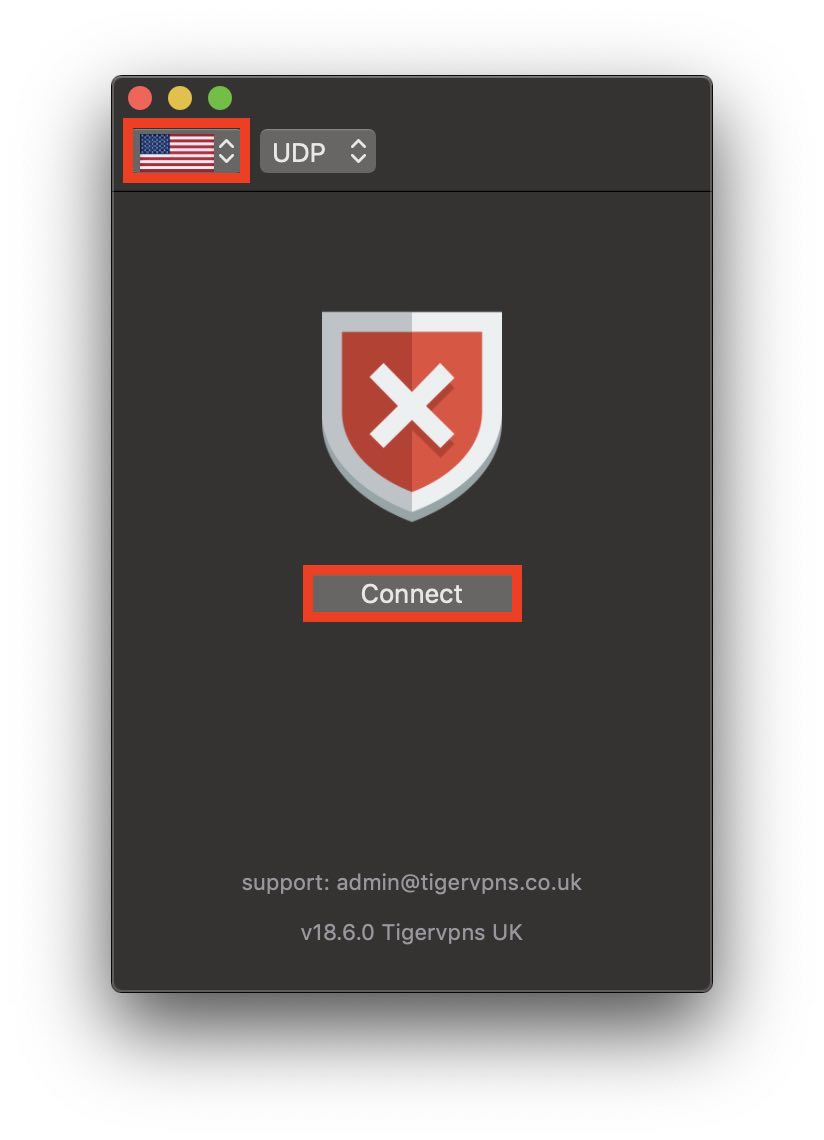
In order to activate the VPN, we will first need to App I had to download a third-party program that would allow us to do this. After some searching, I found a program that is simple and, most importantly, free. Program is named VPN Plus and download it from App Store using this link. After downloading, just run the program and in the upper part si select a country, from which you will be connecting - US, Germany and UK are available. After that, all you have to do is press the button Connect. If a window with conditions appears, it is with a button Agree confirm. You will also most likely need to confirm the VPN configuration - just press a button Allow. As soon as you start the VPN, the program will display how much data has already been "protected". If you want to exit VPN mode, just press the button Disconnect.

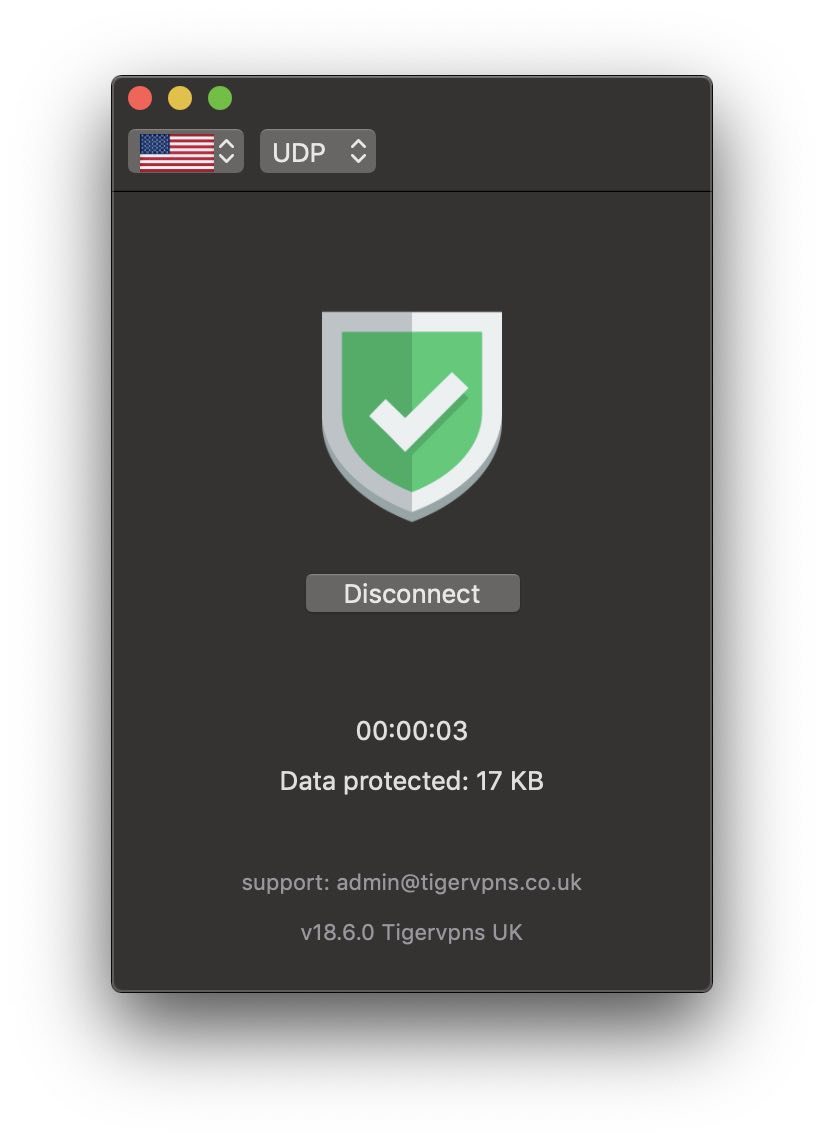
There are definitely many other ways to run a VPN on your Mac. However, in this guide, I wanted to show how to activate VPN as easily as possible, for free and mainly for the entire system, not just for one browser. Of course, there are paid VPN programs that give you many more options – for example, multiple servers around the globe from Japan to Uganda. However, I think that for the needs of the average user, the VPN Plus program is absolutely sufficient.




I downloaded this VPN application – it is one of the few that is free. Both for my laptop and for my iPhone and iPads.
When I wanted to join, I read (fortunately not a very long text) that I am entrusting information when transferring data to that company. So I haven't connected via VPN yet and out of curiosity looked at WHO.IS who owns the freevpn.pw domain - and to someone in Panama. Where the GDPR doesn't work at all...
As for data protection, how can I be sure that this is not a fiduciary VPN provider that, under the pretext of "data protection and privacy", will not tunnel data (e.g. when logging in to banking, e-mail, etc.)?
Does anyone have experience with this app?
You don't have to worry about internet banking or email because they use https security.
I am using a VPN connection using QNAP NAS, where I run my VPN server. I have the data on my personal NAS (I don't share it with any third parties) and everything is secure ;)
That is do you have a NAS at home and do you use the VPN outside the home network?
However, I'm not sure if you're talking about transferring data between the computer outside and the data at home on the NAS.
Or do you have a VPN server on your computer all the time and it ensures your privacy even when browsing on public wifi?
Both options can be used, I use the second solution in addition to two other VPN services, especially when connecting to different public wifi.
Uncle: do you mean the solution described by Stark71?
Can you pls answer my questions that I addressed to Stark71?
it's Pavel: I have a NAS in a network where a VPN server is running and wherever I am (outside), I use encrypted communication on my laptop or mobile, so yes, browsing on the public network is safe + I also have encrypted access to data on the NAS (thanks to the VPN server, as if I were in the local network).
But I leave the VPN encryption on my laptop and mobile on, even when I'm at home, on my home network.
Stark71:
questions… :)
Is the VPN server a feature in your NAS, or did you install it? Alternatively, what do you use for VPN in the NAS?
Do you have a paid version on your laptop or just configured based on NAS?
I would appreciate help with the setup and procedure for getting the VPN up and running on the NAS and then using it on my laptop. I am using a Western Digital NAS. Cloud EX2.
Stark71:
So new info. My NAS does not support VPN or except paid OpenVPN. And neither does my UPC router. I must be unlucky, see?
Even so, I would be interested in how you have the VPN resolved on your laptop...
it's Pavel: The VPN server is directly on my QNAP US see: https://bit.ly/2EqEvoW
Setting the VPN connection to Windows or macOS is a matter of time. I use L2TP or for example Tunelblick is available on masOS for OpenVPN, etc., I saw a little here, for example: https://bit.ly/2SJvcU7
(by the way, don't be mad at me, but WD Cloud something is not a NAS, it is unfortunately just a "stupid storage that can't do anything", and moreover, it is as leaky as a reed - you can find a lot of information about that, for example on root.cz etc.)
that's right, a panama company running goddamn business for free on vpn? it is necessary to realize that I use vpn to protect myself, but due to the functioning of the system, I completely trust the service provider who can see my data and traffic.
so in this case, thanks but definitely not. I'd rather go without vpn.
Of course, the author didn't send this vpn by chance, but it's affiliate using a link - basically, this website has become an affiliate + advertising website
I don't use any VPN, nor do I need anyone to monitor my activity and everything... and some people pay for it... poor people like Petr are victims of their own stupidity and digital dementia... I don't have any antivirus or any demented VPN on my mac... all that shit ..things slow down the computer
And what about your “poor” internet provider? 🙃