
One of the best things it brings iOS 11 for your iPads is undoubtedly a redesigned multitasking. Thanks to the new operating system, it will literally absorb you and allow you to do things that you probably craved in previous versions. So let's introduce the most basic multitasking elements.
You might be interested in
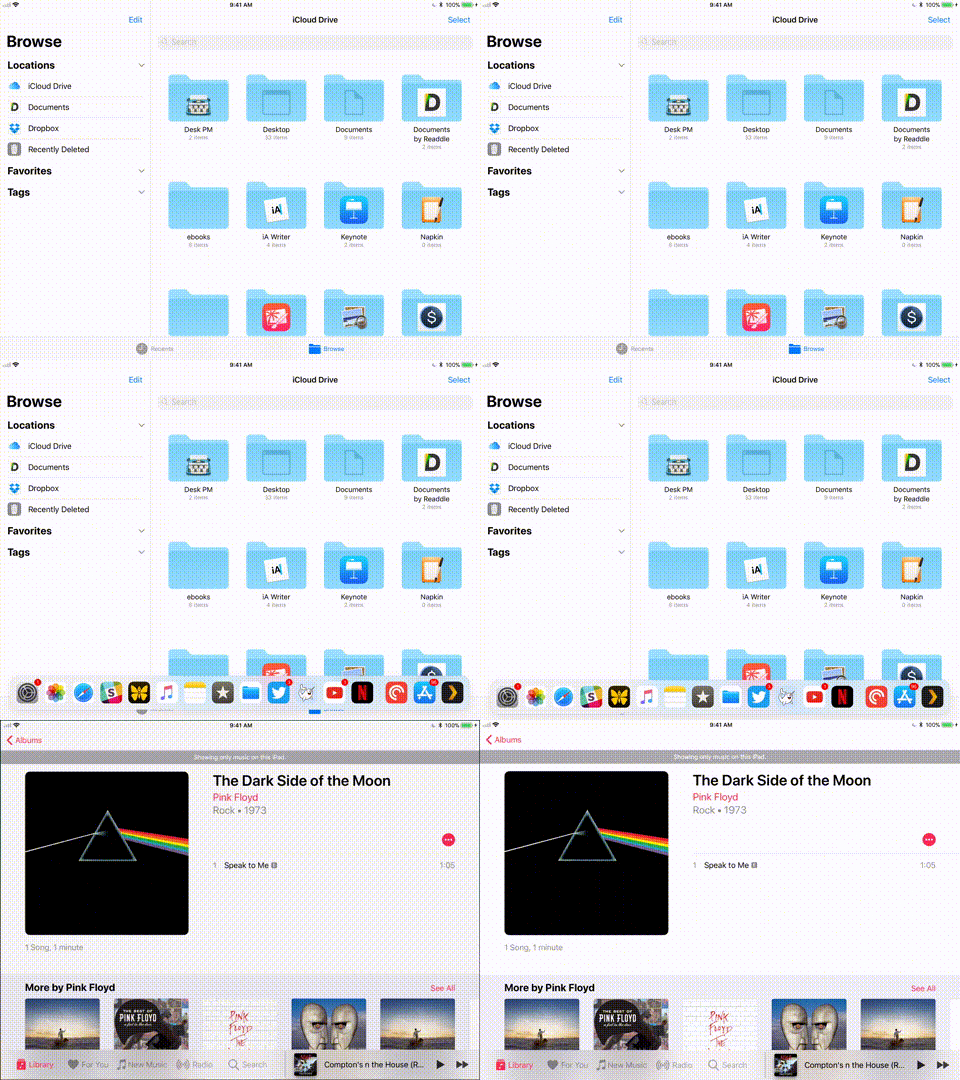
Correctly selected applications for the lower docku are the basis
The huge change that the new iOS 11 allows, is the possibility to expand the range of existing applications in the lower docku up to fifteen items. These should include the things you use most often on your iPad and expect to need to run them even when multitasking. This will eliminate the need to return to the home screen and delay your work.
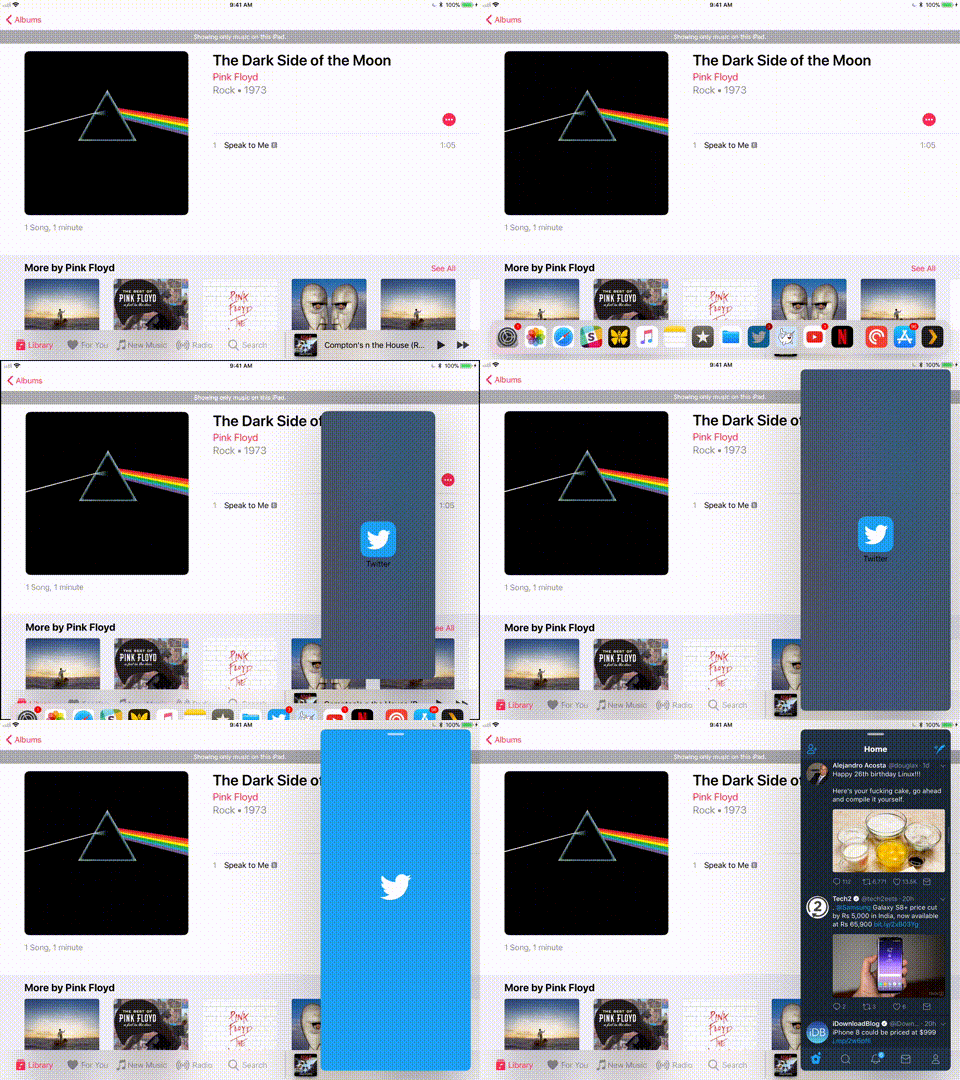
New floating window
A very nice thing is that applications can be launched in small windows that "float" on top of the application you are currently working in. This way you can easily check the latest news from Facebookor interesting tweets on Twitter without having to "throw away" your work in progress in the application or somehow rearrange all the windows.
- Slide out the bottom dock with a range of applications
- Choose the app you want to use, hold your finger on it and drag it towards the center of the screen. A window will open in which the application will run.
- To move an application to the opposite side of the display, simply drag it by its top bar.
- If you are tired of the application and want to close it, "slide" it from the display to the right. However, if you want it again after a while, you can easily slide it out from the right side of the display in the same way.
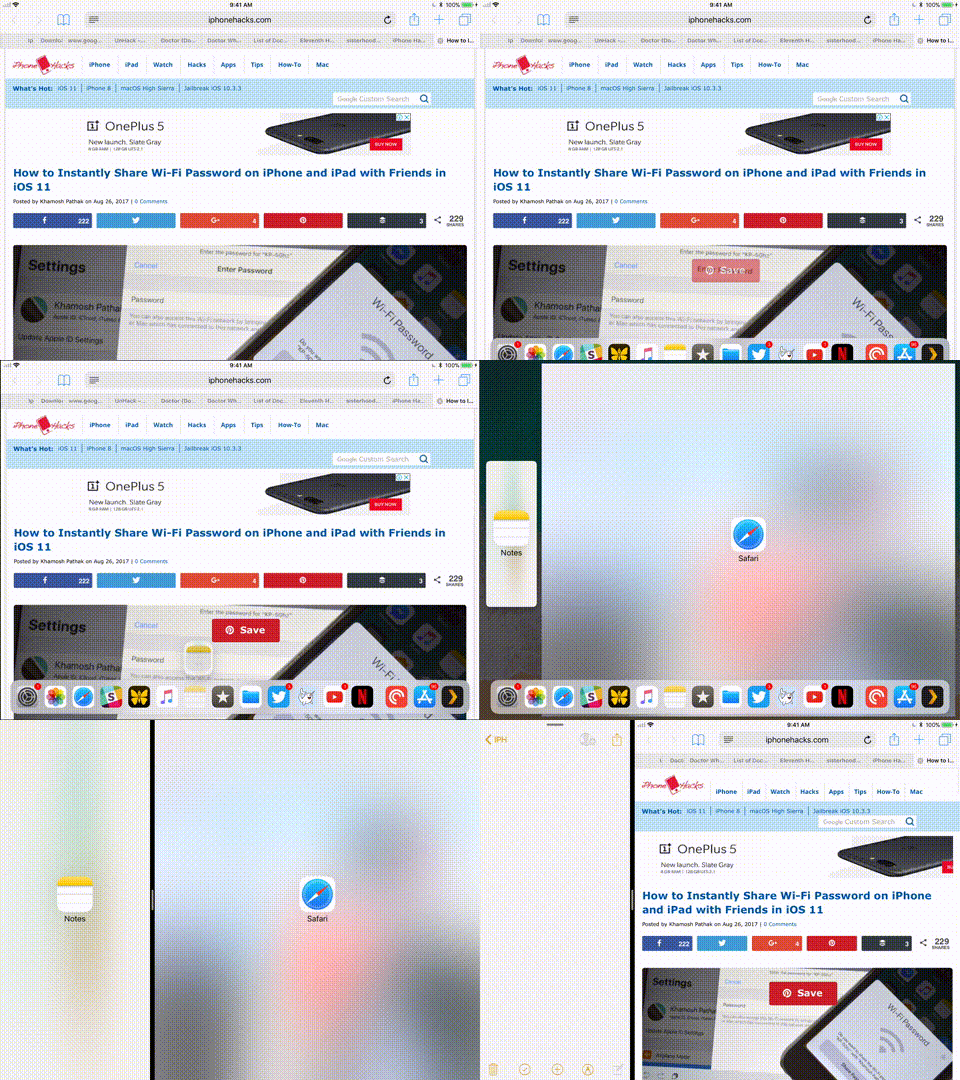
Layout of running applications
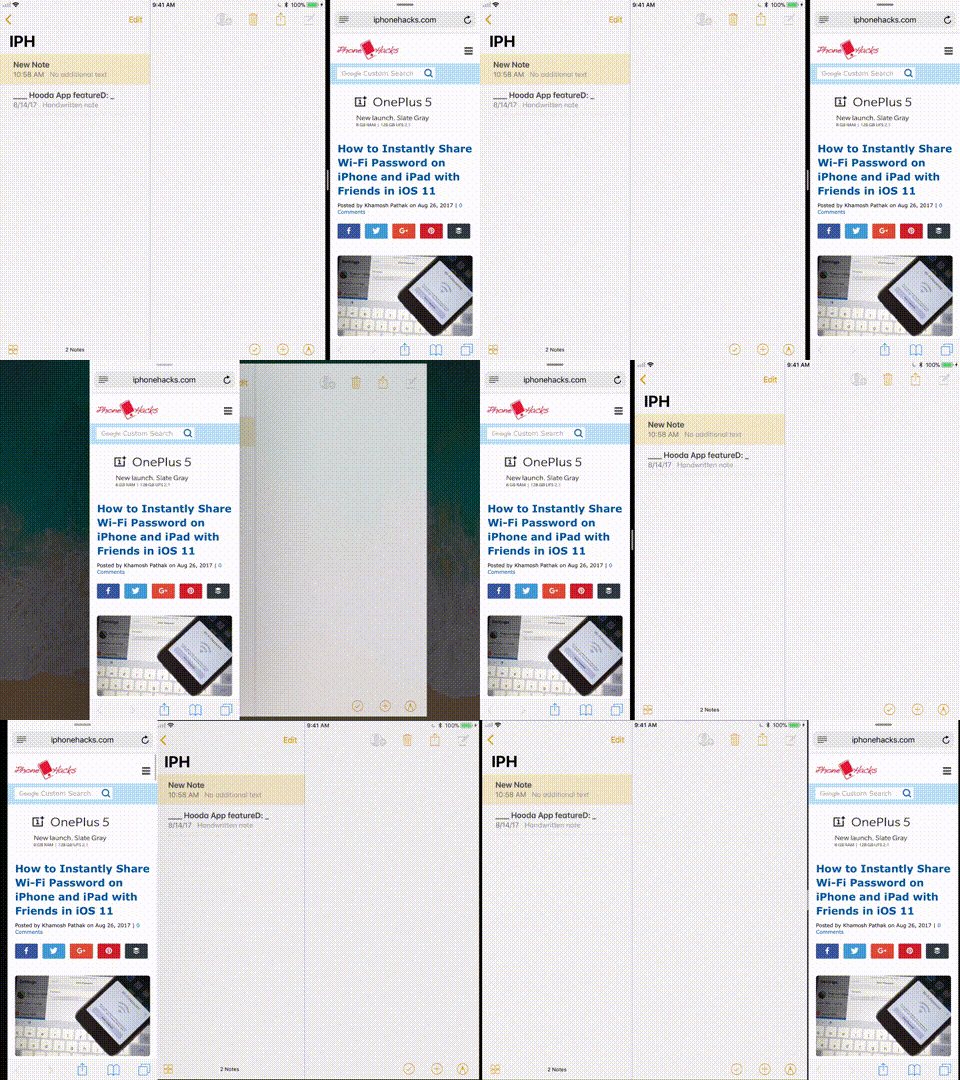
- After launching the application, slide out the bottom dock and select the application you want to launch as the second one on the display
- Hold the selected app, then drag it to either the left or right edge of the screen. It will soon turn into a dark rectangle that marks the outline of the application window.
- Release your finger and let the app open to the predetermined shape.
You can of course change the aspect ratio of the individual windows by moving the center bar. Just grab it and adapt the individual windows to your own image.
Moving apps from one side to the other
If you don't like the order of the apps on the screen, you can of course easily change it.chat.
- At the top of the frame in which the application is running, you will see a bar when you click on it.
- Grab the bar and simply drag the app to the side that suits you.
Application switcher
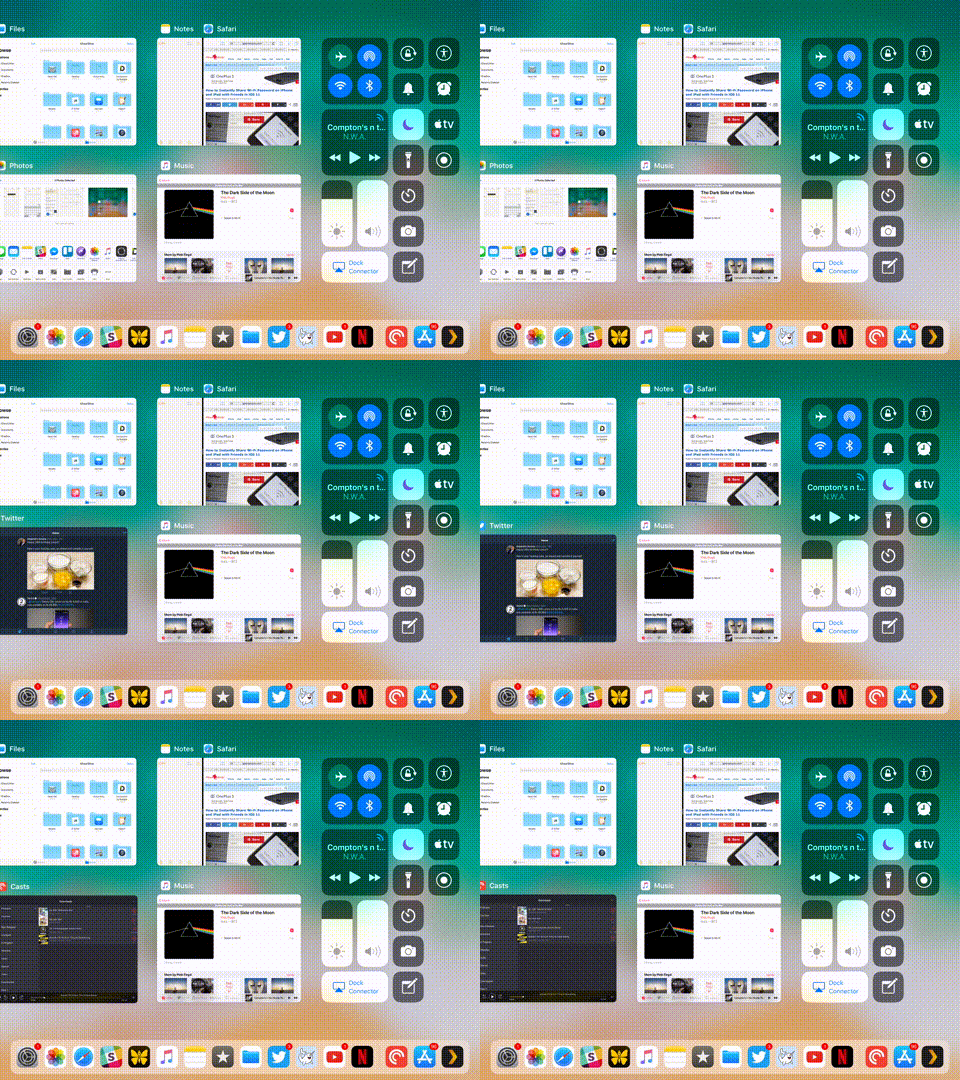
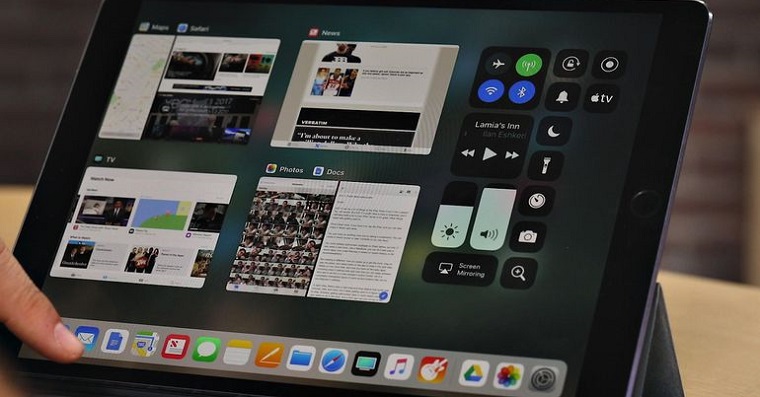
A rather interesting new feature that will show you practically all the information about the processes on your tablet is the completely redesigned application switcher. You can call it up by double-tapping it. Home Button (like the iPhone), or pull it out with a simple gesture from the classic bottom bar. You will find both the control center and running applications in it. If you decide to close the application, simply drag the application up to close it.
We hope that, thanks to the previous lines, you have learned a few tricks for multitasking and will use it without any problems. The thing is really great and often very helpful for iPad users. So I wish you many hours spent browsing your fingers on the screen and combining different applications side by side.
Source: iphonehacks








great guide, thanks a lot
I got it iPad Air and somehow the screen splitting into two parts doesn't work for me
ipad Air(and other older models) do not support it. They only support floating.
Dock and that "Exposé" view is great.
One thing is new. iOS it went bad - I can no longer open the side window appto which I don't have docku. In the previous version, all you had to do was slide down from the top edge and that would open the list of all appiek that support multitasking. It doesn't work in 11. They finished the whole system with such small changes.
It goes to open the side window too appwhich one is not in dockdo it in such a way that you hold the app on the desktop but only so that it does not shake as if you want to delete it, move it and with the second finger click on appto which you want to open together with the first one and that's it. ;)
I have too Air, after 5 minutes I went back to iOS 10 ..
Does anyone happen to have experience with a Mac that the display turns off after an update when connecting any usb?