
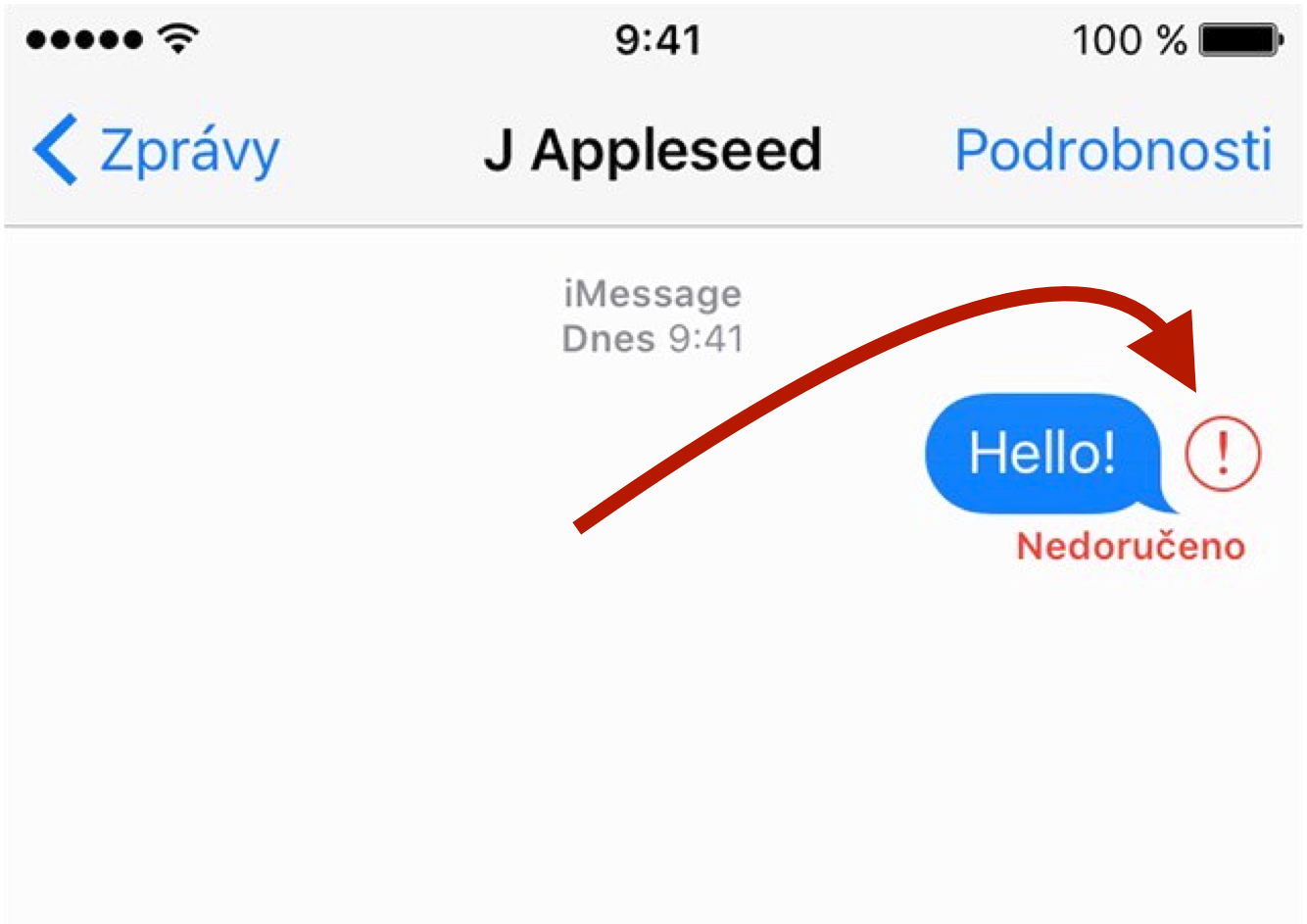
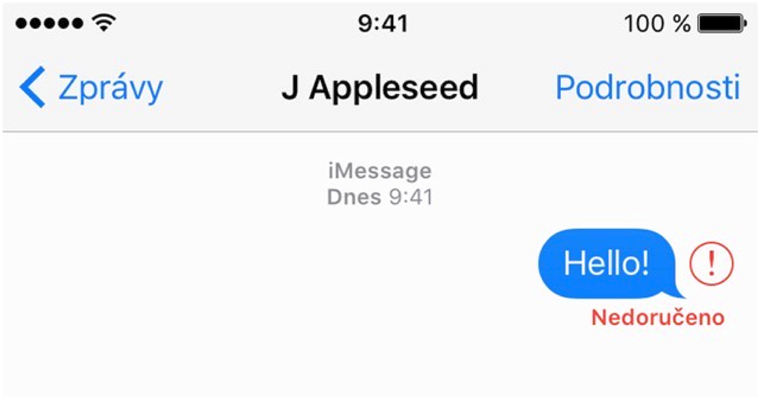
The Messages app on both macOS and iOS can fail in some cases. Specifically, we will now deal with the inability to send a message correctly. If such a situation occurs, you will clearly recognize it by the red exclamation mark with the inscription "Undelivered", which will appear below the written message. This is a very annoying error, which is fortunately easy to solve. You can easily resend undelivered messages using a little trick, even on a Mac.
You might be interested in

How to resend undelivered messages
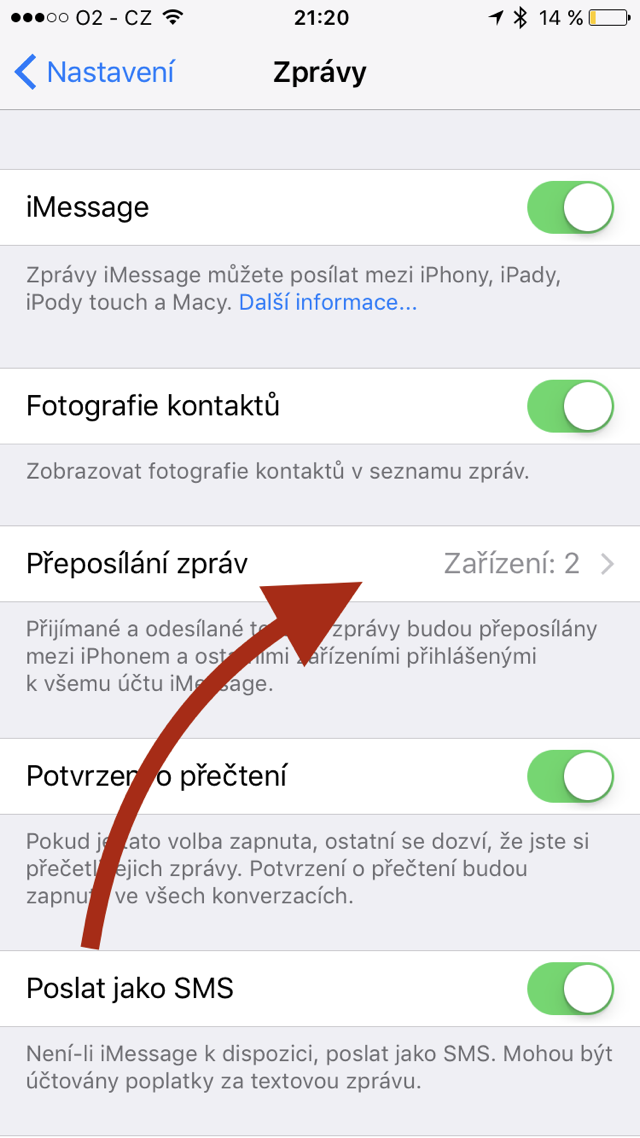
This option allows you to send undelivered text messages from the Messages app, including iMessages. Sending and receiving text messages on your Mac requires enabling this feature on your iPhone in Settings > Messages > Message Forwarding.
- Open the Messages app on macOS or iOS and find the undelivered message you want to try resending.
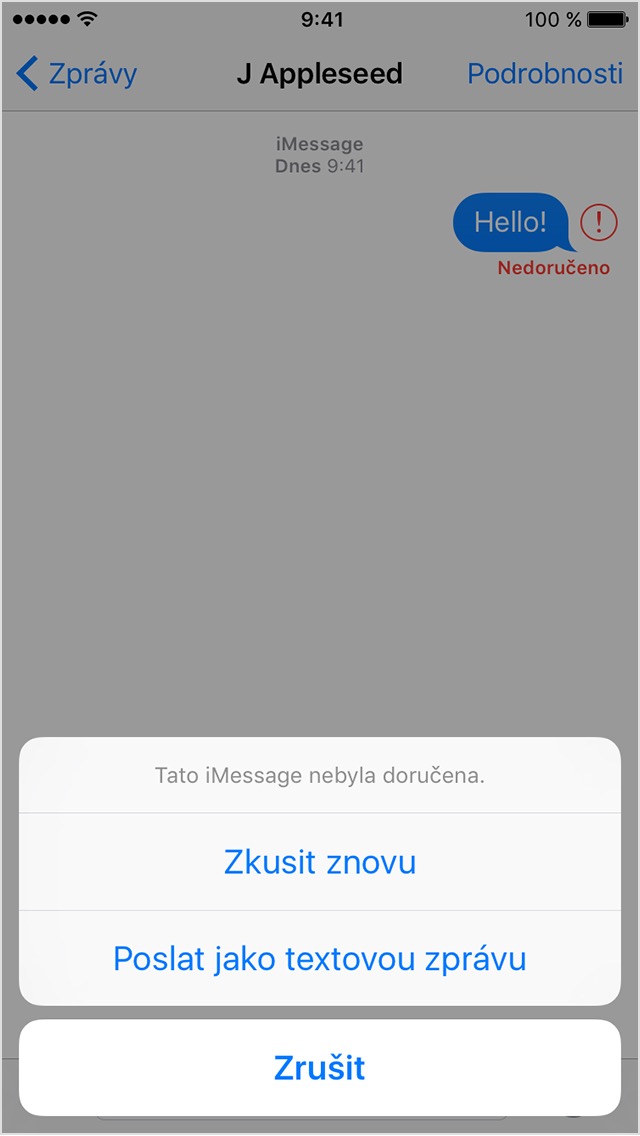
- Click on the red exclamation mark next to a undelivered message and a menu of options will appear.
- If the problem message was iMessage, it is advisable to first try the option Try again. If this second attempt also fails, send a message as A text message.
Gallery
ProIs sending messages failing?
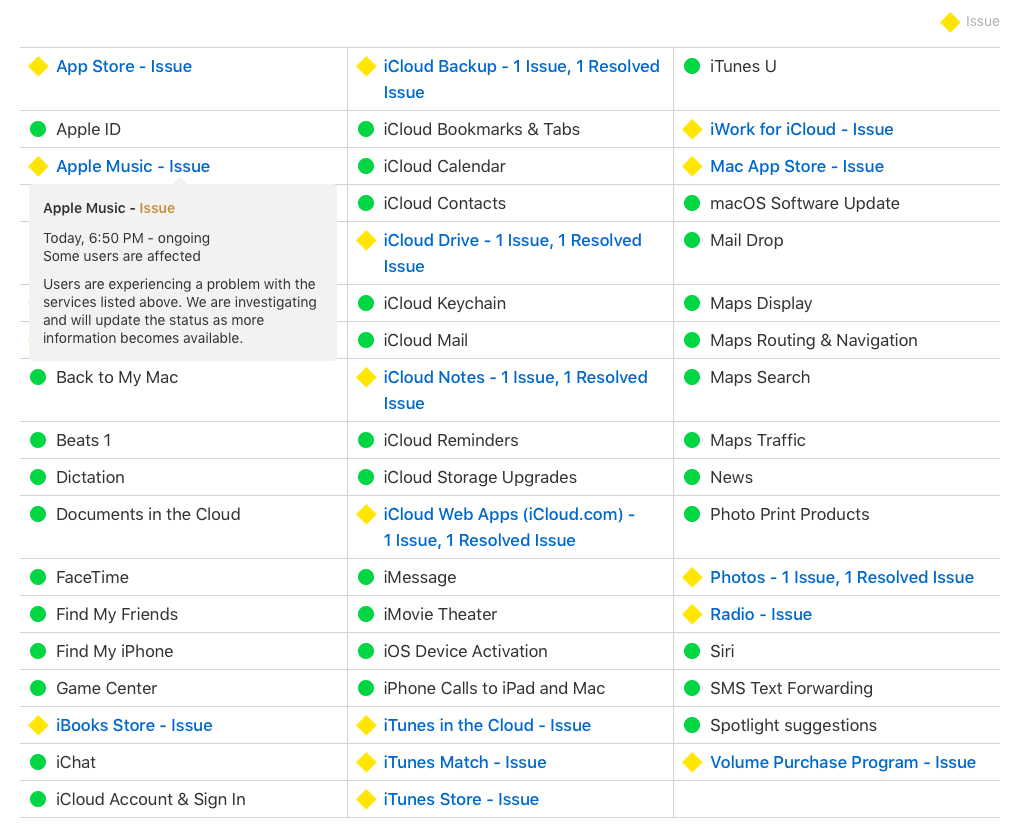
There are many reasons why your message may not have been sent. The most common is a poor internet connection or mobile signal on your or the recipient's device. ProThe problem may be that the "Send as SMS" option is disabled, which is supposed to send the message as SMS if it is not iMessage available. All possible problems causing the inability to send messages can be found directly on the official Site Applu right in the first paragraph. You can also check the current status of the service functionality iMessage and again on official website.


Switch to another operator
Did T-mobile really disappoint in this?
That won't help the same with O2.
Okay, I have a problem with it being off. imessage and I normally write to everyone via messages but when I want to write to one of my friends I can't send a normal message but only iMessage even though I have it turned off but she normally writes to me via messages...
I never had a problem with it :D :D :D
Hello,
I want to ask for advice. I have a problem sending SMS (not iMessage, only SMS). After my iPhone ran out of battery, I put it on charge and since then I can't send SMS. "Undelivered message" appears. With the operator (Vodafone) I spoke and the problem is more directed towards iphone, and I only bought the phone a few months ago. iOS I am 12.2. Can you please advise me?
Thank you
Hello, I have the same problem..I can't send a message
After discharge iPhone I charged my phone and since then sending SMS has not worked. "Message not delivered" appears and a red exclamation mark with "try again" (but it doesn't appear anymore - send as SMS)
ProI need advice, thank you :)